














While apps can be incredibly useful, they can also become a major distraction when it comes to staying focused. As a parent, if you’re keen to help ensure your child can concentrate when they need to—or perhaps you’re looking for a solution to help yourself focus—an app blocker could be the answer. We’re going to round up the very best app blockers below to cut down on the distractions.
Key Takeaways
- App blockers are a useful way to maintain focus by cutting out distracting apps and websites.
- Parental control tools often incorporate app blockers to limit kids’ access to certain apps and sites.
- You can use most app blockers to block apps entirely, by category, or for a specific time.
- App blockers can vary in compatibility, reliability, and the features they offer. It’s vital to choose the best one for your needs.
- Findmykids is a great option that offers strong, flexible app blocking and a wide range of additional parental control tools to keep children safe on and offline.
Contents:
What is an App Blocker?
An app blocker is a tool that helps parents manage how children use their devices by limiting access to distracting or inappropriate apps. Instead of relying on constant reminders or taking a phone away, parents can set clear boundaries that encourage healthier screen habits and reduce digital distractions.
Most app blockers work by letting parents create rules or schedules that determine when certain apps can and cannot be used. For example, games and social media can be blocked during school hours, homework time, bedtime, or family meals, while educational or essential apps remain available. Many parental control apps also allow you to set limits for individual apps rather than locking the entire device.
It’s also helpful to understand the difference between an app blocker and a website blocker. An app blocker prevents specific apps from opening, while a website blocker restricts access to selected websites or web content. For many families, using both together provides more comprehensive protection. For example, you might block games and social media apps while also preventing access to inappropriate or distracting websites through a browser.
15 Best App Blockers
Not all app blockers are designed for parents. Some tools only block distracting apps or websites, while parental control apps combine blocking features with screen time management, activity reports, location tracking, and other child safety tools.
Use the comparison table below to see how the most popular app blockers and parental control apps differ in features, pricing, and overall functionality.
| App | Best for | Supported devices | App & website blocking | Screen time limits | Activity insights | Location tracking | Additional parental controls |
| Findmykids | Best overall parental control solution | iOS, Android | ✅ Apps and app categories | ✅ Daily limits and schedules | ✅ Detailed app usage reports | ✅ Real-time location and history | ✅ Loud Signal, Sound Around, safety alerts, battery monitoring, digital safety tips |
| Kids360 | Best cross-platform app blocker | iOS, Android | ✅ Apps and categories | ✅ Limits and schedules | ✅ App usage reports | ✅ Real-time location | ✅ Educational tasks, website blocking, browser and YouTube history, safety tools |
| Qustodio | Best strict app blocking | iOS, Android, Windows, Mac, Chromebook | ✅ Apps and websites | ✅ Limits and schedules | ✅ Detailed reports | ✅ Location and geofencing (supported devices) | ✅ Web filtering and search monitoring |
| Norton Family | Best for simple monitoring | Windows, Android, iOS | ⚠️ Limited app management | ✅ Limits and schedules | ✅ Activity reports | ⚠️ Limited location features | ✅ Search and browsing supervision |
| AirDroid App Blocker | Best Android parental control tools | Android, iOS (parent app) | ✅ Apps and websites | ✅ App limits and schedules | ✅ Usage monitoring | ✅ Location and geofencing | ✅ Content alerts and remote management |
| Freedom | Best for reducing distractions | Windows, Mac, iOS, Android, Chrome | ✅ Apps and websites | ⚠️ Focus sessions | ⚠️ Basic insights | ❌ | ❌ Mainly blocking-focused |
| AppBlock | Best for iOS app blocking | iOS, Android | ✅ Apps | ✅ Limits and schedules | ⚠️ Basic | ❌ | ❌ Mainly app blocking |
| BlockSite | Best simple blocker | iOS, Android, Chrome, Windows, Mac | ✅ Apps and websites | ✅ Scheduled blocking | ❌ | ❌ | ⚠️ Basic blocking tools |
| StayFocused | Best website blocker | Chrome browser (desktop and mobile) | ❌ Websites only | ✅ Website schedules | ❌ | ❌ | ❌ Chrome extension only |
| Cold Turkey | Best desktop blocker | Windows, Mac | ✅ Apps and websites | ✅ Blocking sessions | ⚠️ Basic | ❌ | ❌ Not designed as parental control |
| One Sec | Best for mindful scrolling | iOS, Android, Mac, Windows (limited features vary) | ⚠️ Limited | ❌ | ⚠️ Basic | ❌ | ❌ Habit-focused tool |
| Mindful Browsing | Best for building self-control | Chrome browser | ❌ Websites only | ❌ | ❌ | ❌ | ❌ Reminder-based approach |
| Refocus | Best for flexible blocking | iOS, Android, Mac, Chrome (availability varies) | ✅ Apps and websites | ✅ Limits | ✅ Analytics | ⚠️ Location-based blocking | ❌ Limited parental features |
| Y-Productive | Best for older teens | Windows, Mac | ⚠️ Desktop/web activity | ❌ | ✅ Detailed reports | ❌ | ❌ Productivity-focused |
⠀
The right app depends on what you want to achieve. Below, we review the best app blockers for kids, including dedicated blockers and full parental control apps.
Editor’s Choice: How Findmykids Goes Beyond Traditional App Blockers
Findmykids app
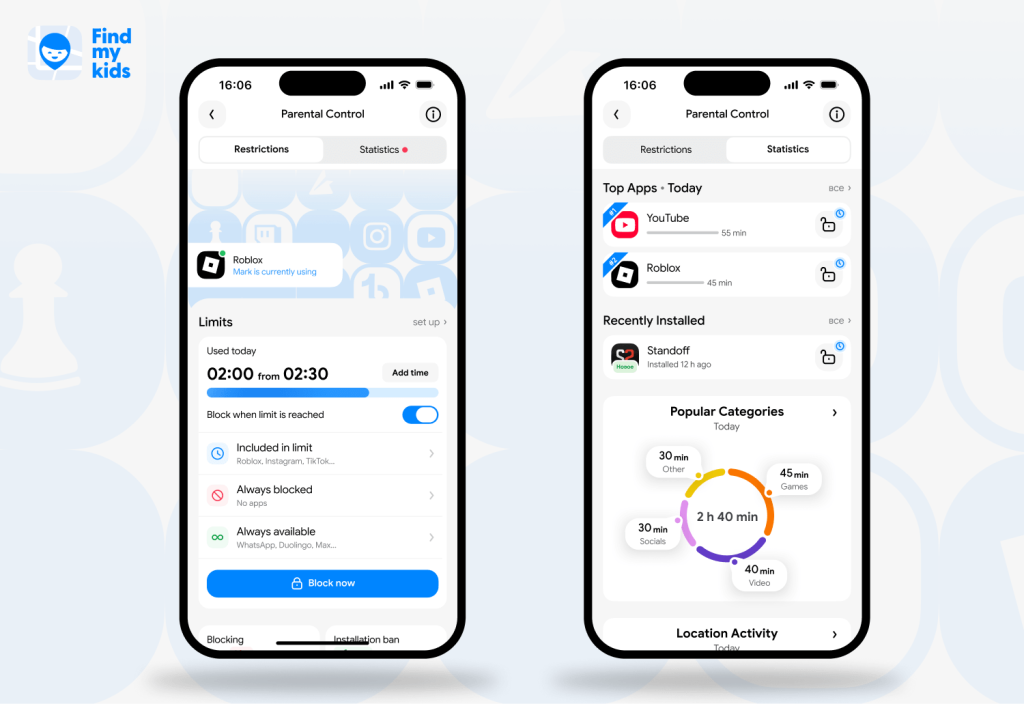
When it comes to traditional app blockers, Findmykids is built differently. Its comprehensive array of tools is intuitive, easy to use, and about understanding your child’s digital habits rather than simply overriding them. At the platform’s heart is care rather than control, and building awareness rather than blindly blocking content.
That’s not to say Findmykids doesn’t offer a powerful app-blocking toolkit: it does. As well as blocking apps entirely, you can also limit their use to set times and for a set period. This allows you to, for example, designate between 8.30 pm and 7 am as sleep time, and 4 pm and 5 pm as homework time, so your child can’t access distracting apps during these periods.
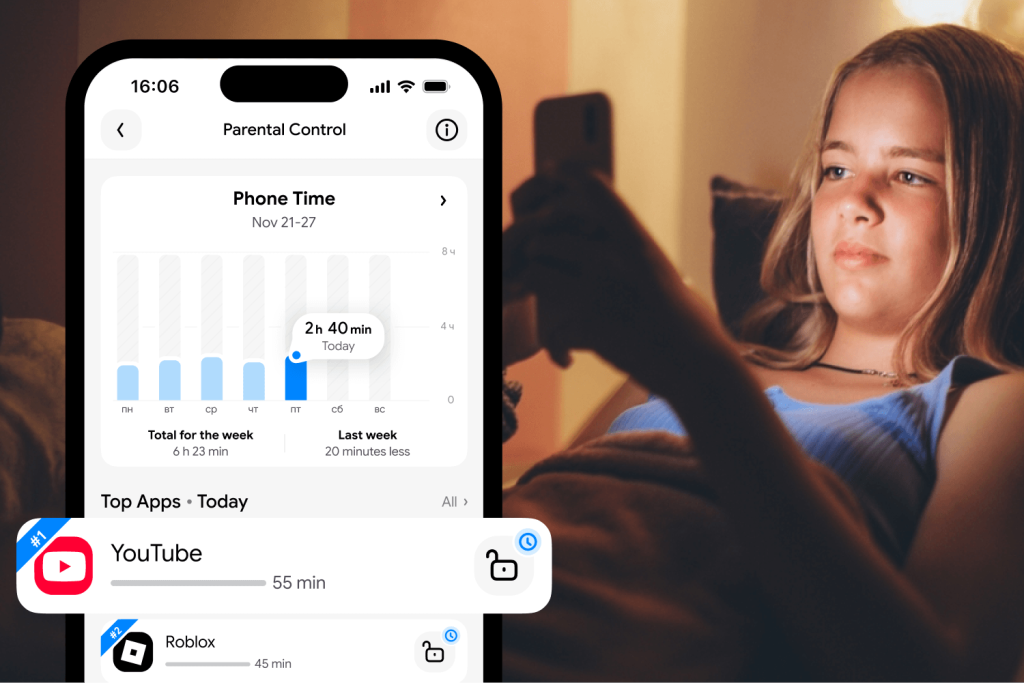
Plus, it offers deep insights into how your child is spending their time online, so you can spot potential problems before they emerge. Perhaps you notice your kid is suddenly spending a lot of time on a specific app they’ve not shown interest in before, or is trying to access an app late in the evening—this could prompt a conversation to find out what’s going on.
Detailed reports mean you can view both the specific apps and categories of apps that your kid is accessing most, as well as see their activity by location and time, such as at school or at night.
Findmykids app
Key Features
Findmykids offers much more than app blocking. Parents can:
- Block individual apps or groups of apps
- Set daily app time limits
- Create recurring schedules for school, homework, bedtime, or family time
- View detailed app usage reports and screen time statistics
- See which apps their child uses most often
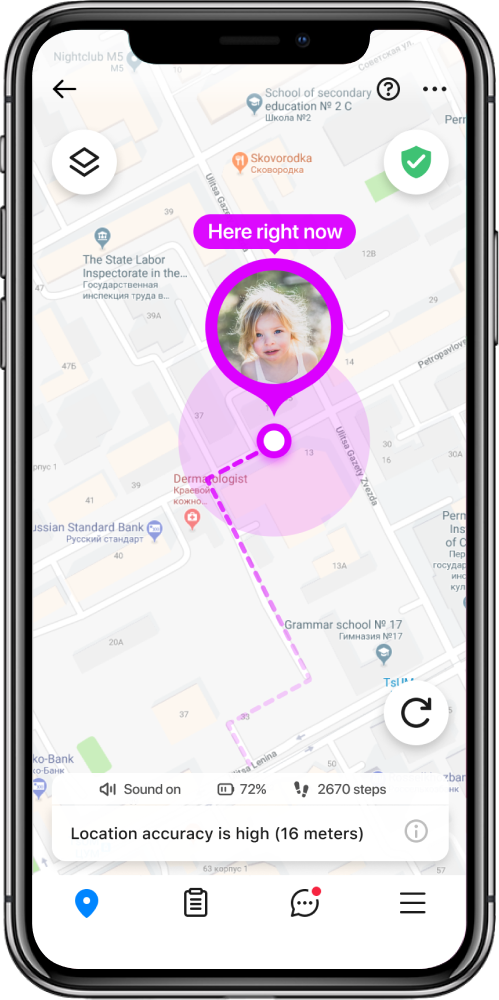
- Track their child’s real-time location and review location history
- Receive notifications when a child arrives at or leaves important places
- Send a Loud Signal even if the phone is on silent mode
- Use Sound Around in emergency situations to better understand what’s happening nearby
- Receive low battery alerts
- Access practical parenting tips and expert guidance on digital safety and healthy screen habits
Price
One of Findmykids‘ biggest advantages is that all of the essential features most parents need are available in the free version. Families can start using core safety and screen time tools without paying upfront.
For those who want additional functionality, Findmykids also offers multiple subscription plans, allowing every family to choose the level of features that best fits their needs and budget. Premium plans unlock more advanced controls, deeper activity insights, and additional family safety features while keeping the app flexible for different parenting styles.
Looking for more than just an app blocker? Try Findmykids for free and explore tools that help your family build healthier digital habits while staying connected every day!
Best Cross-Platform App Blocker: Kids360
Kids360 app
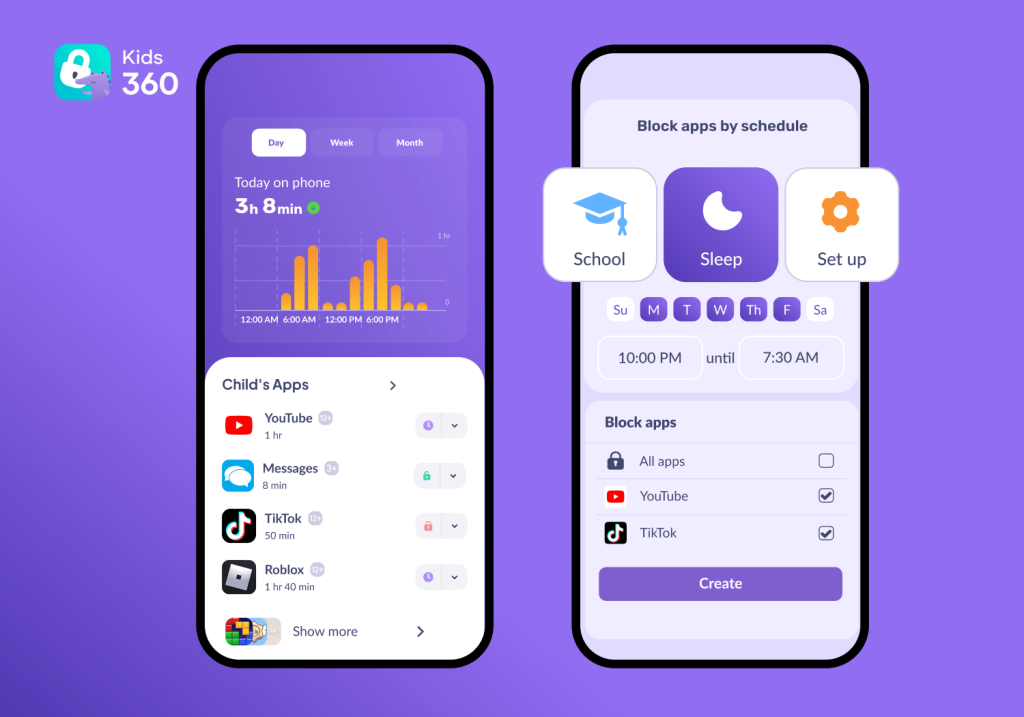
The best thing about Kids360 is that it’s not just a highly effective app blocker but a complete solution for better digital wellbeing designed to nurture trust, balance and safety. Use Kids360 to block time-wasting apps and monitor screentime to keep kids focused on their schoolwork—you can block specific apps individually or by category, as well as set daily time limits for each app.
What does this mean on the ground? You can block distracting apps at bedtime to stop endless scrolling and ensure a good night’s sleep, or set time limits on how long your child can use a specific app after school. Plus, you get in-depth insights into just how your kid is using their phone, such as the apps they access most and when they’re using them.
Kids360 offers a range of unique puzzles and tasks, allowing kids to earn additional screen time, with challenges designed to enhance both physical and mental skills, and plenty of tools to improve offline safety, too. Regarding the latter, this includes a GPS location tracker, the ability to block unknown phone numbers, and a Loud signal feature, so you can reach your child at any moment.
Key Features
- Block distracting sites and apps individually or by category
- View detailed app usage reports and understand which apps your child uses most often
- Set schedules to manage app usage and screen time
- See recently installed apps on your child’s device
- Block websites with adult content and review browser and YouTube search history
- Let children earn extra screen time by completing educational, creative, and physical challenges
- Track your child’s real-time location
- Check your child’s phone battery level
- Block calls from unknown numbers
Pros
- Easy and effective app-blocking capabilities that work across platforms and devices
- Robust scheduling and screen time management features
- Quick and simple to install
- Free basic plan
- Designed to build healthier digital habits
- A wide range of additional features to promote safety both on and offline
Cons
- May not be suitable for those looking solely for an app blocker without additional features
- No dedicated desktop version available
Price
Kids360 has a free tier that allows users to access basic features. To use the full range of features, you’ll require a subscription—these start from just $2.99 a month.
Best Strict App Blockers
Qustodio
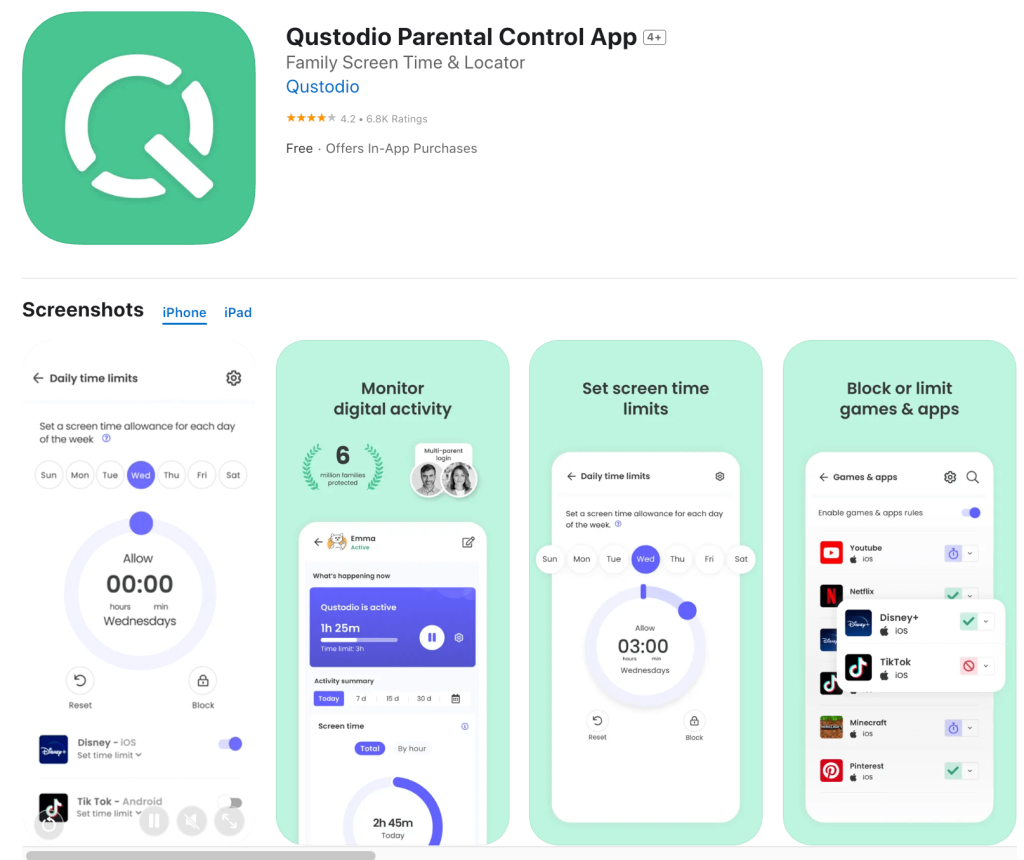
This app and website blocker allows you to easily limit access to distracting sites. Use Qustodio to block entire applications completely to improve focus, set schedules, and limit how long specific apps can be used. The app also allows parents to keep an eye on and manage their child’s screen time, track their location, and offer detailed activity reports on device usage.
Key Features
- Block apps instantly or set schedules
- Set daily screen time limits across devices
- Restrict access to websites and inappropriate online content
- View detailed activity reports and app usage insights
- Track your child’s location and set safe zones with geofencing
- Monitor browsing activity and search history (supported devices)
Pros
- Good cross-platform app blocking capabilities
- Detailed reports on app usage
- Simple, easy-to-view dashboard
Cons
- Possible significant battery drain on older phones
- Only very basic features are available on the free version
- Some parents may find the number of settings overwhelming when first configuring the app
Price
Qustodio has a free version and paid plans. A subscription offering core protection costs $54.95 a year, and it’s $99.95 a year to access the advanced features via the complete plan.
Norton Family
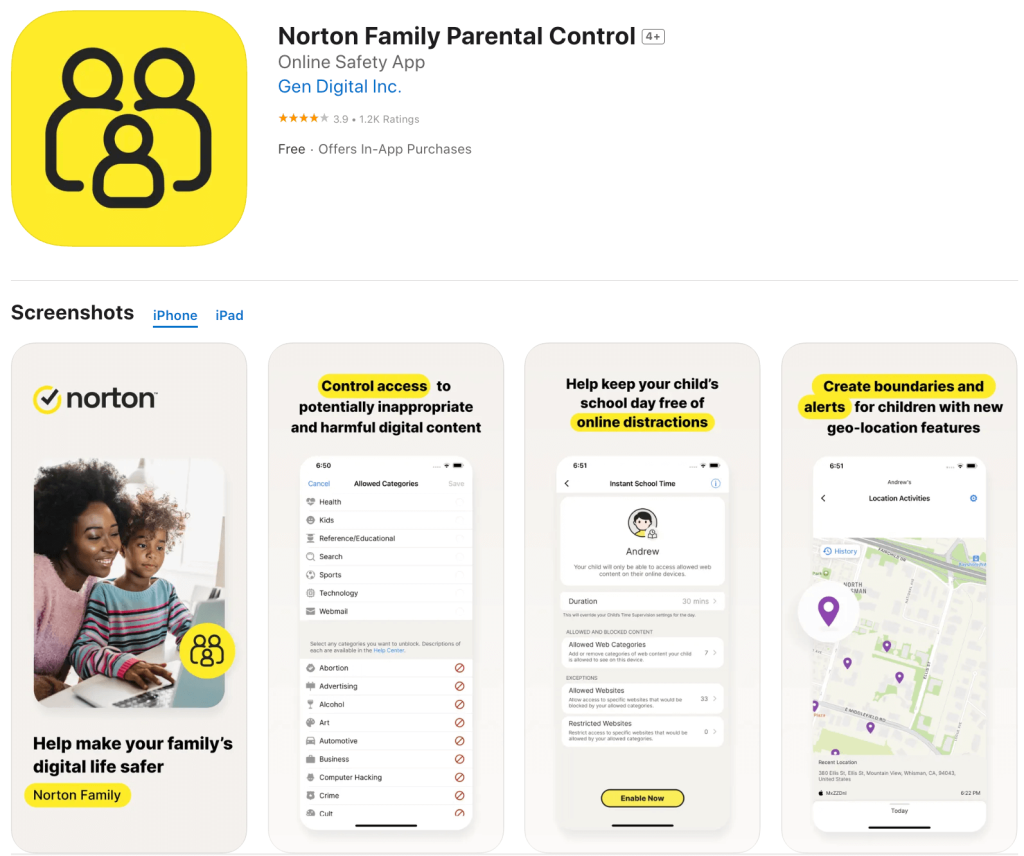
When it comes to app blocker apps, the Norton Family is a solid choice. It offers app supervision and oversight tools, activity reports, and screentime controls to help prevent digital distractions. Parents looking for a straightforward screen time control tool may find this option to be the right app blocker for their needs.
Key Features
- Monitor and manage app usage
- Set daily screen time limits and schedules
- View activity reports and digital usage insights
- Monitor web searches and browsing activity
- Manage device rules from a parent dashboard
- Help create healthier screen time routines
Pros
- Clear, traditional approach to device rules and scheduling
- Good visibility into web searches
- Easy to set up and use
Cons
- Although support is generally robust, it’s less strong for iPhones
- No free tier available
- Fewer advanced app management features compared with some dedicated parental control apps
Price
A Norton Family subscription costs $49.99 a year.
Best Free App Blockers
Freedom
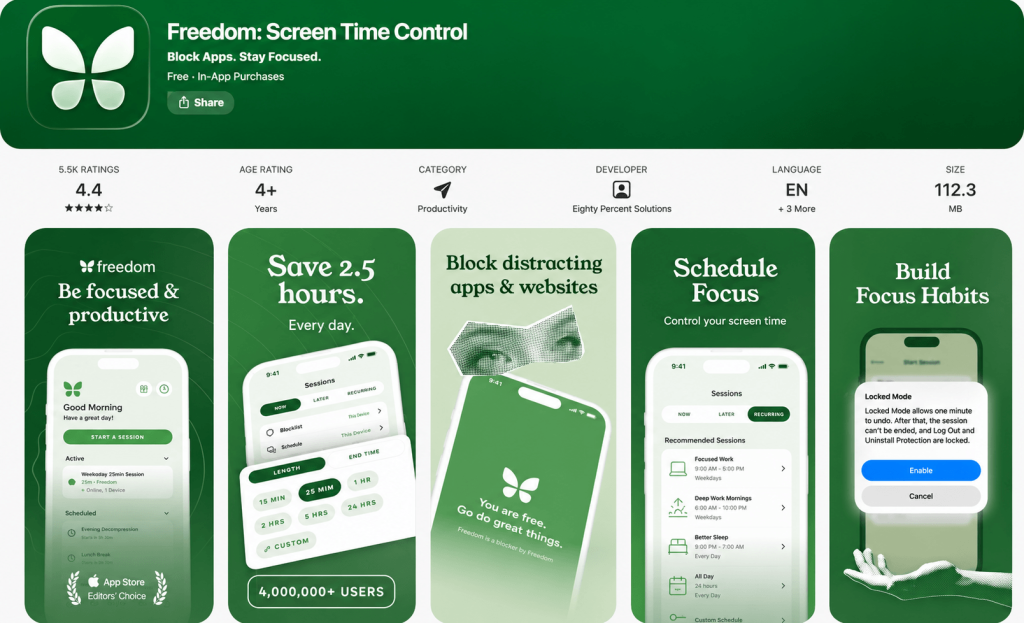
Freedom is a digital wellbeing app that helps families reduce distractions by blocking access to selected apps and websites. While it was originally designed to help individuals improve focus and productivity, parents can also use its blocking tools to create healthier screen habits and limit access to distracting content.
The app allows users to create custom blocklists, schedule focus sessions, and temporarily restrict apps or websites during specific periods. For families, this can be useful for reducing unnecessary screen time during homework, bedtime, or other important parts of the day.
Freedom also offers a Locked Mode, which makes it harder to disable active blocking sessions once they begin. This can help children stay within agreed boundaries when using devices.
Although the Freedom app requires a paid subscription, a free trial is available.
Key Features
- Designed to prevent distractions and schedule recurring blocks
- Customizable blocklists
- Locked Mode so users can’t disable blocking
Pros
- Can synchronize across devices
- Set focus sessions that also cover auditory distractions
- Flexibility: block apps for a specific time or the entire internet
Cons
- May not be effective at blocking distracting sites on certain devices
- To schedule recurring blocks, an upgraded plan is needed
Mindful Browsing
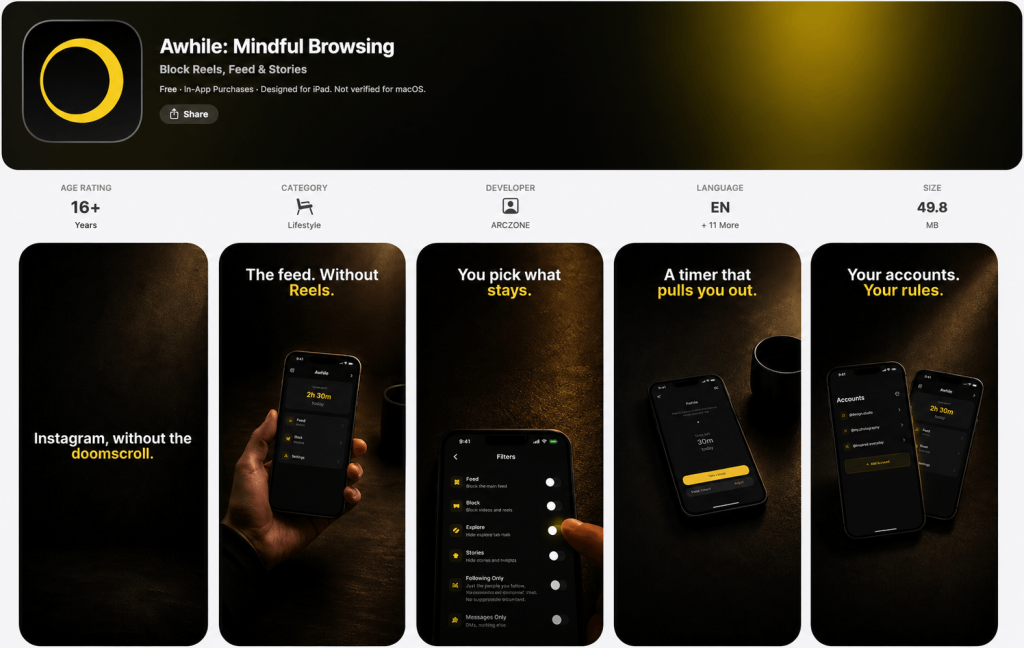
Mindful Browsing takes a different approach from traditional app blockers. Instead of completely blocking websites, it encourages more mindful digital habits by giving users a moment to pause before visiting distracting sites.
For families, this type of tool can be useful for older children and teenagers who are learning to manage their own screen time. Rather than removing access completely, it helps develop self-awareness by encouraging children to think about whether they really want to spend time on a particular website or choose another activity instead.
The extension works by creating a list of distracting websites. When a child tries to open one of these sites, Mindful Browsing provides a gentle reminder and encourages them to reconsider. It can also notify users if they continue browsing a listed website for more than ten minutes.
Key Features
- Create a list of distracting websites
- Receive reminders before visiting selected sites
- Get notifications when spending extended time on listed websites
Pros
- Simple to use
- Encourages self-restraint and productivity
- Open source: users are not tracked
- Free trial available
Cons
- Does not fully block apps or websites
- Works mainly as a reminder tool rather than a parental control solution
- Relies on the child’s willingness to follow recommendations
- Does not include broader family safety features such as screen time limits, location tracking, or activity monitoring
Best for Adding Friction
Cold Turkey
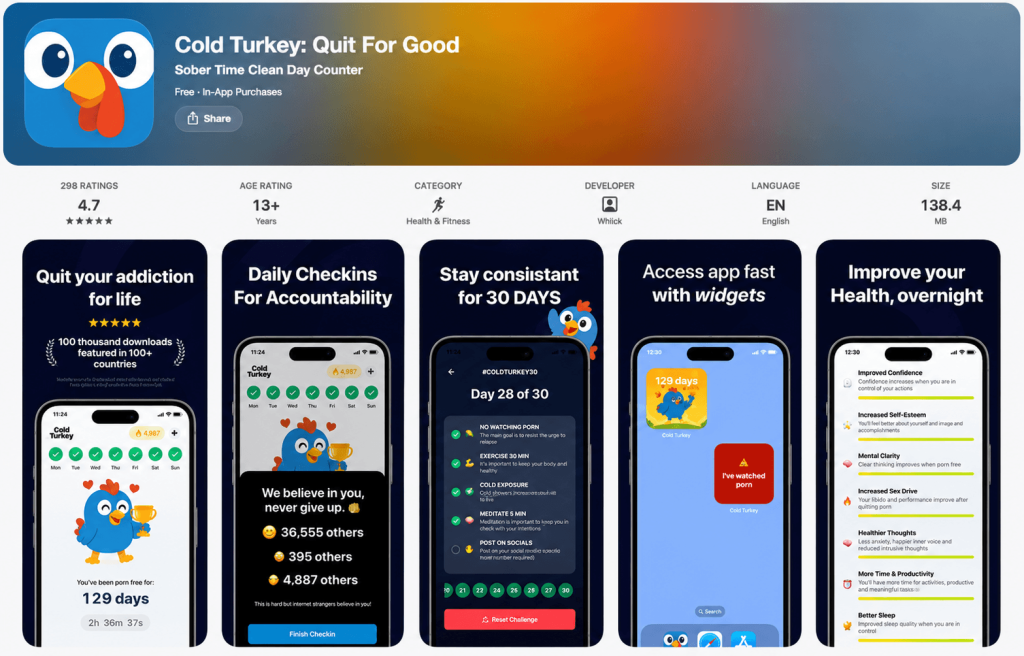
Cold Turkey is a powerful website and app blocker designed mainly for Mac and Windows computers. While it was originally created to help users stay focused and avoid digital distractions, parents can also use it to reduce unnecessary screen time on family computers and create more focused study environments.
The tool allows users to block specific websites, applications, or even the entire internet for a set period. This can be helpful for families who want to limit distractions during homework or encourage children to focus on offline activities.
However, Cold Turkey is primarily a desktop solution and offers limited functionality on mobile devices.
Key Features
- Block websites, apps, or the entire internet
- Create scheduled blocking sessions for study time or focus periods
- Use Frozen Turkey mode to lock computer access for a set duration
- Set time limits and break times
- View insights into websites and apps that take up the most time
Pros
- Powerful and flexible blocking capabilities
- High functionality on Mac and Windows
- One-time payment option for full access
Cons
- Limited functionality on mobile devices
- Not designed as a complete parental control solution
- Advanced features require a paid plan
- Does not include features such as location tracking, app usage insights, or family safety tools
Price
A free version of this app blocker is available. There’s a one-off payment of $39 required to access the full range of features on a single device.
Y-Productive
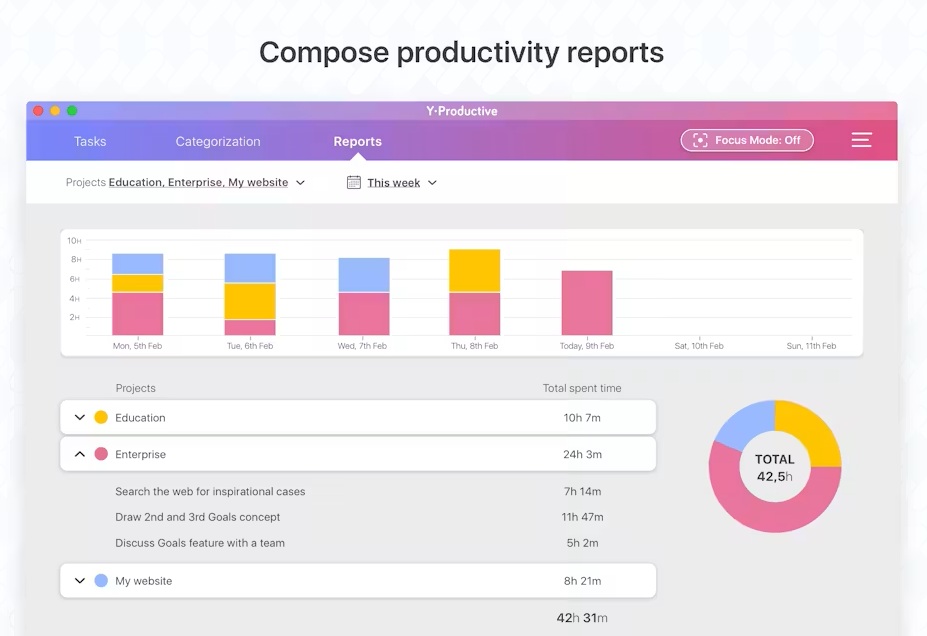
Y-Productive is a digital wellbeing tool designed to help users understand and manage how they spend time online. Instead of acting as a traditional parental control app, it focuses on analyzing digital habits by tracking desktop and web activity and showing which websites or apps take up the most time.
For families, Y-Productive may be useful for older teenagers who are learning to manage their own screen habits and become more aware of how they use technology. By showing patterns in online behavior, the tool can encourage more mindful device use and help users reduce distractions.
However, Y-Productive is primarily designed for personal productivity rather than parental supervision.
Key Features
- Track desktop and web activity to understand digital habits
- Categorize online activities as productive or distracting
- Generate reports showing how time is spent online
- Use Focus Mode with automatic website blocking on supported browsers
- Identify websites and apps that may be reducing focus
Pros
- Analyzes behavior and tracks time spent on websites and apps
- Reveals insights that allow for effective blocking
- Free trial available
Cons
- Some users report that the tool lacks the functionality of alternative blockers
- Unlikely to be suitable to supervise younger children’s time online
Price
A subscription for Y-Productive starts at $10 a month. A free trial is available so you can check out its features before committing to a plan.
Best for iOS
AppBlock
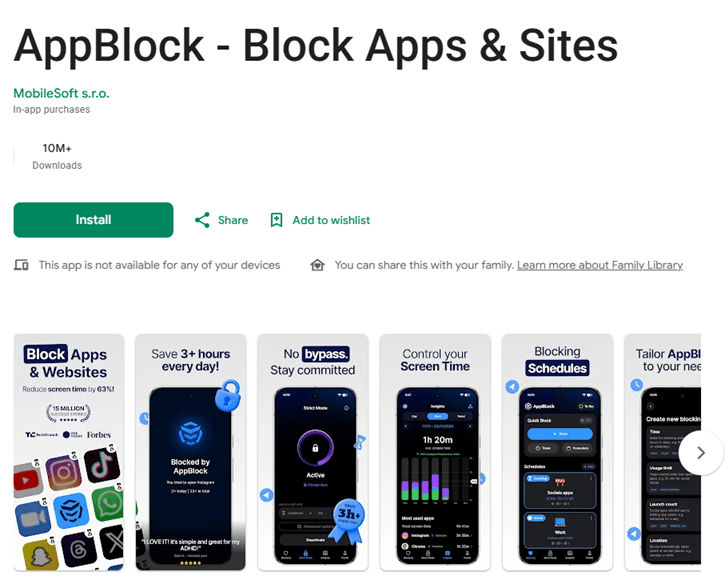
This option is designed to help families create healthier and more balanced digital habits on iPhone devices. Parents can use AppBlock to limit access to distracting apps, set recurring schedules, and create usage limits that fit their child’s daily routine. Meanwhile, Strict Mode makes it harder to bypass active restrictions once they are set.
Key Features
- Block distracting apps instantly
- Set recurring schedules for different parts of the day
- Create app usage limits to manage screen time
- Use Strict Mode to prevent children from bypassing restrictions
- Create different profiles for situations such as School, Study, and Sleep
Pros
- Allows for customizable scheduling for greater flexibility
- Supports blocking across multiple devices
Cons
- Some users report occasional bugs that affect performance
- A paid subscription is required to access premium feature
- Focuses mainly on app blocking and does not include broader parental control features such as location tracking or family safety tools
Price
AppBlock has a free tier and several paid subscription options starting at $4.99 a month.
Refocus
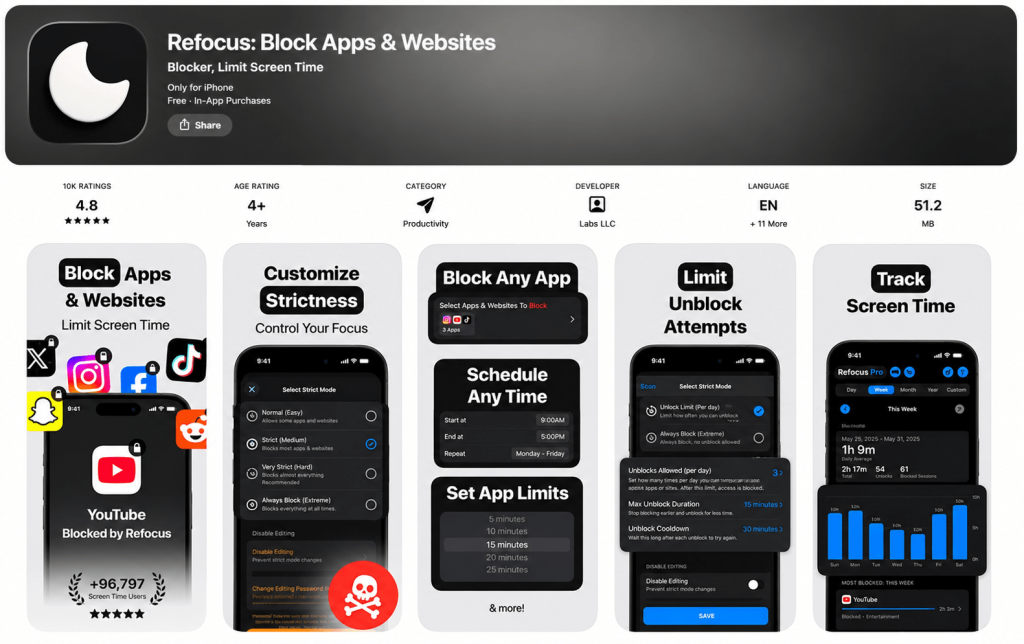
Refocus is a productivity tool that can also help families limit access to distracting apps and websites. It offers basic scheduling and blocking features, allowing parents to create healthier screen time routines for children.
The app also includes location-based blocking, which can be useful for limiting distracting apps or websites in specific places, such as school or home. A strict mode helps prevent children from simply removing restrictions once they have been set.
Key Features
- Easily block apps and websites and pause blocking as required
- Create scheduled blocks and set usage time limits
- Limit unblocking to a certain number of times per day
- Use Strict Mode to prevent bypassing active blocks
- Apply location-based blocking for specific places
- View screen time analytics and usage insights
Pros
- Offers various ways to restrict or block apps and websites
- Simple to set up and use
- Screen time analytics provide useful insights
Cons
- Users report occasional bugs and crashes
- Bypassing blocks may be easier compared to alternatives on the market
Price
Refocus is free to download and use.
Best for Android
One Sec
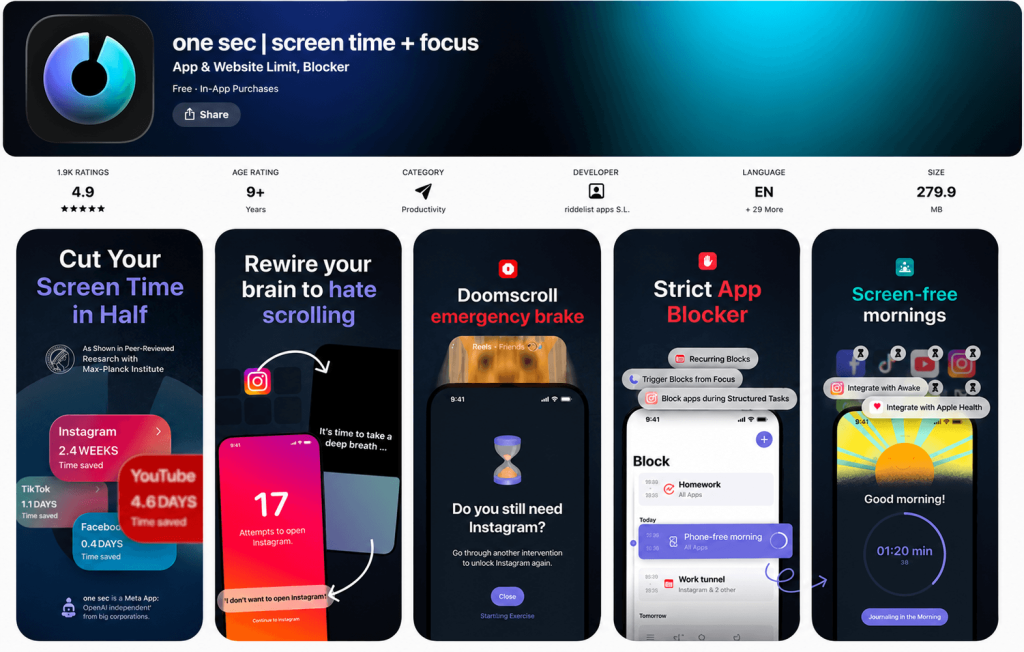
Ideal for helping children and teenagers reduce time spent on social media, One Sec is designed to prevent mindless scrolling and encourage more intentional digital habits. Parents can use the tool to help children become more aware of their screen time and create healthier relationships with their devices.
The app allows families to add friction before opening distracting apps, encouraging children to pause and think before spending time online. It also provides insights into app usage, helping parents better understand digital habits and discuss screen time in a more constructive way.
Key Features
- Add intentional pauses before opening selected apps
- Help reduce excessive social media scrolling
- Provide insights into app usage and digital habits
- Automatically block access after certain conditions are met
Pros
- Automatic blocking is a quick and easy process
- Designed to promote more mindful digital habits
- The free tier offers access to basic features
Cons
- Unable to set daily time limits
- Set up is a little more complicated compared to alternatives
- Focuses mainly on self-awareness and does not include broader family safety features such as location tracking or app management
Price
A free tier is available, which provides access to basic features. A subscription of $19 a year is required to access One Sec’s full range of tools.
AirDroid App Blocker
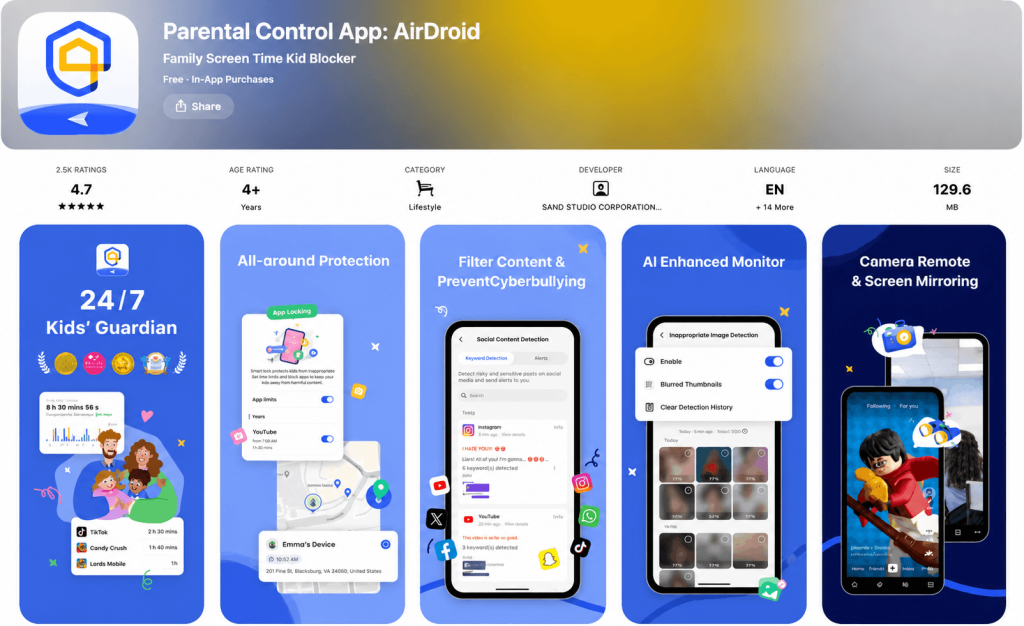
AirDroid App Blocker is part of a wider parental control solution designed to help parents manage their child’s digital habits and limit access to distracting content. Along with remotely blocking social media platforms, games, websites, and other apps on Android devices, AirDroid provides additional tools for screen time management and online safety.
Key Features
- Block distracting apps remotely
- Monitor how long children spend in different apps
- Set app-specific limits
- Create daily schedules for device use
- Track child location and review location history
- Use geofencing tools and receive location alerts
Pros
- Robust app blocking, including remote controls
- App and screen time controls and the ability to set daily schedules and limits
- Useful location and geofencing tools
Cons
- Performance is largely dependent on device settings
- Initial setup requires access and permissions
- Some advanced features require a paid subscription
Price
A monthly AirDroid plan will set you back $9.99 a month. For a quarterly or annual plan, it’s $19.99 a quarter and $59.99 a year, respectively.
Best for the Web
StayFocused
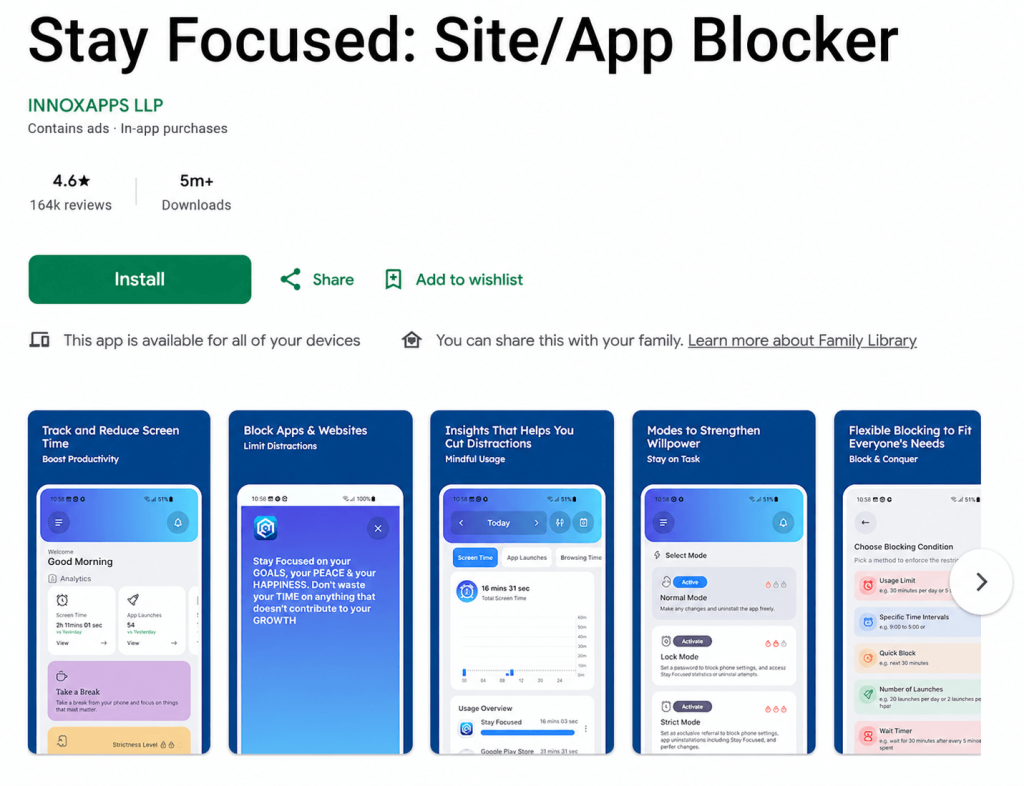
StayFocused is a free Chrome browser extension that helps families limit access to distracting websites. While it is not a full parental control solution and cannot block apps, parents can use it as a simple tool to reduce unnecessary browsing and encourage healthier online habits.
The extension allows parents to block specific websites or pages, set time limits, and create schedules for restricted content. However, its functionality is limited to the Chrome browser, so it may not be enough for families looking for broader control over a child’s device use.
Key Features
- Block specific websites or URLs
- Set time limits and schedules for blocked sites
- Block access to the entire web with selected exceptions
- Use across multiple devices with Chrome support
Pros
- Free to use
- Use across multiple devices with Chrome support
Cons
- Cannot block apps or manage mobile app usage
- Limited to the Chrome browser
- Does not include broader parental control features such as screen time limits, location tracking, or activity reports
Price
StayFocused is free to use.
BlockSite
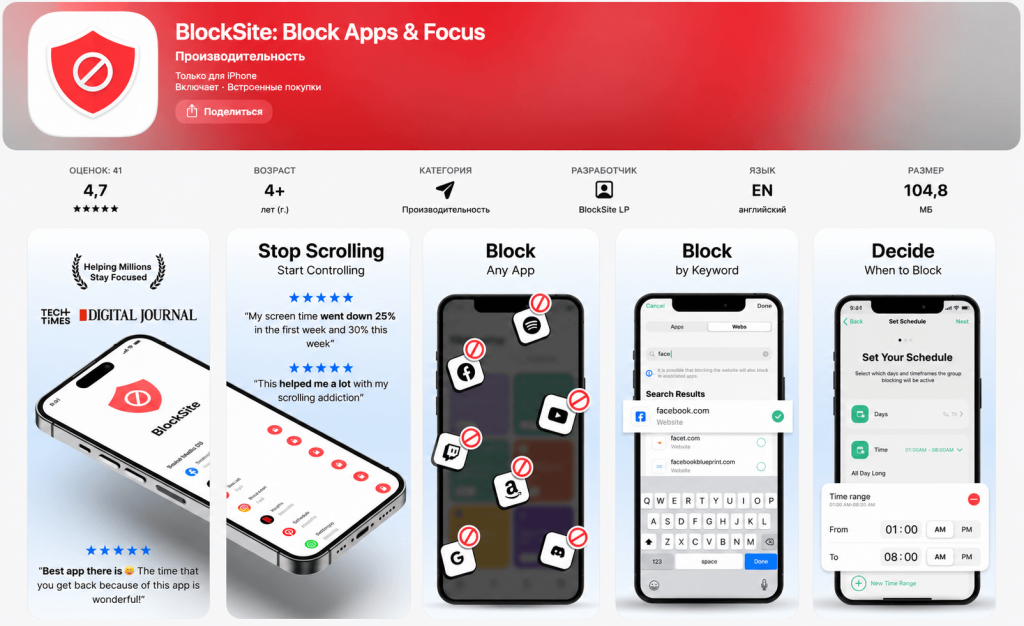
If you’re looking for a tool that helps manage distracting apps and websites across your child’s devices, BlockSite could be worth considering. It works across multiple devices and major browsers, allowing parents to create scheduled blocking sessions and limit access to distracting content.
Parents can block specific apps and websites by category or keyword, create focus periods for homework or bedtime, and use automated schedules to support healthier screen habits. BlockSite also allows families to apply the same restrictions across multiple devices and redirect children to a custom block page with a reminder about why certain content is unavailable.
Key Features
- Block multiple sites and apps by category or keyword
- Create scheduled blocking sessions for specific times
- Use Focus Mode to reduce distractions during important activities
- Customize blocked pages with reminders or messages
Pros
- Uninstall prevention to help maintain focus
- Cross-platform availability
- Customizable, automated block schedules
- User-friendly with a simple interface
Cons
- Reliability issues reported by some users
- Customer support may be relatively unresponsive
- Focuses mainly on blocking and does not offer a full set of family safety features such as location tracking or detailed child activity monitoring
Price
BlockSite doesn’t run on a subscription basis—instead, users make a one-off payment of $29.99 for lifetime access.
Key Features to Look for in the Right Blocker App
Now that we’ve had a dive into the different types of app blockers available, let’s think about how to choose the best one for your unique needs as a family. Here’s what to consider:
- Is it compatible with the device your child uses? For example, does it work on Apple devices, an Android phone, or a desktop browser?
- What do you want the blocker to do? Are you looking to block distracting apps in general or entire applications by category, such as using it to block social media platforms?
- Does the blocker only block apps, or can it block websites, too?
- Can you use the app blocker to schedule when apps can be used and limit how long your child can stay in each app, if required?
- What customization options are available so that you can tailor the blocker for your needs?
- Is the tool reliable, accurate, and easy to use?
- How much does the blocker cost? Is there a range of plans so you can choose the one that’s right for you? Is a free trial available so you can check the blocker out before committing to a subscription?
It’s also worth taking a look at the app blocker’s privacy policy to ensure it’s not collecting (or selling) unnecessary personal data.
App Blockers vs Built-In Screen Time Tools
Built-in screen time tools are platform- or device-native apps and features designed to monitor and reduce screen time. They include, among many others, Apple Screen Time and Android Digital Wellbeing.
If you’re considering using built-in screen time tools rather than an app blocker, it’s important to be aware of their limitations. For example, reviews from users suggest Apple’s Screen Time app has limitations around a lack of scheduling tools and easy block bypassing. In general, third-party app blockers offer a more robust and flexible solution and better peace of mind for parents.
Nurturing Safe, Healthy Screen Time Habits
As a parent, using an app blocker should be about promoting lifelong healthy digital habits, rather than simply imposing control. To this end, it’s a good idea to seek a parental control tool that focuses on building trust and balance and nurturing personal growth. Combined with regular, open communication about safe and healthy online use and ensuring the right screen-real life balance, an app blocker is a powerful tool to help make sure your child enjoys a positive online experience.
FAQs
What is the best app blocker?
The best app blocker will largely depend on your unique family’s needs. In general, Findmykids, Kids360, Qustodio, and Norton Family are all strong options for reliable app blocking.
Can app blockers block both apps and websites?
Usually, app blockers can be used to block both apps and websites—for example, Findmykids offers both of these options. However, this is not always the case, and you should check the tool carefully to discover its capabilities.
What is the best free app blocker?
There are many high-quality free app blockers, and choosing the best one will depend on your needs and circumstances. Many app blockers offer a free tier or free trial period, so you can try out their features and tools before committing to a paid plan.
Can app blockers be bypassed?
It is sometimes possible to bypass app blockers. If you’re looking for an app blocker to block distracting apps on your child’s device, be sure to choose one that offers some form of bypass protection to prevent your kid from getting around any blocks you apply. Findmykids also includes protection against app removal, helping parents maintain the rules they set and keep screen time limits in place.
Are app blockers good for kids?
App blockers can be really useful for kids, allowing them to focus when at school, doing homework, during family time, or to relax and switch off before bed. The best app blockers allow you to schedule blocking and set time limits on app usage.
What is Apple Lockdown Mode?
If Apple’s Lockdown Mode is initiated, the phone will not function as it normally would, with certain apps, websites, and features either strictly limited or entirely unavailable. It’s an extreme form of protection against very sophisticated cyberattacks.
Cover image: Naiklon1 / magnific.com
Проверьте электронный ящик