















Location tracking is becoming a normal part of family life. A 2026 national poll from C.S. Mott Children’s Hospital found that about one in two parents track the location of their young adult children, most often for peace of mind or in case of an emergency.
For families with younger children and teens, a family locator app can make everyday check-ins easier—from knowing when a child has arrived at school to finding out where they are when plans change. But not every app offers the same level of location tracking, safety features, or parental controls. Below, we compare five popular options for iPhone and Android to help you find the one that fits your family.
Key Takeaways
- Findmykids is the strongest all-around family locator for parents who want child-focused location tracking, location history, safe zones, SOS alerts, and screen-time controls in one app.
- Kids360 combines family tracking with screen-time limits and content monitoring, making it useful when digital habits matter as much as real-time location.
- Life360 is a strong family tracking app for households with teens and drivers because it adds crash detection, driving reports, check-in tools, and broader driving safety features.
- Google Family Link is a practical free family locator app for Android-focused families, while Apple Find My is the simplest free choice for families already using Apple devices.
- No tracking app can promise a perfect, exact location at all times. GPS, Wi-Fi, cellular service, permissions, battery life, buildings, and whether the phone is online can all affect location accuracy.
Contents:
Which Family Locator App Fits Your Family?
The best family tracking app depends on what you want to know and what devices your family members carry. Some parents want basic tracking, while others want real-time tracking, location alerts, location history, emergency tools, and screen-time controls in the same place.
| Brand | Best for | Main location features | Parental controls? |
| Findmykids | Child-focused family safety | Family circles, real-time location, location history, safe zones, movement history, routes and places reports, location alerts, SOS alerts, battery status | Yes; screen-time limits, schedules, app blocking, website filtering, activity reports |
| Kids360 | Location plus screen-time management | Live location, exact location, past routes, battery status | Yes; screen-time limits, app blocking, schedules, website filtering, and app-installation controls |
| Life360 | Families with teens and drivers | Family map, location sharing, Places alerts, location history, check-ins, crash detection, driving reports | Limited; focused more on location and driving safety |
| Google Family Link | Android families wanting a free plan | Current location, family places, arrival/departure alerts | Yes; screen-time limits, app management, content filters, and app-installation controls |
| Apple Find My | Apple-only households | Location sharing, live location, arrival/departure alerts, device finding | No; Apple Screen Time handles parental control separately |
How We Compared the Family Locator Apps
These apps were compared using their current official support pages and product documentation, with extra attention to location tracking, real-time updates, location history, emergency tools, cross-platform support, parental control options, free plan limits, and paid plans.
A tracking app is still a tracking tool, and it depends on the device’s GPS, network connection, permissions, background activity, and battery life. Even a strong family locator app can briefly show an old or approximate location if those inputs are unavailable.
5 Best Family Locator Apps
Below, we compare five popular family locator apps to help you see how their features differ and which type of family each one may suit.
Findmykids: A Family Locator Built Around Child Safety
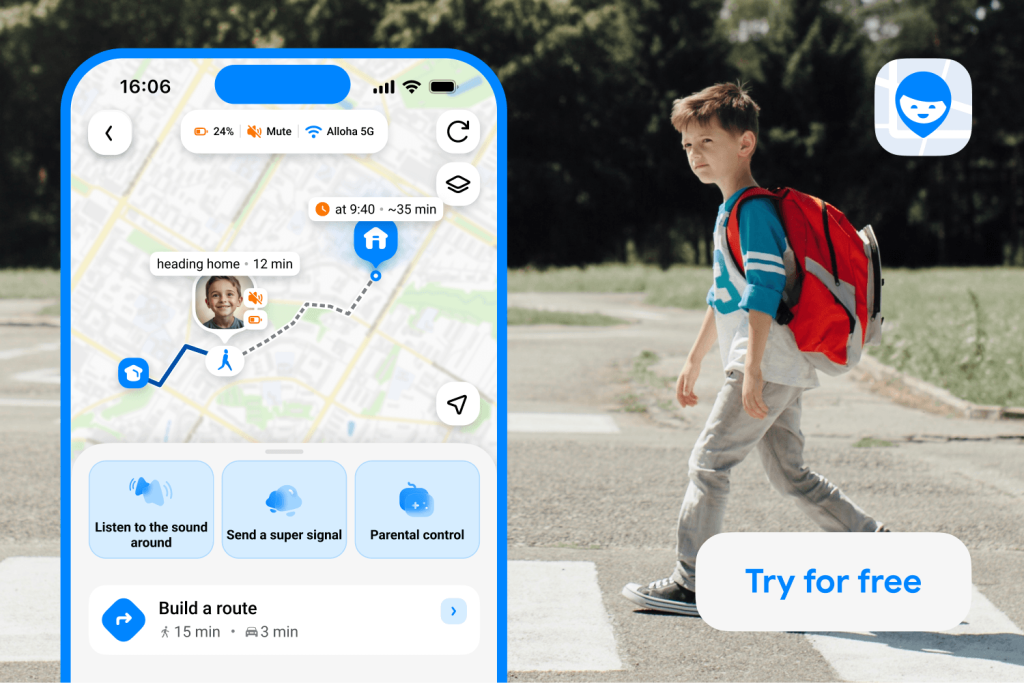
Findmykids is a family locator app and tracking app designed around family safety rather than general-purpose location sharing. You install Findmykids on the parent’s device and on the child’s device, connect the two, and grant the permissions needed for location tracking. The app works with iPhone and Android devices; it can also connect to supported GPS watches.
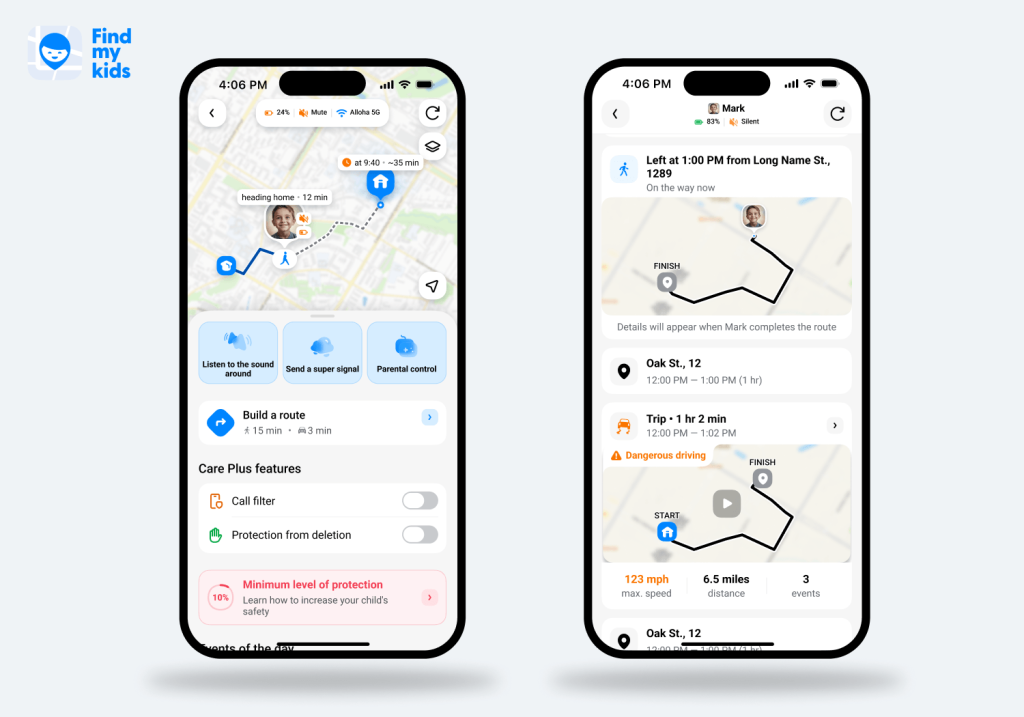
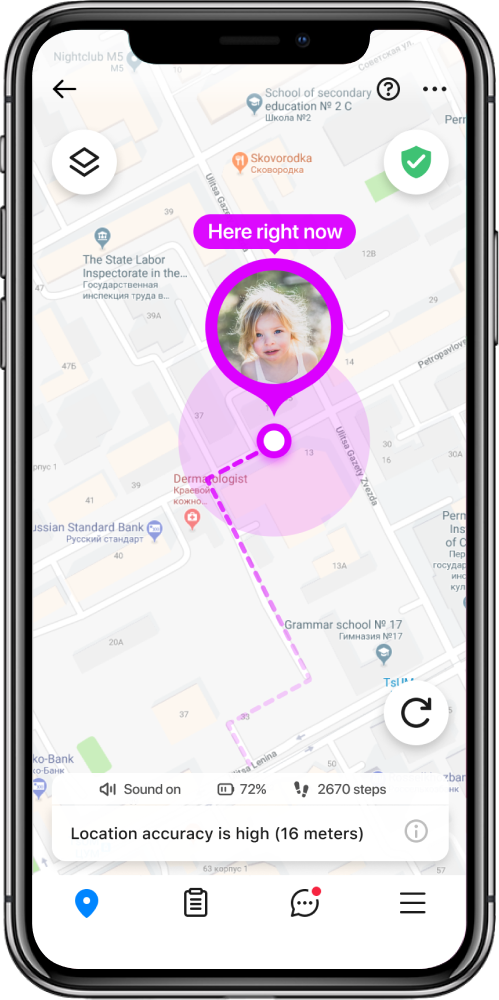
Findmykids’ main strength is location tracking and detailed movement reports. Parents can see a child’s real-time location on a map, review past routes and daily movement history, and see route details such as stops, distance, duration, and movement type. Family Circles let family members share their live locations and stay connected in one private group.
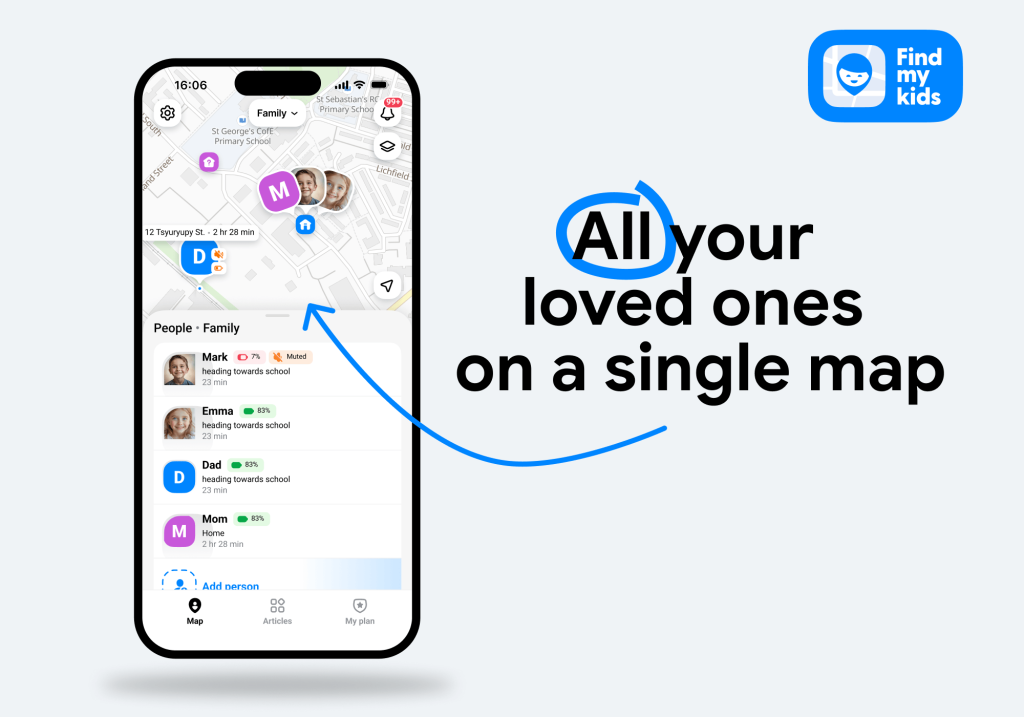
Arrival alerts are useful for routine family tracking because you don’t need to stare at the shared map. You can set geofenced areas and receive alerts when a child arrives or leaves. Findmykids also shows frequently visited places and can predict where a child is heading and approximately when they will arrive.
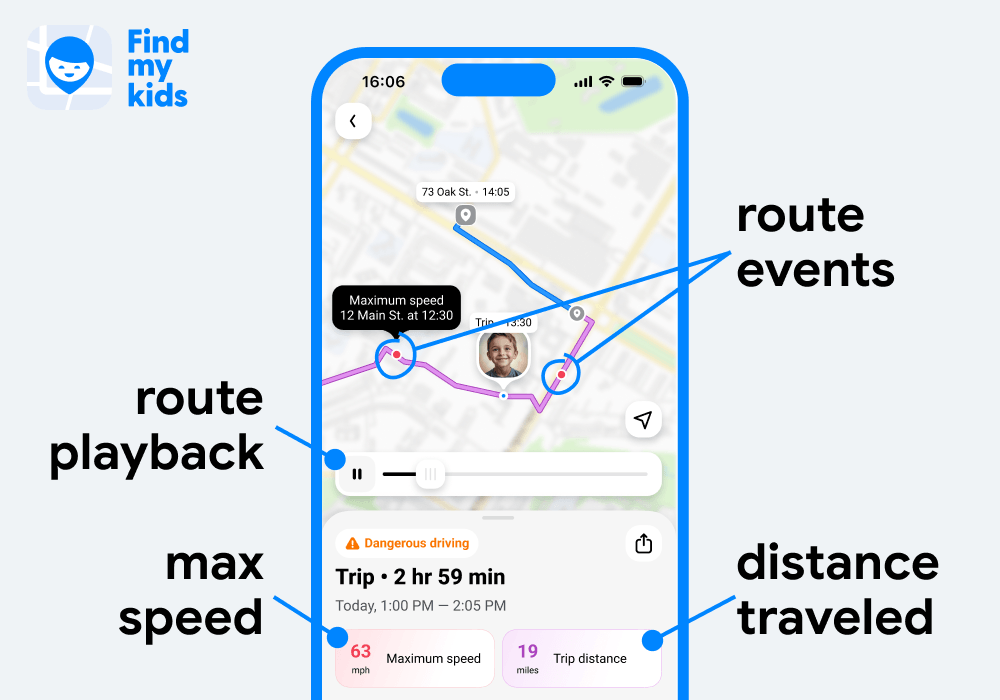
Findmykids also includes emergency tools. A child can send SOS alerts through the panic button, which sends an alert to connected family members and shares the child’s exact location. The alert can sound on the parent’s device even if that device is in silent mode.
Findmykids also offers Sound Around and a Loud Signal for emergency situations when parents need to check on a child’s surroundings or get their attention quickly.
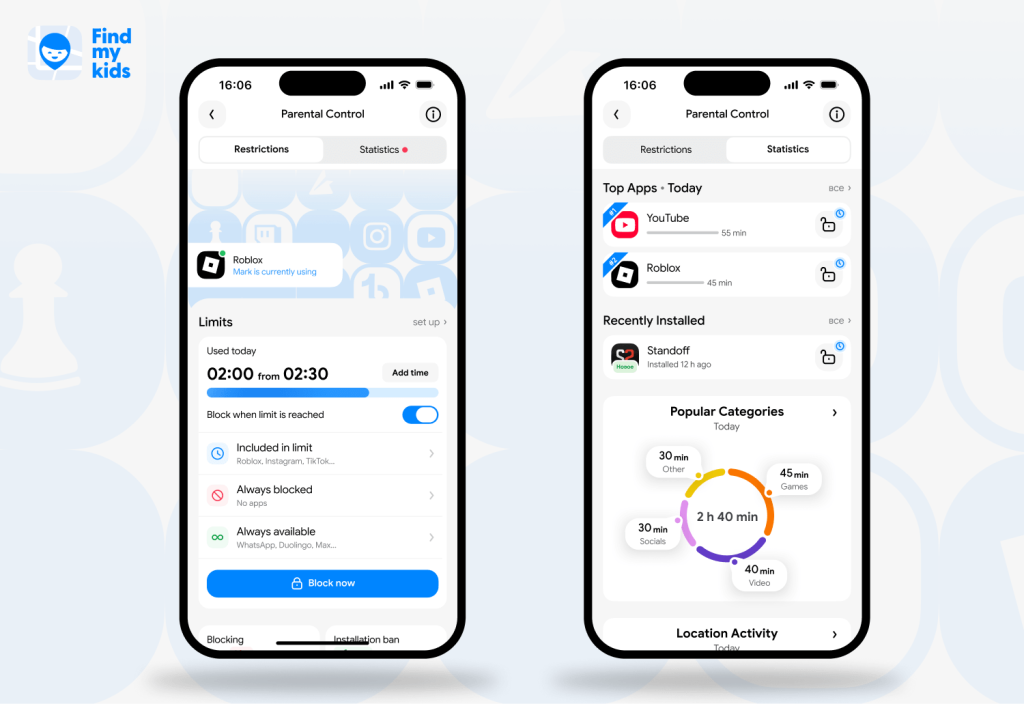
Beyond location tracking, Findmykids combines its GPS features with a broad set of parental controls. Parents can review detailed screen-time and app usage statistics, set daily limits for individual apps, block apps instantly or on a schedule, and keep selected apps always available. The app also supports 18+ app and website blocking, new app installation restrictions, and uninstall protection, giving parents more control over both what children use and how they use their devices.
The main limitation is that its richest feature set may be more than a family needs if all you want is basic tracking. Some basic features vary by operating system, and continuous monitoring can use more device resources than occasional location sharing.
Still, for parents who want a child-focused family locator with real-time tracking, location history, instant alerts, SOS alerts, and screen-time tools, Findmykids is the most complete option in this comparison.
If you want more than a basic family locator, Findmykids brings real-time location, detailed movement reports, Family Circles, emergency tools, and parental controls together in one place. Try Findmykids for free right now!
Kids360: Location Tracking Plus Screen-Time Controls
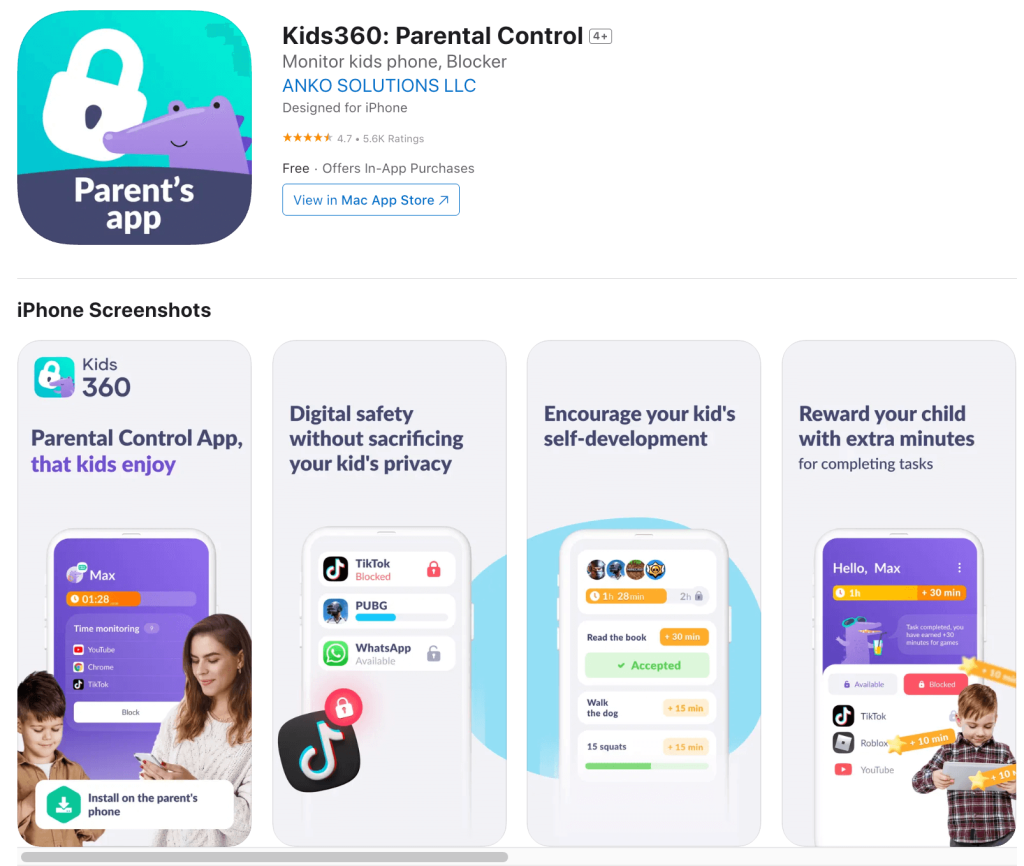
Kids360 is primarily a simple tracking app and screen-time management app, but its location tracking features make it a capable family tracking app too. It works across both iOS and Android, with Kids360 on the parent’s device and Alli360 on the child’s device. Its location tools include real-time location, exact location on a map, location history, safe zones and alerts, and battery status.
Kids360 combines tracking with content monitoring. Parents can set app limits, block apps, schedule restrictions, filter unsuitable content, and let kids earn extra screen time through tasks.
Kids360 is a good fit when you want family tracking and parental control in the same app. The tradeoff is that it is less focused on emergency tools than Findmykids.
Life360: Strong Family Tracking for Teens and Drivers
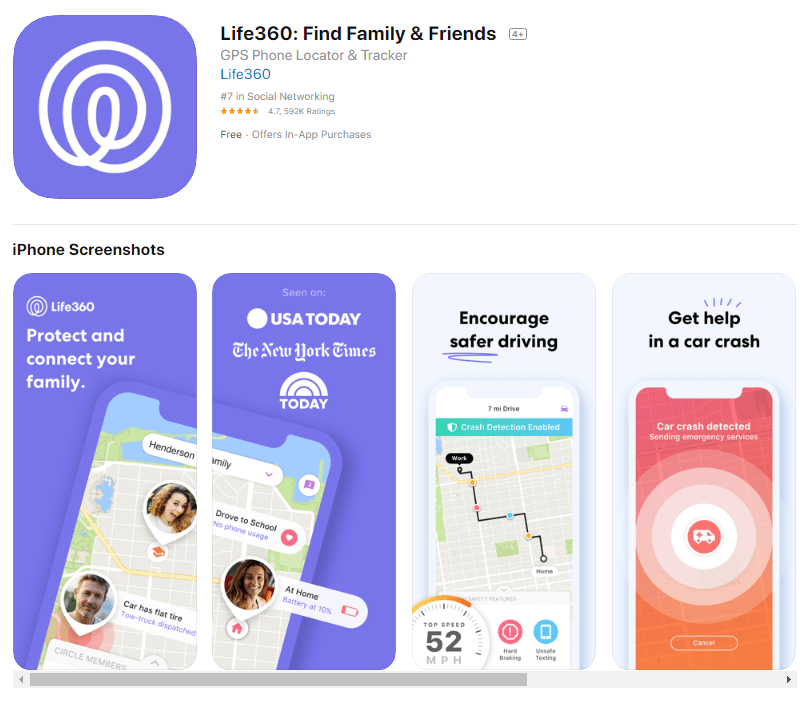
Life360 is a tracking app built around location tracking and location sharing among family members and other trusted people in a Circle. Its family locator includes a family map, location history, Places alerts, check-in features, location check-ins, SOS-related safety tools, crash detection, and driving reports.
Life360’s driving safety tools include collision alerts and driving reports; its support pages note that crash detection has technical limits and may not detect every collision. Places, on the other hand, lets families create geofenced areas and receive alerts when a Circle member arrives or leaves.
All these make Life360 a better match for families with driving teens than for parents mainly seeking child-focused screen-time controls or content monitoring.
Related: Findmykids vs. Life360: Which Location-Tracking App is Best for Your Family?
Google Family Link: A Free Option for Android Families
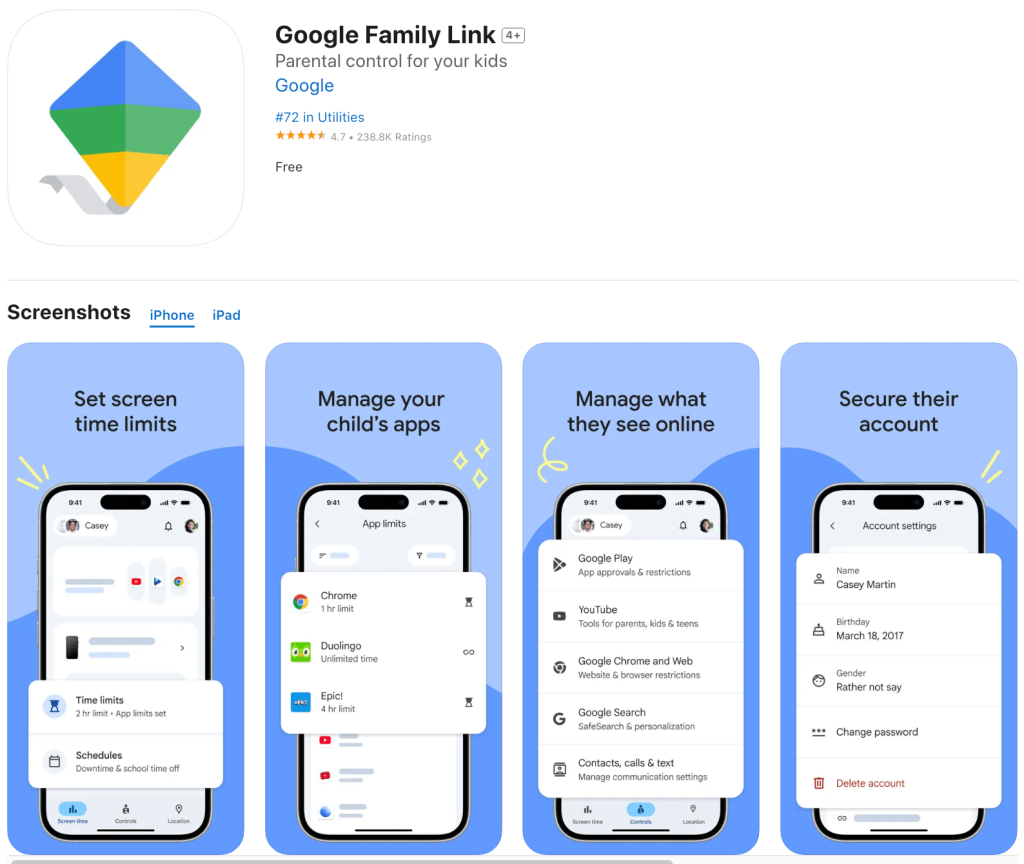
Google Family Link is a tracking app that combines parental control tools with basic location tracking functions. Parents can see a child’s present location, create family places, and receive alerts when the child arrives at or leaves a saved place. Google notes that the child’s device must be powered on, recently active, and connected to the internet for location to work reliably.
Family Link is especially useful because it is free and connects directly with Android and Google services. It can set screen-time limits, block or allow apps, manage Google Play content, and schedule downtime or school time.
It is not the best family tracking app if you want rich route records, a detailed location timeline, SOS alerts, a panic button, or real-time GPS tracking designed specifically around younger kids. Google Maps can support location sharing, but supervised children under the applicable age have restrictions, including limits on who they can share with and whether they can view a Google Maps timeline.
Apple Find My: Simple Location Sharing for Apple Families

Apple Find My is a built-in tracking app and the easiest family locator for a household where everyone already uses Apple devices. Family Sharing can enable location sharing, and Find My can display family members and help locate missing devices.
You can create alerts for when a family member arrives at or leaves a location, and you can adjust the location radius.
Find My is a locator app rather than a complete parental control system. Apple handles screen time and content restrictions separately. It works best in Apple-only households.
How to Set Up a Family Locator App
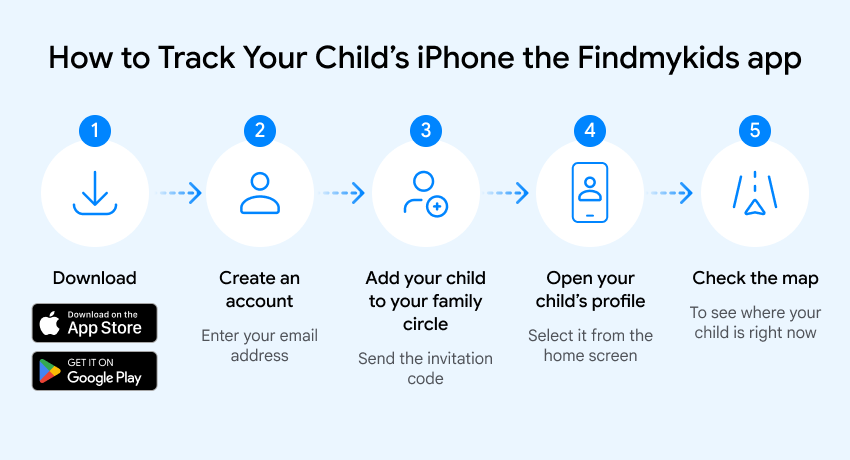
Once you’ve compared the main family locator apps and chosen the one that fits your family’s needs, the next step is setting it up on your devices. The exact process varies from app to app, but most involve connecting a parent’s phone to the child’s device, enabling location permissions, and setting up alerts or safe zones.
Below, we’ll walk through the setup process using Findmykids as an example:
- Download Findmykids on the parent’s device from the App Store or Google Play Store.
- Install it on the child’s device.
- Create the parent account and choose the option to add a child.
- Pair the devices with the QR code or unique connection code shown in the app.
- Grant the required location permissions. Findmykids recommends allowing location access and background activity so real-time tracking can continue when the app is not open.
- Open the map and confirm the app shows the right location.
- Add geofences such as home, school, daycare, sports practice, or a friend’s house.
- Turn on the alerts you want, including arrival/departure alerts and SOS alerts.
- Show the child how the panic button works and explain what location data the family will use and why.
Findmykids specifically recommends transparency with children about tracking. That is a sensible rule for most apps: location tracking works better as a family safety agreement than as secret surveillance.
Read more: How to Negotiate With Your Child About Tracking Their Location?
How to Choose the Right Family Locator App
There is no single family locator app that works equally well for every household. Consider these factors before choosing an app.
Check Which Devices Your Family Uses
Start with the devices in the household. If everyone uses an iPhone and wants loved ones visible on one map, Apple Find My may cover basic location sharing without another subscription. If the child uses Android and you mainly want free parental control and location, Google Family Link is an easy starting point.
For mixed devices, look for a tracking app and family tracking app that supports both iOS and Android devices. Findmykids, Kids360, and Life360 are more practical when different family members use different platforms or multiple devices.
Decide How Much Location Tracking You Need
Then decide how much tracking you need. Basic tracking means seeing a present location and perhaps receiving an arrival alert. More advanced monitoring means route history, movement records, geofences, real-time updates, live tracking, and a longer record of where someone has been.
Look at Emergency and Safety Features
Emergency tools are another dividing line. If SOS alerts, a panic button, loud notifications, or other child safety functions are important, check exactly which are available on the child’s operating system. For a new driver, crash detection and driving reports may be more useful than screen-time restrictions.
A family locator app processes sensitive location data. Review the privacy policy, protect the account, and give access only to trusted family members. Location sharing should be something children understand rather than a feature hidden from them; it helps to explain what the tracking app is being used for and when parents will check it.
Compare Free and Paid Plans
A free family tracking app may be enough for basic tracking, while route detail, longer location history, driving safety, or additional features may require a subscription.
Compare the free plan carefully before paying. If a service advertises a money-back guarantee, read the conditions first so you know what qualifies for a refund.
Decide Whether You Need Parental Controls Too
Some apps focus primarily on location tracking, while others combine a family locator with broader parental control tools.
Parents researching alternatives may also see Norton Family. Norton Family is a broader digital-safety product rather than one of the five family locator apps compared here, so it makes more sense for content monitoring and web supervision than for families whose first priority is live location.
Ultimately, the right app depends on whether your family needs location tracking, parental control, or both.
Finding the Right Balance Between Location and Independence
There’s no reason to pay for a huge feature list if your family only needs a quick check-in after school. Apple Find My and Google Family Link cover basic family tracking well for households already living inside those ecosystems.
For broader child-focused safety, Findmykids combines live location, past routes, geofences, movement records, SOS alerts, and screen-time controls in one family locator app. Kids360 leans further toward screen-time management, while Life360 is particularly strong for driving safety, crash detection, and driving reports.
Whichever family locator you choose, set it up before you need it. Confirm permissions, test the alerts, check that the family member’s location updates properly, and make sure kids know how to use emergency tools.
FAQs
What is the best family locator app?
For parents who want location tracking built specifically around child safety, Findmykids is the best family locator app in this comparison because it combines real-time location, location history, safe zones, SOS alerts, and parental control features. Life360 is a strong option for families focused on teen drivers, while Apple Find My and Google Family Link are good free choices for simpler needs.
Are family locator apps safe?
They can be, but a family locator app handles sensitive location data, so account security and privacy settings are important. Use a strong password, limit access to trusted family members, keep the app updated, and talk to children about how tracking is being used. Review the provider’s privacy policy before enabling continuous monitoring.
Can I track an iPhone from an Android phone?
Yes. Cross-platform apps such as Findmykids and Kids360 support tracking between iPhone and Android. Kids360 specifically documents Android-to-iPhone location tracking, while Findmykids supports both iOS and Android devices. Apple Find My is less convenient for ongoing person-to-person family tracking from Android because the native Find My app is part of Apple’s ecosystem.
Is there a completely free family locator app?
Yes. Apple Find My is included with Apple devices, and Google Family Link offers free family locator and parental control features for supported Google and Android setups. Findmykids also has a free plan after its trial, although premium features require payment. If you’re looking for a free family tracking app, compare what the free tier includes rather than assuming every location feature is free.
How accurate are family locator apps?
No locator app can guarantee an exact location every second. GPS, Wi-Fi, cellular coverage, buildings, device settings, and whether background location is allowed can change accuracy. Findmykids states that its location tracking can reach precision of up to about 12 meters under suitable conditions. The right location may occasionally appear late if the device loses service or background access.
Can a family locator show location history?
Yes, many can. Findmykids provides location history and movement records. Kids360 offers travel or moving history, while Life360 keeps two days of history on its free plan and longer history on paid plans.
Google Family Link is more limited as a location timeline tool, particularly for supervised younger children using Google Maps.
Can a family locator app track a phone without internet or when it is switched off?
Usually not in real time. Family locator apps need the device to produce and transmit fresh location data. Google explicitly says Family Link cannot find a child’s location when the device is powered off or not connected to the internet.
A tracking app may still show the last known location, but live tracking and real-time updates generally stop until the device reconnects. A switched-off phone cannot provide continuous real-time tracking through a normal family locator app.
Can I see a family member’s location without installing an app on their phone?
Sometimes, if the device’s built-in system already supports location sharing. Apple users can share through Find My, and Google Maps supports location sharing through a Google account. Dedicated family locator apps generally require their app or companion app on the device being tracked. For child tracking, installing the dedicated companion app usually provides more reliable alerts, location history, geofences, and emergency tools than relying on basic Google Maps location sharing alone.
Sources & References
- Safety or surveillance: Tracking of young adults, National Poll on Children’s Health, 2026
- Findmykids App, Findmykids
- Location Tracking, Kids360
- Life360 Free Crash Detection, Life360 Help Center
- Find & Manage Your Child’s Location, Google For Families Help
- How Family Sharing Works, Apple Support
- Get Notified When a Friend’s Location Changes in Find My, Apple Support
Проверьте электронный ящик