
















Comcast provides Xfinity internet to about 28.5 million people, and you are probably one of them. While the service allows families to stream and browse the internet with fast speeds, one thing some customers might not know is that you can set Xfinity parental controls for kids in the house.
In this post, you will learn what Xfinity parental controls are, what they do, and how to set them up. Additionally, you’ll learn about the limitations of Xfinity’s tools and how children can bypass them. Plus, you will be introduced to an alternative parental control method to keep your child’s digital life safe even outside the home.
Key Takeaways
- Xfinity parental controls let parents manage Wi-Fi, online time, website access, TV content, streaming, and purchases across devices.
- Parents can create child profiles, pause internet, schedule offline periods, filter inappropriate content, and review online activity.
- These controls only work on the home network, so children can bypass them using mobile data, public hotspots, or another Wi-Fi connection.
- Pairing Xfinity with Findmykids adds phone-level limits, app blocking, reports, and protection when children are away from home.
Contents:
What Are Xfinity Parental Controls?
Xfinity parental controls are tools that parents can use to manage their children’s internet access, screen time, TV viewing, streaming content, and online purchases. That means parents can have more control over how their children use the internet and television, and for how long.
With Xfinity parental controls, parents can enable the following:
- Wi-Fi controls: Pause internet access for individual devices or child profiles.
- Screen time limits: Set daily online time limits for weekdays and weekends.
- Scheduled pauses: Pause Wi-Fi automatically during bedtime, homework, or dinner.
- Web-content filtering: Restrict inappropriate websites and enable safer Google, Bing, and YouTube settings.
- Activity reporting: View estimated time spent on supported apps and websites.
- TV content locks: Block programs by rating, channel, title, or viewing time.
- Purchase controls: Require a PIN for rentals, purchases, and pay-per-view content.
- Streaming controls: Restrict content in the Xfinity Stream app and website.
There are a couple of different ways to set Xfinity parental controls. The most comprehensive way is to apply parental controls to all of the devices that are connected to your home Xfinity network. That means whether it’s a mobile device, tablet, or computer, the network parental controls apply to that device. Parents also have access to a digital dashboard where they can monitor supported online activity and manage connected assigned devices.
However, there are additional parental controls for Xfinity TV and Stream that you can set to restrict shows and movies.
How to Set Up Xfinity Parental Controls
Xfinity offers several layers of parental controls, but they do not all work in the same way:
| Xfinity control | What it covers | Key limitation |
| Xfinity app / Family Settings | Manage devices on your home Xfinity network, pause Wi-Fi, set schedules and screen time limits, filter content, and view available activity details. | These controls apply to supported devices while they are connected to the home network. |
| Gateway Admin Tool | Manage blocked websites, keywords, services, devices, schedules, and trusted devices directly through the Xfinity Gateway. | Availability depends on the Gateway model; some newer Gateways use the Xfinity app instead. |
| Xfinity TV / X1 | Set viewing restrictions based on ratings, channels, titles, viewing times, and purchases. | TV parental controls are separate from internet parental controls and are configured on each X1 TV Box. |
| Xfinity Stream | Restrict movies, TV ratings, programs, channels, and individual titles in Xfinity Stream. | Stream parental controls are separate and need to be configured on each supported device. |
⠀
Below you will find step-by-step guides on how to set up parental controls on your Xfinity internet, Xfinity TV, and Xfinity Stream.
Set Up Parental Controls in the Xfinity App
To set parental controls for your entire Xfinity network and all of the devices connected to it, follow these steps:
- Open the Xfinity app and select Wi-Fi.
- Create a profile for your child.
- Assign the child’s device to their profile.
- Set parental controls:
- Pausing internet access
- Scheduling offline periods
- Creating bedtime mode to pause Wi-Fi
- Set daily screen time limits for online activity on your home network
- Filtering inappropriate websites
- Viewing screen time details and online activity
- Xfinity applies these rules to all of the assigned devices while connected to your home Wi-Fi.
Once you’ve enabled parental controls, you can return to the parental control settings whenever you need to adjust your child’s access.
Use the Xfinity Gateway Admin Settings
Another method to set parental controls on your Xfinity Wi-Fi network is to use the Xfinity wireless Gateway Admin Tool through your browser. This allows you to set parental controls directly on your Xfinity modem or router.
To set this up, your device must be connected to your home network.
- Visit http://10.0.0.1 in a browser.
- Sign in using the Gateway Admin Tool credentials configured for your Gateway. If you have not changed the credentials, follow Xfinity’s current instructions for your Gateway model.
- Open Parental Control and configure:
- Manage Sites: Block specific URLs or keywords and create schedules
- Manage Services: Block internet services using ports
- Manage Devices: Restrict selected devices during particular days or hours
- Trusted Computers: Exempt designated devices from the restrictions
- Save the settings and test them on your child’s device.
If you have a newer xFi Gateway, this option may not be available. Instead, you can set your parental controls through the Xfinity app.
How to Pause Wi-Fi for a Child’s Device
After you have set up parental controls through Xfinity, it is possible to pause Wi-Fi access on your child’s device at any given moment. For example, if they have a test to study for, you can block Wi-Fi access for a limited time.
To pause Wi-Fi on your child’s device, follow these steps:
- Open the Xfinity app and select Wi-Fi.
- Find Connected to your Wi-Fi.
- Select the child’s profile or the individual device.
- Tap Pause all devices or Pause device.
- Choose a duration or manually unpause it when you’re ready.
How to Block Websites with Xfinity Parental Controls
If you want to prevent your child from visiting certain websites, especially those with adult or inappropriate content, it is possible to block them with Xfinity parental controls.
There are two methods to do this: set up general website restrictions or block specific sites individually. This can include video platforms, gaming websites, and social network sites that you don’t want your child accessing.
To block inappropriate websites automatically, follow these steps:
- Open the Xfinity app.
- Select Wi-Fi.
- Choose the child’s profile.
- Open Settings.
- Select Parental Controls and turn them on.
This will filter content considered inappropriate for all ages while also enabling Google SafeSearch, Bing SafeSearch, and YouTube Restricted Mode.
On Gateway models that still support site management through the Gateway Admin Tool, you can block specific websites as follows:
- Visit http://10.0.0.1 while connected to your home Wi-Fi.
- Sign in to the Gateway Admin Tool.
- Select Parental Controls → Managed Sites.
- Enable the feature.
- Under Blocked Sites, select Add.
- Enter the website address and choose when it should be blocked.
- Tap Save.
Xfinity TV and Xfinity Stream Parental Controls
If you want to set content and purchase restrictions when watching TV programs, Xfinity parental controls allow you to do that. However, it’s a bit of a different process and isn’t done through the Xfinity app.
These settings are configured separately on each device and do not automatically sync across devices.
To set parental controls for what your children watch on your Xfinity TV or X1, follow these steps:
- Press the Xfinity button on the TV remote.
- Open Settings → Parental Controls.
- Create a four-digit Lock PIN and turn on parental controls.
- Choose restrictions for a specific rating, channels, or titles, viewing times, X1 apps, and enable Safe Browse (which hides certain program titles and descriptions).
- Set a separate Purchase PIN to prevent rentals, pay-per-view orders, and other purchases.
You will have to do this for every Xfinity TV box in your home.
To set up parental controls on the Xfinity Stream app, follow these steps:
- Open the app and tap the person/profile icon.
- Select Settings → Parental Controls.
- Turn the controls on and create a PIN.
- Restrict movies, TV ratings, programs, channels, or individual titles.
You can also do this through the Xfinity Stream website by going to Settings and turning on Parental Controls.
These settings are configured separately on each device and do not automatically sync across devices.
Do Xfinity Parental Controls Work When Kids Use Mobile Data?
No, Xfinity parental controls do not work when your child’s device uses mobile data. That means if you turn the Wi-Fi access off for their phone, they can bypass it and use their cellular plan to connect to the internet.
What Xfinity Parental Controls Can’t Do
Xfinity parental controls are great for keeping your kids’ online activities safe, but there are some limitations as well. Xfinity parental controls cannot:
- Control devices using cellular data, public hotspots, or another Wi-Fi network
- Read text messages, emails, or social media conversations
- Show searches or a complete website-browsing history
- Approve or prevent app installations
- Block individual apps reliably
- Accurately measure all screen time
- Replace third-party parental control apps, Apple Screen Time, or Google Family Link
- On Apple devices, privacy features such as iCloud Private Relay may interfere with website filtering or activity reporting
What About Kids When They’re Away from Home?
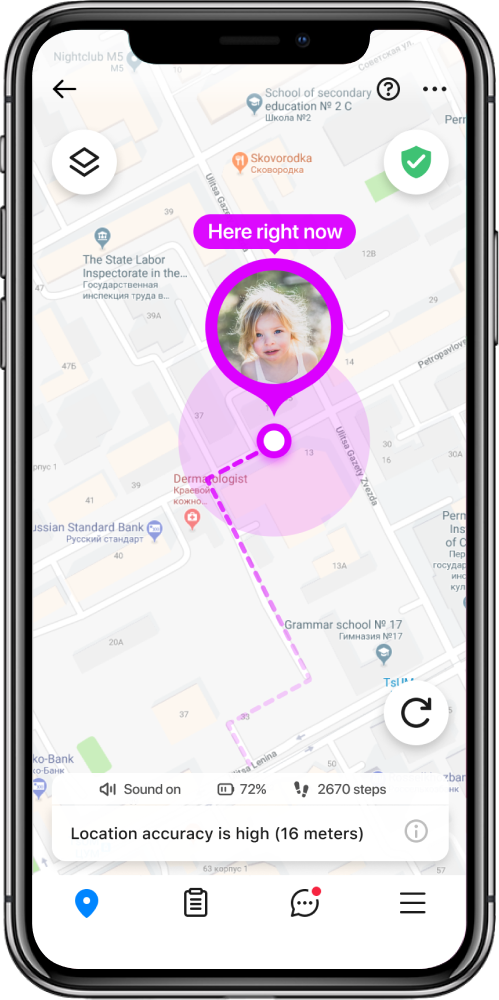
Findmykids app
Since Xfinity parental controls only work for devices connected to the home network, parents then wonder what happens when kids are away from home. Without any parental controls on their devices, it can leave parents feeling powerless.
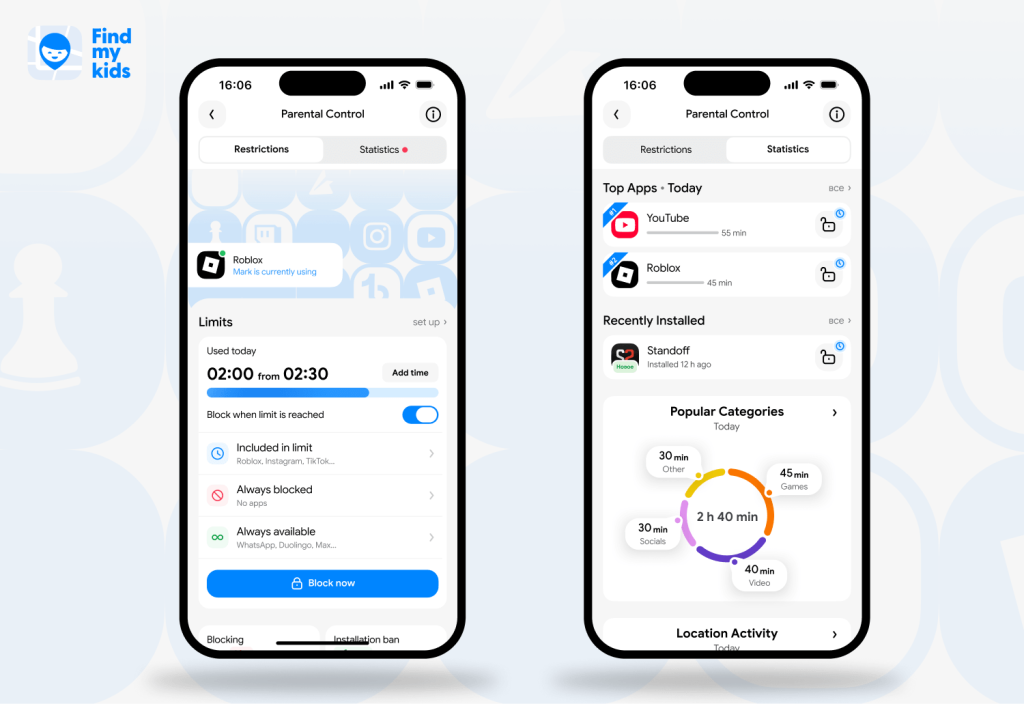
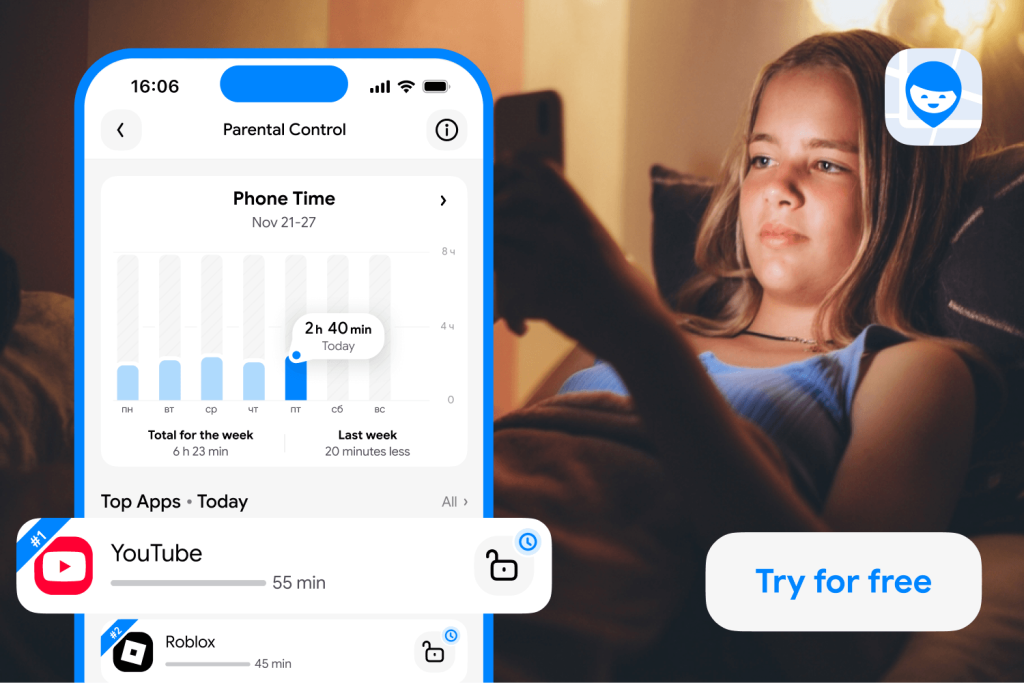
That’s where third-party apps like Findmykids make a big difference. Even when they are not connected to the home WiFi network, parental controls will still work to:
- Set daily screen time limits
- Create schedules for when the device or selected apps can be used
- View nighttime usage statistics, including which apps were opened after 11 p.m.
- Block 18+ websites and apps
- Block specific apps or restrict access to them
- Require purchase approval in apps
- Track how much time your child spends on their device
- Create reports about what apps your child spends time on
So, even if your child’s device is connected to mobile data or a different Wi-Fi network, screen time limits are still enabled. Plus, parents can remotely lock the device and block apps like games and social media with a simple tap in the Findmykids app.
Findmykids app
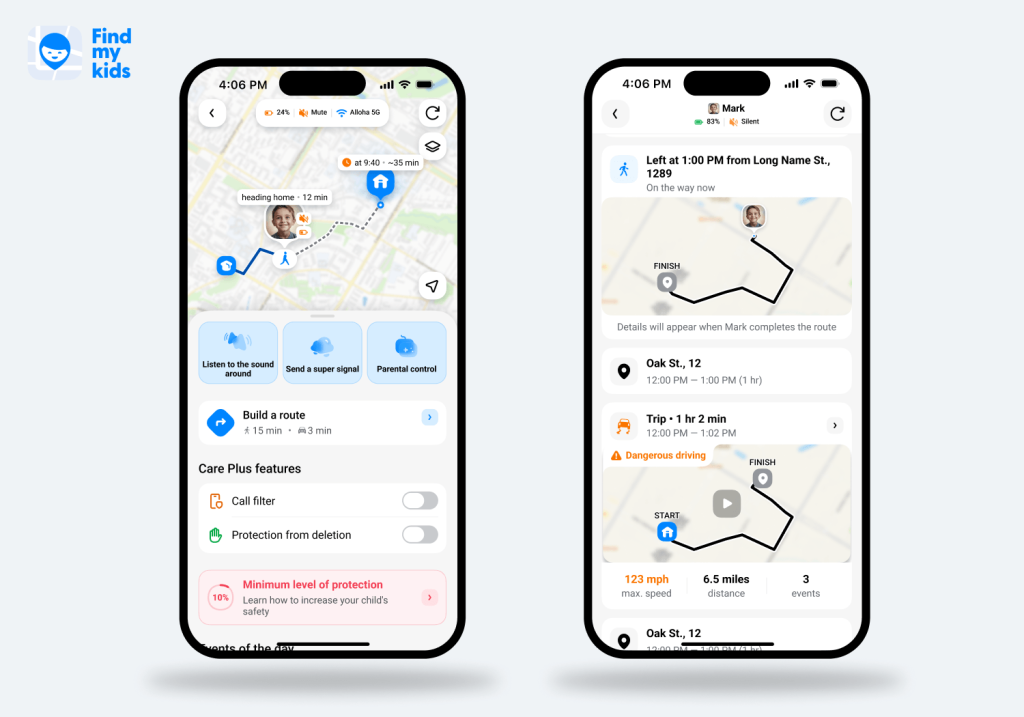
Another advantage is offline protection. Findmykids combines parental controls with features that help parents stay connected with their child when they are out on their own:
- Real-time location — see where your child is right now.
- Location history and routes — check where your child has been and view their recent movements.
- Safe zones — set places such as home or school and receive alerts when your child arrives or leaves.
- Loud signal / Super signal — send a loud alert to the child’s phone when they need to notice it, even if the phone is on silent.
- SOS button — give your child a quick way to alert you when they need help.
- Sound Around — use the feature to hear what is happening around the child in supported situations when they are not answering calls.
Want parental controls and child safety features that work beyond your home network? Try Findmykids and see how it can fit into your family’s daily routine!
Xfinity Parental Controls vs. Findmykids
When trying to decide which parental control method is best for your family, it helps to compare two different tools. Below is a side-by-side look at Xfinity Parental Controls and Findmykids:
| Parental Controls Feature | Xfinity Parental Controls | Findmykids |
| Primary purpose | Manage home internet and Xfinity TV | Manage a child’s phone use and personal safety |
| How it works | Rules are applied through the Xfinity Gateway | Parent installs Findmykids on their phone and their child’s phone |
| Coverage | Only on the private home Xfinity network | Works over Wi-Fi or mobile data |
| Pause access | Pauses home internet for assigned devices | Can remotely restrict apps or lock the child’s device |
| Screen-time limits | Daily home-internet limits by child profile | Device and app-specific screen time limits |
| Scheduled downtime | Yes | Yes |
| Usage reports | Estimated home-network activity for supported apps and websites | Daily and weekly device and app-usage reports |
| App blocking | No reliable individual-app blocking | Yes |
| Works away from home | No | Yes |
| Cellular-data control | No | Yes |
| TV controls | Blocks Xfinity programming by rating, channel, title, app, or time | No TV controls |
| Major limitation | Children can bypass controls by switching networks or using mobile data | Features vary by operating system |
⠀
The most secure way that parents can keep their children safe while online is by implementing both Xfinity parental controls and the Findmykids app. This solution offers protection both at home and out of the house.
Set Parental Controls for Your Child No Matter Where They Go
With Xfinity parental controls, families can set screen time limits, content restrictions, and purchase limitations for devices connected to the home network. However, once the child leaves the house or uses mobile data, those parental controls stop.
That’s why pairing Xfinity parental controls with Findmykids is the smart move. That means your child’s device is protected no matter where they go or which network they’re connected to.
If you found this helpful, make sure to share it with a friend who also has Xfinity services and is looking for parental control methods.
FAQs
What are Xfinity parental controls?
Xfinity parental controls allow users to set screen time limits and content restrictions at the network level for specific devices when connected to the home Wi-Fi.
How do I set up parental controls on Xfinity?
You can set up parental controls on the Xfinity app or through your browser by visiting http://10.0.0.1 and signing in to your Gateway Admin.
Can Xfinity parental controls block websites?
Yes, you can block specific websites through the Gateway Admin Tool by adding the URL. However, this protection applies only within your home network, so it will not follow your child when they switch to mobile data or another Wi-Fi network. For broader protection across different connections, Findmykids may be a better option, as its parental controls are designed to work directly on the child’s device.
Why are Xfinity parental controls not working?
There are a couple of reasons the Xfinity parental controls might not be working. The device may not be assigned correctly, the child may have switched to another network, or the device may be using a private address. A VPN or other privacy service can also interfere with the controls. In some cases, the gateway may be incompatible, or the Xfinity app may simply need to be updated.
Do Xfinity parental controls work on mobile data?
No, Xfinity parental controls do not work on mobile data. They only work when the device is connected to the home network. If you want parental controls that can continue working when your child switches between Wi-Fi and mobile data, Findmykids may be a better fit, as it provides device-level parental control features rather than relying only on the home network.
Sources & References
- Comcast Lost Combined 447,000 Broadband, Video Subs in Q2, Media Play News, 2026
- Set Up Parental Controls for Your Home Network, Xfinity
- Set Parental Controls for Content on Network Websites and Apps, Xfinity
- Set Parental Controls with the Xfinity Stream Portal, Xfinity
- Set up your locks PIN and turn parental controls on and off for X1, Xfinity
Проверьте электронный ящик