

Parental controls are a fantastic tool for keeping your kids safe online, but sometimes, you need to adjust or disable them.
It could be that you’ve gotten older, or perhaps you’re just switching up your approach to digital supervision. Whatever the case may be, this guide will show you how to turn off parental controls on Huawei WiFi. From understanding how the system works to finding the right settings on your router, we’re here to streamline the process and save you some stress!
Contents:
- Understanding Huawei WiFi Parental Controls
- Your Step-by-Step Guide to Disabling Parental Controls on Huawei WiFi
- What if I Can’t Turn Off Parental Controls?
- Keeping Your Child Safe After Disabling Router Controls
- FAQs
Understanding Huawei WiFi Parental Controls
Huawei’s parental control features are built into your Huawei router, whether you manage it through the traditional web interface (often called the Home Gateway) or the more modern Huawei AI Life app.
The parental control feature on your Huawei router is quite powerful and comes with several common tools, many of which you might have set up yourself already. These include:
- Internet Access Time: This is a popular one, as it lets you set specific time limits for when a particular device can connect to the internet. For example, you might block access to your child’s tablet after 9 PM on school nights, or you can set the access time for each day of the week.
- Device-Specific Restrictions: You don’t have to apply the same rules to everyone. You can set up unique restrictions for each device connected to your Wi-Fi network. This is usually done by identifying the device’s unique MAC address.
- Content Filtering: This feature allows you to block access to certain types of websites. You can create a blacklist of specific URLs or block entire categories of websites to restrict what your child can see online. This is helpful for preventing access to adult content or other inappropriate sites.
- App Blocking: Some versions of Huawei’s management software let you block access to specific applications on a device, which can be a very effective parental control method.
It’s important to remember that the exact features and how you access them can vary, as it depends on your specific Huawei router model and its firmware version. An older router might have a more basic web interface, while a newer one will likely have more advanced options available through the AI Life app. Lucky for you, we’ll cover both methods in this guide.
Related: The Best Methods to Block Websites on a Router.
Your Step-by-Step Guide to Disabling Parental Controls on Huawei WiFi
Disabling parental controls is usually straightforward, but the steps depend on how you set them up initially. You’ll either use the web-based management page or the AI Life app on your phone. For either method, you’ll need your router’s admin password, so make sure you have it handy.
Method 1: Using the Web-Based Management Page (Home Gateway)
This is the classic method for managing your router settings. You’ll need a computer or phone connected to your Wi-Fi network.
Connect to Your Wi-Fi Network
Make sure the device you’re using is connected to your Huawei router’s Wi-Fi.
Open a Web Browser
Launch your preferred browser, like Chrome, Firefox, or Safari.
Log In to Your Router
In the browser’s address bar, type your router’s default IP address. For most Huawei routers, the default IP address is 192.168.3.1 or 192.168.1.1. If neither of those works, you can find the correct default IP address on a sticker on the bottom of your router.
Enter Your Admin Password

Credit: youtube.com/@hardreset_info_tests
Once the login page loads, you’ll be prompted to enter your admin password. This is the password you set when you first configured the router. It is not your Wi-Fi password. If you never changed it, the default admin password might also be on the sticker on your router.
Navigate to Parental Controls

Credit: youtube.com/@hardreset_info_tests

Credit: youtube.com/@hardreset_info_tests
After you log in, you’ll see the router’s main management page. Look for a menu option that says “Parental Controls” or something similar. It might be under a “Functions,” “Security,” or “More Functions” tab. The interface can vary, so you may need to look around a bit.
Find the Device You Want to Manage

Credit: youtube.com/@hardreset_info_tests
Inside the Parental Controls section, you should see a list of all devices that have rules applied to them. These devices are often identified by their name or MAC address. Find your child’s phone, computer, or tablet in this list.
Disable or Delete the Rules
You have a couple of options here.
- Temporarily Disable: You might see a toggle switch next to the parental control rule for a specific device. You can simply flick this switch to the “Off” or “Disabled” position to temporarily suspend the restrictions. You can enable them again later.
- Permanently Delete: If you want to get rid of the rules for good, look for a “Delete” or “Remove” button next to the rule. You might need to select the device or the rule first and then click the delete icon. This action will permanently remove the set time limits and website restrictions. For example, to remove a rule that blocked certain websites, you would select that URL filtering rule and delete it. You may need to confirm your choice.
Save Your Changes
After you disable or delete a rule, look for a “Save” or “Apply” button. Click it to make sure your changes take effect. If you don’t save, the old parental controls will remain active. Once you save, the device should have unrestricted internet access.
Note: If you want to disable all parental controls for every device, you might find a main switch on the parental controls page to turn off the entire parental control feature. Just toggle that main switch to “Off” and save.
Method 2: Using the Huawei AI Life App

App Store
If you have a newer Huawei router, you probably use the Huawei AI Life app to manage your Wi-Fi network. This app offers a more user-friendly way to control your router from your phone.
- Open the AI Life App: Make sure you’re connected to your Wi-Fi and open the AI Life app on your Android or iOS phone. If you don’t have it, you can download it from the Google Play Store or Apple App Store.
- Select Your Router: On the app’s home screen, you should see your Huawei router listed. Tap on it to access its management dashboard.
- Find Parental Controls: Look for the “Parental Controls” option. It’s often found under the “More Functions” or “Tools” section. Tap on it to open the parental control settings.
- Choose the Device: The app will show a list of connected devices. Find and tap on the device for which you want to disable parental controls. This could be your child’s phone, tablet, or computer. You’ll likely see the MAC address listed for each device.
- Manage Time Limits and Website Access: Inside the device’s parental control settings, you’ll see the rules you’ve set.
- Disabling Time Limits: To turn off internet access time restrictions, look for the “Internet Access Time” or “Time Limits” section. You should see a schedule or a list of time slots when internet access is blocked. You can either delete these rules or use a toggle switch to disable them. To remove all access time restrictions, you’ll need to delete each entry.
- Disabling Website Filtering: To remove website restrictions, find the “Website Filtering” or “Blocked Websites” section. You’ll see a list of blocked URLs. You can delete these URLs one by one or look for an option to disable the entire filtering feature for that device.
- Save the Settings: The AI Life app often saves changes automatically, but look for a checkmark or a “Save” button in the top right corner of the screen just in case. Once saved, the parental restrictions will be lifted.
What if I Can’t Turn Off Parental Controls?
Here are a few troubleshooting tips if you get stuck.
Forgot Your Admin Password?
If you can’t remember your router’s admin password, you’re not alone. The only way to regain access is to perform a factory reset on your router. There’s usually a small, recessed button on the router that you need to press and hold for about 10 seconds.
A factory reset will wipe all your settings, including your Wi-Fi name, password, and any parental controls you’ve set. You’ll have to set up your router from scratch, so this should be your last resort.
Can’t Find the Parental Controls Menu?
Router interfaces can be confusing. If you can’t find the parental controls, try looking under sections like “Security,” “Advanced Settings,” or “More Functions.” If you’re still stuck, a quick search for your router’s model number plus “parental controls” should give you a more specific guide. The AI Life app is generally easier to navigate.
Device Still Blocked?
If you’ve disabled the parental controls but a device still can’t access certain websites or the internet, try disconnecting the device from the Wi-Fi and reconnecting it. This simple step can often resolve the issue. Also, double-check that you’ve saved your settings correctly.
Keeping Your Child Safe After Disabling Router Controls

Findmykids app
Router controls are great for setting broad time limits and blocking websites on your home network, but they don’t work when your child connects to other Wi-Fi networks or uses cellular data.
This is where dedicated parental control apps can be incredibly helpful. These apps are installed directly on your child’s phone or device, giving you more detailed control and insight no matter where they are.
Findmykids and Kids360
A great option to consider is Findmykids. This app allows you to see your child’s location in real-time, get notifications when they arrive at or leave set places like school or home, and even listen to what’s happening around them if you’re worried. It also monitors their phone’s battery level, so you know if their device is about to die.
For more comprehensive device management, Findmykids integrates with Kids360. This companion app lets you manage screen time on your child’s phone, block access to distracting apps and games during study hours, and see which apps they use the most. This gives you a better understanding of their digital habits and allows you to set healthy boundaries. You can find both on the Google Play Store for Android devices.
How to Install Findmykids — Step by Step
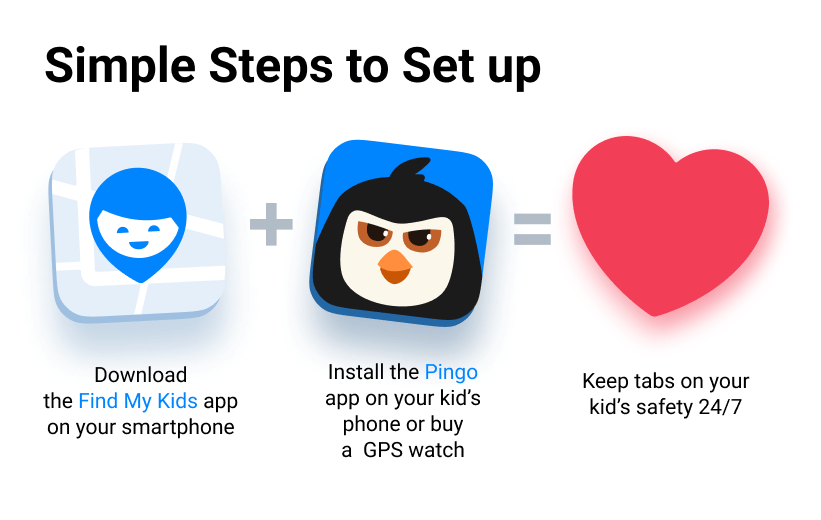
- Download the apps
- On your parent device, go to the App Store (iOS) or Google Play (Android) and install Findmykids: GPS Tracker & Parental Control.
- On your child’s device, install Pingo, the companion app by the same developer.
- Create your account
- Open Findmykids on your device and sign up or log in.
- Follow the instructions to click add a new device and add your child as a family member using a unique code or QR code provided by the app.
- Connect your child’s device
- On the child’s Android or iOS device, open Pingo and tap to load the code from the parent app.
- Enable all required permissions (access to location, background activity, notifications, and microphone) to ensure the tracker works even when the device is locked.
- Set up safety features
- Define Safe Zones (locations like home or school) and receive notifications when your child enters or leaves these areas.
- Activate optional features such as battery tracking, movement history, SOS alerts, and sound around.
- Check device access and security
- Ensure your child’s device is visible in your account.
- Verify location updates, notifications, and Safe Zone alerts are working correctly.
- You can restrict certain device functions if needed.
If they run into any issues during setup, users can reach out to the 24/7 support directly within the app or visit the site’s FAQ for additional guidance.
Google Family Link
Another popular choice is the Google Family Link app. If your child has an Android device, Family Link is a free and powerful instrument. You can set daily time limits, approve or block apps from the Google Play Store, and see reports on their app usage.
The Google Family Link app allows you to create a supervised account for your child and manage it from your own phone, something that may help you guide them toward healthy digital habits. You can manage their Google account and security settings right from the Family Link app.
Balancing Freedom with Safety
Deciding to turn off or adjust parental controls is a big step, often signaling a new stage of trust and responsibility for your child.
Now, you can confidently manage the parental control settings on your Huawei router. And by using helpful apps like Findmykids and Family Link, you can continue to support your child’s safety online and off.
The goal? To create a safe digital environment where your child can learn and explore responsibly. You’ve got this!
If you found this article helpful, share it with other parents to help them keep their kids safe, too.
FAQs
How do I turn off parental control on my Huawei router?
You can turn off parental controls by logging into your router’s management page using its default IP address (usually 192.168.3.1) and your admin password. Navigate to the “Parental Controls” section, select the device you want to manage, and then disable or delete the active rules. Remember to save your changes.
How do I turn off parental settings on Wi-Fi?
Turning off parental settings on Wi-Fi involves accessing your router’s control panel. For a Huawei router, you can do this via a web browser or the AI Life app. Once logged in as an administrator, find the parental controls menu. From there, you can remove any time limits or website blocks that are in place for specific devices connected to your Wi-Fi network.
How to deactivate parental control?
To deactivate parental control, you need to access the settings on the device or system where it is enabled. For a Huawei Wi-Fi network, log in to your router’s dashboard. Locate the parental control feature, find the profile or device you wish to change, and use the toggle switch to disable the rules or delete them entirely. After you confirm and save the changes, the parental control will be deactivated for that device.
How to remove kids’ mode in Huawei?
“Kids Mode” or a similar feature on a Huawei phone or tablet is different from router-level parental controls. To remove it, go to the device’s main Settings menu, where you can disable the feature with a password or PIN. If the phone is managed by Google Family Link, you’ll need to use the parent’s Family Link app to change the restrictions or remove the account supervision.
Cover image: Jeppe Gustafsson / Shutterstock.com
Проверьте электронный ящик