

Parents usually put heavy restrictions on their children’s accounts in order to keep them safe from harmful apps. However, as children grow up, these limitations might have to be changed. A knowledge of how to turn off parental controls on LG phone models allows parents to make changes in the settings suitable for their child’s age.
This guide demonstrates the method for LG devices with Android that helps users to shift their kids more towards independent device usage without any problems.
Contents:
- What “Parental Controls” Usually Means on LG Android Phones
- How to Turn Off Built-In Parental Controls on an LG Phone
- Disabling Play Store Restrictions
- Managing and Removing Google Family Link
- Alternative Options Instead of Completely Turning Off Controls
- FAQs
What “Parental Controls” Usually Means on LG Android Phones
LG smartphones are based on the Android operating system. Consequently, they mostly don’t have a separate parental control app. Instead, they depend on Google Play app’s inbuilt developer solutions. Parental control settings on an Android device are normally implemented through two major sources: the Google Play Store and the Google Family Link app.
Parental control settings enable parents to set limits on the amount of time their children spend in front of the screen and block specific apps or game apps. Furthermore, these parental controls can also be used to filter out adult content in films and books. It is essential to note that settings may vary slightly depending on the model and Android version running on the phone.
Different Kinds of Limitations Generally Established
Parents typically put in place parental controls to regulate their children’s usage of digital devices, which is a good way to promote their well-being. The most common limitations are:
- Content Filters: Set filtering out of apps or games that are not suitable for a certain age by the Play Store.
- Purchase Limits: A parent must enter a password to approve a purchase, and a notification is sent beforehand.
- Time Limits: A child’s device or some apps are available to them only for a certain period of time.
How to Turn Off Built-In Parental Controls on an LG Phone

Credit: youtube.com/@LGService4u
- Open the Settings app on your LG phone.
- Scroll down and tap Security & Lock Screen (or Digital Wellbeing & Parental Controls, depending on your model).
- Tap Parental Controls.
- Enter the PIN or password that was used to set up parental controls.
- Once verified, toggle Parental Controls off or adjust the restrictions you want to remove.
- Confirm your changes. The device will now allow unrestricted access to apps, content, and features.
Disabling Play Store Restrictions
The most typical kind of parental controls is directly embedded within the Google Play Store app. Parents usually put a PIN here to stop the installation of mature content and apps. If you want to disable parental controls in this particular app for a child’s account, you need to do the following.
- Open the App: Locate the Google Play Store icon on the desktop and tap it to open the app.
- Access the Menu: Tap the profile icon that is at the top right corner.
- Find Settings: Tap Settings from the menu options.
- Search for Family Settings: By tapping on the Family section, it will open up.
- Select Parental Controls: Tap on Parental Controls.
- Disable the Feature: To turn off parental controls, switch off the toggle.
- Enter PIN: The device will require the user to enter the Google account password that was set when the controls were set.
When the right PIN is entered, the Play Store will grant open access to all apps, games, and movies. This method works for setting parental controls that are local to a single Android device.
Adjusting Content Without Full Removal
Sometimes, a parent may decide that they do not want to turn off parental controls completely or delete them. They might just want to set the maturity level instead. In the Google Play settings, a person can select different categories such as Apps & games or Films. A maximum rating can be set (for example, from Everyone to Teen) without disabling the device. This way, the child is still safeguarded against the exposure of explicit content and apps that can pop up in a search.
Managing and Removing Google Family Link
If a parent is looking for a more detailed set of LG parental controls, they may resort to the use of Google Family Link. This application is the means by which the parent’s phone gets linked to the child’s account. The removal of limitations on a device controlled through the Google Family Link app is generally a command that is given from the parent’s device.
- On the parent’s device, launch the Family Link app home screen.
- Choose the child whose account needs to be modified or deleted.
- Press Manage Settings and then the Account Info button.
- Click on Stop supervision.
- Confirm the detachment by following the prompts displayed on the screen.
If you want to see the step-by-step process of disconnecting these links, check out this guide on how to remove a Family Link.
Alternative Options Instead of Completely Turning Off Controls
Making the decision to turn parental controls off for all apps entirely isn’t necessarily the best, all the time. Parents are better off tweaking the configurations than turning them off completely. This method helps create a child’s development of maturity and at the same time, keeps the security intact.
Modifying Limits Instead of Removing Them
Rather than disabling controls, parents can fine-tune restrictions:
- Increase Screen Time: If parents want, they can extend the time restriction on certain apps.
- App Permissions: If parents allow, a child can access a previously blocked app like a social media platform or YouTube, whereas games can still be limited to restricted content.
- Bedtime Mode: The bedtime restrictions can be kept; however, the daytime filters can be set.
Using Findmykids for Safety
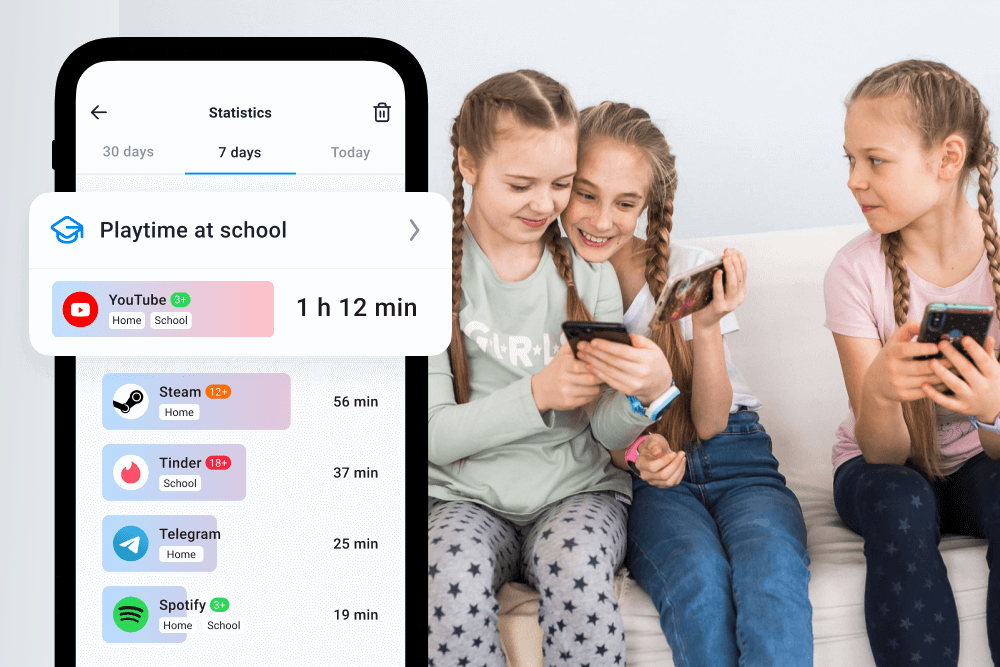
The Findmykids app
If the point is to disable parental controls on an Android device due to their being too restrictive or having some bugs, then using an app such as Findmykids is a perfect substitute. The app does offer parental controls, and in this way, parents can:
- Keep track of the LG phone location, ensuring they always know where their child is.
Receive SOS notifications if the child encounters a potentially dangerous situation. - Monitor application usage without fully blocking apps, giving children some freedom while still maintaining oversight.
- Set screen time limits for apps or the entire device to encourage healthy usage habits.
- Receive notifications for battery level or device activity.
- View travel routes and history to check where their child has been throughout the day.
- Assign tasks and rewards to encourage responsibility and personal development.
- Enable safe zones and get alerts if the child leaves or enters predefined locations.
It is a harmony between liberty and security, a guarantee that the parent is aware of the child’s safety, while the gadget does not seem to be locked down.
Enhance your child’s safety today. Download Findmykids and stay connected with confidence!
Empowering Responsible Digital Habits
Choosing to turn off parental controls is definitely a big move. It shows confidence. Still, moms and dads ought to keep talking with their kids about the safety on the net so they stay out of trouble. Support is always good, even if there are no software limitations set. Parents need to talk with their children about what apps are safe to download and what to do if they get messages from unknown people.
By moving away from strict parental controls on an Android device, the child gets the chance to create self-discipline while feeling that they have the support of their parents. Whether it is a Samsung, LG, or any tablet, the main aim is to use it in a responsible way.
FAQs
How do I deactivate parental controls on a phone?
If you want to deactivate the controls on an Android phone, you should first open the Google Play Store app. After that, tap the profile icon, navigate to Settings, then Family, and choose Parental controls. Turn off the toggle switch and enter your PIN. In the case of Family Link, you can open the app on the parent’s device and click Stop Supervision to set it.
What is the default PIN for LG parental control?
There is no predetermined PIN for parental controls on Android devices or other devices. The PIN is always set by the parent or the person who sets the restrictions. In case of forgetting the PIN, the best way is to clear the storage in the app’s settings.
How to override parental controls on Android?
In order to override the parental controls, you must have the PIN set. In case of the PIN being lost, users can navigate to Settings → Apps → Google Play Store → Storage and then click on Clear Data. By doing this, the existing settings app will be removed, and there will be no requirement for the PIN in the store.
How to remove parental controls on an Android phone if you forgot the password?
If you are unable to remember the password or PIN, you may need to perform a clearing up of the Play Store storage. This is the most secure first step. Should the phone be locked by a third-party app or system-level restriction, the user may be required to enter recovery mode and initiate a factory reset. That will delete all data, so it is essential to save important information to have a backup.
Cover image: rafapress / Shutterstock.com
Проверьте электронный ящик