It’s understandable for parents to want to know how to block apps on the App Store. Perhaps you want to stop your child from playing addictive mobile games or going on social media. You may also wish to restrict access to certain apps at specific times of the day, such as before bed or when they’re doing homework.
We’ll show you how to block apps and prevent App Store purchases on your child’s iPhone or iPad using Apple’s built-in Screen Time settings and parental controls. We’ll also share why this is an important step in helping your child build healthy digital habits.
Contents:
Can You Block A Specific App On The App Store?
You can block specific apps on your child’s iPhone or iPad by using Apple’s Screen Time tool. Although this won’t remove apps from the App Store search results completely, it will stop your child from downloading or purchasing restricted apps. They won’t be able to tap apps you haven’t approved!
Using the Screen Time settings on your child’s device, you can also restrict downloaded apps with specific age ratings, set time limits, or set up “Ask to Buy” through Family Sharing. Let’s dive into how this all works.
How App Store Restrictions Work on iPhone and iPad
App store restrictions on Apple devices are managed through the Settings → Screen Time function. From here, you can use parental controls to manage your child’s app usage on their iPhone or iPad.
Before you can set parental controls and restrictions on your child’s device, make sure you create a Family Sharing account. This way, you can add your child as a Family Member and monitor and manage their device remotely, from your own iPhone or iPad.
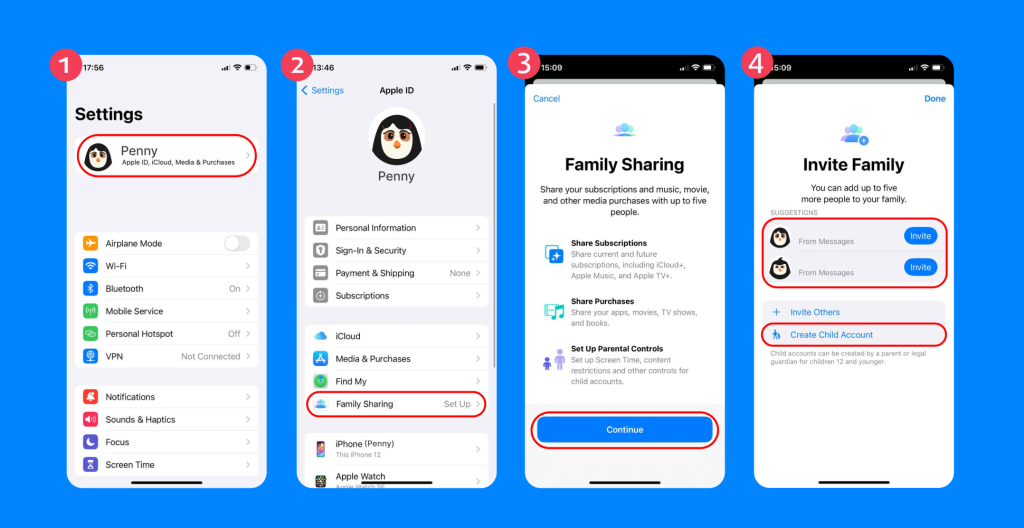
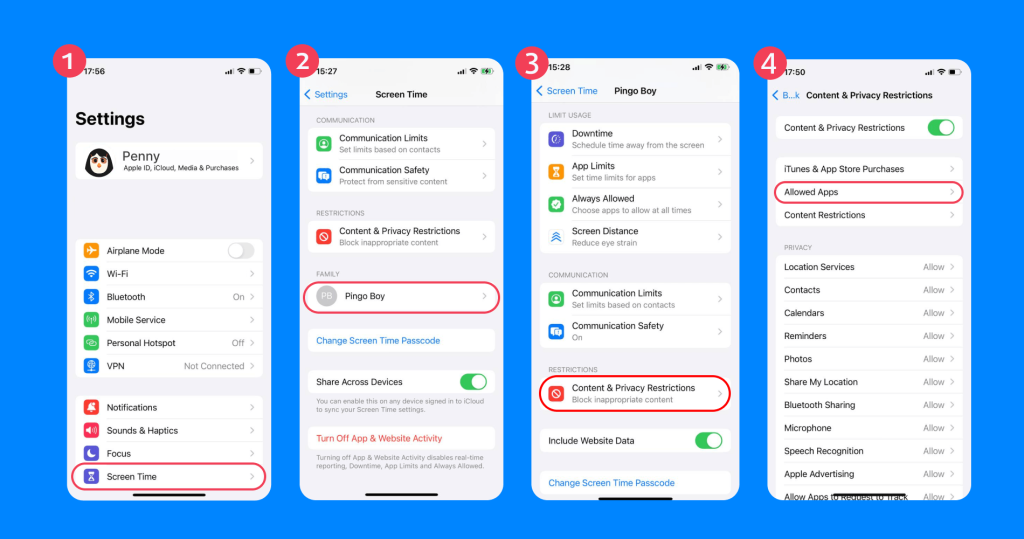
With Family Sharing installed, tap the Settings app, scroll down to Screen Time → Family, and tap on your child’s Apple Account. Next, tap Content & Privacy Restrictions and toggle this On.
What’s the Difference Between Blocking Apps and Hiding App Categories?
On Apple devices, you can specifically hide individual apps from your child’s Home Screen by turning them off when Content and Privacy Restrictions are enabled. You can also disable certain apps during Sleep or Focus mode. This doesn’t delete the apps entirely, but it makes them unavailable whenever these restrictions are turned on.
To block an app completely, you can delete it from your child’s device and turn off new app installs. We’ll show you how to do this below.
How to Block Apps Using Apple’s Screen Time
To block apps using Screen Time, tap Screen Time → Family → your child’s Apple Account → activate Content & Privacy Restrictions.
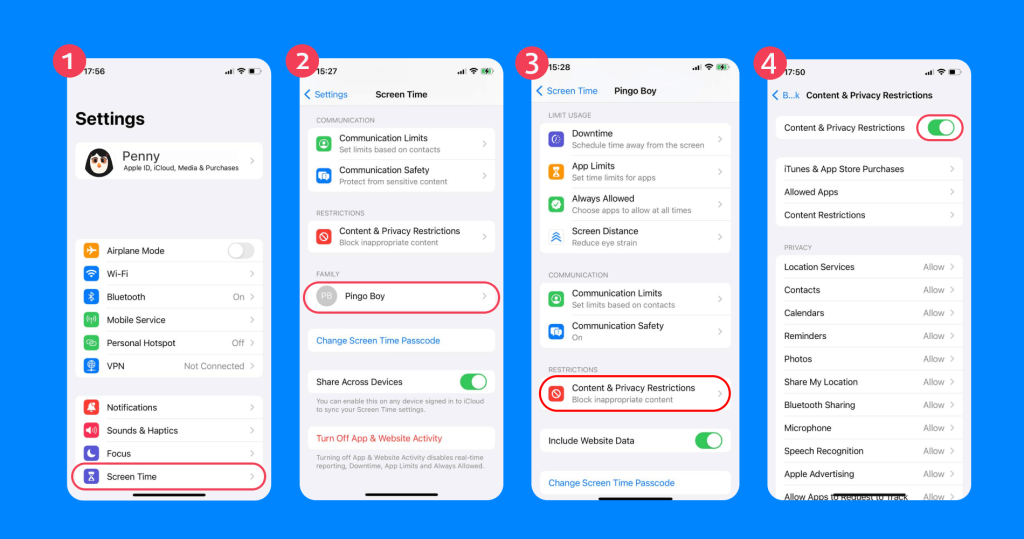
From here, you’ll see several options:
- iTunes & App Store Purchases: Turn off the ability (Don’t Allow) to install and delete apps and prevent in-app purchases. You can also set a password, which will then be required for purchasing items from iTunes, Books, or the App Store.
- Allowed Apps & Features: Turn on/off specific apps or features. This will remove these apps from the home screen, but it won’t delete them from the device permanently.
- App Store, Media, Web & Games: Here, you’ll see more granular app controls, such as age ratings for TV shows, books, and apps. You can also limit adult websites, turn off multiplayer games, and allow your child to add friends or private message other users in the Game Center.
How to Block Apps on the App Store
The only way to block apps on the App Store is to disable new app downloads and remove the App Store icon.
Tap Screen Time → Family → your child’s Apple Account → Content & Privacy Restrictions → iTunes & App Store Purchases → Installing Apps → set to Don’t Allow.
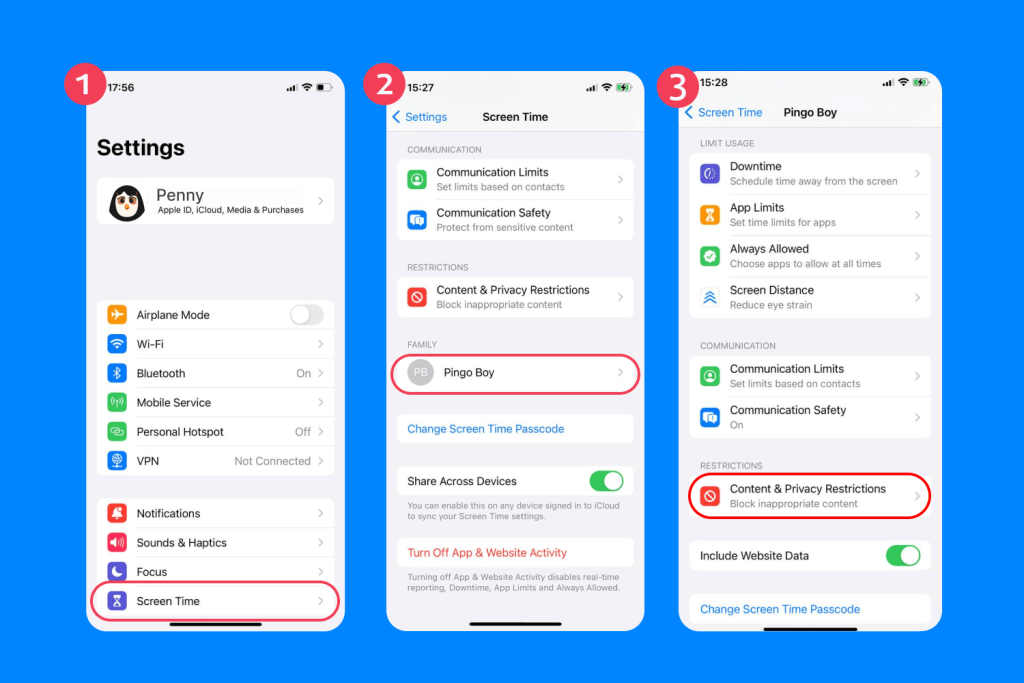

Following this step, the App Store icon will disappear, and your child won’t be able to download new apps from the App Store.
If you only wish to block specific apps, navigate instead to Allowed Apps and toggle apps to Allow or Don’t Allow.
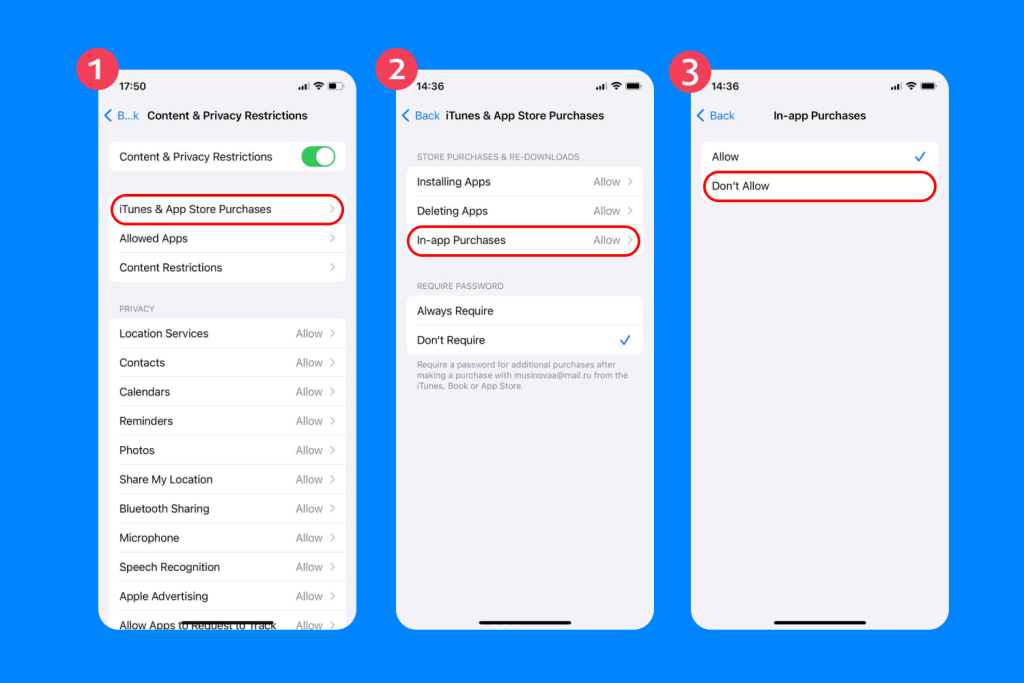
How to Block App Purchases And In-App Purchases
To prevent in-app purchases, tap Screen Time → Family → your child’s Apple Account → Content & Privacy Restrictions → iTunes & App Store Purchases → switch In-App Purchases to Don’t Allow.
How to Block Certain Apps by Age Rating
To block apps by age rating, go to Screen Time → Family → your child’s Apple Account → Content & Privacy Restrictions → Content Restrictions → Apps → select the age rating.
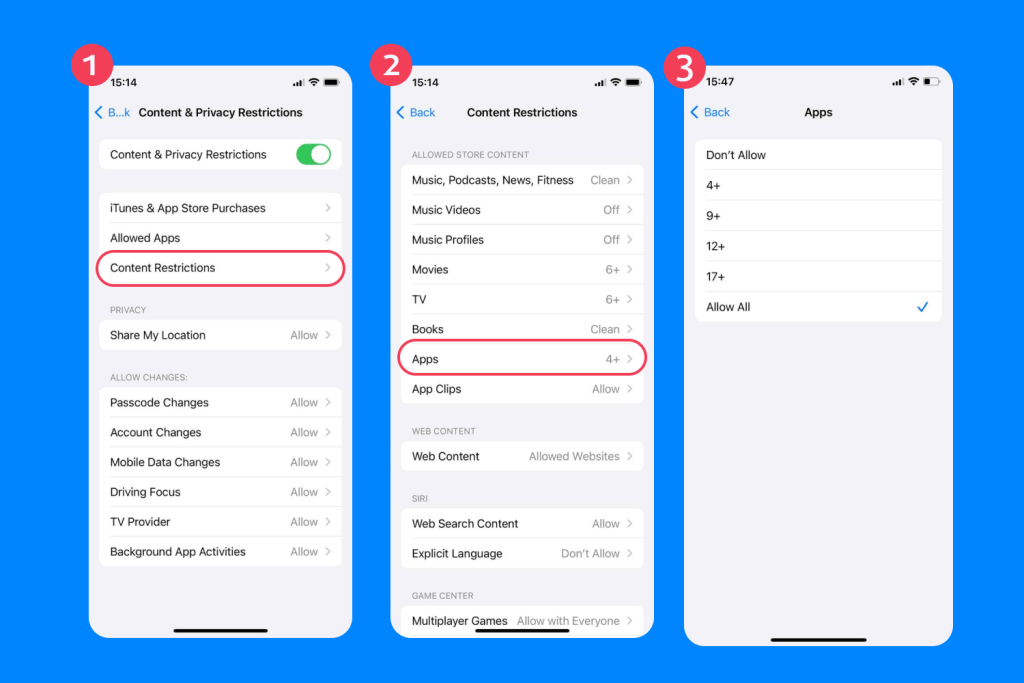
App age ratings are:
- 4+
- 9+
- 13+
- 16+
- 18+
- Unrated
How to Hide Built-In Apple Apps
Many parents may decide to hide built-in apps on their phones while giving them to younger children to keep them out of their email inbox or block inappropriate content.
On iOS 18 devices, you can hide built-in apps by long-pressing the chosen app icon and selecting Require Passcode. This way, the app can’t be opened without your passcode.
To hide specific apps on your child’s phone, you can also turn them off using the Allowed Apps setting via Screen Time. Hidden apps won’t be visible when Content & Privacy Restrictions are turned on.
How Findmykids Complements Apple’s Built-In Parental Controls
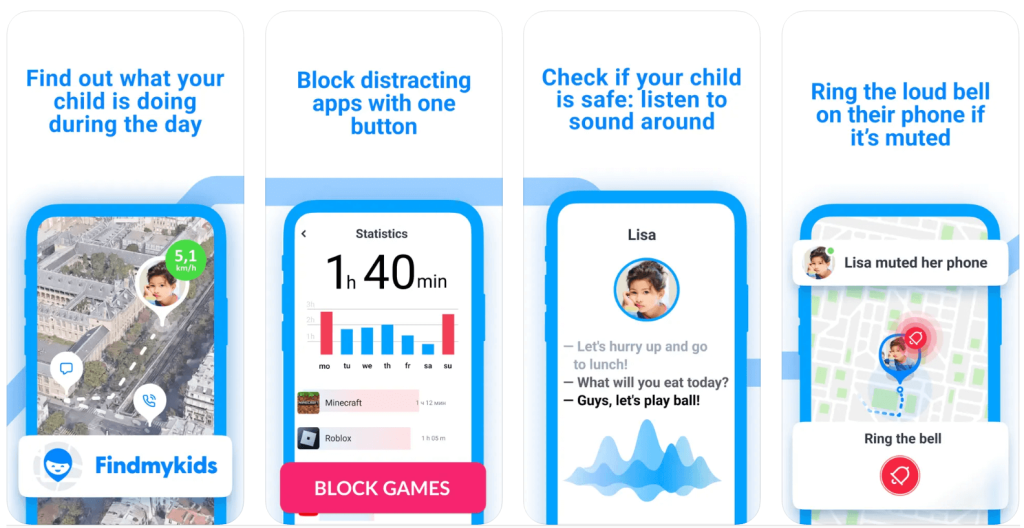
Findmykids app
Although Apple’s Screen Time features can be really useful when it comes to managing your child’s online safety and security, they are not a substitute for active parenting and open communication.
Many parents choose to embrace other tools, such as Findmykids, alongside Apple’s basic parental controls, to give them better oversight and peace of mind.
Findmykids complements Apple’s built-in features by helping parents block distracting apps and guide healthy digital habits.
As well as being able to block apps, you can also:
- Block 18+ entertainment websites
- Block in-app purchases
Beyond online controls, Findmykids offers real-world safety features that help you stay aware of your child’s whereabouts and well-being. These include real-time geolocation tracking, route history, arrival and departure notifications, and a loud signal alert if your child needs immediate assistance. Together, these tools let you support your child’s independence while ensuring they remain safe both online and offline.
Findmykids ultimately helps you maintain your child’s trust while keeping them safe in the real world and online. It also helps you stay connected to your child’s world as they grow and gain independence.
Download the Findmykids app now and enjoy a calmer, more informed parenting experience!
Blocking Apps on the App Store Is Helpful, But It’s Not the Whole Answer
Many parents block apps on their child’s phone—either permanently or in the moment—to help them focus on school work or maintain healthy digital habits, such as avoiding addictive games or social media platforms.
However, as your child grows up and becomes more independent (and better at finding their way around phone restrictions!), it’s smart to combine Apple’s parental controls and app blocks with other methods.
Third-party apps like Findmykids are definitely a part of this picture, but it’s also important to keep conversations open, monitor your child’s mood and digital habits in person throughout the day, and help guide them towards healthier, more well-rounded choices.
FAQs
Can I block a specific app on the App Store?
Using Apple’s Screen Time feature, you can turn off specific apps. This only works when Content & Privacy Restrictions are turned On.
Open Settings. Tap Screen Time → Family → your child’s Apple Account → Content & Privacy Restrictions → Allowed Apps and toggle apps you want to block to Allow or Don’t Allow.
How do I stop my child from installing apps on their iPhone?
Tap Screen Time → Family → your child’s Apple Account → Content & Privacy Restrictions → iTunes & App Store Purchases → Installing Apps → set to Don’t Allow
Can I block App Store purchases and in-app purchases?
Yes. Tap Screen Time → Family → your child’s Apple Account → Content & Privacy Restrictions → iTunes & App Store Purchases → switch In-App Purchases to Don’t Allow.
Within Family Sharing, you can also enable Ask to Buy to prevent your child from purchasing apps without your consent.
How do age ratings help block certain apps?
Age ratings block apps by using Screen Time limits to match users with designated maturity ratings for apps, such as 4+ or 13+.
To block apps by age rating, go to Screen Time → Family → your child’s Apple Account → Content & Privacy Restrictions → Content Restrictions → Apps → select the age rating.
Cover image: warnaudara / Freepik.com
Проверьте электронный ящик