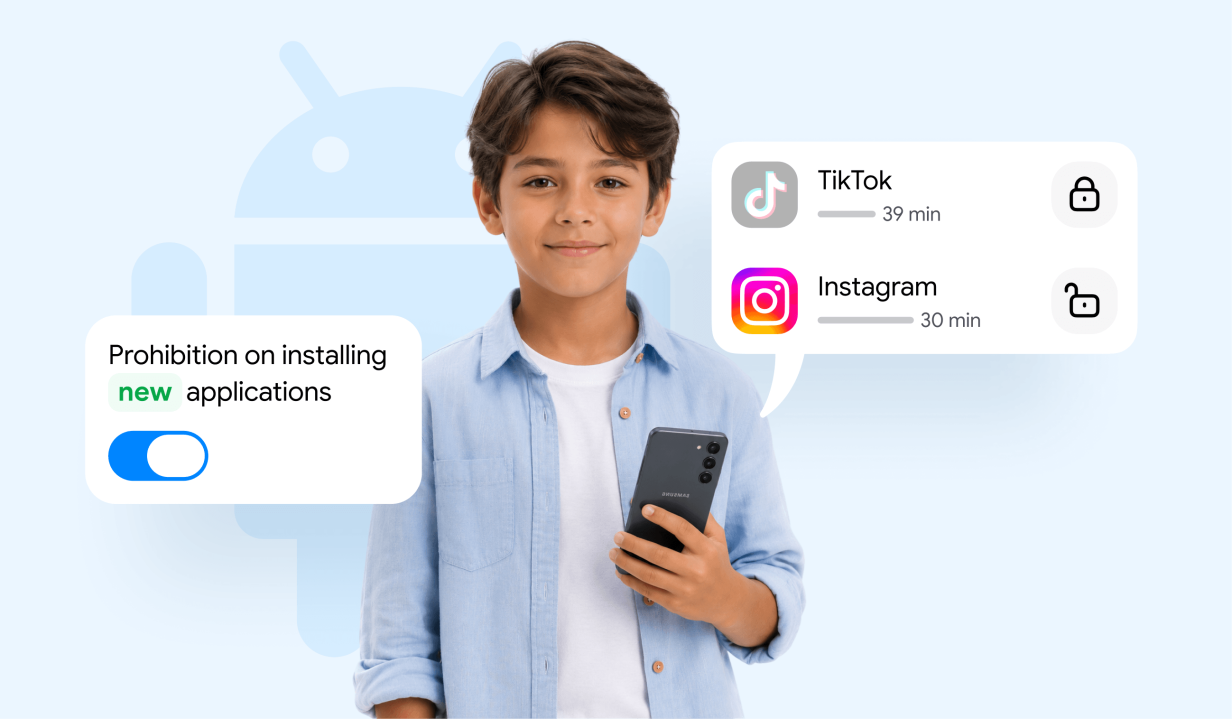
With more than 3.5 billion Android users, chances are high that you and your children also use Android phones or tablets. As parents who allow our children internet access, we take safety precautions into consideration.
Thankfully, Android has made it simple to protect children online. In this guide, we’ll explain how to block social media on Android, so you can take an extra step to keep your children safe while using their Android devices.
Contents:
How to Block Social Media on Android Immediately
Parents can quickly control what their child accesses on Android using free tools. The main methods are:
- Google Family Link: Open the app → Select your child’s account → App limits → Pick social media apps → Set daily limit (1 minute to block completely) → Manage app downloads.
- Digital Wellbeing & Parental Controls: Settings → Digital Wellbeing → App timers → Select social apps or category → Set timer to block access.
- Findmykids: Download the app → Install and link the child’s phone → Open child profile → Parental Controls → Block selected apps for a chosen time period.
These options let parents act fast while keeping an eye on their child’s digital habits.
Why Parents Choose to Block Social Media
Social media is a great way to stay connected with friends, keep up with what’s going on in the world, and discover new trends. However, for children, social media platforms can have negative impacts on their mental health, social behavior, emotional regulation, and even physical health. With this in mind, 39% of parents use parental controls to restrict or limit their children’s access to social media apps.
Common reasons parents choose to block access to social media on their children’s mobile devices include:
- Protecting kids from inappropriate or adult content
- Preventing cyberbullying from classmates or strangers online
- Limiting screen time to build healthy digital boundaries and increase productivity
- Protecting privacy and personal data
- Avoiding exposure to online predators
- Reducing the biggest distractions from schoolwork, home tasks, hobbies, and responsibilities
- Supporting the child’s mental health
- Preventing exposure to harmful trends or challenges
Whatever your reason may be to block social media on your child’s devices, it’s extremely common in modern parenting. Now that we know more about how social media use affects children and distracts them, more parents are taking their children’s social media use into their own hands.
Related: Social Media Is Toxic: How to Protect Your Kids from It.
Method 1: Use Android Digital Wellbeing
Digital Wellbeing is a free built-in feature on all Android devices that helps users monitor and control how they use their phone or tablet. Parents can use it to restrict social media and website usage on their children’s devices through daily screen time limits or temporarily pausing access to certain apps at specific times.
To set Android Digital Wellbeing to block social media, follow the steps below:
- Open the Settings app.
- Tap Digital Wellbeing & Parental Controls.
- Tap the Dashboard or the list of apps showing usage time.
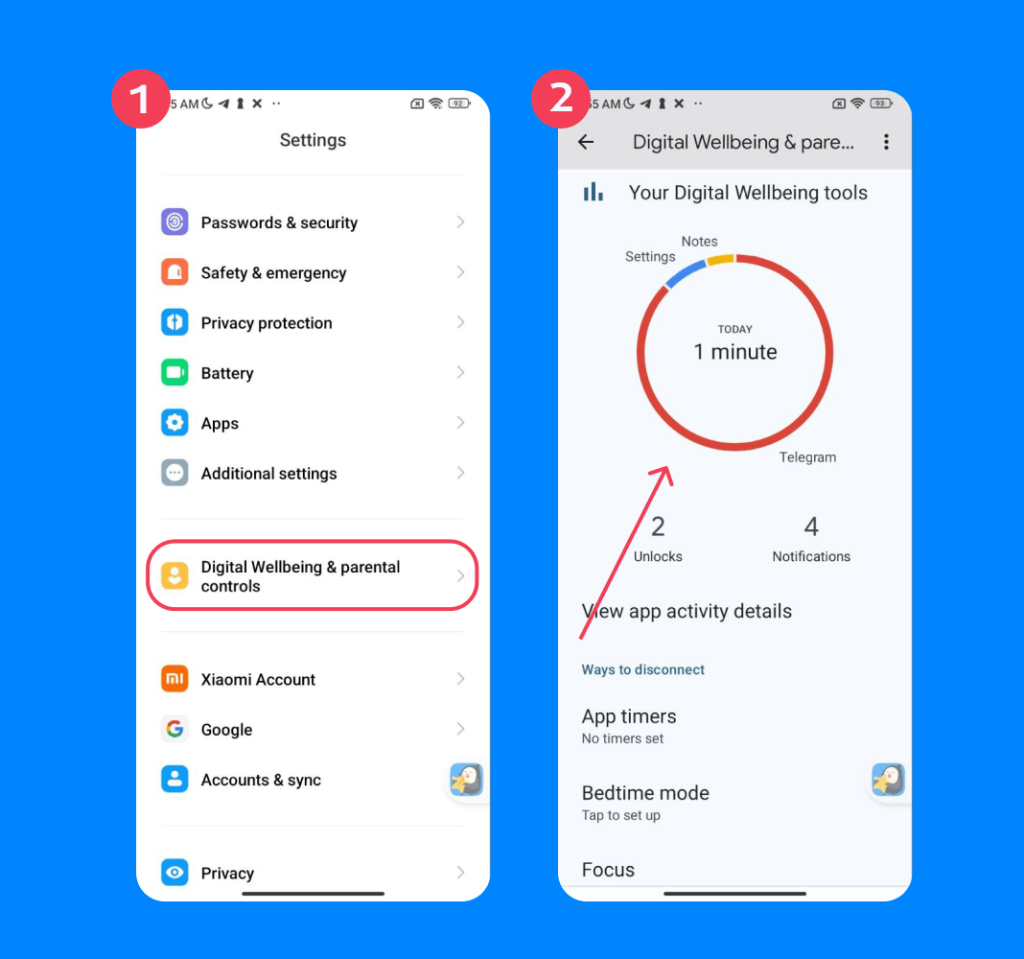
- Tap the hourglass icon next to the specific apps you wish to set scheduled blocking and limitations.
- Choose how long the app can be used each day.
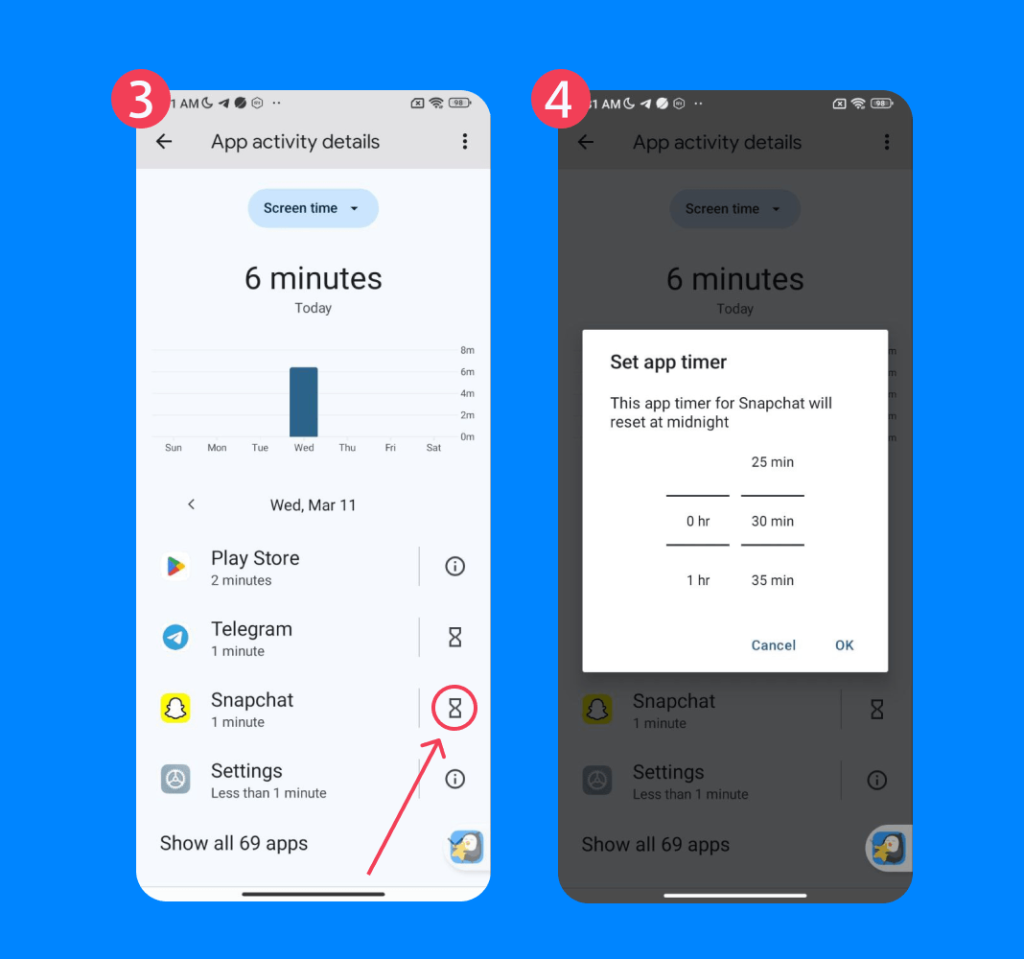
- Tap OK to confirm.
Once the app’s daily time limit runs out, your child will no longer have access until the next day.
You can also use Digital Wellbeing to set which apps are available while the phone is in Focus Mode. This can help block distracting apps and notifications during important periods, such as schooltime or when your child is doing homework, to help them stay focused and productive.
To do this, follow these steps:
- Go to Settings → Digital Wellbeing & Parental Controls.
- Tap Focus Mode.
- Select the apps you want paused.
- Tap Turn On Now.
Method 2: Try the Findmykids App

Findmykids app
Third-party apps like the Findmykids app are an excellent tool to limit or block social media on Android. It’s a helpful tool for instilling healthy digital boundaries while also providing insights into how children use their devices.
With Findmykids, parents can access and track app usage statistics:
- What apps the child uses
- How long they use them
- And even where they spend the most time on them (at home, school, etc.)
With this information, parents can discuss potential issues with their children and take action to block distractions like games, social media, and other apps, set screen time limits, and even lock the device at night so it doesn’t disrupt their sleep.
To set time limits on apps or block them entirely, follow these steps:
- Download the Findmykids app to your phone.
- Create an account.
- Follow the instructions to link your child’s phone (it only takes 5 minutes!).
- Open the app on your phone.
- Tap your child’s profile.
- Tap Parental Controls.
- Select which social media apps to block or set time limits for.
Findmykids gives parents the tools they need to take extra safety precautions when it comes to their children’s online activity. It also promotes healthy digital use, helping kids spend less time in front of a screen and more time improving critical developmental skills.
Download Findmykids today to take control of your child’s digital environment and support healthier screen habits!
Method 3: Block Social Media Apps with Google Family Link
Google Family Link allows parents to restrict or block social media apps on a child’s Android device through their Google account. This option is often stronger than the Android Digital Wellbeing feature because parents have more control.
To block social media apps with Google Family Link, follow these steps:
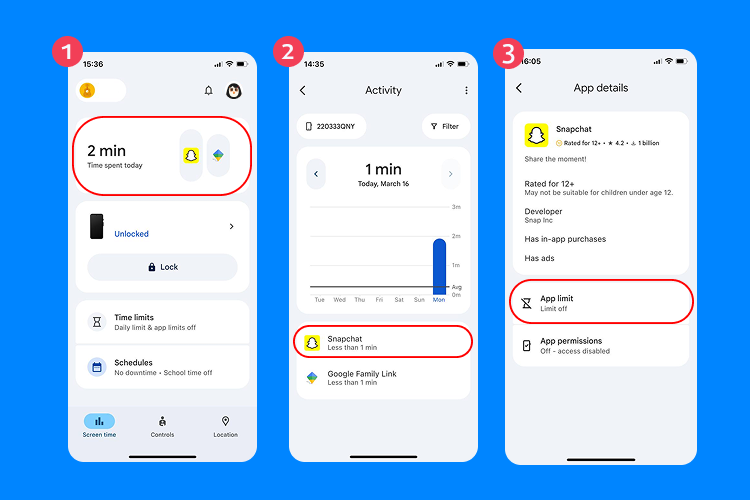
- Open the Family Link app on your phone.
- Tap your child’s profile.
- Go to Screen time.
- Tap Time spent today.
- Scroll through the list of apps and select the app you want to block.
- Tap App limit.
- Switch the Allowed toggle → Off to block the app completely.
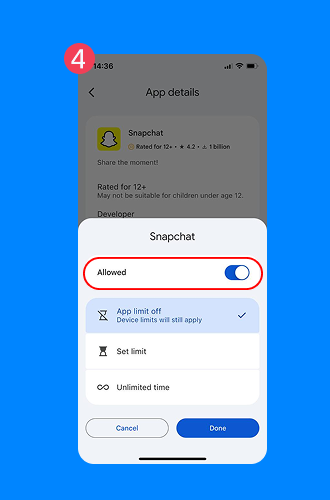
Blocked apps will be hidden and inaccessible on your child’s device until you unblock them.
If you wish to set screen time limits for apps, you can follow these steps:
- Open Family Link.
- Tap your child’s profile.
- Tap Screen Time → Time Limits → App Limits.
- Select the app you want to limit.
- Tap Set Limit.
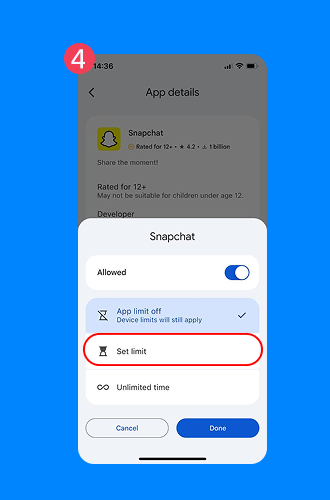
- Add limit for the daily use → Done.
Method 4: Prevent New Social Media App Installation
The best way to prevent social media apps from being downloaded by your child is through Google Family Link or directly via Google Play parental controls.
Using Google Family Link
With Google Family Link, you can set content restrictions that require approval for new app downloads. To do this, follow these steps:
- Open Family Link.
- Select your child’s account.
- Tap Controls.
- Select Google Play.
- Tap App Purchases & Downloads.
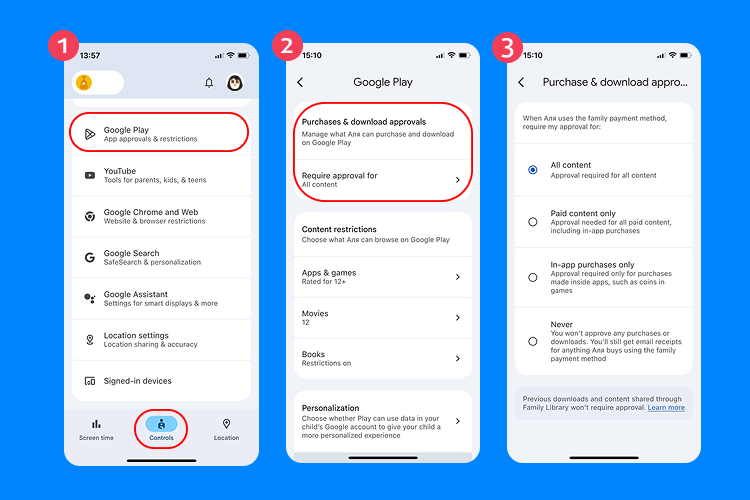
- Select Require Approval for All Downloads.
Whenever your child tries to download an app, you will automatically receive a notification and can approve or block the download.
Using Google Play Parental Controls directly
You can also prevent app installation via the Google Play Store itself:
- Open the Google Play Store on your child’s device.
- Tap your profile icon → Settings → Family → Parental Controls.
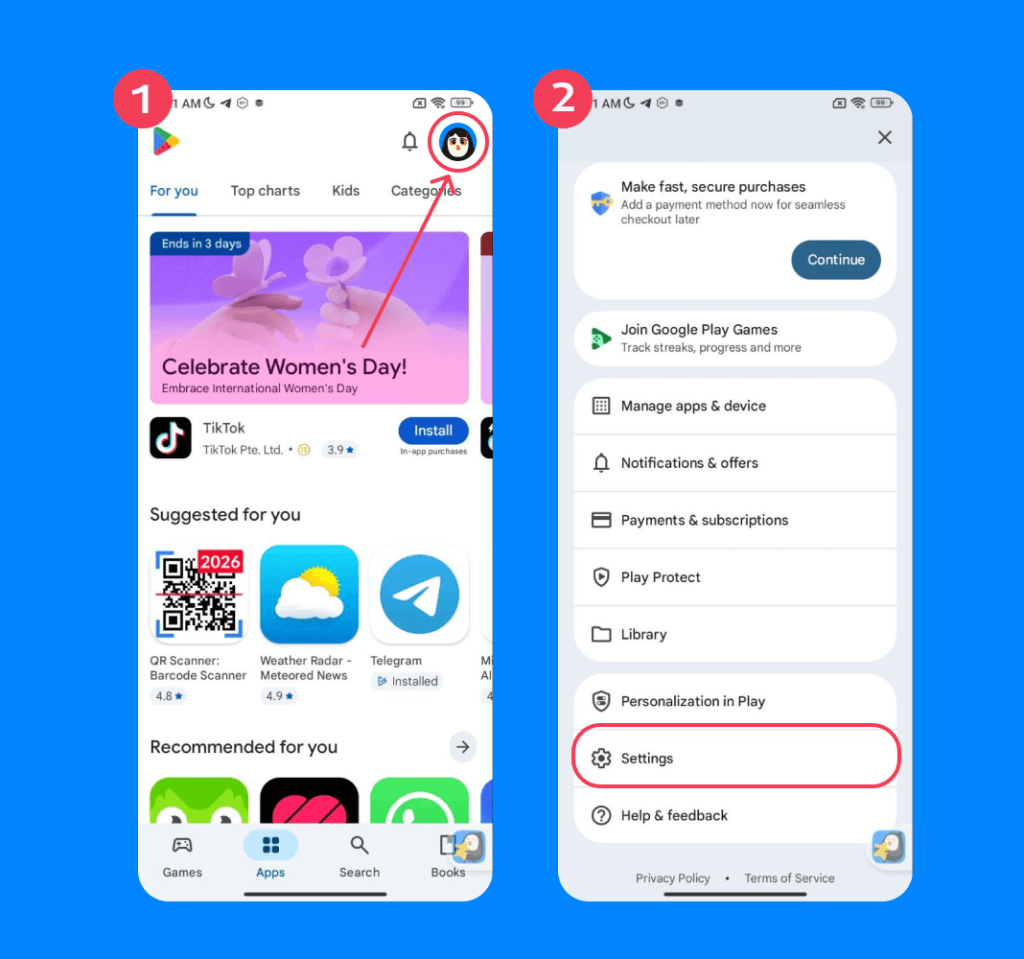
- Turn on Parental Controls and set a PIN.
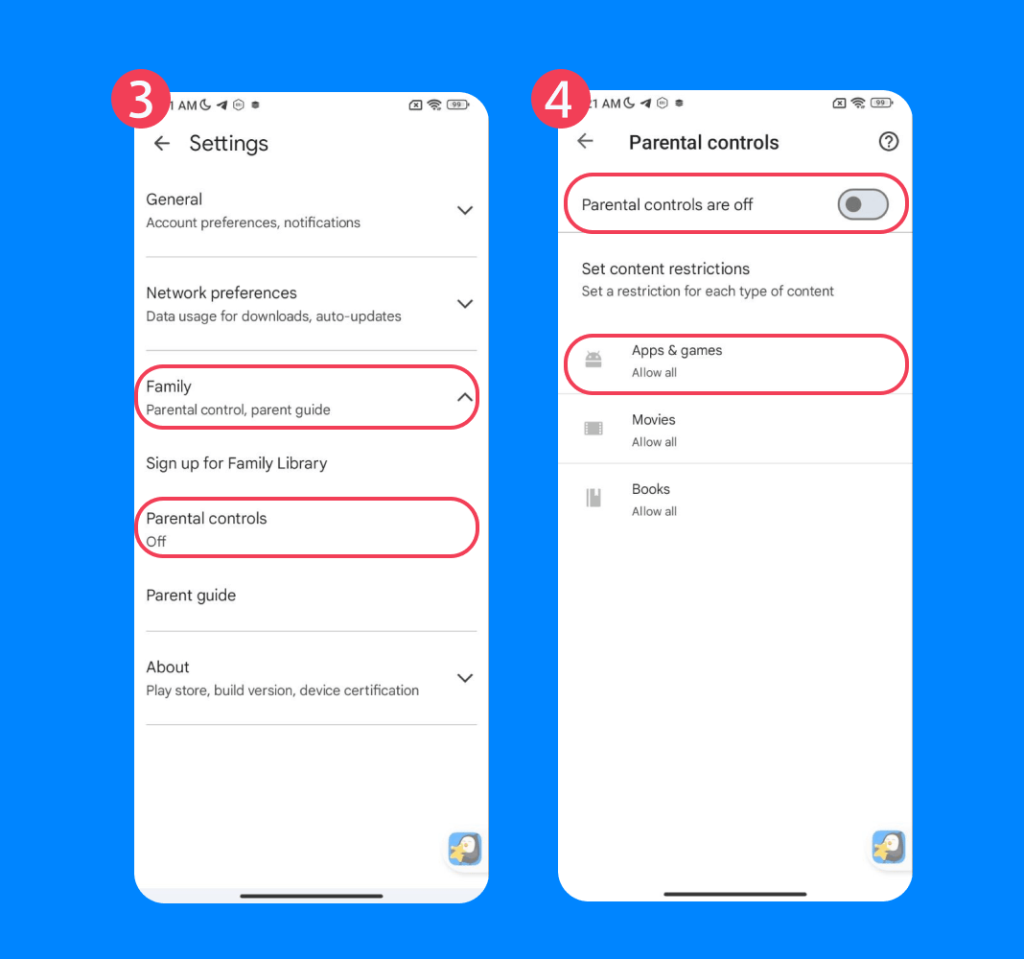
- Set restrictions for Apps & Games based on age ratings.
After this, any attempt to download an app above the allowed rating will require the PIN, effectively blocking new social media apps unless approved by you.
Method 5: Block Social Media Websites on Android
Some kids find a workaround to access social media when the apps are blocked by visiting the website directly through a web browser. This will require you to set browser-based restrictions or use domain filtering through your router.
Before following these instructions, create a list of websites you wish to block.
The easiest way to block social media websites on Android is through Google Family Link:
- Open Family Link.
- Tap your child’s profile.
- Tap Controls.
- Choose Google Chrome and Web.
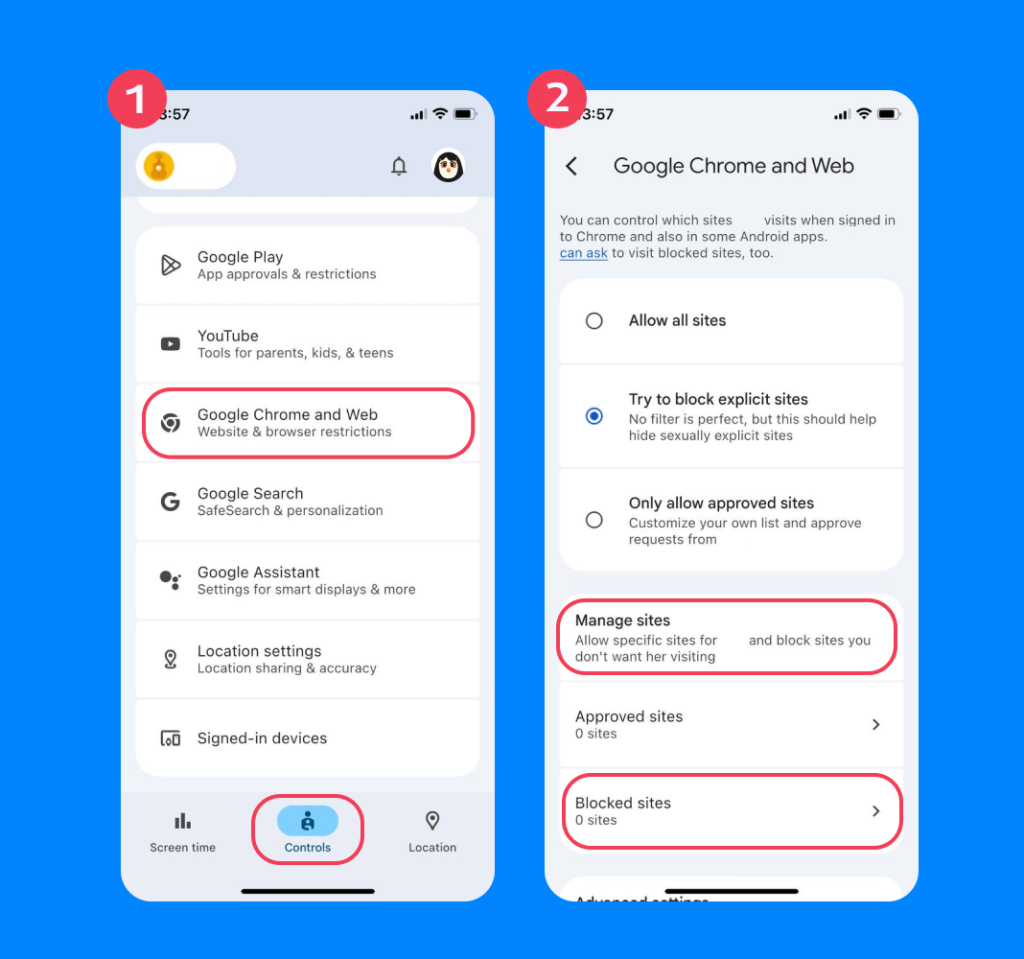
- Select Manage Sites → Blocked → Add a website.
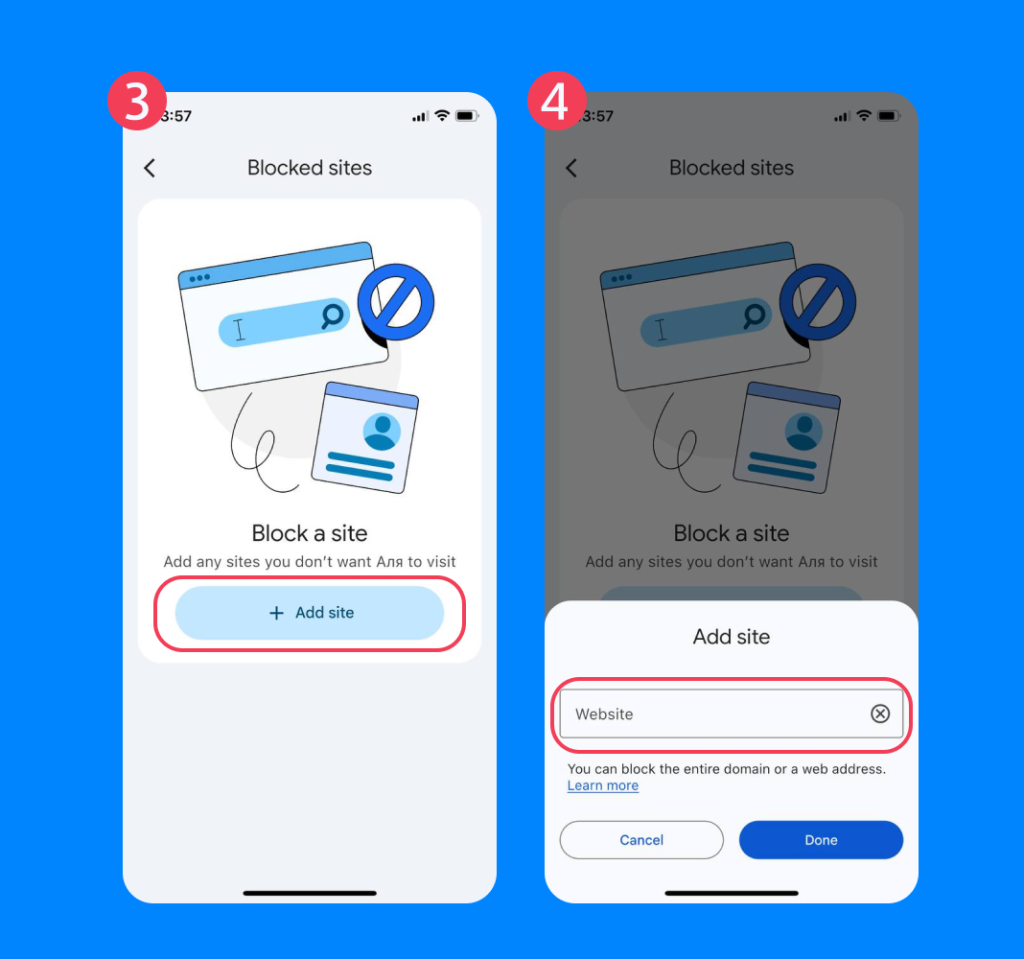
- Enter the URL of the social media website you want to block (ex, facebook.com or youtube.com).
- Tap Save.
Since kids can bypass app blocks by using a browser, it’s helpful to use browser-level protections as an extra layer of safety:
- Google SafeSearch: Enforce SafeSearch to filter explicit content in Google search results. This can be activated via Family Link or directly in Google settings.
- Enable Chrome Safe Browsing: Open Chrome → Settings → Privacy and Security → Safe Browsing → Turn on “Enhanced Protection.”
- Enable Google SafeSearch: Open Google → Settings → Search Settings → Turn on “SafeSearch” to filter explicit results.
- Chrome’s Built-In Restrictions: Set supervised accounts or enable restricted browsing in Chrome to block certain websites or limit access to age-appropriate content.
You can also block websites through domain filtering on your router, which provides network-level filtering for multiple devices (not just Android) connected to your Wi-Fi. To set this technology up, follow these steps:
- Connect to your Wi-Fi network.
- Open the router admin page.
- Log in to the router.
- Find the website filtering or parental controls section.
- Add websites to the block list.
- Decide which devices to apply the rule to.
- Save or apply the settings.
Read more: The Best Methods to Block Websites on a Router.
Troubleshooting Blocking Social Media on Android
When blocking social media apps on Android, parents should troubleshoot the device to ensure their restrictions are enabled. Common troubleshooting methods include:
- Make sure the app is actually blocked: Try to open the app. If it is accessible, go back into your parental control app to ensure it has synced successfully.
- Check for duplicate apps: Make sure the app is not accessible through a mobile browser, or if there is a Lite version of the app available.
- Restart the device: A simple restart can activate the parental controls and app restrictions.
- Check app permissions: Open Settings → Apps → Special app access to review permissions and make sure they are active.
- Check for VPN or Private DNS Usage: Check the device for VPN apps, private DNS settings, or third-party network tools. These can bypass app restrictions.
- Update Android device: Outdated software can cause parental control tools to stop working properly.
After checking these settings, permissions, and updates, social media apps should be blocked on your child’s Android device.
Easily Block Social Media Apps on Your Child’s Android and Promote Healthy Digital Habits
More parents are using parental controls to block apps or prevent children from installing apps like social media on their phones. And now you know how to block social media apps on Android phones and tablets through Google Family Link, Android Digital Wellbeing, and the Findmykids app.
Knowing what your child is doing online can help you keep them safe and have honest conversations about digital safety. When you and your child both understand the importance of screen time limits, especially for social media, you can strengthen your relationship and support them in building healthy digital habits.
If you found this article helpful, make sure to share it with another Android user and help them block social media apps from their kids’ phones. Together, we can achieve a healthy balance of modern technology and real-life experiences for our children!
FAQs
Can you completely block social media on Android?
Yes, it’s possible to completely block social media apps on an Android phone. Parents can use tools like Google Family Link or parental control apps such as Findmykids to restrict access to specific apps. When an app is blocked, it won’t open on the device until the parent removes the restriction.
However, it’s worth remembering that blocking the app itself doesn’t always stop access through a web browser. To fully limit social media, parents may also want to block social media websites or set browser restrictions.
What is the easiest way to limit social media on an Android phone?
One of the easiest options is Google Family Link, a free parental control app that lets parents manage app usage and approve new downloads.
Another simple option is using a dedicated parental control app like Findmykids, which allows parents to see which apps their child uses and temporarily block distracting apps when needed. Tools like these help parents guide healthier digital habits without needing complex settings.
Can kids bypass social media restrictions on Android?
Sometimes they can—especially if the restrictions aren’t set up carefully. For example, a child might access social media through a mobile browser instead of the app, create a new account, or install a similar app that isn’t blocked.
That’s why it’s helpful to combine app blocking with open conversations about online habits. Parental controls work best when they’re paired with clear expectations and regular check-ins about how kids are using their devices.
Is it possible to block social media only during certain hours?
Yes. Many parental control tools allow parents to limit access to apps during specific times of day—for example, during school hours, homework time, or late at night.
Some parents use tools like Findmykids to temporarily block social media apps when their child needs to focus on schoolwork or sleep without distractions. This approach helps create boundaries without banning social media completely.
Do social media blocking tools work on all Android devices?
Most parental control tools work on the majority of Android phones and tablets, although the exact settings may look slightly different depending on the device brand or Android version.
Apps like Findmykids are designed to work across many Android devices, helping parents monitor app activity and manage screen time regardless of the phone model their child uses.
Проверьте электронный ящик