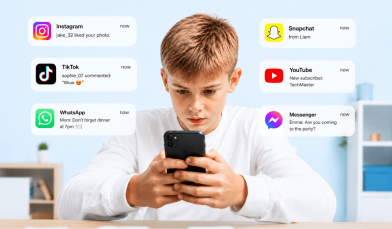
You look up from your own phone and realize the house is quiet. Too quiet. That’s usually the first sign everyone is plugged into a matrix of their own making. If you’re wondering how to reduce screen time without starting a household mutiny, you’ve come to the right place.
We aren’t going to tell you to smash the tablets or move to a cabin in the woods. This is about finding a balance that lets your kids live in the real world while still knowing how to operate a touchscreen.
Contents:
What Counts as Screen Time (and When to Worry)
Before you banish all electronic devices to a locked box, let’s define what we’re actually talking about, because not all screen time is created equal.
There’s a massive difference between your child using a tablet to learn coding or edit a stop-motion video and mindlessly watching six hours of unboxing videos on YouTube. One is active and creative, while the other is passive consumption.
However, even “good” screen time has limits. The American Academy of Pediatrics (AAP) suggests that for children ages 2 to 5, screen time should be limited to one hour per day of high-quality programs. For older children, the guidelines shift toward setting consistent limits on media use.
Signs You’ve Hit the “Too Much” Mark: What Happens if Screen Time Isn’t Controlled
You generally know it when you see it, but if you need concrete evidence that excessive screen time is taking over, look for these red flags:
- The Zombie Walk: They walk into walls because they can’t look up from the phone.
- The Meltdown: Taking the iPad away triggers an emotional explosion.
- Sleep Struggles: They can’t fall asleep because their brains are wired by blue light.
- Loss of Interest: They stop playing games outdoors or lose interest in hobbies they once loved.
Similarly, when screen time eats into sleep, physical activity, and face-to-face connection, you have a problem on your hands. The National Institutes of Health (NIH) released research indicating that children who spend more than two hours a day on screen-time activities score lower on language and thinking tests, and that’s a stat worth paying attention to.
Step 1: Understand Your Child’s Screen Habits

Findmykids app
You can’t manage what you don’t measure, and before you start laying down the law, you need to see exactly what’s happening on those devices.
Check the Data
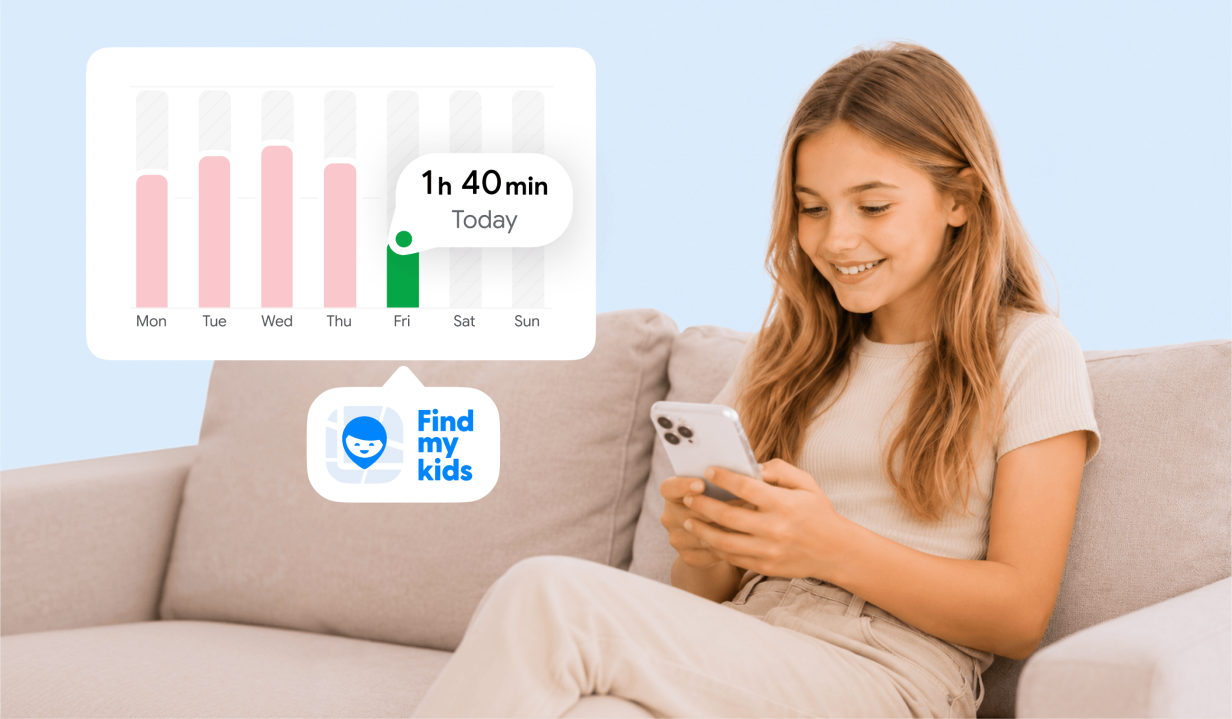
Most devices have built-in reporting tools: on an iPhone, check the Screen Time settings; on an Android, check Digital Wellbeing. These screen time reports will show you exactly how much time is being spent and, more importantly, where.
If you want a clear breakdown and an easier way to spot trends, the Findmykids app gives you even more insight. It tracks every app’s usage, so you can see if your child spent their afternoon on TikTok, racked up time on games like Roblox or Minecraft, or jumped between popular social media platforms. You won’t have to guess which apps are the biggest time sucks. The data is all there.
The numbers can be eye-opening. According to 2023 reports, teens spend, on average, nearly five hours a day on social media. YouTube sits at the top as the most-used app, with TikTok and Instagram close behind. With younger children, time spent on games and video streaming often outpaces any so-called learning time.
Read also: Revealing the 5-Hour Screen Time: What Kids are Doing on Their Phones.
Step 2: Create a Balanced Screen Schedule
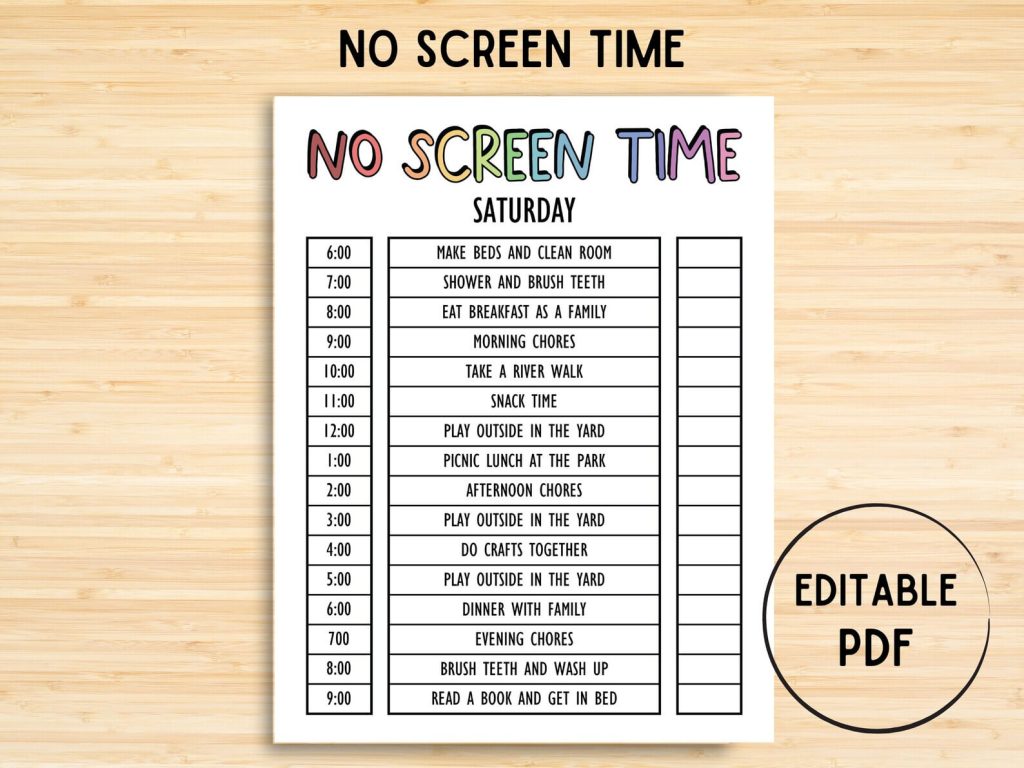
Credit: etsy.com
Now that you have the data, you can build a plan. The goal here isn’t to be a dictator but to set boundaries that make sense for your family.
Use Built-In Tools to Enforce Screen Time Limits
Smartphones come loaded with features to help you out. On iPhones, the Screen Time tool lets you set app limits for categories like games, social media, or even specific apps. Digital Wellbeing on Android works the same way. You can schedule downtime when only certain apps work, and set daily usage caps that are pretty tough to ignore.
For an extra layer of control, especially if your child tends to find every loophole, apps like Findmykids make it almost effortless.
With Findmykids, parents can see how much time a child spends in each app and spot patterns that built-in tools don’t always make obvious. On Android, you can block individual apps or block all apps at once (except essential system apps), either temporarily using a timer or for longer periods—helpful for homework time, meals, or bedtime routines. On iOS, app blocking works as a single on/off mode for all apps at once, making it a quick way to pause distractions when needed.
Instead of deleting apps entirely, this approach helps set clear boundaries around screen use—keeping routines intact without turning phones into a constant source of conflict.
Establish Clear Limits
Decide on a hard number. Maybe it’s one hour of leisure screen time on weekdays and two on weekends.
Once you set this limit, stick to it. Consistency is the only way this works. If you cave and give them “five more minutes” that turns into an hour, they’ll learn that your limits are negotiable.
Define Screen Free Zones
Physical boundaries work wonders, so do your best to make certain areas of the house completely screen-free.
- The Dinner Table: No phones during meals. As a side benefit, this forces actual conversation.
- The Bedroom: This is the most critical one: charge all electronic devices in the kitchen overnight. Nothing ruins sleep faster than the temptation to check notifications at 2 AM.
- The Car: Unless it’s a road trip longer than two hours, encourage them to look out the window.
You have to model this behaviour too. If you’re checking emails at the dinner table, you can’t expect them to ignore their texts.
Step 3: Download Findmykids
Findmykids app
Sometimes built-in settings aren’t enough. Kids are smart, and they figure out workarounds for standard parental controls faster than you can set them up. This is where a dedicated tool like Findmykids comes in handy, serving as a set of training wheels for digital independence.
How It Helps You Reduce Screen Time
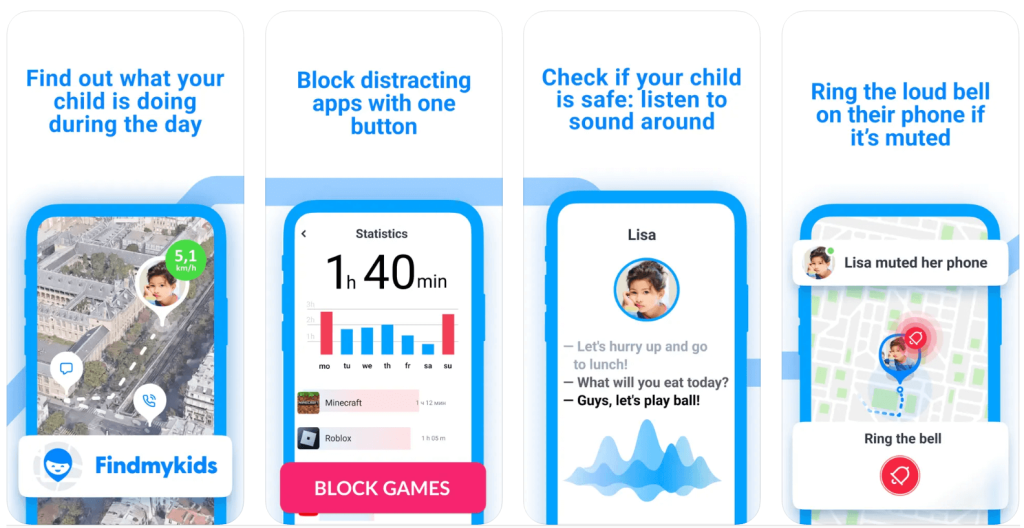
- App Usage Statistics: You get a clear view of which apps are eating up their day. If you see they spent four hours on TikTok, you have the data to back up a conversation about social media limits.
- App Blocking: You can block distracting apps during school hours or homework time. They can still use the phone for calls or educational tools, but the games and social feeds are off-limits until you say otherwise.
- Safety First: Beyond screen time, the location tracking and safety alerts give you peace of mind when they are out in the world.
- Extras That Make Life Easier:
- Loud Signal / Bypass Silent Mode: Get their attention even if the phone is on silent.
- Sound Around: Listen to the surroundings with the child’s knowledge for added reassurance.
The app handles boundaries so you can focus on guiding and supporting your child, not micromanaging their phone.
Try Findmykids today to combine smart screen-time management with real-world safety, all in one app!
Step 4: Reduce Temptation Through Device Settings
vplonsak / Freepik.com
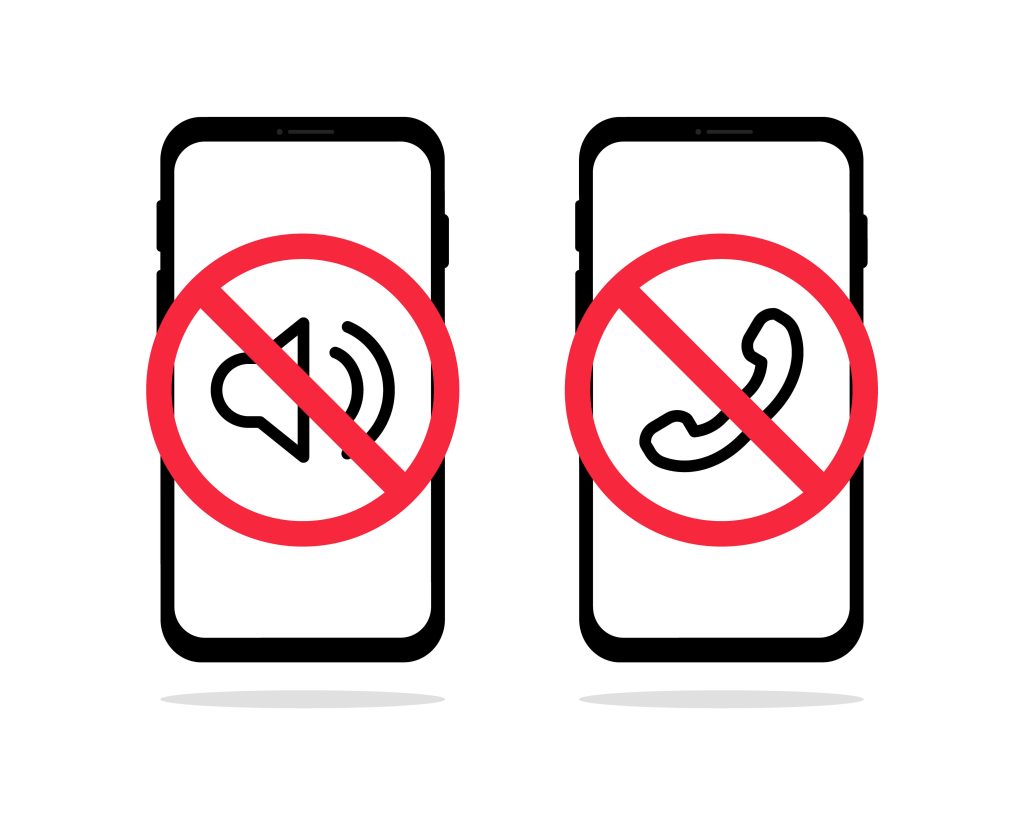
Screen time addiction isn’t an accident: technology companies design apps specifically to be addictive. You can fight back by tweaking the settings on the device itself (no need to invest in a flip phone!).
Turn Off Notifications
Notifications are the enemy of focus. Every ding, buzz, or flash pulls your child’s attention back to the device. Go into the Settings app and turn off notifications for everything except calls and text messages from family. They don’t need to know instantly that a YouTuber posted a new video.
Use “Do Not Disturb”
Schedule Do Not Disturb or Sleep Focus modes to kick in an hour before bedtime. This stops the phone from lighting up and helps their brain start to wind down so they can fall asleep faster.
Grayscale Mode
Switch the display to grayscale (black and white). Without the vibrant red notification badges and colorful icons, the phone becomes significantly less stimulating, a tool rather than a toy. You’ll be amazed at how much less interesting Instagram looks in black and white.
Which devices support it:
- iPhone & iPad (iOS 12+): Go to Settings > Accessibility > Display & Text Size > Color Filters > Grayscale.
- Android phones: Most devices have grayscale under Settings > Accessibility > Visibility enhancements > Color adjustment / Color filters, or via Developer Options > Simulate color space > Monochromacy. Exact steps vary by brand.
Tip: Grayscale doesn’t block notifications or apps, so it works best alongside screen-time limits or parental control apps like Findmykids.
Block or Restrict Dangerous and Time-Consuming Apps
Not every app deserves a spot on your child’s device. Social media apps, certain games, or platforms designed for endless scrolling can quickly eat up hours and expose your child to risky content.
With Findmykids, parents can limit access to these apps in ways that fit daily routines. On Android, you can block individual apps or pause all apps at once (except essential system apps), either temporarily with a timer or for longer periods. On iOS, app blocking works as a single on/off mode for all apps at once. These tools help your child focus on homework, meals, or sleep while reducing exposure to age-inappropriate content.
Step 5: Encourage Alternative Activities

Studio Romantic/Shutterstock
You can’t just take the screen away and leave a void. You have to fill that free time with something else. If you just ban screens, you’ll end up with a bored, grumpy child moping around the house.
The Great Outdoors
Kick them outside! Green time is the perfect antidote to screen time. Whether it’s riding a bike, shooting hoops, or just walking the dog, physical activity releases dopamine naturally, replacing the cheap dopamine hit from likes and high scores.
Rediscover Analog Fun
Bring back the board game. Dust off the Lego set. Encourage them to read a physical book. Engaging their hands and minds in the physical world helps reset their attention spans.
The “I’m Bored” Jar
Kids are terrified of boredom, but boredom is where creativity happens. Create a jar with slips of paper listing tasks or activities: “Draw a comic,” “Build a fort,” “Walk the dog,” “Organize your bookshelf.” When they complain that they have nothing to do because you took the iPad, point to the jar.
Step 6: Know When to Ask for Help
Sometimes, the attachment to devices goes beyond just a bad habit. If your child becomes violent when you take the phone away, lies about their usage constantly, or withdraws entirely from friends and family, you might be dealing with something more serious.
Screen addiction can impact mental health, leading to increased anxiety and depression. If you see extreme behavioral changes, don’t hesitate to talk to a pediatrician or a counselor. There is no shame in getting professional guidance to handle a high-tech problem.
Read also: Effective Ways to Break Free from Phone Addiction.
Bonus: The 2-Week Screen Detox Plan
Going cold turkey rarely works, and it usually leads to a rebellion. Instead, try this two-week step-down plan to gradually limit screen time and build healthier habits.
Week 1: The Taper
- Day 1–2: Observation only. Track the time spent without judgment. Just get the baseline.
- Day 3: Introduce the “No Screens at Dinner” rule. No exceptions.
- Day 4: Set a curfew. All devices charge in the kitchen starting one hour before bed.
- Day 5: Discuss the data. Show them their usage stats and agree on a daily limit for leisure apps (e.g., 2 hours).
- Day 6: Install Findmykids or set up the device’s built-in parental controls to enforce the limit you agreed on.
- Day 7: Family Day. Go somewhere where screens aren’t the focus (park, hike, beach).
Week 2: The Reset
- Day 8: Cut the leisure limit by 30 minutes.
- Day 9: Introduce a “Chore First” rule. No screens until basic tasks are done.
- Day 10: Turn off all non-essential notifications on their devices.
- Day 11: Designated “Screen Free Evening.” Play a board game or cook dinner together.
- Day 12: Audit the apps. Delete one game or social app that causes the most conflict or wasted time.
- Day 13: The challenge day. Can they go 24 hours with zero leisure screen time? Offer a reward.
- Day 14: Review and adjust. Look at how the week went. Set the permanent rules moving forward.
Taking Back Control
Managing screen time is one of the hardest parts of modern parenting, largely because you’re up against algorithms designed by geniuses to keep your kids hooked. But you have the upper hand because you care more about their well-being than an app developer does.
Start small. Be consistent. Use tools like Findmykids to do the heavy lifting. By setting clear boundaries and offering engaging alternatives, you can help your children break the digital trance and reconnect with the life happening right in front of them.
FAQs
How to reduce screen time without quitting apps completely?
You don’t have to delete everything. Use app limits within your phone’s settings to cap daily usage for specific categories like social media or games. Once the timer runs out, the app locks.
If built-in limits feel too rigid or easy to ignore, a parental control app like Findmykids gives you more flexibility. You can see how much time your child actually spends in each app, spot patterns (for example, late-night scrolling or gaming during school time), and temporarily block selected apps when it’s time to focus, rest, or go offline—without banning them completely.
How much screen time is too much for adults and kids?
For kids, the AAP recommends limits based on age (usually one to two hours of leisure time). For adults and teens, “too much” screen time is subjective, but if screen time interferes with work, sleep, relationships, or physical health, it’s excessive.
Do screen-free zones really work (bedroom, dinner table)?
Yes. They create physical boundaries that are easier to follow than abstract time limits. Removing devices from the bedroom is the single most effective way to improve sleep quality and prevent late-night scrolling.
How do I set app limits and downtime on iPhone Screen Time settings?
Go to Settings > Screen Time. Tap App Limits to set daily time caps for categories or specific apps. Tap Downtime to schedule a block of time (like bedtime) where only essential apps and calls are available.
What should I do if my child bypasses parental controls or time limits?
You may need to physically remove the device for a set period. Consider using a third-party app like Findmykids, which can offer more robust blocking options that are harder to bypass than standard OS settings.
Can reducing screen time help with sleep, stress, and attention spans?
Absolutely. Blue light from screens suppresses melatonin, making it hard to fall asleep. Constant notifications keep the brain in a state of hyper-arousal (stress). Reducing screen time allows the brain to rest, improves sleep quality, and helps sustain attention on non-digital tasks.
Resources
- Screen Time and Children, American Academy of Child and Adolescent Psychiatry (AACAP), 2025
- Screen Time Statistics Reveal How Parents Use Screens as Babysitters, Educators, and Entertainment Tools, Lurie Children’s Hospital of Chicago, 2025
- Teens Spend Average of 4.8 Hours on Social Media Per Day, Gallup News, 2023
- Teens, Social Media and Technology 2023, Pew Research Center, 2023
- The hazards of excessive screen time: Impacts on physical health, mental health, and overall well-being, PubMed Central (PMC), 2023
- More than two hours of daily screen time linked to cognitive, behavioral problems in children born extremely preterm, National Institutes of Health (NIH), 2021
Проверьте электронный ящик