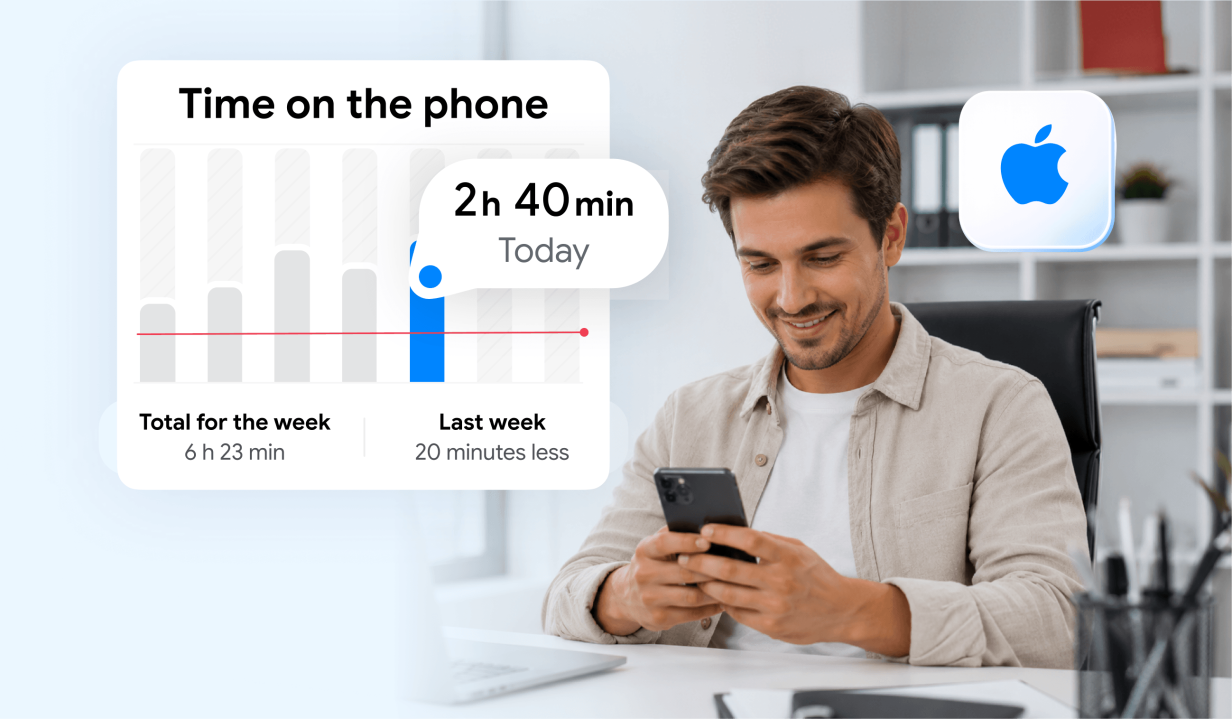
Many parents need to know how to check screen time on an iPhone to monitor their child’s device use and encourage healthy digital habits. Parents may also want to use the Screen Time widget to set time limits, block unwanted phone calls or messages, or filter inappropriate content.
In this article, we’ll show you how to check and adjust your child’s screen time on their iPhone or device, and via Apple’s Family Sharing.
Contents:
Before You Start: Understanding the Different Ways to Manage Screen Time
Cristian Dina/Shutterstock.com
There are three slightly different ways Screen Time works, and it’s important to understand the difference before you begin.
Screen Time on a child’s device means you are managing settings directly on your child’s iPhone or iPad through the Settings app. This is useful if Family Sharing is not enabled or if you don’t use an Apple device yourself.
Screen Time via Family Sharing allows you to monitor and control your child’s device remotely from your own iPhone or iPad. This requires that your child’s Apple ID is added to your Family Sharing group.
Managing a child account vs. an adult account: If your child’s Apple ID is set up as a child account (under 13 in most regions), parental controls are automatically more restrictive and require approval for certain actions (like downloads or purchases). If your child uses a regular Apple ID registered as an adult account, Screen Time can still be enabled, but some parental safeguards may be easier to bypass.
Step-by-Step Guide: How to Access the Screen Time App on an iPhone
From Your Child’s Device
If you don’t have an iPhone or iPad but your child does, or if Family Sharing is not enabled, you can set and manage your child’s screen time settings and parental controls through the Settings app.
Here’s how to find and review the Screen Time summary on your child’s iPhone:
- From the home screen, open the Settings app and tap Screen Time.
- Choose App & Website Activity and then tap Turn On App & Website Activity.
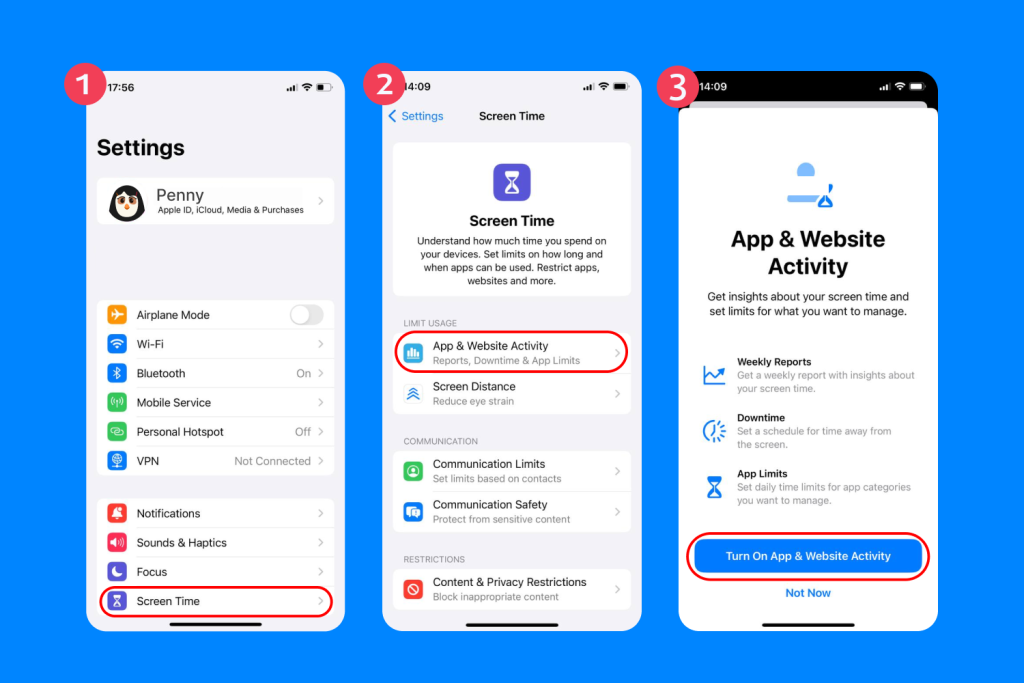
- You should now see a summary of the screen time settings on your child’s device, as well as options to set app limits and schedule downtime.
- From here, you can choose apps that are Always Allowed or restricted, set Communication Limits, and access Content & Privacy Restrictions.
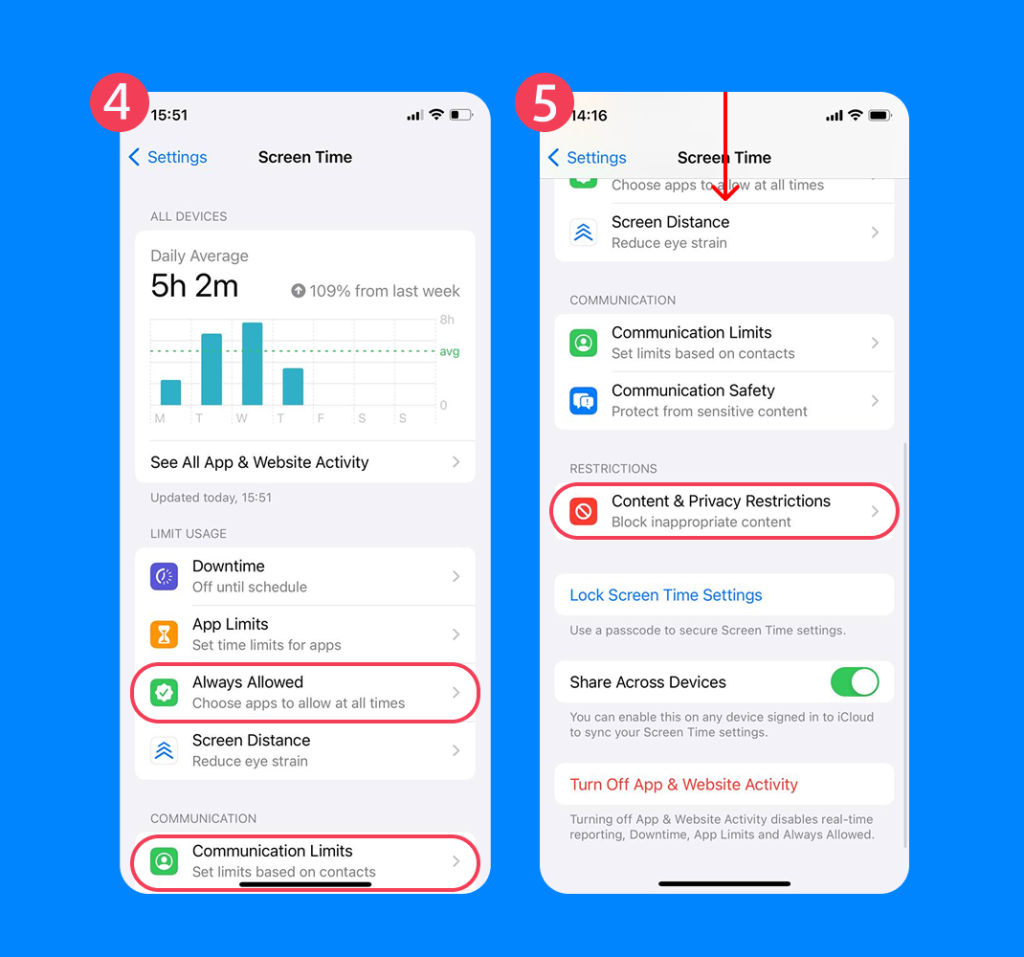
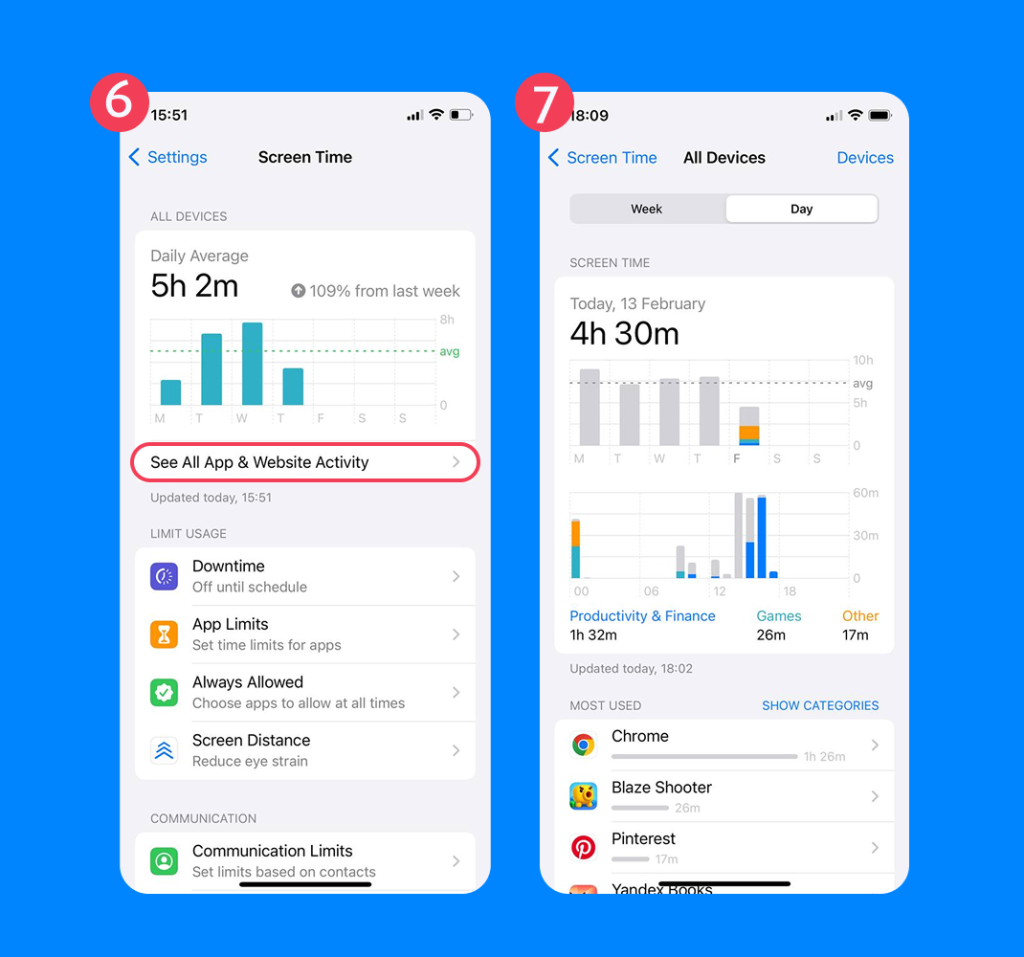
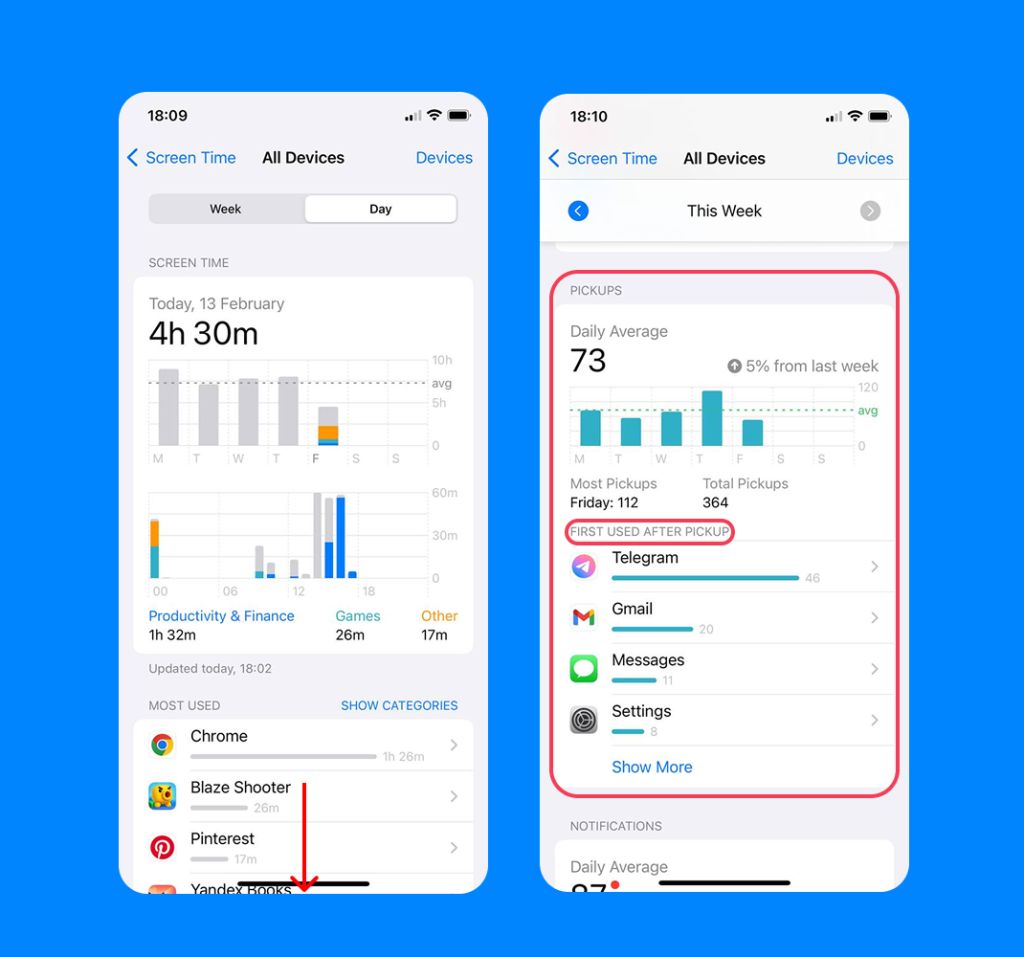
- Clicking on See All App & Website Activity will show your child’s individual app usage, including Most Used applications and even daily Pickups (how often your child picks up their phone, and which apps they open first).
- Scroll down and tap Lock Screen Time Settings when you’re done.
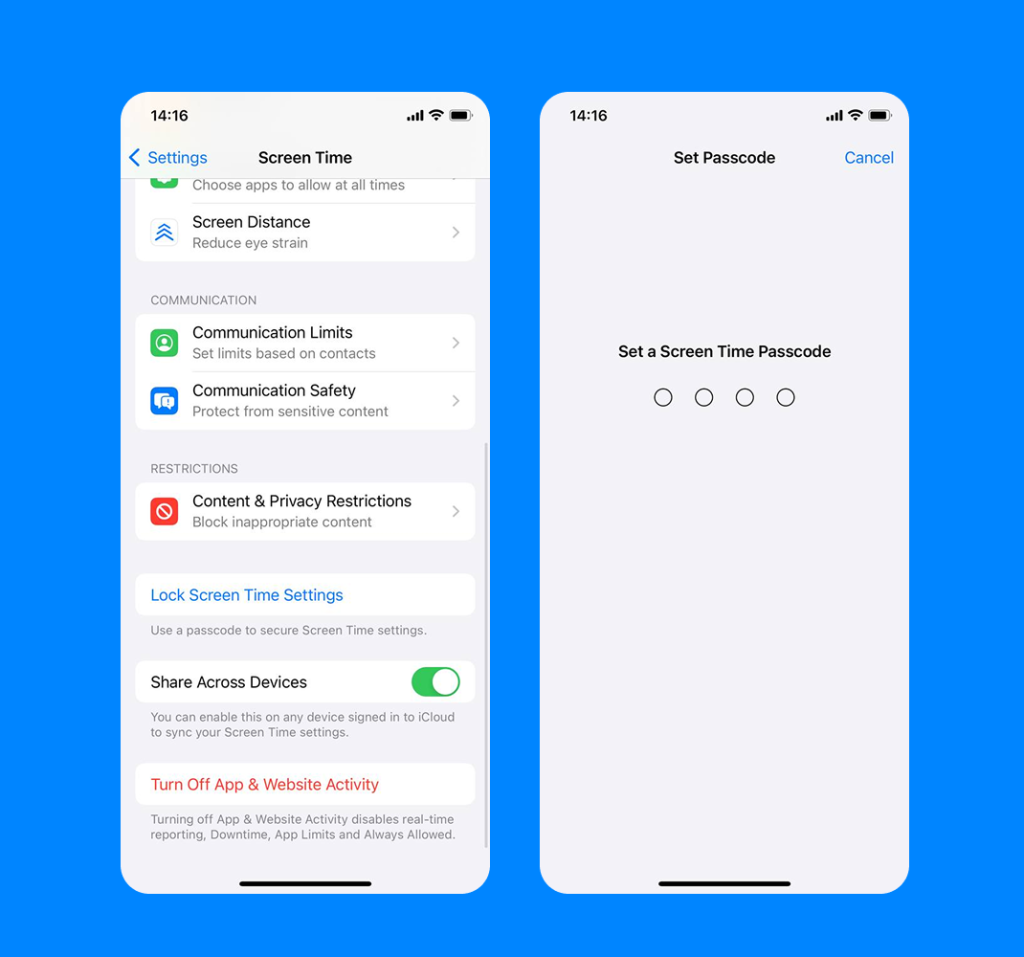
- Enter your four-digit passcode (you’ll be prompted to set one up if you haven’t already), then enter it again to confirm. This prevents your child from adjusting their own screen time settings without entering your passcode.
From Your Own Device (through Family Sharing)
If you have Family Sharing enabled and your child’s Apple ID belongs to your Family Sharing group, you can access their Screen Time settings from your own phone or iPad.
First, you’ll need to create a Family Sharing account.
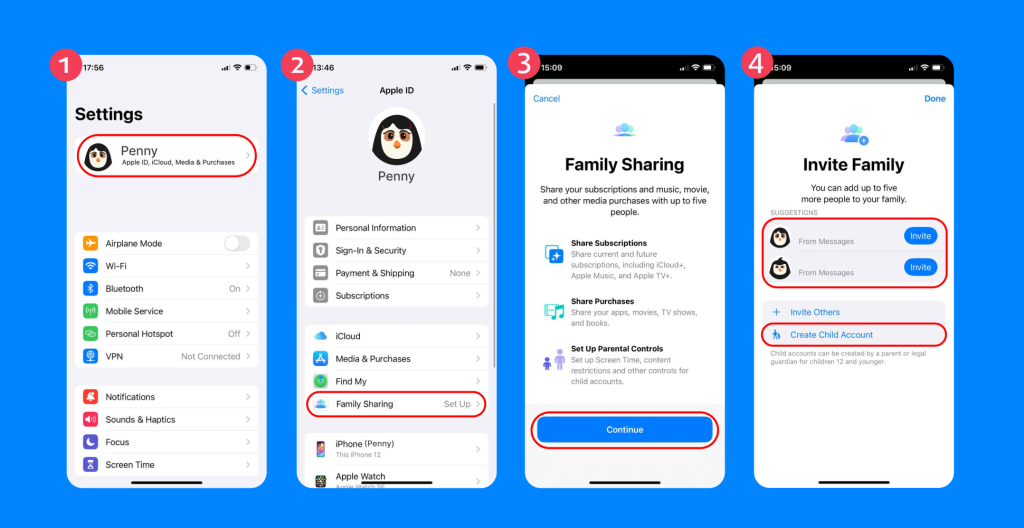
Once you’ve connected your child’s Apple ID to your Family Group, follow these simple steps to manage their screen time:
- Open the Settings app and find Screen Time.
- Scroll down to the Family section—you should see your child’s account.
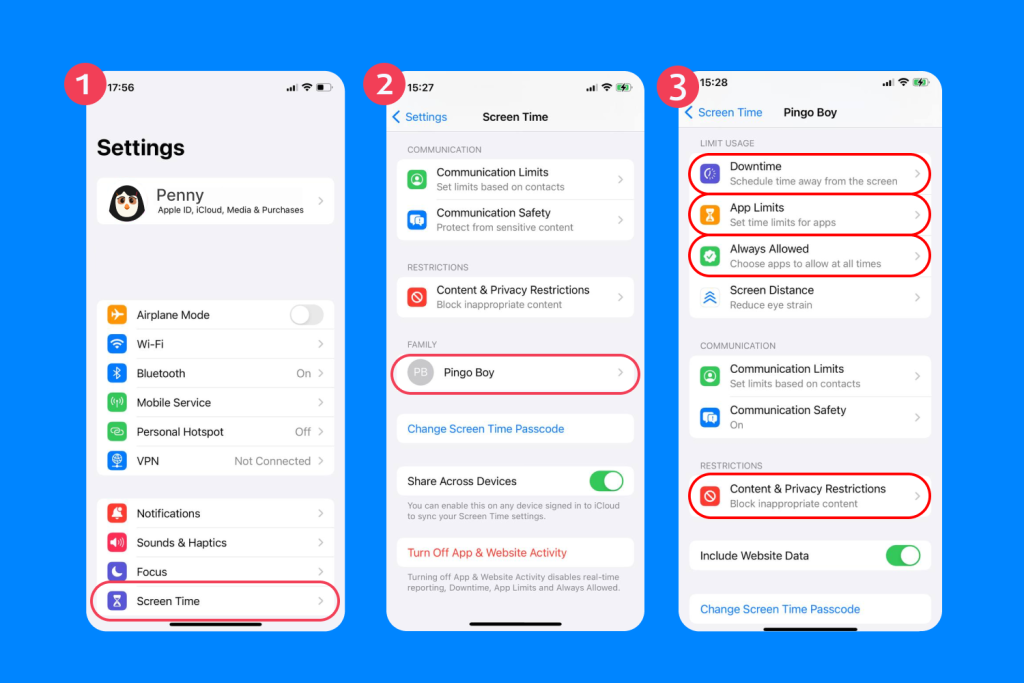
- Click on your child’s account. From here, you can access their weekly reports, schedule time away from certain apps, and limit social networking during downtime.
- From here, you can manage Screen Time features, including Downtime, App Limits, Always Allowed, and Content & Privacy Restrictions.
- Make sure you turn on Screen Time to enable all restrictions and settings. If it’s toggled off, your child can use their phone without restrictions.
How to Add the Screen Time Widget
You can also monitor usage quickly using the Screen Time widget on your Home Screen.
To add it:
- Press and hold an empty area of your Home Screen.
- Tap the “+” icon in the top corner.
- Search for Screen Time.
- Choose your preferred widget size and tap Add Widget.
The widget displays your child’s Daily Average and most-used app categories at a glance, making it easier to spot usage patterns without opening Settings each time.
Understanding Screen Time Reports
Screen Time reports on iPhone can be pretty confusing, especially if you’re not familiar with Apple devices. Here’s a run-down of all Screen Time features and what they mean.
Daily Average
When you first click on Screen Time on your child’s device, or scroll down to your child’s account from your device, you’ll see your child’s Daily Average data, which shows how much time they’ve spent on their phone that day.
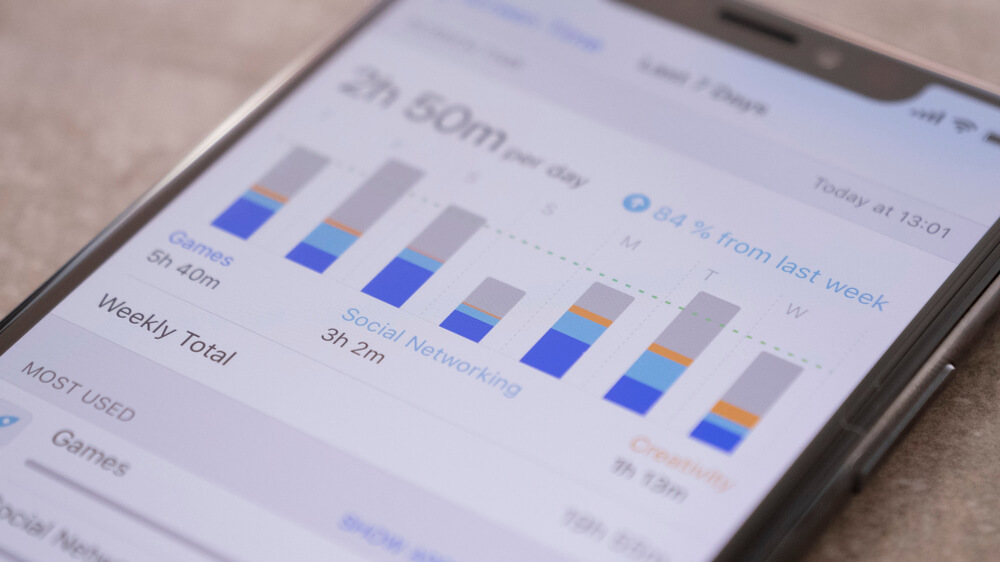
If you tap See All App & Website Activity, you’ll get a more comprehensive review of your child’s daily and weekly activity. You can also scroll down to see their most-used apps.
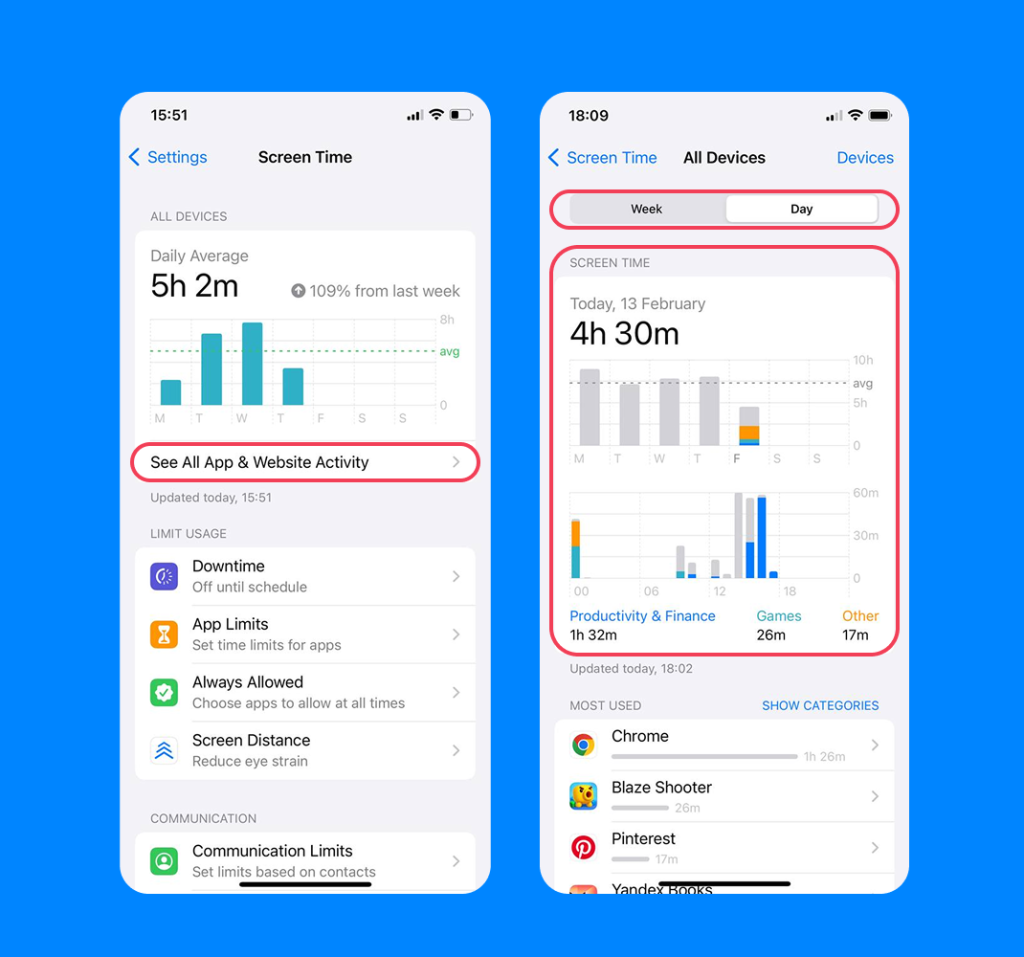
You’ll also see:
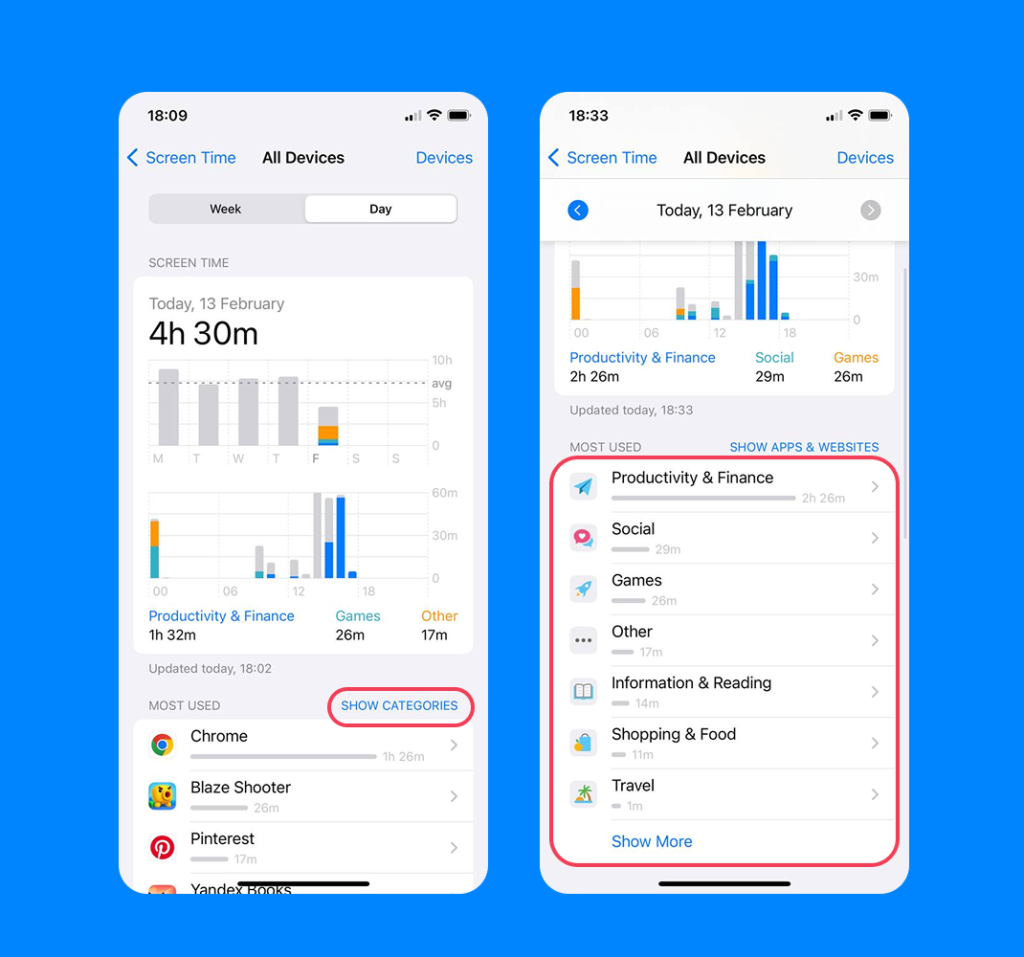
- Categories (such as Social, Entertainment, Games, Education)
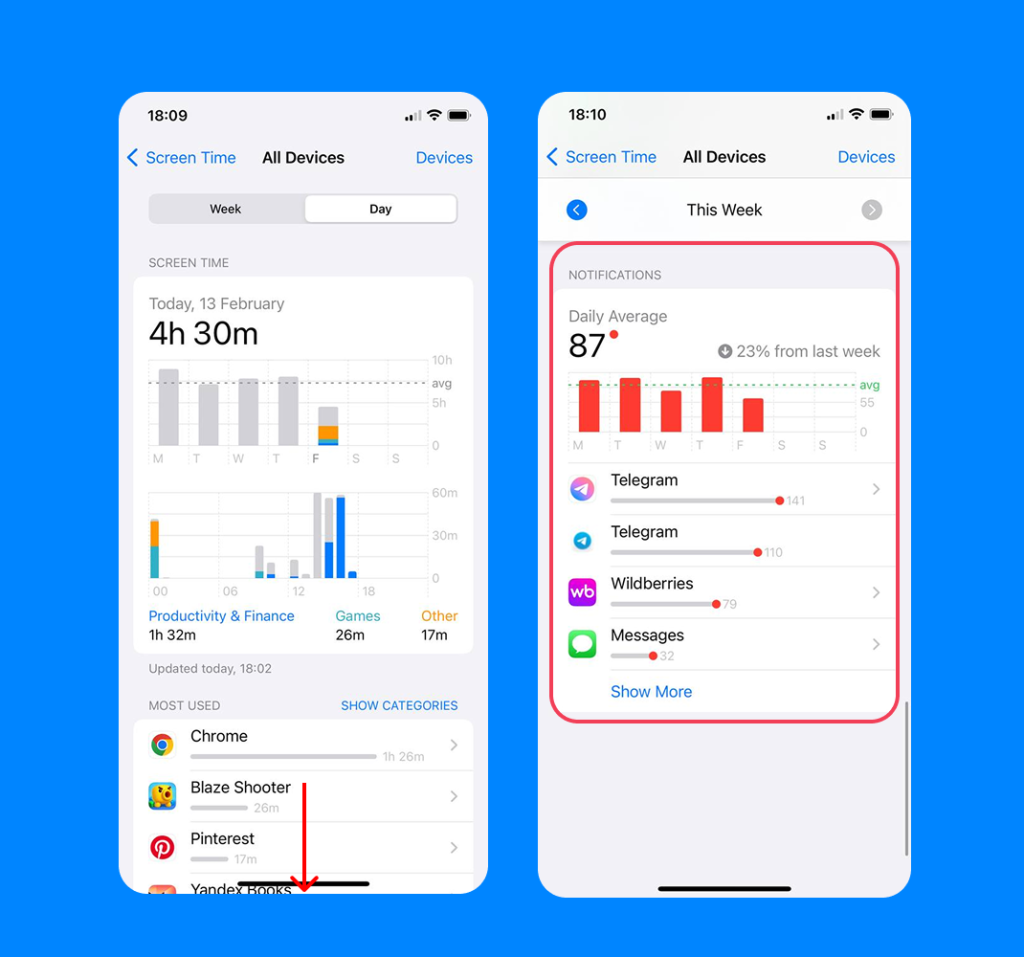
- Notifications (how many alerts your child receives per app)
- Pickups (how often the device is picked up during the day)
- First Used After Pickup (which app your child opens first)
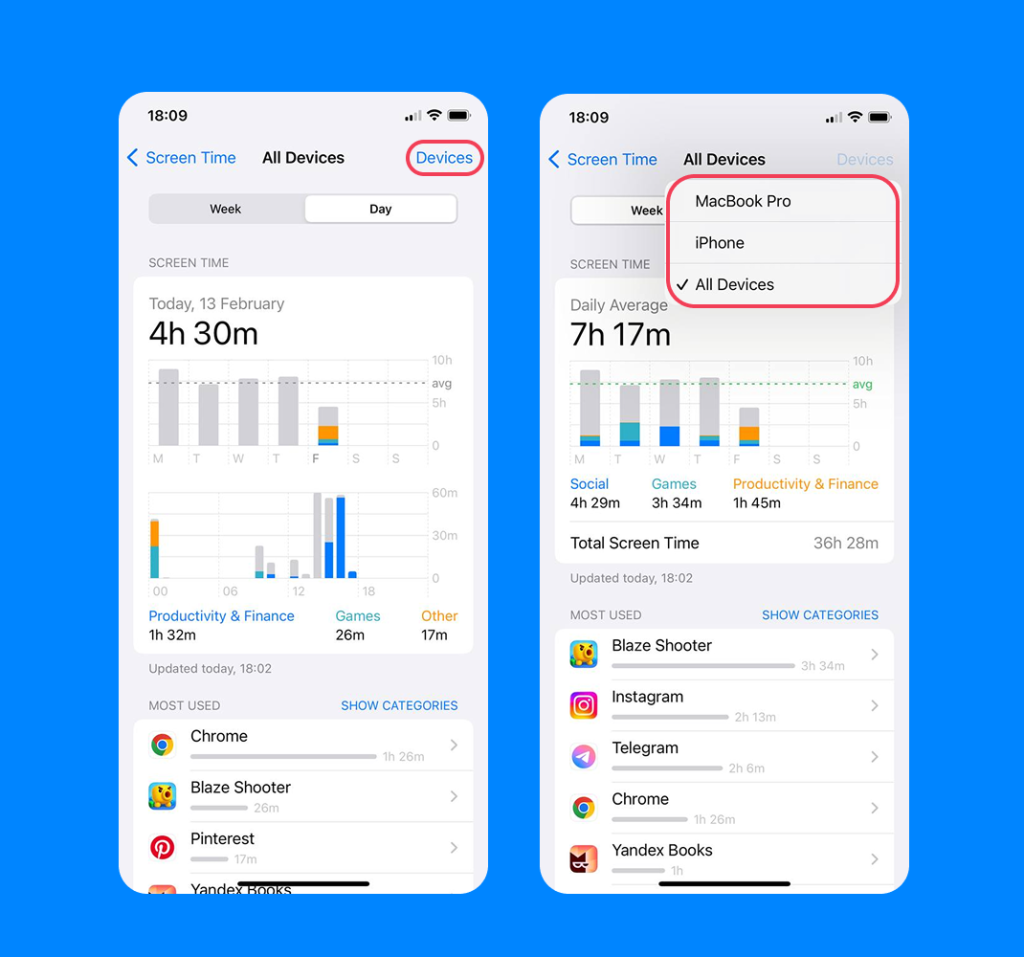
- Total Screen Time (daily and weekly totals)
- Device Usage Across Multiple Devices (if signed in with the same Apple ID)
Limit Usage
From here, you can adjust your child’s Screen Time settings. Downtime will allow you to “lock” certain apps and features so they don’t receive any notifications or contact between scheduled hours (say, overnight).
The app Limits feature allows you to set time limits for specific apps. Always Allowed means you can choose which apps are available at certain times of day, while Screen Distance measures the distance between your child’s phone and their eyes to help reduce the risk of myopia.
Communication
As well as limiting specific apps and websites, you can also set Communication Limits for group and one-to-one conversations with contacts and non-contacts. During Downtime, you can have only specific contacts enabled—such as parents or family members.
Toggling on the Communication Safety feature can detect and blur nude photos and videos before they’re sent to your child or viewed on your child’s device. If they receive or attempt to send material that contains nudity, Communication Safety will also provide them with helpful, age-appropriate resources.
Additional Screen Time Control & Safety Tips
Findmykids app
iPhone Screen Time settings help set limits around your child’s device use, but they are not foolproof.
While parents can set app limits, content restrictions, and downtime, tech-savvy kids can often bypass these restrictions by signing out of their iCloud account or performing a factory reset on their device. Apple can’t provide detailed in-app tracking either, so restricted content and communication may slip through.
For these reasons, it’s helpful to view Screen Time as just one of many different tools that can help protect your child online. Findmykids is another tool to add to your toolkit, and it takes online safety and device management one step further.
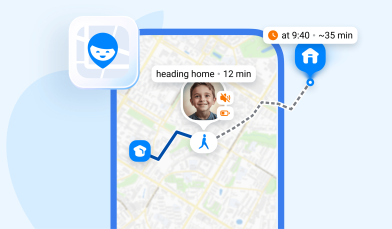
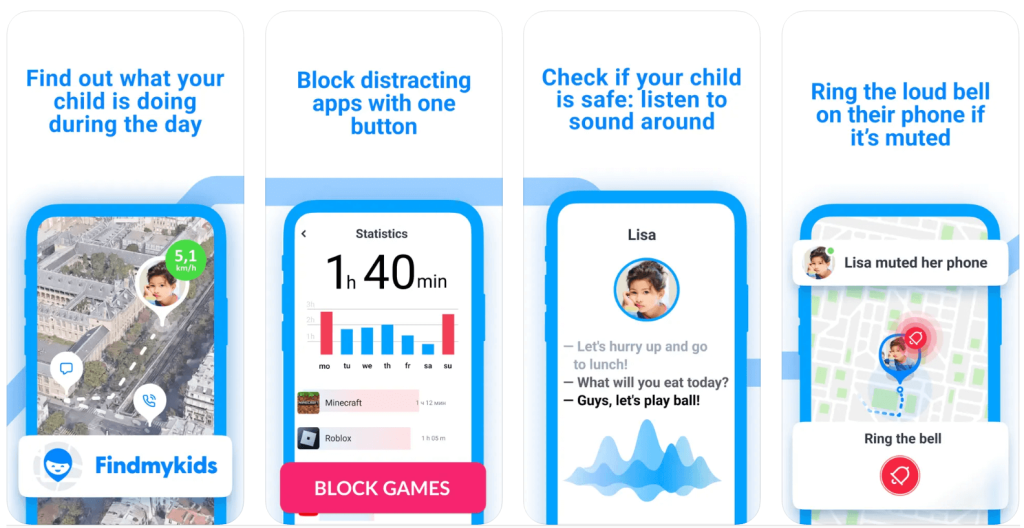
On iOS, Findmykids gives parents a simple yet powerful way to manage device use. By allowing full remote blocking of all apps from the parent’s phone, it puts control firmly in your hands. This feature ensures that your child cannot bypass restrictions by switching between apps or exploiting workarounds, making it perfect for homework time, family routines, or bedtime. It’s fast, reliable, and gives parents peace of mind knowing that boundaries are respected without constant supervision.
Beyond online control, Findmykids adds a robust layer of offline care:
- Real-time GPS tracking: See your child’s exact location at any moment
- Location history: Review where your child has been throughout the day
- Geofencing alerts: Receive instant notifications when your child arrives at or leaves key places like school, home, or extracurricular activities
- Loud Signal (Super Signal): Send alerts that bypass silent mode or Do Not Disturb to get your child’s attention immediately
Together, these features provide a complete approach to modern parenting—combining digital supervision with real-world safety to give parents confidence, control, and peace of mind.
For peace of mind, both online and out in the world, download the Findmykids app right now for free!
Why This Matters: What Is Too Much Screen Time?
Every family has different rules and boundaries around screen time. However, experts cite many risks of excessive screen time in children, including eye strain, irregular sleep, and behavior and/or attention problems.
Recent data from Common Sense Media finds that children aged 8 and younger spend around 2.5 hours a day on screens, with the number jumping to 7.5 hours for tweens and teens aged 8–18 (AACAP).
although there is a respected consensus among professionals that screen time for children under 5 should be limited to 1–2 hours per day, there are no agreed-upon limits for older children. There is only guidance around managing digital use and exposing older kids to “high-quality” digital content, such as quality TV shows and movies, rather than excessive social media.
For neurodivergent or disabled children, screen time guidance may differ, especially in educational settings. In these instances, “too much” screen time is generally defined as usage that interferes with sleep, hygiene, physical activity, or daily functioning.
Read more: Recommended Screen Time for Kids: How Much Is Healthy by Age.
Is Using iPhone Screen Time Enough to Keep Your Child Safe?
Apple’s Screen Time feature is just one piece of the puzzle when it comes to keeping your child safe online—but it’s a vital one.
Although you can’t always control what kids and teens see online or who they speak to, using Apple’s built-in content restrictions and Screen Time functionality can give you crucial oversight and control over your child’s online world.
It’s also important to keep the dialogue open. While Screen Time features can help filter inappropriate content and prevent your child from excessive screen time, in today’s technology-driven world, having open conversations about the dangers and possibilities of the internet will help reinforce healthy habits.
FAQs
Where to find today vs week usage?
You can find your child’s daily device usage in the Settings app by tapping on Screen Time. Selecting See All App & Website Activity will show you the weekly view.
How to check screen time fast?
From the homepage, open Settings and tap the Screen Time function.
How can parents view and manage Screen Time reports for a child via Family Sharing?
If your child is added to your Apple Family Group, you can view and manage their screen time by opening Settings, tapping Screen Time, and scrolling down to Family and selecting their account.
Can I check my child’s screen time without them knowing?
You can add your child to your Family Group if you also have an Apple device. If they’re part of your Family Group, you can check and monitor their usage on your own device.
How often should I review screen time?
You can review your child’s screen time daily or look at the full report at the end of the week or month.
Проверьте электронный ящик