Tired of endless scrolling, midnight gaming, and surprise charges on your kid’s phone? Grab back the reins with iPhone parental controls.
More than just digital babysitters (or worse, a way for you to steal your kids’ freedom), they give you real control over how, when, and where your child uses their device.
Not sure how to take advantage of them without making your kid feel like they’re being spied on? In this guide, we’ll give you the know-how you need, plus an in-depth look at a smart sidekick that will take your family’s safety to the next level.
Contents:
- What Are iPhone Parental Controls?
- Key Features of Parental Controls Explained
- Step-by-Step: Setting Up Parental Controls on iPhone
- New Apple Enhancements (2025/2026 Updates)
- Limitations & Common Issues with Parental Controls on Apple Devices
- Findmykids: A Complementary Tool for Holistic Child Safety
- FAQs
What Are iPhone Parental Controls?
iPhone parental controls are a suite of features that are built directly into your child’s iPhone or iPad. They are primarily managed through two systems: Screen Time and Family Sharing. Together, they let you oversee and manage how your child uses their Apple devices in an age-appropriate way.
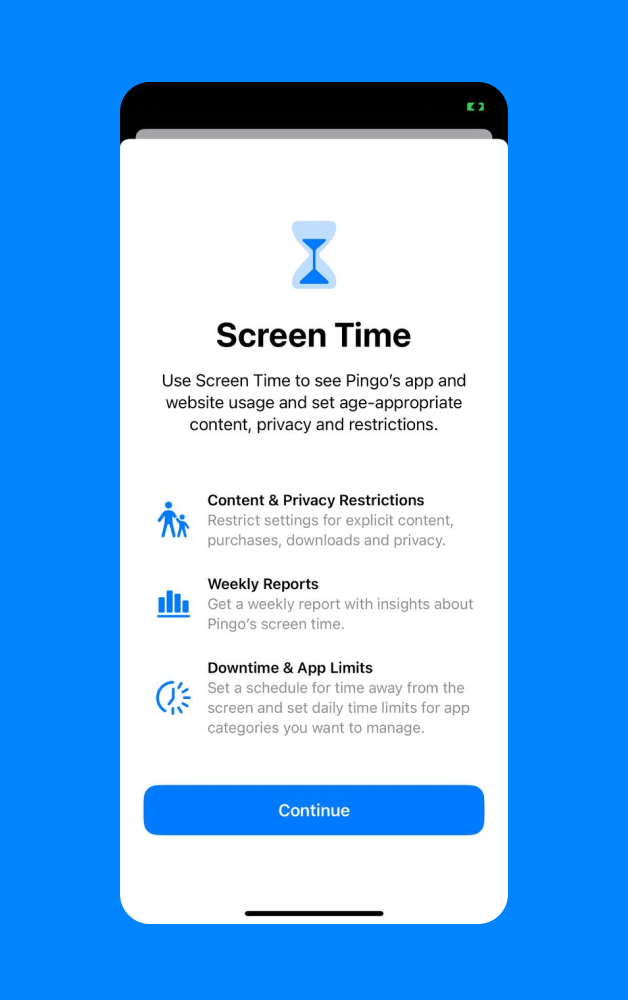
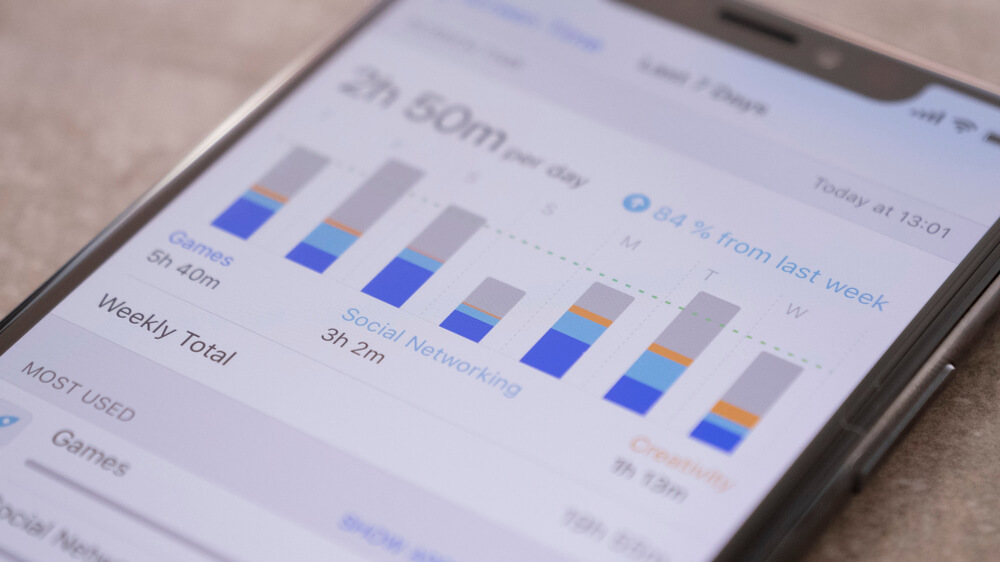
Screen Time is your command center for device usage and screen time controls. It generates daily and weekly reports showing:
- How much time does your child spend on their iPhone or iPad
- Which apps do they use most
- How many notifications do they receive
Beyond just monitoring, Screen Time also lets you set specific time limits for apps and schedule device downtime.
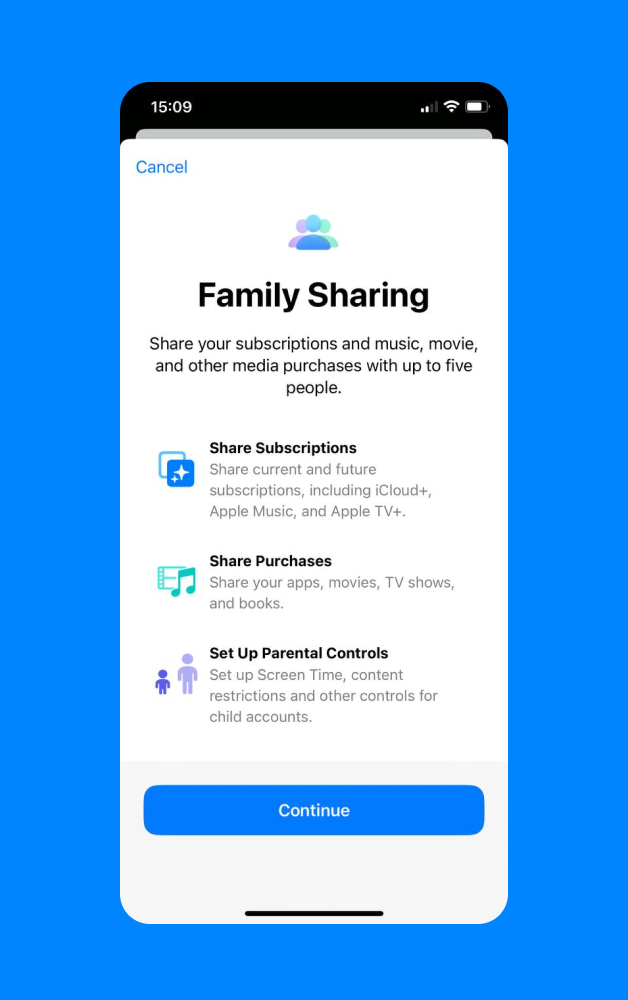
Family Sharing is what connects your family’s Apple devices. It allows you to create an Apple ID for your child, giving them their own account, which you can then add to your family group. This enables you to share purchases from the App Store, Apple Music, and more.
It also lets you manage Screen Time settings for your child’s device remotely from your own iPhone. With Family Sharing, you can approve app downloads and App Store purchases right from your phone, helping limit access to paid features and prevent surprise bills from in-app purchases.
With these parental controls, you can manage a wide range of activities on your child’s iPhone, including:
- Apps: Set a time limit for individual apps or entire categories like “Social” or “Games,” including certain apps you want to monitor more closely.
- Websites: Filter content in the Safari browser and block adult websites or restrict browsing to a pre-approved list of sites.
- In-app Purchases: Prevent your child from making in-app purchases without your permission.
- Screen Time: Schedule periods when the phone is mostly unavailable, like during school hours or at bedtime.
Key Features of Parental Controls Explained
Apple’s parental controls are incredibly detailed and give you a great deal of flexibility. Let’s break down the most important features you’ll be using within Screen Time.
Downtime
Downtime is a core feature that lets you schedule blocks of time when only phone calls and apps you specifically choose to allow are available. You can set a universal schedule or customize it for different days.
This is perfect for creating tech-free dinners, focusing on homework, or making sure the phone powers down for bedtime. During Downtime, your child will receive a notification if they try to use a restricted app.
App Limits
This feature lets you set a daily time limit for specific app categories, like Social Media or Games, or even for individual apps. For example, you can set a one-hour daily limit on all social media apps combined or target just TikTok.
When the time limit is reached, the app icon dims on the home screen. Your child can request more time, which you can approve or deny from your device if you have Family Sharing set up. Setting app limits helps teach balance and prevents endless scrolling.
Always Allowed
During scheduled Downtime, some apps might still need to be accessible. “Always Allowed” is where you designate those essential apps. Things like Phone, Messages, and FaceTime are often on this list by default, but you can add others, like educational apps or music apps that help your child relax.
This provides a nice balance, keeping the child’s device functional for important tasks without providing full access to distractions.
Content & Privacy Restrictions
Now, the big stuff: Content & Privacy Restrictions let you block or limit specific apps and features on your child’s device. You can prevent them from making iTunes & App Store purchases, deleting apps, or making in-app purchases. You can also filter content within Apple’s own apps.
For example, you can restrict movies or TV shows by their rating, block music with explicit language, and limit web browsing to prevent access to adult websites.
Privacy Restrictions
Within the Content & Privacy Restrictions menu, you can also control which apps have access to your child’s personal data. This includes things like Location Services, Contacts, Calendars, and the microphone. You can prevent apps from accessing this information and stop your child from changing these settings.
For instance, one helpful feature is that you can turn off Location Services for all apps except for trusted ones, giving you control over who sees your child’s location.
Location Services (Find My)
Apple’s parental controls also include basic location sharing through the Find My app. When location sharing is enabled for a child’s Apple ID, parents can see the child’s current location on a map directly from their own device.
This feature is useful for quick check-ins—confirming that your child arrived at school, made it home safely, or is where they said they’d be. Location sharing works in the background and doesn’t require the child to actively report their whereabouts.
That said, it’s important to understand its limits. Find My shows real-time location only and does not provide a detailed location history or movement timeline. For parents who want ongoing context—such as where a child has been throughout the day or automatic alerts when they enter or leave certain places—Apple’s built-in tools may feel somewhat minimal.
Step-by-Step: Setting Up Parental Controls on iPhone
Here’s how to set up the most important parental controls on your child’s iPhone or iPad. The first step is to set up Family Sharing and create an Apple ID for your child if they don’t already have one.
Setting up Family Sharing and a Child’s Apple ID
- Go to Settings on your iPhone.
- Tap your name at the top, then tap Family Sharing.

- Tap Add Member and then Create an Account for a Child.

- Follow the on-screen prompts to create their Apple ID. You’ll need to provide their birthday and agree to the parental consent agreement. A child’s age determines the features available.
Then, move on to these steps.
Enabling Screen Time
Once your child has an Apple ID and is part of your Family Sharing group, you can turn on Screen Time.
- On your iPhone, go to Settings, tap Screen Time.

- Follow the on-screen prompts until you get to the screen asking who the device is for. Select This is My Child’s iPhone.
- Set up Downtime, App Limits, and Content & Privacy as prompted. You can always adjust these later.
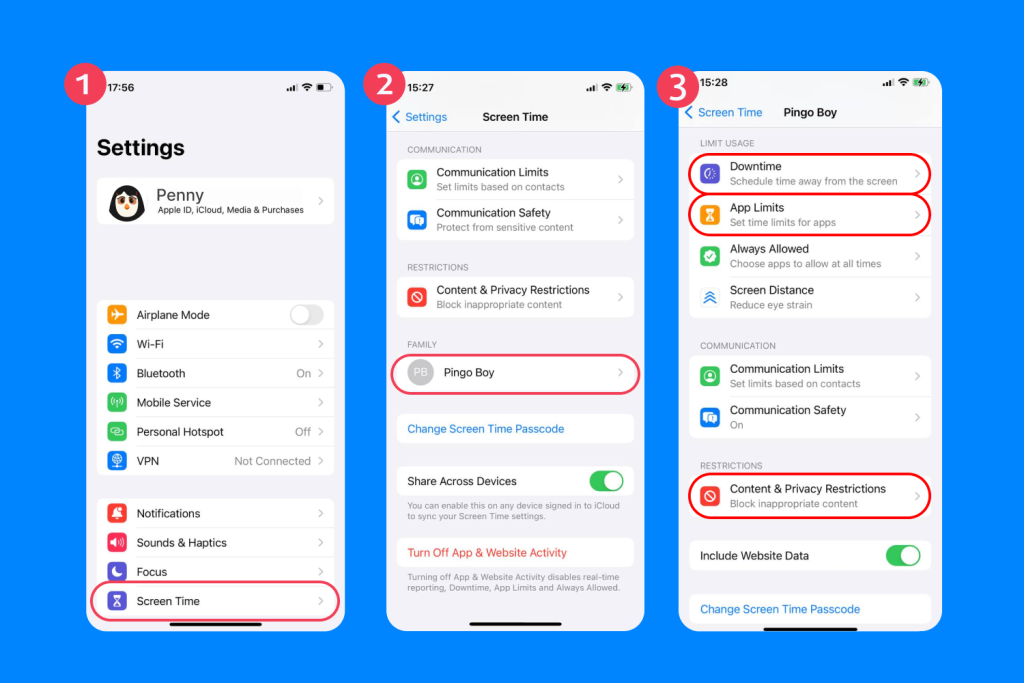
- Create a Screen Time passcode. This four-digit code is crucial. It prevents your child from changing the settings you’ve put in place. Make sure it’s a code they won’t guess.

Setting App Limits and Restrictions
- Go to Settings > Screen Time on your device and select your child’s name.

- Tap App Limits, then Add Limit.
- Choose an entire app category (like Games) or tap the arrow next to a category to select individual apps.

- Set the amount of time you want to allow for that app or category per day. You can also customize the limits for specific days of the week.
- Tap Add to save the time limit.
Managing Privacy Restrictions
- Navigate to Settings > Screen Time > Content & Privacy Restrictions.

- Toggle Content & Privacy Restrictions on.
- Scroll down to the Privacy section.
- Go through each item, such as Location Services, Photos, and Microphone.
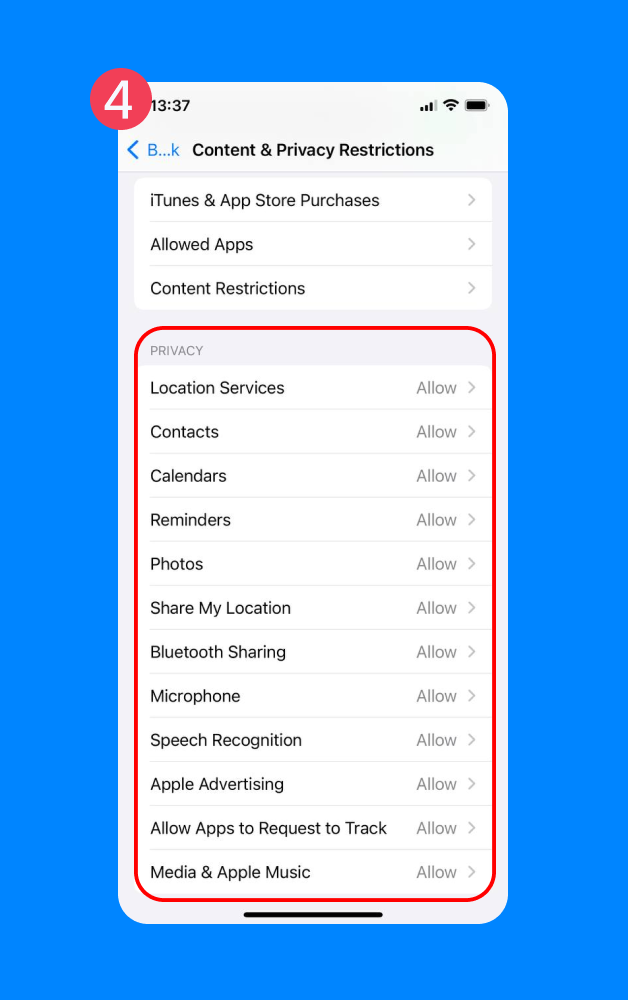
- For each, you can choose to Allow Changes or Don’t Allow Changes. Setting it to “Don’t Allow Changes” locks the current settings in place, so your child can’t grant new apps access to their data without your Screen Time passcode.
Filtering Web Content
- In your child’s Screen Time settings, go to Content & Privacy Restrictions.
- Enter your Screen Time passcode.
- Tap Content Restrictions.
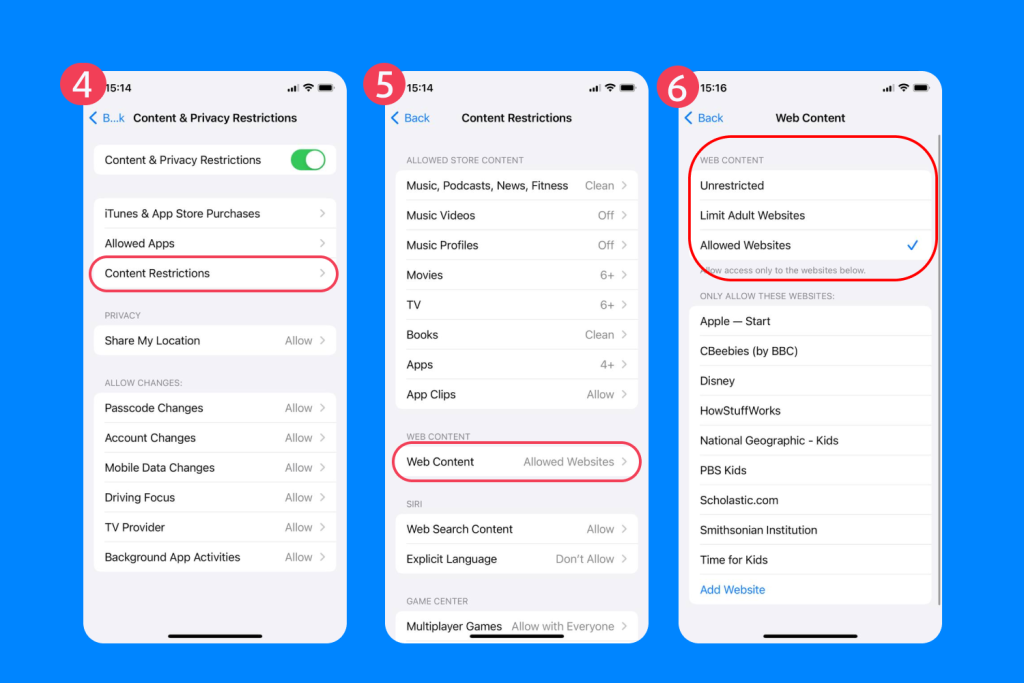
- Tap Web Content. Here you have three options:
- Unrestricted Access: No filtering.
- Limit Adult Websites: This automatically blocks many adult websites. You can add specific sites to an “Always Allow” or “Never Allow” list to customize it further.
- Allowed Websites Only: This is the most restrictive option. It blocks access to all websites except for the ones you manually add to a pre-approved list.
Still confused, or just need more detailed instructions? This resource on how to put parental controls on an iPhone may be of some help!
New Apple Enhancements (2025/2026 Updates)
Apple continues to refine its parental control features, with recent updates introducing even more granular controls and new safety features.
For starters, its Communication Safety features have been significantly expanded. This feature scans incoming and outgoing messages in the Messages app for nudity. If it detects explicit content on a child’s account, the image is blurred, and the child is presented with a warning and resources. The feature now also covers AirDrop, FaceTime video messages, and third-party apps.
another brand-new feature is Screen Distance, which uses the TrueDepth camera on an iPhone or iPad to detect when a user is holding the device closer than 12 inches for an extended period. It then prompts the user to move the device further away to help reduce eye strain and the risk of myopia in children.
Apple has also made setting up parental controls easier, with clearer on-screen prompts and better integration within the Family Sharing ecosystem.
Limitations & Common Issues with Parental Controls on Apple Devices
While Apple’s parental controls are robust, they aren’t foolproof (nor is any tech). Because of this, it’s important to know their limitations.
- Kids Can Find Workarounds: Tech-savvy kids have been known to find ways around restrictions. This could involve using a different web browser that isn’t filtered, resetting the device, or simply using a friend’s phone.
- No Location History: While the Find My app lets you see your child’s current location, it doesn’t provide a history of where they’ve been. For some parents, knowing past routes is an important part of ensuring safety.
- Filters Aren’t Perfect: Even the best content filters can miss things. Some adult websites might slip through the cracks, or conversely, a filter might accidentally block a legitimate educational site.
- Screen Time Doesn’t Monitor Everything: Screen Time is great for managing on-device activity, but it doesn’t offer insights into what your child is doing in the real world or provide safety alerts for emergencies.
- Limited Android Integration: If your family uses a mix of Apple devices and Android devices, managing everything becomes complicated. Family Sharing and Screen Time are designed for the Apple ecosystem. You can’t manage your child’s Android phone from your iPhone using these built-in tools.
Related: Can You Track an iPhone with an Android? Yes — Here’s How.
Findmykids: A Complementary Tool for Holistic Child Safety
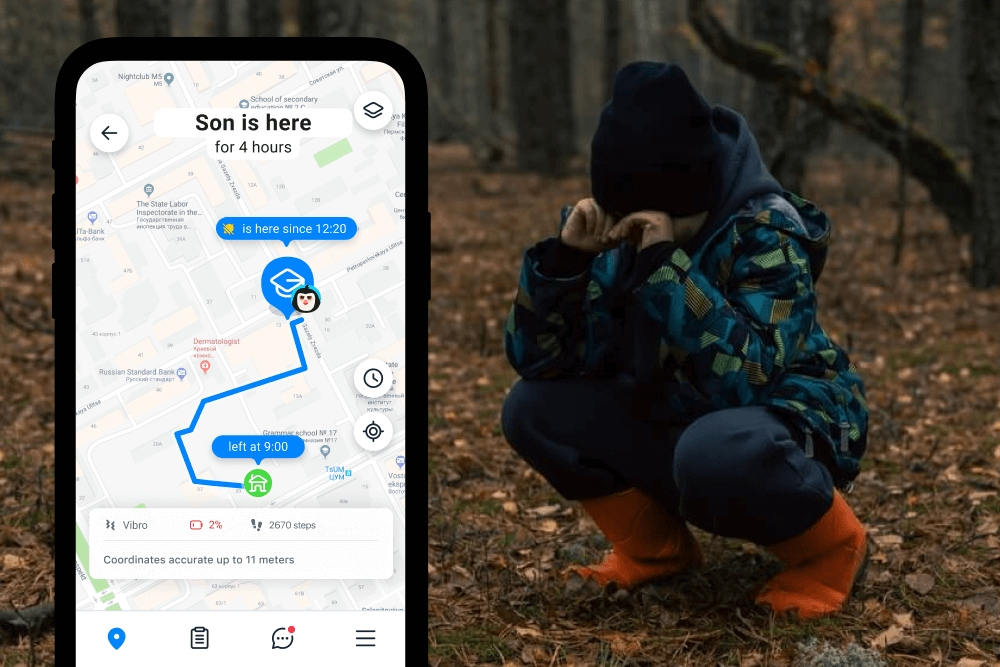
Findmykids app
Because iPhone’s parental controls aren’t perfect, it’s wise to pair them with another tool (in addition to some good old-fashioned common sense, of course).
If you’re looking for the perfect complement, this is where a dedicated parental control app like Findmykids can fill the gaps. Findmykids isn’t a replacement for Apple’s Screen Time, but a powerful complement that offers a more holistic approach to your child’s safety, both online and off. This is why it’s often mentioned among the best parental control apps for families who want more than just basic device restrictions.
While iPhone parental controls focus on device management and content filtering, Findmykids provides a suite of features designed for real-world safety and peace of mind.
- Real-Time Location Tracking and History: Findmykids lets you see your child’s location in real time on a map. More importantly, it keeps a detailed location history, so you can see their routes and the places they’ve visited.
- Geofence Alerts: You can set up safe zones, like “Home” or “School,” and receive automatic alerts on your phone when your child enters or leaves these areas. This gives you passive awareness without needing to constantly check their location.
- SOS Signal: If your child feels unsafe, they can press an SOS button in the Pingo app (the companion app for your child’s smartphone). You’ll receive an immediate alert with their current location. Multiple studies have demonstrated that a majority of children face some form of online risk, making these kinds of features invaluable to concerned parents and kids alike.
- App Blocking: Go beyond a time limit. Findmykids lets you completely block all apps on your child’s phone remotely. Given that 86% of children use their smartphones between 11 p.m. and 5 a.m., blocking distracting apps can be a huge help.
- Blocking Inappropriate Content: The feature helps prevent access to adult and explicit websites, adding an extra layer of protection beyond basic browser restrictions.
- In-App Purchase Restrictions: Findmykids helps prevent unauthorized in-app purchases, reducing the risk of accidental or unwanted charges and supporting better budgeting and parental oversight.
- Cross-Platform Compatibility: Findmykids works seamlessly across both iOS and Android devices. If your child has an Android phone and you have an iPhone (or vice versa), you can still use all the features.
Using Findmykids alongside Apple’s parental controls provides a comprehensive safety net. That’s because you can use Screen Time to manage daily app limits and content on your child’s Apple devices, while Findmykids provides an extra layer of real-world safety with location tracking and emergency alerts.
Want a more connected, balanced approach to digital and real-world safety? Try Findmykids today for free to see how it fits your family’s routine!
Keep Your Kids Safe With the Screen Time Features
Setting up parental controls on your child’s iOS device is a key step in helping them develop a healthy relationship with technology. Apple’s built-in Screen Time and Family Sharing features provide a strong foundation for managing device usage, filtering content, and controlling spending.
And by taking the time to configure Downtime, App Limits, and Content & Privacy Restrictions, you create an even safer digital environment.
For even more comprehensive protection that extends beyond the screen, a tool like Findmykids adds critical real-world safety features like location tracking and SOS alerts.
Together, these tools help you guide your child toward a pattern of responsible and safe technology use that will last long into their adult years.
FAQs
How do iPhone parental controls work?
iPhone parental controls primarily work through two features: Apple’s Screen Time limits and Family Sharing. Screen Time lets you monitor and manage device usage, set app limits, and schedule downtime. Family Sharing allows you to create an Apple ID for your child and manage their settings remotely from your own device, including approving App Store purchases.
How do I set up Screen Time on my child’s iPhone?
First, set up Family Sharing and create an Apple ID for your child. Then, on your iPhone, go to Settings > Screen Time, tap your child’s name, and turn on Screen Time. Follow the prompts to configure settings like Downtime and App Limits, and be sure to set a Screen Time passcode that your child won’t guess.
What should I set as a Screen Time passcode, and how do I keep it secure?
Your Screen Time passcode should be a four-digit number that is different from your iPhone’s unlock passcode and something your child is unlikely to guess (avoid birthdays or simple patterns). To keep it secure, don’t share it with your child. If you forget it, you can reset it using your Apple ID and password.
How do I set App Limits for specific apps like social media apps?
In your child’s Screen Time settings, tap App Limits > Add Limit. You can select an entire category like “Social” or tap the category to choose specific apps like Instagram or TikTok. Then, set a daily time limit. You can also customize these limits for different days of the week.
How do I set Downtime for school hours and bedtime?
Go to your child’s Screen Time settings and tap on Downtime. You can set a schedule for when the device will be restricted. For example, you can set it from 8 a.m. to 3 p.m. for school and from 9 p.m. to 7 a.m. for bedtime. Only apps in your “Always Allowed” list will be accessible during these times.
What are Communication Limits and how do they work?
Communication Limits, found in Screen Time settings, let you control who your child can communicate with via Phone, FaceTime, Messages, and iCloud contacts. During allowed screen time, you can permit communication with everyone or only with contacts. During Downtime, you can restrict communication to specific contacts you approve, a technique that helps prevent contact from unknown numbers.
Cover image: Cristian Dina/Shutterstock.com
Проверьте электронный ящик