
Allowing your child to have an iPhone is both a necessity and a privilege in today’s digital world. Your first instinct is probably to set strict parental controls on the phone, but there are some cases where you may want to adjust settings or even turn them off.
In this blog post, we’ll review how to turn off parental controls on an iPhone and how to approach digital freedom with your child.
Contents:
- Why Parents Might Turn Off Parental Controls
- Steps to Disable Screen Time on iPhone
- Adjusting Content and Privacy Restrictions Instead of Fully Turning Off
- Balancing Freedom and Safety for Growing Kids
- Troubleshooting Common Issues When Turning Off Parental Controls
- Parental Control App Alternatives to Try
- FAQs
Why Parents Might Turn Off Parental Controls
When your child gets a new phone or new device, the first thing parents want to do is block inappropriate content with content filters, limit app use, set a restrictions passcode, and block apps. But as our kids grow, it’s important to adjust the parental controls you have set. When they begin to find their independence and reach certain ages, your restriction settings will likely need some adjusting.
Along with giving your child more digital freedom, other reasons why parents might disable parental controls on an iPhone include a temporary need for unrestricted access and troubleshooting the device.
When you decide to take away parental controls on iPhone for your child, it’s important to talk to them about this new freedom and responsibility. Have an open conversation about what is considered appropriate and what is inappropriate content for their age. Discuss the importance of screen time limits, even if they aren’t firmly set on the device.
Steps to Disable Screen Time on iPhone
When you set up parental controls on your child’s iPhone, you have to create a Family Sharing group. This allows family units to share and manage content based on the child’s age, app purchases, and manage parental controls.
You will also use Family Sharing to disable the screen time feature on your child’s phone. This feature requires a 4-digit pin code, Face ID, or Touch ID to bypass the screen time limit. You’ll become the family organizer, and can limit your child’s screen time, schedule downtime, and control other settings. To do this, follow the steps listed below:
- Open Settings.
- Tap Screen Time.
- Tap your child’s name (under Family Sharing).
- Tap Turn Off Screen Time.
- Enter the Screen Time passcode and re-enter if prompted.

This will turn off all daily limits and downtime settings. That means your child can use their phone and apps without limitation. However, if you turn off screen time settings, content and privacy restrictions can still be active.
Adjusting Content and Privacy Restrictions Instead of Fully Turning Off
Some parents may not want to fully remove parental controls they set. Fortunately, it is straightforward to adjust content and privacy restrictions. It’s especially helpful for kids who are growing older and are ready for apps and content of a more mature level.
How to Disable Content Restrictions
Content restrictions limit the type of content your child may see. This can include restricting adult content websites, mature media content on Apple Music, and certain apps that may not be age-appropriate.
To disable content restrictions, follow the steps below:
- Go to the Settings app.
- Tap on your Apple ID.
- Tap on Family Sharing.
- Select your child’s account.
- Tap Screen Time.

- Tap Content & Privacy Restrictions and toggle OFF.

With these parental controls turned off, your child has unlimited access to the internet.
How to Allow App Downloads
Another popular parental control is disabling app restrictions and downloads on a kid’s iPhone. Some of the most controversial apps that kids may download include dating apps and messaging apps.
To allow app downloads on your child’s iPhone, follow the steps below:
- Go to the Settings app.
- Tap on your Apple ID.
- Tap on Family Sharing.
- Select your child’s account.
- Tap Screen Time.
- Tap Content & Privacy Restrictions.
- Tap iTunes & App Store Purchases.

- Set Installing Apps to Allow.
Age Appropriate Parental Control Settings on iPhone
Before turning parental controls off completely, consider whether adjusting your parental control settings to match your child’s age and maturity might be a better solution. In many cases, kids don’t actually need full access—they just need a setup that grows with them.
Fine-tuning restrictions instead of removing them can help maintain safety, build trust, and give your child the right level of independence at every stage.
Below is a simple guide to help you choose the right age-appropriate content and settings for each age group.
→→→
| Category | Ages 5–7 | Ages 8–10 | Ages 11–13 | Ages 14–17 |
| Screen Time Passcode | On | On | On | On |
| Downtime | 7 PM – 7 AM | 7:30 PM – 7 AM | 9 PM – 7 AM | 10 PM – 7 AM |
| App Limits | 30-60 min/day total | 1 hr/day games + video | 1-2 hrs/day social media | 2 hrs/day social media |
| App Installation | Don’t Allow | Don’t Allow | Ask to Buy | Ask to Buy |
| Deleting Apps | Don’t Allow | Don’t Allow | Don’t Allow | Don’t Allow |
| App Age Rating | 4+ or 9+ | 9+ | 12+ | 17+ |
| Web Content | Allowed Websites Only | Allowed Websites Only / Limit Adult | Limit Adult Websites | Limit Adult Websites |
| Safari | Optional: Off | On (filtered) | On (filtered) | On (filtered) |
| Communication Limits | Parents Only | Parents + trusted contacts | Contacts only | Contacts only / group chats |
| Location Services | On | On | On | On |
| In-App Purchases | Don’t Allow | Don’t Allow | Don’t Allow | Don’t Allow |
| Game Center | Block Everything | Block Everything | Block Chat & Multiplayer games | Monitor multiplayer chat |
| Explicit Content/Music/TV/Books | Clean Only | Clean Only | Clean Only | Clean Only |
| Notifications | Minimal | Minimal | Block high-dopamine apps (Instagram, TikTok, etc.) | Reduce alerts for social apps |
| When to Loosen Controls | Never | Rarely | When trust is earned | Gradually, based on responsibility |
Balancing Freedom and Safety for Growing Kids
It can feel a bit nerve-wracking to disable restrictions and loosen parental supervision on your child’s Apple device. However, it is a natural part of growing up, but speaking with your child about the responsibility that comes with this new digital freedom is important.
Remove One Restriction at a Home
The best way to loosen parental controls is by doing it slowly. Don’t turn everything off at once, as it can overwhelm your child and cause them to spend hours on their phone.
Instead, start slow by changing the following restrictions:
- Extend App Limits
- Loosen Downtime hours
- Allow new app categories
- Remove Ask to Buy
- Remove Content Restrictions (last)
Set Review Times with Your Child
After turning off some of these content restrictions, set a time to check in with your child about how it’s affected them. Do they find themselves spending more time scrolling? Are they losing sleep because there are no time limits?
This will help you stay consistent while also setting clear expectations for your child.
Focus on Decision-Making, Not Restrictions
As you loosen the parental controls on your child’s iPhone, encourage good decision-making rather than simply restricting specific apps altogether.
Have a discussion about how your child decides what is safe online or how they handle messages from strangers. See what their response is and talk about whether they are choosing the right way to respond.
Keep Hard Boundaries
Just because you are taking away some of the parental controls on your child’s device doesn’t mean all of your boundaries go out the window, and they have full access to app use or the ability to reset screen time limits. Instead, tell your child that there are hard boundaries that will not go away.
These could include:
- Limit on Adult Websites
- Block VPNs
- Private Social Media Accounts
- Block Deleting Apps
- Communication Limits at night
- Location Sharing (always on)
Talk About Why Controls Change
Before adjusting the parental controls on your child’s Apple device, talk to your child about why you’re loosening the controls, not just what you’re changing.
Let them know that you’re starting to trust them more and that they have proven good digital habits. But it’s also important to explain why you are keeping some parental controls and their purpose.
Troubleshooting Common Issues When Turning Off Parental Controls
Sometimes technology is a bit difficult and poses some issues when changing parental controls. Below are some ways to troubleshoot the phone to fix the issue.
Screen Time Restrictions are Still Active
- Go to Settings → Screen Time → Turn Off Screen Time.
- Then go to Settings → Screen Time → Content & Privacy Restrictions.

- Toggle switch to OFF.
You Can’t Turn Off Parental Controls Because You Forgot Your Passcode
- Go to Settings → Screen Time.
- Tap Change Screen Time Passcode.
- Tap Forgot Passcode?

- Enter Apple ID + password.
- Reset passcode.
You Forgot Screen Time Passcode and Your Apple ID Doesn’t Work
If this is the case, then you’ll have to do revert your phone to factory settings. Make sure to back up your phone before doing this to avoid losing texts and photos. If you have questions, don’t hesitate to contact Apple support.
- Go to Settings → General → Transfer or Reset iPhone.
- Erase All Content and Settings.

- Sign back in with Apple ID.
Cannot Download New Apps
If you turned off the Ask to Buy feature but your child still cannot download apps independently, try the following steps.
- Go to the Settings app.
- Tap Screen Time.
- Tap Content & Privacy Restrictions settings.
- Tap Allowed Apps.

- Toggle App Store to ON.
If this is the case, then the App Store app was disabled and restricted.
Restart the iPhone
Sometimes, the solution to getting your phone back on track after turning off parental controls is a simple restart. Turn your child’s phone off and then on again. Usually, this is the case, and the best place to start when something is wrong.
Parental Control App Alternatives to Try
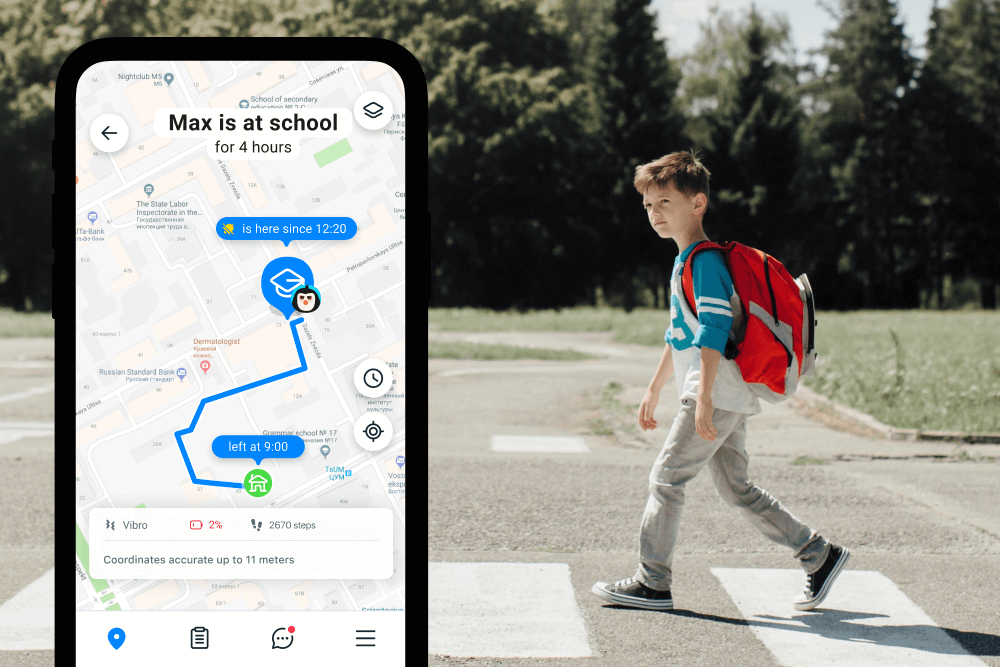
Findmykids app
The iPhone parental control features are fairly comprehensive, but sometimes parents want a little more safety for their kids. That’s where third-party apps like Findmykids and Kids360 can be helpful with various tasks.
These apps come with screen time settings, online activity moderation, content blocking, and real-time location. Parents can also set individual restrictions on contacts and who can and cannot contact their children. Additionally, with the real-time location tracking, you can set Safe Zones and alerts for when your children leave these trusted areas.
Even if you are looking to loosen parental controls on iPhone, there are other parental control apps that offer additional features to protect kids as you see fit.
Try Findmykids or Kids360 to keep your child safer, online and offline—even as they grow.
Is Now the Right Time to Turn Off Parental Controls on Your Child’s iPhone?
Deciding to turn off parental controls on your child’s iPhone, even if it’s just one or two, is a big decision. Parents might feel anxious about what their children will do with this newfound digital freedom. However, when you understand how to talk to them and explain why parental controls are in place and important, it becomes easier to loosen them.
And now you know how to turn off iPhone parental controls so you can ease your way into giving your kids digital freedom. Plus, you can use third-party apps like Findmykids and Kids360 to further protect your kids and have access to other features iPhones don’t offer.
If you found this article helpful in figuring out iPhone parental controls, make sure to share it with a friend!
FAQs
How can I deactivate parental controls?
The first place you can deactivate parental controls is in the Family Sharing section of Settings. You can choose the family member you want to deactivate the controls and do so in Screen Time and Content & Privacy Restrictions settings.
How do I take restrictions off my iPhone?
Go into the Settings app, click on your Apple ID, go to Screen Time, then Content & Privacy Restrictions, and change the settings.
How to get parental controls on iPhone?
The first step to getting parental controls on iPhone is to create a Family Sharing group. You can add your children’s Apple IDs and set parental controls for the content they see, screen time limits, app limits, and communication settings.
Read also: How to Put Parental Controls on iPhone: The Complete Family Safety Guide.
Cover image: Kaspars Grinvalds / Shutterstock.com
Проверьте электронный ящик