
















If you’re searching for how to remove Safari from an iPhone, the first thing to know is that Apple doesn’t let you uninstall Safari like a regular app.
Because it’s built into iOS, it can’t be completely deleted. However, you can disable Safari, hide it from your child’s Home Screen, and limit web browsing using Apple’s parental controls.
If your goal is to create a safer online experience for your child, removing one browser is only part of the solution. Here’s what you need to know.
Key Takeaways
- You can’t delete Safari because it’s a built-in iOS app, but you can disable Safari using Screen Time.
- Disabling Safari removes the browser icon from your child’s Home Screen and App Library until you enable it again.
- Web Content Restrictions let you block adult content or allow only approved websites without removing Safari entirely.
- Parents should also restrict other browsers and app downloads to prevent children from bypassing Safari restrictions.
- Findmykids complements Apple’s parental controls by helping parents manage screen time, routines, and healthy digital habits.
Contents:
Can You Really Remove Safari from iPhone?
The answer depends on what you mean by “remove.” Safari is a built-in app that’s included with every iPhone and iPad. Unlike third-party apps, it can’t be completely uninstalled from iOS.
When people search for “remove Safari,” they’re usually trying to do one of three things:
- Hide the Safari icon from the Home Screen
- Disable Safari so it can’t be opened
- Prevent a child from browsing the internet altogether
Apple provides tools for the second and third options through Screen Time and Content & Privacy Restrictions, but you can’t permanently delete Safari from the operating system.
Why Parents Want to Remove Safari
Every family has different reasons for wanting to disable Safari on an iPhone. Some parents want to limit exposure to inappropriate websites. Others are trying to reduce distractions during homework or bedtime. You may simply want more control over how your child uses the internet while they’re still learning safe online habits.
Whatever your reason, Apple’s parental controls give you several ways to manage browser access without needing to uninstall Safari.
How to Disable Safari on iPhone with Screen Time
The easiest way to disable the Safari app is through Apple’s built-in Screen Time restrictions and settings. Follow these steps:
- Open Settings.
- Tap Screen Time.
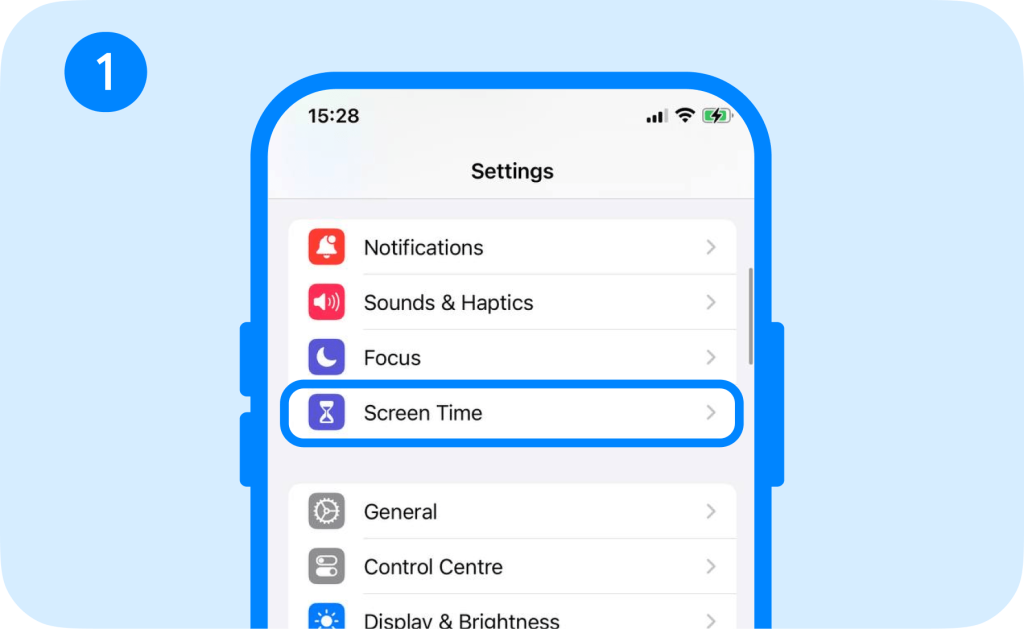
- If you haven’t already, turn on Screen Time and create a Screen Time passcode that your child doesn’t know.
- Tap Content & Privacy Restrictions.
- Turn on Content & Privacy Restrictions.
- Tap Allowed Apps.
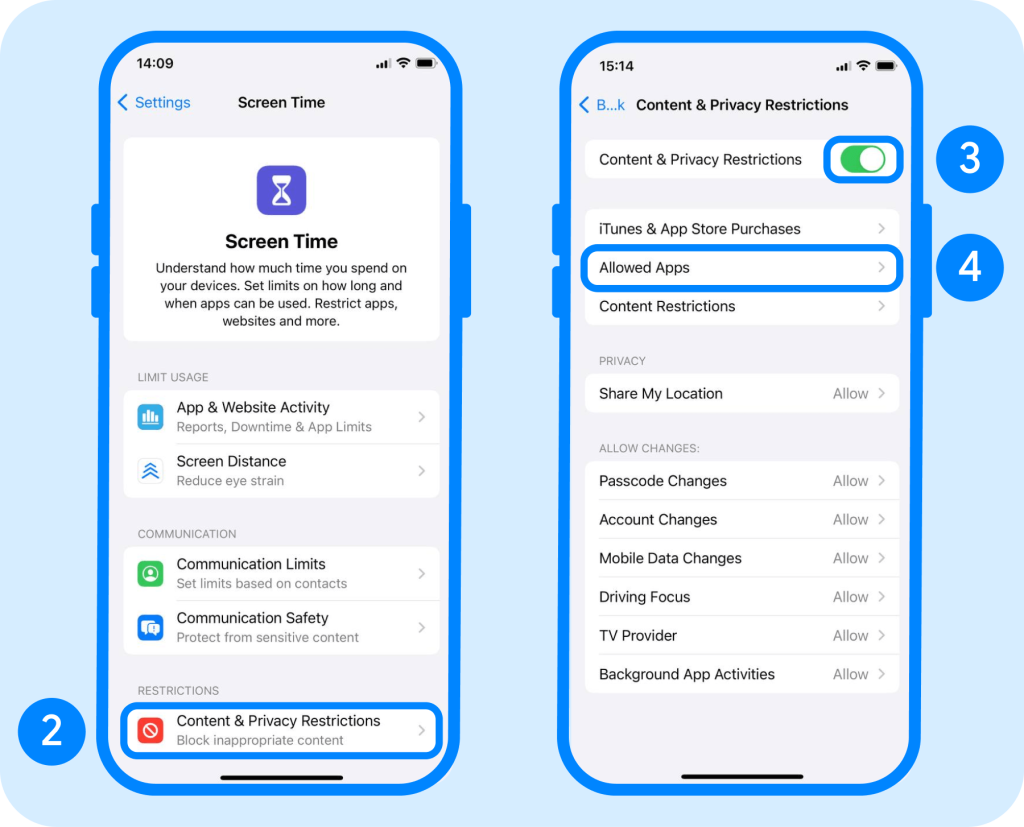
- Turn the Safari toggle off.
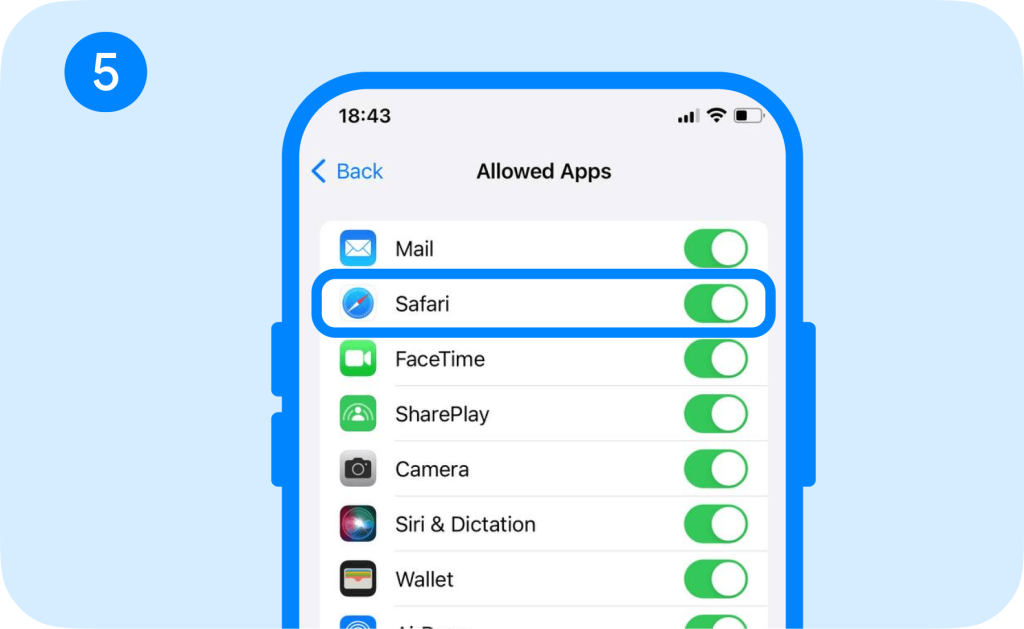
Once you disable Safari, the Safari icon disappears from both the Home Screen and the App Library, preventing your child from opening the browser or using it to browse the web. To keep them from simply reversing the change, be sure to set a Screen Time passcode that only you know.
What Happens After Safari Is Disabled?
Disabling Safari doesn’t delete any data from the device. Instead:
- The Safari icon disappears
- Existing bookmarks and browsing history remain saved
- Safari settings stay intact
- You can re-enable the Safari browser at any time through Screen Time
After you disable Safari, your child won’t be able to open the browser until it’s re-enabled. If you later decide your child is ready for browser access again, simply return to Settings → Screen Time → Content & Privacy Restrictions → Allowed Apps and switch the Safari browser back on.
How to Block Safari on iPhone with Findmykids
Disabling Safari can reduce unrestricted internet access, but it’s only one part of managing your child’s digital habits. Children often switch between apps, messaging platforms, games, and other browsers throughout the day, so removing or disabling one app doesn’t eliminate every pathway to online content.
That’s where Findmykids helps families create healthier digital routines. The app gives parents tools to manage how children use their smartphones, including app restrictions, screen time limits, and additional safety settings.
To limit access to Safari and other apps with Findmykids:
- Open the Findmykids app on the parent’s phone.
- Select your child’s profile.
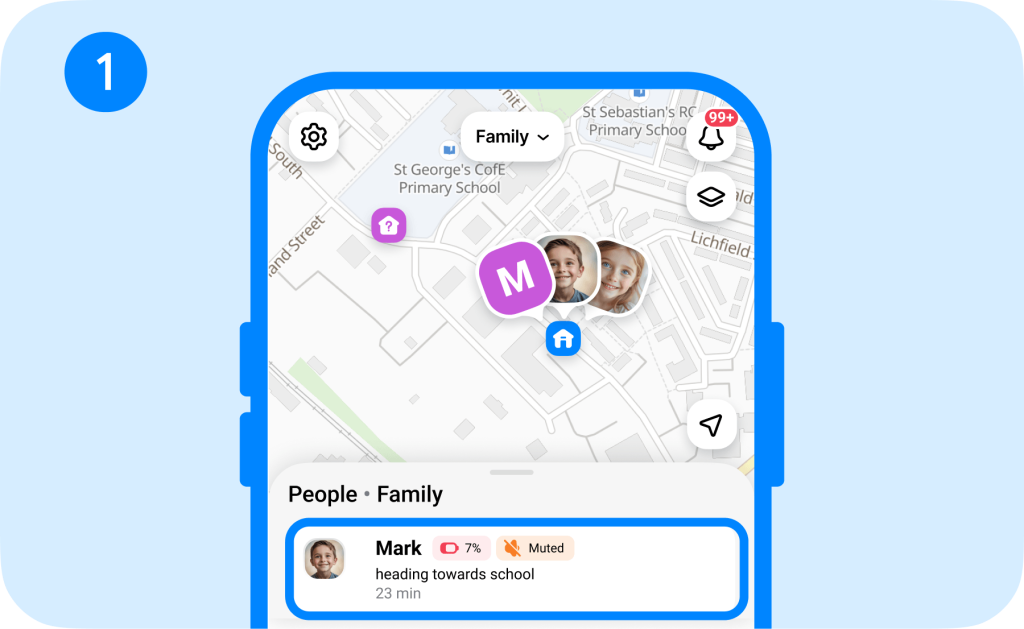
- Open the Parental Control section and choose Restrictions.
- Set up app limits and select the apps you want to control (including Safari).
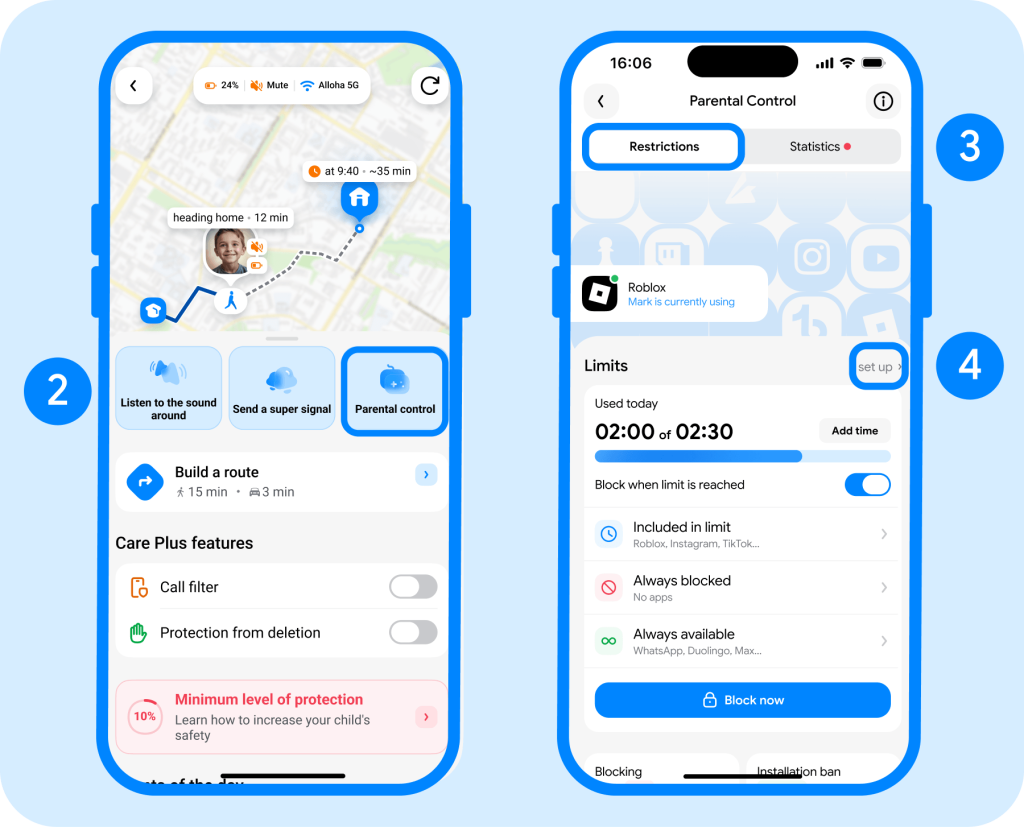
- Choose when these apps will be available by setting specific time periods, such as school hours, bedtime, or family time.
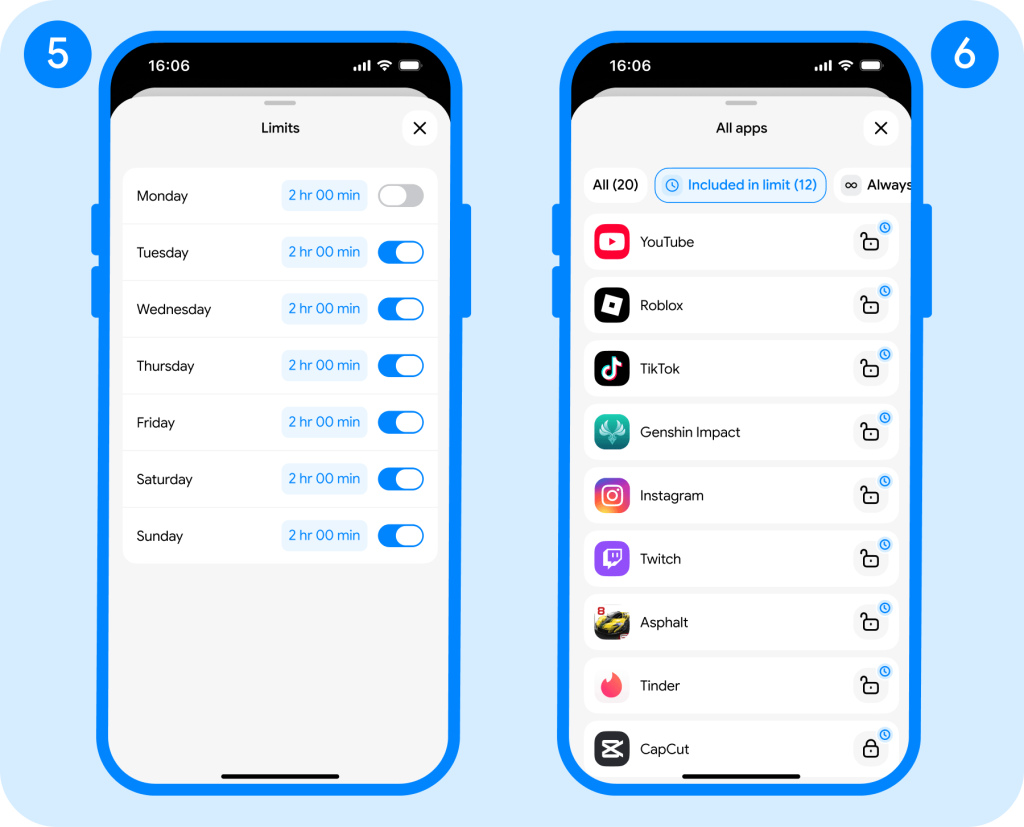
- You can also select apps that should always remain available, such as Phone or Alarm, even when restrictions are active.
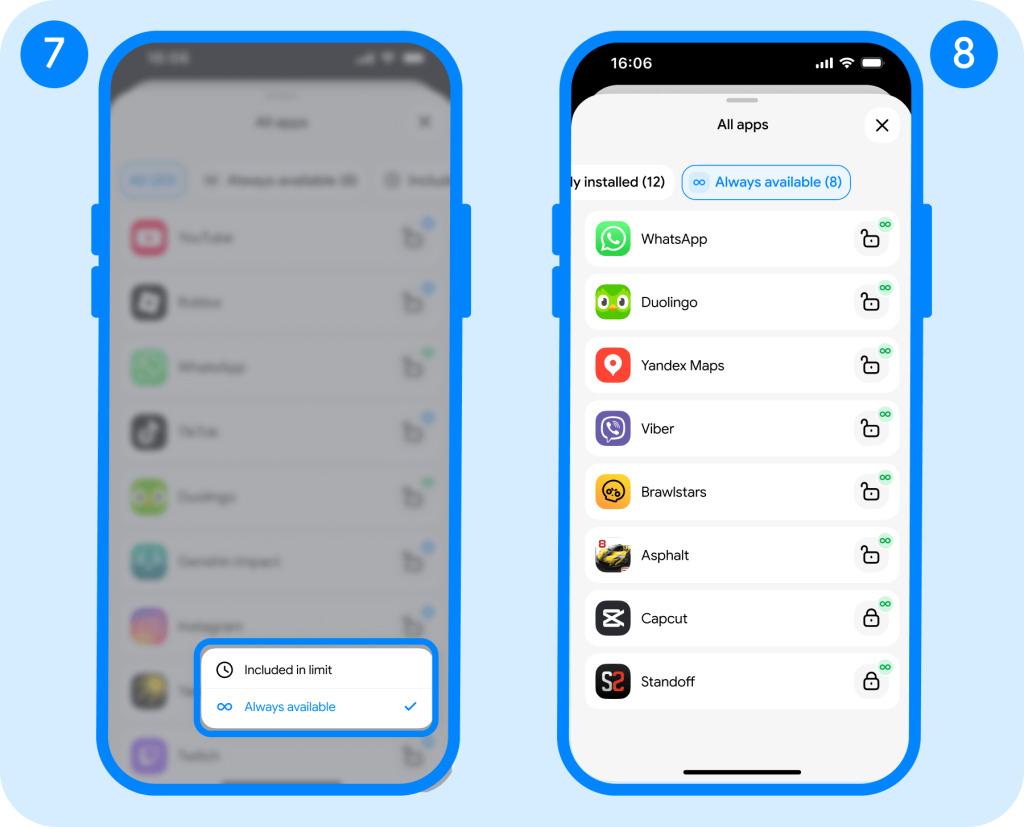
- If needed, tap Block Now to immediately restrict access to the selected apps.
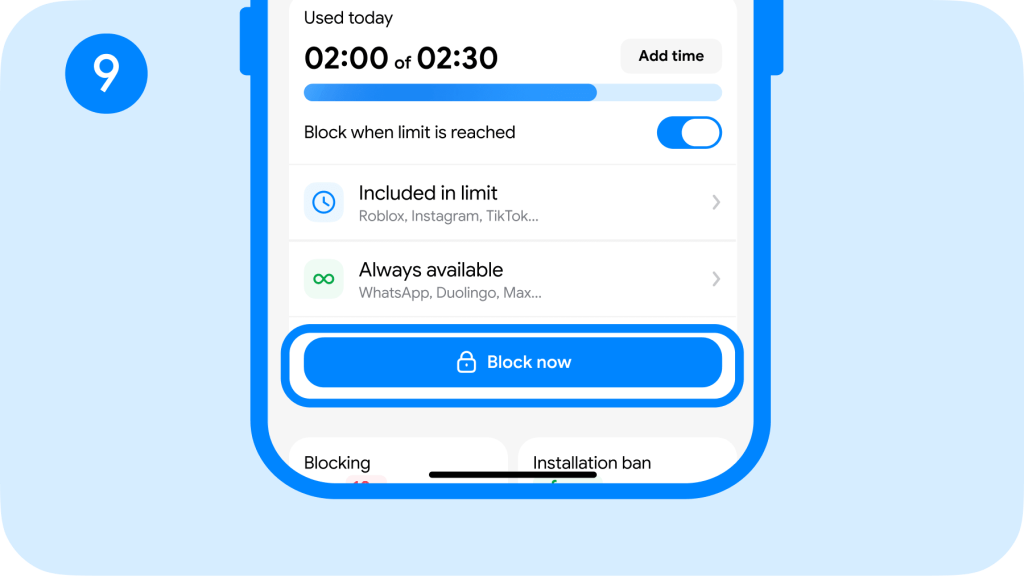
With Findmykids, parents can manage more than just browser access. The app helps families build balanced smartphone habits with features such as:
- Screen time statistics: See total phone usage time and understand which apps your child uses most.
- App limits and blocking: Control access to distracting apps and set healthy boundaries.
- Scheduled restrictions: Automatically limit phone use during sleep, school, or family time.
- New app installation restrictions: Prevent children from downloading new apps without permission.
- 18+ website blocking: Reduce exposure to inappropriate online content.
- In-app purchase restrictions: Prevent unwanted purchases.
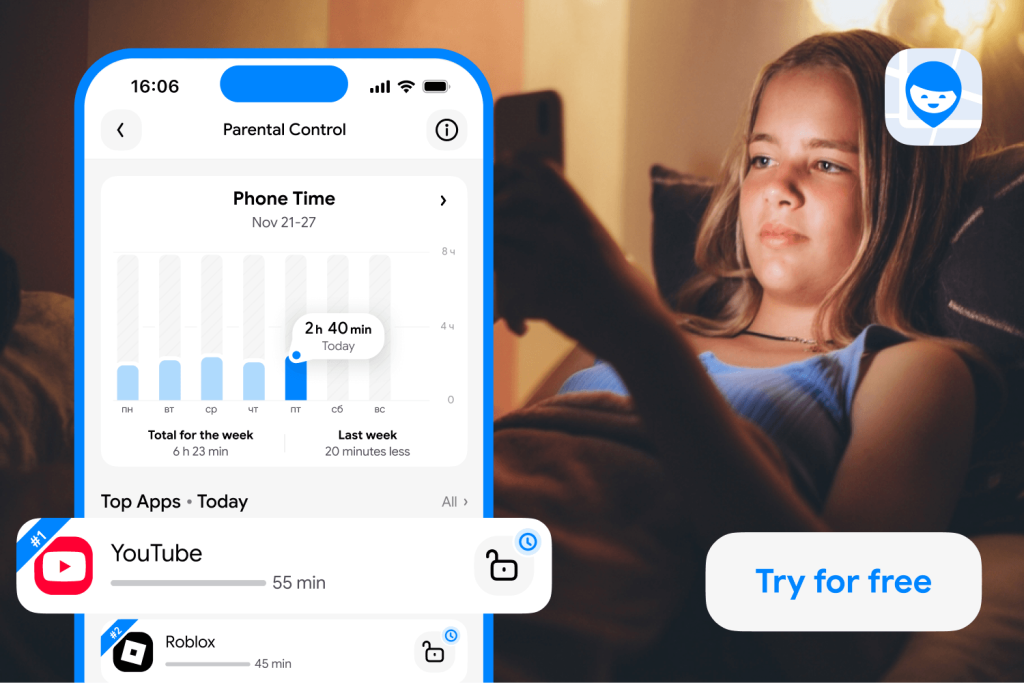
Findmykids app
But protecting children goes beyond what happens online. Findmykids also helps parents stay connected in the real world with features such as:
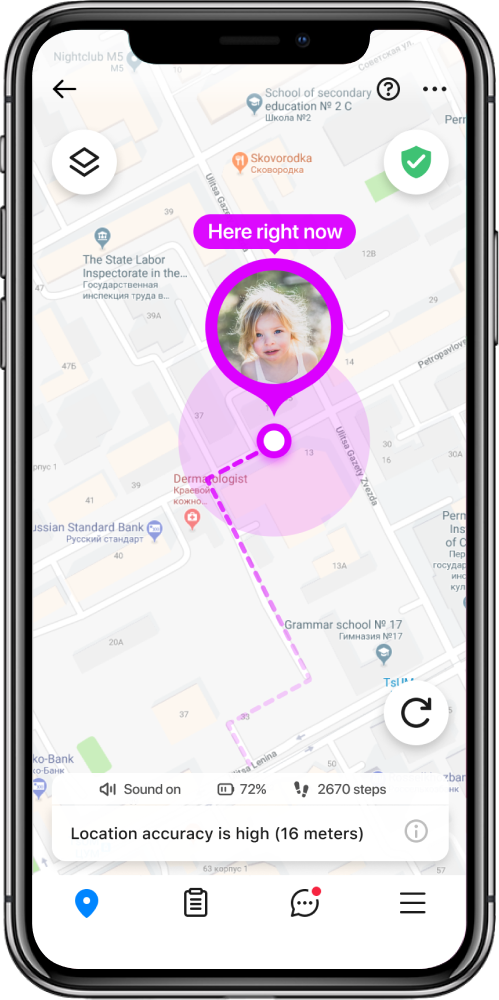
- Real-time location tracking: See where your child is at any moment.
- Route history: View detailed routes on an interactive map, including the starting point, destination, travel distance, speed, transportation type, and important events along the way.
- Place alerts: Know when your child arrives at or leaves important locations.
- SOS signals: Receive an emergency alert with your child’s location.
- Loud Signal: Reach your child even if their phone is on silent mode.
- Battery monitoring: Know when their phone needs charging.
By combining digital wellbeing tools with real-world safety features, Findmykids helps parents create a safer and more balanced smartphone experience for their children.
Download Findmykids today for free to manage screen time, set healthy app limits, and keep your child safer both online and offline!
How to Block Websites Without Removing Safari
Sometimes you don’t want to completely disable Safari. You simply want to limit what your child can access.
Use Web Content Restrictions
If you need more options, Web Content restrictions let you block and filter websites directly within Screen Time. Go to:
- Settings → Screen Time.
- Content & Privacy Restrictions → Content Restrictions.
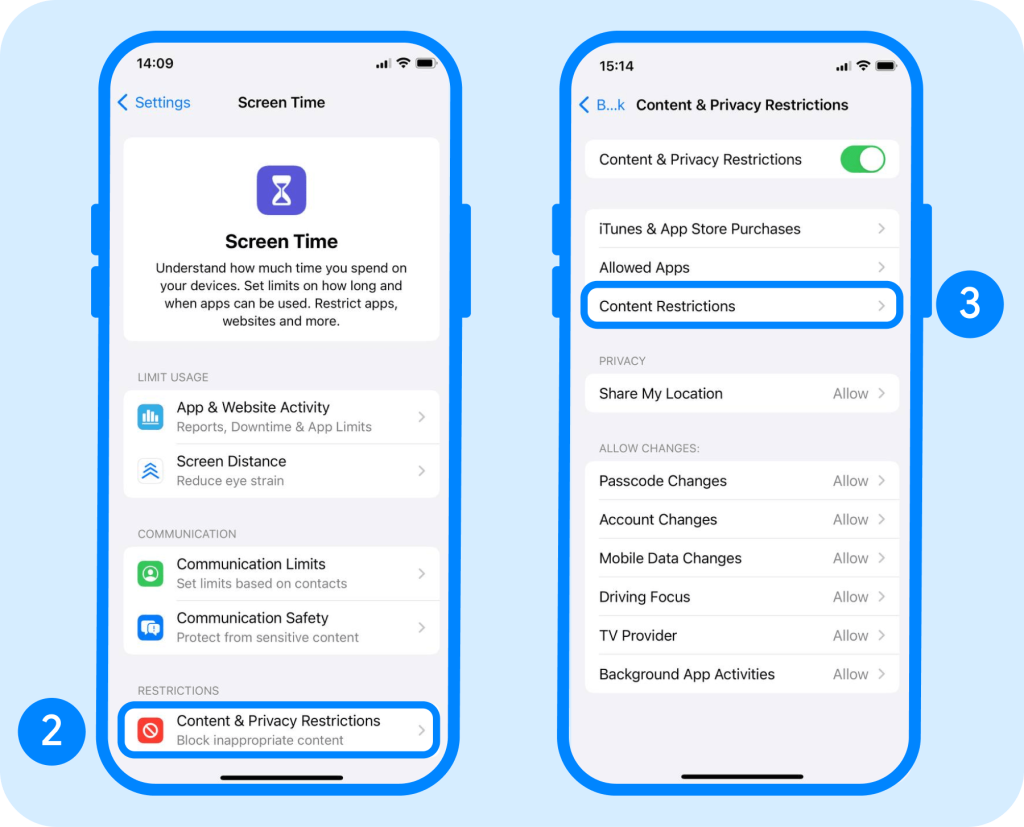
- Web Content.
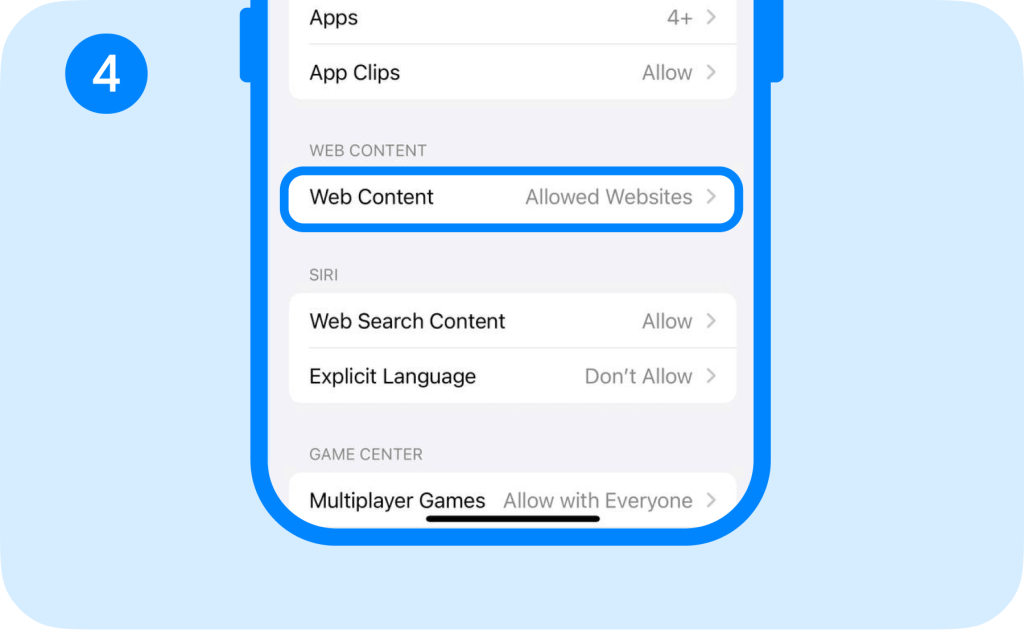
From there, you can choose:
- Unrestricted Access
- Limit Adult Websites
- Allowed Websites Only
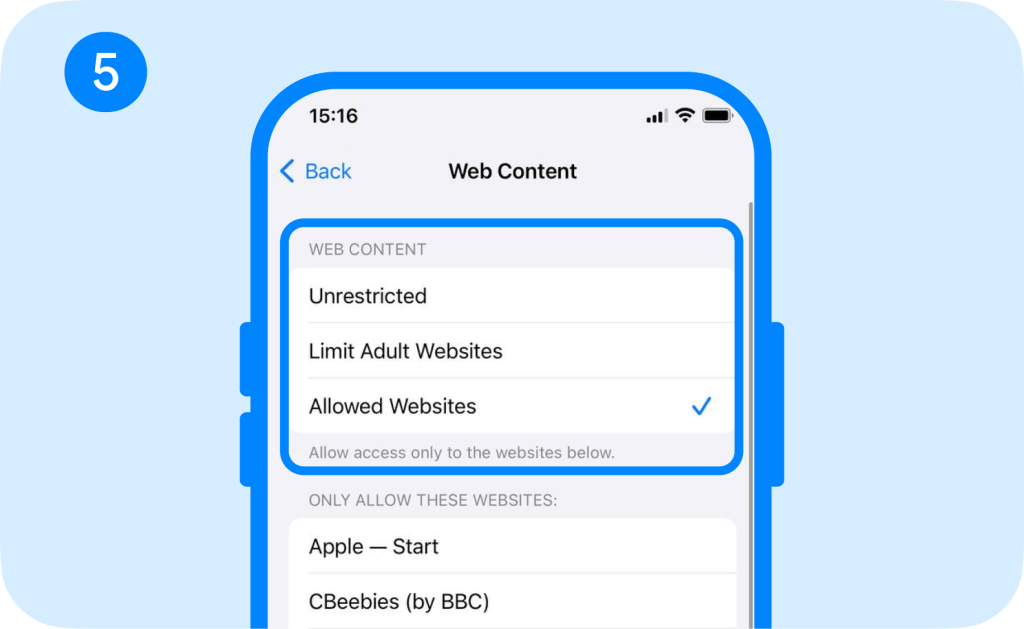
You can even add specific sites to an Always Allow or Never Allow list, giving you more control over what your child can access without removing the Safari browser entirely.
This option works well for younger children with Apple devices who need internet access for school but don’t need unrestricted browsing.
Related: How to Block Websites on Safari and Manage What Kids Can See.
Use Findmykids
Findmykids works alongside Apple’s settings by helping parents manage online access as part of a broader digital safety approach. In addition to website restrictions, the app allows parents to control overall smartphone use and limit access to apps when needed.
To manage your child’s online access with Findmykids:
- Open the Findmykids app on the parent’s phone.
- Select your child’s profile.
- Go to Parental Control and open Restrictions.
- Choose the apps you want to limit and add them to the restricted list.
- Set a time limit, create a schedule, or use Block Now to immediately restrict access.
Parents can also enable 18+ website blocking in Findmykids to help reduce exposure to inappropriate online content while allowing children to continue using Safari for school and everyday needs.
Advanced Option: Apple Configurator and Supervised Mode
If you’re managing a school-issued phone or another organization-owned device, Apple offers an additional option through the Apple Configurator app.
Apple Configurator allows administrators to place iOS devices into Supervised Mode, unlocking additional management features that aren’t available on standard consumer devices.
With supervised devices in this setup, organizations can apply stricter restrictions and control many aspects of how the devices function.
However, this option isn’t practical for most families, largely because these additional functions are only available in Supervised Mode. Using Apple Configurator requires a Mac, additional setup, and placing the device into Supervised Mode, which generally involves erasing and reconfiguring the device. Unless you’re managing multiple school or business devices, Screen Time provides more than enough control for most parents.
Common Loopholes Parents Should Close
Removing Safari doesn’t automatically eliminate internet access, so here are a few other settings worth reviewing.
Check for Other Browsers
If Chrome, Firefox, Microsoft Edge, Opera, or another browser is installed, your child can simply use that instead. Review installed apps regularly and remove browsers you don’t want available.
With Findmykids, parents can check the list of installed apps and use app restrictions to limit access to specific applications when needed.
Restrict App Downloads
Even if Safari is disabled, your child could download another browser unless you’ve restricted app installations. With Findmykids, parents can prevent new app installations directly from the Parental Control settings. To enable this feature:
- Open the Findmykids app on the parent’s phone.
- Select your child’s profile.
- Go to Parental Control and open Restrictions.
- Find Installation ban of new apps and turn on the toggle.
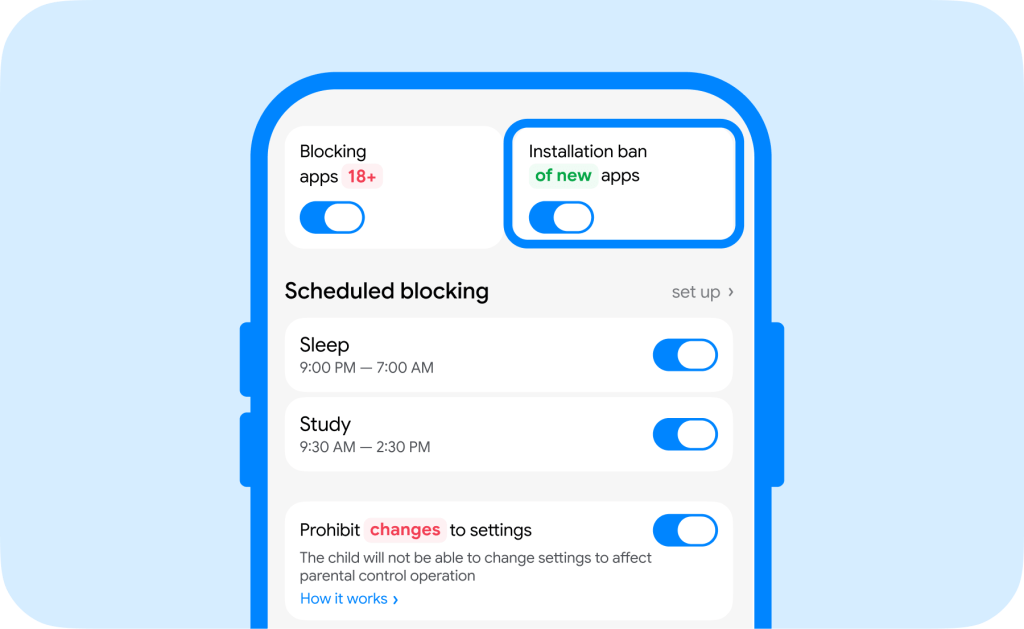
This helps prevent children from installing new browsers or other apps without your approval.
Review Search and Content Settings
Search engines and video platforms often include their own parental settings. Consider enabling Google SafeSearch, YouTube Restricted Mode, and family-friendly search filters. These settings add another layer of protection even when browser access is allowed.
Use Apple’s Parental Controls
Screen Time works best when multiple features are used together. In addition to disabling Safari, consider layering several tools together, which creates much stronger digital boundaries than relying on a single setting. Some great options include:
- App Limits
- Downtime
- Communication Limits
- Content & Privacy Restrictions
- Purchase restrictions
Read more: How to Put Parental Controls on iPhone: The Complete Family Safety Guide.
Safari Alternatives for Kids
If your child needs internet access but you’d like additional safeguards, consider a kid-friendly browser. Even with child-focused browsers, parental supervision and conversations about online safety remain important.
| Browser | Best For | Notes |
| Safe Search Kids | Younger children | Filters search results automatically |
| Kiddle | Elementary-age children | Child-friendly search engine with curated results |
| SPIN Safe Browser | Families | Designed to reduce access to inappropriate content |
Removing Safari Isn’t Always the Best Solution
It’s easy to think that deleting or disabling Safari will solve every internet safety concern. In reality, today’s children can access online content through social media apps, messaging platforms, gaming apps, and embedded browsers, so removing Safari addresses only one pathway to the internet.
as your child grows, building healthy digital habits becomes just as important as restricting access. The American Academy of Pediatrics recommends creating a family media plan and staying actively involved in your child’s media use rather than relying on a single restriction. For younger children, some families even choose a dumb phone until they’re ready for a smartphone.
Combining Screen Time, clear expectations, regular conversations, and parental control tools like Findmykids can help children develop responsible technology habits they’ll carry into adulthood.
FAQs
Can you delete Safari from an iPhone?
No. Safari is a built-in iOS app and can’t be permanently uninstalled. You can disable Safari using Screen Time, but it remains part of the operating system.
How do I disable Safari on my child’s iPhone?
Go to Settings → Screen Time → Content & Privacy Restrictions → Allowed Apps, then turn Safari off. Set a Screen Time passcode so your child can’t change the settings.
Can my child re-enable Safari?
Only if they know your Screen Time passcode or have permission to change the settings.
Does disabling Safari block all websites?
No. Other browsers, apps with built-in browsers, and certain online services may still provide internet access. Review installed apps and use Web Content Restrictions for additional protection.
How do I enable Safari again?
Open Settings, go to Screen Time, select Content & Privacy Restrictions, tap Allowed Apps, and switch Safari back on.
Sources & References
- Use parental controls on your child’s iPhone, iPad, and iPod touch, Apple Support, 2026
- Use Screen Time on your iPhone or iPad, Apple Support, 2026
- Apple Configurator User Guide, Apple, 2026
- Digital Ecosystems, Children, and Adolescents: Policy Statement, American Academy of Pediatrics, 2026
Cover image: Pvproductions / magnific.com
Проверьте электронный ящик