

allowing your children to access the Internet is a non-negotiable in today’s digital world, but protecting them from inappropriate content and websites is just as important. With more than 700 million Safari users, parents often want to block a website in Safari and protect their children online.
In this guide, we’ll outline five proven and beginner-friendly methods of how to block websites on Safari so you can keep your children safe and have peace of mind.
Contents:
- Method 1: Block Specific Websites on iPhone/iPad with Screen Time
- Method 2: Block Websites on Mac
- Method 3: Block Adult Content Across All Browsers
- Method 4: Router-Level/DNS-Based Blocking for All Devices
- Method 5: Apps, Extensions, and MDM
- Troubleshooting Website Blocking
- FAQs
Method 1: Block Specific Websites on iPhone/iPad with Screen Time
Did you know that more than half of children in the U.S. have access to a smartphone or tablet? And with Apple being the leading brand for smart devices, it’s common to see children with an iPhone or iPad with access to the Safari browser.
Fortunately, every Apple device comes with the Screen Time feature, which allows you to block content and specific websites and create a safer Safari browsing environment.
To block certain websites or apps on iPhone or iPad with Screen Time, follow the directions below:
- Open Settings > Screen Time.
- Tap Content & Privacy Restrictions > Turn On.

- Tap Content Restrictions > Web Content.
- Tap Limit Adult Websites or Only Approved Websites.
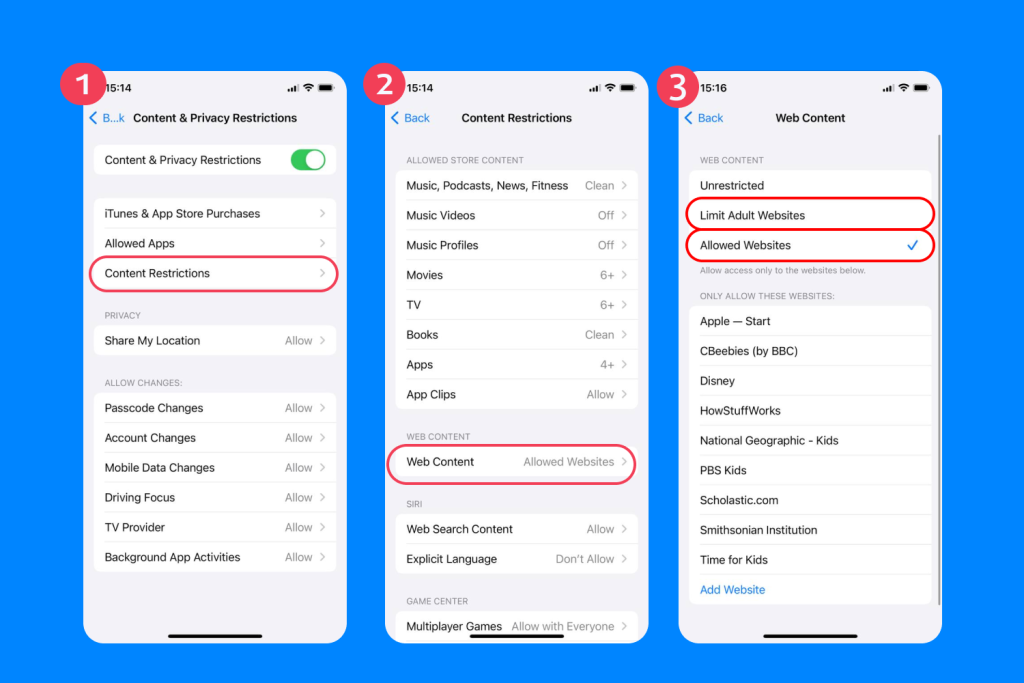
- Customize which websites you’d like to block.
This ensures that you restrict access to blocked sites on the device. However, it’s important to note that this URL-blocking technique applies only to the device on which the settings are enabled. So, if your child uses both an iPhone and an iPad, these controls must be configured on each device separately.
Blocking Websites via Family Sharing: What’s Different?
If your child’s Apple ID is connected to yours through Family Sharing, Screen Time settings can also be managed remotely from the parent’s device. In this case, restrictions are applied to the child’s Apple ID rather than manually set on each device.

To block websites using Family Sharing:
- Open Settings on the parent’s iPhone or iPad.
- Tap Family Sharing, then select your child’s name.

- Tap Screen Time > Content & Privacy Restrictions.

- Go to Content Restrictions > Web Content.
- Choose Limit Adult Websites or Only Approved Websites, then manage blocked or allowed sites.
This approach is more convenient for families with multiple Apple devices, as changes automatically sync across all devices signed in with the child’s Apple ID.
Limit Adult Websites vs. Only Approved Websites: Which Should You Choose?
- Limit Adult Websites. This option automatically blocks many adult websites and allows parents to manually add specific sites to a block list. It’s best suited for older children or teens who need general protection but still require broader access to the web for school, research, and everyday use.
- Only Approved Websites (Allowed Websites Only). This setting restricts browsing strictly to a parent-approved list of websites. Any site not explicitly allowed is blocked by default. This option is typically recommended for younger children, first-time internet users, or situations where parents want maximum control over online content.
Choosing between these options depends on your child’s age, maturity level, and how independently they use the internet.
Method 2: Block Websites on Mac
Screen Time is also available on Mac computers, which allows you to block websites on Safari. To do so, follow the directions below:
- In the Start Menu, open System Settings or open System Preferences (for older Macs).
- Click Screen Time > Content & Privacy > Turn On.
- Click App Store, Media, Web, & Games.
- Select Limit Adult Websites in Access to Web Content or Allowed Websites Only.
- Customize which websites you’d like to block.
This is a simple, straightforward way to block specific websites and limit access to known adult websites.
What If the Child’s Mac Is Part of Family Sharing?
If the child’s Mac is signed in with an Apple ID that’s part of Family Sharing, no additional website-blocking settings are required directly on the Mac as long as Screen Time is enabled for the child’s account.
In this case, web restrictions are managed from the parent’s device and automatically apply to the child’s Mac once:
- The child is signed in with their Apple ID
- Screen Time is turned on for that Apple ID
- The Mac is connected to the internet
However, it’s still important to check one setting on the Mac itself: the correct child account must be selected in System Settings > Screen Time. If multiple users exist on the Mac, Screen Time restrictions only apply to the account that is linked to the child’s Apple ID.
Method 3: Block Adult Content Across All Browsers
A sneaky way kids can get around parental controls when you learn how to block websites on Safari is by downloading another browser, like Chrome or Firefox. To stay one step ahead, you can set up website blocking across all browsers, but it is a bit more technical.
This method involves setting parental controls in the Mac’s system rather than the browser itself. You will manipulate the hosts files in the system, which tells the Mac not to access a specific website.
To set this up, follow the instructions below (carefully!):
- Open Spotlight (Cmd + Space).
- Type Terminal in the pop-up search bar and press Enter.
- Type sudo nano/etc/hosts and press Enter.
- Enter the Mac admin password when prompted.
- Add the following line with 127.0.0.1 before the website address (example: 127.0.0.1 www.youtube.com) to change the file.
- Press Control + O, then Enter to save the file.
- Press Control + X to exit.
- Flush the DNS cache by typing: sudo dscacheutil -flushcache; sudo killall -HUP mDNSResponder.
Important: Make sure to create two versions of the URL, one with www in front and one without (ex: youtube.com and www.youtube.com). If your child types one of these in the address bar that isn’t blocked, then they can access the site.
Read also: The List of 65+ Inappropriate Websites to Block for Kids.
Method 4: Router-Level/DNS-Based Blocking for All Devices
The most effective way to block harmful websites on devices is through router-based blocking at the DNS (domain name system) level. This method enables content and web filtering on every browser. However, it will also affect every device connected to your network. So, you can block websites no matter what device your child uses.
To set up DNS-based blocking, follow the instructions below:
- Log in to your home router by visiting either 192.168.0.1 or 192.168.1.1 in a browser.
- Go to the section for Website Filtering or Restrictions.
- Enter the specific website URLs to your block list.
This method makes it harder for children to bypass. That means it’s important to keep your admin credentials secret; otherwise, they could access the router settings with them.
Method 5: Apps, Extensions, and MDM
For parents who want more control without the need to be tech-savvy, they can use apps, extensions, and MDM methods. These can set time limits on certain apps or websites on your child’s devices, report app usage, and block websites.
Focus and Distraction Blockers
Focus and distraction blockers are designed to limit access to distracting websites and apps during specific periods of time—such as school hours, homework sessions, or bedtime. Unlike classic parental control tools, these solutions work on a temporary, time-based basis, not permanent restrictions.
Apps like:
- Cold Turkey: Blocks selected websites and apps on a strict schedule, often used for studying or deep work.
- Freedom: Allows parents or teens to block distracting sites across multiple devices for a set period of time.
- One Sec: Focuses on reducing impulsive app usage by adding friction before opening selected apps or websites.
These tools are helpful when the goal is to reduce distractions rather than enforce long-term content restrictions. Once the timer ends, access to blocked websites is automatically restored.
Because of this, focus blockers aren’t true parental control apps. Instead, they work best as supportive tools to help children stay focused and develop healthier screen habits—especially for teens.
Related: How to Block Pornhub: A Practical Guide for Parents.
Family Monitoring and Routine Setting

Findmykids app
For parents who want a broader and more consistent level of control, dedicated parental control apps like Findmykids are more effective.
With Findmykids on iOS, parents can:
- Block all 18+ websites, making adult content inaccessible on the child’s device.
- Block all apps on the child’s phone with one tap, which is useful during school hours, nighttime, or family time.
In addition to digital safety tools, Findmykids is built around everyday family routines and real-life safety. The app includes:
- Real-time GPS location tracking, so parents always know where their child is.
- Location history, helping parents understand daily routes and habits.
- Load Signal and SOS features, which can be crucial in emergency situations.
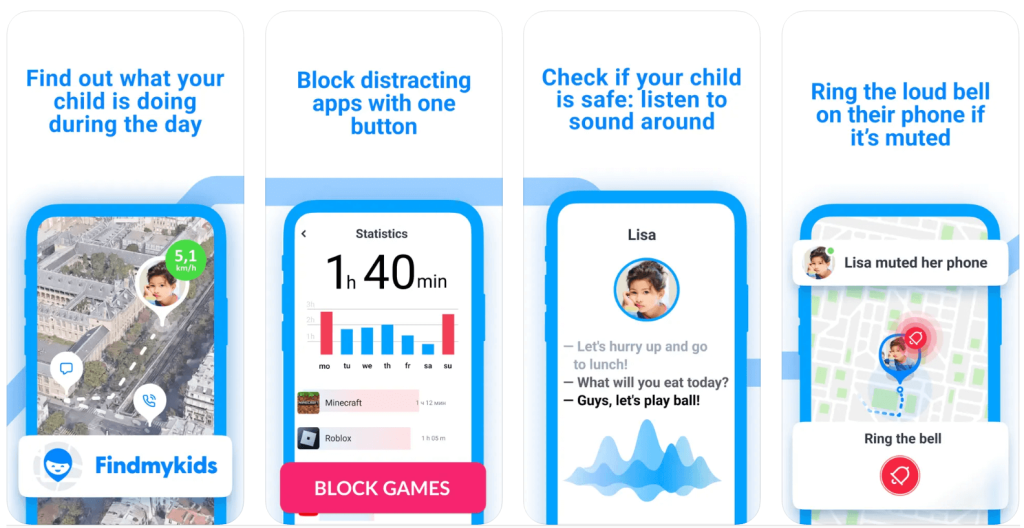
Findmykids app features
Rather than focusing only on screen limits, Findmykids helps parents stay connected to their children—both online and offline—while maintaining a balanced, non-intrusive approach to supervision.
If you’re looking for a single app that combines content safety, device control, and real-world location tracking, Findmykids is designed to cover all of these needs in one place.
School and Company MDM
With Mobile Device Management (MDM), professional companies and schools can enforce website and app restrictions at a systematic level. It offers device control at scale and makes it difficult for both children and employees to bypass the blocked websites.
Troubleshooting Website Blocking
In some cases, you may still be able to access a website you’ve just blocked. If this is the case, you should follow the troubleshooting steps below:
- Open System Settings, click Screen Time, and make sure it’s turned ON for the correct user profile.
- Go to Content & Privacy and confirm the toggle is enabled.
- Go to Content Restrictions > Web content. Confirm the right mode is selected.
- Make sure your blocked website is present; if not, add it and make sure to include two versions: example.com and www.example.com.
- Quit and reopen the browser or restart the Mac.
- Clear the browser cache if the site still appears after restarting.
- Check that the child’s Mac account is set to Standard (not Administrator) under Users & Groups.
- Look for active VPNs or proxy browser extensions, which may bypass Screen Time restrictions. Disable or remove them if necessary.
- If Screen Time is managed through Family Sharing, confirm that:
- The correct child profile is selected
- All family devices are running the latest version of macOS and iOS/iPadOS, as restrictions may not sync properly on outdated software.
These steps will help you confirm if there is something wrong or if you need to update the system to enforce the blocked sites.
Read also: Forbidden Click: What to Do If Your Child Has Seen Adult Content.
Keep Your Child Safe Online with Blocked Websites on Safari
Being a parent in today’s digital world means learning how to protect your kids online. The easiest way to do that? Learning how to block a website on Safari (if your child uses iOS devices).
By using these five methods, you can create a safer browsing environment, help your child avoid distractions, and take advantage of both free and built-in tools to limit which websites your child can access. You can also set screen time limits and get a clearer picture of how and when your child uses their device.
If you found this helpful, make sure to share it with a friend who is also concerned about their child’s online safety.
FAQs
How do I block specific websites on Safari on iPhone?
Go to Settings > Screen Time > Content & Privacy Restrictions > Toggle On > App Store, Media, Web & Games > Web Content > Limit Adult Websites or Only Approved Websites > Add your blocked URLs
What’s the difference between Limit Adult Websites and Only Approved Websites?
The difference is that when you choose Limit Adult Websites, the browser only blocks websites that have explicit, inappropriate, or adult content. Allowed Websites Only is a list of websites that are accessible; the rest of the Internet is blocked.
How do I block websites on Safari on Mac?
The easiest way to block websites on Safari on Mac is through Screen Time. Open Settings > Screen Time > Content & Privacy > Turn On > App Store, Media, Web & Games > Access to Web Content > Allowed Websites Only > Add website URLs to block.
Why is the blocked site still opening?
You may need to refresh the cache, or the blocked website is formatted only with “www” and not without (you’ll need to enter both versions of the site, like www.example.com and example.com). After blocking websites on Safari, always restart the computer.
What’s the most secure way to prevent kids from bypassing blocks?
The most secure way to prevent kids from bypassing blocks is through router and DNS-blocking, MDM methods, and the Findmykids app. Always make sure that your child’s account is not set to Administrator and that you keep your admin credentials secret.
Can I block websites on Safari for work hours only?
Yes, using focus apps like Cold Turkey or Freedom allows you to block websites for an allotted amount of time.
Can I block websites for every device on my Wi-Fi?
Yes, you can block websites for every device connected to your Wi-Fi by going into your router or DNS settings and adding specific websites to block.
Read more: The Best Methods to Block Websites on a Router.
Can I block Safari on Windows?
No, the Windows operating system no longer supports the Safari browser. However, there are ways to block websites for Windows users on other browsers, like Google Chrome and Firefox.
Cover image: Nicole Lienemann/Shutterstock.com
Проверьте электронный ящик