
It feels like every child today has an iPhone permanently glued to their hands. They use these devices constantly to text friends or endlessly scroll through social media. Naturally, parents often feel incredibly wary about handing over such a powerful tool. Giving a child unrestricted internet access can quickly make you feel completely out of control regarding what they see and do.
The good news is that it is possible to limit usage and set up parental controls on an iPhone, giving you more oversight into how your child uses their smartphone. Many parents wonder exactly how to set up parental controls on iPhone devices quickly and effectively.
Contents:
- Why iPhone Parental Controls Matter and How They Work
- How to Put Parental Controls on iPhone: Step-by-Step Instructions
- Extra Tips for Parents to Keep Kids Safe on iPhone
- Quick Checklist for Parents: iPhone Parental Controls
- More iPhone Guides for Parents
- FAQs
Why iPhone Parental Controls Matter and How They Work
Handing over an Apple device like an iPhone to your kid is like giving them the key to the internet. They now have access to unlimited apps and websites. But when you explore the built-in parental control options for blocking inappropriate content, you can keep your kids safe and limit how they use their kids’ iPhones.
Beyond the obvious concerns, Apple’s parental controls help reduce several specific risks, such as:
- Exposure to harmful content (adult sites, violent media, age-inappropriate apps).
- Online interactions with strangers, including unsolicited messages.
- Excessive screen time that affects sleep and school focus.
- Unmonitored App Store purchases that can lead to unexpected charges.
- Sharing personal information through apps, chats, or social media.
From choosing screen time settings on apps to turning on Do Not Disturb modes at certain hours of the day, there are many ways to make an iPhone kid-friendly. You can configure these parental control settings directly in the phone’s system settings, but also in your Apple iCloud account. Plus, we’ll recommend some third-party apps for parents for even more protection later on in this article.
These tools can give families greater peace of mind by creating a safer digital environment for younger users. When used consistently and paired with open conversations, parental controls help set clear boundaries—reducing the risk of digital burnout while still allowing kids to explore and learn online.
How to Put Parental Controls on iPhone: Step-by-Step Instructions
Understanding how to set iPhone parental controls can feel a bit intimidating. Below are exact steps and instructions for how to set them up to restrict content restrictions, manage screen time limits and in-app purchases, and even see your child’s location.
Setting Up Family Sharing
Family Sharing is an iCloud feature where parents can share things such as App Store purchases, Apple Music and TV+ subscriptions, locations, and iCloud storage. However, it also allows parents to set parental controls for kids’ devices, even if your child doesn’t have an Apple ID.
To set up Family Sharing, follow the steps below:
- Open Settings on your iPhone or iPad.
- Tap your name (Apple ID banner) at the top.
- Tap Family Sharing.
- Tap Set Up Family.
- Follow the onscreen instructions until your family group is created.

To add your child to the family group:
- Go to Settings, click on your name, and select Family.
- Tap Add Member.
- Choose one of the following:
- Create a Child Account—follow the prompts to enter your child’s name, birthdate (your child’s age is important for age restrictions), and set up a login and account password.
- Invite People—if your child has an Apple ID, invite them and have them accept on their device.

Once your family group is set up, it will walk you through how to enable features such as location sharing.
Creating a Separate iCloud Account
Every member of your Family Sharing group must have an iCloud account, also known as an Apple ID. With this, they can personalize account settings, save photos, use Family Sharing, prevent messages and photos from mixing together, and apply parental controls.
To create a new iCloud for a child, follow these steps:
- Open Settings.
- Tap your name (Apple ID).
- Tap Family Sharing.
- Tap Add Member.
- Choose Create Child Account.
- Enter your child’s name and birthday.
- Create your child’s Apple ID email and a password.
Once created, they can successfully join the Family Sharing group. Once created, your child’s profile can successfully join the Family Sharing group.
Configuring Content Restrictions
Preventing your child from seeing explicit content, explicit language, or sensitive photos when using their iPhone is of utmost importance. Fortunately, there are privacy restrictions that you can set for the Safari browser, Google Chrome, and more.
- Open Settings.
- Scroll down and tap Screen Time.
- Tap your child’s name.
- Tap Content & Privacy Restrictions and toggle ON.
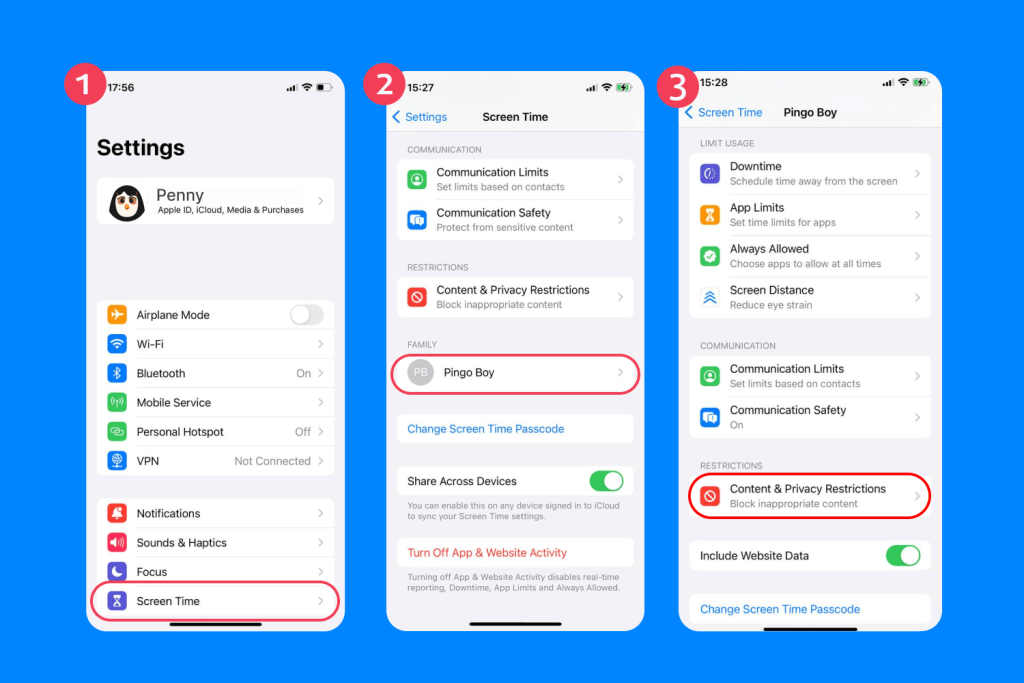
- Tap Content Restrictions.
- Tap Web Content.
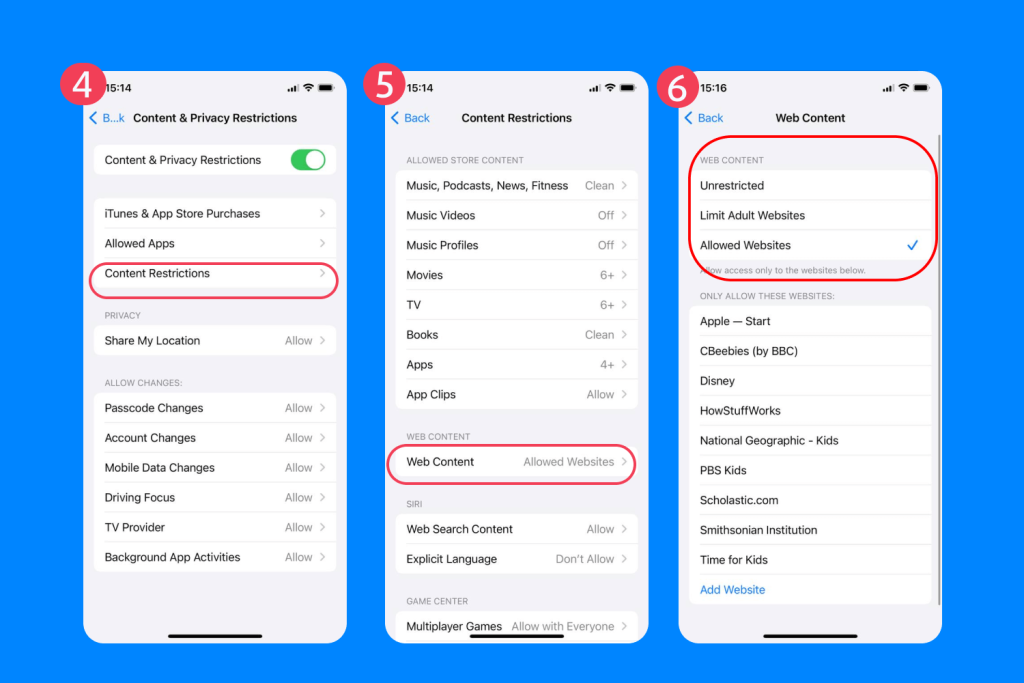
- Select Limit Adult Websites or Allowed Websites Only, depending on how much access you want your child to have. Choosing Allowed Websites Only ensures that the child can only visit approved websites.
- Back in Content Restrictions, select Music, Podcasts & News and set it to Clean.

- Go back and set your desired age ratings for Films, TV shows, and books.
Related: How to Set Up Safari Parental Сontrols.
Preventing Harmful Content
It is possible to restrict inappropriate content from showing up on your child’s phone.
- Go to Settings → Screen Time → Child’s Name.
- Tap Content & Privacy Restrictions and toggle ON.
- Tap Content Restrictions → Web Content → Limit Adult Websites.

This also helps you control communication safety and certain features on the Game Center. By restricting the Game Center, you can stop kids from playing unmonitored multiplayer games with strangers.
Setting Screen Time Limits
Kids have greater access to iPhones at younger ages, and they spend more time in front of screens. It’s important to use lock screen time settings to limit usage.
- Open Settings.
- Tap Screen Time.
- Tap your child’s name under Family.

- Turn ON Screen Time for your child.
- Tap Use Screen Time Passcode and create a 4-digit parental password.

This is the first step to setting screen time limits for certain apps or even the entire phone itself (known as Downtime). When their screen time has run out, the phone will require a password to gain access again.
Having an open conversation about digital boundaries is highly recommended. Explaining these rules helps children understand the importance of balancing online and offline activities.
Read more: How to Limit Screen Time on iPhone for a Child: Discipline, Not Control.
Setting Up Downtime
Downtime is a setting on iPhone where apps are blocked, notifications are silenced, and a Time Limit screen shows up, requiring a screen time password to use the phone.
- Go to Settings → Screen Time → Child’s Name.
- Tap Downtime.

- Toggle ON.
- Tap Set Schedule.
- Choose Start and End times, choosing which certain hours your child can use their phone.

- Go back to Screen Time.
- Tap Always Allowed.
- Choose apps that are accessible any time, such as messages, camera, clock, Find My, and phone.

Managing App Time Limits
It’s possible to set limits for individual apps and even by app category. To do so, follow the steps below:
- Go to Settings → Screen Time → your Child’s Name.
- Tap App Limits.

- Tap Add Limit.
- Choose apps by app category or scroll to select specific apps based on their age range.

- Tap Next and set a daily time limit.
- Tap Add.
You can even customize days where they have more or less access. For example, you can allow your child to access social media apps longer during the weekend. Parents can easily set limits on completely different schedules for every single day of the week.
Restricting Access to Specific Apps
Rather than giving time limits to apps, you can fully restrict access to certain apps on your child’s device.
- Go to Settings → Screen Time → Your child’s name.
- Tap Content & Privacy Restrictions and toggle ON.
- Tap Content Restrictions, then go to Apps.
- Choose an age rating that your child can access.

- Alternatively, tap Allowed Apps to toggle off specific default applications entirely.
- You can tap Allowed Apps a second time later on if you want to reverse this decision.
How to Block Apps on iPhone: A Step-by-Step Guide.
Monitoring Online Activity
While you are not able to see exactly what your child does online when using their phone, there are some ways to monitor what apps and approved websites they use.
- Go to Settings → Screen Time → your Child’s Name.
- Tap See All Activity.

- View the most used apps, websites visited, pickup frequency, and notifications per app, and time spent on each category.
Reviewing these weekly reports gives parents excellent insight into digital habits. It shows exactly where a student might be wasting valuable time.
Read also: Uncover iPhone Activity Logs with These Parenting Tips.
Using Focus Modes
Setting Focus mode on iPhone can silence notifications and apps, limit who can contact them, and disable distracting home screens.
- Open Settings.
- Tap Focus.
- Tap the + in the top right.

- Choose a preset:
- School.
- Homework.
- Sleep.
- Custom.
- Choose who can contact your child by tapping People → Allow Notifications From → Select the contacts.
- To set automatic scheduling for Focus mode, go to Add Schedule and choose the Time, Location, or App.
Focus modes are incredibly helpful during the school day. They completely prevent a child from getting distracted by social media notifications during important lessons.
Location Services and Parental Control
An important safety feature of the iPhone is location tracking in the Find My app. With Apple Family Sharing, you can track your child’s movements and location.
- Open the Settings app.
- Tap Privacy & Security.
- Tap Location Services and toggle ON.

- On your child’s phone, open Settings and tap their name/Apple ID.
- Tap Family Sharing.
- Tap Location Sharing.

- In Share My Location, tap turn ON.
- Select Share with Family Members.
Read more: How to Track Your Child’s iPhone—Safely and Smartly.
Managing Communication Limits
Communication safety is especially important. You can set your child’s device to only receive messages and calls from specific contacts saved in your iCloud contacts.
- Settings → Screen Time → Child’s Name.
- Tap Communication Limits.

- Set to:
- During Screen Time: Contacts Only.
- During DownTime: Parents & Trusted Contacts Only.
Setting Up Purchase and Download Restrictions
If your child tries to install apps, you can set up a notification that allows you to approve or deny it.
- Open Settings.
- Tap Family Sharing.
- Tap your child’s name.
- Tap Ask to Buy.
- Toggle ON.

With Ask to Buy enabled, you’ll receive a notification whenever your child attempts to download or purchase an app, allowing you to approve or decline the request.
You can also restrict app installations and prevent apps from being deleted without permission:
- Go to Settings → Screen Time → Child’s Name.
- Tap Content & Privacy Restrictions (toggled ON).
- Tap iTunes & App Store Purchases.
- Tap Installing Apps or Deleting Apps.

- Delect Don’t Allow.
This is particularly useful for restricting purchases, app downloads, or deleting apps without permission.
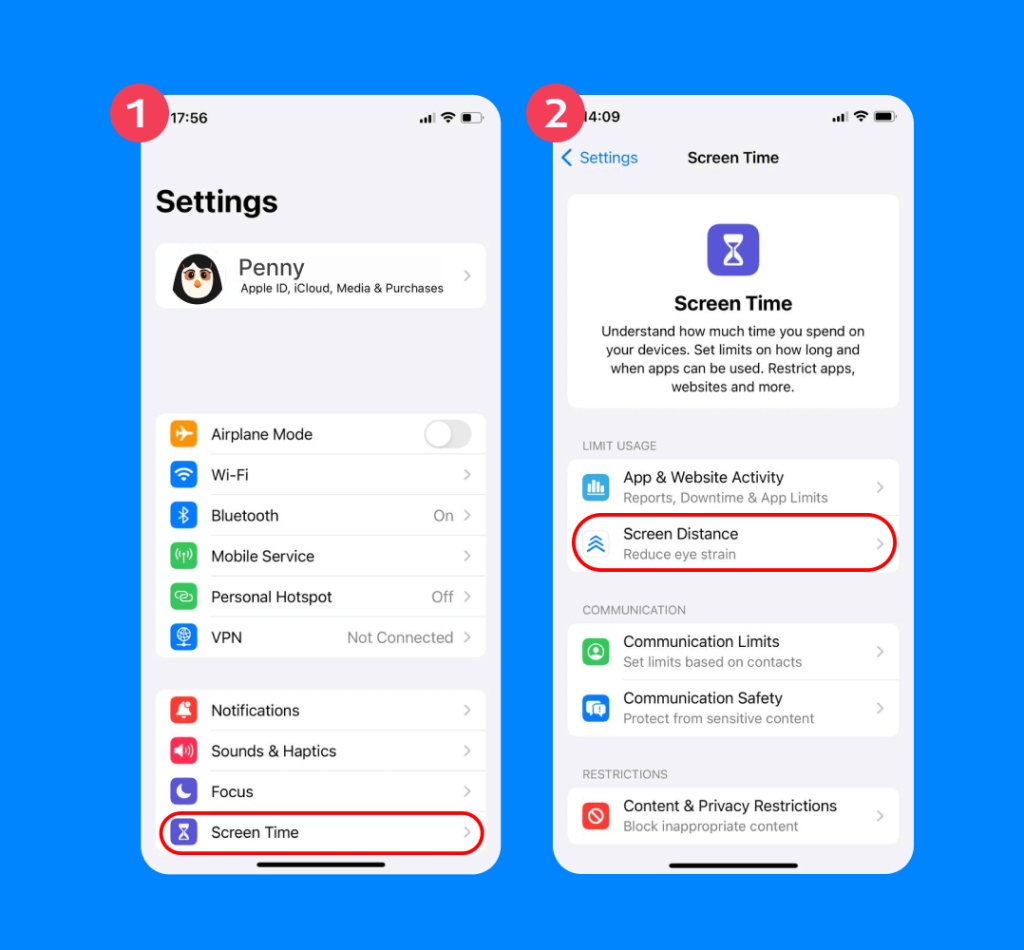
Protecting Vision with Screen Distance
Apple recently introduced new hardware features to protect your child’s eyesight. The Screen Distance feature uses the front camera to detect if an Apple device is being held too close to the face. If the screen is too close for an extended period, an alert will block the screen until they move the kid’s iPhone further away.
To enable this, tap Screen Time, select Screen Distance, and toggle it ON.
Reviewing and Adjusting Settings
Setting parental controls on iPhone isn’t a set it and forget it kind of task. Managing parental controls is essential. Things are constantly changing, especially how your child uses their phone. You can always go in to review and update the parental controls and ensure no unauthorized account changes have occurred.
- Go to Settings → Screen Time → Child’s Name.
- Tap See All Activity to see how your child uses their phone.
- Go back to adjust when Downtime starts, depending on your child’s schedule.
- Go back to App Limits and change the allowed time spent on specific apps per day.
This allows you to review account changes, enable privacy restrictions where necessary, and set content privacy restrictions that you may have overlooked before. Always make sure that your phones are running on the latest version of iOS for the best performance and safety.
Extra Tips for Parents to Keep Kids Safe on iPhone
Findmykids app
iPhone comes with a ton of Apple’s parental control features that can help you protect your children from dangerous content and too much screen time. But sometimes, you need a little extra help.
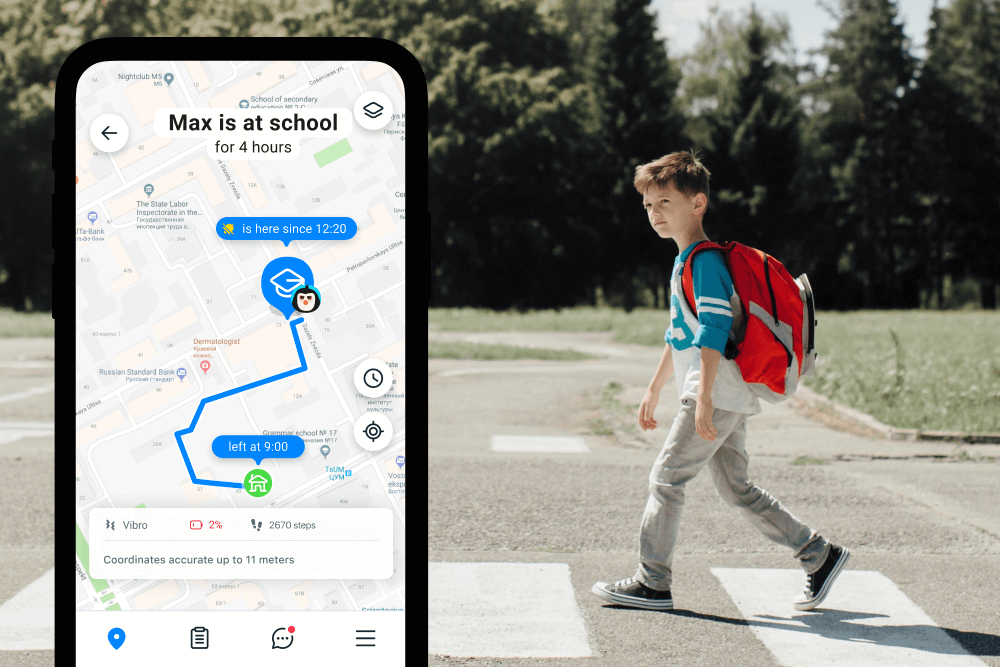
Parental control apps such as Findmykids and Kids360 give parents a clearer, more flexible way to understand and guide their children’s digital habits.
- Findmykids focuses on safety: it shows your child’s real-time location, sends SOS alerts, and provides app-usage insights so you always know how they’re spending time on their device—without locking things down completely.
- Kids360 complements this by helping families build healthier screen routines through daily limits, app-specific timers, and task-based motivation that lets kids earn their screen time.
These easy-to-download tools make digital parenting much more manageable. Try Findmykids or Kids360 now for free to add an extra layer of safety and build better screen-time habits for your family!
Quick Checklist for Parents: iPhone Parental Controls
Before you hand the iPhone to your child:
- Set up Family Sharing and add your child to the group
- Create or connect your child’s Apple ID
- Turn on Share My Location for family members
To control content and privacy:
- Enable Screen Time for your child
- Turn on Content & Privacy Restrictions
- Set Web Content filters (Limit Adult Websites / Allowed Only)
- Set age-based ratings for movies, TV shows, and apps
To manage phone and app usage:
- Set Downtime hours (bedtime, school time)
- Create App Limits or block specific apps entirely
- Review weekly Screen Time Activity reports
To keep communication safe:
- Set Communication Limits (Contacts Only / Parents Only)
- Choose who can contact your child during Downtime
- Turn on Communication Safety features (if available in your region)
To prevent unwanted purchases or downloads:
- Turn on Ask to Buy
- Block Installing Apps if needed
- Restrict in-app purchases
For safety and peace of mind:
- Enable Location Services + Find My
- Review allowed apps in Always Allowed
Update iOS to the latest version regularly
Optional but highly recommended:
- Install a parental control app like Findmykids or Kids360 for real-time location tracking, activity insights, and healthy screen-time habits.
Keep Your Kids Safe On and Offline

Julija Sulkovska/Shutterstock.com
Learning how to set up parental controls on iPhone devices is the first step to keeping them safe. Nowadays, it’s essential that children have phones to get in contact with their parents. But it can also be used as a helpful way to keep track of their location.
If you found this article helpful in setting up parental controls for your child’s phone, make sure to share it with a friend who also allows their kids to have iPhones.
More iPhone Guides for Parents
A few quick reads that can help you keep your child’s device safe and stress-free:
- How Does the Panic Button Work on iPhone?
A simple guide to emergency features every parent should know. - How to Send an Alert to Someone’s iPhone
What to do when you need to reach your child, even if the phone is on silent. - iPhone Location Sharing Not Working?
Easy fixes to get “Find My” back on track. - Can You Track an iPhone with an Android?
Yes—you can. Here’s how to set it up without the headache. - Best iPhone Parental Control Apps
A calm breakdown of tools that help you set healthy boundaries. - Guided Access on iPhone or iPad
How to lock your child into one app when you need a distraction without chaos. - Monitoring iMessages on a Kid’s iPhone
When it’s appropriate, how to do it, and how to talk about it. - Navigating iPhone Search History
A parent’s handbook for gentle digital supervision. - How to Block Porn on iPhone
Step-by-step ways to protect your child from explicit content.
FAQs
Does the iPhone have a parent mode?
While iPhone doesn’t have a parent mode, it does offer Family Sharing and Screen Time, which parents can use to set limits and restrictions on their child’s phone.
How do I put parental controls on my child’s iPhone?
There are plenty of internal parental control settings on the iPhone. The first step is to set up Family Sharing and create an Apple ID for your child. From here, you can allow access to only approved websites, block specific contacts, and set limits on screen time.
Can I control my child’s iPhone from my iPhone?
Yes, you can set parental controls on your child’s iPhone directly from your own device through the Family Sharing feature.
How to activate parental controls?
In iPhone system settings, you can set parental controls. The main way to do this is by utilizing the Family Sharing feature and configuring Screen Time limits using a secure account password.
Cover image: FAMILY STOCK / Shutterstock.com
Проверьте электронный ящик