
Snapchat is a popular app that lets users send photos and videos, known as “Snaps,” which disappear after being viewed. While this makes the platform fun for teens, it also creates potential risks—especially for younger users. Between disappearing messages, private chats, and fast-paced social interactions, it can be hard for parents to keep track of their child’s activity.
If you’re a parent looking to block Snapchat on Android, this guide walks you through the safest and most effective ways to manage your child’s access. From built-in Android settings to powerful parental control tools like Findmykids, you’ll learn how to protect your child from overuse, inappropriate content, and online distractions—while still giving them the freedom to explore safely.
Contents:
Why Parents May Want to Block the Snapchat App
Snapchat is one of the most popular social media apps among teens, making it a frequent concern for parents. As of 2025, the platform had over 900 million monthly active users, with those aged 13–24 accounting for more than half of accounts, and teens 13–17 representing roughly 18 % of the global user base. In the U.S., about 55 % of teens use Snapchat, with roughly half opening the app daily. On average, users spend around 30 minutes per day interacting with snaps, chats, games, and AR features.
Parents may want to block Snapchat for several reasons:
- Disappearing messages make it difficult to monitor interactions, increasing the risk of exposure to inappropriate content or contact with strangers.
- Excessive screen time can disrupt sleep, reduce concentration on schoolwork, and contribute to addictive digital habits.
- Kid-targeted ads and in-app purchases pose additional risks, potentially leading to unwanted spending or exposure to marketing of age-inappropriate products.
- Frequent engagement and algorithm-driven feeds encourage repetitive scrolling and make it hard for teens to disconnect, amplifying the effects on mental health and daily routines.
Together, these factors show why many parents see blocking or limiting Snapchat as a necessary step to protect their child’s well-being and help them maintain a healthy balance between online and offline life.
How to Block Snapchat on Android
Snapchat can be particularly difficult for parents to manage because of its disappearing messages and constant notifications. Fortunately, there are several ways to limit or block access to the app on Android devices, ranging from dedicated parental control tools to built-in device settings.
Method 1: Use Findmykids to Block Snapchat on Android
You can use the parental control app Findmykids to block specific apps, including Snapchat, on your child’s Android phone or other device. Via Findmykids, block Snapchat for a set period (such as an hour), or temporarily block all apps to reduce distractions during homework time or help ensure your child can properly wind down before bed.
Here’s a step-by-step guide on using Findmykids for blocking apps:
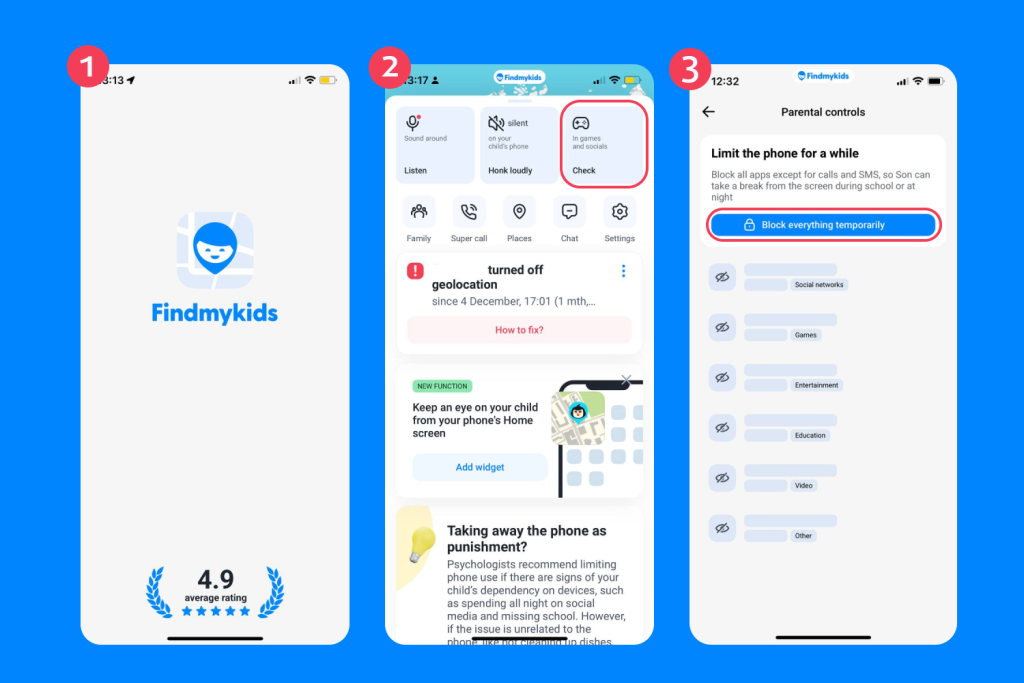
Findmykids app
- Download the Findmykids app and follow the simple instructions to link to your child’s phone. This easy process should take no more than five minutes.
- Open the Findmykids app on your mobile phone.
- Navigate to the In games and social section. Choose Block all apps temporarily or select Snapchat from the list.
Beyond App Blocking: Features That Promote Digital Well-Being

Findmykids app
As well as blocking apps and setting time limits, Findmykids provides a range of features designed to help parents monitor and improve their child’s digital well-being:
- Phone usage statistics — see how much time your child spent on their device today, yesterday, or over the past week.
- App category breakdown — know which apps take up the most time, including social media, games, or educational tools.
- Location-based app use — track where your child used their device, for example at home, school, or other locations.
These insights allow parents to spot patterns of overuse or distraction, understand which activities are taking most of their child’s attention, and guide conversations about healthy digital habits.
Other Offline Safety Features

Findmykids app
Findmykids also helps parents ensure real-world safety:
- Real-time location tracking — see your child’s exact location on a map whenever needed.
- Route history — review where your child has been throughout the day.
- Movement notifications — receive alerts when your child arrives at or leaves a school, home, or other designated safe zone.
SOS signal — your child can trigger an alert in emergencies. - Bypass silent mode — send a loud alert that sounds even if the child’s device is on silent.
- Battery notifications — know when your child’s phone battery is low, helping prevent them from being unreachable.
These offline features give parents peace of mind while still allowing children independence, helping them balance freedom with safety.
Ready to take control of your child’s screen time and protect them both online and offline? Download Findmykids today and set up a complete app and location management in just five minutes!
Method 2: Use Built-in Android App Timers
If you prefer to rely on system tools or other parental control apps, Android offers a few additional options. While these methods may not always provide the same level of control as dedicated monitoring apps, they can still help parents reduce distractions and manage screen time.
Many Android devices include Digital Wellbeing tools that allow parents to set daily time limits for specific apps.
To set an app timer for Snapchat:
- Open Settings on the child’s phone.
- Tap Digital Wellbeing & Parental Controls.
- Select Dashboard.
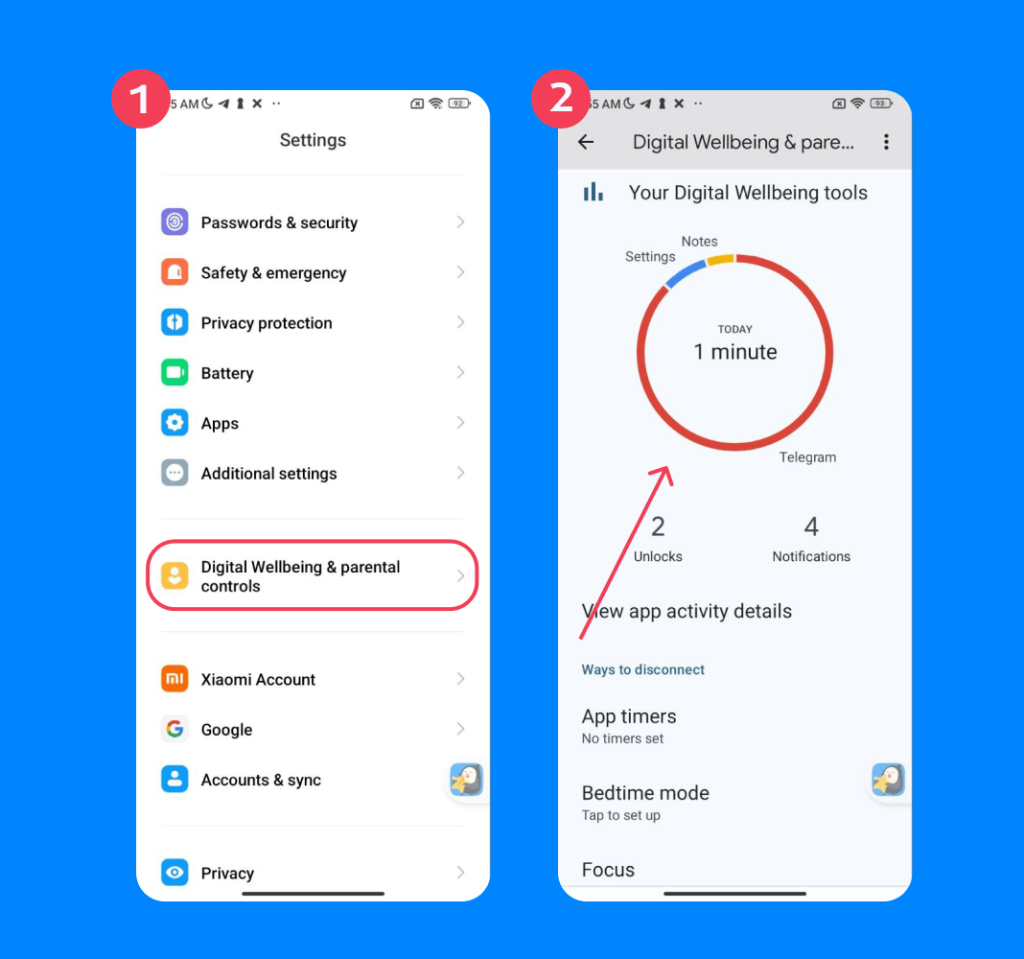
- Find Snapchat in the list of apps.
- Tap the hourglass icon next to it and set a daily time limit.
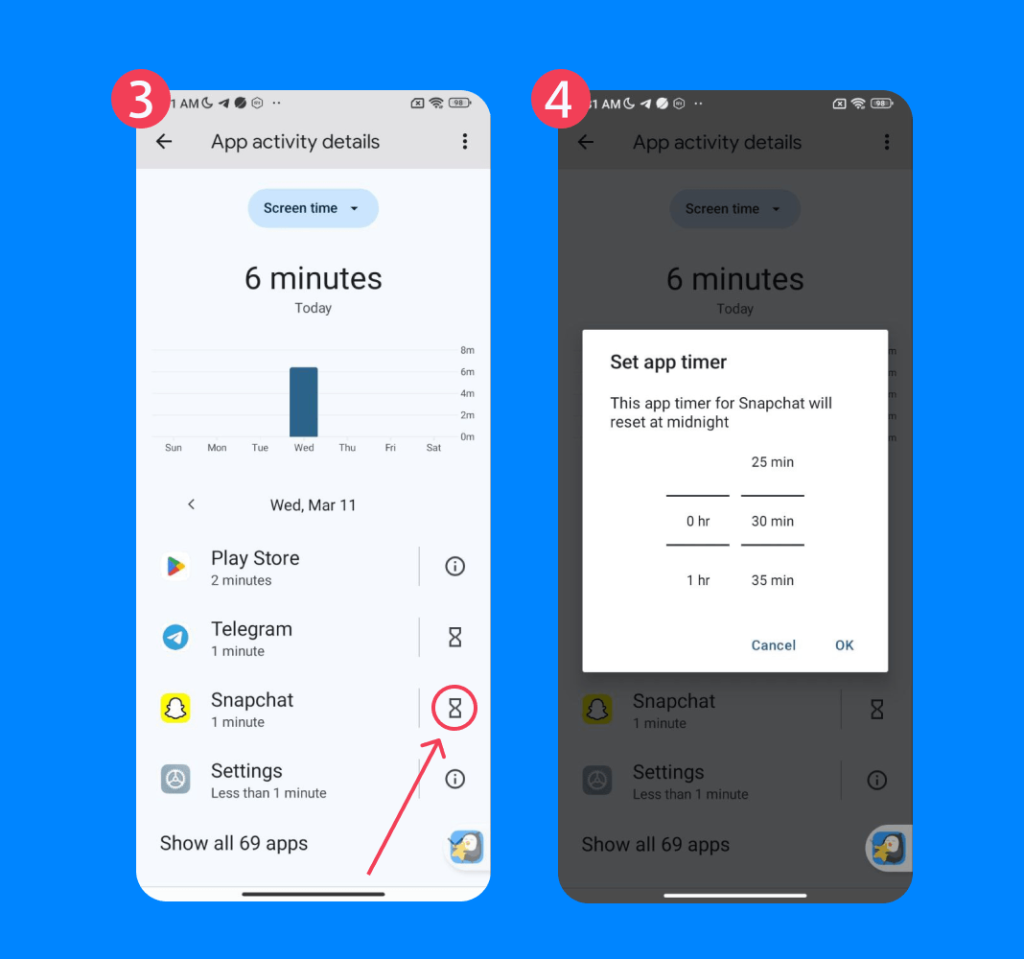
Once the limit is reached, Snapchat will be paused for the rest of the day unless the timer is manually removed.
Method 3: Use Google Family Link
Google’s Family Link app allows parents to manage their child’s Android device remotely and set limits on specific apps.
To block or limit Snapchat with Family Link:
- Download Google Family Link on the parent’s phone and link your child’s Google account.
- Open the Family Link app.
- Select your child’s profile.
- Tap Controls → App Limits.
- Choose Snapchat and set a daily time limit or block the app entirely.
Family Link also allows parents to review screen time activity and approve or block new app downloads from the Play Store.
Method 4: Disable Snapchat Through Google Play Parental Controls
Another option is to prevent Snapchat from being installed or updated through the Google Play Store parental control settings.
To enable these restrictions:
- Open the Google Play Store on the child’s device.
- Tap the profile icon and open Settings.
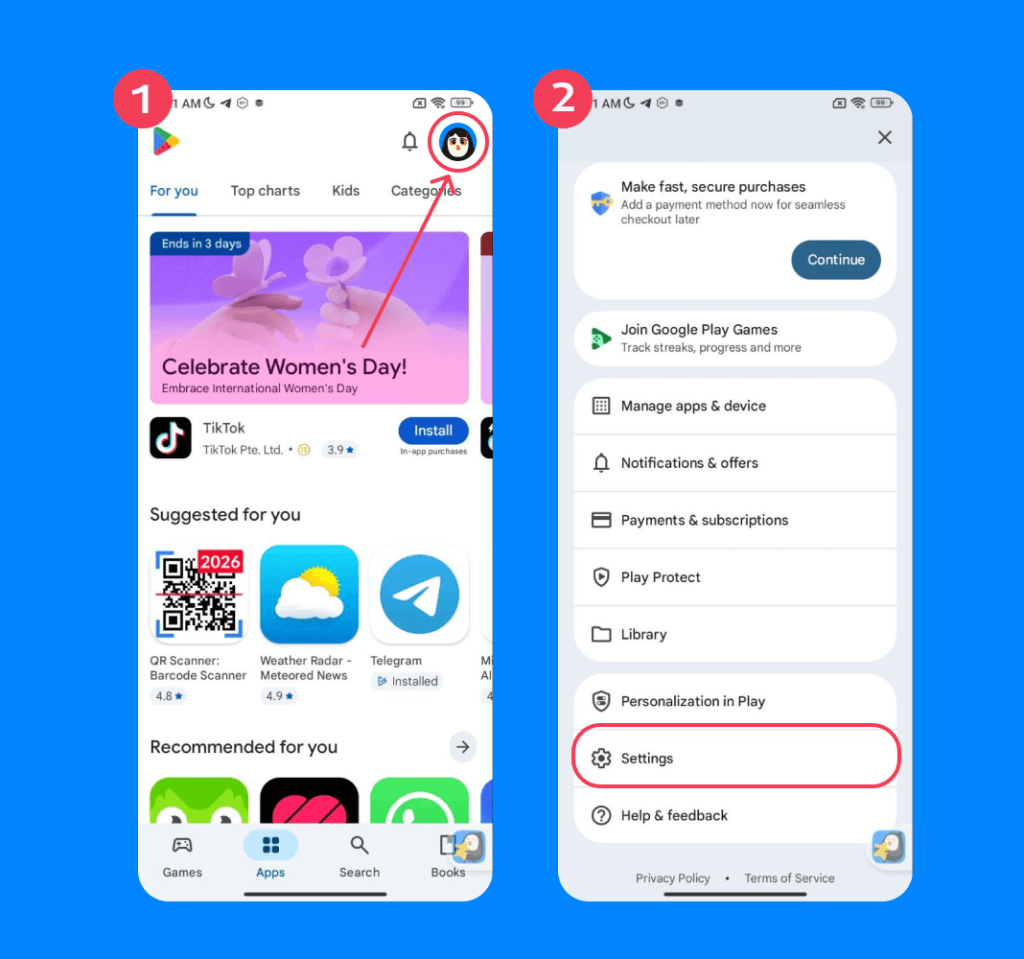
- Select Family → Parental Controls.
- Turn Parental Controls on and create a PIN.
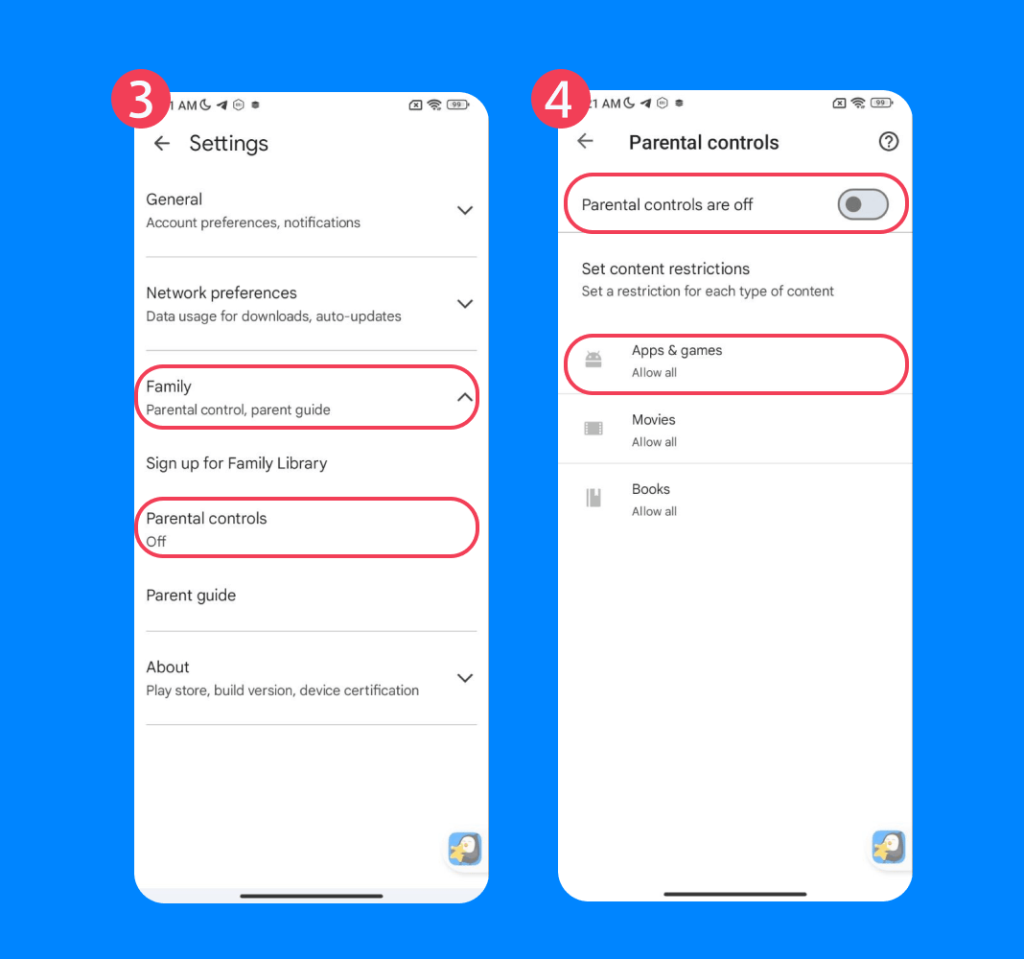
- Adjust the content rating settings to restrict apps that may not be suitable for children.
While this method will not remove Snapchat if it is already installed, it can prevent reinstalling the app after it has been deleted.
Make Snapchat Safer
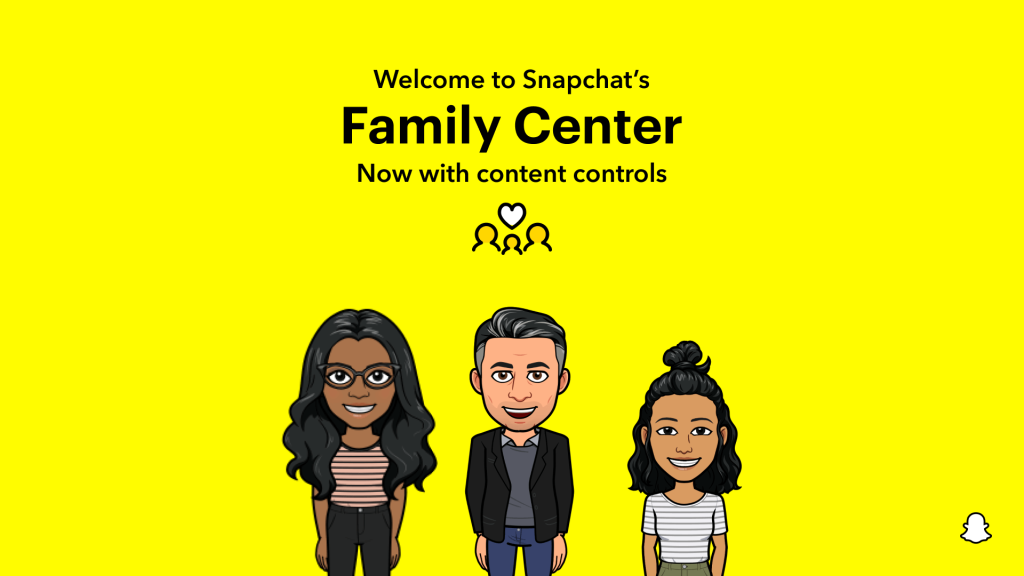
Credit: values.snap.com
To make Snapchat as safe as possible for your child without uninstalling the app completely, follow these tips:
- Use Snapchat’s Family Center to restrict specific content and keep an eye on your child’s friends and groups. You can’t access the messages and Snaps your kid has sent or received, but you can see who they have interacted with, as well as their friends. Take a look at the birthday settings, too, to ensure your child isn’t presenting themselves as older than they actually are.
- Adjust the privacy and application security settings on Snapchat. Restrict who can view your child’s Stories and disable location sharing on Snap Map.
- Regularly review your child’s friend list to make sure they only connect and share messages with those they know.
- Deploy a reliable third-party parental control app like Findmykids to monitor how long your child spends on specific apps like Snapchat, Instagram, TikTok, and more.
- Promote an atmosphere of open communication at home around your kid’s online activities. Talk regularly about how they’re using social media and other platforms, and the dangers to avoid. It’s vital to ensure your child knows they can come to you if they see anything that upsets or confuses them online.
Read more: How to Use Snapchat Parental Controls to Keep Your Kids Safe Online.
Practical Tips for Parents
Below are some practical tips for temporarily blocking Snapchat on your child’s Android device:
- Think about how much time your child is currently spending on Snapchat and where the pinchpoints are. To this end, consider temporarily blocking the app during schooltime, homework time, family dinner time, or the couple of hours before bed, for example.
- Speak openly (in an age-appropriate way) about the temporary block and why it’s important.
- Be consistent with the blocking—it’s likely to cause confusion, as well as possible arguments if the block is on one evening and off the next.
- Offer alternative activities during the times you’ve blocked your child’s Snapchat account. Why not introduce a family boardgame evening or movie night?
As well as following the step-by-step instructions above, it’s important to discuss responsible social media use with your child, and model healthy online habits yourself. This encompasses online etiquette and knowing how to spot red flags that could be a sign of danger. It’s also a good idea to only allow your child supervised use of Snapchat, or to use the app together to play games, for example. As your kid gets older, you’ll obviously need to become more flexible with this!
If you allow your child to install Snapchat on their device, it’s crucial to set clear, consistent rules around screen time and messaging habits. Be ready to stick to the consequences if these rules are broken, whether this is temporarily blocking your child’s account or removing access to their device entirely for a set period.
Related: How to Reduce Screen Time for Kids Without Drama.
As kids grow, it’s natural for them to want more independence. For parents, walking the line between trust and supervision is the key—but can also be a major challenge. Open communication and a flexible, reliable set of parental controls that endorse this balance is the way ahead!
FAQs
How to block Snapchat on Android completely?
There are several ways to block Snapchat on Android entirely. You can use Android’s built-in digital wellbeing and parental control features or Google Family Link, deploy a third-party parental control app, or do so via your router’s settings.
Can I block Snapchat on my child’s phone without deleting the app?
If you want to block Snapchat on your child’s phone but don’t want to delete or uninstall the app, you can do this via the Screen Time feature on iOS devices, Google Family Link, Android’s built-in features, or a third-party parental control app.
How do I block Snapchat in Google Family Link?
Google Family Link can be used to manage your child’s app permissions. To do this, open the Family Link app and tap on your child’s account. Next tap Screen time, and then Time limits. From here, you can set limits for Snapchat use or disallow it on your child’s device completely.
Why can’t I find Snapchat in Family Link app limits?
You may not be able to find Snapchat in the Family Link app limits due to how it operates on the platform and its unique features. Check the app’s settings and permissions within Family Link to make sure it’s properly managed.
Cover image: luisanm / Freepik.com
Проверьте электронный ящик