Kids love Roblox, but parents often feel differently after watching their kids zone out for six straight hours building virtual theme parks. If you need to block Roblox on Android, you have a few solid options to help you regain control of your child’s screen time.
The Fastest Way to Block Roblox on Android
The quickest method to block the Roblox app is to delete it entirely from the device, then use Google Play Store parental controls to prevent your child from downloading it again. You uninstall the app by long-pressing its icon and tapping ‘Uninstall.’ Then, restrict app downloads in the Play Store based on age ratings. This takes about two minutes.
It sounds harsh, but sometimes the nuclear option is the only one that works, especially when you’re dealing with a determined kid. This approach is effective because most children won’t be able to get around Play Store content restrictions if you set a strong PIN and manage all app permissions yourself. It covers both younger children who’re new to Android devices and tech-savvy preteens alike.
Contents:
Why Parents Sometimes Choose to Block Roblox
Shutterstock AI/Shutterstock
You might feel bad pulling the plug on your child’s favorite game, but the data shows you have good reasons to want to block it.
Excessive Gaming Time
Roblox is designed to be endlessly engaging. The platform boasts millions of games, making it incredibly hard for kids to log off. A recent study on screen time limits by the AACAP highlights that excessive gaming interferes with physical activity and healthy social development. Ideally, you want to block Roblox when screen time starts taking over their lives.
anecdotally, hundreds of parents on community forums report struggles with their kids sneaking devices to bed, lying about homework so they can play, or launching the Roblox app within minutes of finishing chores. Some families even create a group party to help each other manage app limits and encourage healthy habits.
Children Ignoring Homework
When the choice is between algebra and a virtual pet simulator, algebra always loses. Many parents notice a sharp drop in academic focus when kids have unrestricted access to certain apps on Android devices. Homework completion, study time, and even basic chores slip through the cracks when gaming takes center stage.
In-Game Chat with Strangers and Risks
Roblox features an experience chat system where players communicate openly, often in group party settings or inside a private server.
Even for kids who start with age-checked users and a limited child’s connection list, there’s no guarantee direct chat will stay safe. While Roblox blocks repeated mild violence and moderate crude humor in most child accounts, children still encounter strangers with questionable motives.
There are stories of kids stumbling into private servers that allow direct chat or experience direct chat with blocked users popping back up under new usernames.
Read more: Roblox Platform: Where Do Our Kids Spend Their Free Time — and How Safe Is It?
Spending Money on Robux
Kids notoriously click buttons without thinking. Absent a monthly spending limit or proper spending restrictions, parents often wake up to massive credit card bills for digital outfits. You need to have spending notifications active if you allow them to play at all.
Sleep Disruption
Blue light and high-stimulation gaming before bed ruin sleep quality. Pulling the plug on the Roblox app ensures your kids actually sleep instead of trading virtual pets at 2 AM.
Exposure to Mild or Moderate Fear and Questionable Content
Even with content maturity settings set for children, some Roblox experiences expose players to moderate fear, light, unrealistic blood, or (less commonly) heavy, realistic blood.
Some games contain mild crude humor, moderate crude humor, or even unplayable gambling content if parental controls aren’t set up right. You might not think your eight-year-old will wander into a horror-themed game, but if you don’t restrict access or set up proper app permissions, it happens.
Related: Inappropriate Roblox Games for Kids: Protect Your Child From Adult Content.
Method 1: How to Block Roblox on Android Using Built-In Tools
Your Android phone comes with Digital Wellbeing tools right out of the box. You can use these features to manage access.
- Open the Settings app on your child’s device.
- Scroll to Digital Wellbeing & parental controls.
- Tap on Dashboard.
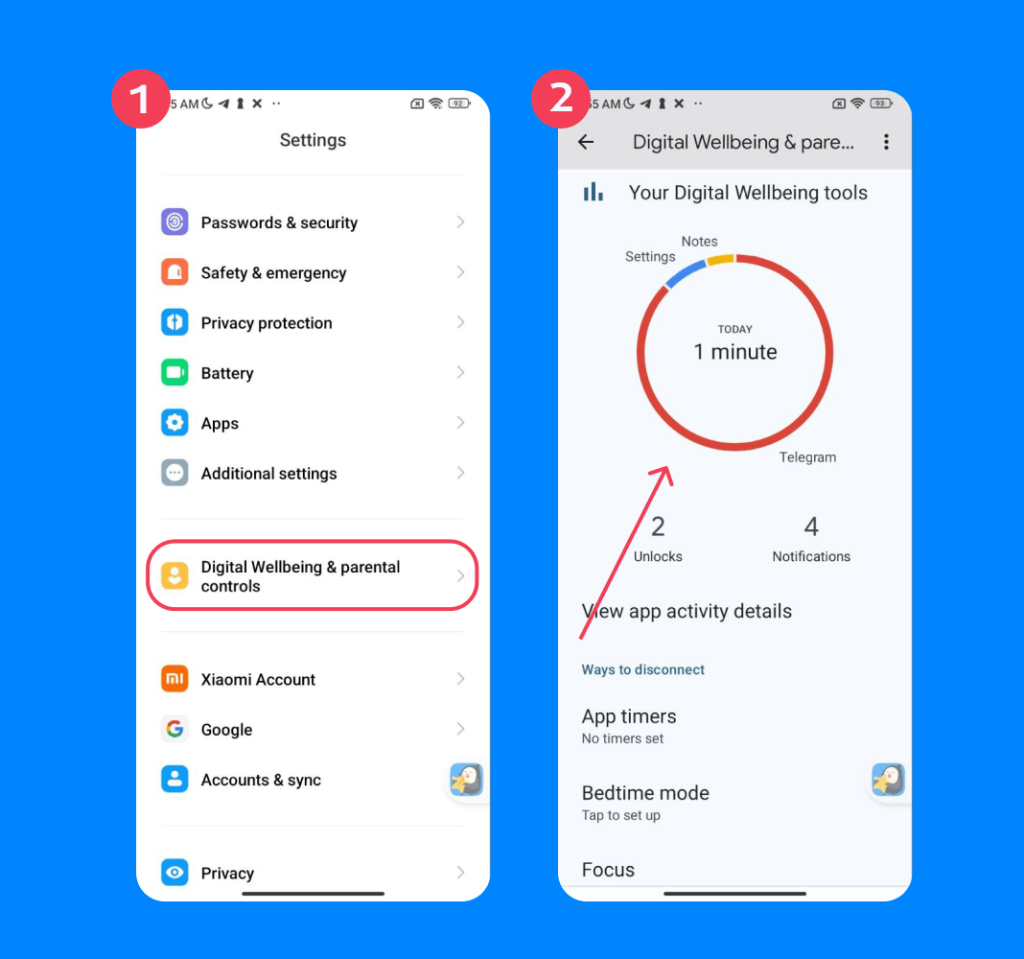
- Find the Roblox app in the list.
- Tap the hourglass icon next to it to set an app timer. You can set this to zero minutes to effectively block access for the day.
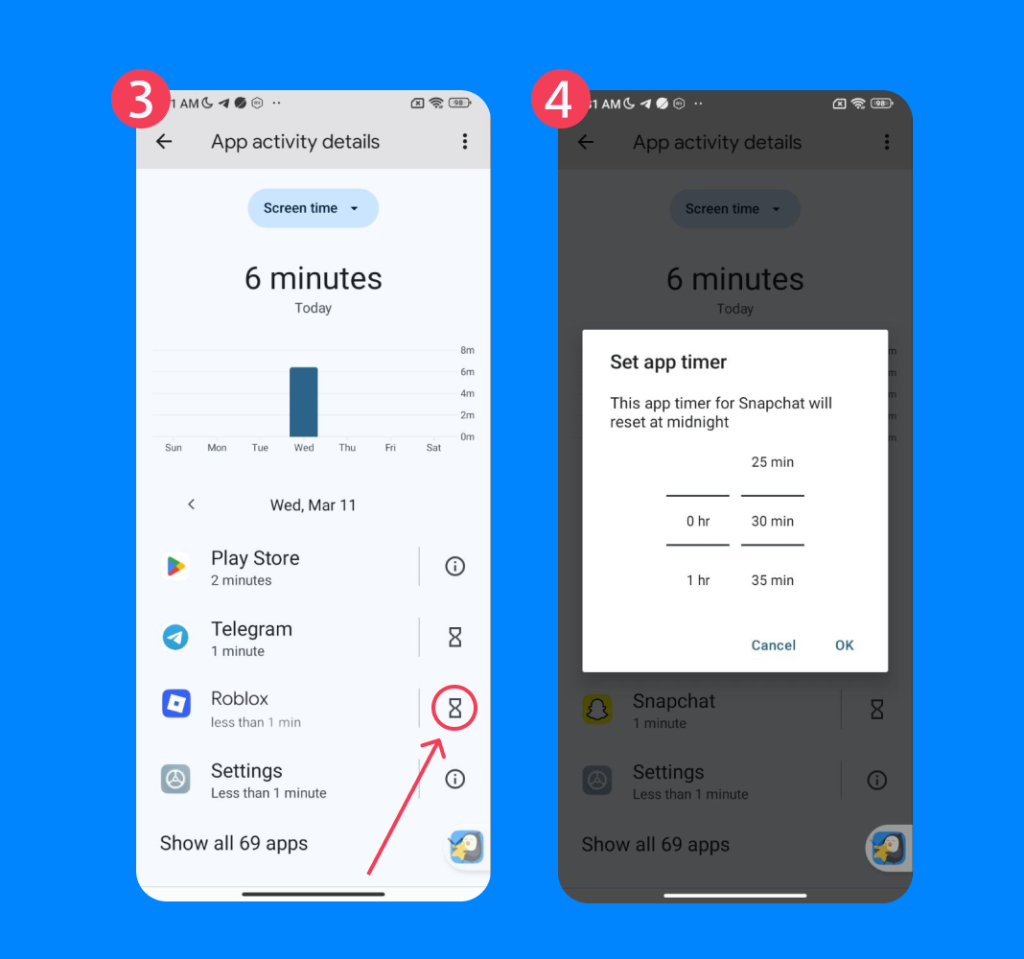
This built-in method relies on your child not knowing the device password to change the phone settings back. If your child figures out your code, you’ll need a more robust approach.
Here’s a pro tip: Pair this with other restrictions like limited screen time for all certain apps, not just Roblox. If your child uses multiple Android devices (tablet and phone, for instance), repeat this process for each device.
Method 2: Use the Findmykids App
If you want a reliable, tamper-proof way to restrict access, third-party apps do the heavy lifting. Findmykids is a fantastic tool for this exact problem.
What It Can Do
Findmykids gives you complete oversight of your child’s device. You can block specific apps completely, track location, and manage daily app limits from your own phone.
It doesn’t just limit Roblox access. You can set app limits on YouTube, TikTok, and other apps installed on your child’s device. The parent device dashboard shows which apps are being used, how much time your child spends on them, and even breaks down usage by locations you’ve added, such as home, school, or other important places, helping you set boundaries effectively.
Step-by-Step Guide
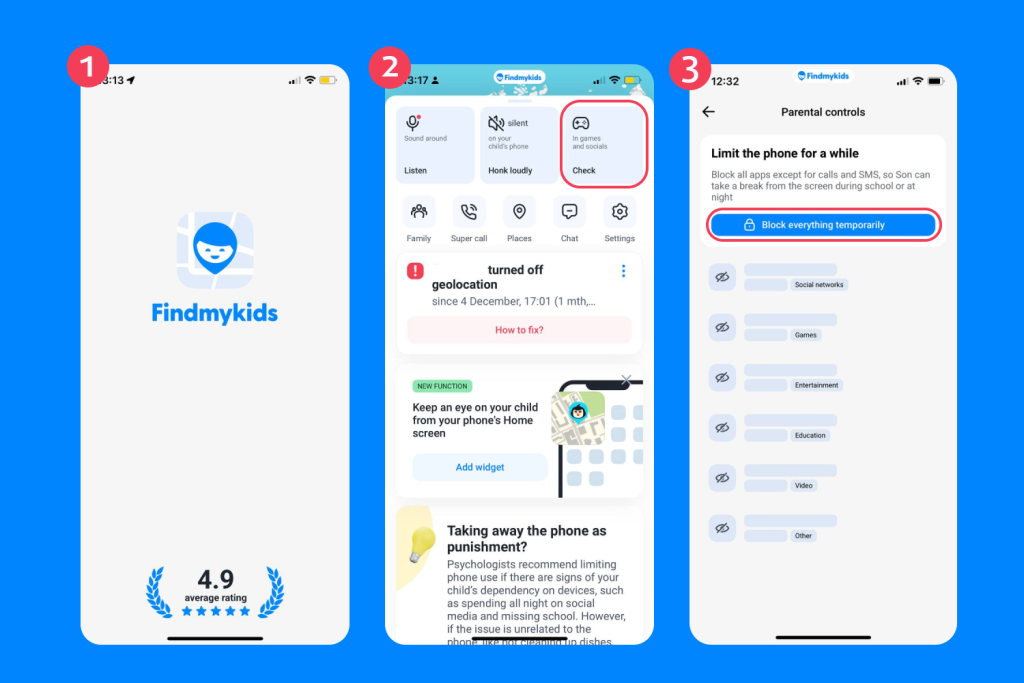
Findmykids app
- Download Findmykids on your parent device.
- Follow the instructions for linking your child’s phone, which should take no more than four or five minutes.
- In your phone, in the Games and Social (or Parental Control in newer versions) section, locate Roblox.
- Tap Block to shut off access immediately.
Additional Features
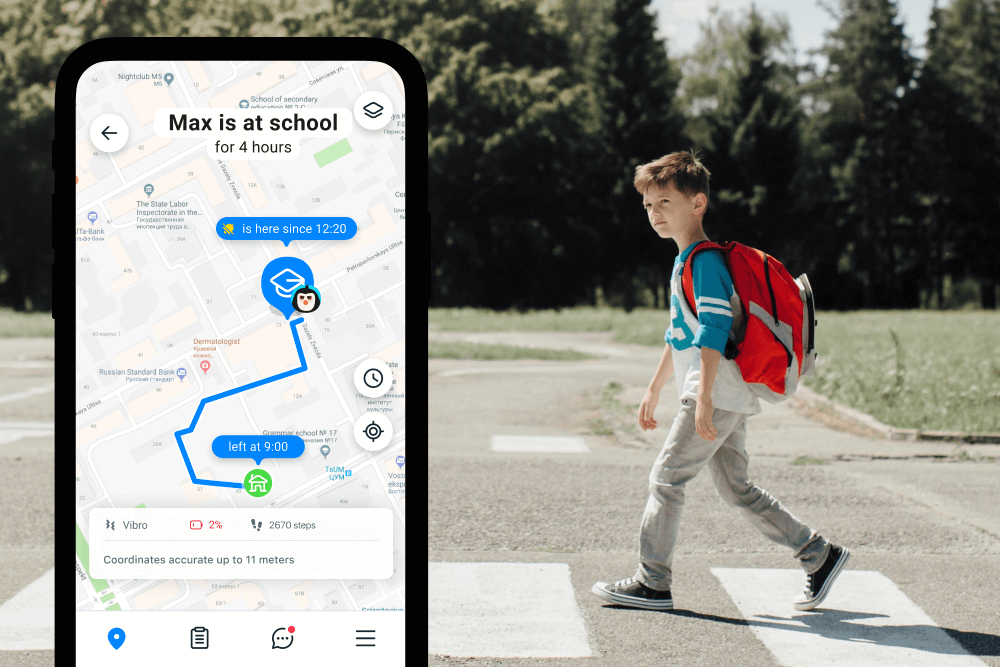
Findmykids app
Beyond blocking Roblox, Findmykids offers a range of tools to keep your child safe and give parents peace of mind:
- Location tracking & route history: View your child’s real-time location and see where they’ve been throughout the day. You can also set notifications for arrival or departure from important places like home or school.
- Sound Around: Listen to the surroundings of your child’s phone with a single tap—helpful if they are lost or in a worrying situation.
- Loud Signal: Send a loud alert to your child’s phone, even if it’s on silent, for emergencies.
- Spam call and contact control: Filter calls and manage contacts to prevent strangers or scammers from contacting your child.
All of these features are accessible from a single parent device dashboard, giving you oversight for one or multiple children and making daily supervision simpler and safer.
Ready to make screen time safer and stay connected with your kids? Try Findmykids today and see how easy it is to protect, guide, and stay aware—without hovering.
Method 3: Block Roblox on Your Child’s Android with Google Family Link
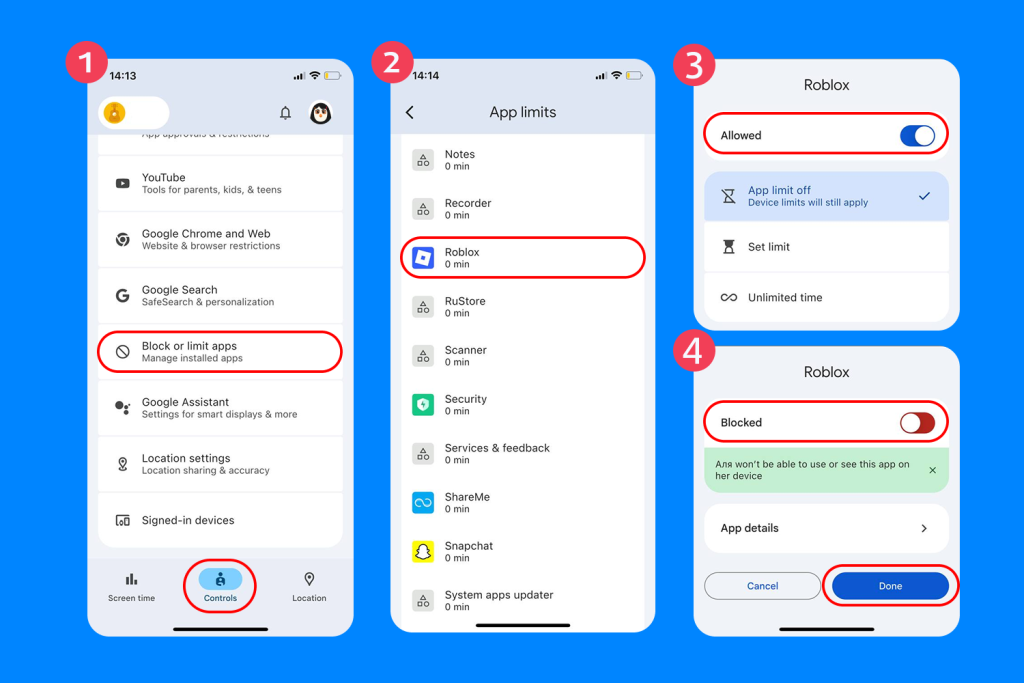
Google provides a native solution for managing a child’s Google account. You can use Family Link to control exactly what happens on their Android devices.
- Open the Family Link app on your device.
- Select your child’s account.
- Navigate to Controls, then Block or limit apps.
- Scroll until you find Roblox, tap the app.
- If the app is set to Allowed, switch the toggle to Blocked. If it’s already blocked, leave it as is.
- Tap Done to save the changes.
The app disappears from their home screen. They cannot open it, and they cannot bypass this restriction without your Google password.
Family Link also lets you manage app permissions, content restrictions, and monitor which apps your child is trying to install. If your child requests a new app, the Family Link dashboard shows the installation attempt along with their Google account activity related to app usage.
Method 4: Set Time Limits for Roblox (Google Family Link)
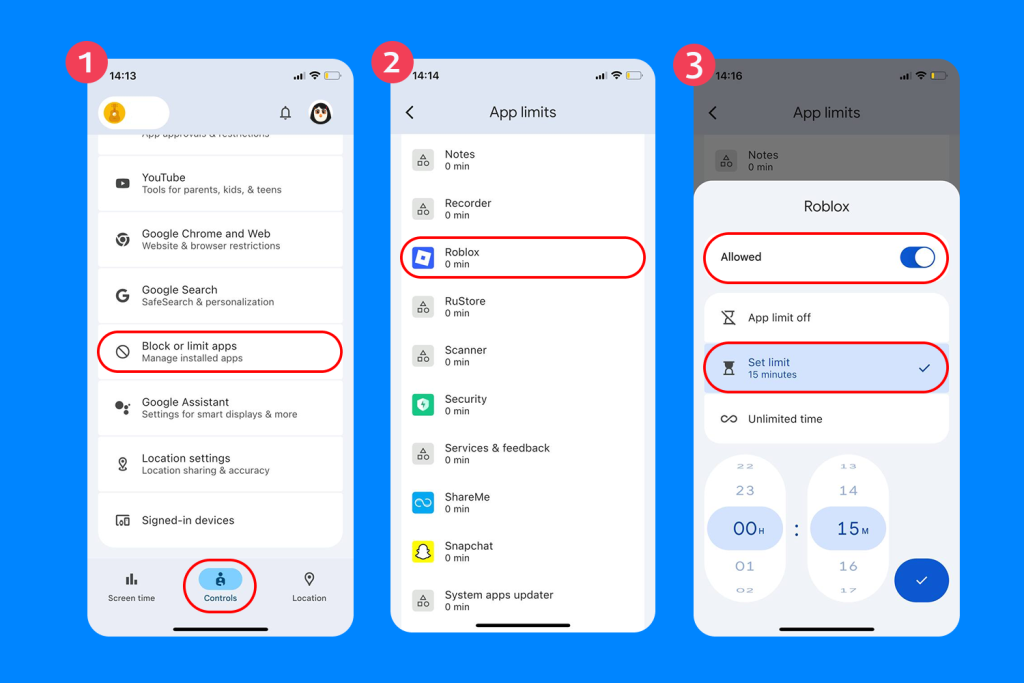
Sometimes you don’t want to block the game forever. You just want them to play for an hour instead of six. You can set time limits directly through Family Link.
- Open Family Link and select your child’s profile.
- Go to the same menu as before: Controls, then Block or limit apps.
- Find Roblox and select Set limit.
- Choose the specific amount of time they are allowed to play each day.
- Once they hit the limit, the app locks automatically.
You can adjust these app limits as your child gets older or earns more trust. Some families tie increased access to improved report cards or chores, revisiting access to Roblox permissions every month or so.
Method 5: Restrict Downloads & Purchases via Google Play Store Parental Controls
Smart kids will just try to download the game again if you delete it. You have to lock down the Google Play Store to prevent this.
Uninstalling the App
First, delete the game from the device. Long-press the icon and hit uninstall.
Preventing Reinstall Through Google Play Restrictions
- Open the Play Store app on the child’s device.
- Tap the user’s profile icon in the top right.
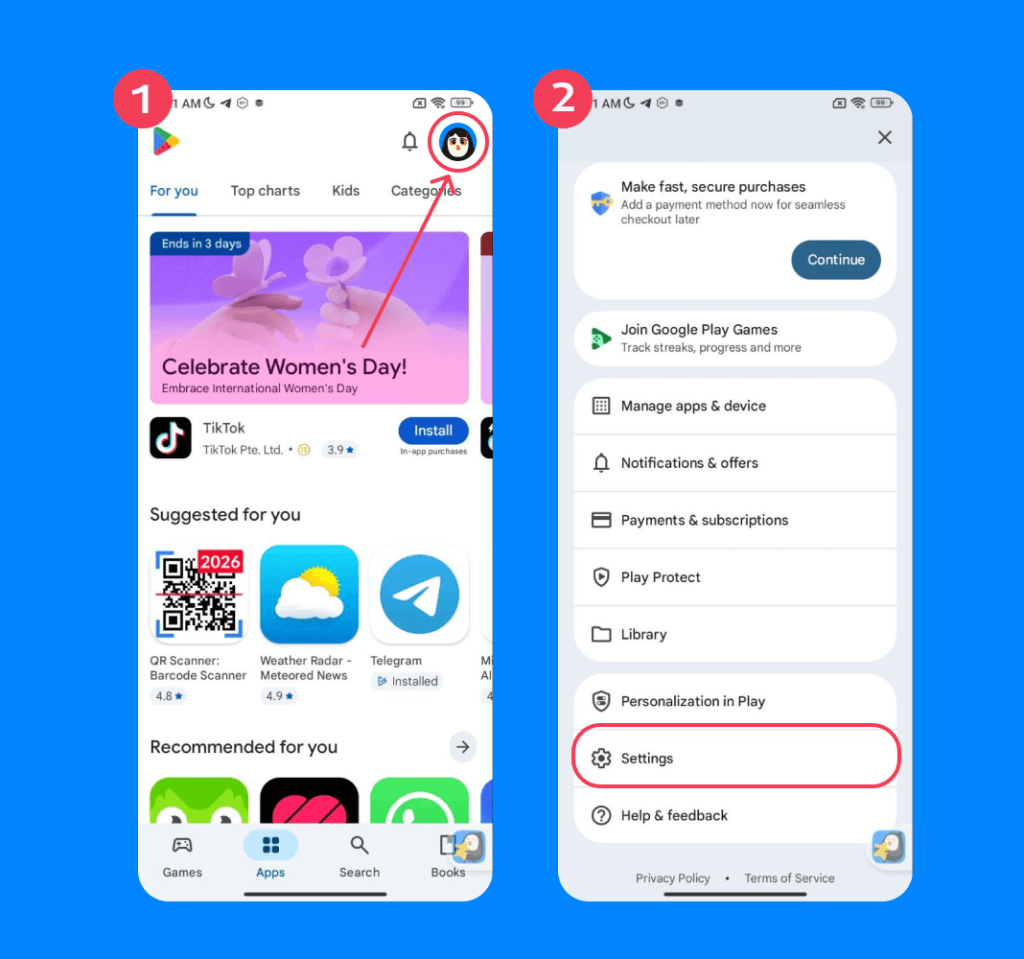
- Tap Settings, then Family, then Parental controls.
- Turn on parental controls. You will create a PIN.
- Tap Сontent restrictions and select Apps & Games.
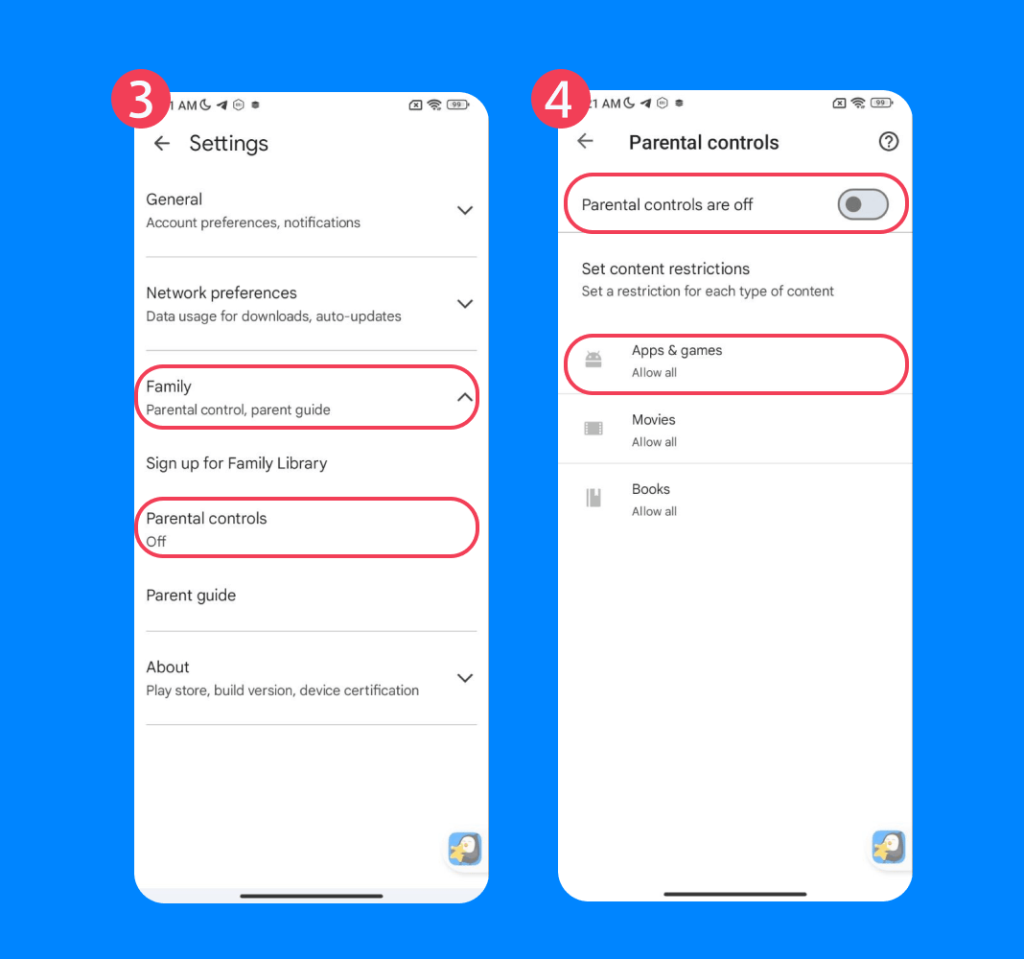
- Roblox is rated E10+. Set the restriction to Everyone to prevent them from downloading it.
- To stop them from buying Robux, go back to the Family menu, tap Manage approval requests, and require authentication for all purchases.
If you catch your child searching for Roblox in the search bar, remind them that the restriction is for their good, especially when you see app downloads at odd hours or sudden new third-party apps appearing after bed.
Method 6: Third-Party App Blockers, Secure Launchers, and Router Controls
A growing number of families turn to advanced solutions for layered protection, especially when older siblings show younger children how to get around basic restrictions.
- App Blockers: Popular third-party apps like AppLock or Kids Place can sometimes add an extra security layer, preventing kids from launching certain apps without a passcode. Look for tools with strong app permissions and parental control scroll systems.
- Secure Launchers: Some Android devices let you set up a “kids mode” launcher that blocks access to Roblox and other apps entirely, allowing only certain apps from a whitelist.
- Router Controls & Network Management: Parents sometimes want to block Roblox completely at home. Modern routers let you blacklist domains or block Roblox app traffic based on device. Be aware, with VPNs and mobile data, this method isn’t foolproof, but it helps.
If You Don’t Want to Block Roblox — Set Up Roblox Parental Controls
If you decide to let them play, you absolutely must configure the in-game settings. Roblox parental controls allow you to filter the games they see and the people they talk to.
You can adjust content maturity settings to ensure they avoid games featuring heavy, realistic blood, moderate crude humor, or unplayable gambling content. You can restrict their account so they only see games with mild crude humor, light, unrealistic blood, or mild fear.
If you want to dive deep into these specific content controls, check out this guide on Roblox parental controls.
Inside the app, you can disable experience direct chat entirely, meaning they cannot message other users or age checked users. You can also monitor your child’s connection list and manage blocked users to keep their online environment safe.
Taking Charge of Your Child’s Screen Time
Managing digital habits takes effort. But you have the tools to completely block Roblox, set firm app permissions, and restrict app downloads. Whether you use the settings app, set up Google Play restrictions, or install Findmykids, you control the hardware. You decide if they join experiences or focus on their real-world responsibilities.
Supporting good habits now makes screen time management easier as your kids grow. Consistency, good communication, and robust parental control features make your child’s Android devices safer, more focused, and better for everyone’s sleep.
FAQs
How do I block Roblox on Android without deleting it?
You can use the Findmykids app or Family Link to block access. This locks the app so it cannot be opened, but the data remains on the phone. You can also use the Digital Wellbeing timers in the Android settings to set the daily limit to zero minutes.
Can I limit Roblox screen time instead of blocking it?
Yes. You can use Family Link to set daily time limits. Once the timer runs out, the app icon grays out, and your child cannot open it until the next day.
Why can my child still see Roblox in the Google Play Store after parental controls?
If you set the parental controls in the Google Play Store to allow apps rated E10+ or higher, Roblox will still appear in the search bar. You must set the restriction to “Everyone” (which is lower than Roblox’s rating) to hide it from the Play Store completely.
How do I block specific Roblox experiences (games)?
You cannot block one specific game by name. You have to use the Roblox content maturity settings. By lowering the allowed age category, you automatically filter out games that contain occasional mild violence, moderate fear, romantic themes, heavy unrealistic blood, light realistic blood, or realistic blood. Your child’s experience will be limited to games matching the age rating you select.
How do I turn off direct chat / experience chat on Roblox?
Open the Roblox app, tap the three-dot menu, and go to Settings. Select Privacy. Under the communication section, you can change who can message your child. Set Who can chat with me in app and Who can chat with me in experiences to No one. This completely disables direct chat and experience chat.
Cover image: Henry Saint John / Freepik.com
Проверьте электронный ящик