
Wondering exactly how to block Discord to keep your kids safe online? Discord is incredibly popular among kids, especially gamers, but many parents feel uneasy about the app due to concerns over interactions with strangers, unmonitored private chats, exposure to inappropriate content, and late-night usage.
In our guide, we’ll show you the exact steps to block the Discord app and restrict access so you can finally get some peace of mind.
Contents:
Why Parents Choose to Block Discord
Managing your child online means understanding the risks they face. While the platform offers fun communities, you might want to block Discord for a few specific reasons, including:
- Interactions with strangers: Users can easily connect with people they don’t know in large open servers, increasing the risk of predatory behavior.
- Unmonitored chat features: Private messages let kids chat out of sight, making it hard to control who they talk to.
- Inappropriate content: Many servers share adult content, offensive language, and unmoderated media that bypass standard privacy restrictions.
- Excessive screen time: Gamers often lose track of time, leading to late-night usage that ruins sleep schedules and affects daily life.
- Cyberbullying: Unregulated servers sometimes become hubs for harassment where users post harmful content.
If you’re still on the fence about why blocking Discord may be the right call for your household, the statistics can be eye-opening. According to various surveys, as many as 70% of teens have encountered inappropriate content online, and a large number of reports from parents mention unnoticed late-night Discord chat activity.
Combine this with how easy it is to create a new Discord account and move to different servers, and you get an app that’s tricky to supervise with basic controls alone.
Why Default Controls Aren’t Enough
You may be wondering: can’t I just use the default system or Discord settings? The answer is simple: basic privacy restrictions inside the Discord website or apps allow options like filtering explicit content, but smart kids can quickly change these in the Discord account menu. Similarly, putting a time limit on screen time may not cover Discord usage on a PC or prevent them from chatting late at night.
If your child changes their phone settings, tries a VPN or proxy, clears app cache, or uses the browser version, your default device restrictions could be sidestepped. That’s why pairing app, website, and router-level controls is so important for truly comprehensive blocking.
The Best Method: Block Discord with the Findmykids App
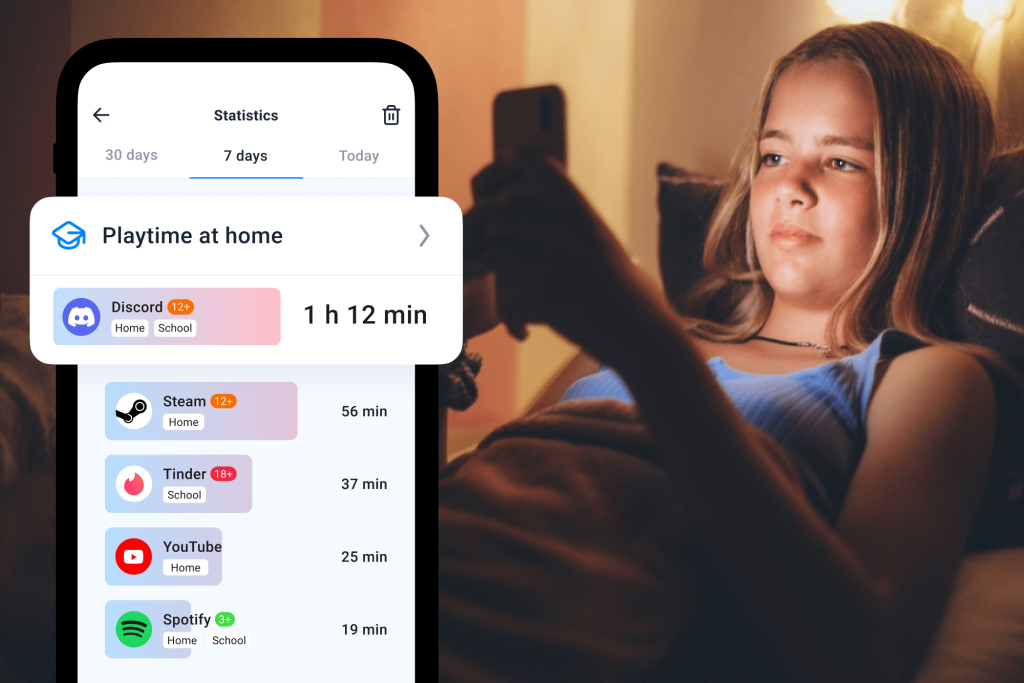
Findmykids app
If you want to easily block access to the Discord app without jumping through all the technical hoops, the Findmykids app is your best option.
Findmykids allows you to set clear limits and control how your child uses their phone. Unlike generic parental controls that can be bypassed or may only block websites, this app works at the device level, making it significantly harder for clever kids to dodge your limits.
Findmykids on iOS Devices
For an iPhone or iPad, Findmykids offers robust tools to completely restrict the app.
- Block all apps at once: You can permanently block Discord and other risky apps. They stay blocked even if your kids try to reinstall or reopen them from the home screen.
- Block 18+ websites: Complement your app limits by completely restricting adult or unsafe content across any browser.
- Block in-app purchases: Prevent unexpected spending within the Discord app or other applications.
To set this up, simply download the Findmykids app. Follow the instructions to link your child’s phone, which takes less than five minutes. Open the app on your phone, navigate to the Parental Controls section, and choose to block all apps permanently.
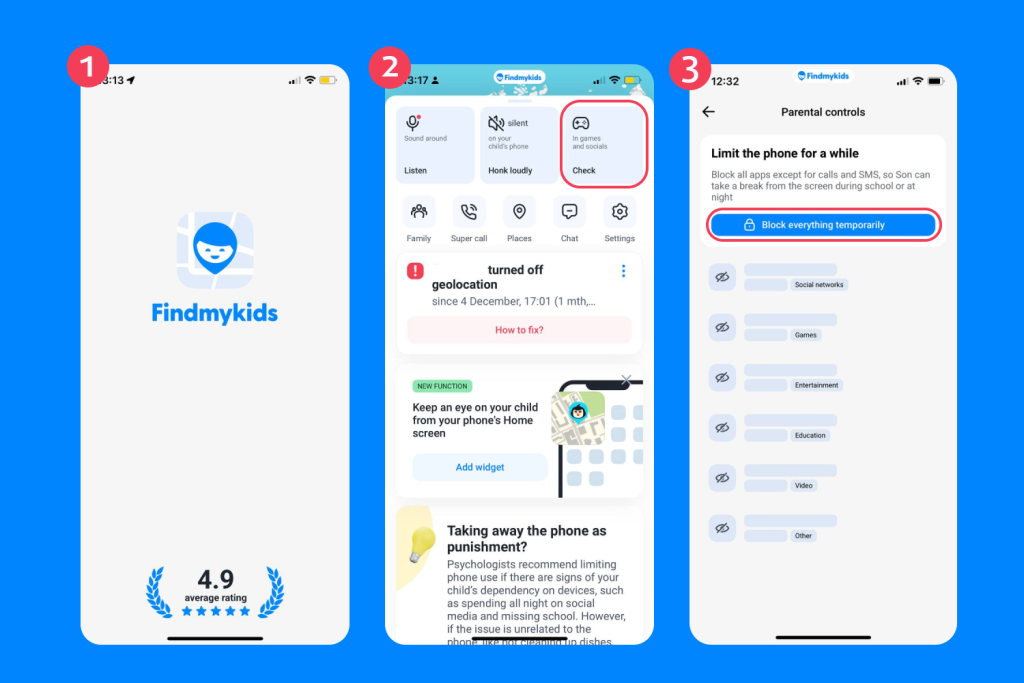
Findmykids app
A great example of how this works in practice: let’s imagine your 13-year-old is newly obsessed with Roblox and hanging out in Discord servers well into the night. You notice their grades dropping and constant drowsiness at breakfast.
With Findmykids, you can instantly set a time limit across all gaming and chat apps, not just Discord. Attempts to bypass restrictions, such as deleting and reinstalling from the App Store, are ineffective, so you can rest easier knowing your boundaries will actually stick.
Findmykids on Android Devices
If your child uses an Android phone, Findmykids gives you highly detailed control over their devices, too:
- App Usage Statistics: Check exactly how long and in what places your child spends time on Discord and other apps.
- App Blocking Options: Block the Discord app permanently, temporarily, or set a daily time limit with a simple timer.
Download the app and follow the simple linking instructions. Open the app on your phone, head to the Parental Controls section, and select the specific app you want to restrict or block apps entirely.
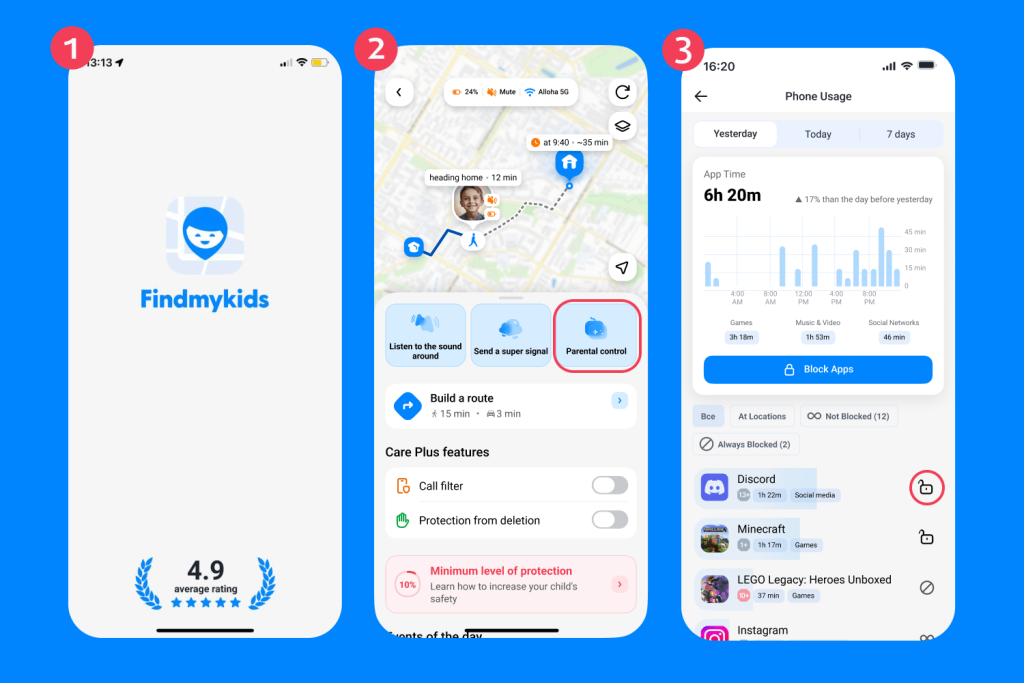
Findmykids app
One cool trick with Android: You can also see usage history by location, so if your child is sneaking Discord usage during study hours at school, you’ll get a heads-up before it becomes a habit!
Cross-Platform Benefits
Findmykids combines digital control with real-world safety tools, giving parents a fuller picture of their child’s activity beyond just app usage. Along with blocking Discord and managing screen time, it includes real-time GPS tracking, location history, geofencing alerts, Safe Routes, and the Sound Around feature for added security.
Parents can also use a Loud Signal to quickly reach a child if they don’t respond, check battery levels, and view app usage patterns to understand when and how often apps like Discord are used.
Together, these tools help connect online behavior with real-life context—whether a child is at home, at school, or on the move.
If you’re looking for a simple way to block Discord and stay connected to your child’s safety, try Findmykids today for free—from screen-time control to real-time location tracking, everything is in one app!
Alternative Methods to Block the Discord App
If you prefer using built-in settings to block Discord, you have plenty of other options across different devices.
How to Block Discord on iPhone and iPad (iOS)
Apple provides native tools to limit access and control app installation directly from the device settings.
App Limits
You can easily set a time limit using the Apple Screen Time feature.
- Open Settings and tap Screen Time.
- Tap App Limits and choose Add Limit.
- Scroll through the categories and select Social.
- Tap the Discord app and set your desired time limit.
- Tap Add in the upper right corner to save your new restrictions.
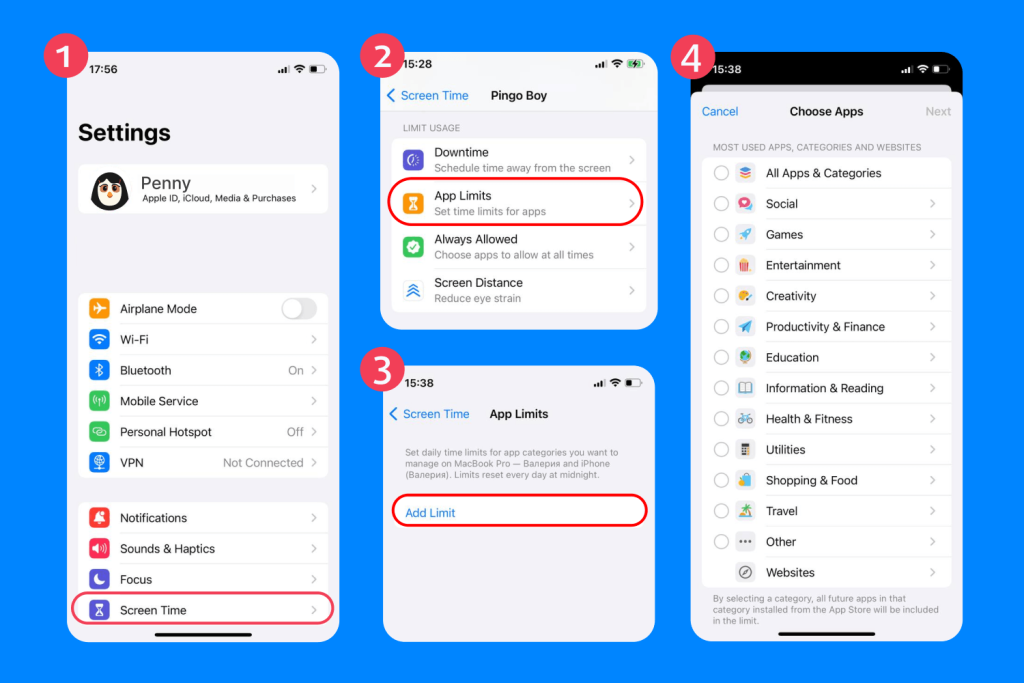
You can set daily limits, like allowing just 30 minutes of Discord use, or completely block Discord by setting a zero-minute time limit. Your child will need your Apple ID passcode to override this, which adds a good layer of protection.
iTunes & App Store Purchases
To prevent your child from downloading the app in the first place, use privacy restrictions to block installations:
- Go to Settings and tap Screen Time.
- Select Content & Privacy Restrictions.
- Tap iTunes & App Store Purchases.
- Choose Install Apps and set it to Don’t Allow.
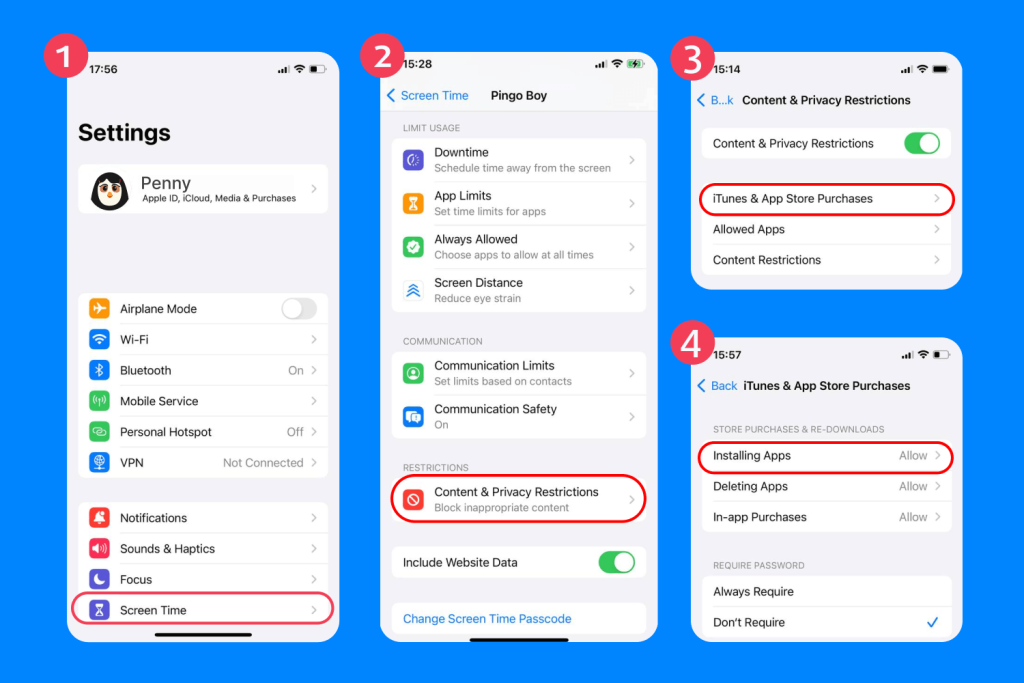
This method locks down new downloads and makes reinstalling Discord impossible without your approval.
All of these settings can be managed directly from your child’s phone—if you’ve enabled Family Sharing. To learn how to set it up, as well as explore other parental control settings on iPhones, read more here.
How to Block Discord on Android Phones and Tablets
Android users can rely on Google’s built-in features to block access and schedule usage.
App Timers in Digital Wellbeing
- Open Settings and tap Digital Wellbeing & Parental Controls.
- Tap Dashboard and scroll down to find the Discord app.
- Tap the hourglass icon next to the app.
- Set your customized time limit and tap OK.
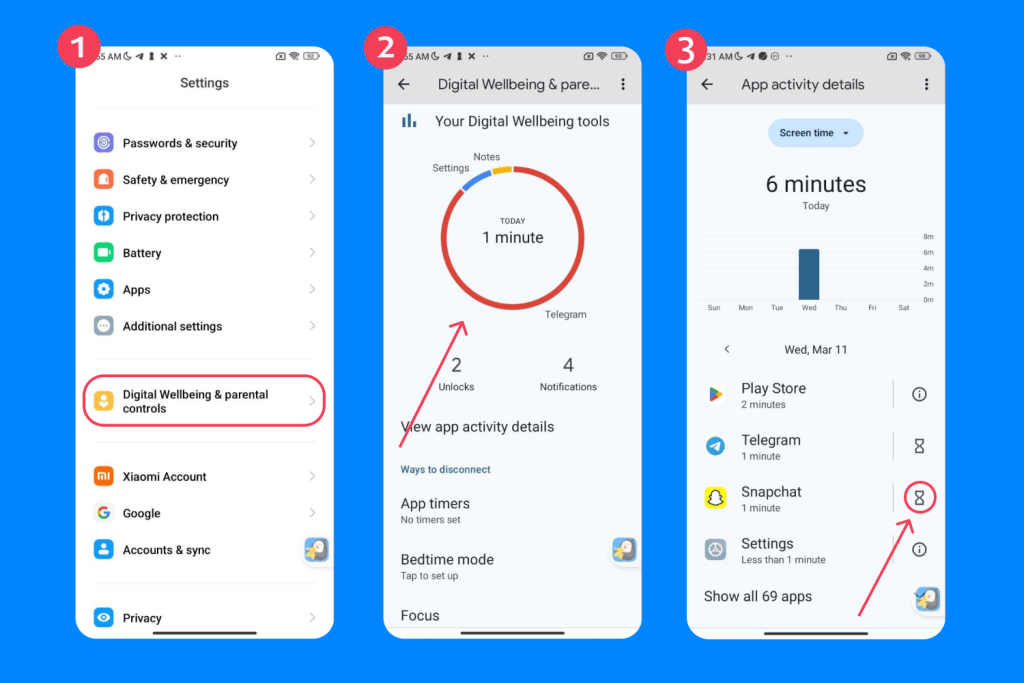
These limits are flexible, and your child will see a warning when they’re about to reach their daily cap. Once the time’s up, the Discord app icon will be greyed out on the home screen.
Google Family Link
If you use Google Family Link, you can manage the app remotely. Open the Family Link app, tap your child’s account, and navigate to app limits. Find Discord in the list, tap it, and choose block. This instantly removes the app from their home screen and blocks Discord access entirely.
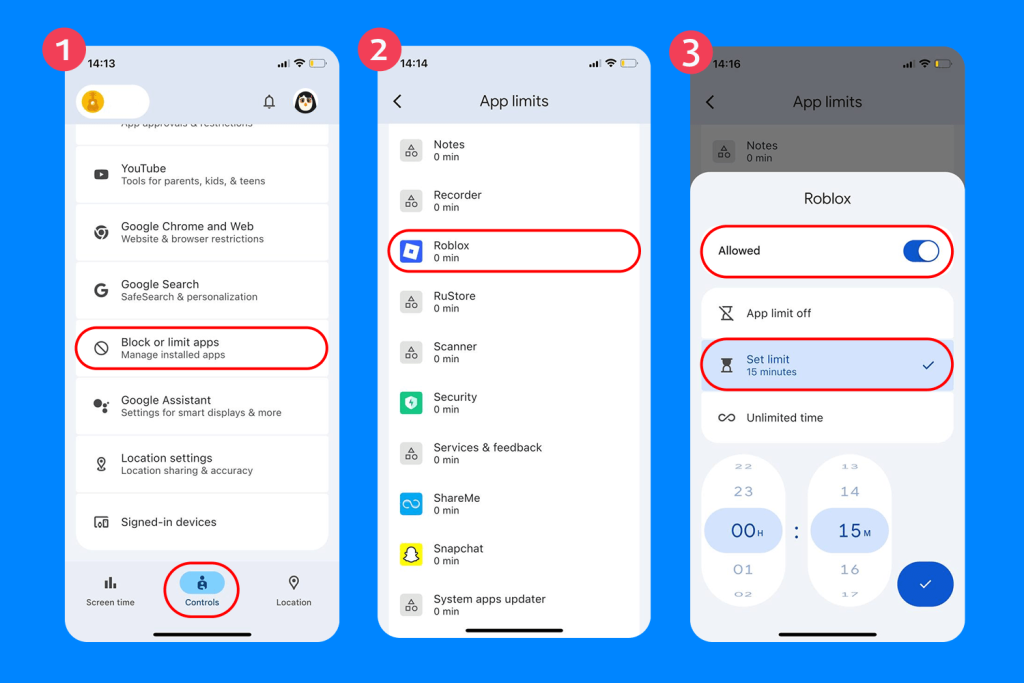
Family Link also offers insights into other apps your child is using, so you can spot potential issues before they get out of hand.
Related: Android Parental Controls: What Parents Need to Know.
How to Block Discord on Your Home Wi-Fi Router
To completely block the Discord website and block the Discord app across all connected devices in your house, you can change your router settings:
- Log in to your router’s admin panel using your computer browser.
- Locate the parental controls or firewall section.
- Look for the option to block websites or manage domain restrictions.
- Add the main Discord domains to the block list (discord.com, discord.gg, discordapp.com).
- Save your settings and restart your internet connection.
Some routers also let you schedule access, so devices are only allowed online at certain times or can’t connect to chat and gaming services overnight. Check your router’s support page or guide for a list of all Discord domains to block.
This method helps you make sure that no PC, phone, or tablet on your network can reach the Discord servers, blocking both the Discord website and the Discord app by cutting off their internet connection at the source.
Important note: this restriction only works on your home Wi-Fi network. If a child switches to mobile data or another Wi-Fi network, they may still be able to access Discord unless additional device-level restrictions are in place.
How to Block Discord on a Computer
Blocking access on a Windows desktop or Mac requires a bit of configuration.
To block the Discord desktop app and the Discord website on a Windows PC, you can edit the host file:
- Open your Start menu and search for Notepad. Run it as an administrator.
- Click File, select Open, and go to C:\Windows\System32\drivers\etc.
- Open the file named hosts.
- At the bottom of the document, add new entries to block Discord domains by typing 127.0.0.1 discord.com and 127.0.0.1 discord.gg.
- Save the file and restart your computer.
For Mac, the process is similar. Open Terminal, type sudo nano /etc/hosts, and add the same entries to block Discord at the domain level.
This simple host file edit effectively cuts off internet access to the Discord website and desktop app on that specific PC. Add as many entries as needed to confirm blocks for other Discord domains or potential proxy sites your child might try. It’s always good to double-check for any extra Discord-related domains if your block isn’t working as expected.
Limit Discord with Built-In Parental Controls
Discord does offer a few internal privacy restrictions you can enable. You can control who sends direct messages, filter out explicit images, and limit contact from strangers.
For a fully detailed walkthrough of these specific account settings, read our guide to Discord parental controls.
Take Control of Your Child’s Screen Time Today
To maximize your efforts, try combining multiple methods. Use Findmykids to block the Discord app and screen time directly on your child’s device and set up schedules on your router to block Discord website access at night. Keep an eye on your child’s PC for any new user accounts or “hidden” browsers that could be used to access Discord.
Have regular, open conversations with your child about why you’re blocking Discord or limiting Discord usage. When kids know your reasoning and the risks, they’re less likely to resist your efforts or find clever ways to get around restrictions.
If you notice new apps appearing on your child’s devices or shortcuts to Discord’s site in their browser favorites, check your settings. These signs might mean your child’s actively trying to find workarounds, and it’s a cue to reinforce your block list or update privacy restrictions.
Don’t forget, there are always updates! Both the Discord app and operating systems get routine patches that could affect how parental controls work. Stay on top of updates for both your router and device control apps to ensure your chosen blocks remain effective.
As a parent, you have the power to block the Discord app, restrict harmful websites, and set healthy boundaries using the methods we covered. Whether you edit a host file on a PC, tweak your router settings, or download the Findmykids app, taking action today guarantees a safer online environment for your family tomorrow. Start implementing these restrictions and watch your family’s screen time habits improve.
FAQs
Is there a way to fully block someone on Discord?
Yes. To block a user, open your chat with them, tap their profile icon to view their account, tap the three dots menu, and select block. This stops them from sending messages or interacting with you on the platform.
Can I block someone on Discord without them knowing?
Yes, Discord does not send a notification when you block someone. They’ll only realize it if they try to send a message and notice the message fails to deliver, or if they check your profile and see they cannot post reactions or reply to your chat.
What is soft blocking in Discord?
Soft blocking involves blocking a user to remove them from your friends list, then immediately unblocking them. This quickly removes the connection between your accounts without permanently leaving them on your block list.
How do I block the Discord app?
To block the Discord app entirely, use parental control software like Findmykids to completely restrict access. Alternatively, you can use Apple Screen Time on an iPhone to set a zero-minute time limit, or use Google Family Link on Android to tap block and hide the app from the child’s device.
Cover image: ccflower / Freepik.com
Проверьте электронный ящик