If your child uses or has access to an Android device, you need to know about Android parental controls—they’re vital to help keep your kid safe online. Below, we’re going to give you a full run-down, including exactly what Android parental controls are available, how to set them up, their benefits, and—crucially—their limitations.
Contents:
What are Android Parental Controls — and What Can They Do?
Android devices are widely used by children and teens thanks to their affordability, flexibility, and access to millions of apps. At the same time, this openness makes Android especially challenging for parents: apps are easy to download, settings vary by device, and content isn’t always filtered by default.
Research consistently shows that unmanaged screen time and unrestricted access to apps and online content can affect children’s sleep, concentration, and emotional well-being. According to the American Academy of Pediatrics, children benefit most when parents actively guide media use rather than relying on trust alone.
Parental controls on Android are designed, generally speaking, to prevent young users from accessing age-inappropriate or offensive content or apps, promote digital well-being, and stop children from spending too much time online. These built-in tools include app timers, Focus Mode, and Bedtime Mode.
Types of Parental Controls Available on Android
Built-In Android Tools
There are several built-in parental controls available on Android devices, including Digital Wellbeing tools. Via the device settings, these allow you to, among other things, set app timers and activate different modes on your child’s device.
These settings aim to promote healthy screen time habits, focus, and proper rest. They are available for supervised accounts on devices using Android 15 and later.
To get started:
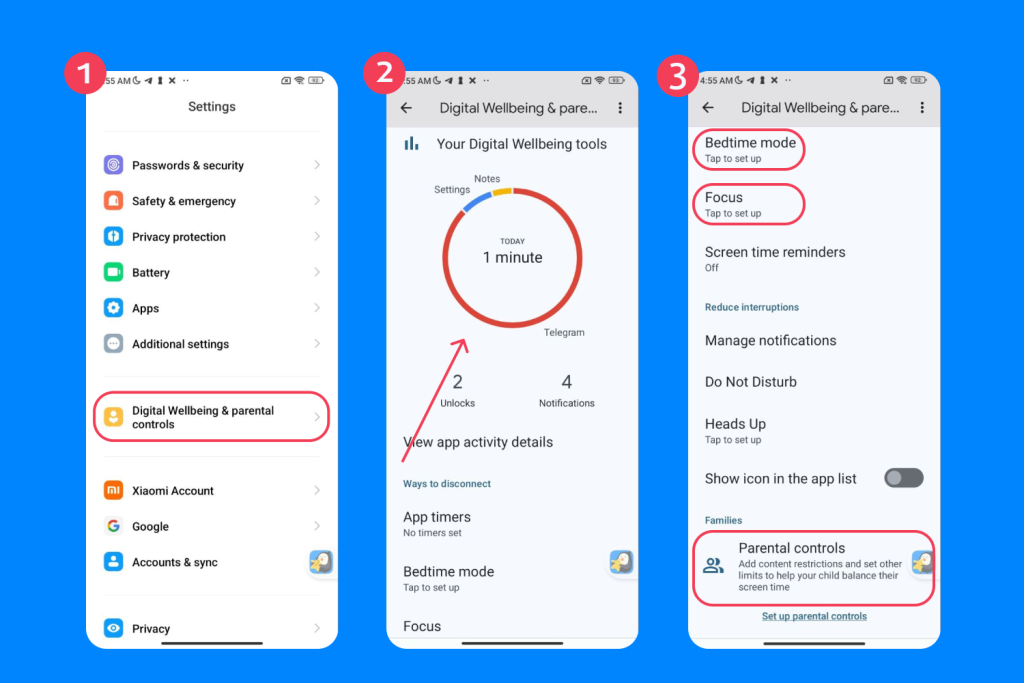
- Open the Settings app on your Android device and tap Digital Wellbeing & parental controls.
- On the dashboard, you’ll see Focus Mode, Bedtime Mode, and your screen time charts—tap each to configure.
- For app restrictions or age-appropriate content, tap Parental controls and follow the setup instructions.
To set up a routine with Bedtime mode:
- Open the Settings app on your child’s device and choose Digital Wellbeing and parental controls.
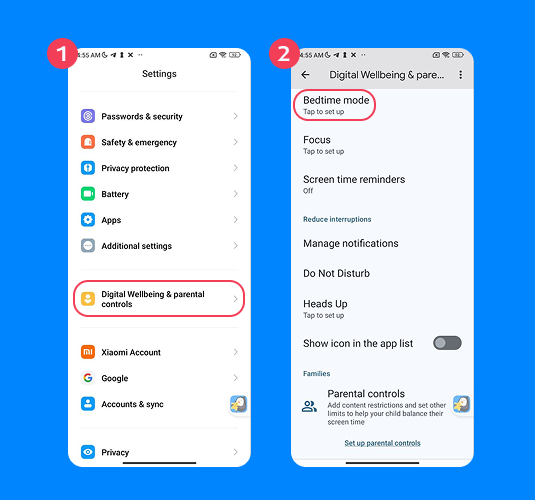
- Select Bedtime mode and then Bedtime routine.
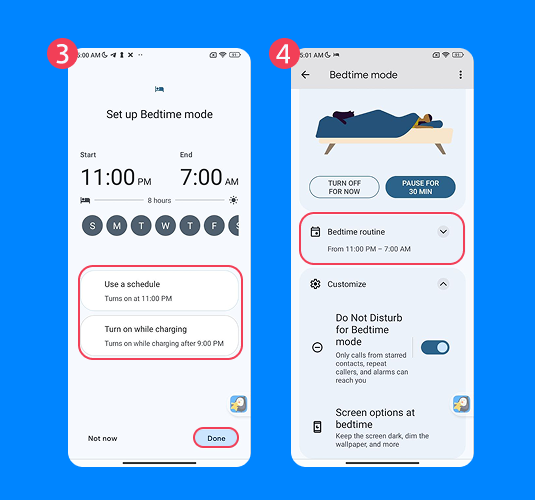
- You can now choose how to create a routine. Opt for Use a schedule to set the start and end of “sleeping times” for the relevant days.
To further customize the Bedtime mode options:
- Turn off the always-on screen at bedtime by choosing Keep the screen dark or change the screen to black and white by selecting Grayscale.
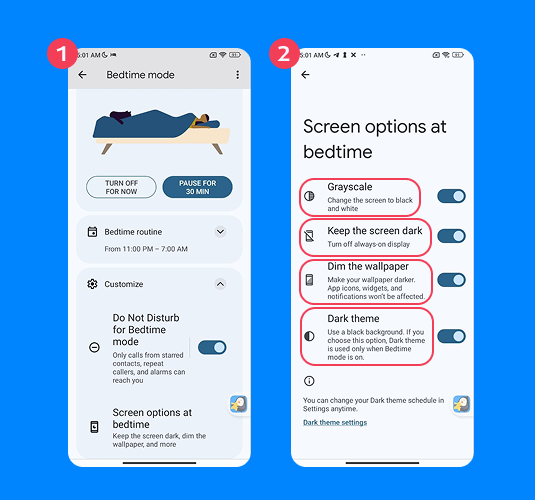
- Choose Dim the wallpaper to lock the screen and dim the wallpaper at bedtime.
- Make the screen background black at bedtime by selecting Dark theme—if chosen, this theme will only be applied when Bedtime mode is on.
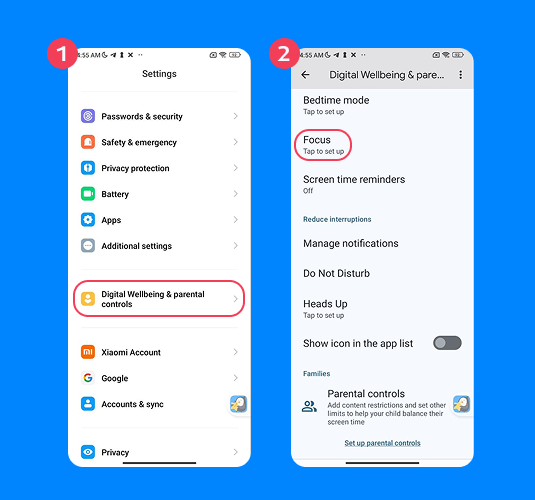
To use Focus mode:
- Open the Settings app on your child’s device, choose Digital Wellbeing and parental controls.
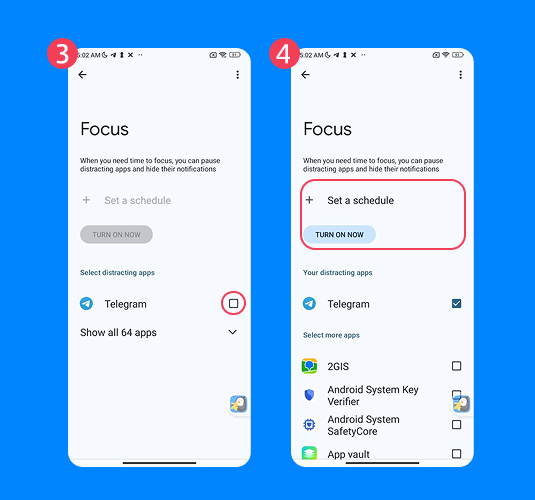
- Then select Focus mode and tap Turn on now.
- Choose the apps to be temporarily paused. While Focus mode is enabled, the user won’t be able to access these apps or receive notifications from them.
- You can also Set a schedule to have Focus mode activated automatically.
To set an app limit PIN:
- Open Settings → Digital Wellbeing & parental controls.
- Tap Dashboard (or sometimes App timers, depending on version).
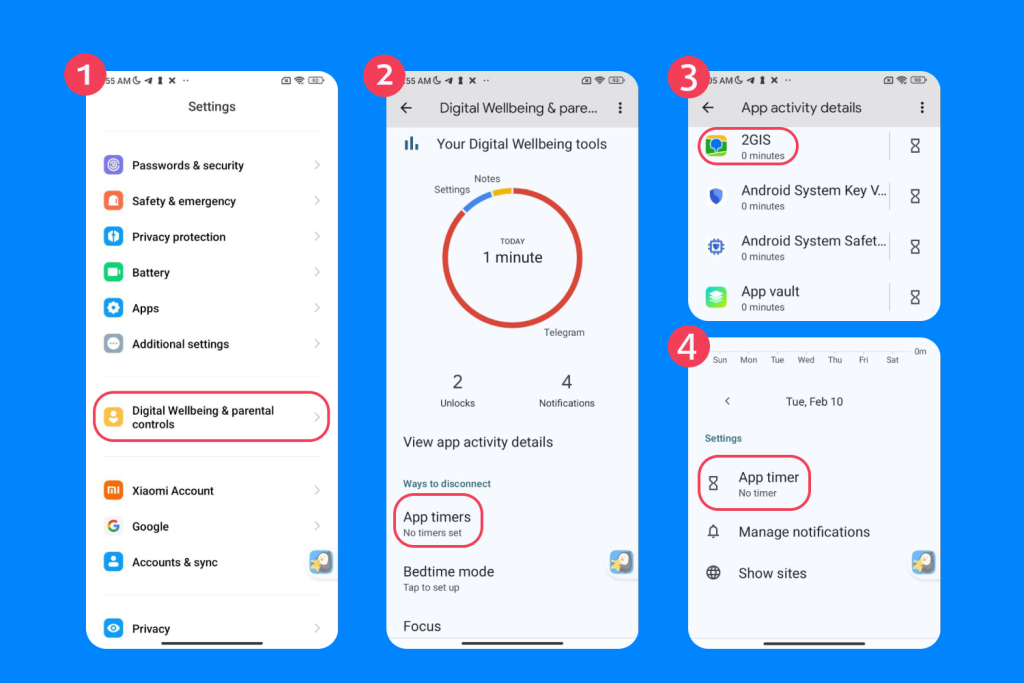
- Select the app you want to limit, then tap App timer.
- Set a time limit.
- To require a PIN to override the limit, go to Settings → Digital Wellbeing & parental controls → Parental controls → App limits PIN (you may need a supervised account).
You can also access the settings to manage how much time your child spends on Google Chrome—or empower older children to better manage their own screen time. Here’s how:
- Open the Settings tab on your child’s device and tap Digital wellbeing & parental controls.
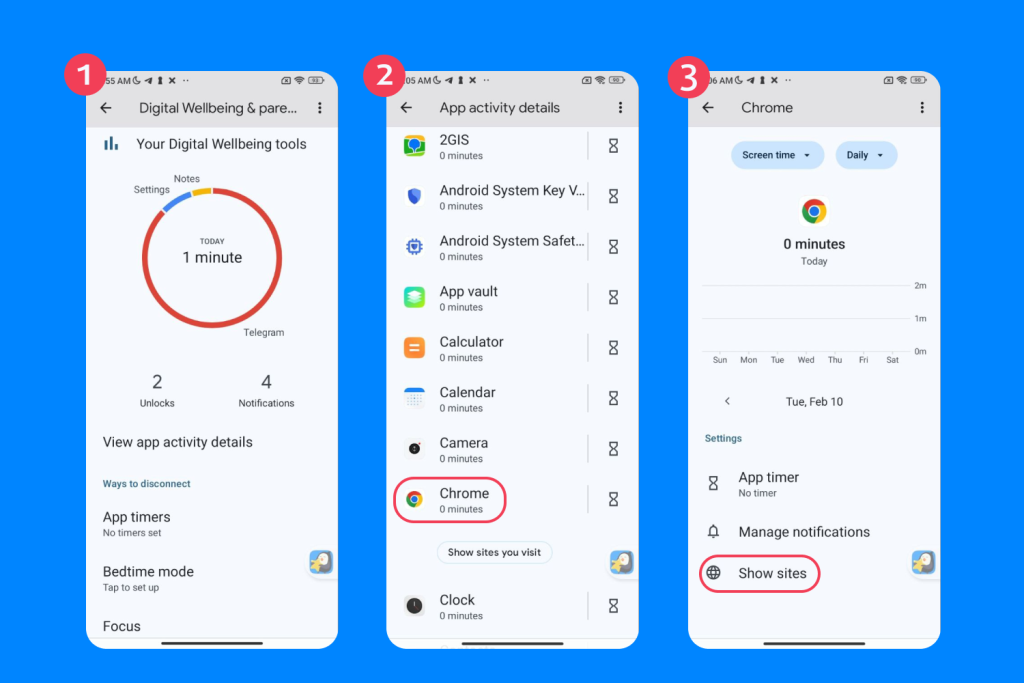
- Tap the chart, and then the Google Chrome icon. If you can’t see it, select Show all apps.
- Choose Show sites and then Show. Here, you can see the websites your child has visited and how much time they spent using them each day.
- Tap on a site for more information on how they’ve spent their time on it.
- Parents, be aware: kids can tap Remove past visits to prevent the app from showing historic visits to a website, although it’ll show up again on the chart if it’s accessed again.
While these parental controls are useful, parents need to note that they’re restricted. They offer basic regulation features to help kids manage their online activity, but don’t provide robust oversight or the ability to reliably block access to apps or websites, apply content filters, or restrict in-app purchases.
Google Family Link
The Google Family Link app is a centralized parental control tool for Android devices. Via Family Link, you can set screen time limits on your child’s Android phone, restrict content (including for YouTube), require approval to download apps, and access basic activity reports to keep an eye on your kid’s online activity. While Family Link is especially useful for younger children, it may not be appropriate for teens requiring a little more privacy, independence, and control.
To access and change settings via Google Family Link, you’ll need to first download the app from the Google Play Store (or other app store) onto both your and your child’s Android device. As part of the process, you’ll need to set up an account for your child by linking to their existing account or creating a supervised Google account if they don’t have one.
To create a Google account for a child under 13:
If your child doesn’t already have a Google account, you can create one as part of the Family Link setup.
- Open the Family Link app on your device and sign in with your Google account.
- Choose Add a child and follow the prompts to create a Google account for your child.
- Enter your child’s name, birthday, and account details.
- Review and provide parental consent, then finish setting up your child’s supervision settings.
Creating the account through Family Link ensures the account is automatically supervised and linked to your family group.
To use Family Link on an Android device that’s already set up:
If your child already has an Android device, you can link it to Family Link using their supervised Google account.
- On your child’s device, install Family Link from the Google Play Store.
- Sign in with your child’s supervised Google account.
- Follow the on-screen instructions to link the device to your Family Link account.
If the device already has other Google accounts or profiles, you may be asked to remove them. In some cases, resetting the device can simplify setup, but this is not always required.
To set screen time limits on Family Link:
- Open the Family Link app and select your child’s account at the top left.
- Tap Screen time, at the bottom left, and then choose Time limits.
- Now turn on Daily limit.
- Tap Weekly schedule and (for first-time setup) select Edit each day.
- Choose a day and enter how much screen time you’d like the device limited to.
- If required, tap Apply to all days of the week and then tap Done.
To block apps:
- Open the Family Link app and select your child.
- Tap Screen time, then Time limits, and then App limits.
- Review the app list. To block an app, select it and tap on the Allowed toggle to change to Blocked.
Once done, the chosen app will be blocked within about five minutes of a device being connected to the internet. If your child is using the app at the time you block it, they’ll get a one-minute warning before the block comes into place.
Google Play Parental Controls
Android parental controls also extend to the Google Play Store, where parents can manage what kind of content their child is allowed to download or purchase. These controls are especially useful for younger children, as they help prevent accidental exposure to age-inappropriate apps, games, movies, or books.
To access Google Play parental controls:
- Open the Google Play Store app.
- Tap your profile icon in the top-right corner.
- Go to Settings → Family → Parental controls.
- Turn Parental controls on and create a PIN.
- Choose the content types and age ratings you want to restrict.
Through Google Play parental controls, parents can:
- Restrict apps and games based on official age ratings
- Limit access to movies, TV shows, and books with mature content
- Require authentication (PIN, password, or biometrics) for purchases and downloads
However, it’s important to note that Google Play parental controls only affect content downloaded from the Play Store. They do not monitor in-app activity, messaging, or web browsing, and they don’t block apps installed from other sources. For this reason, Google Play controls work best as part of a broader parental control setup rather than a standalone solution.
Built-In Parental and Safety Features in Google Chrome
Google Chrome includes several built-in safety features that can help reduce exposure to harmful or inappropriate content. While these tools are not full parental controls, they provide basic protection at the browser level.
Key Chrome features include:
- Safe Browsing, which warns users about dangerous websites, downloads, and phishing attempts.
- SafeSearch, which filters explicit results from Google Search when enabled.
- Incognito mode limitations, as private browsing does not block inappropriate content or bypass supervision on supervised accounts.
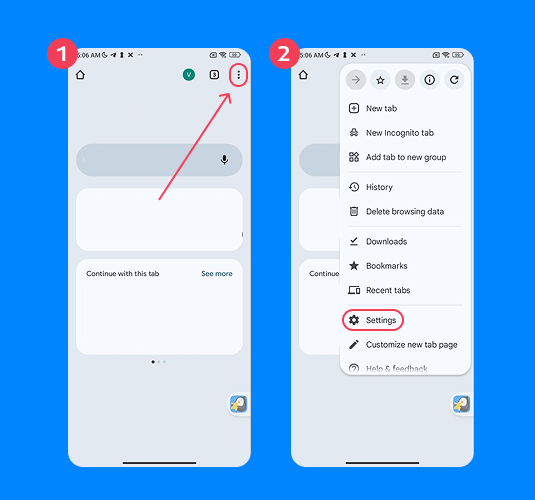
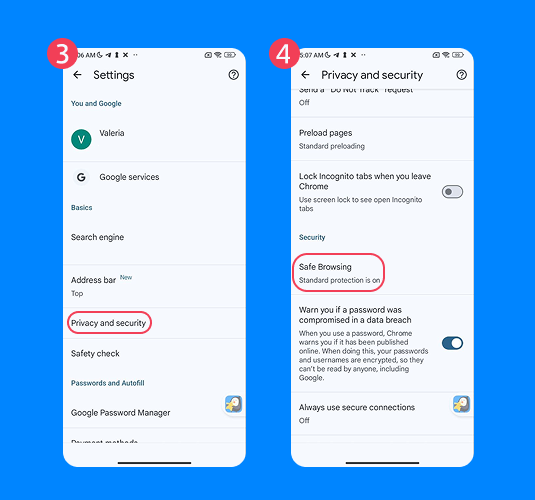
To access Chrome safety settings:
- Open the Chrome app.
- Tap the three-dot menu.
- Go to Settings → Privacy and security → Safe Browsing.
- For SafeSearch: Open the Google.com main page → tap Settings → Search settings → SafeSearch → turn on SafeSearch to filter explicit content.
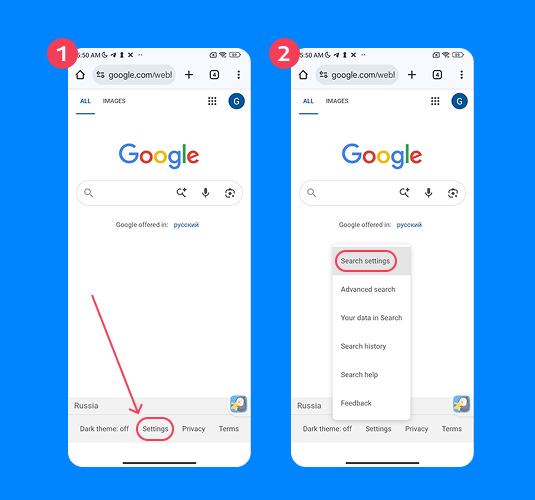
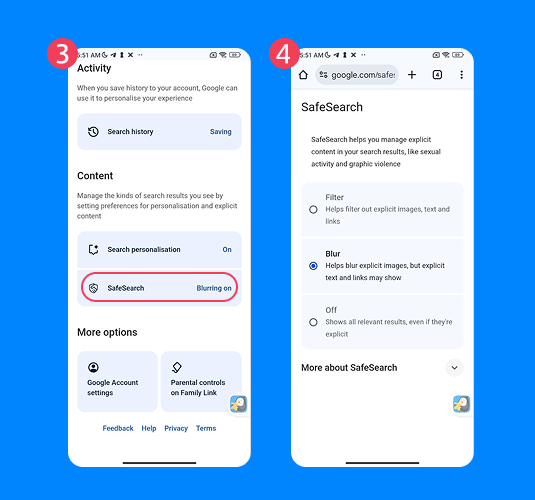
- Alternatively, you can directly visit google.com/safesearch from your child’s phone.
These features focus on online safety rather than supervision and do not allow parents to block specific websites or review detailed browsing activity on their own.
Device Manufacturer Features
There may also be parental controls available from different device manufacturers, too. For example, Samsung Android smartphones (and other devices) incorporate a Samsung Child Account feature. From here, parents can manage their kids’ device settings, including app permissions and access to content. Google Pixel Phones, meanwhile, feature a dedicated parental controls page that can be accessed via the Settings app, offering a quick link to Google Family Link.
Manufacturers, including Xiaomi and Huawei, also offer their own in-built parental control tools to help parents manage their children’s time online. However, it’s important to note that the quality and availability of these tools vary, and parents should satisfy themselves that these features offer strong enough protection and fully meet their needs.
Quick Setup Map — Choose Your Path
| Option | Best For | Limitations / Notes |
| Built-in Android parental controls | Helping kids regulate the time they spend online, set Focus mode, and Bedtime mode | Can’t be used to robustly restrict apps or monitor usage |
| Google Family Link | Monitor online activity, set screen time limits, require approval to download apps, and set content filters | Lacks advanced features such as social media monitoring tools and granular web filtering |
| Google Play Store parental controls | Set age options for apps and games to prevent kids from accessing inappropriate content | Limited to Google Play Store content, no facility to manage device usage or other apps |
⠀
Note: Third-party apps are available for additional features, but are not covered by built-in controls. Many third-party parental control apps offer a free version with basic functionalities such as GPS tracking and screen time management, but advanced features may require you to take out a paid plan.
What Android Parental Controls Can’t Do
While Android parental controls, including Google Family Link, are no doubt useful, they have significant limitations. For example, you won’t be able to:
- View your child’s full browsing or search history beyond what’s logged in Google services, and you cannot see exactly what they are doing on apps in real time.
- Monitor text messages, emails, or social media chats, including in apps like WhatsApp, TikTok, or Instagram.
- Listen in on calls or see live screen activity—supervision is limited to basic usage reports.
Further, it’s important to know that once an app has been approved, your child can reinstall it or use it without additional permissions. And after the age of thirteen, your child can manage their Google account independently, meaning Family Link supervision becomes optional.
This is why Android parental controls are best thought of as a helpful framework, not a complete solution. They allow you to set boundaries, track time, and block age-inappropriate apps, but they cannot fully replace active guidance, conversations about online safety, or additional monitoring tools.
When Built-In Android Controls Aren’t Enough — the Findmykids App

Findmykids app
The online world can be a dangerous place for kids, and using every parental control tool in your arsenal is a good idea to keep them as safe as possible. If you’ve deployed the built-in Android parental features and Family Link tools but are keen to add an extra layer of security, you may want to install a parental control app for Android.
The Findmykids app is a great complement to Android’s built-in parental controls, giving you that all-important peace of mind. Use the app’s features to better understand your child’s online routines and habits, get an overview of their digital life, and identify ways to protect them from dangers while giving them the space they need to develop. If you’re looking for a way to support your child’s digital safety while giving them the independence they need to grow, Findmykids is a perfect choice.
Parents love the way Findmykid allows them to view app usage, to see how much time their child is spending on individual apps, and spot patterns, such as playing games during school time. It also facilitates flexible app blocking: choose to block apps temporarily, permanently, or for a specific amount of time. For example, block apps during family meals, school hours, or before bedtime—so nothing distracts your child.
Findmykids helps ensure your child’s safety in the real world, too!
- Real-Time Location: Track your child’s exact location at any moment.
- Location History & Routes: Review where your child has been and their daily routes.
- Safe Zone Alerts: Set geofenced areas like school or a relative’s home and get notifications when your child enters or leaves.
- SOS Button: Your child can send an instant alert with their location in emergencies.
- Loud Signal / Bypass Silent Mode: Make the child’s device ring even if it’s on silent or Do Not Disturb.
- Sound Around: Listen to the surroundings near your child’s device (with notification for transparency).
Compare Findmykids With Android Built-In Controls
| Feature | Android Built-In Controls (Digital Wellbeing & Family Link) | Findmykids |
| Screen Time / App Limits | ✅ Screen time limits & bedtime schedules | ⚠️ Flexible app blocking |
| App Blocking | ⚠️ App approval via Family Link | ✅ Block apps temporarily, permanently, or by timer |
| Content Filters | ⚠️ Limited (SafeSearch, YouTube restrictions) | ⚠️ Depends on OS and settings |
| Real-Time Location | ✅ Current location & map in Family Link | ✅ Real-time GPS tracking |
| Location History & Routes | ❌ No route history | ✅ History of locations & routes |
| Safe Zone Alerts | ✅ Arrival/leave notifications | ✅ Custom geofenced Safe Zones; Arrival/leave notifications |
| SOS / Emergency Alerts | ❌ | ✅ SOS button with location |
| Battery Level Monitoring | ✅ Shows battery level | ✅ Shows battery level |
| Loud Signal / Bypass Silent | ❌ | ✅ Make phone ring even if on silent/DND |
| Sound Around / Environmental Awareness | ❌ | ✅ Listen to surroundings with notification |
| App Usage Reports | ⚠️ Basic usage totals | ✅ Detailed breakdown (apps, category, age rating) |
| Teen Independence (13+) | ⚠️ Supervision optional | ⚠️ Monitoring requires consent but more flexible |
Protect your child’s digital and real-world safety—try Findmykids today for free and gain the peace of mind you deserve!
Making the Most of the Android Parental Controls
If your child uses a device to access the internet, whether a smartphone or a Google Chromebook, it’s crucial to have a safety net in place. Android devices incorporate some basic parental and digital well-being controls, with more accessible via Google Family Link. Check these out and make sure you understand them fully to make the most of the tools they offer to help keep your child safe.
As well as taking advantage of the built-in Android parental control options, it’s a good idea to also consider using a great third-party app, such as Findmykids. As well as allowing you to set daily screen time limits and restrict adult content by blocking certain apps entirely, this tool lets you monitor online use without stifling children’s growing independence. In conjunction with Android’s built-in parental control features, it’s an effective way to safeguard your child both in the digital and real world.
FAQs
Can I use Android’s parental controls to view my kid’s recent activity?
While Android’s built-in parental controls offer some basic tools for self-regulation (regarding time spent online), they can’t be used to view your child’s online activity. However, Google Family Link can be used to set screen time limits, select app limits, and manage content and purchases.
Is Google Family Link free?
Google Family Link is a free parental control app available to Android and Chromebook users. It offers app and web filtering, the ability to set screen time limits, and more.
Does Norton Family offer parental controls?
The Norton Family suite incorporates parental control software and is available on iOS, Android, and Windows. Its tools include those to manage and monitor app usage, set screen time limits, filter content by maturity level, and more.
How do digital parental controls work?
Typically, parental controls are designed to set boundaries for screen time and app usage, protect children from inappropriate content, and promote better digital well-being. However, parents should note that parental controls can differ significantly, with some tools offering more protection and features than others.
Cover image: user22460925 / Freepik.com
Проверьте электронный ящик