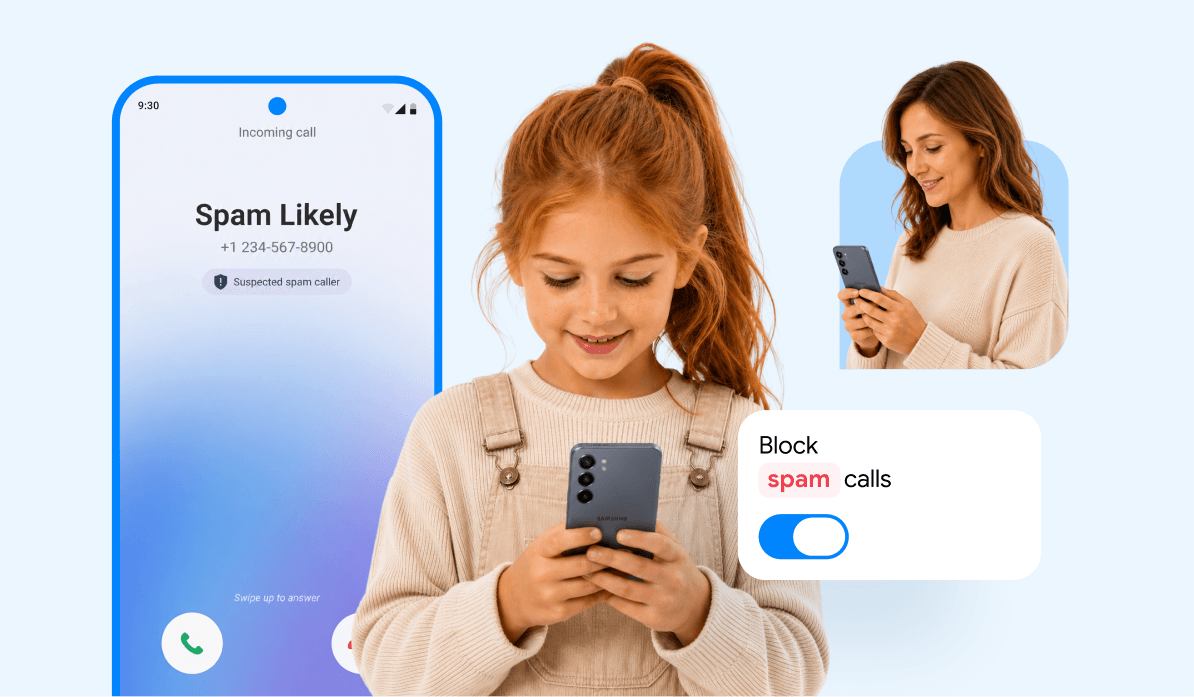
Did you know that in 2024, U.S. consumers were bombarded with approximately 52.8 billion robocalls? That means about 200 spam calls targeted every single adult in the country. Now, imagine the volume of harassment directed at a child’s Android phone.
For parents, giving a kid their first device is a balance between safety and independence. It often comes with a lot of worry. While a phone ensures a child can call for a ride or chat with friends, it also opens a direct line to telemarketers, scammers, and robocalls. For us, it’s just noise. For a kid, it’s a safety risk.
But you aren’t helpless! You can shut these calls down before they even ring. We’ll show you exactly how to block spam calls on Android so your child’s phone stays a lifeline, not an open door to unwanted callers.
Contents:
- What is a Spam Call?
- Why Spam Calls Are a Problem for Kids and Teens?
- Method 1: Use Built-In Spam Protection (Google Phone App)
- Method 2: Block Specific Numbers from Call History (Manual Blocking)
- Method 3: Findmykids: A Parent-Focused Solution for Call Safety
- Method 4: Pixel Phones: Call Screen / Call Assist
- Method 5: Samsung Galaxy: Smart Call (Caller ID & Spam Protection)
- Method 6: Carrier-Level Blocking (Network Layer)
- Method 7: Call-Blocking Apps (Call Filter App)
- Method 8: Silence Unknown Callers (Do Not Disturb Rules)
- FAQs
What is a Spam Call?
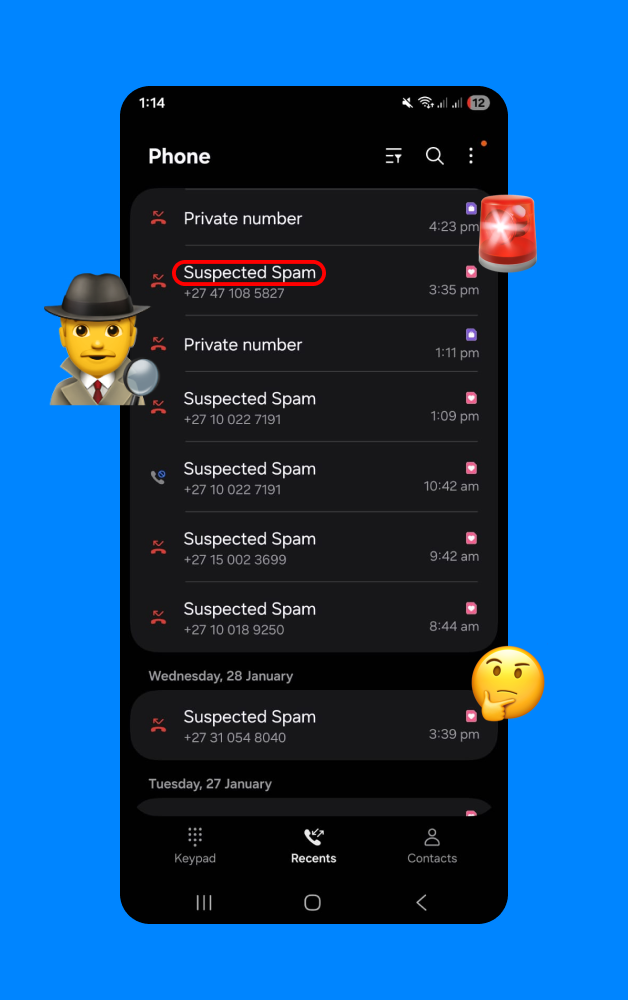
A spam call is essentially the digital version of junk mail. These are unsolicited contacts from organizations or individuals the user does not know. While some are harmless (but annoying) telemarketing pitches, others are malicious.
Spam calls often come from automated dialers, also known as illegal robocalls. They might play a recorded message about an extended car warranty, a fake contest win, or a warning from a government agency. When these calls flood a child’s Android phone, they disrupt homework, cause confusion, and pose genuine safety risks.
Why Spam Calls Are a Problem for Kids and Teens?

pvproductions / Freepik.com
Adults usually have the experience to recognize a scam. They know that the IRS doesn’t call to demand gift cards. Children do not have this filter. This vulnerability makes spam calls particularly dangerous for younger users.
Data Privacy and Phishing Research indicates that scammers actively target younger demographics. A 2022 report by the FTC noted that younger people reported losing money to fraud more often than older adults. Scammers use sophisticated tactics to trick kids into sharing personal information, such as their home address or a parent’s credit card number.
These risks don’t just involve money or personal information—they can also affect a child’s daily life and emotional well-being:
- Anxiety and Disruption: Constant incoming calls from unknown numbers can be frightening. A child might fear they are in trouble or being watched. This anxiety can lead them to ignore the phone entirely. This creates a secondary problem: the child might ignore a legitimate call from a parent, coach, or teacher because they are accustomed to ignoring the device.
- Exposure to Inappropriate Content: Not all unwanted calls are sales pitches. Some are prank calls or adult-related scams that a child should never encounter. Taking proactive steps to block spam is about preserving a child’s innocence as much as it is about convenience.
For parents of Android users, understanding these risks is the first step. The next step is learning practical ways to block spam calls, filter unknown numbers, and protect your child from unwanted contact while keeping essential lines of communication open.
Read also: Top 15 Safe Phones for Kids and Teenagers in 2026.
Method 1: Use Built-In Spam Protection (Google Phone App)
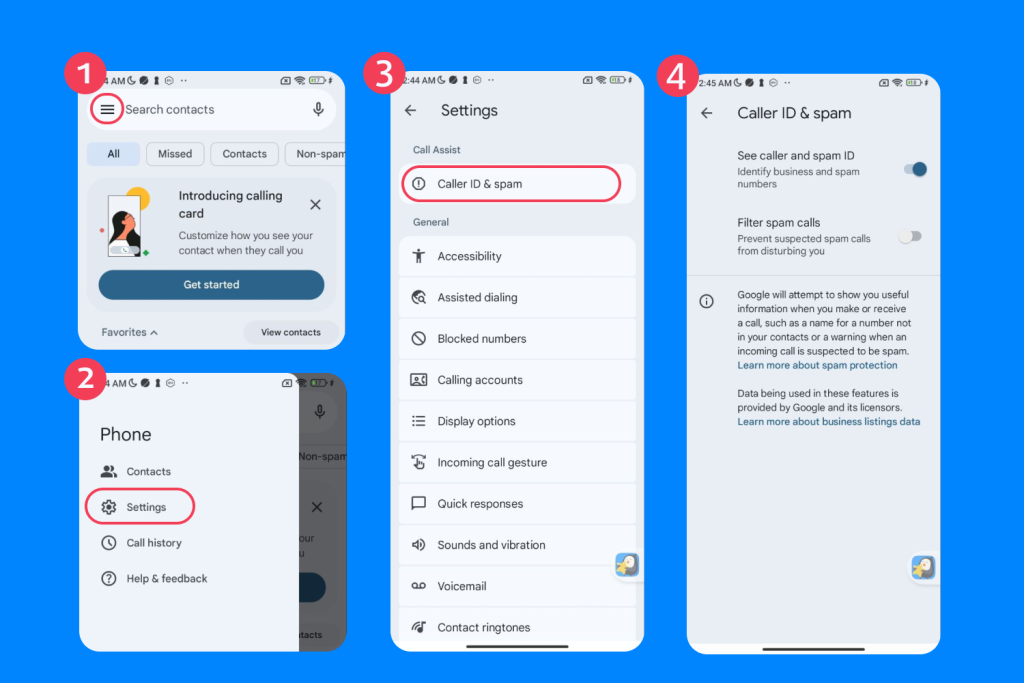
Most Android devices come with excellent built-in features to handle nuisance callers. The default Google Phone app includes caller ID and spam protection. This uses Google’s database to identify potential spam calls before the Android phone even rings.
How to enable it:
- Open the Phone app on the Android device.
- Look for the three dots in the top right corner to open the menu.
- Tap on Settings.
- Navigate to the section labeled Caller ID and Spam (on some phones, this is under Spam and Call Screen).
- Toggle on the option to See caller and Spam ID. This enables the phone to identify business names and warn users about suspected spam.
- Turn on Filter spam calls.
When this feature is active, the phone will automatically block spam calls that Google identifies as high-risk. The phone might not even ring for these numbers. Instead, they will appear silently in the call history as blocked calls. This is the first line of defense and requires zero maintenance from the parent or child.
Method 2: Block Specific Numbers from Call History (Manual Blocking)
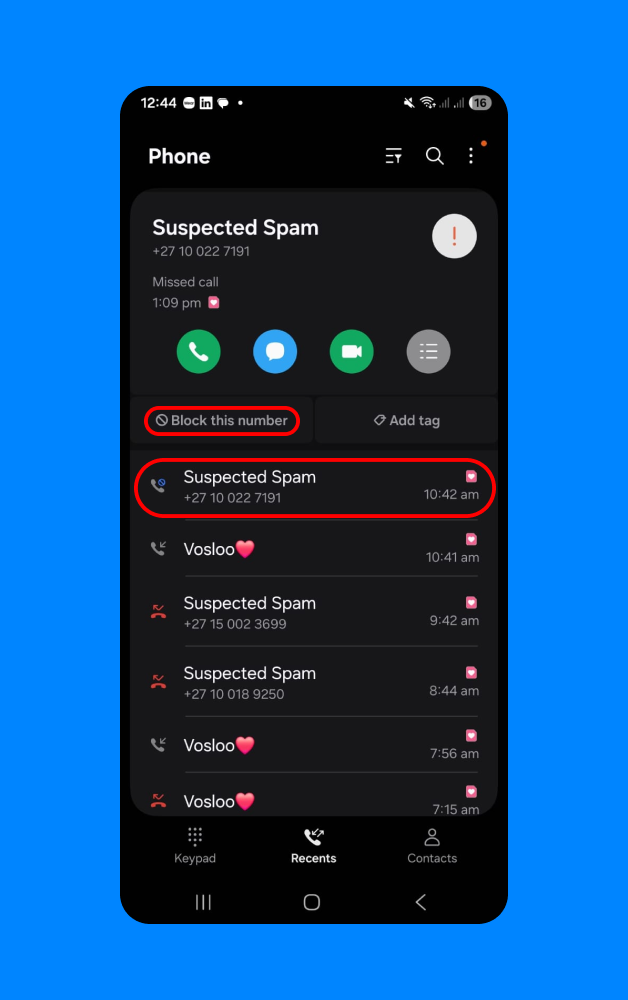
Sometimes a number slips through the automated filters. It might be a local bully, an ex-friend, or a relentless telemarketer using a new number. In these cases, parents can block specific numbers manually. This stops that specific caller from contacting the device again.
Steps to block a number:
- Open the Phone app.
- Tap on Recent calls or the clock icon to view the history.
- Find the number you wish to block.
- Long-press the phone number or tap the information icon (often an ‘i’) next to it.
- Select Block or Block/Report Spam.
- A confirmation pop-up will appear. You can choose to report the call as spam, which helps improve the caller ID database for other users.
- Tap Block again to confirm.
Once blocked, future calls from this number will go straight to voicemail and will not ring the device. This is effective for stopping persistent spam from a single source/number.
Method 3: Findmykids: A Parent-Focused Solution for Call Safety
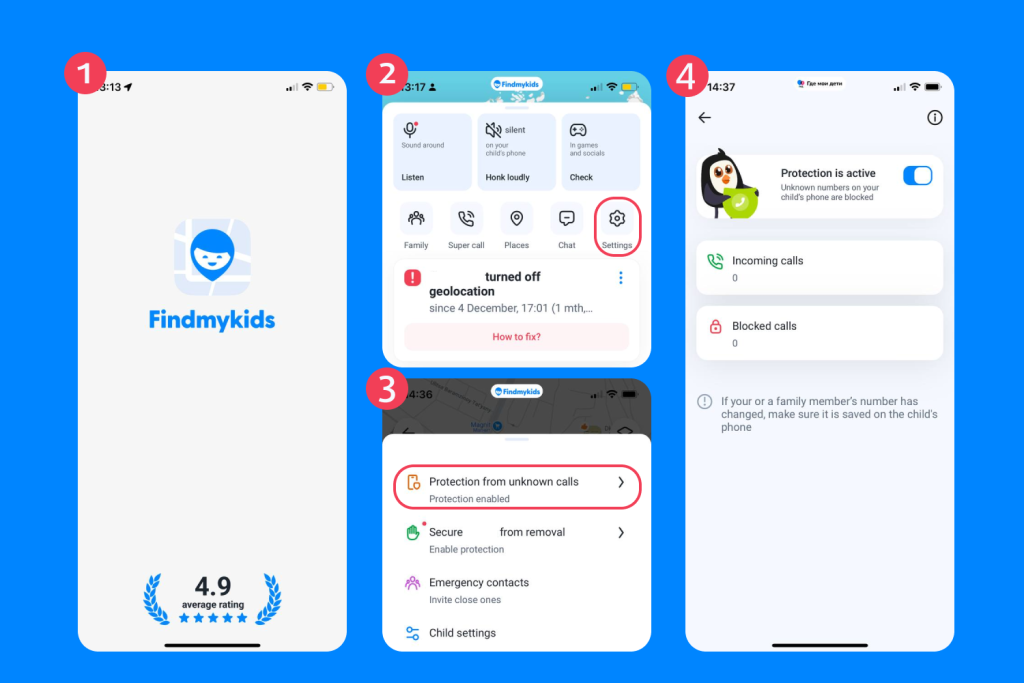
Findmykids app
While built-in Android tools are useful, they have a blind spot: the parent cannot see what is happening. If a stranger calls a child’s phone, the Android system handles it locally. The parent remains unaware. For families who need more control and oversight, the Findmykids app offers a comprehensive safety solution.
Findmykids is designed specifically for child safety. It is a parental control app for Android that goes beyond simple blocking to give parents visibility into their child’s life, digitally and physically:
- Block Calls from Unknown Numbers: One of the standout features of Findmykids is the ability to block calls from unknown or suspicious numbers. Parents can ensure their child won’t be disturbed or targeted by strangers, while still allowing important calls from known contacts.
- Monitoring Incoming and Blocked Calls: One of the key features is the ability to see app usage and general activity. While Android blocks calls, a dedicated safety app setup allows parents to understand who is trying to contact their child. This allows parents to intervene if they notice a pattern of harassment or strange, unknown numbers.
- App Usage Monitoring and Blocking: You also have the final say on what they install. If you spot a dangerous app, you can block it instantly or set limits so it won’t work during school hours.
- Location Tracking and Safety Alerts: The GPS features handle the other side of safety, which is physical location. You don’t have to constantly text “where are you?” because the app alerts you when they arrive at school or get home. It solves the missed-call panic, too. If you call and get voicemail, a quick glance at the map confirms they are safe and not in trouble.
- SOS and Loud Signal: If a child feels unsafe, perhaps due to a threatening call or a real-world situation, they can press an SOS button. This immediately alerts the parent. Conversely, if the child isn’t answering their phone because it is on silent, parents can send a Loud Signal. This forces the phone to ring at maximum volume, ensuring the parent’s call gets through even if the child has silenced their device to ignore spam calls.
Findmykids combines digital supervision with real-world safety, making it a reliable all-in-one solution for families concerned about spam calls, online threats, and everyday safety.
Take action now: Keep your child safe and in touch—download Findmykids today and protect them from unknown calls and online risks!
Method 4: Pixel Phones: Call Screen / Call Assist
For families using Pixel phones, Google offers one of the most advanced spam-fighting tools on the market: Call Screen. This feature uses Google Assistant to answer calls on the user’s behalf. It acts as an automated digital secretary.
How Call Screen works: When an incoming call arrives from an unknown number, the user sees a “Screen Call” button. If tapped (or set to automatic), Google Assistant answers. It asks the caller to identify themselves and state the reason for the call. A real-time transcript of the caller’s response appears on the screen.
Why it is great for parents: Parents can configure this to automatically screen potential spam callers.
- Open the Phone app.
- Go to Settings > Spam and Call Screen.
- Tap Call Screen.
- Set protection levels for spam, possibly faked numbers, and first-time callers.
If the Assistant detects a robocall or spam caller, it hangs up automatically. The child never has to talk to the scammer. If it is a live person, the child can choose to pick up the call after reading who it is. This drastically reduces the number of nuisance calls that disrupt the child’s day.
Method 5: Samsung Galaxy: Smart Call (Caller ID & Spam Protection)
Samsung Galaxy devices dominate the Android market, and they use a different system called Smart Call. This system is powered by Hiya, a leading caller ID and spam detection service.
Enabling Smart Call:
- Open the Phone app.
- Tap the three dots (options menu).
- Select Settings.
- Tap on Caller ID and Spam Protection.
- Toggle the switch to On.
Once active, the phone scans every incoming number against a global database. If a number is flagged as fraud or high-risk, the screen will turn red with a warning like “Suspected Spam.” Users can also choose the option to “Block spam and scam calls” automatically. This prevents the phone from ringing for high-risk numbers. It provides peace of mind that scam calls are being intercepted before they reach the child.
Method 6: Carrier-Level Blocking (Network Layer)
Sometimes the best way to stop unwanted calls is to stop them before they even reach the phone. Major mobile carriers (Verizon, AT&T, T-Mobile) offer carrier-level blocking services. These operate at the network layer.
- T-Mobile Scam Shield: T-Mobile offers Scam Block, which blocks likely scammers entirely. Parents can download the Scam Shield app to manage these settings.
- AT&T ActiveArmor: This service blocks fraud calls automatically and labels other nuisance calls as “Spam Risk.” It is a powerful call filter app provided directly by the service provider.
- Verizon Call Filter: Verizon’s filter app automatically detects spam and blocks high-risk robocallers.
Parents should check with their carrier. These services are often free, though premium versions exist. Activating these adds a shield that protects the phone regardless of the specific Android settings changed on the device itself.
Method 7: Call-Blocking Apps (Call Filter App)
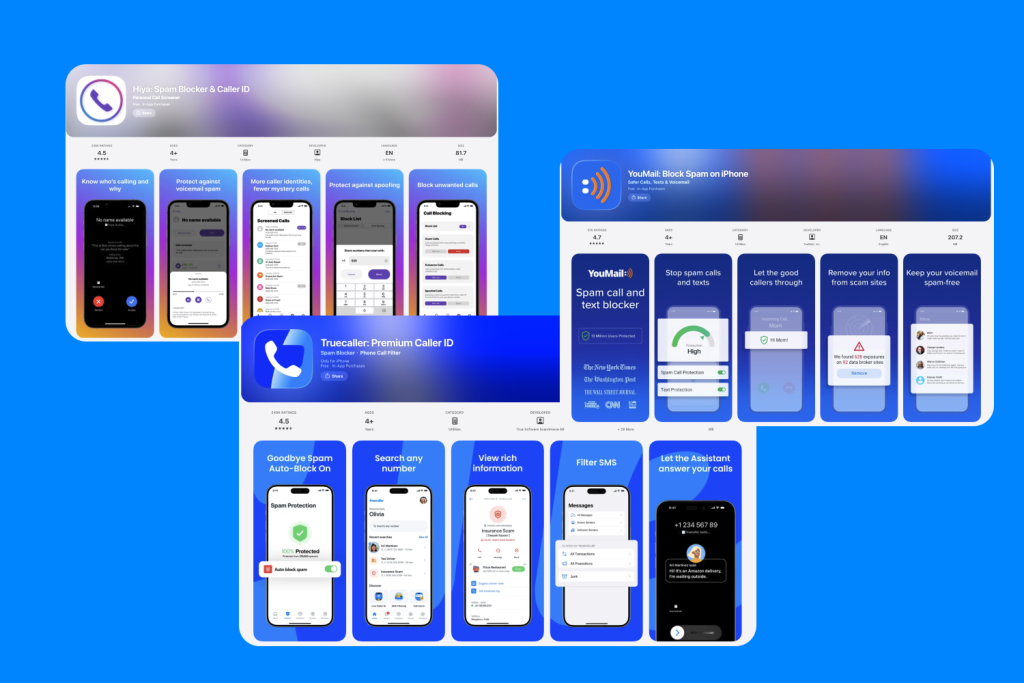
App Store
If the built-in Android tools and carrier services aren’t enough, third-party call-blocking apps are another option. Apps like Truecaller, Hiya, or YouMail rely on massive community-driven databases to identify spam numbers.
How they work: These apps replace or augment the standard caller ID. When the phone rings, the app checks the number against millions of user reports. If 500 other people marked that number as a scam, the app warns the child immediately.
Pros and cons for kids:
- Pros: Extremely accurate identification of names and business identities. They can filter spam very effectively.
- Cons: Many of these apps require uploading the user’s contact list to their servers. For a parent concerned about privacy, sharing a child’s contacts with a third-party company might be a dealbreaker. They also often contain ads unless a subscription is purchased.
If choosing this route, parents must read the privacy policy carefully. Ensure the app does not share caller ID data or phone number details with other partners for marketing purposes.
Method 8: Silence Unknown Callers (Do Not Disturb Rules)
For the ultimate protection, especially during school hours or for very young children, parents can use the Do Not Disturb feature to effectively silence unknown callers. This ensures that only trusted people can ring the phone.
How to set it up:
- Go to the main Android Settings.
- Tap on Sound & vibration (or Notifications).
- Select Do Not Disturb.
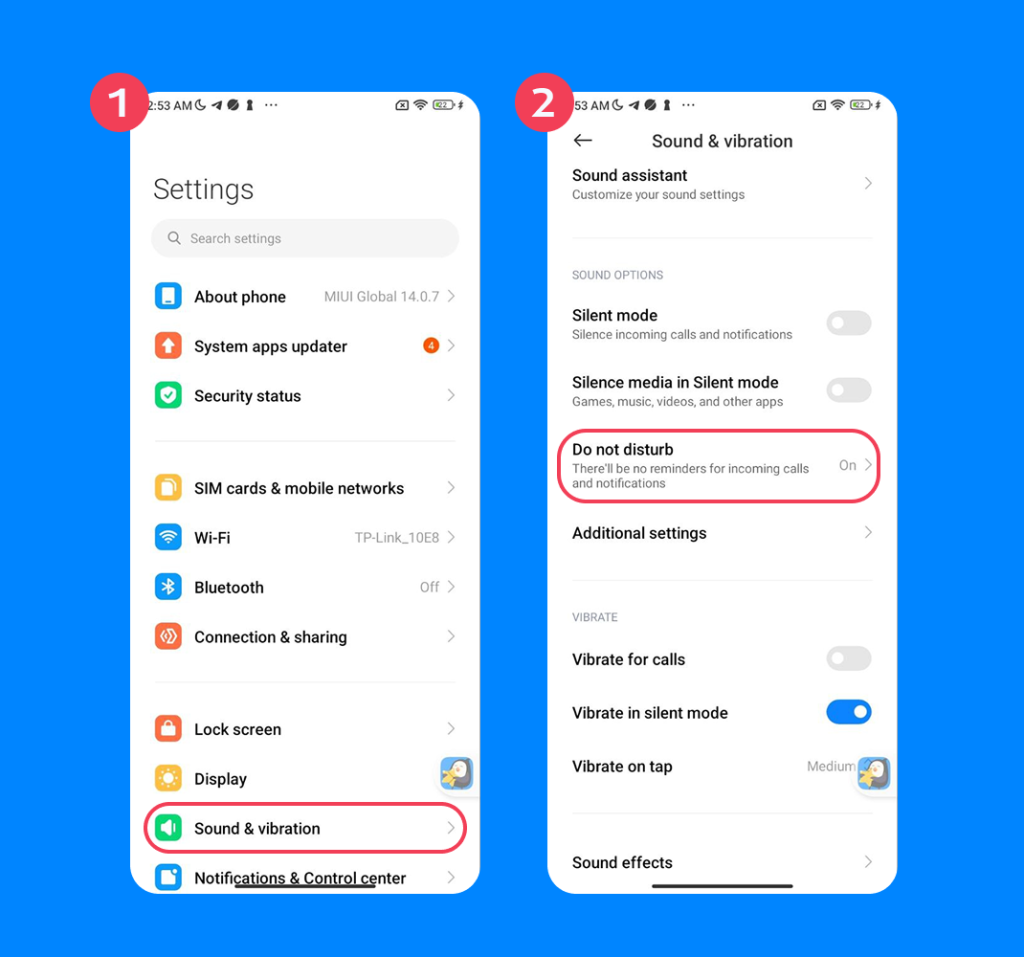
- Look for a section called People, Calls, or Allow calls from.
- Select From contacts only or Starred contacts only.
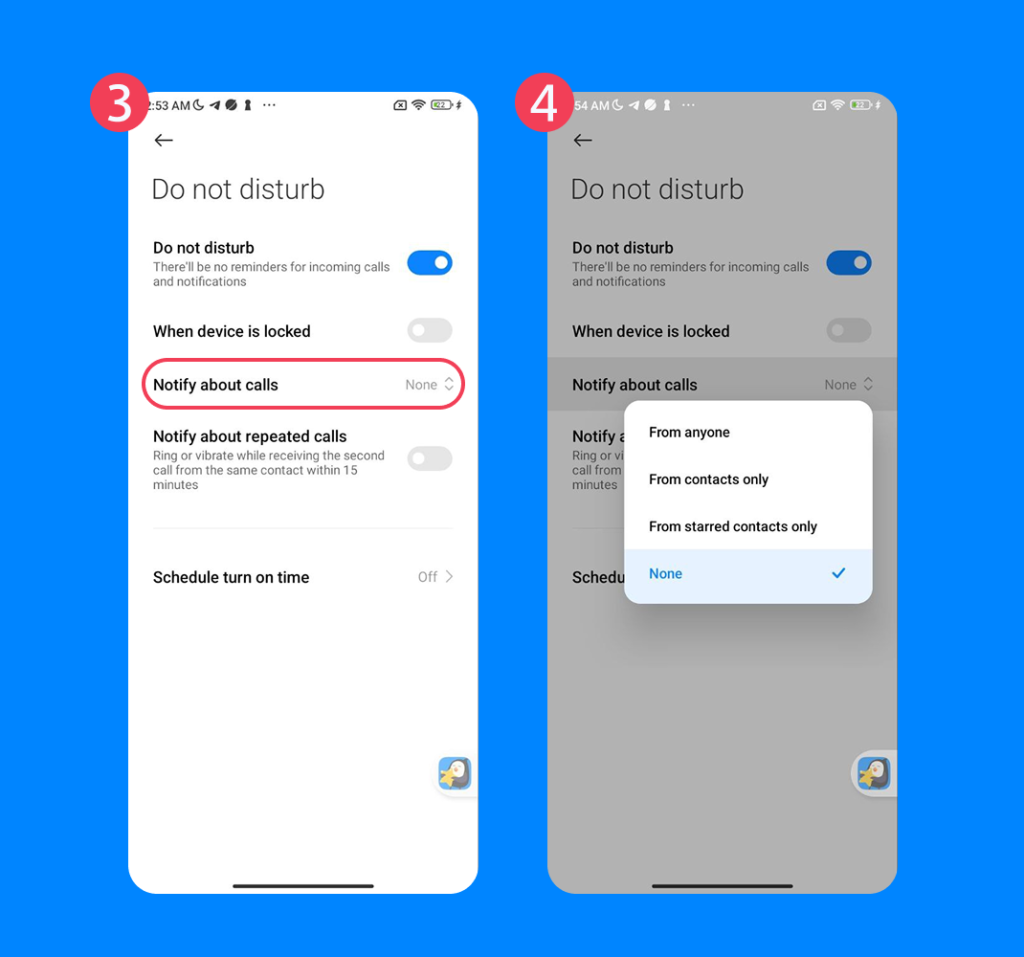
When this is active, anyone not saved in the child’s contacts list will be silenced. Their phone will not ring or vibrate. The call will go straight to voicemail. This effectively stops 100% of spam, robocalls, and wrong numbers. The child can still see the missed call in their notification tray, but their focus remains unbroken. This is the most aggressive way to block unwanted calls and is highly recommended for children getting their first device.
Related: Blocking Unknown Callers — A Guide for 2026 and Beyond.
Protecting Your Child in a Digital World
Dealing with spam calls is a modern rite of passage. It is annoying for adults, but it requires parental intervention for kids. By combining these methods, parents can create a layered defense.
Start with the basics: enable the Google Phone app’s spam protection. Check if the mobile carrier offers free blocking services. For younger children, consider using the Do Not Disturb method to strictly limit communication to family and friends. For comprehensive peace of mind that extends to location and app safety, tools like Findmykids fill the gaps that standard settings leave open.
The goal isn’t just to block calls; it is to teach the child digital hygiene. Explain why they shouldn’t answer unknown numbers. Teach them never to give out personal info. With the right tools and conversations, the smartphone remains a tool for connection, not a source of stress.
FAQs
How to block spam calls on Android without installing an app?
You can use the built-in features of the Google Phone app. Open the app, tap the three dots, go to Settings, and enable Caller ID and spam protection. You can also manually block numbers from your recent calls list.
What’s the difference between Caller ID & Spam and Filter Spam calls?
Caller ID & Spam identifies the number and displays a warning (like “Suspected Spam”) on the screen while the phone rings. Filter Spam calls takes it a step further; it prevents the phone from ringing at all. The call is sent straight to voicemail without disturbing the user.
How do I block specific numbers from Recent calls (call history)?
Open the Phone app and go to the Recents tab. Find the phone number you want to stop. Long-press the number (or tap the info icon) and select Block/Report Spam. This stops future calls from that specific caller.
How do I report spam calls, and does it actually help?
Yes, reporting helps. When you select “Block/Report Spam,” Google (or your carrier) receives data about that number. If enough people mark calls as spam, the system labels that number as a scam for everyone else. It helps the community identify and stop illegal calls.
Where can I see and manage blocked numbers on Android?
Open the Phone app, tap the three dots, and select Settings. Look for an option labeled Blocked numbers. Here you can see the list of blocked contacts and add or remove numbers manually.
How does Pixel Call Screen work, and how do I enable it?
Pixel Call Screen uses Google Assistant to answer calls for you. To enable it, go to Phone Settings > Spam and Call Screen > Call Screen. You can choose to automatically screen spam and robocalls so your phone doesn’t ring unless it’s a legitimate caller.
How do I turn on Samsung Smart Call (caller ID & spam protection)?
Open the Samsung Phone app, tap the menu dots, and go to Settings. Select Caller ID and spam protection, and toggle it on. This feature uses Hiya to identify and block spam calls on Samsung Galaxy devices.
Проверьте электронный ящик