If you’re a parent, you have done the “shoulder surf.” You walk past your child, see the glow of the phone, and wonder exactly how long they have been staring at it. Is it homework? Is it YouTube? Is it social media? You are right to worry, research shows that children ages 8–18 spend an average of 7.5 hours per day in front of a screen for entertainment.
You do not need to guess or start an argument to find out. Android phones automatically track every minute of activity in the background. Learning how to check screen time on Android gives you the numbers you need to have an open, honest conversation with your children. This guide shows you exactly where those logs are hiding and how to read them.
Contents:
What Is Screen Time on Android?
Screen time is simply the total duration a device is active and unlocked. On an Android device, the operating system logs this data automatically. It tracks time spent on apps, counts every single notification, and even logs how many times the phone was unlocked.
This data is your best tool for context. It helps you distinguish between productive time (like using Google Classroom) and passive entertainment (like Roblox or TikTok). By reviewing these app usage statistics, you can move away from vague rules and set limits based on actual behavior.
How to Check Screen Time on Android Using Digital Wellbeing
The easiest method is already built into the phone. It is called Digital Wellbeing settings and parental controls. You will find this dashboard on almost every modern Android device, including Samsung, Pixel, and Motorola models.
Where to Find Digital Wellbeing in Settings
Navigating Android device settings can sometimes feel like a maze because every manufacturer, whether it’s Samsung, Google, or Motorola, likes to organize things a bit differently. However, the core Digital Wellbeing tool is almost always hiding in the same general area.
- To get started, open the main Settings app on your child’s device.
- From there, scroll down past the battery and storage options until you spot Digital Wellbeing and parental controls. It usually has a small purple or green icon next to it.
- Once you tap Digital Wellbeing settings, you will enter the main dashboard.
If you are scrolling and still can’t find it, don’t panic. Just go back to the top of the Settings menu and type “Digital” into the search bar. This is often the fastest way to jump straight to the dashboard on older Android versions or phones with heavy custom skins.
Pro Tip: Here is a trick that saves time later. Once you are in the dashboard, look for a toggle switch that says “Show icon in the app list.” Turning this on creates a standalone app icon on the home screen. This means next time you want to check screen time, you can just tap that icon instead of digging through three layers of system menus.
Understanding the Screen Time Dashboard
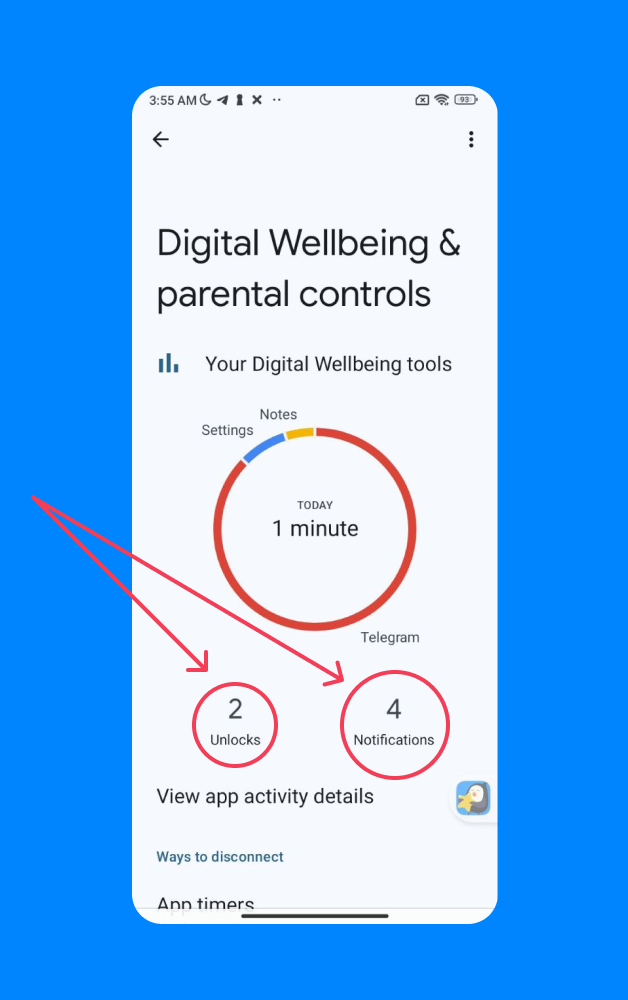
Once the dashboard opens, you aren’t just looking at a clock; you are looking at a pie chart of your child’s day. The most obvious number is the Total Screen Time in the center, which tells you exactly how long the screen has been active. But don’t stop there. The context surrounding that number is actually more important.
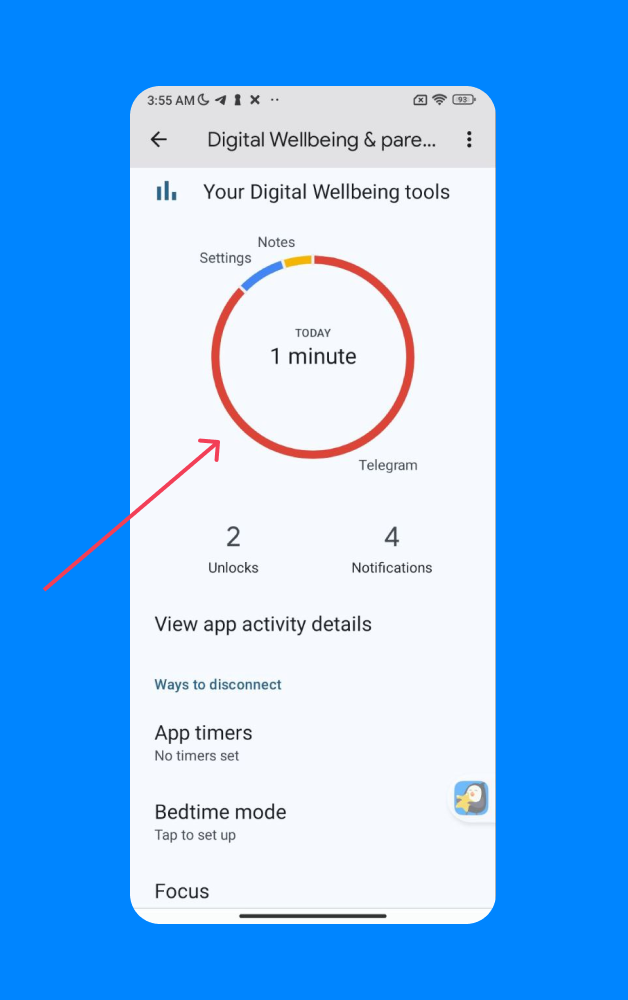
Below the chart, you will see a ranked list of the most used apps. This is where you spot the difference between “productive” and “passive” use. Three hours spent on a reading app or a sketching tool is very different from three hours spent on TikTok, yet both count toward the total. Seeing this breakdown helps you decide if you need to intervene or just offer a gentle reminder.
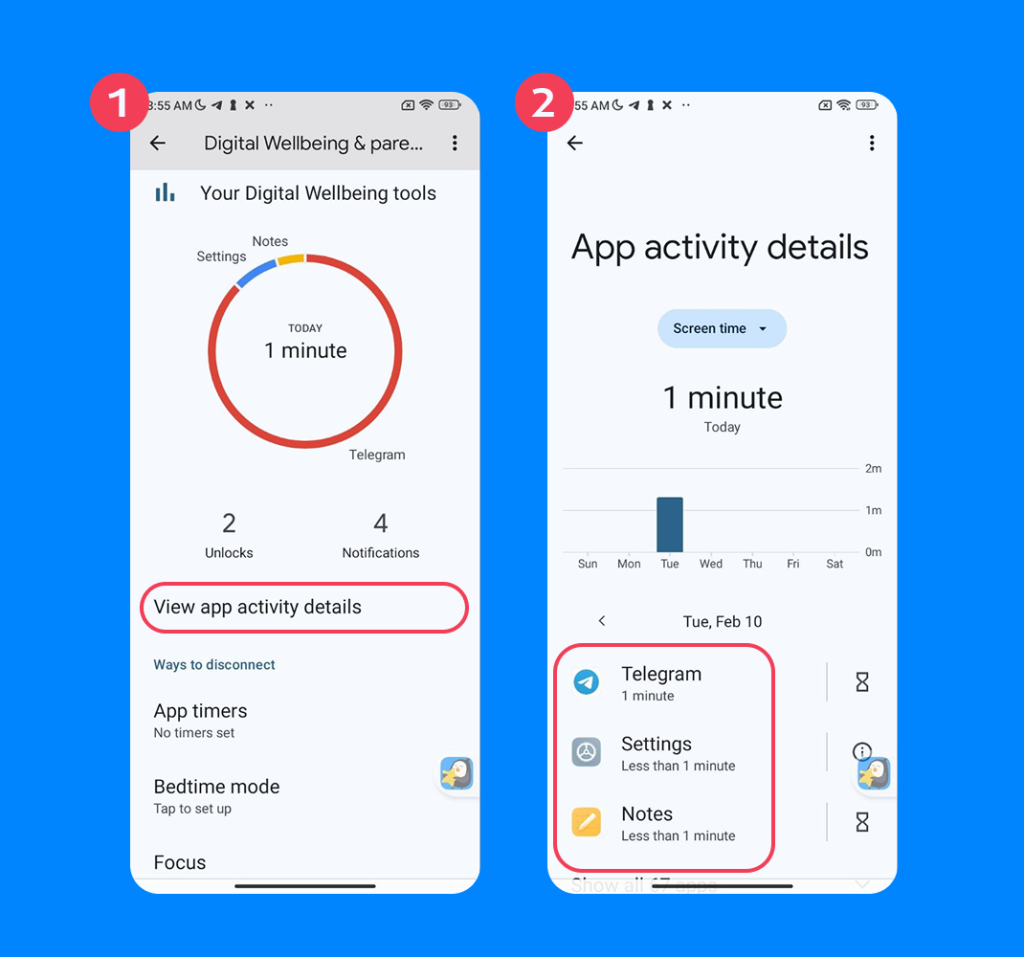
Perhaps the most underrated metric here is the Unlocks counter. This tells you how many times the child picked up their phone and unlocked it. A high number here, even with low total screen time, often points to “doomscrolling” or a compulsion to constantly check for messages. Similarly, the Notifications count reveals how many times the phone buzzed to demand their attention. If that number is in the hundreds, it might explain why they are having trouble focusing on homework, regardless of how much time they actually spent looking at the screen.
Checking Screen Time for Specific Apps
If you tap the chart itself, it opens a detailed list of individual apps.
This view lets you look back in time. By tapping the date, you can view trends over the full week. You might notice they are well-behaved on weekdays but binge for 8 hours on Saturdays.
If a specific app is the problem, tap the hourglass icon next to it. This lets you set a daily usage limit. Once that timer hits zero, the app pauses and turns gray until tomorrow.
Check App Usage in Device Settings (Brand-Specific)
Android manufacturers love to tweak their menus. If you cannot find the standard menu, here is where to look for settings in specific brands.
Samsung Galaxy Phone: A Samsung phone separates “active use” from things like phone calls, which is actually quite helpful.
- Go to Settings > tap Digital Wellbeing and parental controls.
- Tap the small graph icon in the top right corner.
- This opens the Weekly Report, where you can see the difference between gaming and just talking to grandma.
Xiaomi (MIUI): Xiaomi hides a few extra features in here.
- Go to Settings > Digital Wellbeing & parental controls.
- Tap the dashboard circle.
- Look for Focus Mode. You can actually add this to the quick-settings shade (where your Wi-Fi toggle is) to instantly pause distracting apps during homework time.
Huawei (EMUI): Huawei calls this “Digital Balance.”
- Go to Settings > Digital Balance.
- Tap Screen time management.
- Unlike stock Android, Huawei lets you set a Screen time limit for the whole device, which acts like a daily budget.
Why Results Vary: If you compare two different phones, the numbers might not match perfectly. Older Android versions count “screen on” time differently, sometimes including the seconds when the lock screen is lit up. Newer versions are much more precise.
How to Use Screen Time Widgets on Android
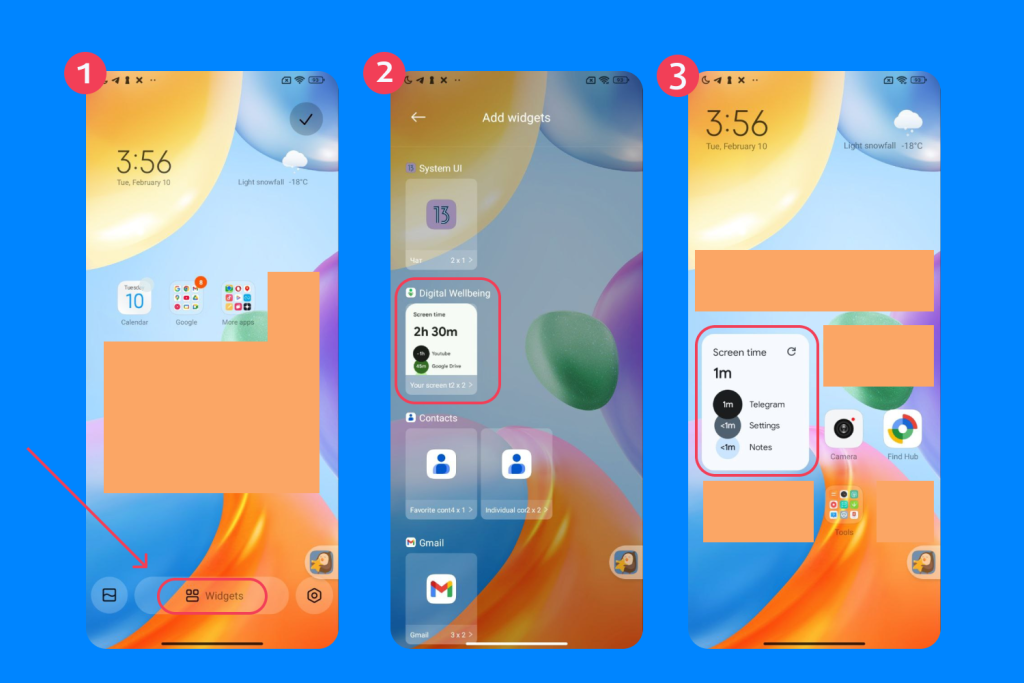
If you want to keep an eye on things without opening menus, put a screen time widget on the home screen.
How to add them:
- Long-press on any empty spot on the wallpaper.
- Select Widgets.
- Scroll down and tap Digital Wellbeing.
- Drag the widget style you like onto the screen.
When Widgets Are Useful vs Full Dashboard
Widgets are great for self-regulation. When a child sees the timer ticking up right on their home screen, they often pace themselves better. But for the deep dive, like seeing if they were on Discord at 3 AM, you still need to open the full Settings dashboard.
Findmykids: A Clearer Way to Monitor Screen Time on Android

Findmykids app
The built-in tools are great, but they have one major flaw: you have to physically remove the phone from your child to check it. This can create tension and limit your ability to understand their digital habits. Findmykids offers a remote alternative that gives you the full picture without conflict.
The Time in Apps feature shows exactly how much time your child spends on each app, broken down by category—games, social media, education, and more. You can view reports for today, yesterday, and the past week, giving a clear overview of usage patterns over time. This data is sent directly to your smartphone, so you can track habits without unlocking their device or asking for passwords.
With App Blocking, you get more nuance than a simple timer. You can temporarily block apps to focus on homework or family time, or permanently block apps that are unsafe or inappropriate. These restrictions apply even if your child tries to ignore them.
Beyond screen time, the app continues to protect your child even if the phone is offline. GPS tracking provides their current location and route history, Safe Zones alert you when they arrive at or leave key areas like school or a relative’s home, and SOS or Loud Signal features ensure you can reach your child in emergencies.
The goal is insight rather than surveillance. By understanding usage patterns—such as late-night gaming or prolonged social media use—you can have calm, constructive conversations: “I noticed you were up late playing games last night,” rather than simply taking the phone away. Findmykids helps you monitor and guide your child’s digital life while supporting independence and real-world safety!
Try Findmykids today to see how a parental control app for Android can give you peace of mind while helping your child develop healthy screen habits.
Check Screen Time with Google Family Link
Most Android parents start here because it is free and built in. Family Link lets you view activity reports and lock the device remotely, which is great for enforcing dinner time or sleep schedules.
To check screen time with Family Link:
- Open the Family Link app on your device.
- Select your child’s profile.
- Tap Daily or Weekly Activity to see a summary of time spent on apps, games, and websites.
- Tap individual apps for more details, such as total time used today, yesterday, or over the week.
- Use Lock Device if you need to pause all app activity instantly (e.g., for homework, family meals, or bedtime).
While it is solid for managing apps, it falls short when it comes to managing safety. It doesn’t tell you what is happening around the phone (no audio monitoring), and it has a significant loophole for teenagers. Under Google’s data policies, children over 13 can voluntarily end supervision. If you need a tool that stays effective through the high school years, you might find Family Link too restrictive for you and not restrictive enough for them.
How Accurate Is Android Screen Time Data?
What Is Tracked Automatically
Android is very precise about active usage and monitoring screen time. If the screen is on and the app is open, it counts.
What May Be Missed
The blind spot is passive listening. If your child listens to Spotify or podcasts with the screen off, that does not count toward screen time. Do not panic if they have been listening to music for 4 hours, but the log only says 10 minutes.
Background Activity Explanations
You might see “System UI” or “Launcher” on the list. That is just the time spent navigating menus. It is usually negligible, but if the smartphone was left unlocked on a table, it might add up.
How to Reduce Excessive Screen Time

Findmykids app
If the numbers are scary, don’t panic. Reducing excessive screen time is a process, not a punishment.
- Create “Screen-Free Zones”: No phones in bedrooms or at the dinner table. Period.
- Use App Timers: Set hard stops in Digital Wellbeing to limit time spent on the most addictive apps.
- Model the Behavior: If you are always on your phone, they will be too.
- Enable “Bedtime Mode”: This turns the screen grayscale at night. It makes the phone boring and less stimulating for the brain.
- Use the Findmykids App: For parents who want more control and insight, a parental control app for Android, like Findmykids, can make a real difference. It shows exactly how much time your child spends on each app, lets you block distracting or potentially harmful apps temporarily or permanently, and provides detailed app usage reports by category and age rating.
For a step-by-step guide on setting limits and practical tips to reduce screen time without turning it into a battle, check out our full article: How to Reduce Screen Time for Kids.
Let’s be honest, tracking screen time can feel like a second job. But you don’t have to obsess over every single minute. The tools we covered, whether it’s the built-in Android settings or a dedicated app like Findmykids, are just there to give you clarity.
Don’t worry if the numbers aren’t perfect right away. Use the data to spot the big trends, like a sudden spike in gaming on school nights, and use that to start a conversation. It’s not about taking the phone away forever; it’s about helping them learn when to put it down on their own.
FAQs
How do I check screen time on Android quickly?
Open the Settings app, tap on Digital Wellbeing & parental controls, and view your daily screen time.
Can I see weekly screen time on Android?
Yes, Digital Wellbeing shows daily and weekly screen time reports.
Does Android track time spent on games?
Yes, Android tracks time spent on games, as well as other activities like watching videos, browsing social media, and using apps. You can see this breakdown in Digital Wellbeing.
Can parents see a child’s screen time?
Yes, with Family Link, parents can monitor and manage their child’s screen time.
How do I set time limits for apps?
Go to Digital Wellbeing, select Dashboard, choose an app, and set a daily timer.
Why is my screen time data inaccurate?
Screen time data may be inaccurate if apps run in the background or if Digital Wellbeing is not enabled.
Проверьте электронный ящик