There are many reasons why you might need to uninstall Chrome on Android. As a parent, you may have content restrictions and controls set up on another browser and need to prevent your child from finding a way around them. Or you may want to resolve performance issues, fix malware, or free up space on your device.
The problem is, you cannot fully remove the Google Chrome browser application from most Android phones and tablets because it is a pre-installed system app. However, there are ways to disable it that hide the app, stop it from running, and remove it from your device. In this article, we’ll talk you through the different methods.
Contents:
Can You Uninstall Chrome on Android?
Google Chrome is a pre-installed system app on most Android devices, so it cannot be fully uninstalled. However, it can be disabled.
So what’s the difference between uninstalling and disabling an app like Chrome?
Uninstalling Chrome removes the app entirely. If you’re using an iPhone, you should be able to just delete the app, which fully removes it from your phone, along with your data.
To do this, long-press the Chrome icon on your phone screen, tap Remove App, and then Delete App to confirm. If you need to, you can reinstall Chrome from the App Store at a later date, but your data will have been removed, and you’ll need to log back into your Gmail or Google account.
As this is not possible with an Android device, you’ll need to disable the app instead. Doing this hides Chrome from your app drawer, stops it from running in the background, removes updates, and clears Chrome data. It’s not a full removal of the app, but it’s pretty close.
How to Disable Chrome on Android (The Fastest Way)
If you want to disable Google Chrome on an Android device, the quickest method is through Settings. Before you do this, it’s a good idea to install a backup browser like Samsung Internet or Firefox so you or your child still have a safe way to access the internet if needed.
Once you’re ready to disable Chrome on Android, go to Settings → Apps → Manage apps/Apps Management → Chrome, then tap Disable. This will turn off Chrome and remove it from the app drawer. After this is done, you can set your chosen browser as the default so links automatically open there instead.
This way, if someone goes to search for Google Chrome on your device, it won’t even show up as an option.
Can You Just Uninstall Chrome Instead?
In some cases, you may see an Uninstall option instead of Disable when you go to delete the app. This usually only appears if Chrome isn’t preinstalled as one of the phone’s system apps, on selected Android models.
If the delete option is available, you can remove Google Chrome completely by going to Settings → Apps → Manage apps/Apps Management → Chrome → Uninstall. If you need to, you can just install it again on the Google Play Store.
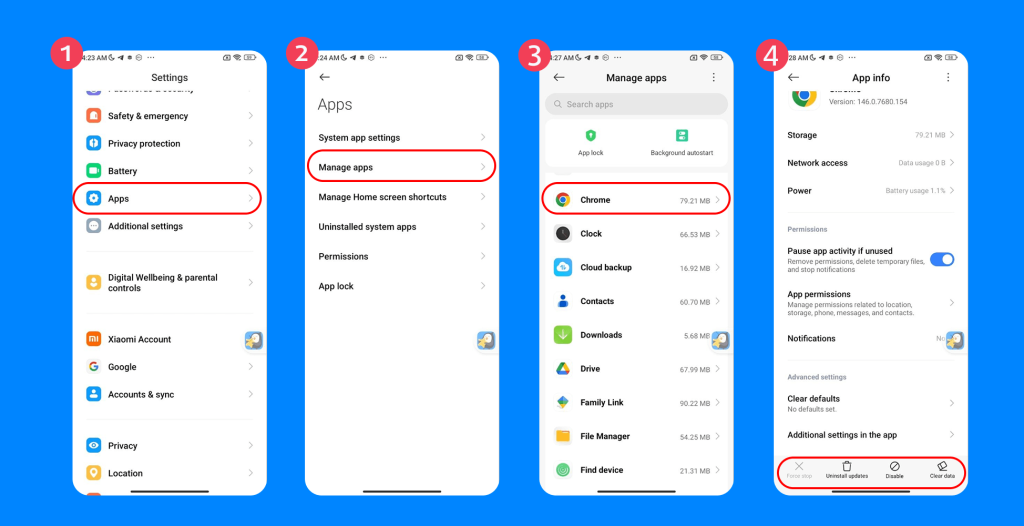
On most Android OS devices, Chrome is built in and can only be disabled, not fully removed, because it is a pre-installed system app. Although it’s annoying, this is fairly common with models like Android, and there are usually easy ways to get around it.
How to Free Up Space or Reset Chrome
If you don’t want to remove Chrome completely but you just want to free up data or fix performance issues, you can go to Chrome’s app settings and select Clear cache or Clear data.
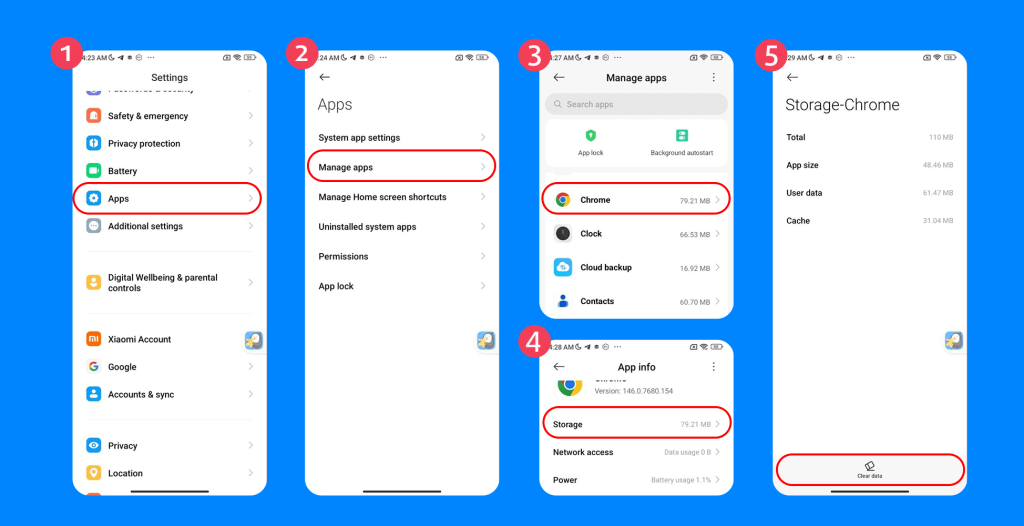
Bear in mind when doing this that clearing Chrome’s data may delete information like bookmarks and saved passwords, so it’s important to back these up first. Some devices may also give you the option to remove Chrome updates, which can reduce storage usage and reset Chrome closer to its original version.
Advanced Option: Removing Chrome via ADB Devices
More tech-savvy Android users may prefer to employ a more advanced method that uses a developer tool called Android Debug Bridge (ADB—accessible by turning on USB debugging mode). This can remove Chrome for a specific user on the device, but while it can be effective, it’s not typically recommended in most cases.
The ABD option requires tricky technical setup and comes with risks—for example, it could affect how the device works or potentially void warranties. For most people, disabling Chrome through the device settings is the simplest and safest solution.
Other Ways to Limit Kids’ Internet Access on Android
If you’re trying to delete Chrome from your child’s Android device for online safety reasons, there may be better ways to limit internet access and block inappropriate content.
Older children in particular can often just download a new browser or find workarounds, so often it’s best to take a multi-faceted approach to ensuring the right controls are in place.
Google Family Link
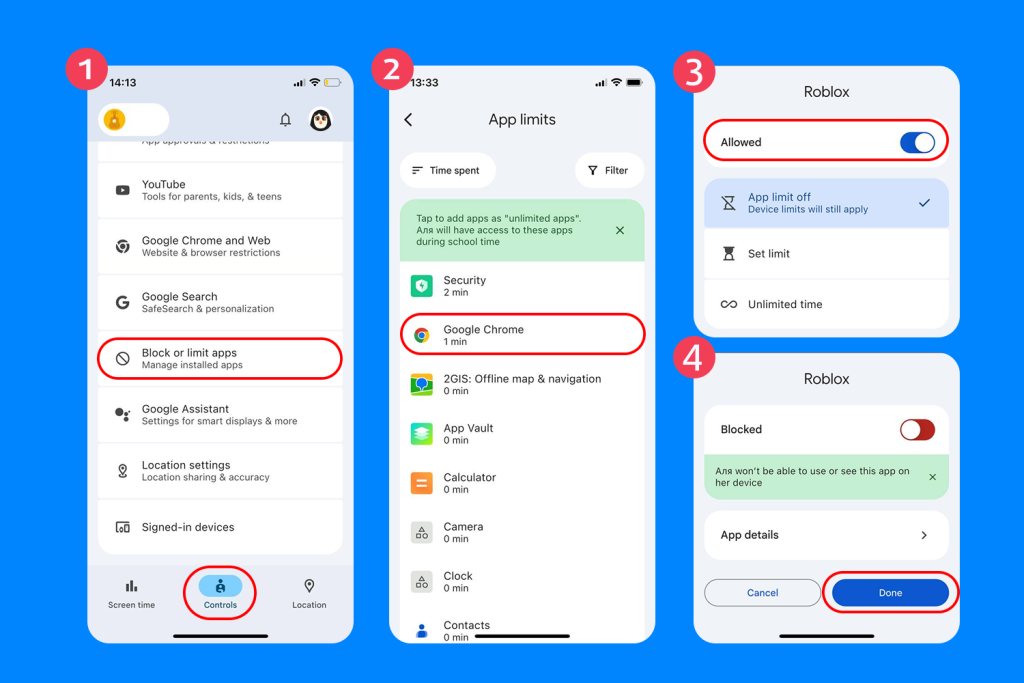
Family Link is Google’s parental control mobile app that allows parents to monitor and guide their child’s digital activity on Android and other compatible devices. The app can help you manage usage, approve or block sites or downloads, and set screen time limits.
- How to block specific apps: Family Link → select your child → Block or limit apps → select the app → toggle to Block.
Safe Search Settings
Google also lets you enable Safe Search to help filter adult websites and explicit results when kids are using the search engine, including pop-ups. Safe Search was designed to create a safer browsing experience for children and families, and is automatically enabled for users under 18.
How to turn on Safe Search:
- Open Google app → tap profile icon → Settings → SafeSearch → select “Filter.”
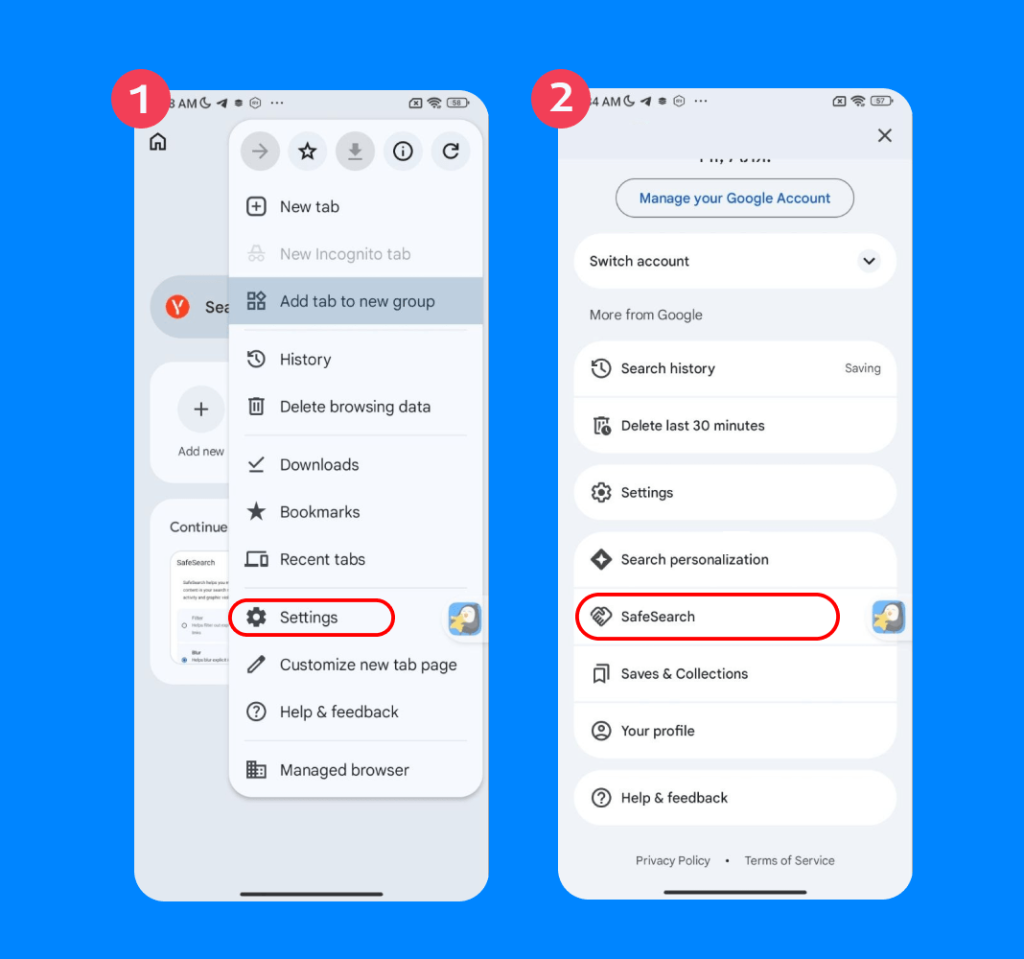
- Or via browser: Go to google.com → Settings → Search settings → turn on “Filter explicit results” → Save.
Kids can use it on all devices and computers, and it should sync across all devices logged into your Google account.
Restricting App Installs
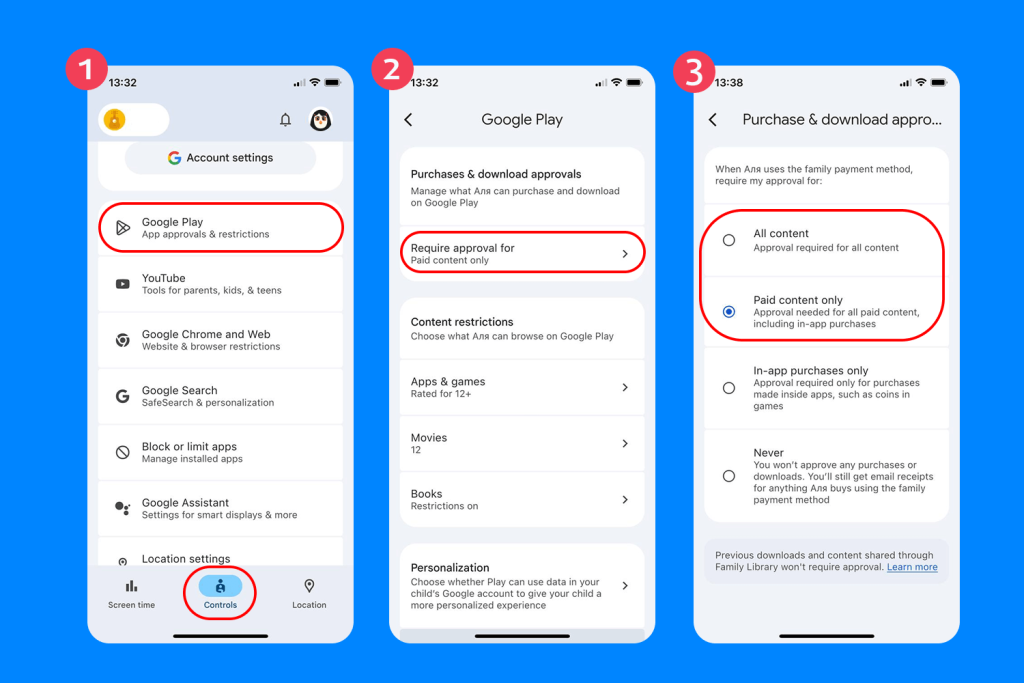
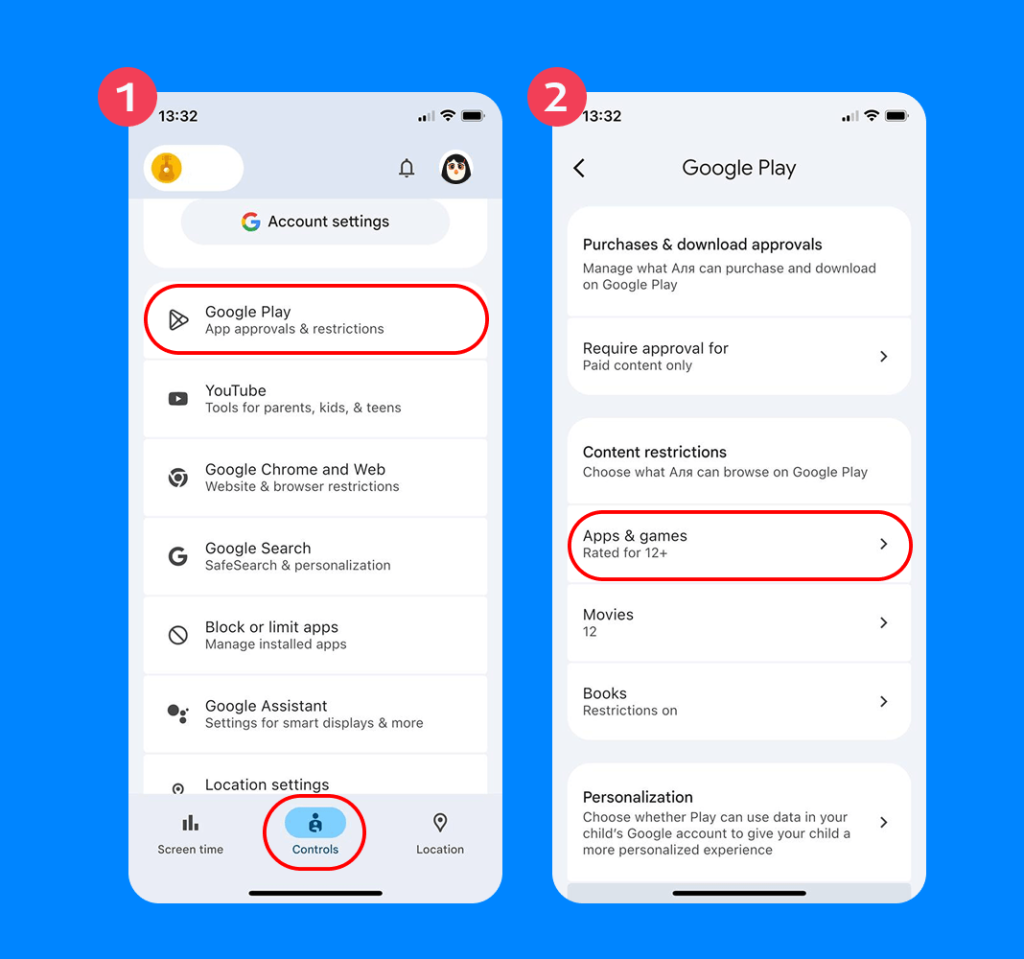
Using Family Link, you can prevent your child from installing new apps or set age limits for which kinds of apps are acceptable. If you have parental controls set up on Chrome, for example, you may decide to block your child from downloading another browser app, where internet results may not be restricted.
- How to block new app installs: Open Family Link → select your child → Controls → Google Play → Purchases & download approvals → Require approval for → set to “All content” or “Paid content only.”
- To set age restrictions: Family Link → Manage settings → Controls → Google Play → Apps & Games → choose appropriate age rating.
Using Parental Control Tools Like Findmykids

Findmykids app
While built-in parental controls are a good starting point, they’re often limited—especially if you have a smart child who’s determined to get around them! If you’re looking for a more comprehensive solution, using a parental control app like Findmykids is the next practical step.
Instead of focusing on just one app or browser (like Google Chrome), Findmykids can help you manage your child’s overall phone use and online behavior, as well as track their movements in the real world.
Findmykids offers Android features such as:
App Blocking
Parents can block specific apps—including browsers, games, and social media platforms—or all apps at once, making it easier for kids to focus on homework or other offline activities. Apps can be blocked permanently or temporarily using a timer.
App Usage Data
With Time in Apps reports, you can see exactly how much time your child spends on certain apps, with breakdowns for today, yesterday, and the week. This makes it easier to spot patterns of unhealthy screen use or obsessive behavior and step in when necessary.
Screen Time Monitoring
You can also track overall device usage and spot when your child may be spending too much time on their phone, allowing you to encourage healthier habits or limit screen time when needed.
Beyond these tools, Findmykids also offers a range of safety features, including real-time location tracking and movement notifications when your child arrives at or leaves a certain place.
Together, these tools give you a much more complete picture of your child’s digital habits, making it easier to guide them towards safer, healthier choices—both in the real world and on their phones.
If you’re looking for a simple way to stay aware of your child’s digital habits without constant checking, try Findmykids right now for free and see how it fits into your daily routine!
Uninstalling Chrome on Android is Only One Piece of the Puzzle
If your main goal is to limit your child’s internet access and help them stay safe online, disabling or removing Chrome on Android can be a helpful first step, but it’s rarely a complete solution.
As most parents will know, kids are naturally curious and often very tech-savvy—they’ll find ways around these quick fixes, which is why a more balanced approach works best.
By combining simple device settings on Android with tools like Google Family Link and Findmykids, you can create a much safer online environment while still giving your child the freedom to use their device, connect with their peers, and explore the internet responsibly.
Ultimately, your goal as a parent shouldn’t be to just block internet access, but to help your kids build healthy digital habits that last.
FAQs
Can I uninstall Chrome on Android?
It’s not usually possible to uninstall the Android version of Chrome like other apps because it is a pre-installed system application. However, you can disable Chrome, which removes it from your app drawer and deletes its data.
To disable Chrome on Android, go to Settings → Apps → Manage apps/Apps Management → Chrome, then tap Disable.
In some cases, you may see an Uninstall option instead of Disable. This usually only appears if Chrome isn’t preinstalled as a system app. If so, go to Settings → Apps → Manage apps/Apps Management → Chrome → Uninstall.
Why can’t I uninstall Google Chrome on my Android phone?
The reason many Android users cannot uninstall Google Chrome like other browsers is that it’s part of the Android operating system. Chrome cannot be removed like other user-installed Android apps.
How do I disable Chrome on Android?
To disable Chrome on Android and delete all app info, go to Settings → Apps → Manage apps/Apps Management → Chrome, then tap Disable.
If you want a simpler, more flexible option, you can also use a parental control app like Findmykids to block Chrome remotely and manage your child’s access without changing system settings on their device.
What happens if I disable Chrome?
Disabling Google Chrome on Android reverts it to the factory version, hides it from your app lists, and stops it from running. This frees up storage space on your device and deletes your browsing history. If you have another internet browser installed (like Firefox or Samsung Internet), then this will automatically take over as the default browser.
Cover image: rafapress / Freepik.com
Проверьте электронный ящик