Wondering how to limit YouTube Shorts on Android? We feel for you.
If you’re a parent, keeping your child from falling down the YouTube Shorts rabbit hole can feel impossible. One moment, they’re supposed to be watching a math lesson or a craft video, and next thing you know, they’re glued to a fast-moving stream of silly clips, memes, and viral challenges.
You’re not failing as a parent. The design is addictive: these short videos, just like TikTok videos and all the other ones designed to reel you in, pile up, and your kid can spend ages scrolling without even realizing how much time has passed.
Contents:
Why YouTube Shorts Are Tough for Kids (and Parents) to Control
What makes YouTube Shorts tricky is how the YouTube app pulls users in with endless recommendations. The YouTube app studies what your child watches, then serves up quick, bite-sized videos that are hard to resist and even harder to put down. Research shows that short-form videos can increase inattentive behaviors in school-age children and may interfere with sustained focus, even when total screen time is moderate.
And since YouTube Shorts are built right into the main app, you can’t simply switch them off or hide them with a single tap. The “Shorts” tab is fixed on the YouTube home page, and there’s no built-in parental control that disables just these videos.
But you’re not powerless. A few smart settings and approaches can help you wrest back some control, guiding your child toward healthy habits on their Android device.
Method 1: Set Up YouTube’s Built-in Break Reminders
The YouTube app gives you an option to remind your child to take a break after they’ve watched for a while. While this won’t block YouTube Shorts or enforce hard limits, it does create a moment for your child to pause and consider what else they could be doing.
To activate this:
- Open the YouTube app on your child’s Android phone.
- Tap their profile picture in the top right.
- Tap Settings and then General.
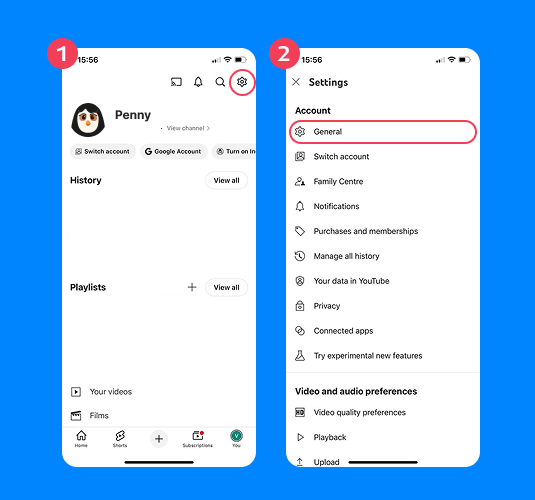
- Find Remind me to take a break* and set the reminder frequency (from every 15 minutes to every three hours).
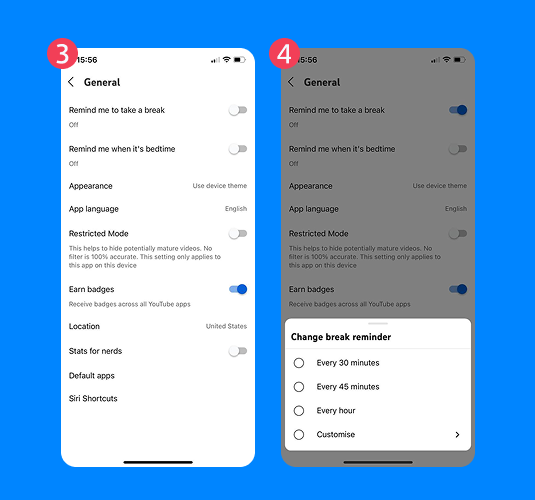
- You can also toggle on Remind me when it’s bedtime and choose a start and end time. This will prompt your child to pause watching during their designated sleep hours, encouraging healthier bedtime habits.
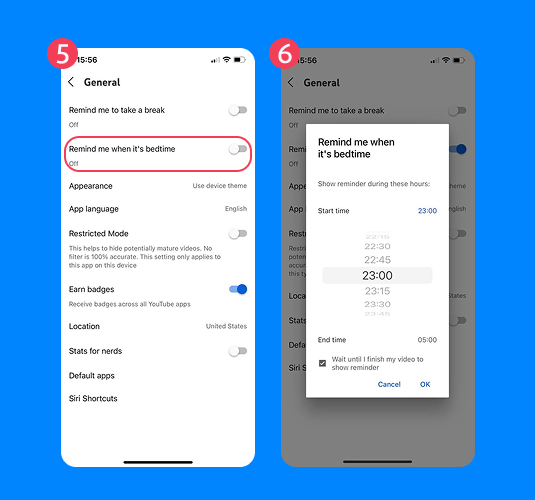
*This feature is only available in the YouTube app, not in mobile browsers like Chrome and others.
Many kids will simply swipe away the reminder, but it’s at least a good starting point to help them become aware of their own usage.
Method 2: Temporarily Hide YouTube Shorts
YouTube lets you tell the algorithm that you’re “not interested” in Shorts, but only for a short time. As a parent, you can show your child how to temporarily hide specific Shorts on the YouTube home feed.
To do this on their device:
- Find the Shorts shelf in the home feed.
- Tap the three dots in the top right corner of the Shorts shelf.
- Tap Not Interested.
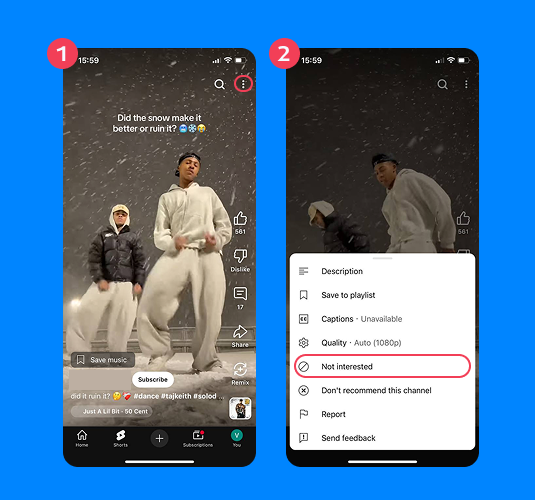
This will remove the selected Shorts from the shelf for a while, but the Shorts section itself remains, and new Shorts will continue to appear. It’s a temporary measure, not a permanent solution, but it can help your child avoid videos they’re particularly drawn to, especially after school.
Read more: How to Block Channels and Videos on YouTube: Apps For Parents.
Method 3: Make Shorts Safer with Restricted Mode
Worried about what your kid might stumble upon in the Shorts feed? Restricted Mode is YouTube’s filter for blocking potentially mature or inappropriate content. Again, it isn’t perfect, but it reduces the risk of your child encountering something you wouldn’t approve of.
To lock down Restricted Mode on your child’s Android app:
- On their device, open the YouTube app.
- Tap their profile avatar.
- Choose Settings > General, and toggle on Restricted Mode.
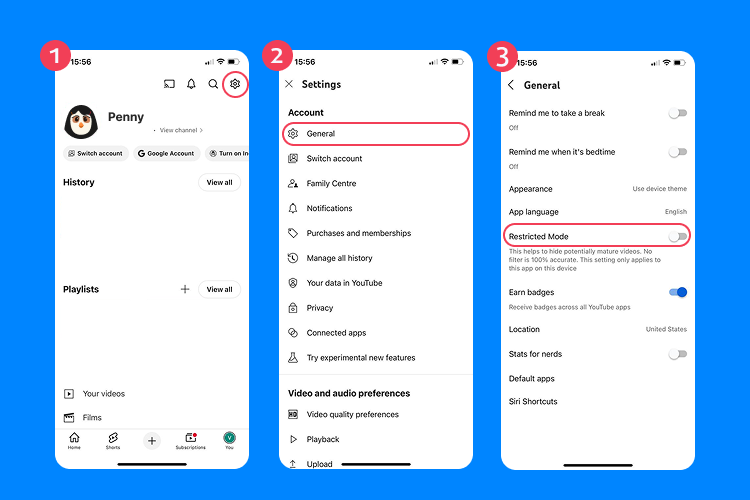
For extra security, use Google Family Link to lock this setting so your child can’t turn it off. This simple layer of protection works well on Shorts, as well as across a variety of other recommended videos and search results, too.
Method 4: Give Younger Kids a Friendlier Platform
For elementary-age children, the standard YouTube app is just too open. Luckily, YouTube offers safer alternatives tailored for kids and controlled by parents.
YouTube Kids
Accessible as a standalone Android app, YouTube Kids is built for families. You can handpick videos and channels, set screen time limits, and disable the search bar. Short videos still exist, but the environment is tightly curated, so your child won’t be bombarded with viral trends or inappropriate memes.
How to set it up (quick steps):
- Download YouTube Kids from Google Play.
- Open the app and sign in with your parent Google account.
- Create your child’s profile and choose their age group.
- Go to Settings > Timer to set daily screen time limits.
- Optional: Turn off Search and approve specific videos or channels only.
Supervised Accounts
Tweens and young teens may feel too old for YouTube Kids. Google’s solution is supervised accounts, which operate within the regular YouTube app. You decide the content level (“Explore” (9+), “Explore More” (13+), or “Most of YouTube”). Shorts still appear, but the types of videos your child gets recommended will suit their age bracket. These settings are managed in the Family Link app, which helps you monitor and adjust as your child grows.
For supervised accounts:
- Open the Family Link app on your phone.
- Select your child’s Google account.
- Tap Controls > Content restrictions > YouTube.
- Choose the content level: Explore (9+), Explore More (13+), or Most of YouTube.
- Review watch history and adjust settings as your child grows.
Read also: 6 Best Safe YouTube Alternatives for Kids: Creating A Secure Online Playground.
Method 5: Stronger Steps: Blocking YouTube Entirely
Some kids just can’t resist the magnetism of Shorts—and the data backs that up. According to Findmykids research, YouTube consistently ranks among the most time-consuming apps for children, and it’s also one of the platforms kids use late at night, when screens most interfere with sleep, attention, and emotional regulation.
This lines up with broader findings from organizations like Common Sense Media, which report that children aged 8–12 in the U.S. spend over five hours a day on entertainment screen media, with YouTube and short-form video platforms making up a significant share of that time.
When you factor in how fast YouTube Shorts cycle and how aggressively the feed is optimized to keep kids watching, it’s easy to see why parents worry. Research has linked excessive short-form video consumption to reduced attention span, sleep disruption, increased irritability, and difficulty disengaging from screens—especially in younger users whose self-control skills are still developing.
If YouTube Shorts are causing ongoing conflict in your household, interfering with school, sleep, or mood, blocking the YouTube app entirely can be a reasonable and protective step. This isn’t about punishment. It’s about creating breathing room for your child’s focus and well-being in a digital environment that’s deliberately engineered to be hard to put down.
Option 1: Try the Findmykids Parental Control App

Fiindmykids app
Dedicated parental control apps give you the driver’s seat when it comes to your child’s Android phone, and Findmykids is one of the very best. With Findmykids, you can:
- See App Usage: Get detailed stats showing how much time your child is spending in the YouTube app, and when. You’ll notice if your child is up late watching Shorts under the covers or jumping into videos as soon as homework starts.
- Block YouTube on a Schedule: Pause the YouTube app during homework or family time so your child has no choice but to close it. You control this from your own phone, so your child can’t simply turn YouTube back on.
- Total Block: If needed, you can block YouTube entirely. Especially helpful if your child is ignoring set limits or sneaking use late at night.
- See Location and Use Safety Features: Beyond YouTube control, Findmykids offers live location tracking, arrival/departure alerts, an SOS button, and Loud Signal. You get peace of mind on and off the screen.
If YouTube’s long and short videos are taking over your child’s attention and causing daily battles, it may be time for a stronger, parent-led solution. Try the Findmykids parental control app to regain balance without constant arguments.
Download Findmykids to monitor app usage, set clear boundaries around YouTube, and keep your child safe—both online and offline.
Option 2: Use Android Digital Wellbeing’s Screen Time Tools
Every Android phone with Google services has Digital Wellbeing, a free suite of tools for screen time management.
Some features that help parents include:
- App Timers: Set a daily usage cap for the YouTube app. Once the limit hits, YouTube gets grayed out, and your child can’t open it again until tomorrow. Perfect for blocking Shorts after your child’s time is up.
- Focus Mode: Temporarily “pause” distracting apps, including YouTube. You can easily sync this with homework hours, dinner, or bedtime so your child can reset. No more battles over screen time simply because the app won’t open.
- Bedtime Mode: Softens the phone’s colors and silences alerts, making late-night scrolling much less tempting. While not aimed specifically at YouTube Shorts, it’s another friction point that helps curb excessive viewing.
When it’s paired with Family Link, you make all these decisions on your child’s device remotely, right from your own phone.
Which Approach Works for Your Family?
There’s no master switch in the YouTube app for parents who want to completely block YouTube Shorts.
Instead, you’ll need to mix and match the methods that fit your family’s needs. For some, simply setting reminders and having honest conversations about habits works. Others need the reliability of app timers, YouTube Kids, or even Findmykids to block the YouTube app during certain hours.
Parental controls have come a long way, and choosing the right combination can help you guide your child to healthier screen habits… without having to stand over their shoulder.
FAQs
How can I limit YouTube Shorts on my child’s Android device using the YouTube app?
Open your child’s YouTube app, go to Settings, and turn on “Remind me to take a break.” This won’t block Shorts but helps create mindful viewing habits. For added safety, switch on Restricted Mode or use browser extensions meant to curb screentime.
Can I completely disable YouTube Shorts for my child on Android?
No, YouTube Shorts are built in. You can’t fully disable them within the YouTube app. Your best bet is to combine settings, use alternative apps for younger kids, or consider outside parental control tools like Findmykids app.
How do I set a time limit for YouTube Shorts?
There’s no direct time limit for just Shorts, but you can curb total YouTube time via Digital Wellbeing’s app timer or a parental control app for Android. After the limit, YouTube (and Shorts) will be locked for the rest of the day.
How do I hide YouTube Shorts on the YouTube home page?
On your child’s home feed, tap the three dots near the Shorts shelf and select “Not interested.” It won’t last forever, but it reduces temptation for a while.
Why do Shorts keep coming back after I hide them?
YouTube only hides short videos temporarily and always brings them back. That’s how they keep people engaged. You can’t make them fully disappear, so it’s better to restrict access with time limits or safer app environments.
How do I make YouTube Shorts safer for my child?
Use Restricted Mode or move them to YouTube Kids (for younger children). You can also block offline downloads on your child’s device. For older kids and teens, supervised accounts combined with Family Link and scheduled time limits are your best combination.
Cover image: freepik / Freepik.com
Проверьте электронный ящик