If you’re one of the 4 billion people who use Google products and services each month, then chances are that your children are too. Whether your child has a Google Pixel Tablet, Android phone, or simply uses Google as a search engine, many parents’ first concern is online safety when they use these products.
The good news? Parents can set up Google parental controls for their kids to activate across their devices, keeping them safe while browsing the web, using apps, and more.
Contents:
What Are Google Parental Controls and What Do They Cover?
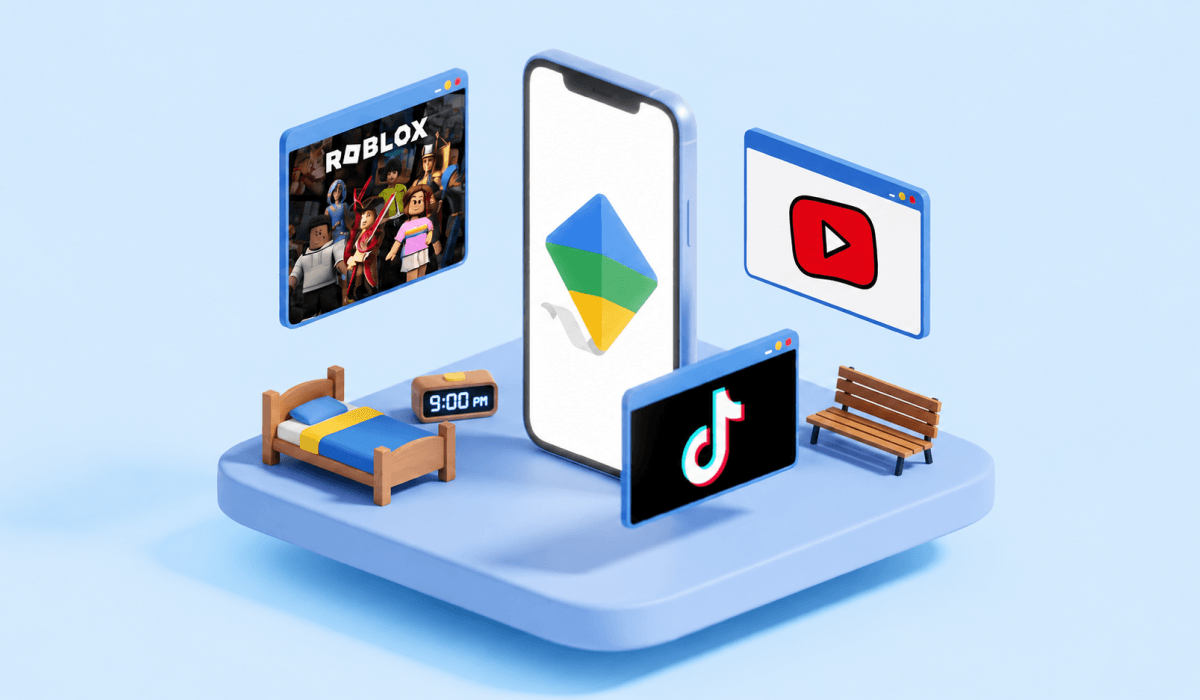
Google parental controls is not just one product. Instead, it is a suite of different services that you can set up to protect your child online.
These parental control features include:
- Family Link: Dashboard where parents can set rules, limits, and permissions for their child’s Google account.
- Child’s Google Account: Children must have a child’s account on Google in order for parents to set controls through the Family Link app.
- Android Device Built-in Controls: Parents can set system-level controls on Android devices, such as screen time limits or locking the device at bedtime.
- Google Play Store: Set age limits on apps, games, and entertainment, require parental approval before downloading apps, and block in-app purchases.
With so many parental control features for Google and Android devices, it might be difficult to know which one to use to protect your child. We’ll break down how you can use these parental controls effectively and keep your child safe online.
Google Family Link: Main Parental Control Tool
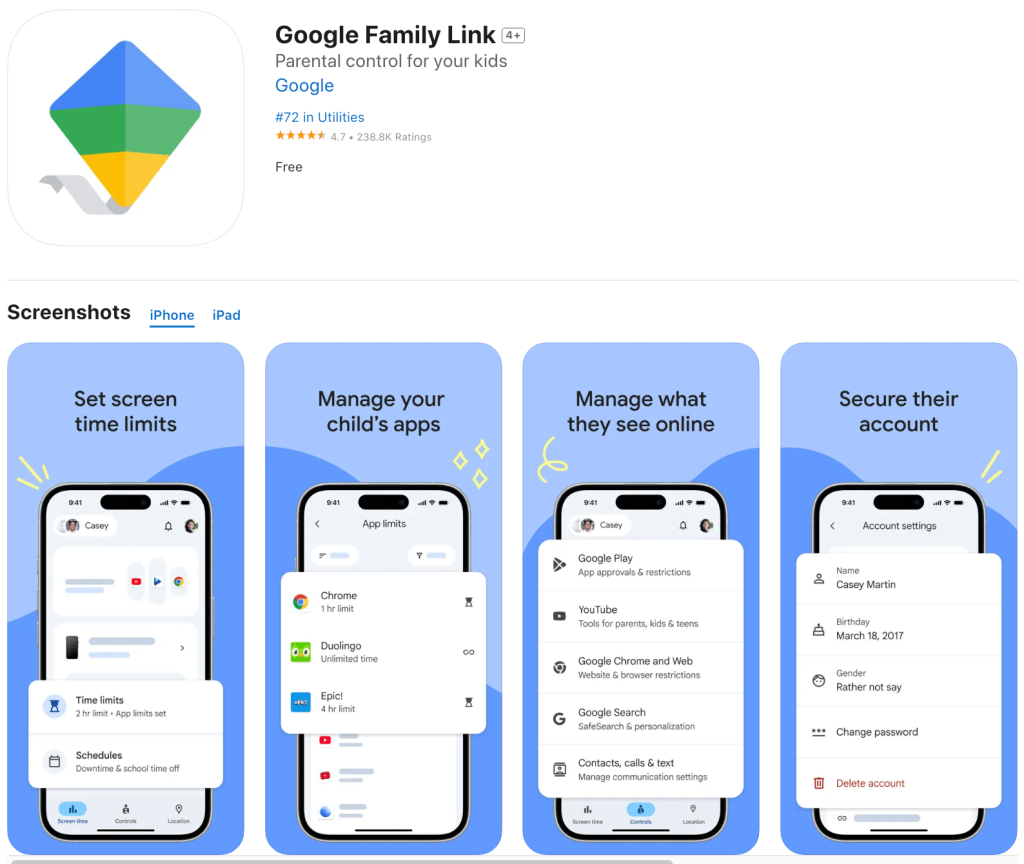
Credit: App Store
The main app parents use to set parental controls for their child’s Google account and products is Family Link. If you’re new to this app, don’t worry. We’ll go over exactly what it is, how to use it, and provide a step-by-step guide on how to set it up.
What Is Google Family Link?
Family Link is Google’s official parental control app, where parents can manage how their child uses Google services and Android devices from one dashboard.
With Family Link, parents can set the following rules:
- Set daily screen time limits
- Schedule Downtime mode
- Remotely lock a child’s device
- Require app download and purchase approval
- Set age limits for apps, games, and content
- Restrict content on YouTube
- Filter Google Search results
It’s important to mention that Family Link doesn’t allow parents to view what their child is doing on their phone. It’s simply a tool to set rules and permissions to guide safe online experiences for your child.
Who is Google Family Link for?
Google Family Link is best suited for kids ages 6 to 13. It’s possible to use it with teenagers, but parents have fewer controls they can set.
It’s especially useful for families who use Google products, such as Android devices, phones, tablets, and Chromebooks. However, it is still helpful for iOS devices if your family uses Gmail, Google Search, and YouTube.
Related: Family Link iPhone Compatibility: Setup and Usage Guide.
Parent Device vs. Child Device Setup (Step-by-Step)
To ensure your child is fully protected when using Google devices and services, you’ll want to make sure that you set up Family Link correctly. Before you get started, you’ll want to verify that both you and your child have Google accounts.
Below are step-by-step guides on how to set up Family Link on both the parent’s and child’s devices.
Parent Device Setup
To set up Family Link on a parent device, follow these clear steps:
- Open Google Play Store (Android) or App Store (iPhone/iPad).
- Download Google Family Link.
- Open the app and sign in with your own account.
- Add your child’s Google account to your Family Group.
- Create a child Google account or add supervision to an existing account.
- Set the parental controls for screen time limits, app downloads, content filters, etc.
- Enable notifications on your device.
You can also add a second parent to the Family Link account if you both want to set parental controls for your child and receive notifications about app downloads or purchase requests.
Child Device Setup
Now that Family Link is installed and activated on the parent’s device, the next step is to set it up on your child’s device. Follow the steps below:
- Turn on the child’s Android device.
- Sign in to the child’s Google account (this must be the same account you created or linked in the Family Link app).
- Sign in to your own account to confirm parental supervision.
Now, your parental controls are enabled on your child’s account. To verify that it worked, open Family Link and confirm that the device shows up as supervised. You can even test it by trying to download an app on your child’s device and see if you receive a download request.
How to Set Up Google Play Parental Controls
Even with Family Link set up, it’s important to also set Google Play parental controls to work alongside it. This will limit which apps, games, and content your child can access based on age.
To set up Google Play parental controls, follow the steps below:
- Open Google Family Link on your device.
- Select your child’s profile.
- Tap Controls.
- Choose Google Play.
- Tap Apps & Games.
- Choose the age rating system for your country.
- Select the maximum age level you allow.
- Go back to Google Play controls.
- Tap Purchase & Download Approvals.
- Find Require approval for all purchases.
- Review already installed apps by going into your child’s App list in Family Link.
- Block apps that don’t fit your rules.
The great thing about Family Link is that you can set up these parental controls for different Google services all in one place.
Built-In Google Play Parental Controls (Without Family Link)
Google Play has its own basic parental controls that work directly on the device, even without Family Link. They help filter content by age, but don’t provide full supervision.
How to turn them on:
- Open the Google Play Store app.
- Tap your profile icon, choose Settings.
- Go to Family, then to Parental controls.
- Turn parental controls on and create a PIN.
- Set age limits for apps & games, movies, TV, and books.
- Enable purchase approval to prevent accidental spending.
What to know: These controls apply only to the current device, don’t sync across accounts or devices, and can be bypassed—so they work best as a basic content filter, not a full parental control system.
Web & Content Controls: Chrome, Search, YouTube
Google provides instant access to diverse content across the internet. Through the Family Link app, parents can set web and content controls for when their child uses Google Chrome, Google Search, and YouTube.
To set up content restrictions, follow the steps below:
- Open Google Family Link on your device.
- Select your child’s profile.
- Tap Controls.
- Tap Content Restrictions.
- Select Google Chrome.
- Here, you can block all adult sites or allow access to only approved sites, which you must enter manually.
Related: 6 Easy Ways to Block Websites on Chrome Mobile.
To set up Google Search Controls with SafeSearch filtering, follow these steps:
- Open Family Link.
- Select your child’s profile.
- Tap Controls.
- Tap Content Restrictions.
- Select Google Search.
- Turn SafeSearch on.
To set up YouTube content controls, use the steps below:
- Open Family Link.
- Select your child’s profile.
- Tap Controls.
- Tap Content Restrictions.
- Select YouTube.
- Select either YouTube Kids for the strongest filtering or Restricted YouTube to set your own content levels.
What Happens When Your Child Turns 13?
When your child turns 13 (or the age of digital consent in your country), Google Family Link changes how supervision works. Parents won’t have full control. Instead, children gain more authority and can choose to stop parental supervision on their Google account.
To ease your mind, Google users under the age of 18 will still have a “Teen” account where some protections are still enabled. However, Google gives them the choice to allow parental controls.
This is the time to set some digital ground rules for how your child explores online. It’s also helpful to discuss the right amount of screen time and to set boundaries of phone use during school time or at night.
What Google Parental Controls Can’t Do
Google parental controls are extremely useful for protecting your child online, but there are some things that they cannot do. These include:
- Read emails, messages, texts, or chats
- Detect cyberbullying or grooming
- Fully protect social media use
- Provide real-time location tracking or location alerts
- Alert parents in emergency situations
- See what your child does inside apps
- Stop kids from bypassing parental controls
- Enforce controls after the age of 13
Family Link is great for setting the necessary technology protection settings for your child, but sometimes it isn’t enough.
What to Do When Family Link Isn’t Enough
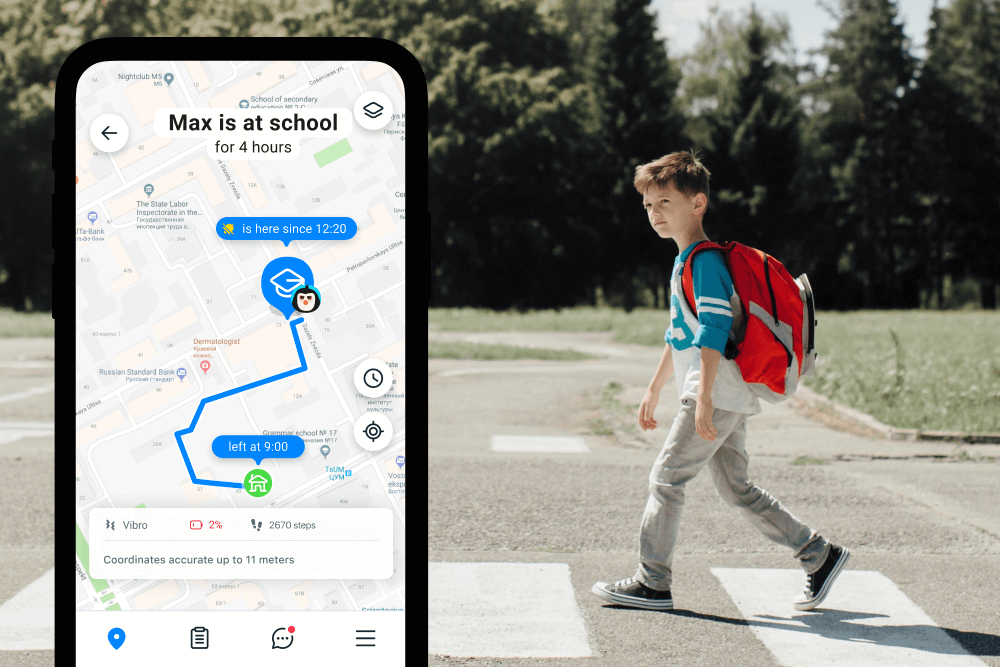
Findmykids app
When Family Link isn’t enough security, many parents pair it with another third-party parental controls app like Findmykids.
Findmykids helps cover the gaps Family Link doesn’t address—especially when it comes to a child’s safety outside the home and real-time awareness. Key features include:
- Real Time Location: See your child’s location in real-time with GPS tracking.
- Location History: View where your child has been and location routes.
- Safe Zone Alerts: Use geofencing to set specific areas that are considered “safe” and receive alerts of arrival or departure.
- Screen Time and App Usage Statistics: Receive detailed reports about how much time your child spends on apps and where they use them the most.
- SOS Button: If ever in danger, your child can contact emergency services and parents with a single click, sharing their location.
- Loud Signal: If the child’s device is on silent, parents can still make it ring if they are trying to contact them.
- Sound Around: Using the child’s device’s microphone, parents can listen in on what’s happening around them with their child’s knowledge.
These essential safety features work well alongside Family Link, providing further protection both online and in the real world.
When to Use Findmykids and Family Link
| Situation / Parent Need | Google Family Link | Findmykids |
| Setting Screen Time Limits | ✅ | ✅ |
| Approving or blocking apps | ✅ | ✅ |
| Filtering Google Search & YouTube | ✅ | ❌ |
| Real-Time Location | ❌ | ✅ |
| Location History & Routes | ❌ | ✅ |
| SafeZone Alerts | ❌ | ✅ |
| Emergency/SOS Alerts | ❌ | ✅ |
| Finding a Lost or Silent Phone | ❌ | ✅ |
| Understanding App Usage Patterns | ⚠️Basic time totals | ✅ |
| Safety When a Child is Outside the Home | ❌ | ✅ |
| Use with teens (13+) | ⚠️Supervision optional | ✅ |
⠀
Note: Family Link offers basic location sharing, but it does not provide continuous real-time tracking, route history, or safety alerts—which is where Findmykids adds value.
Try Findmykids to add real-time location, safety alerts, and emergency tools to your parental controls.
Find the Right Parental Controls for Your Family
Choosing which parental controls are right for your family and the devices you use can be challenging. However, with resources like this, learning how multiple products can work together is the first step.
If you found this helpful, make sure to share it with a friend who is also deciding on which parental control apps to use with their family.
FAQs
How do I set parental controls on Google?
You can set parental controls on Google through the Family Link app.
How do you turn parental controls off on Google?
You can turn off or remove parental controls on Google through the Family Link app.
Find more: Full Guide on How to Remove Family Link in 2026.
Do Google parental controls turn off at 13?
Yes, when children turn 13, Google gives them the option to stop parental controls.
How do I manage my child’s Google account?
You can manage your child’s Google account through the Family Link app, setting time limits, content restrictions, and app download permissions.
Проверьте электронный ящик