Parents need reliable tools to block apps when digital habits get out of control. Recent global data reveals that the average teenager now spends over seven hours a day staring at a screen. Knowing exactly how to block apps keeps children safe from various online dangers and helps them build a much healthier relationship with tech.
Contents:
What Do You Want to Block?
When deciding what to restrict, parents generally face three main categories. First, they can target specific applications like social media platforms or multiplayer games. Second, they can filter out dangerous websites that host inappropriate content. Third, they can simply cut off all internet distractions entirely during homework sessions.
Parents should clearly define their goal/intent before installing any new software. A teenager might only need a small break from Instagram. Younger children, however, may benefit from devices that are more fully locked down, reducing exposure to addictive or age-inappropriate content.
The Impact of Digital Distractions
What actually destroys a student’s focus? Video platforms and social networks deliberately engineer their apps to be highly addictive. Over the past year, developers introduced even more ways to hijack a teenager’s free time. Kids now waste countless hours endlessly scrolling on platforms such as TikTok, YouTube, and Instagram.
Read more: Average Screen Time by Age and Device: Facts for Parents.
Websites and browsers can be just as distracting as apps. Children often spend hours jumping between streaming sites and games in their browser, which can fragment attention even more than apps do. Heavy internet use is linked to attention problems, externalizing behaviors, and reduced focus during schoolwork. Parents report using parental controls and web filters to block inappropriate or time-wasting sites, because apps alone don’t solve the problem.
This constant digital pull severely damages a child’s productive life. Endless notifications shatter their concentration during important work sessions. The blue light from screens also heavily disrupts their natural sleep cycle, with studies showing that teens who use phones before bed fall asleep later and experience lower sleep quality. Ultimately, this addiction plummets their ability to effectively complete tasks.
Fortunately, parents have three strong options to regain control of their children’s time. They can use strict time limits to cap daily usage. They can use scheduled blocking to force a necessary tech-free break. And they can activate strict mode tools to lock mobile devices completely during homework, bedtime, or other critical periods.
Option 1. Use Findmykids (Universal Option for Any Device)
After understanding how apps, websites, and browsers distract children, parents need a practical, reliable way to manage screen time and online safety. Findmykids is a parent-friendly solution that works across iOS and Android, giving detailed control over both apps and websites while keeping essential features accessible.
Findmykids for Android

Findmykids app
Android users get highly detailed control over a child’s mobile experience. Parents can:
- Restrict all applications at once or target individual apps.
- Keep essential tools like the camera, phone dialer, and messaging fully accessible.
- Set schedules with a timer feature, locking distracting apps during school hours, homework, or bedtime.
- Track usage with a detailed dashboard, showing time spent in each app for today, yesterday, and the entire week, with categories and age ratings clearly displayed.
- Prevent app removal, making it nearly impossible for children to bypass rules by deleting Findmykids.
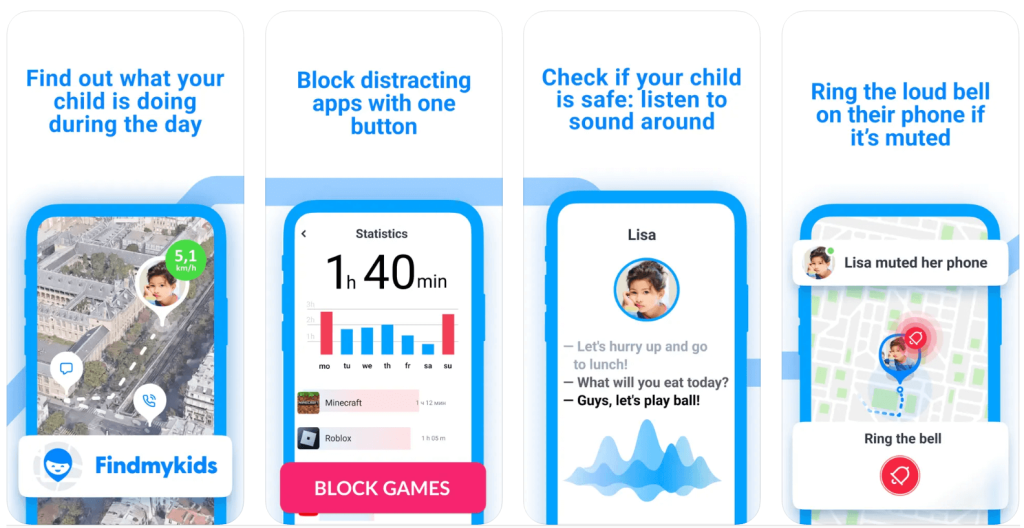
Findmykids for iOS
Findmykids app
Apple users also receive robust support through Findmykids, designed for simplicity and effectiveness:
- Lock all third-party apps at once, giving children a forced tech break when needed.
- Plus-tier subscribers gain additional safety features:
- Restrict in-app purchases to prevent accidental or unauthorized spending.
- Filter 18+ websites, blocking age-inappropriate content directly on the device.
Whether on Android or iOS, Findmykids provides a holistic approach to child safety. In addition to app blocking, and usage monitoring, it also supports physical safety: parents can see their child’s real-time location, check route history, and receive notifications when they arrive or leave important places. This way, digital control and real-world safety work together seamlessly.
Take the first step today: Install Findmykids and create a safe, focused digital and physical environment for your child!
Option 2. How to Block Apps and Websites on iPhone (Apple Screen Time)
Apple provides a powerful built-in tool called Apple Screen Time. This utility helps families manage their digital habits effectively.
Here is how to use the Apple Screen Time tool to set boundaries. Using an Apple Screen Time passcode ensures kids cannot easily change these rules.
Block/Limit Specific Apps
- Open the main Settings menu and tap Screen Time.
- Next, tap App Limits and then tap Add Limit. You can select entire categories like games or choose specific individual programs.
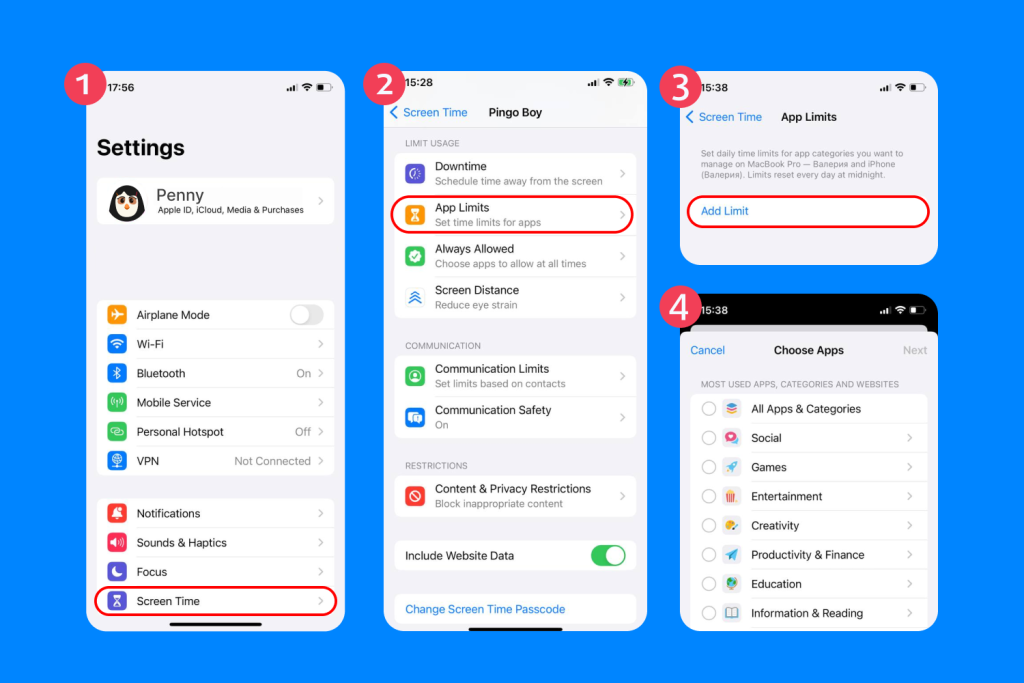
- To limit usage: set the daily time allowance and tap Add. Once the limit is reached, the app will be paused, but the child can request more time.
- To block an app completely: go to Settings → Screen Time → Always Allowed, and remove the app from the “Always Allowed” list. Then, when the app hits a 0-minute limit (or is not allowed at all), it becomes fully blocked, and the child cannot open it without your passcode.
Block Specific Websites on iOS
You can easily prevent a child from visiting distracting sites.
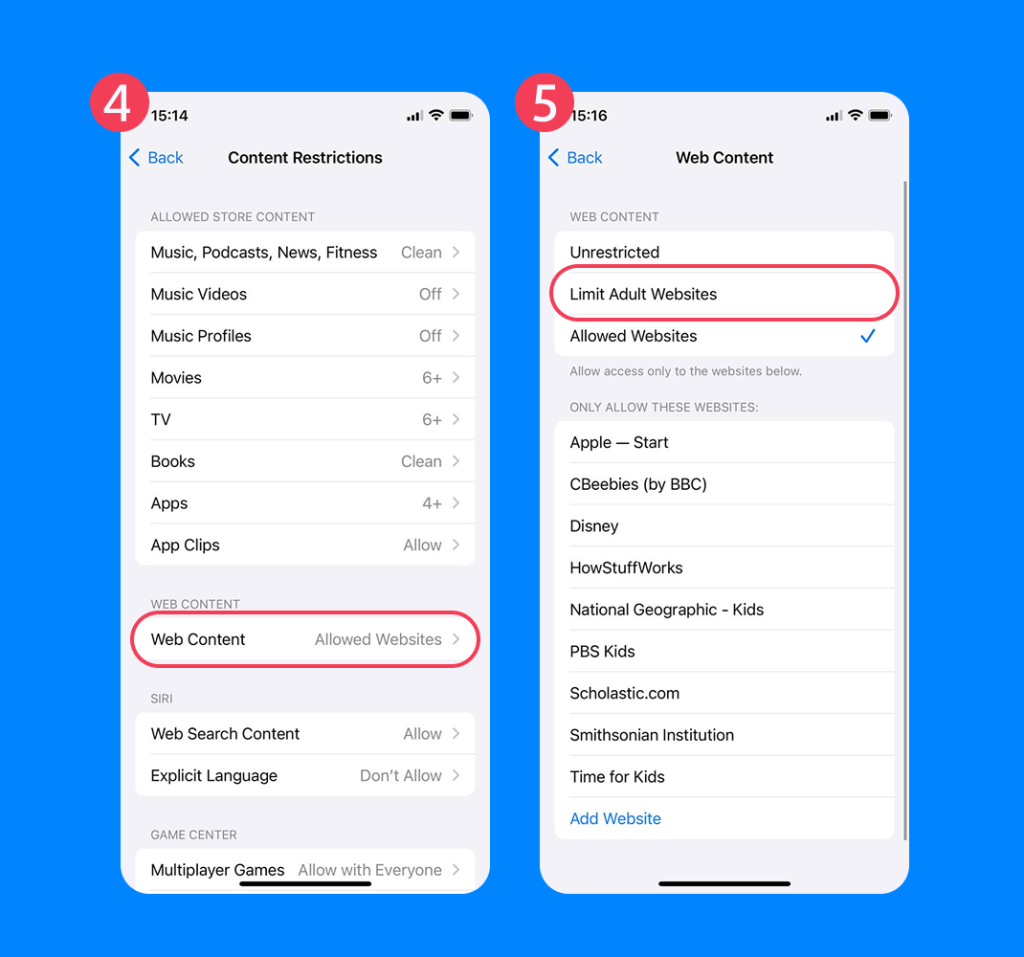
- Tap Settings, then tap Screen Time.
- Tap Content & Privacy Restrictions, then Content Restrictions.
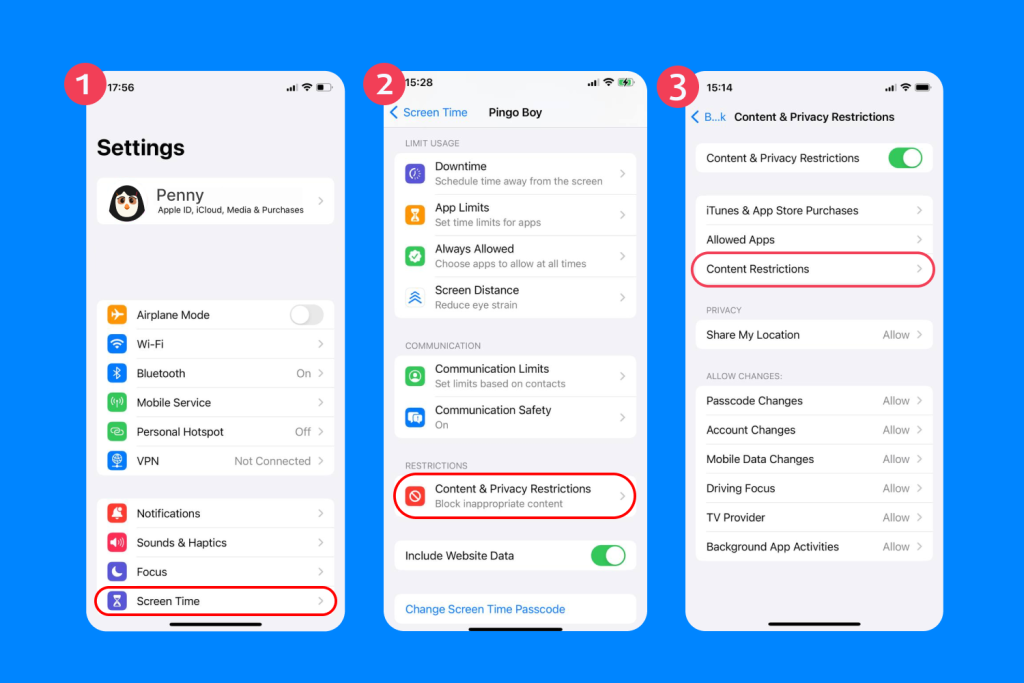
- Tap Web Content and choose Limit Adult Websites. You can also add specific URLs to the “Never Allow” list directly.
Block App Installs, Purchases, and Deletions
Preventing unwanted downloads is absolutely critical for digital safety.
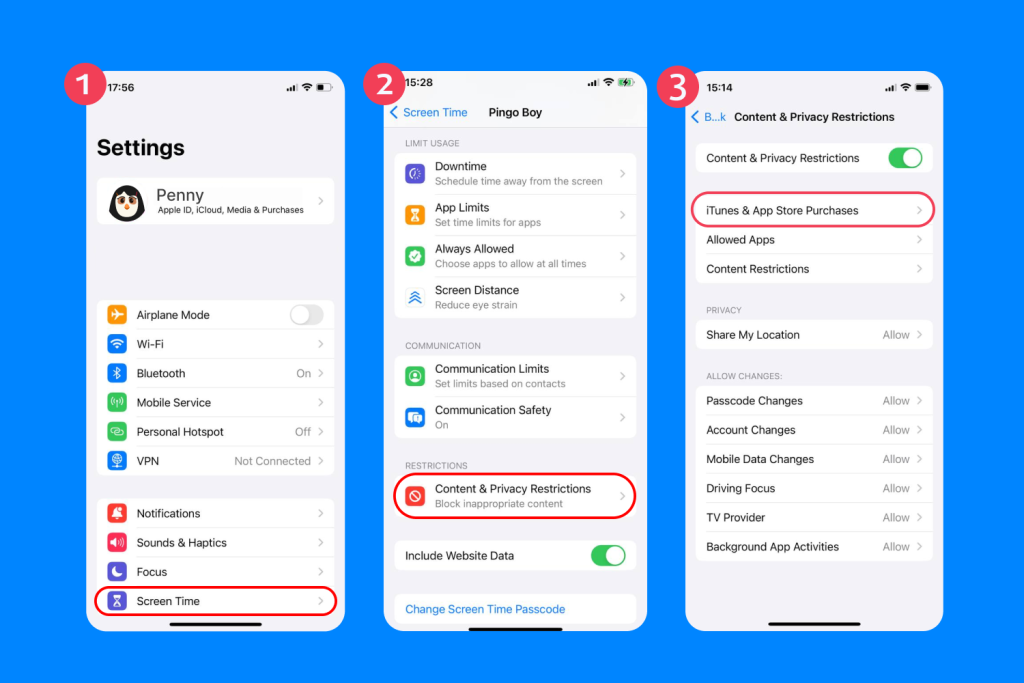
- Tap Settings and then Screen Time.
- Go to Content & Privacy Restrictions, then tap iTunes & App Store Purchases. From here, you can completely disable the ability to install or delete programs.
Hide Built-In Apps
You can also hide default Apple programs without deleting them.
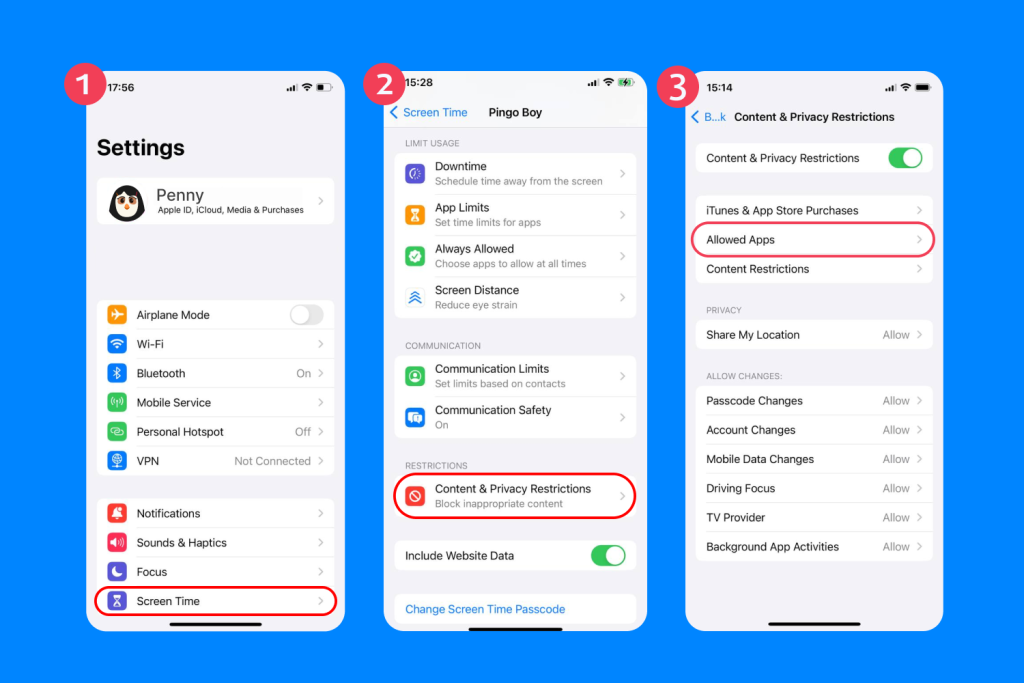
- Tap Settings, tap Screen Time, and choose Content & Privacy Restrictions.
- Tap Allowed Apps and simply disable the toggles for the programs you want to hide from the home screen.
iOS Limitations
While Screen Time is a useful tool, it has important limitations:
- Passcode bypass: Some children may guess the Screen Time passcode.
- Syncing issues: Restrictions may not always sync perfectly across multiple Apple devices.
- Website control is basic: Screen Time can block adult content and specific URLs, but lacks category-based filtering and real-time alerts.
Overall, Apple Screen Time is effective for basic app and website limits, but for parents who want more detailed control, real-time monitoring, and holistic digital safety, dedicated apps like Findmykids provide additional flexibility and security.
All these settings can also be configured through Family Sharing, allowing parents to remotely manage Screen Time on a child’s iPhone. For step-by-step guidance on enabling Family Sharing and full parental controls, see our instructions here.
Option 3. How to Block Distracting Apps and Websites on Android (Digital Wellbeing Feature)
Android provides an excellent native tool called Digital Wellbeing. It helps users manage their device usage and stay productive. This tool is built directly into the operating system of most modern Android devices.
Block/Limit Distracting Apps
You can set daily usage limits for any application.
- Open Settings and tap Digital Wellbeing & Parental Controls.
- Tap Dashboard to see a list of your most used software.
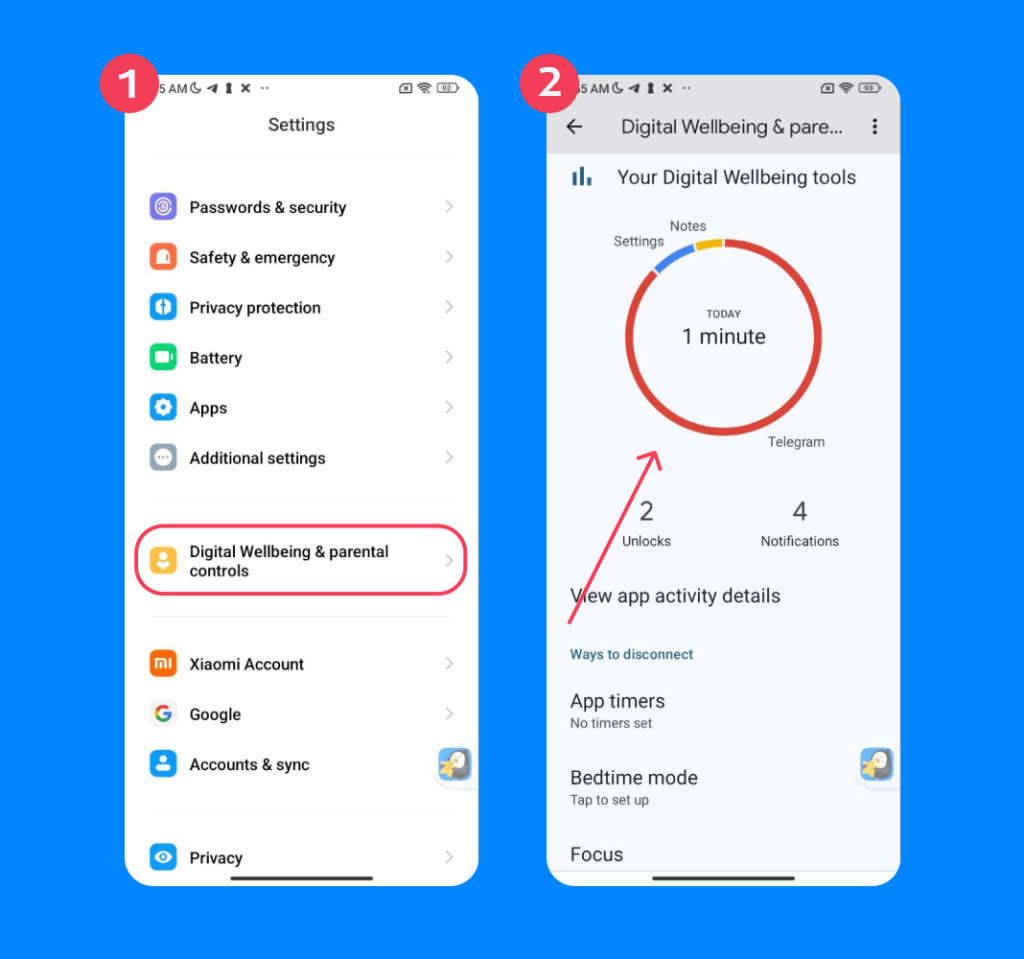
- Tap the hourglass icon next to an app to set a strict daily timer.
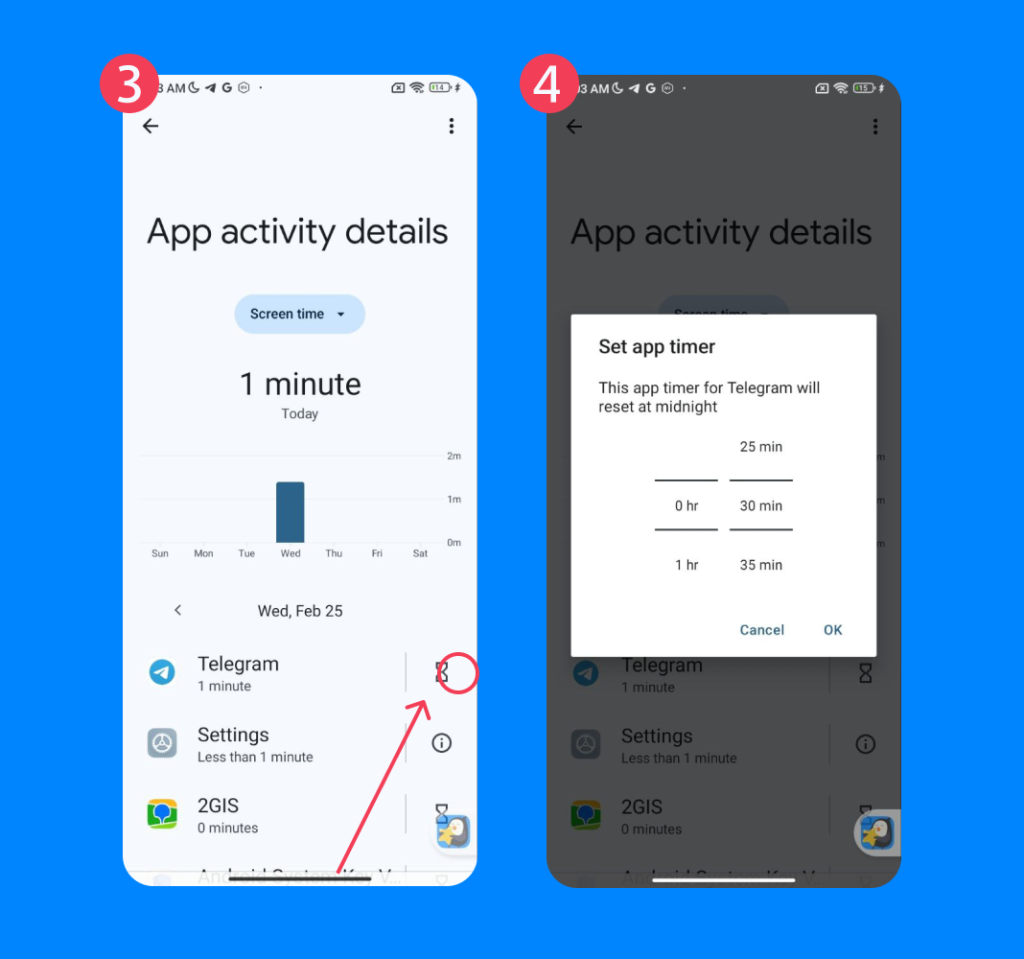
- To temporarily block multiple apps at once, use Focus Mode (see below). Apps selected in Focus Mode will be paused until the mode ends.
Block Distracting Sites on Android
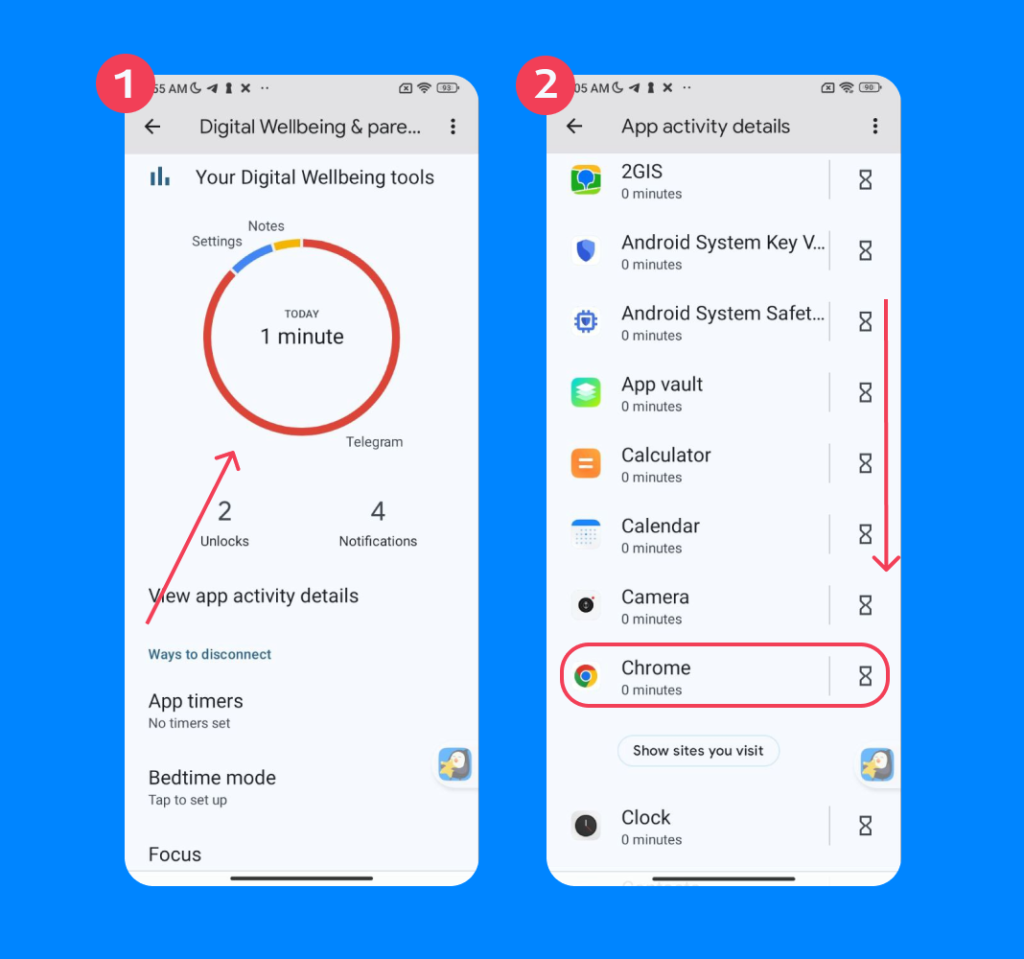
While Digital Wellbeing doesn’t let you block individual websites directly, it still helps limit access to distracting browsing. You can set timers for the entire browser app—like Chrome or Edge—so that once your child reaches their daily limit, the app pauses automatically.
To do this, open Settings → Digital Wellbeing & Parental Controls → Dashboard, find your browser app, and tap the hourglass icon to set a daily usage limit.
Use Focus Mode + Scheduled Blocking
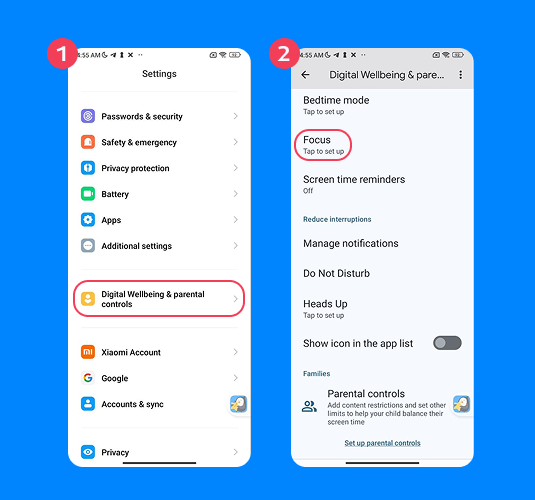
Focus Mode temporarily pauses distracting apps so your child can concentrate.
- Open Settings and tap Digital Wellbeing.
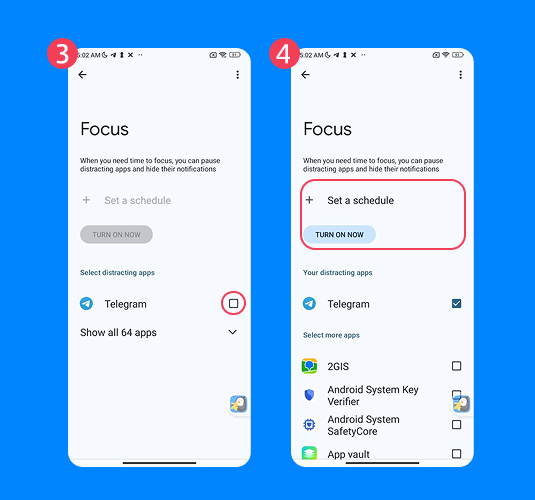
- Tap Focus Mode and select the specific programs that usually distract you.
- You can tap Turn On Now to activate it immediately. Alternatively, you can select Set a schedule, which easily automates this process. Scheduled blocking ensures distractions are removed automatically during school or work hours.
Limitations of Digital Wellbeing
While Digital Wellbeing is useful, it has some notable limitations:
- Digital Wellbeing only works with apps and websites on the device itself; it cannot block apps or sites on other devices your child might use.
- Some system apps and features cannot be fully paused or blocked.
- Children can sometimes bypass limits if they know how to reset timers or create new accounts, so parental guidance may still be needed.
- It does not offer real-time location tracking or emergency alerts like dedicated parental control apps
Read more: Android Parental Controls: What Parents Need to Know.
Option 4. Third-Party Tools
Sometimes, built-in tools are simply not enough to stop bad habits. Many users turn to third-party screen time apps for a stricter approach. These tools offer highly customizable features to block distractions across multiple platforms.
Parental Control Apps – Kids360
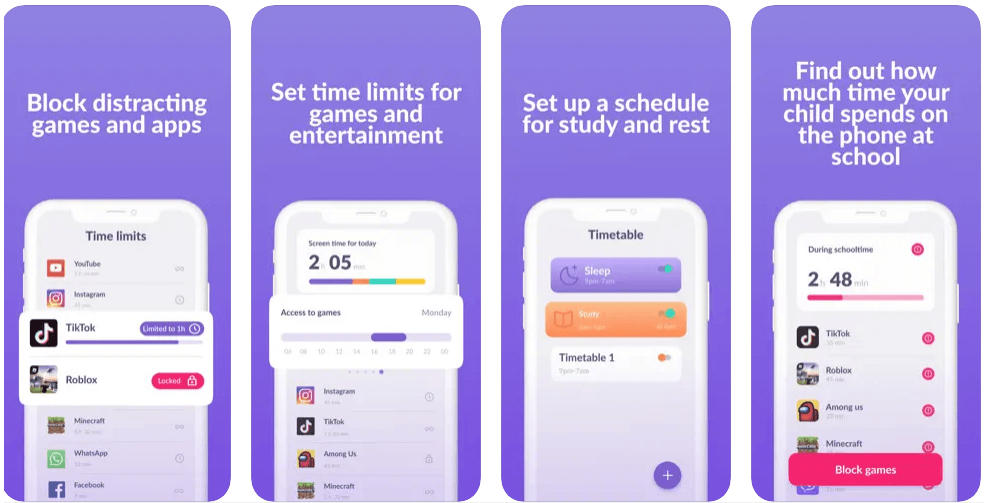
Kids360 app
Kids360 is a versatile parental control app for iOS and Android, designed to help parents manage screen time safely and effectively. With Kids360, you can:
- Block distracting apps entirely or set daily usage limits.
- Filter websites, including adult or inappropriate content.
- Monitor usage with detailed dashboards showing time spent on each app and website.
- Receive alerts and notifications about device activity or attempts to bypass limits.
This combination of digital control and monitoring allows parents to guide children toward healthier device habits without overly restricting essential tools like calls or messaging. Kids360 is especially useful for families looking for real-time insights and comprehensive control.
Browser and Site Blockers – Freedom
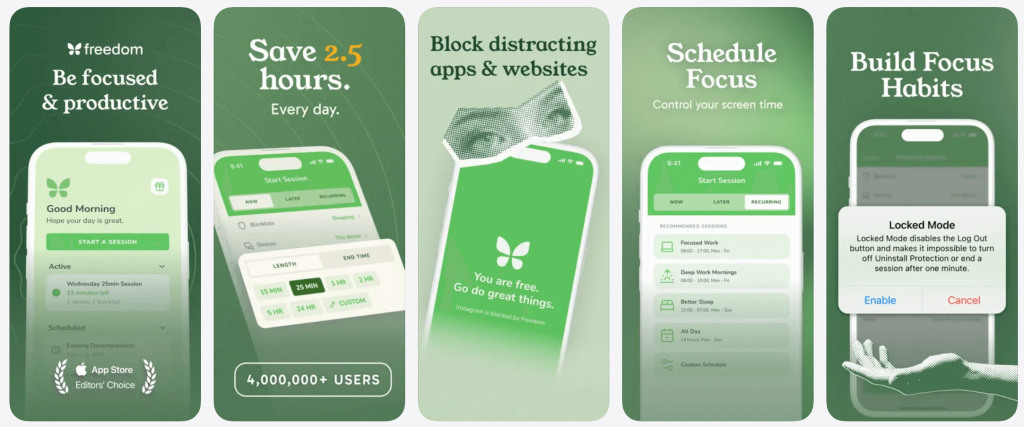
App Store
Freedom is a powerful distraction blocker that works across Mac, Windows, and mobile devices. It helps students and adults reduce wasted time online by allowing them to:
- Block the entire web or choose specific sites that are most distracting.
- Sync blocking schedules across all devices, so limits are consistent whether the child is on a computer, tablet, or phone.
- Activate strict mode, which prevents disabling a session until the timer ends, enforcing a true break from online distractions.
Strict Desktop Blockers – Cold Turkey Blocker
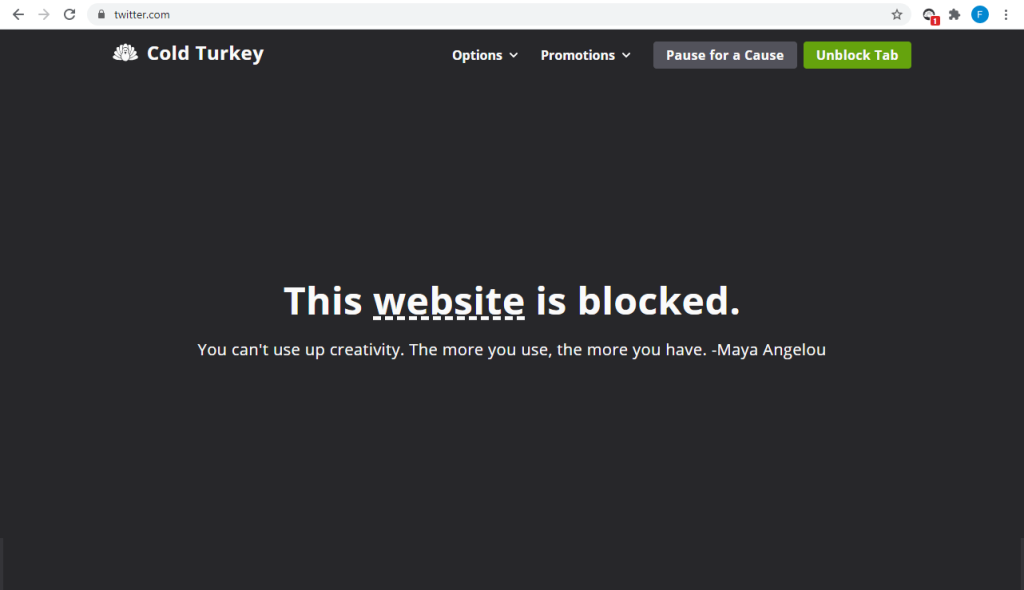
Credit: getcoldturkey.com
Cold Turkey Blocker is another fantastic tool for desktop users. It works perfectly on any Windows or Mac computer and is famous for being incredibly difficult to bypass once activated.
Cold Turkey Blocker locks down distracting sites system-wide. Users can set a schedule or lock their computer for a specific duration. For students who lack self-control, Cold Turkey Blocker is an essential tool to force productivity. The pro version is a one-time purchase.
Psychological Nudges / Habit Interrupters – One Sec
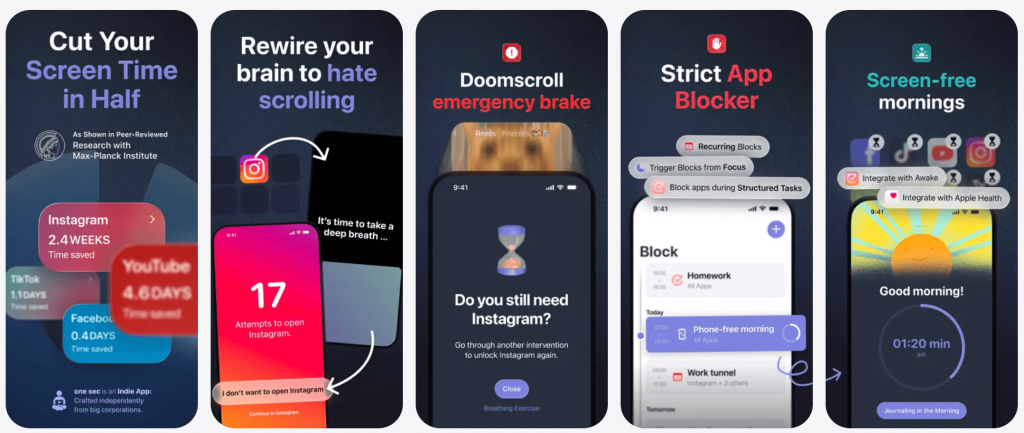
App Store
One Sec offers a completely unique psychological approach. It forces users to take a deep breath before a distracting app opens, interrupting the automatic habit of mindless scrolling. One Sec is a brilliant tool for adults and teenagers trying to reduce screen time voluntarily.
Related: How to Reduce Screen Time for Kids Without Drama.
Comparison Table: What to Choose?
Choosing the right blocker depends entirely on your needs. This comparison table highlights the best use cases for each major platform.
| Tool Name | Best Platform | Top Features | Best Use Case |
| Findmykids | Android & iOS | Location tracking, app blocking, usage monitoring | Parents monitoring children remotely |
| Apple Screen Time | iOS | Native app limits, website filtering, purchase blocking | Basic limits on iPhones and iPads |
| Digital Wellbeing | Android | Focus mode, site timers, daily usage limits | Built-in Android productivity |
| Freedom | Windows, Mac, iOS, Android | Cross-device syncing, strict mode, custom blocklists | Students needing deep focus |
| Cold Turkey Blocker | Windows & Mac | Extremely strict blocking, hard to bypass | Computer users with zero self-control |
| One Sec | iOS & Android | Forces a breathing pause before opening an app | Breaking mindless scrolling habits |
Why and How Children Bypass Restrictions
Children often find creative ways to bypass a screen time passcode. If parents use a simple passcode, a child will inevitably guess it.
Some kids will simply uninstall a restrictive program to regain access. If an app is deleted, the restrictions completely disappear. Always disable app deletion in the system settings or use tools like Findmykids for removal protection.
Another common trick involves changing the device’s time zone. Altering the system clock tricks the software into granting more hours. Parents must lock the time and date settings completely.
Tech-savvy teenagers might install a Virtual Private Network to bypass the rules set on a home network. It hides internet traffic from the main router. Even beta features on a phone can result in unwanted results creeping through!
Building Healthier Digital Habits
Managing a child’s online life requires a mix of good tools and constant, open communication. Parents can choose from built-in solutions found on their devices or dedicated platforms like Findmykids. The right balance/tech provides a healthy, productive digital experience.
FAQs
How do I block apps on iPhone using Screen Time?
Open Settings and tap Screen Time. Tap App Limits, then tap Add Limit. Select the category or specific programs you want to restrict. Tap Next, set your desired daily time limit, and tap Add to enforce the rule.
Can I hide built-in iPhone apps without deleting them?
Yes, you can easily hide default applications. Open Settings, tap Screen Time, and tap Content & Privacy Restrictions. Tap Allowed Apps and simply toggle off the switches for any programs you wish to remove from the home screen.
How do I block specific websites by URL on iOS?
To block websites, open Settings, tap Screen Time, and navigate to Content & Privacy Restrictions. Tap Content Restrictions, then tap Web Content. Choose Limit Adult Websites, and then add your specific URLs under the Never Allow section.
How do I set daily usage limits on Android devices?
Open the Settings menu and tap Digital Wellbeing & Parental Controls. Tap Dashboard to view your usage statistics. Tap the hourglass icon next to any specific application to set a strict daily timer.
Cover image: FellowNekocat / Freepik.com
Проверьте электронный ящик