Imagine sitting at a dinner table when a private text or an email pops up on an iPhone sitting face-up. Even if the device is locked, the content of that message is often visible for anyone nearby to read. For parents, learning how to hide notifications on the iPhone lock screen is about more than just a clean screen; it is an important step in teaching kids about personal boundaries.
Contents:
How iPhone Lock Screen Notifications Work
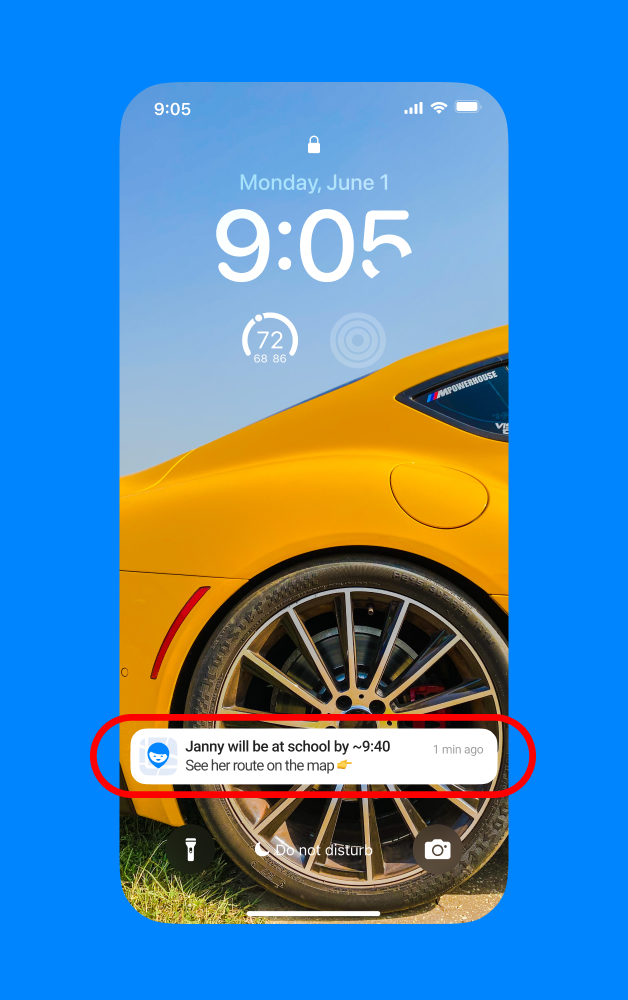
The iPhone lock screen acts as a digital front door, displaying alerts from every app as they arrive. When a notification hits the phone, it typically lights up the screen and shows a banner. Depending on the settings, this banner might include a summary of the message or the full text of emails.
By default, Apple enables notification previews so users can quickly view what is happening without having to unlock the device. While convenient, this means a person walking by could see a private comment on a post or a sensitive account update. Understanding this process is the first step in deciding which alerts should stay visible and which should remain hidden.
Why Parents Hide Notifications on a Child’s iPhone
There are several reasons a parent might choose to disable certain alerts on a child’s device. The most common result is a significant boost in privacy. By hiding the content of messages, kids can share their time with friends in the physical world without their private conversations being on display to the public.
Beyond privacy, reducing the number of notifications that light up the screen helps in reducing distractions. Constant alerts from a social media app or a gaming chat can make it hard for a teen to focus on homework or family time. When you hide notifications, you help the child stay in the moment rather than constantly feeling the need to tap and respond.
How to Hide Notifications on iPhone Lock Screen (Step-by-Step)
Apple provides several ways to change how notifications appear. You can choose to hide everything or simply disable the preview for a specific app.
Option 1: Hide Notification Previews
This is the best option if you still want to see that a message arrived, but want to hide the actual text:
- Open the Settings app on the iPhone or iPad.
- Tap on Notifications.
- Select Show Previews.
- Choose When Unlocked or Never.
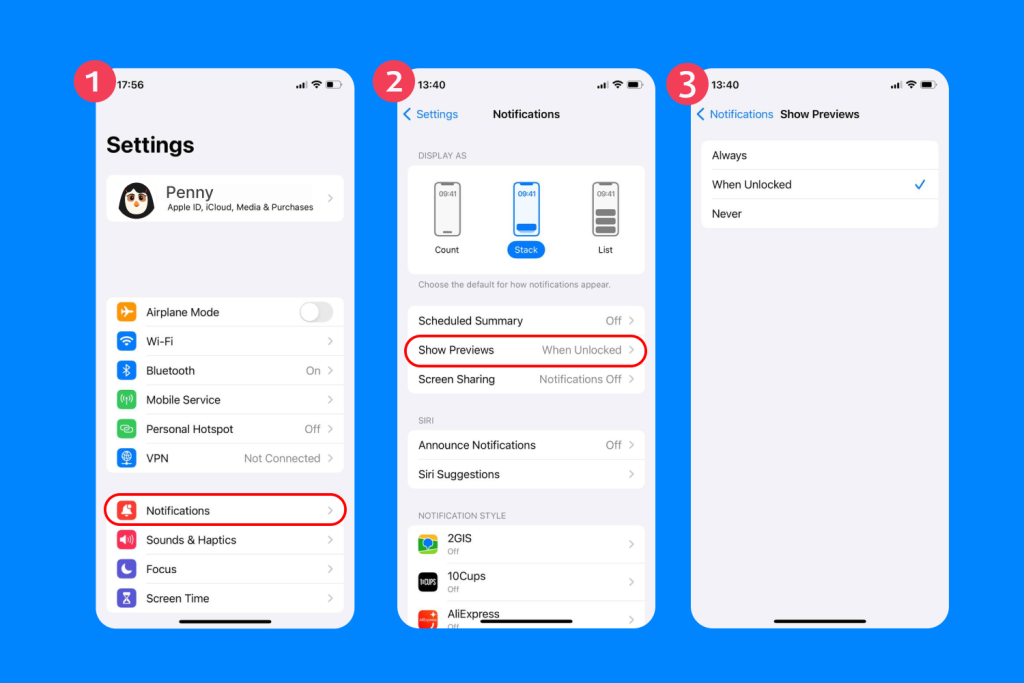
Selecting When Unlocked means the content only becomes visible once Face ID, Touch ID, or a passcode has unlocked the phone. This ensures that only the owner of the device can read the private information.
Option 2: Hide Lock Screen Alerts for Specific Apps
If a specific app is becoming too noisy, you can turn off its lock screen alerts while keeping them in the Notification Center:
- Open Settings and tap Notifications.
- Scroll down to find the individual apps you want to change.
- Select the app (for example, Mail or Messages).
- Under the Alerts section, uncheck the Lock Screen circle.
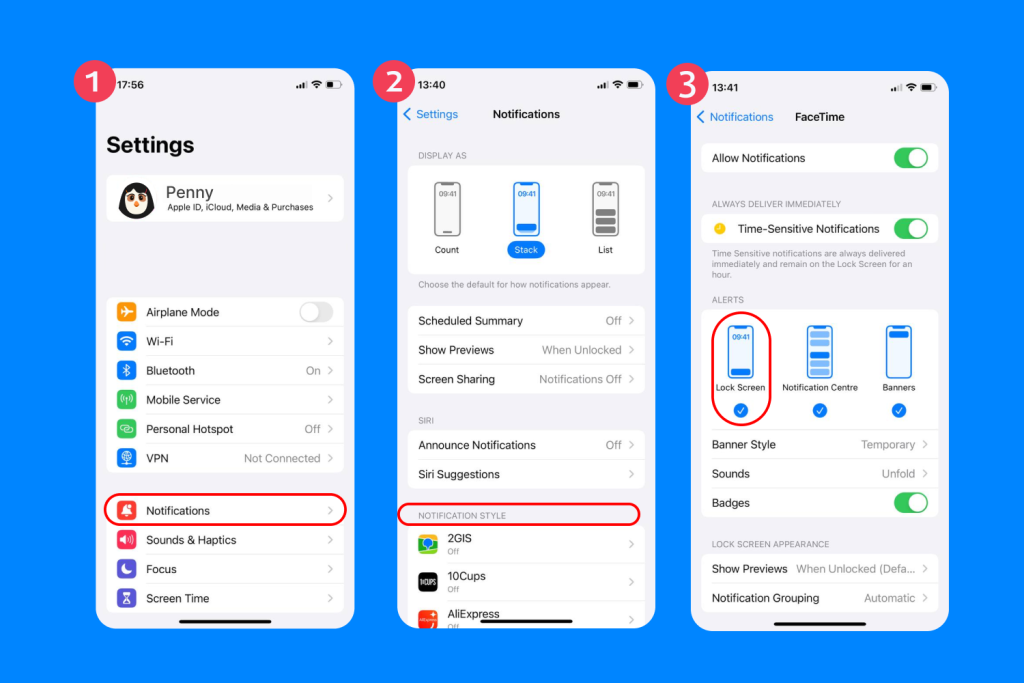
By doing this, the notification will still arrive, but it won’t light up the iPhone lock screen or show a banner when the device is locked. This is a great way to stop seeing every comment or badge notification during the day.
Option 3: Advanced Privacy: Managing the Notification Center
For parents who want a long-term privacy solution, you can further disable access to the Notification Center while the phone is locked. This prevents a person from being able to swipe down and view older alerts or emails.
Steps to restrict access when locked:
- Open Settings and tap Face ID & Passcode.
- Scroll down to the Allow Access When Locked list.
- Toggle the switch to disable Notification Center.
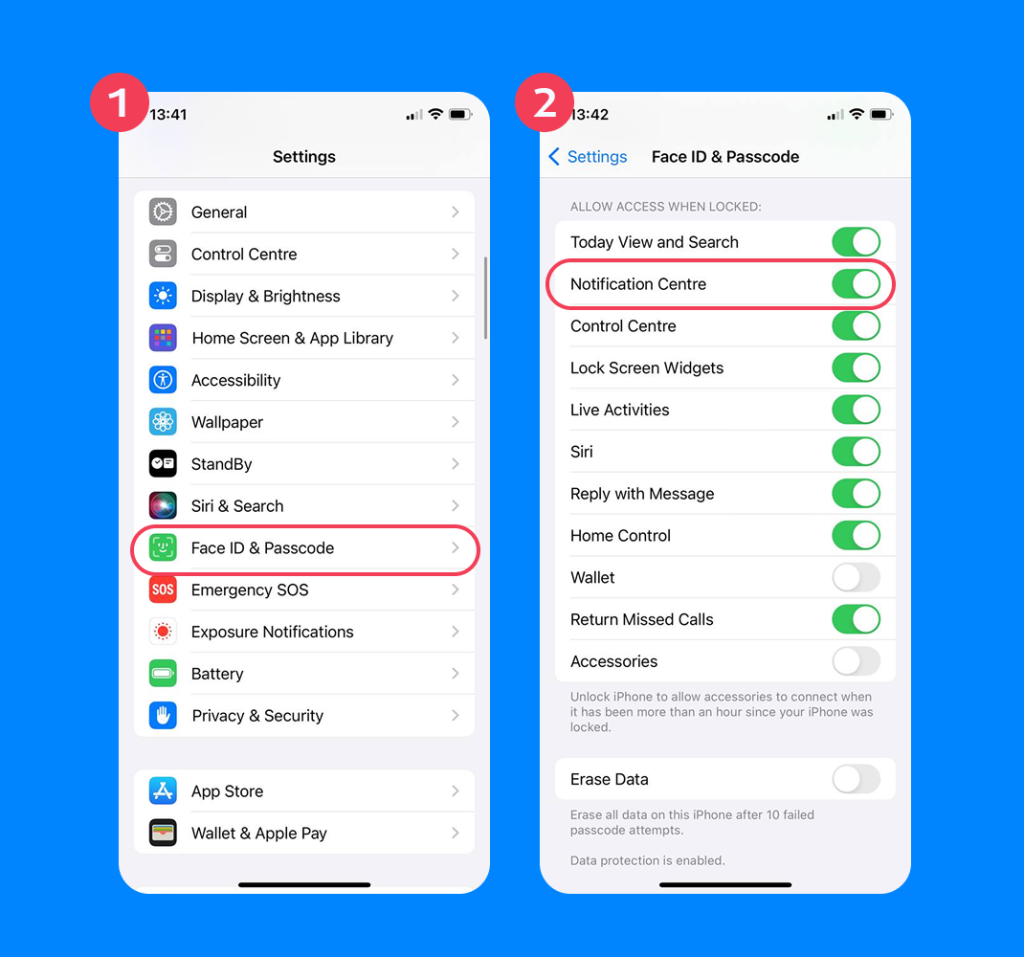
This ensures that notifications remain private until your child unlocks their phone.
Separately, you can control how notifications appear on the lock screen:
- Go to Settings → Notifications → Display As.
- Choose List, Stack, or Count — this only changes the visual layout, not access to the Notification Center.
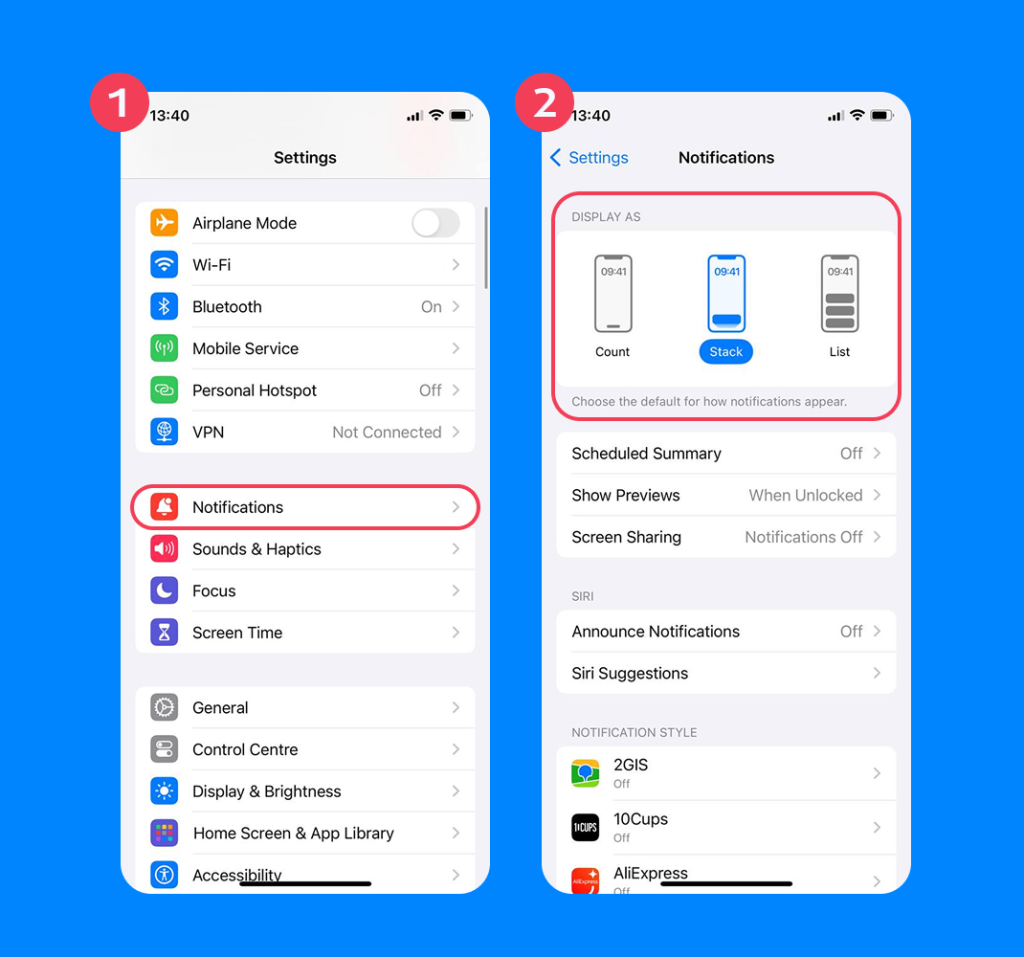
Choosing the “Count” option provides a perfectly clear and minimalist lock screen where only a number is shown, hiding all text and content.
Option 4: Use Focus Mode for Automation
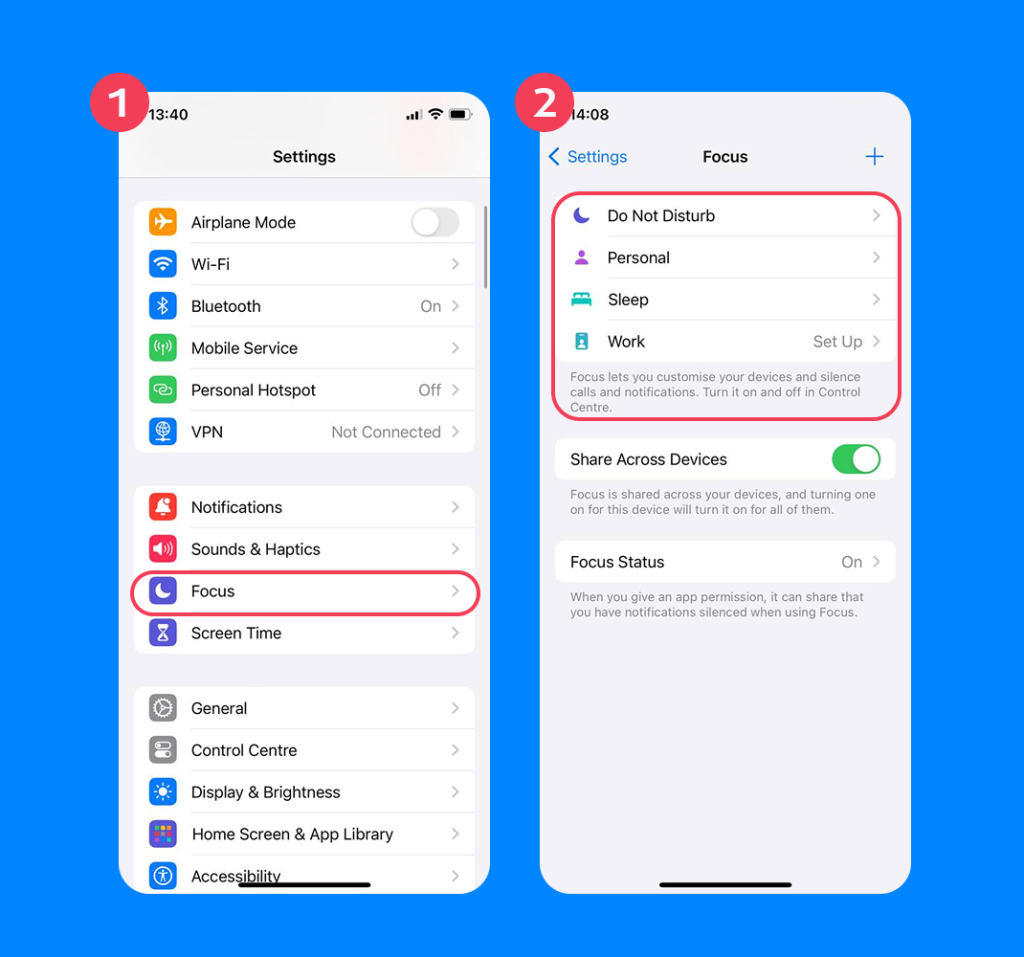
Focus Mode allows parents to change notification behavior based on the time of day. For example, you can set a “School” Focus that will disable notifications from social media while keeping alerts from family members visible.
To set this up, go to Settings → Focus and choose a Focus mode, such as “School” or “Do Not Disturb.” You can then select which apps are allowed to send sounds or show banners while the Focus is active.
How Findmykids Helps Parents Stay Aware
Findmykids app
While you may have moved to hide notifications to protect your child’s privacy, you still need a way to ensure they are using their time wisely. This is where the Findmykids app provides a perfect balance. Privacy and parental awareness can coexist when you use the right technology.
Findmykids allows parents to:
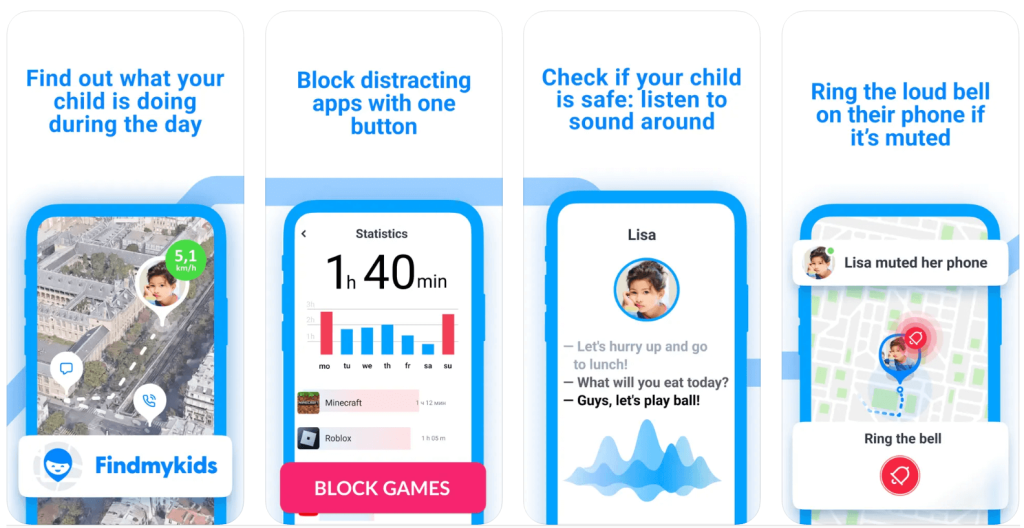
- Block Distracting Apps: On iPhone, Findmykids allows you to block apps that might distract your child, helping them stay focused while giving parents peace of mind—all without invading privacy.
- Check Device Status: Find out if their battery is low or if they have moved to a new location.
- Safety Alerts: Receive a sign or a sound alert if your child leaves a safe zone, providing peace of mind even when notification previews are hidden.
With Findmykids, parents can guide children toward healthy phone habits, helping them focus on school, hobbies, and family time—while still respecting their privacy.
Try Findmykids today and see how simple it is to help your child stay focused while keeping them safe!
Establishing Digital Boundaries
Learning how to hide notifications on the iPhone lock screen is an essential process for the modern parent. It helps clear away the noise of constant alerts and keeps private content away from prying eyes. Whether you are trying to stop a dude from seeing a private comment or just trying to hide emails from a personal account, these settings give you control.
When combined with a tool like Findmykids, you can block distracting apps and receive safety alerts, creating a safer digital environment for your child. These settings help ensure the iPhone remains a tool for connection, learning, and focus—not a source of stress or constant interruptions.
FAQs
How do I hide notifications on the Lock Screen on iPhone?
Go to Settings → Notifications and select the app, then uncheck Lock Screen under Alerts.
How do I hide notification previews on the iPhone Lock Screen?
Go to Settings → Notifications → Show Previews and select When Unlocked or Never.
What does “Show Previews: When Unlocked” mean?
It means the content of the notification will only be visible once the device is unlocked via Face ID, Touch ID, or passcode.
How do I hide Lock Screen notifications for a specific app?
Tap Settings → Notifications, select the specific app, and disable the Lock Screen toggle under Alerts.
Cover image: Lens Whisper Tales / Freepik.com
Проверьте электронный ящик