Many families reach the point where a child or teen needs more independence, but as parents, you still worry about their safety when they’re out in the world.
If this sounds familiar, you’ll be pleased to know that there are plenty of modern tools that can help you track your child’s whereabouts and receive real-time safety alerts, without invading their privacy.
In this article, we’ll explain how to access Google Location History on an Android phone or tablet. We’ll also explore its core features, limitations, and benefits for parents.
Contents:
What Is Google Location History (Timeline) on Android?
Google Location History (recently rebranded to “Timeline”) is a Google Services feature available on most smartphones through the Google Maps app.
The feature maps the routes a user takes and the places they visit while walking or driving, storing location details for up to three months on the device. Timeline is linked to the Google account signed in on the device.
When a child’s account is supervised through Google Family Link, parents can view their child’s current location and manage certain location settings. However, access to detailed route history typically requires access to the child’s Google account via Google Maps.
How to Check Your Child’s Google Location History on Android
If you want to see what your child has been up to, you can check their Google Maps Timeline. Here’s how to do this on any mobile device.
First, you’ll need to make sure the correct settings are enabled:
- Open the Google Maps app.
- Click the profile picture associated with your child’s Google account.
- From the Home menu, choose Timeline > Review settings.
- Make sure Timeline and Device Location are both turned on. Location access for Maps must also be set to Always in your device settings.
How to check your child’s location history:
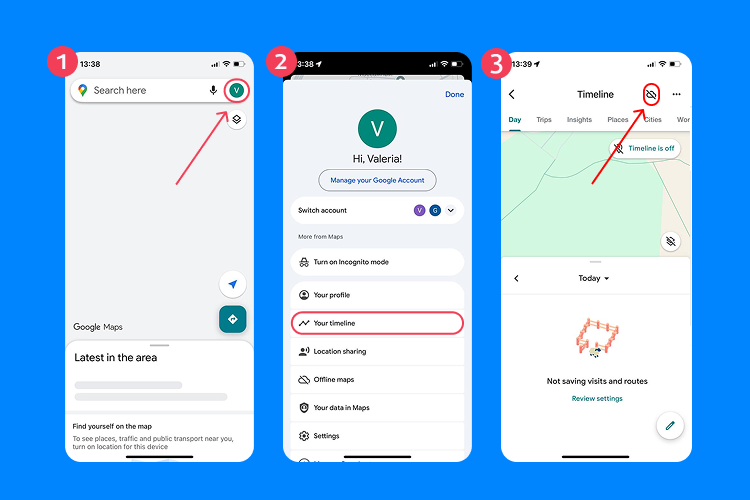
- Open the Google Maps app.
- Click on the profile picture associated with your child’s Google account.
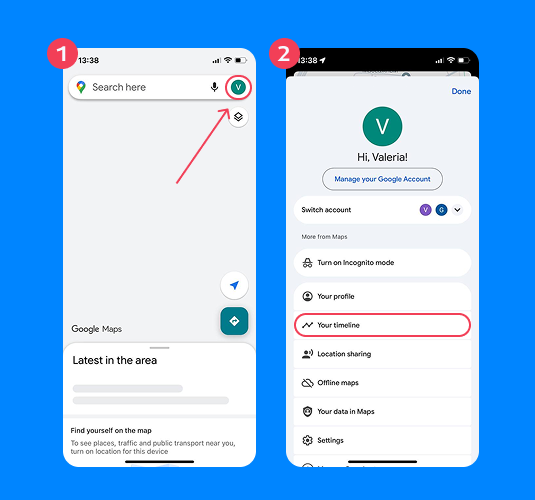
- Tap Your timeline.
- Select the date and time you’d like to check by selecting the Day tab and changing Today to the correct date.
- You’ll then see a map of the places your child has been on that date, along with a list of their visited locations with timestamps.
Important: Google Maps Timeline is linked to your child’s Google account. To view detailed route history, you’ll need access to that account—either directly from your child’s device or by signing into their account on another device.
While Google Family Link allows parents to see their child’s current location, full route history and past movement data are typically accessed through the child’s Google Maps Timeline
How To Read a Timeline Entry
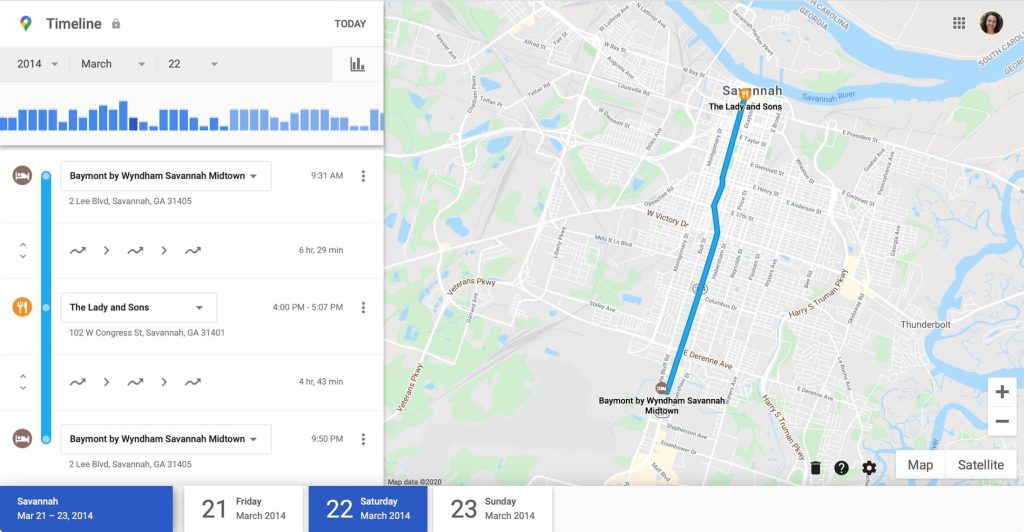
Credit: idownloadblog.com
A Google Maps Timeline entry will show you a map and a list of all the places your child has visited on the date you’ve selected.
At the top of the screen, you’ll see a map of your child’s activity. Their route on this day will be highlighted in blue to show where their device has been. You’ll also see a chronological list of the locations they’ve visited below with timestamps.
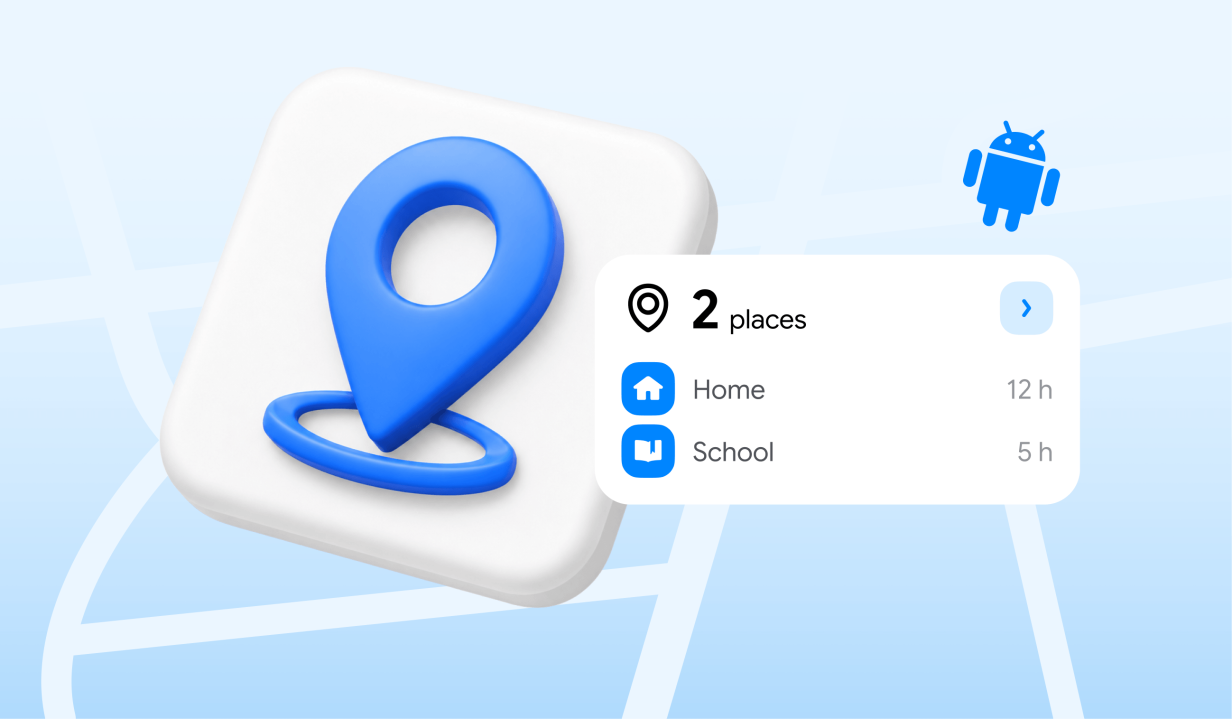
If there are specific places saved in your child’s location settings (i.e., Home or School), these will show up under their saved names.
From the Timeline screen, you can also look at your child’s recent Trip, Place, and City data, and also see Insights into their most-visited locations and popular routes.
How to Turn Timeline On / Off
There may come a time when you want to stop tracking your child’s location history so they have more independence.
To do this, you can turn the Timeline feature off and also turn off Location Sharing.
How to turn off Timeline (Location History):
- Open the Google Maps app on your child’s device.
- Tap the profile picture in the top right corner.
- Select Your timeline.
- Tap the three-dot menu (⋮) and choose Settings and privacy.
- Under Location settings, select Location History.
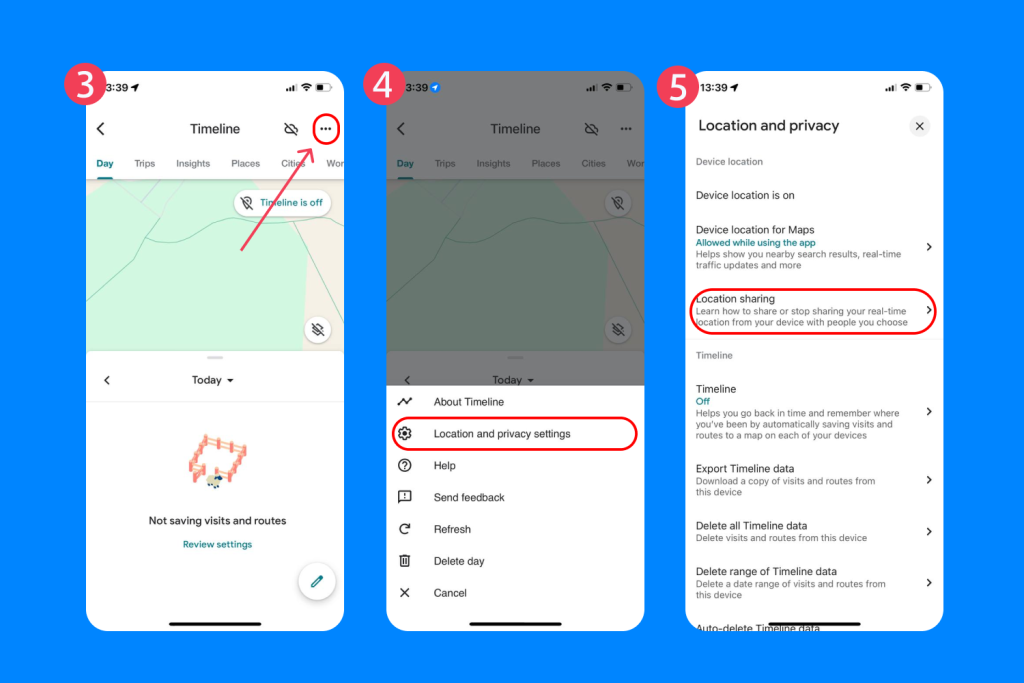
- Toggle Location History off.
You may be redirected to your Google Account settings to confirm the change.
How to turn off Location Sharing:
- Open the Google Maps app.
- Tap the profile picture.
- Select Location sharing.
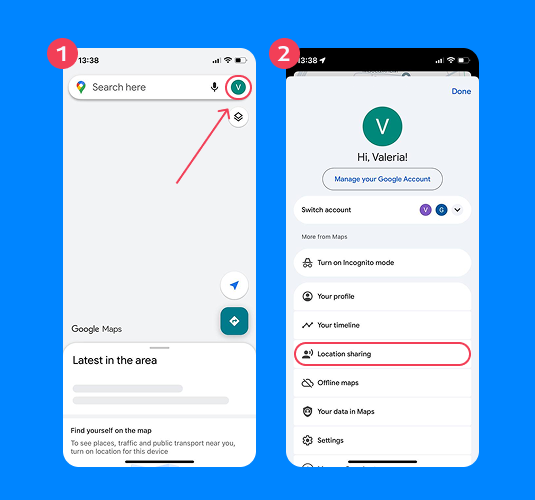
- Choose the person you are sharing the location with.
- Tap Stop.
If you want to keep these enabled but just remove parental tracking, you can just remove them from your Family Link or manage their supervision settings. To do this, open the Family Link app, select the child’s profile, and tap Manage family. You can then select your child’s name and choose Remove member or delete their account.
How to Delete Activity from Timeline
Timeline entries will automatically delete after three months by default, unless you change your settings.
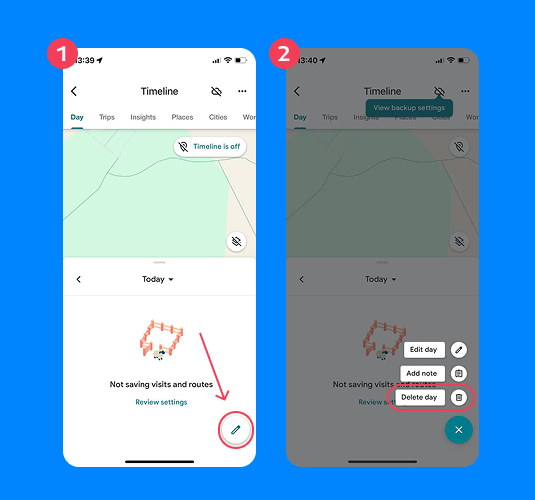
To delete activity or individual Timeline entries, you can simply go to the Timeline entry itself, select the pencil icon in the bottom-right corner of the screen, and tap Delete day. From here, you can also select Edit day to remove specific places from your history.
How to Adjust Timeline Settings
To manually adjust the settings for Timeline, open the Google Maps app and tap your child’s profile picture. Scroll down to Settings > Location and privacy > Timeline.
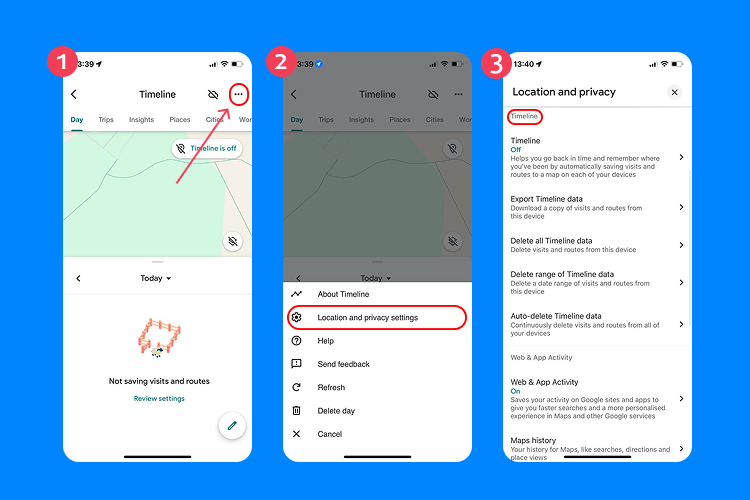
From here, you can set and change addresses, delete saved trips, restrict your child’s profile from being viewed publicly (for example, if they leave a restaurant review using their Google account), export Timeline location data, and more.
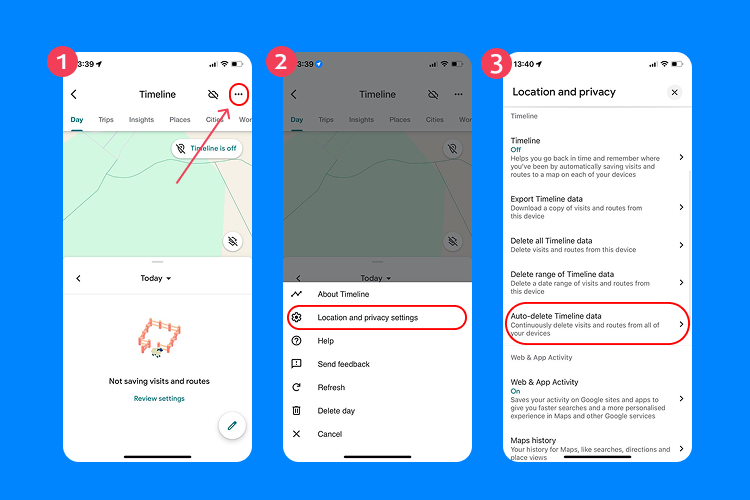
Be aware that Google only saves your Location History on your device for three months by default. You can change this in Settings > Location and privacy > Auto-delete Timeline data.
You can also save a backup, encrypted copy of the Timeline to your Google account by tapping the Cloud icon in the top right-hand corner of the Timeline entry. For safety reasons, Google won’t save your child’s location history to the Cloud unless you choose this option.
Google Maps and Privacy: What You Need to Know
Whether you track your child’s location history directly or through a Family Link account, your child will need their own Google account. If they’re under 13, this account will need to be created and managed by a parent.
When setting up your child’s Google account, you’ll need to give Google permission to use and collect your child’s data. This won’t be accessible to anyone outside of your Family Link. However, it’s important to remember that no technical tool is foolproof, and many parents have genuine concerns about location-sharing apps.
In 2024, Google began transitioning Timeline location data from cloud-based storage to local on-device storage to protect users from potential data breaches. This makes Timeline safer for kids, but it’s still important to stay informed about Google’s privacy policies so you can weigh up the pros and cons of location sharing for your family.
Limitations of Google Location History for Parents
Although Family Link is a helpful feature for those with Android phones, many parents report issues with location tracking, such as inaccurate or missing Timeline history, malfunctioning screen time limits, technical conflicts, and children being able to remove supervision features.
Major complaints have arisen through the 2024–2025 shift to device-only storage for location data. Because of these faults, many parents are now wondering whether Google Timeline is the best and safest tool for managing their kids’ activity data and location history.
Why Parents Are Choosing Findmykids
Findmykids app
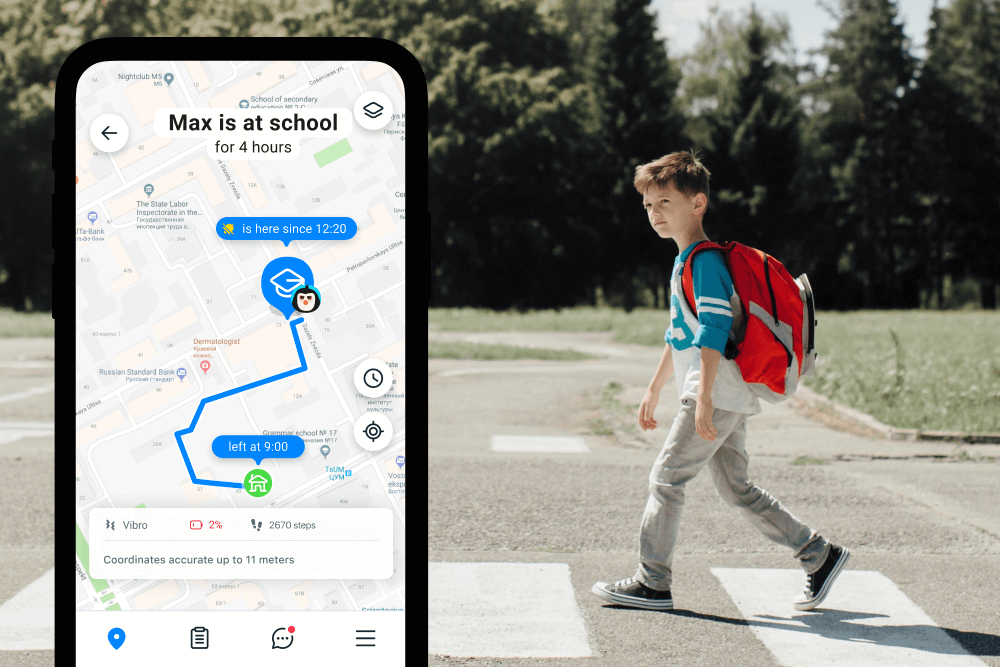
Findmykids is a popular GPS location tracker and parental safety tool designed to keep children safe in real time. Available for Android and iOS devices, the app allows you to see your child’s live movements, not just their history, as well as monitor their screen time and online activity.
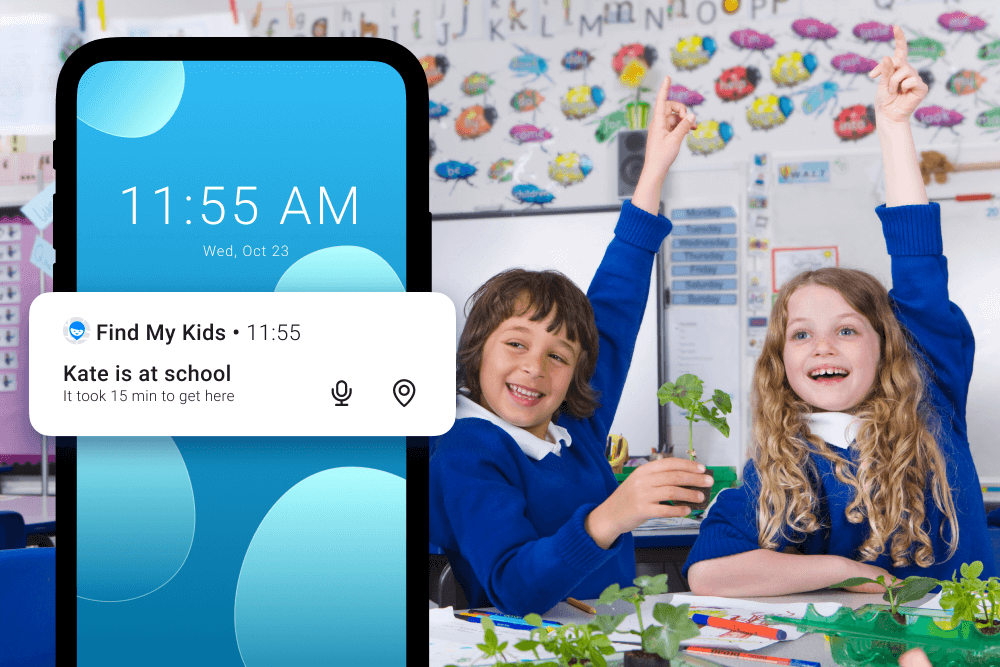
With Findmykids, you’ll also get place updates when your child arrives at specific locations, such as school, home, or a friend’s house. Even if you’re not actively checking your phone for location updates, you’ll still be notified of your child’s whereabouts—and they’ll be able to send you an SOS notification if they need help.
The app’s Sound Around feature also means you’ll be able to listen to the audio environment around your child’s device while they’re out in the world. You can also check your child’s battery level and send a loud alert to their phone, even if it’s on silent.
Findmykids vs Google Location History on Android
Findmykids app
If you’re frustrated by Google Timeline’s limitations or concerned about your child’s data security, Findmykids is a great alternative that’s actually designed to keep kids and families connected. It’s also a great option for kids who are too young for a smartphone, as it can be used with a GPS watch.
While useful for storing location history, Google Timeline is designed to help you remember where you’ve been by foot or car, not to share real-time movement.
Findmykids, however, is built specifically for family safety—to help you keep in touch with your child in real time without invading their privacy, while they’re gaining independence. From your device, you can monitor their location, get safety alerts, and be reassured by the app’s Sound Around and SOS features.
| Feature | Google Timeline | Findmykids |
| Real-time location tracking | ❌ No (shows history, not live tracking dashboard) | ✅ Yes |
| Location history | ✅ Yes (up to ~3 months, account-based) | ✅ Yes |
| Arrival notifications (school, home, etc.) | ❌ No automatic alerts | ✅ Yes (place alerts) |
| SOS button | ❌ No | ✅ Yes |
| Sound monitoring | ❌ No | ✅ Yes (Sound Around) |
| Works with GPS watch | ❌ No | ✅ Yes |
| Designed specifically for child safety | ❌ General Google feature | ✅ Yes |
| Parental controls integration | Limited (via Family Link) | Built-in safety-focused tools |
⠀
If you’re looking for a handy app to track family trips and holidays (and group them with stored photos on one device), then Google Timeline is a great tool.
But if your goal is to know whether your child arrived at school on time and be assured that they can alert you easily if something is wrong, the Findmykids parental control app for Android is a much more suitable, family-friendly option with more features and controls.
How to Keep Your Child Safe without Invading Their Privacy
As your child grows older and gains more autonomy, it’s important to weigh up the benefits of location tracking, as well as the potential drawbacks.
Google’s Timeline feature—while useful—isn’t built specifically for children and families, and it doesn’t provide real-time tracing, safety alerts, or SOS options for Android phones or other devices.
In today’s world, children gaining their freedom need more comprehensive tools to help keep them safe, both online and out and about, not just location tracking, which is exactly what Findmykids was designed for.
Download the Findmykids app and join millions of parents who are keeping their children safe and enjoying better peace of mind!
FAQs
What is Google Location History on Android, and is it the same as Google Maps Timeline?
Previously called Google Location History (now known as Timeline), this feature is available on most smartphones through the Google Maps app. It allows you to save up to three months of location history on your device.
How do I view location history in the Google Maps app?
Open Google Maps > Click on the profile picture of the account you want to track > Tap Timeline > Select the day you want to view.
How do I turn Timeline on or turn Timeline off on Android?
Open Google Maps > Click on the profile picture for the account > Settings > Location and privacy > Change Timeline to ‘Off.’
How do I set auto-delete for Google Maps Timeline?
Open Google Maps > Click on the profile picture for the account > Settings > Location and privacy > Scroll down to Auto delete Timeline data > Choose an auto delete option for your Timeline.
How do I delete one day or one place from my Timeline?
Open Google Maps > Click on the profile picture of the account you want to track > Tap Timeline > Select the day you want to edit or delete > Click on the pencil icon at the bottom right of the screen > Choose Editday or Delete day.
What’s the difference between Timeline and Maps Activity (My Activity) data?
The main difference between Timeline and Maps Activity is that Timeline tracks your location history, while Maps Activity tracks what you did within the Google Maps app—searches, directions, etc.
Проверьте электронный ящик