Figuring out how to block social media on an iPhone might feel like a daunting technical challenge. You probably don’t want to have to jump through a million hoops to do it; you just want your kid to stop endlessly scrolling and start engaging with the real world again.
Fortunately, you don’t need a master’s degree in computer science to figure out how to do it, nor do you need to dedicate an entire evening of free time.
We broke down the exact steps you need to take to restrict access, set a time limit, and regain control over their digital habits, in the least time-consuming and least stressful way possible.
Quick Answer: The Fastest Way to Restrict Access
If you need an immediate solution to block apps, grab your child’s device and open Settings. Tap Screen Time, then tap App Limits. Tap Add Limit, select the Social category, set the timer to one minute, and tap Add.
This quickly locks down Instagram, TikTok, and other apps using Apple’s built-in parental controls. Essentially, this app forces your child’s device to be used for only the app installations you want them to use, nothing else.
For a more comprehensive tool that works across multiple devices, downloading the Findmykids app gives you total remote control without the daily hassle of checking their phone.
Contents:
Why Block Social Media? Key Benefits for Focus and Well-being
The biggest and most obvious reason why you might want to block apps is, of course, that kids can spend hours glued to their screens if left unchecked. That constant connection takes a heavy toll on their mental health, sleep schedules, and academic productivity.
When you block specific apps, you give your child the freedom to step away from the pressure of likes, comments, and unrealistic online standards.
Removing a distracting app from their daily routine forces a shift in behavior; instead of reacting to notifications every five minutes, they learn to focus on homework, hobbies, and face-to-face interactions.
Rather than just acting as a strict enforcer, now, you’re actively protecting their developing brains from algorithms intrinsically designed to keep them hooked. Setting boundaries around social media apps helps them build healthier habits that will benefit them long after they upgrade to their next phone.
Read more: Social Media Is Toxic: How to Protect Your Kids from It.
Method 1: Block Social Media Apps with Screen Time (App Limits)
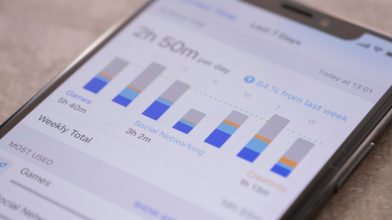
Apple provides a built-in feature called Screen Time to help parents manage app usage and block apps they don’t want around. App Limits let you set daily time limits for specific app categories. Once the time limit expires, the apps lock down until the next day.
Here’s exactly how to set this up to quickly block apps you don’t want:
- Open Settings on your child’s device.
- Tap Screen Time.
- If you haven’t already, tap Turn On Screen Time and follow the prompts to identify this as your child’s phone.
- Tap App Limits.

- Tap Add Limit.
- Check the bubble next to the Social category to select all social media apps. Alternatively, tap the category to expand it, then select a specific app, such as Instagram.

- Tap Next in the top right corner.
- Set the time to your preferred duration. If you want to completely block access, set it to one minute.
- Toggle on Block at End of Limit.
- Tap Add.
Now, whenever they try to open these apps after the time limit, they will hit a wall. You maintain the passcode, meaning they cannot simply bypass the restrictions.
Tip for parents: These settings can also be managed remotely through Apple’s Family Sharing. Family Sharing allows parents to control a child’s Screen Time settings from their own iPhone or iPad, including setting app limits, approving downloads, and applying content restrictions. If you’d like to set this up, see our step-by-step guide here.
Method 2: Use Downtime to Block Social Media During Scheduled Hours
Sometimes, you may not want to block apps completely; you just need them disabled during specific times, like school hours or bedtime. Downtime is a feature within Screen Time that blocks almost all apps on an iPhone during a schedule you create.
To create a Downtime schedule:
- Open Settings and tap Screen Time. (If you manage your child’s device through Family Sharing, go to Settings → Family Sharing → your child’s name → Screen Time on your own device.)
- Tap Downtime.

- Enter your Screen Time passcode.
- Toggle on Schedule.
- Choose either Every Day or Customize Days to set specific hours. For example, you might set Downtime from 9:00 PM to 7:00 AM.

- Go back to the main Screen Time menu and tap Always Allowed.
- Delete social media apps from the allowed list and add essential tools like Phone, Messages, Contacts, Music, or Maps.
During Downtime, a badge appears on restricted apps. If your kid tries to tap an off-limits app, the screen will remind them that they have reached their limit.
Method 3: Try Findmykids to Block All Distracting Apps at Once
Findmykids app
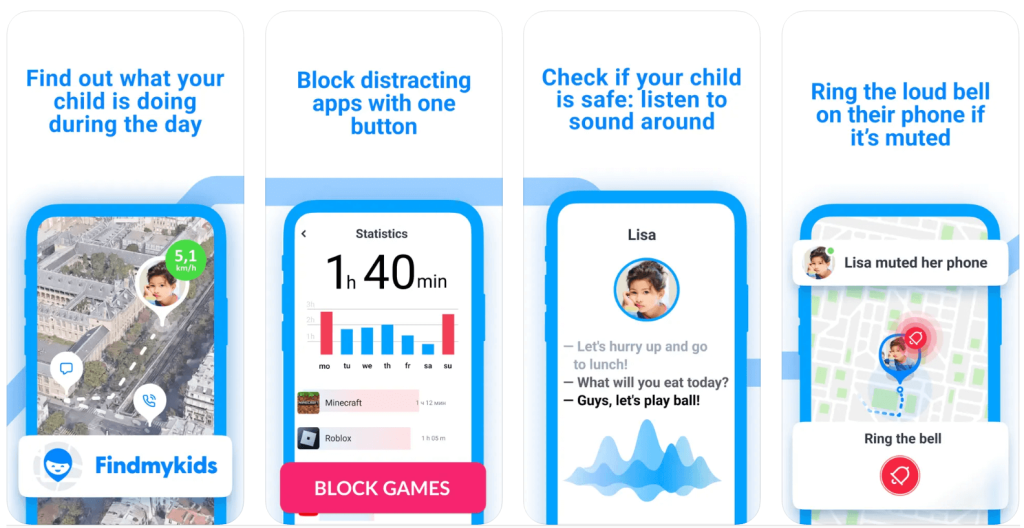
Built-in iOS features work reasonably well, but kids often find creative loopholes. For parents who want a straightforward, powerful solution, the Findmykids app stands out, especially on an iPhone, where you can block all apps permanently with a single tap. This is ideal if you decide that Instagram (or social media in general) needs to be fully restricted for your child.
Why might total blocking be necessary? Excessive screen time is a growing concern. On average, kids spend around 4–5 hours per day on their phones, and a large portion of that time goes to social media and video platforms.
The most popular apps among teens include YouTube (used by about 90% of teens), TikTok (63%), Snapchat (60%), and Instagram (59%). Many children check these platforms multiple times a day, which can make it harder to focus on school, sleep well, and disconnect from constant notifications. Blocking distracting apps altogether allows your child to reduce digital overload and build healthier tech habits.
With Findmykids, you can:
- Block all apps permanently: On iPhone, simply block all non-essential apps at once, with no complex navigation or endless settings menus.
- Instantly restrict access: One tap in the Findmykids dashboard from your phone blocks everything, without fiddling with Screen Time for each app.
- Block 18+ websites in browsers: Prevent your child from opening adult websites in Safari or other browsers to create a safer online environment.
- Real-time location tracking: Always know where your child is, right from the same app you use to manage their digital boundaries.
- Location history: View your child’s movement patterns throughout the day for added peace of mind.
- Receive notifications: Get instant alerts if your child leaves a designated safe zone or if their device goes offline.
How to Block Social Media on iPhone with Findmykids
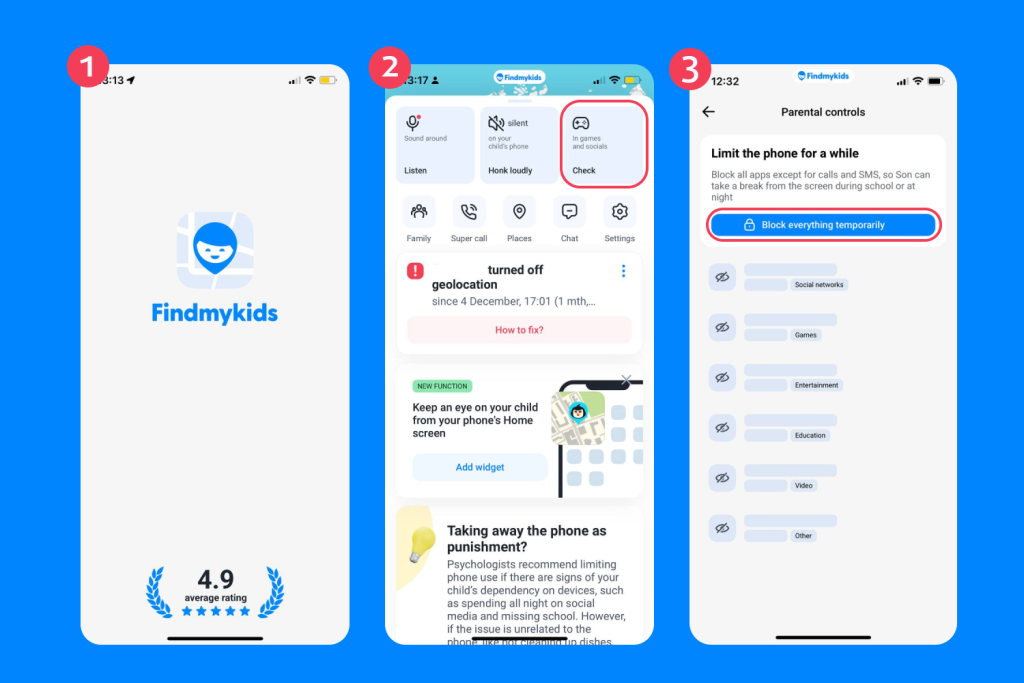
Getting started is simple: just download the Findmykids app and follow the in-app instructions to link your child’s iPhone (setup takes just a few minutes). Once connected, open the app on your own phone, go to the In games and social section, and tap Block alldistracting apps.
Findmykids app
Findmykids combines robust app restriction with real-time safety features, letting you manage all aspects of your child’s device use without all the hassle.
Instead of trying to deal with clunky menus on your child’s device, Findmykids gives you a clean remote dashboard. You can instantly block games and social media with a single tap. If they need to focus on homework, you simply open the Findmykids app on your phone and disable their entertainment immediately.
Try Findmykids today and see how easy it is to block social media, reduce distractions, and keep your child safe—all in one app.
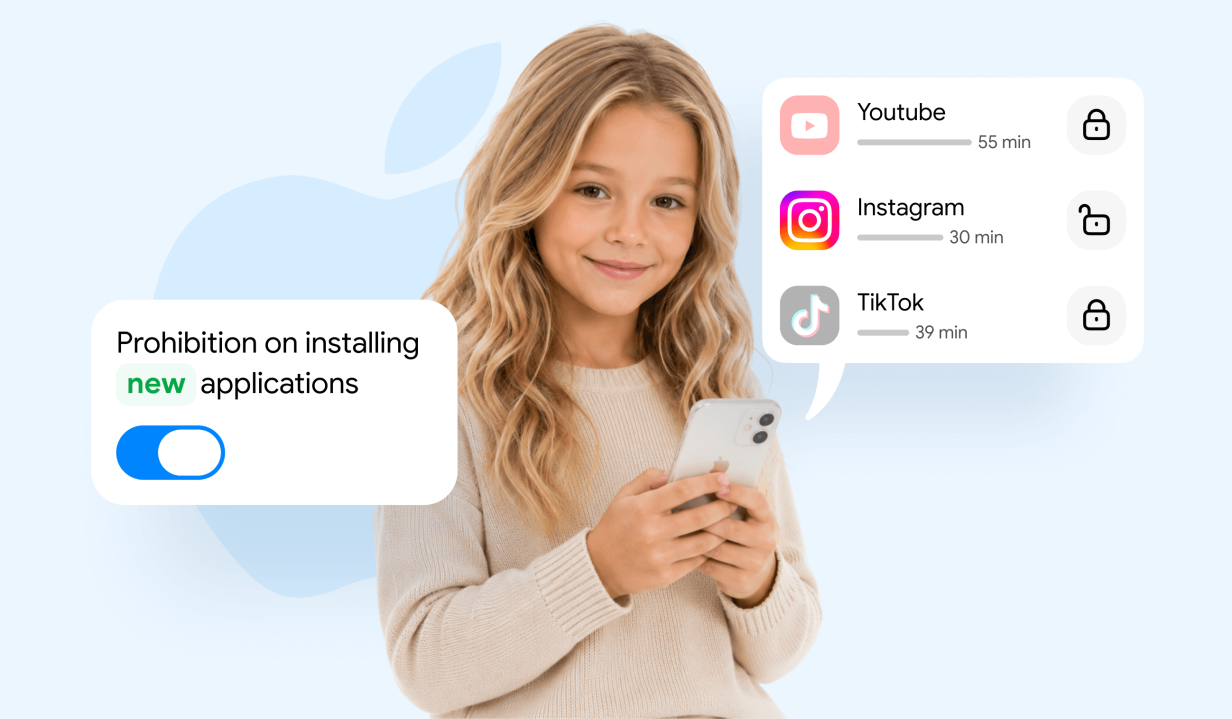
Method 4: Prevent App Installations
Kids are smart. If you block their favorite social platform, their next move is usually opening the App Store to download new apps, and they can often do so in just a moment or two to get back their freedom. You have to stop new apps from arriving on the home screen in the first place.
Here is how to restrict app downloads:
- Open Settings on the iPhone. (If using Family Sharing, go to Settings → Family Sharing → your child’s name → Screen Time on your own device.)
- Tap Screen Time.
- Tap Content & Privacy Restrictions.
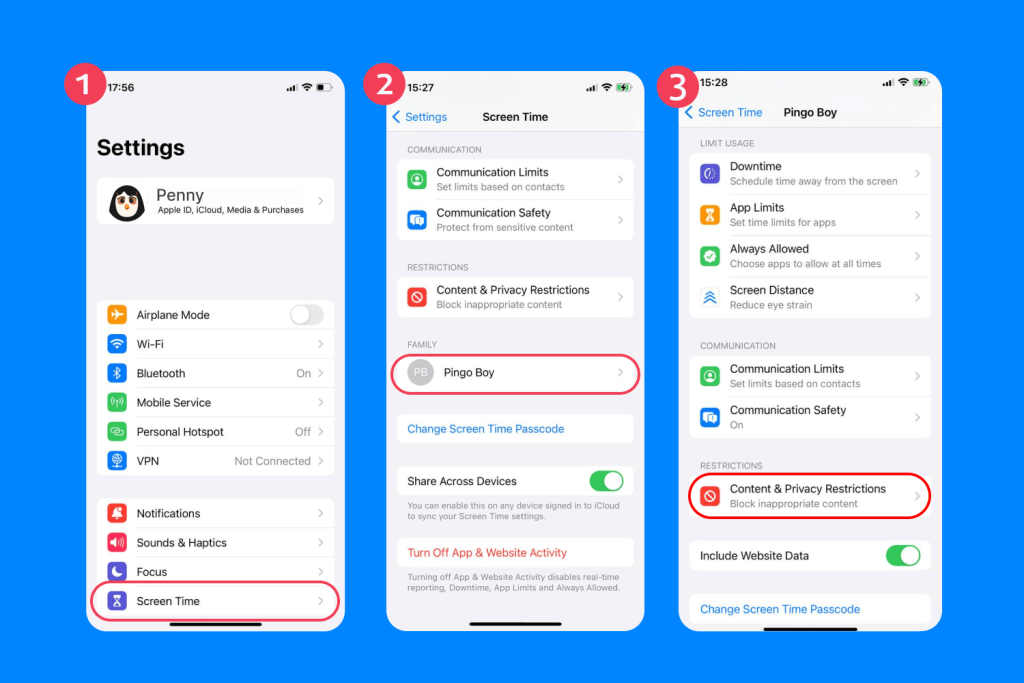
- Toggle the switch at the top to enable these restrictions.
- Tap iTunes & App Store Purchases.
- Tap Installing Apps.
- Select Don’t Allow.

By changing this single setting, the App Store icon disappears from their home screen completely. They cannot browse for new games, download a hidden messaging tool, or install a fresh social media platform. You maintain total authority over what gets added to the device.
Method 5: Block Social Media Websites (Safari) with Web Content Restrictions
Blocking the actual application is only half the battle: if a clever teen cannot open the app, they’ll simply open Safari and log in through the web browser. You need to restrict access to the web versions of these platforms to make your strategy foolproof and block apps for good.
Follow these steps to filter web content and apps:
- Open Settings and tap Screen Time. (With Family Sharing, open Settings → Family Sharing → your child’s name → Screen Time from your own device.)
- Tap Content & Privacy Restrictions.
- Tap Content Restrictions.
- Tap Web Content.
- Select Limit Adult Websites.
- Under the Never Allow section, tap Add Website.

- Type in the URLs for the platforms you want to block (for example, www.instagram.com).
- Tap Done.
Now, if they try to access that specific web address, Safari will block the page from loading. You close the browser loophole and keep their focus exactly where it needs to be.
Read more: How to Block Websites on Safari and Manage What Kids Can See.
Troubleshooting Common Obstacles
Sometimes technology just doesn’t cooperate, even with the most dedicated parental controls. If all your restrictions are failing, check these common issues.
- First, confirm your Screen Time passcode is active. If you never set a passcode, your child can simply tap the screen and grant themselves more time. Always use a passcode that they won’t guess (avoid using things like birth years or other common sequences).
- Second, verify that the apps are actually categorized correctly. Occasionally, a new social platform might be categorized under Photo & Video or Entertainment. If your App Limit specifically targets the Social category, these hidden apps will slip through. Review the app list manually to catch any outliers.
- Third, check if they’re using a Focus mode to bypass alerts or hide apps. Kids sometimes use Focus settings to rearrange their home screen and conceal certain apps from a quick visual inspection. Regularly review the App Library to see exactly what’s installed on the phone.
Taking Back Their Time On Apps
Managing a child’s device, including their use of apps, doesn’t have to be a daily battle of wills (or wits).
By using Apple’s built-in parental controls and powerful third-party tools, like Findmykids, you create a safe digital environment that blocks the noise, eliminates the distractions, and helps your kids build a healthier relationship with technology.
Take the necessary steps to protect their productivity today, and give them the freedom and support they need to thrive offline tomorrow.
FAQs
How do I block social media on iPhone without deleting apps?
You can use Screen Time to set an App Limit of one minute. The apps remain installed on the phone but become inaccessible after that single minute expires. You don’t lose any account data or photos, but your child cannot open the app (it’s also worth noting they can still access other apps if needed).
Can I set a time limit for social media apps with Screen Time?
Yes, and this is one of the easiest parental controls to utilize without having to install a specific app. Open Settings, tap Screen Time, and select App Limits. You can choose the Social category and set a specific daily time allowance, like 30 minutes. Once the time is up, the apps lock down for the remainder of the day.
What’s the difference between App Limits and Downtime?
App Limits restrict the total time spent on specific apps or categories per day (e.g., giving them one hour of games). If you’re interested, you can often even restrict access to things like the camera. Downtime blocks almost all apps during a specific schedule (like locking the phone between 10:00 PM and 7:00 AM), regardless of how much time they have used that day.
How do I stop my child from downloading new social apps from the App Store?
Go to Settings, tap Screen Time, and select Content & Privacy Restrictions. Choose iTunes & App Store Purchases, tap Installing Apps, and select Don’t Allow. This will have deleted the App Store from their device, preventing any new app installations or accessing other apps you don’t want them to.
Cover image: xayriddin / Freepik.com
Проверьте электронный ящик