Did you know that 80% of parents follow their children’s phone locations? It’s a way for parents to keep their children safe and have peace of mind, but what happens when children learn how to change location on Android devices? That’s where it can get difficult for parents to watch over their children from afar and trust them.
In this guide, we’ll discuss how children are changing their location on Android phones and what parents can do to ensure they use the most effective location-tracking methods.
Contents:
How Children Can Change Their Location on an Android Phone

benzoix / Freepik.com
Children are much more tech-savvy than their parents’ generation. They’ve grown up with modern technology and are more equipped and intuitive to change system settings and understand how their devices work.
Below are some of the common methods for changing location on Android that your child may use.
System Location Settings
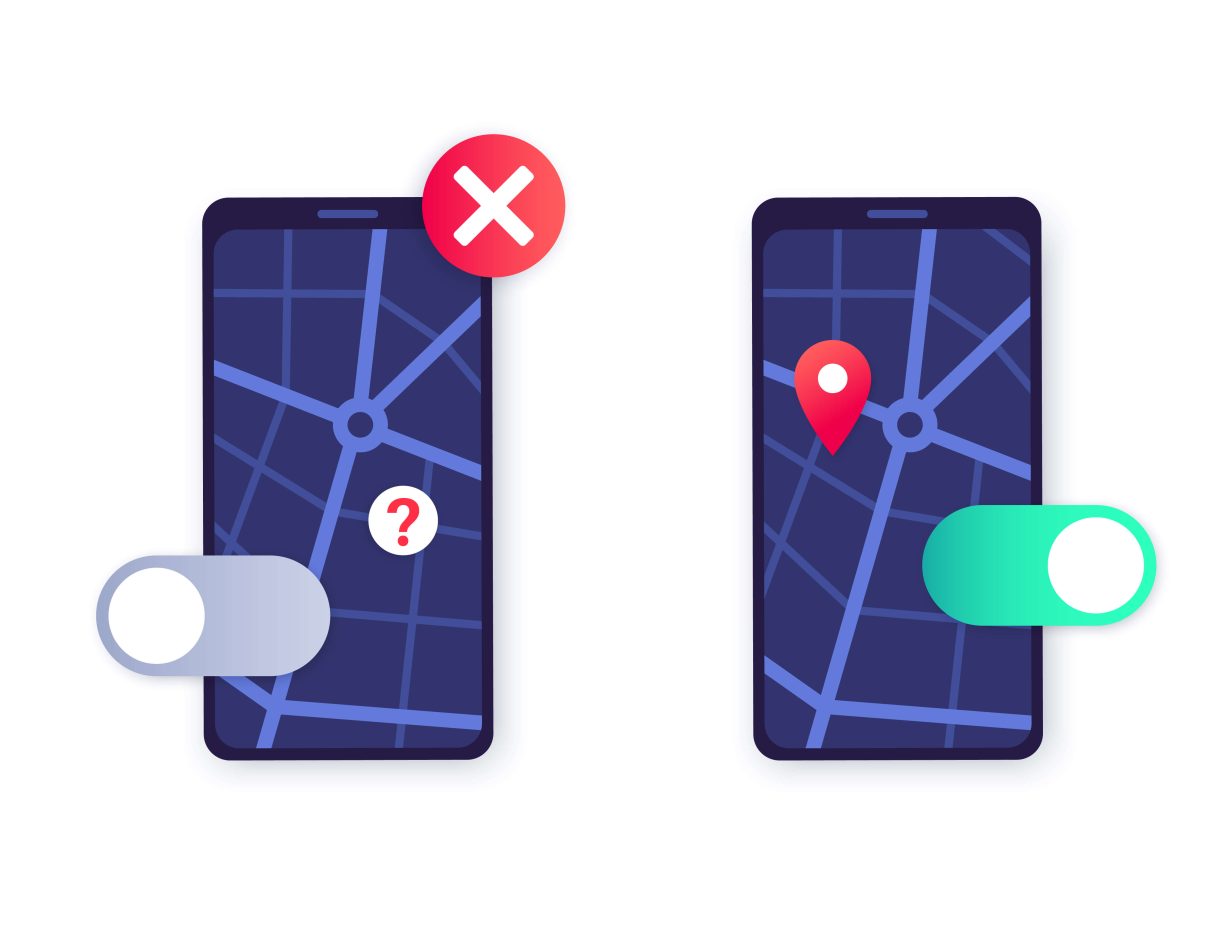
Through the built-in location controls directly on an Android phone, your child can access system settings and turn their location off completely. This switches off the Android location data and shows up as “Location unavailable” on the parent’s phone.
In some cases, when you change location settings, the location can remain frozen, creating a fake location that may lead you to believe your child is there.
Unlock Developer Options
If your child is exceptionally equipped at tech tools, they may learn how to unlock Developer Options on their Android device to set a mock location.
They can unlock Developer Options by going into the Settings and selecting About Phone. Then they tap the Build Number 7 times, which provides access to Developer Options in their settings. From here, they can select the mock location app and change the GPS locations.
Mock Location Apps
In the Google Play Store, your child could install a fake GPS app to simulate coordinates and trick other apps into believing their Android phone is somewhere else.
This is often used by teens who understand how to bypass certain location settings on their devices. They can set a mock location wherever they want, such as at a friend’s house, school, or elsewhere.
When they install a mock location app from Google Play services, they can trick other apps, including location-tracking apps installed by their parents, into thinking their device’s location is at a certain spot.
App-Specific Location Controls
A simpler way that children can change location on their Android device is by changing location access permissions for specific apps. While this does not set a fake location, it turns off GSP location tracking of their device.
To change app permissions and location settings in location-based apps, they can:
- Tap the Settings icon.
- Go to Apps.
- Select a specific app.
- Tap Permissions.
- Tap Location settings to turn on or off.
Turning off the location means the app no longer has access to this information. So, if you use a third-party location-based services app or Google Maps, your child can turn off location permissions on their device. This means their location will not show up on your devices.
How Parents Can Notice or Investigate Device Location Changes
Many parents may not be aware that their child has changed their location or turned off location settings on their Android phone.
Some signs to watch for that your child has changed or turned off location services include:
- Inconsistent location updates
- Frequent app adjustments concerning location permissions
- Increased secrecy around their phone
- The child becomes defensive when location questions come up
If any of these signals appear on your phone or when you interact with your child, there are some things that you can do. Remember, there is a fine line between supervision and spying on your child’s location.
What to Do If Your Child’s Location Stops Updating
Instead of secretly digging through your child’s Android phone, try the following methods:
- Check your tracking app: Look for trends over time rather than one-time instances of an unavailable location or lagging updates.
- Notice consistency: Are there location discrepancies happening during specific times, like after school, weekends, or when your child is with certain friends?
- Ask neutral questions first: Don’t immediately accuse your child of changing location settings; instead, ask, “Hey, your location wasn’t updating earlier. Was your phone dying?”
The most important thing to remember when approaching a sensitive topic with your child, such as tracking their location and wondering whether they have manipulated it, is to have a conversation. Leading with a discussion rather than an accusation is much more effective.
Remind your child why you’re tracking their location, why it’s important to have it on for emergency location services, and how it builds trust between you both. During this conversation, remind them of the boundaries of privacy and how they still have it, even when you’re tracking their location.
However, there are consequences if trust is broken and if they change their location without your knowledge.
Findmykids as a Supportive Tool for Parents
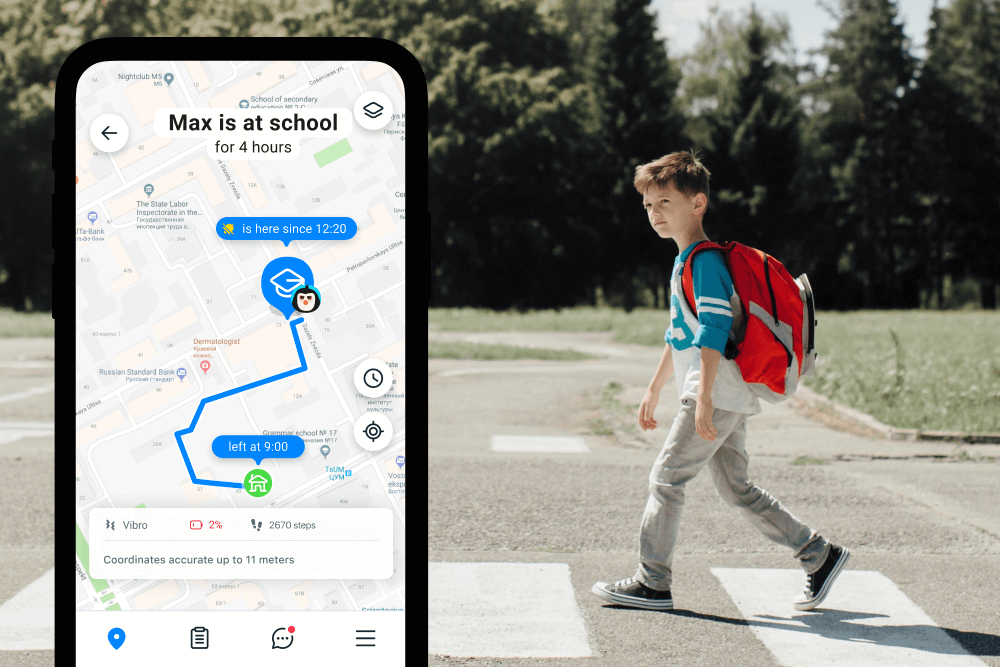
Findmykids app
It can be tricky to find the right balance between safety and overstepping your child’s privacy. Findmykids is the answer for many parents who want to track their child’s location, promote healthy digital habits, and respect boundaries.
With the Findmykids app, parents can:
- Track Real-Time Location: See their child’s real location, which is updated constantly.
- See Location History: View the routes your child takes and where they have been with their phone or smartwatch.
- Set Safe Zones: Designate certain areas that are considered “safe,” such as a school or a family member’s home. Receive alerts when your child arrives and leaves these areas.
- Sound Around: If your child is not answering their phone, you can turn on their device’s microphone to listen to what is happening around them.
- SOS Button: In case of an emergency, your child can tap a single button to alert you, emergency numbers, and emergency responders of their estimated location.
- Loud Signal: If your child’s phone is on silent and you need to reach them, you can override the silence settings and have their device play a loud sound.
- Screen Time Limits and Device Lock: You can set daily time limits for how long your child can use their phone and certain apps, along with locking the device remotely if necessary.
Rather than relying on device location settings and tracking, Findmykids gives parents more control and peace of mind. Through satellite signals for GPS tracking, you can know where your child is at all times—no Wi-Fi scanning required.
Plus, it offers many more safety features, such as the SOS button and Loud Signal, than an Android phone on its own.
In terms of accuracy, Findmykids relies on GPS data transmitted from the child’s device. In open outdoor areas, GPS tracking provides high precision. Like any GPS-based system, accuracy may vary indoors or in areas with weak satellite signals—but parents receive updates as soon as the device reconnects.
Regarding data protection, access to a child’s location is available only to authorized family members connected within the app. This helps ensure that sensitive location information is not publicly visible or shared with unauthorized users.
In the context of Android settings being changeable, this additional layer of alerts and transparency is critical. Even if a child attempts to alter their location settings, parents are informed immediately—which makes silent location manipulation much more difficult.
If you want reliable location visibility and alerts when settings change, try Findmykids and stay informed about your child’s safety in real time!
How to Fix Common Location Issues on an Android Device
If your child’s location shows up as unavailable or incorrect, it may not be their fault. Technology, especially location services, is not always accurate. Before assuming your child is changing their location, rule out common tech glitches first.
If the GPS location is not updating or the location appears incorrectly, it could be due to:
- Low battery or battery saver mode
- Restricted background location permissions
- Weak GPS signals when indoors or in certain areas
- Wi-Fi interference or VPN switching
- Outdated versions of apps
Don’t worry, there are ways to check if these are the issues causing incorrect location and troubleshoot the device.
Here are the steps parents can take to ensure and improve location accuracy:
- Check Location Settings: Go to Settings → Location and confirm that it’s turned on.
- Enable High Accuracy Mode: Ensure location tracking uses GPS, Wi-Fi, and mobile networks to update location.
- Review App Permissions: Ensure your tracking app has “Allow all the time” access and precise location enabled.
- Restart the Device: A simple reboot often refreshes GPS connections and updates the location.
- Update Apps and OS: Install pending updates in the Google Play Store and system settings.
This is usually where the problem lies with incorrect or lagging GPS location updates. Before approaching your child about changing or turning off their location, try these tricks.
Psychological Considerations and Warning Signs

Gladskikh Tatiana/Shutterstock.com
In extreme cases, when your child hides or frequently changes their phone’s location, it can be due to an emotional problem rather than a technical issue.
A few reasons why your child might change GPS locations or enable a mock location app include:
- Desire for Independence: As your child gets older, they require more independence and privacy. They may change their location to feel like they’re reclaiming control of their life rather than breaking rules.
- Risky Behavior or Peer Pressure: If your child is going somewhere they don’t think you would approve of, they might change their location. This could ultimately signal deeper issues with boundaries or outside influences from peers.
- Emotional Stress or Anxiety: Teens, especially, experience stress and sometimes avoid check-ins with their parents because they feel overwhelmed, ashamed, or afraid of disappointing them.
If you’re concerned about your child’s behavior, especially towards tracking their location, it’s important to have an open and honest conversation with them. This allows you to learn more about what’s going on in their life and how location tracking may be contributing to issues.
Some other warning signs parents should look for when it comes to their child or teen include:
- Sudden secrecy around their phone
- New friend groups combined with evasiveness
- Mood changes, irritability, or withdrawal
- Increased defensiveness about simple questions
While these don’t automatically mean something is wrong, it does signal a need for connection with you. Start a conversation about what you’ve noticed and how using Google location services is not an invasion of privacy, but a way to support safety. This is the perfect opportunity to set boundaries and get on the same page.
Use Location Tracking to Support Your Child’s Safety
With a majority of parents tracking their children’s various locations through smart devices, you may experience instances where the information does not update or when your child changes their location. Understanding how they can change their location is the first step. The second is learning how to approach the issue calmly and effectively.
The key to successfully tracking your child’s location is Findmykids—the parental control app for Android. With both in-person and digital safety features, you can have peace of mind and receive accurate location updates without concern.
If you found this article helpful or informative, make sure to share it with a friend who also wants to learn about location tracking for their child.
FAQs
How to change location on Android in Settings?
To change the location on an Android phone, the process begins by accessing the main Settings menu. From there, GPS can be turned on or off, location accuracy can be improved by enabling Wi-Fi and Bluetooth scanning, and app-specific permissions for location-based apps and location-based services can be managed.
For more advanced control, Developer Options allow a mock location to be set, which is often used for testing or privacy purposes. Additionally, a VPN can be used to modify the device’s virtual location, enabling access to location-based content or services from different regions.
These methods are commonly used to adjust a phone’s location for various location-based needs.
Why is my Android GPS location wrong?
Android GPS location may be inaccurate due to poor signal, disabled location settings, outdated software, or interference from buildings and weather. Make sure your phone’s location settings are enabled and updated for best results.
How do I improve location accuracy?
To improve location accuracy on your Android device, go to Settings and enable Precise Location. This setting can be toggled on for high accuracy or off for approximate location. Also, enable Wi-Fi and Bluetooth scanning to help your phone get a more accurate location fix.
What is Emergency Location Service (ELS)?
Emergency Location Service (ELS) is a feature on Android devices that helps emergency services find your location when you call or text an emergency number. When the location setting is off for your device, apps and services—including ELS—can’t get your device’s location.
What is a mock location on Android?
A mock location is a feature in Developer Options that allows users to simulate a different GPS location on an Android device. This is often used by developers to test location-based apps or by users who want to access location-based services from other regions.
Cover image: user19987712 / Freepik.com
Проверьте электронный ящик