
When a game freezes or a social media platform stops responding entirely, you need to know how to force stop an app on an iPhone.
Quitting an unresponsive app takes just a few steps, which we’ll walk through in this guide. But parents often wonder if this works as a form of parental control. Let’s break it down!
Contents:
Can You Force Stop an App on iPhone?
Apple handles background processes differently from Android devices. Because of this, you won’t find a traditional “force stop” button deep in your settings page. You can only close apps from the app switcher view.
Closing an app on an iPhone simply clears it from active memory. You must understand that there’s a major difference when you close an app on a child’s device, since closing an app does not block it.
Quitting does not remove the app from the device. A child can simply tap the app icon on their home screen and reopen the app instantly. If you want to stop them from playing a game after bedtime, quitting the app alone won’t fully resolve the issue.
How to Close (Force Quit) an App on iPhone
When apps become unresponsive, you need to force-quit them to get them working again. The steps needed here, however, generally depend on the type of device you own.
For an iPhone with Face ID or an iPad without a home button, swipe up from the bottom of the screen. Pause in the middle of the screen. You will see the app switcher appear. Swipe left or right to find the app you want to close. Swipe up on the app preview to force close the app.
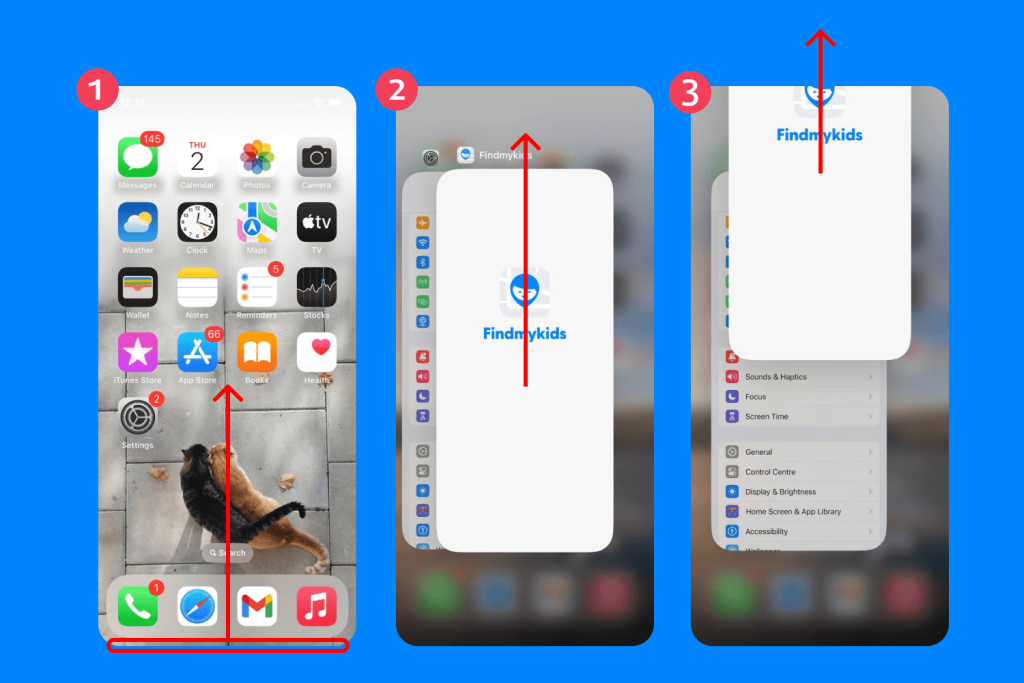
For an iPhone SE, an older iPhone, or an iPod Touch, double-click the home button to open the app switcher. Swipe left or right to find the app. Swipe up on the app’s preview card to close it.
You can drag multiple apps up at once using multiple fingers if you need to close several unresponsive apps recently left open.
Can You Force Close Apps Regularly?
People often think force-closing every app, from music listening programs to social media platforms, saves battery life or speeds up their device. However, Apple explicitly states that you only need to force-quit an app if it becomes unresponsive.
Contrary to popular belief, continuously quitting and relaunching apps actually drains your battery faster. Your iPhone manages background memory automatically, so when you force close an app and reopen it later, the device uses more power to load everything from scratch. You only need to follow these actions when an app freezes or acts strangely.
Why Force-Stopping Apps Doesn’t Work for Parents
Parents often try to force-quit apps to limit screen time. You might grab your child’s phone, swipe up to close TikTok, and hand it back. Unfortunately, this approach tends to fail immediately.
Your child can just tap the icon to reopen the app without having to search for a workaround. You have not restricted access. You have only temporarily removed the app from their active view. If you want real control over what apps your kids use and when they use them, you need dedicated tools—a system that actually blocks access when study time or bedtime begins.
Better Ways to Control Apps on iPhone
Instead of constantly quitting apps, you can use built-in tools or third-party solutions to manage your child’s device.
Screen Time and Content Restrictions
It’s important to note that iOS includes a built-in feature called Screen Time, which you can find in your settings menu. Screen Time lets you set daily limits for specific app categories. You can block access to games or social media during specific hours.
You also get access to Content & Privacy Restrictions. This lets you prevent your child from downloading new apps or making in-app purchases.
The biggest downside here is that Screen Time requires you to set up a family account. You must remember a separate passcode, and tech-savvy kids often figure out workarounds to bypass these built-in limits.
For detailed instructions with screenshots on how to set up parental controls and Family Sharing on iPhones, check out this guide.
Findmykids App
Findmykids app
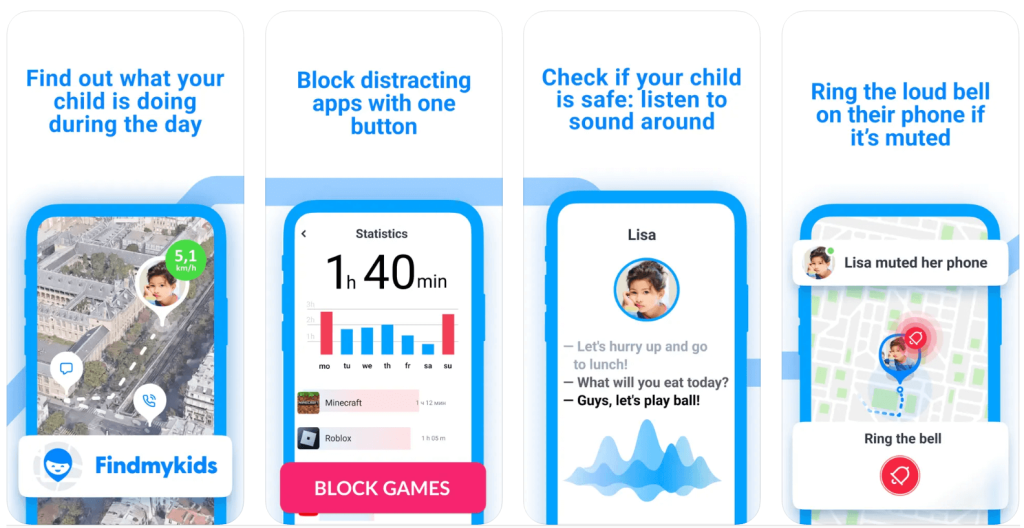
Parents need simpler, more robust methods to manage a child’s phone. Findmykids offers the comprehensive solution you need for device management and location tracking.
The app provides key management features. Parents can block all apps on the child’s device when needed, helping them stay focused during study time, at night, or in other important moments. The app also includes adult website blocking and protection from in-app purchases, helping create a safer digital environment.
Beyond usage control, Findmykids focuses on what matters most—your child’s safety. The app offers real-time location tracking. You’ll get notifications when your child arrives at school or heads home, and you can even listen to the surroundings if you worry about their safety.
With all of these combined features (and many others), Findmykids gives you complete peace of mind without requiring you to constantly police their device in person.
Stay informed and support your child’s safety in the digital world—explore Findmykids for free on the App Store or Google Play.
Managing Your Child’s Digital Life
Learning to force close unresponsive apps helps maintain a smooth device experience. Depending on a swipe to control your child’s screen time will leave you frustrated, as setting up effective boundaries requires more specialized, dedicated tools.
Take advantage of built-in iOS settings alongside apps like Findmykids to support healthy digital habits in your family. Finding the right balance between guidance and independence can make a real difference in how children use their devices every day.
FAQs
How do I force stop an app on an iPhone?
Swipe up from the bottom of the screen and pause in the middle to open the app switcher. Swipe right or left to find the app. Swipe up on the app’s preview card to close it.
How do I force quit an app on iPhone SE?
Double-click the home button to bring up your recently used apps. Swipe left or right to locate the app you need to close. Swipe up on the preview card to force quit the application.
How do I close an app on an iPhone without a Home button?
Swipe up from the very bottom edge of the screen and hold your finger in the middle for a second. The app switcher will appear. Find the app preview and swipe it up toward the top of the screen to close it.
Why can’t I find the app in the App Switcher?
If you don’t see the app in your app switcher, the app is already closed. The app switcher only shows apps currently suspended in the background or actively running.
Cover image: rawpixel.com / Freepik.com
Проверьте электронный ящик