Kids get text messages from unknown numbers, classmates, and complete strangers every single day. If you need to know how to block someone on iMessage quickly, we have the exact steps you need. Tapping a few buttons to block someone on iMessage solves the immediate problem, but managing your child’s digital communication safely requires a bit more planning.
Contents:
When Should You Block Someone on iMessage?
You want to protect your child from negative experiences on their phone. Sometimes, ignoring a bad text message fails to solve the problem, and you need to step in and cut off contact completely.
Here are a few situations where you definitely want to block a phone number:
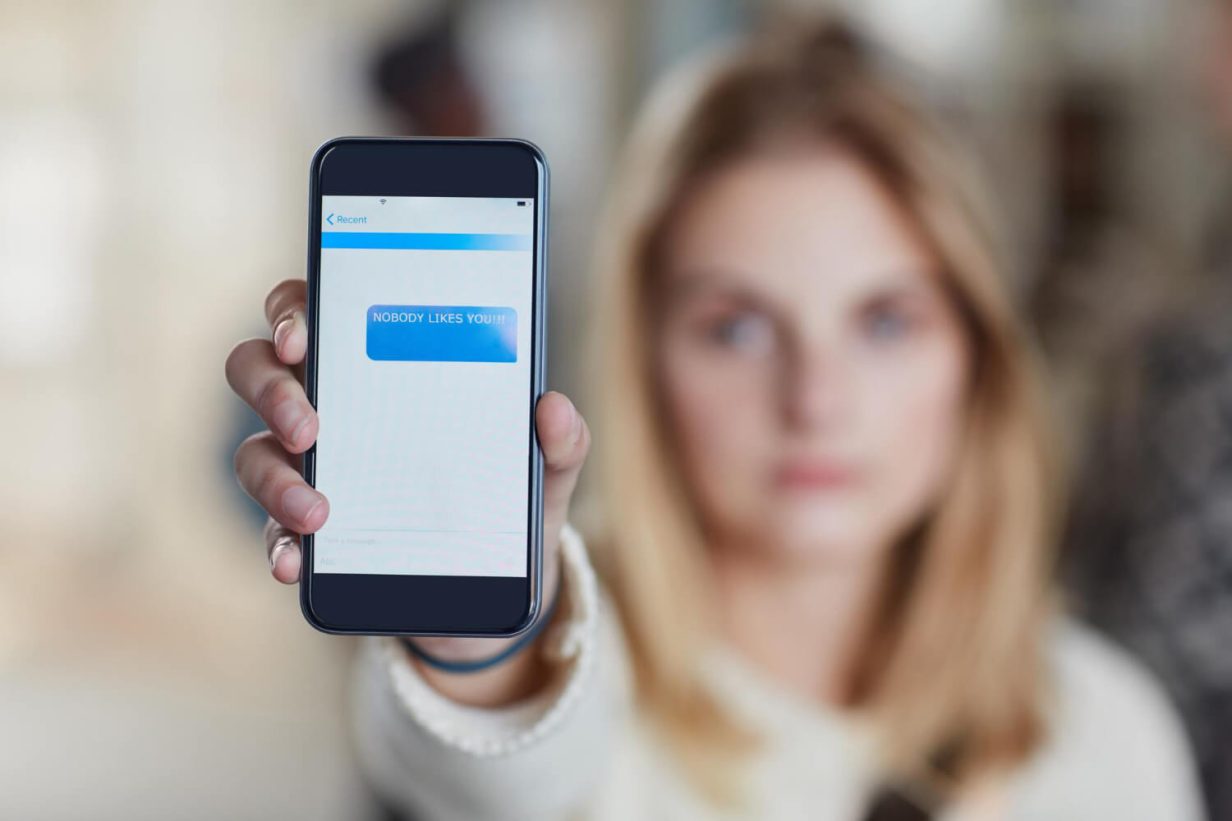
- Cyberbullying: Kids can be incredibly mean. If a classmate sends cruel messages, name-calling texts, or intimidating photos, you need to stop that communication immediately. Blocking the person stops the harassment from reaching your child’s screen.
- Spam or unknown contacts: Scammers constantly send spam messages with malicious links. If your child gets texts claiming they won a gift card or need to verify a delivery, those unknown senders pose a huge security risk. You want to block text messages like this right away.
- Inappropriate messages: Sometimes older kids or strangers send explicit content or adult jokes. A child should never receive messages of this nature. The tapping block helps you make sure that a specific sender loses all access to your child.
- Persistent unwanted communication: Even a harmless (but annoying) person can cause trouble. If an acquaintance keeps texting after your child asks them to stop, blocking the unwanted contacts gives your child their peace of mind back.
What Happens When You Block Someone on iMessage?
When you block someone on iMessage, the system completely cuts off their ability to reach your Apple devices. The person you block will not get an alert. They are not notified of the change at all.
If they try to send messages to your child’s iPhone, the text will look completely normal on their end. They will hit send, the bubble will turn blue, but they will never see a “Delivered” sign underneath it. The message simply vanishes into the digital void. It never shows up on your child’s screen.
The block applies across the entire Apple ecosystem, meaning when you block someone, they cannot reach your child through regular SMS, phone calls, or the FaceTime app. Any calls they make go straight to a silent voicemail. You just won’t see any notifications for these calls or texts. If your child uses an iPad or Mac logged into the same Apple ID, the block applies to those devices, too.
Related: Need to Block a Number on Your Child’s iPhone? Here’s How.
How to Block Someone on iMessage (Step-by-Step)
You have a few ways to stop unwanted messages from reaching your child: handle this directly from the text thread or go through the system preferences.
From the Messages App
The easiest way to block someone is right in the Messages app. You can do this immediately after a bad message comes in, so they can’t connect with your child again:
- Open the Messages app on your child’s iPhone.
- Tap the conversation with the person you want to block.
- Tap the contact name or phone number at the top right corner of the screen.
- Tap the info icon (the small “i” in a circle).
- Scroll down to the very bottom of the page.
- Tap Block this Caller.
- Tap Block Contact to confirm your choice.
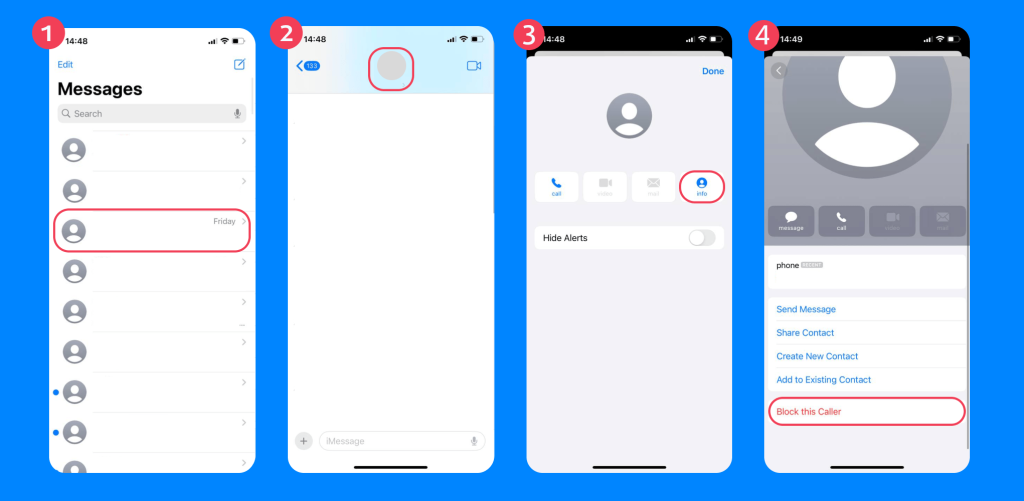
Once you tap Block, the conversation remains in the app, but you will not receive new messages from them. You can delete the conversation thread if you want to wipe the slate clean.
From the Settings App
If you want to block someone before they ever send a text, or if you need to manage multiple blocked contacts at once, you can use the Settings app:
- Open the Settings app on the device.
- Scroll down and tap Messages.
- Scroll down to the SMS/MMS section and tap Blocked Contacts.
- Tap Add New at the bottom of your blocked list.
- Search for the person in your contact list.
- Tap their name to add them to the blocked contacts list.
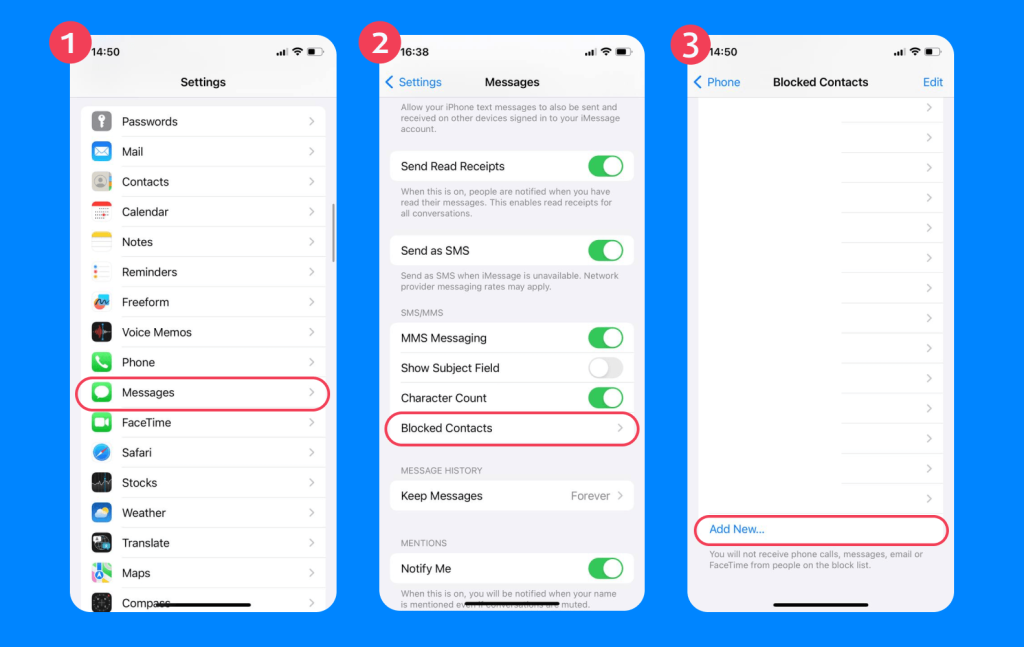
This method works perfectly if the person is already saved as a contact on the phone. You can also swipe left on any name in this list and tap Unblock if you ever change your mind.
How to Filter Messages from Unknown Senders
Sometimes you don’t want to block every single new contact individually. Luckily, iMessage settings can help with filtering multiple contacts, too! Apple lets you filter out people who aren’t saved in your child’s phone book. This separates regular texts from potential spam.
Go to the Settings app, tap Messages, scroll down to Unknown & Spam, and choose Filter Unknown Senders. Toggle this switch on. Now, the Messages app will create a separate tab for people not in your contacts. They won’t trigger notifications, keeping your child’s main inbox clean.
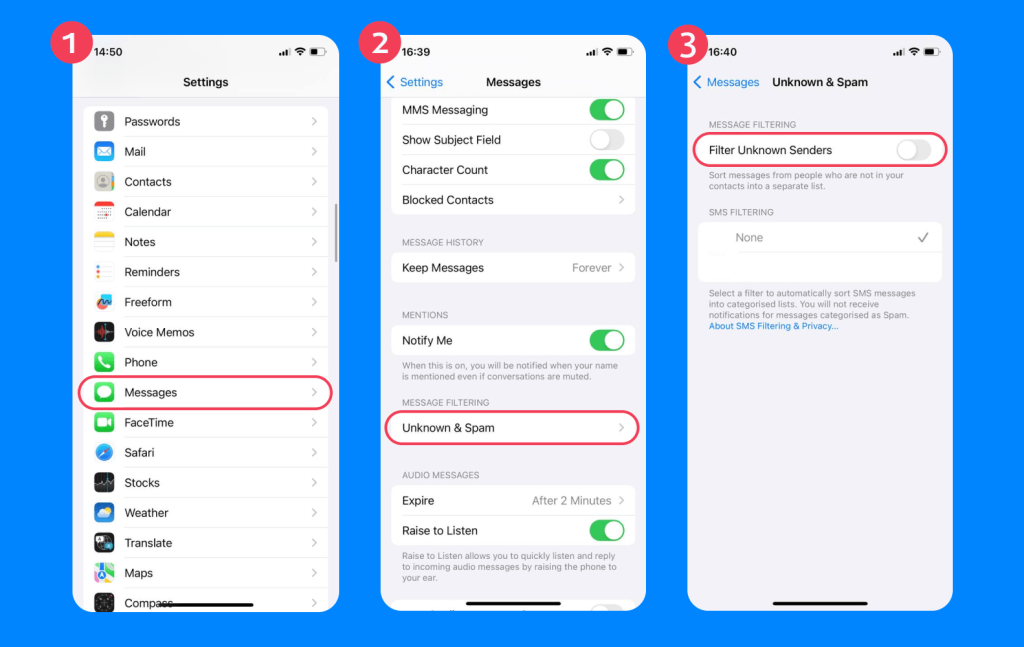
For more details on handling strange numbers, check out this guide to blocking unknown callers.
The Hidden Limitations of Blocking on iMessage
Taking action to block someone on iMessage feels incredibly productive. You see a problem, you tap a button, and the problem goes away. But this built-in tool has some severe limitations you need to understand if you want to keep your kids safe online.
- First, the person can simply contact your child from a completely different phone number. They can borrow a friend’s phone or use a free texting app to create a new number in seconds. Your child might answer, thinking it’s a new friend and not the person they’ve blocked.
- Second, kids can easily unblock contacts. If your child gets curious or gives in to peer pressure, they can just go into the Settings app and unblock the person in two seconds. You have absolutely no control over this action on a standard iPhone.
- Third, parents get zero visibility in this situation. Unless you physically hold your child’s phone and scroll through their blocked list, you have no idea who they talk to or who they block.
- Finally, blocking on iMessage only stops regular SMS and Apple texts. It does nothing to stop the person from reaching out on Snapchat, Instagram, WhatsApp, or gaming platforms. The underlying issue of risky communication patterns remains completely unsolved.
Going Beyond with Findmykids
Findmykids app
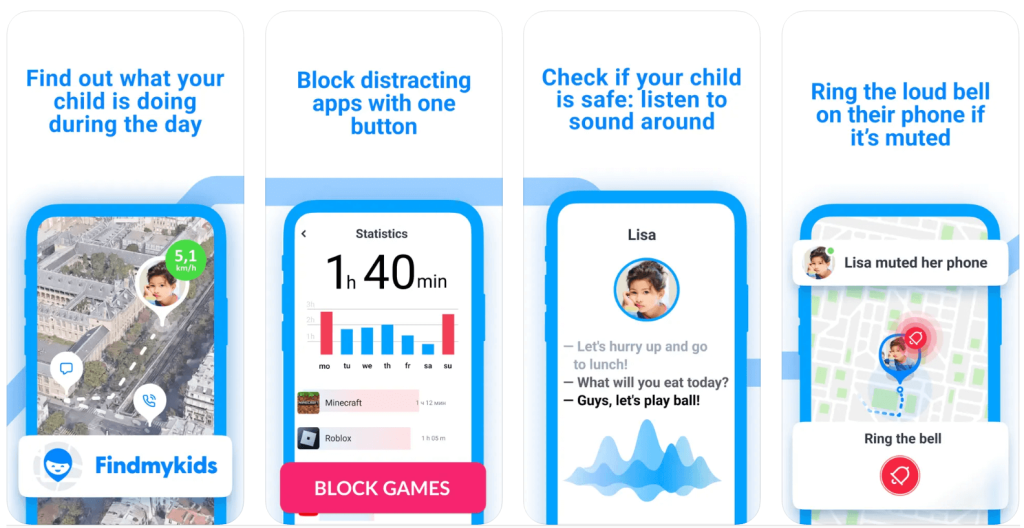
Those are the challenges. Now, let’s talk about solutions. If you want real security and control, you need a tool that goes beyond a simple block button. The Findmykids app gives parents the broader protection they desperately need. When communication becomes risky, you need to take charge of the entire device.
If a bully keeps harassing your child across various social media platforms, Findmykids lets you block them across all apps permanently. You can temporarily restrict access to messaging apps until the situation cools down. This stops the harassment across the board, not just on iMessage.
Bad texts often contain links to dangerous websites, but Findmykids allows you to block 18+ websites, preventing your child from tapping a spam link and viewing inappropriate content. You can also block in-app purchases, which adds a massive financial safety layer if a scammer tries to trick your child into buying game currency or gift cards.
Beyond digital safety, Findmykids offers incredible physical security. You get accurate, real-time child location tracking and a detailed route map of where they go during the day. If they feel unsafe, they can use the SOS signal feature to alert you instantly. You get to protect their phone and their physical well-being from one simple dashboard.
If you’re looking for a way to stay informed without constant worry, you can try Findmykids for free and see how it fits into your daily routine!
Additional Safety Tips for Parents
Blocking phone numbers is just one small piece of the puzzle. To keep your kids safe on their Apple devices, you need a comprehensive strategy. Try implementing these proactive steps today:
- Create clear rules about sharing phone numbers with people they meet online or in games.
- Check the device privacy settings together to ensure location sharing is turned off for unknown apps.
- Talk openly about what spam messages look like and why they should never click strange links.
- Set up a nightly charging station in the kitchen or living room to keep phones out of bedrooms at night.
- Review their contact list monthly to see who they communicate with regularly.
- Keep the iOS software updated to make sure the device has the latest security patches from Apple.
Read also: What Is Phishing — and How Can Parents Protect Their Kids from Online Attacks?
Protecting Your Child’s Peace of Mind
Managing a smartphone requires constant vigilance, but knowing exactly how to block someone on iMessage gives you a quick tool to stop immediate harassment and spam. You can use the Messages app or the Settings app to easily manage these unwanted contacts.
However, as mentioned earlier, you also need to recognize the limitations of built-in phone app settings and take steps beyond blocking iMessage. By using a comprehensive tool like Findmykids and maintaining open communication, you make sure your child enjoys their device without the stress of unwanted messages.
You hold the power to keep their digital world safe, so take these steps today to get started.
FAQs
How do I block someone on iMessage on iPhone?
Open the text conversation in the Messages app. Tap the person’s name at the top of the screen. Tap the info icon, scroll to the bottom of the page, and tap Block this Caller. This stops them from sending you messages or calls (or other options related to messaging).
Where do I find my blocked contacts in Settings?
Open the Settings app and tap Messages. Scroll down and tap Blocked Contacts. Here you will see all the contacts and phone numbers you previously blocked. You can add new people or swipe to unblock them from this menu.
Can blocked contacts still send me messages or voicemail?
They can try to send messages, but those texts will never be delivered to your device. If they try to call your phone number, the call goes straight to voicemail. However, you will not receive any notifications that they left a voicemail.
What is the difference between blocking a contact and turning off iMessage?
Blocking a contact stops one specific person from reaching your phone, but turning off iMessage disables Apple’s internet-based texting system entirely. If you turn off iMessage in your settings, all your texts will be sent as regular green SMS messages through your cellular carrier instead of blue Apple Messages. This can be a better way to manage blocked contacts.
Cover image: The Yuri Arcurs Collection / Freepik.com
Проверьте электронный ящик