If you have a child or teen with an iPhone, you’ll understand how important it is to restrict access to certain content and set screen time limits. Without boundaries, excessive screen time can overload your child’s brain with dopamine, reducing their attention span and hindering the development of important executive functions.
In this article, we’ll show you how to block the internet on an iPhone. We’ll include step-by-step instructions for how to limit certain websites and apps, as well as how to turn off new app downloads and in app-purchases.
Understanding these tools and approaches will help you build healthy digital habits within your family and avoid over-reliance on screens.
Contents:
How to Block Internet Access on Your Child’s iPhone
The fastest way to block internet access or manage screen time on your child’s iPhone is by using the Settings app.
First, you’ll need to set up Family Sharing. This allows you to implement parental controls for your child’s device. When Family Sharing is set up, and your child’s device is part of your Family Sharing group, you can manage their content and privacy restrictions, communication limits, and screen time remotely using your own iPhone or iPad.
To do this, go to Settings → Screen Time →scroll down to Family and select your child’s Apple account. From here, go to Content & Privacy Restrictions (enable it) → Content Restrictions → Web Content.
Choose:
- Limit Adult Websites to automatically block inappropriate content
- Only Approved Websites to allow access to selected sites only
What Does “Blocking Internet” Mean for iPhones?
Blocking the internet on your child’s iPhone could mean several things, depending on what kind of controls you’re looking for, as well as your child’s age and average screen use. Do you want to cut off their entire internet access, limit adult websites, or schedule downtime during which they can only use their phone for essential purposes?
Let’s look at the different levels of restrictions to help you figure out which ones you might need and when.
Level 1: Blocking Certain Websites
You may have this restriction on at all times to stop your child from accessing adult websites or inappropriate content. You may also wish to turn on blocks at specific times (e.g., to prevent your child from getting distracted when they’re supposed to be doing homework, or for communication safety).
Level 2: Allowlist Browsing
Rather than blocking specific websites, you may wish to have an “allowlist” of websites your child is always able to visit—for example, educational, creative, or age-appropriate websites, as well as kid-safe search engines, movies, and videos.
Level 3: Reduced Access Windows (Downtime)
Another option is to reduce your child’s internet access during periods of downtime, such as when they’re doing homework or sleeping.
Level 4: Block Specific Apps
As well as blocking specific websites, you may also want to block apps (such as Game Center or TikTok), either removing access entirely or turning them off during specific downtime periods.
Related: How to Block Apps on iPhone: A Step-by-Step Guide.
How to Block Websites on an iPhone
Blocking websites on an iPhone helps your child stay focused and safe online. You can choose to automatically filter adult content, allow only approved sites, or block specific websites permanently.
Blocking Websites in Safari Using Screen Time
To block websites in Safari using Screen Time, open Settings → Screen Time → Family → Your child’s Apple ID → Content & Privacy Restrictions → Content Restrictions → Web Content.
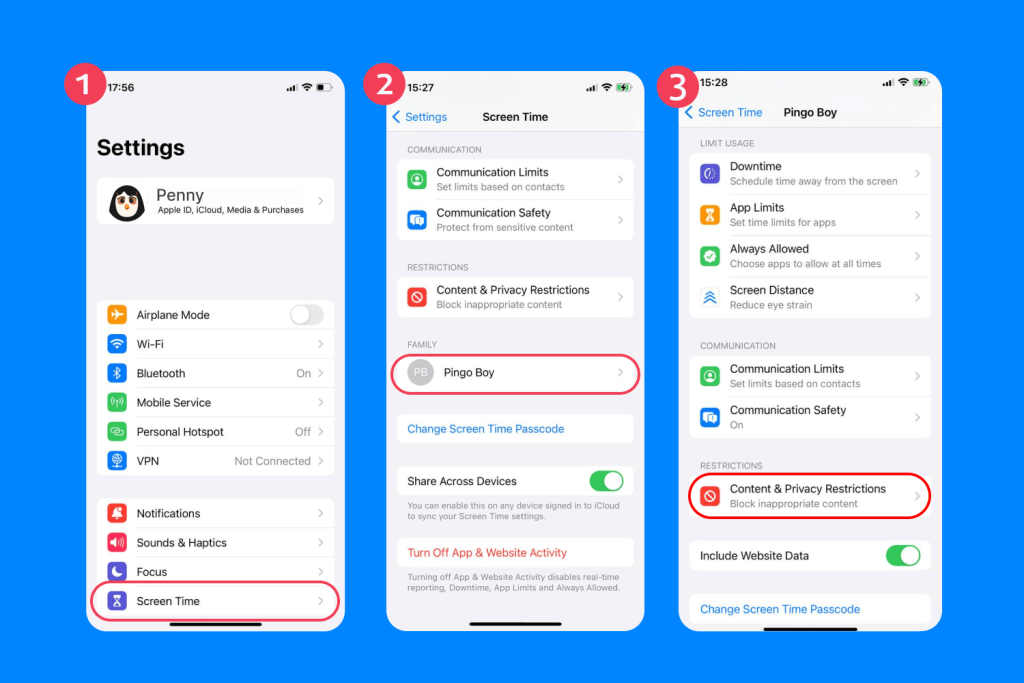
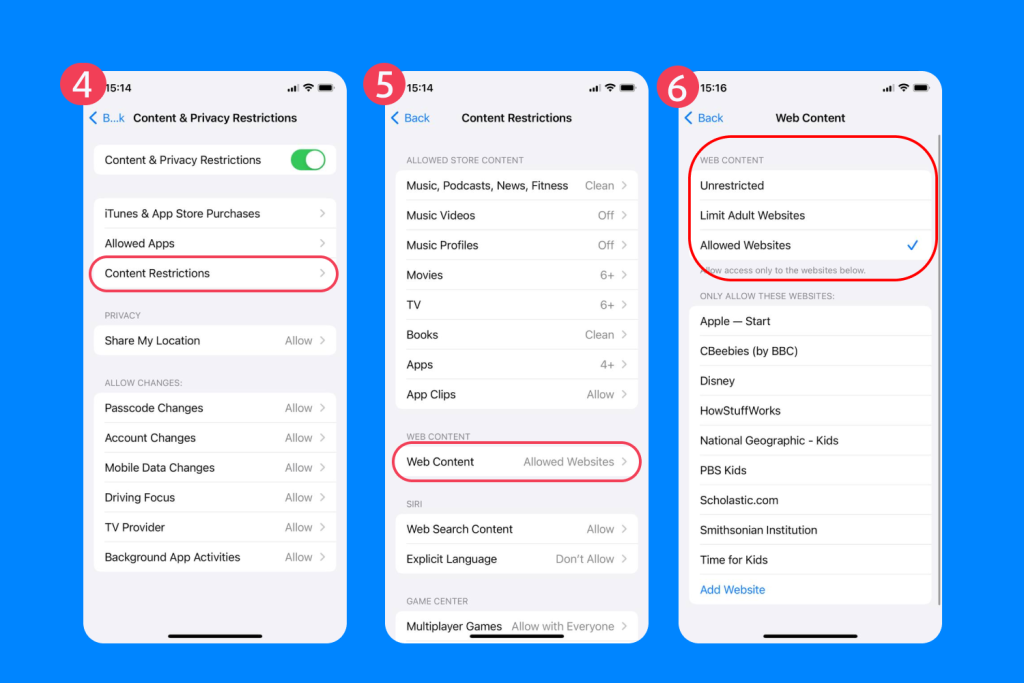
Select Limit Adult Websites to automatically restrict access to adult content.
Under the Limit Adult Websites section, you can also add Never Allow websites—these are permanently blocked, no matter what. Examples include adult content, gambling sites, or any other websites you don’t want your child to access. To add a site, tap Add Website and enter its URL.
Websites in Never Allow remain blocked even if the child tries to bypass restrictions, making this a reliable way to keep Safari safe.
Blocking Almost the Entire Internet in Safari with Only Approved Websites
By navigating to Web Content as above and selecting Allowed Websites, you can block the entire internet on your child’s iPhone except for specific sites, such as National Geographic Kids, Disney, or other educational sites.
Turning Off Internet Access Using Downtime
To turn off internet access during Downtime periods, go to Settings → Screen Time → Family → Your child’s Apple ID → Downtime.

From here you can schedule Downtime for the time period you select—either every day between certain times (like overnight) or using custom settings.
During Downtime, only the apps you choose to allow and phone calls will be available. You may wish to allow your child to listen to music or receive notifications from safe contacts during these hours.
Disable Safari Completely
If you want to prevent your child from using Safari entirely, go to Settings → Screen Time → Content & Privacy Restrictions → Allowed Apps and toggle Safari off.
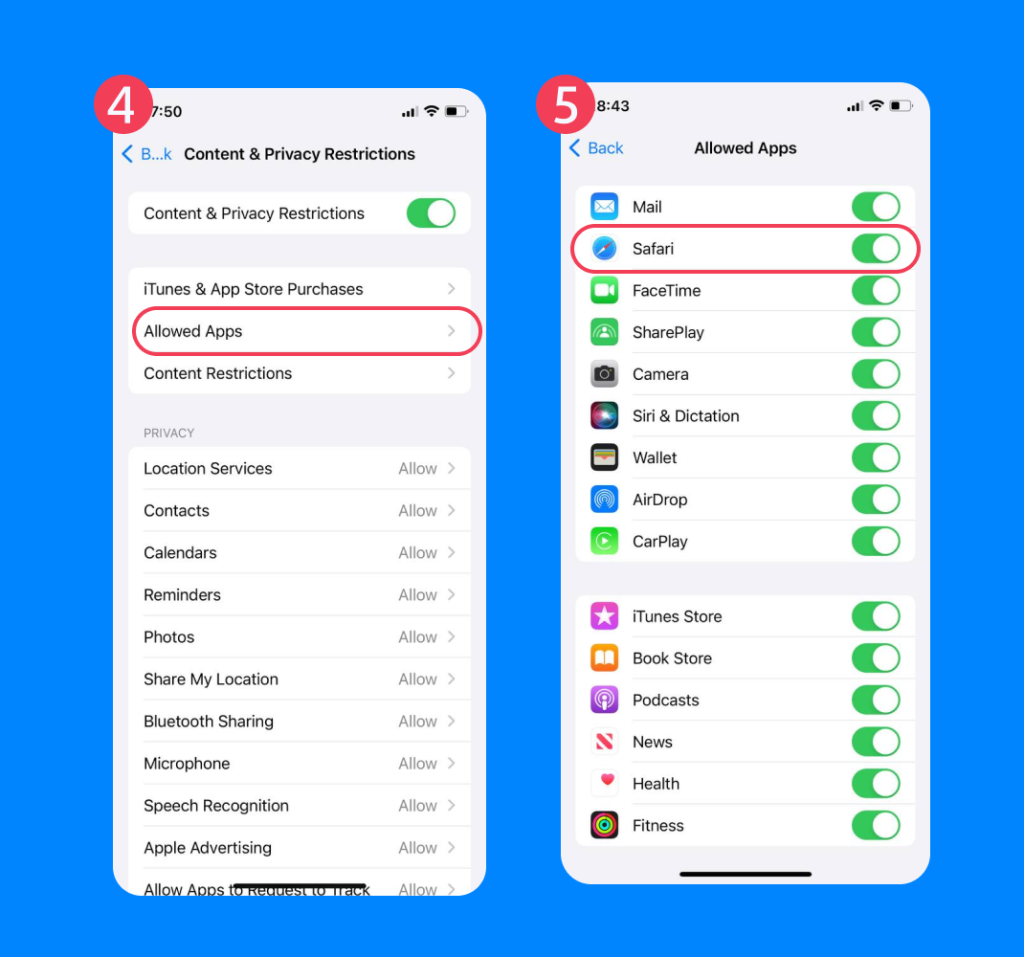
Read also: How to Set Up Safari Parental Сontrols.
Block App Downloads
To prevent new apps from being installed, navigate as above to Content & Privacy Restrictions → iTunes & App Store Purchases and set Installing Apps to Don’t Allow.

Using Third-Party Apps Like Findmykids
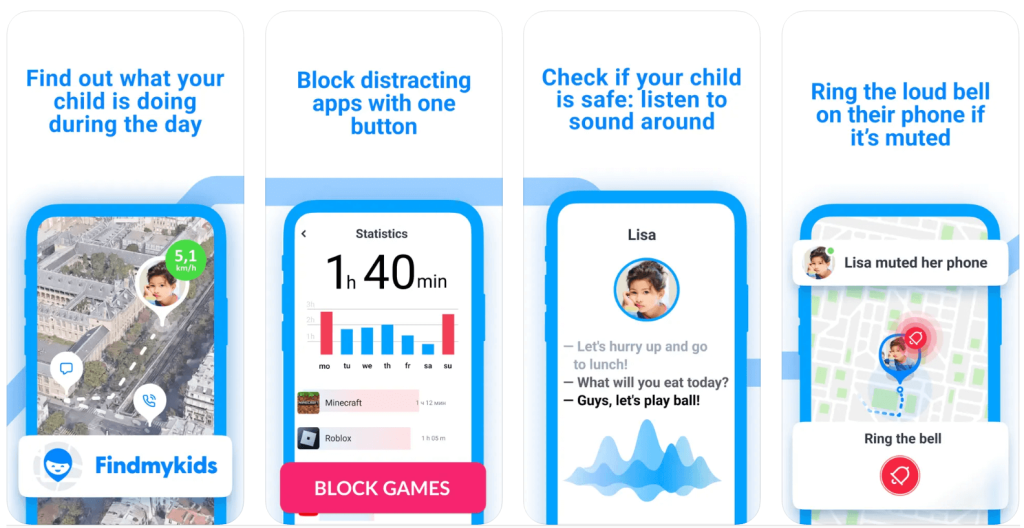
Findmykids app
Blocking the internet completely isn’t always the goal—especially when your kids are older and might need to use their phone to Google something or use Maps when they’re out of the house.
Even when it comes to social media apps and mobile games, most parents want to guide their child to use the internet in a healthy way, only stepping in when necessary to reduce distractions or set boundaries.
Although Screen Time tools are effective, they’re not foolproof, and many kids do find ways around them or figure out how to turn restrictions off. This is why apps like Findmykids are so popular among parents—they provide an extra layer of protection and peace of mind, allowing kids to use the internet safely without constant supervision.
Findmykids is known for its real-time movement tracking and GPS features, but it also helps parents manage focus and reduce online distractions with:
- App blocking to restrict games and social media during homework, study time, or sleep.
- Website filtering to block adult content or inappropriate sites.
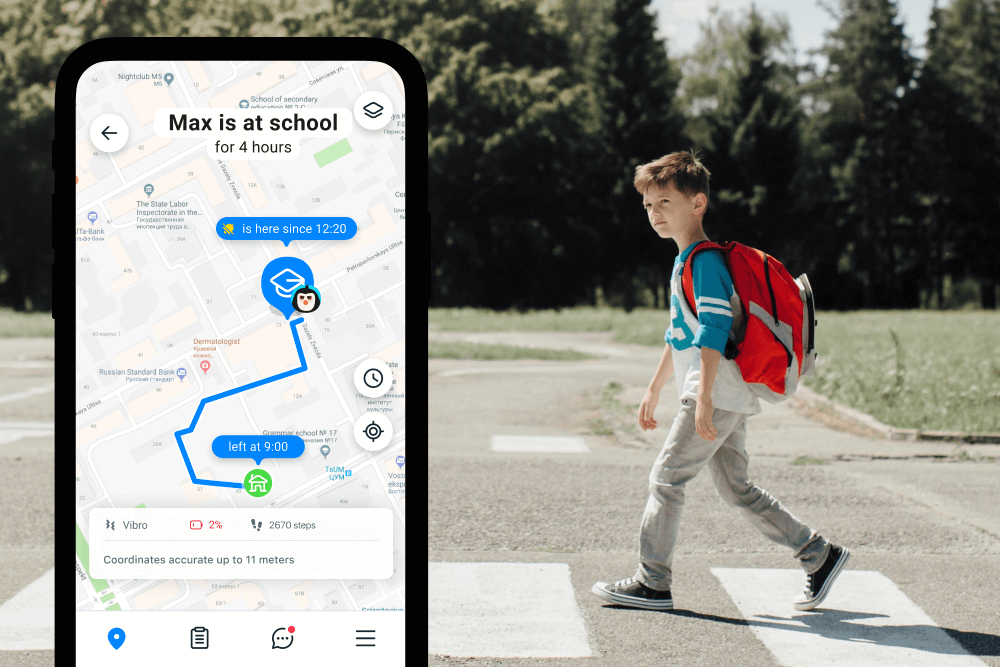
Findmykids app
In addition, the app supports overall safety with:
- Safe zones and alerts to notify parents if a child leaves a designated area.
- Low battery notifications and SOS alerts for offline safety.
- Real-time location tracking so parents always know where their child is.
Using these parental control features from their own phones, parents can help children stay focused, reduce distractions, and maintain healthy phone habits, while still allowing essential functions like maps and homework research.
Try Findmykids today to help your child stay focused, use their iPhone responsibly, and stay safe wherever they go!
Other Ways to Limit Your Child’s Internet Access
Besides using iPhone settings and Screen Time, there are additional methods to manage your child’s internet access.
Router-Level Controls
You can set up parental controls directly on your internet router. To do this, log in to your router’s admin panel using a web browser, entering its IP address and your login credentials. If you’re unsure of these details, contact your internet service provider.
Once logged in, look for sections labeled Parental Controls or Access Controls. From there, you can limit Wi-Fi access and filter content on your child’s devices.
Turning off Wi-Fi
While you cannot remotely turn off Wi-Fi on an iPhone using Screen Time, you can:
- Disable Wi-Fi directly on your child’s device when needed
- Use Screen Time to restrict access to specific apps that require the internet
Removing Mobile Data
A short-term way to limit internet access is by turning off cellular data. To do this, go to Settings → Mobile Service → Mobile Data and toggle it off using your child’s iPhone.
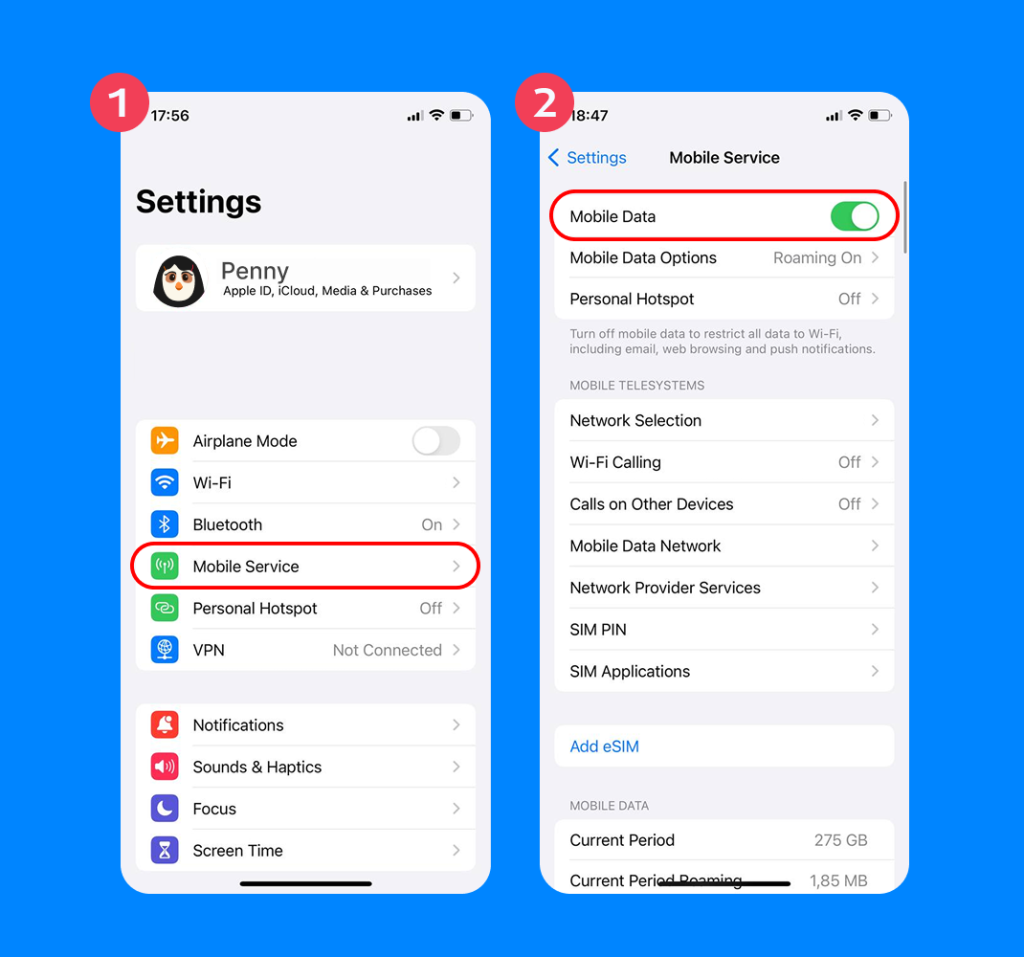
To lock this setting and prevent your child from turning Mobile Data back on, go to Settings → Screen Time → Family → Your child → Content & Privacy Restrictions → Mobile Data Changes → Don’t Allow.
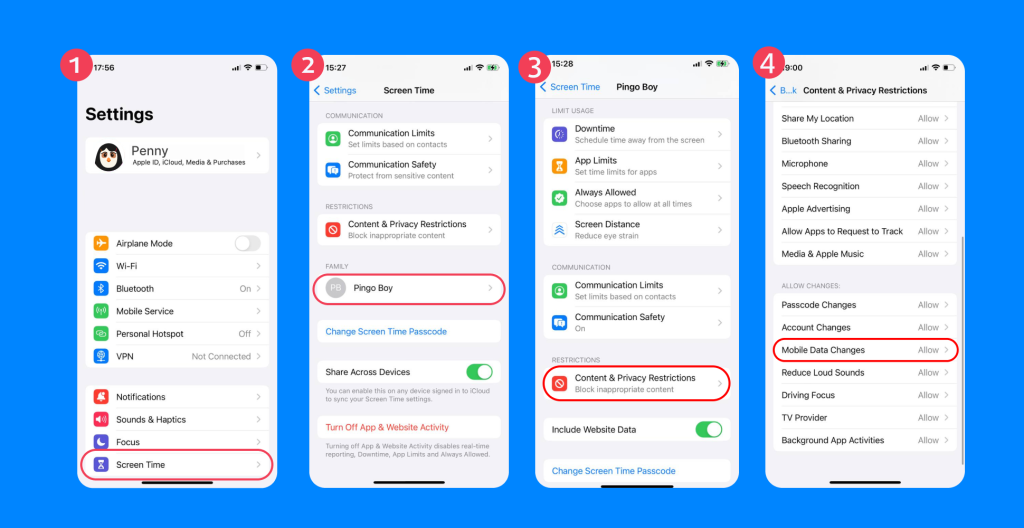
Bear in mind that your child will still be able to access the internet via Wi-Fi networks. Turning off Mobile Data just stops them from browsing when they’re out and about and not connected to Wi-Fi.
Troubleshooting Tips
Even after setting up restrictions, you may notice that some apps or features still have internet access. This usually happens because different settings control browsers, apps, and system functions separately. Here’s how to fix the most common issues.
Safari is Blocked, but Apps Still Connect
Blocking Safari does not block internet access in other apps. Many apps, like YouTube or social media apps, can still connect to the internet.
To block specific apps:
- Go to Settings → Screen Time → Family → [Your Child] → Content & Privacy Restrictions → Allowed Apps.
- Turn off the apps you don’t want your child to access.
Turning off an app removes it from the Home screen. Your child cannot open it while Content & Privacy Restrictions are active, but the app is not deleted from the device.
My Child Just Used Another Browser
Using another browser is one way smart kids can circumvent parental controls. If you’ve set up Safari restrictions as above, you’ll need to stop your child from using alternative browsers, as these will not be protected by parental controls.
To do this, you can delete any existing browsers, such as Chrome or Firefox, and block them from downloading new apps.
Go to Settings → Screen Time → Family → Your child → Content & Privacy Restrictions → iTunes & App Store Purchases → Installing Apps → Don’t Allow.
Settings Were Changed Without My Consent
If your child found a way to change their Screen Time settings without your consent, they probably know your Screen Time password.
It’s a good idea to create a new Screen Time passcode (on your phone via Settings → Screen Time → Change Screen Time Passcode). If you forget your passcode, you’ll need to log in with your Apple ID to reset it.
Restricting Internet Access Can Help Your Child Develop Healthy Digital Habits — But It’s All About Balance
Screens are a fantastic tool. They can help our kids learn, connect, and be creative. But there will be times when you want your child to focus on other things, such as playing, getting outside, or doing homework.
Setting screen time limits and restricting internet access is a great way to help your child learn healthy digital habits, especially if you have multiple kids and can’t always be supervising. With the right combination of Apple Screen Time features, open conversations, and external tools like Findmykids, you can help the whole family stay balanced while ensuring kids stay safe online.
FAQs
How do I block the internet on my child’s iPhone?
The fastest way to block or restrict internet access on your child’s iPhone is by using the built-in Apple Screen Time tool. Go to Settings → Screen Time → scroll down to Family and tap your child’s Apple ID.
What’s the difference between Limit Adult Websites and Allowed Websites only?
Limit Adult Websites automatically blocks most content that’s inappropriate for kids, while still allowing general internet access. Allowed Websites Only is Apple’s strict whitelist mode that blocks everything except for websites you specifically approve.
Can I block specific websites but allow others?
Yes, you can allow and block specific websites. Go to Settings → Screen Time → Family → Your child → Content & Privacy Restrictions → Content Restrictions → Web Content. From here, you can add your Always Allow and Never Allow lists.
Will Web Content restrictions block the internet in all browsers?
apple’s Screen Time Web Content restrictions are designed to filter and block content across all browsers on your child’s iPhone. However, Apple users have reported that this isn’t always reliable, and restrictions only work on Safari.
If you find this is the case, it’s best to delete other browsers and block new app installations, as explained above.
Проверьте электронный ящик