
Recent statistics show that children aged 8 to 10 now spend an average of 6 hours a day on a screen. This shocking number shows how streaming services have completely changed family entertainment, often turning a quick cartoon break into a marathon session. Learning how to set parental controls on Netflix is an essential step for caregivers who want to ensure a safe, balanced viewing environment.
This guide provides a comprehensive walkthrough of managing Netflix profiles, filtering content, and tools to keep screen time healthy.
Contents:
- Netflix Parental Controls — What They Are & What They Do
- Step‑by‑Step Guide: How to Set Parental Controls on Netflix
- Troubleshooting Common Problems
- Beyond Streaming: Monitoring Safety with Findmykids
- FAQs
Netflix Parental Controls — What They Are & What They Do
Netflix offers a lot more than just basic password protection. It has a dedicated Profile & Parental Controls section that gives parents absolute control over the viewing experience. Instead of just blocking access, these tools help fine-tune exactly which shows and movies appear for different family members. It basically acts like a smart filter, sorting through thousands of titles to ensure kids only see what is appropriate for them.
- Profile Locking: Prevents children from accessing adult profiles by requiring a 4-digit PIN.
- Maturity Ratings: Filters content based on age appropriateness (e.g., TV-Y, PG-13).
- Title Restrictions: Allows parents to block specific titles or shows that they deem unsuitable, regardless of the rating.
- Autoplay Controls: Stops the service from automatically starting the next episode or playing previews, which helps manage screen time.
- Viewing History: Let guardians see exactly what is being watched on the child’s profile.
Step‑by‑Step Guide: How to Set Parental Controls on Netflix
Setting up parental controls requires accessing the account settings through a web browser. While the Netflix app on mobile devices is convenient for viewing, most settings are only accessible via a desktop or mobile browser.
Log In & Manage Profiles
The first step to being in charge of what children see starts at the main dashboard.
- Open a web browser and navigate to the Netflix homepage.
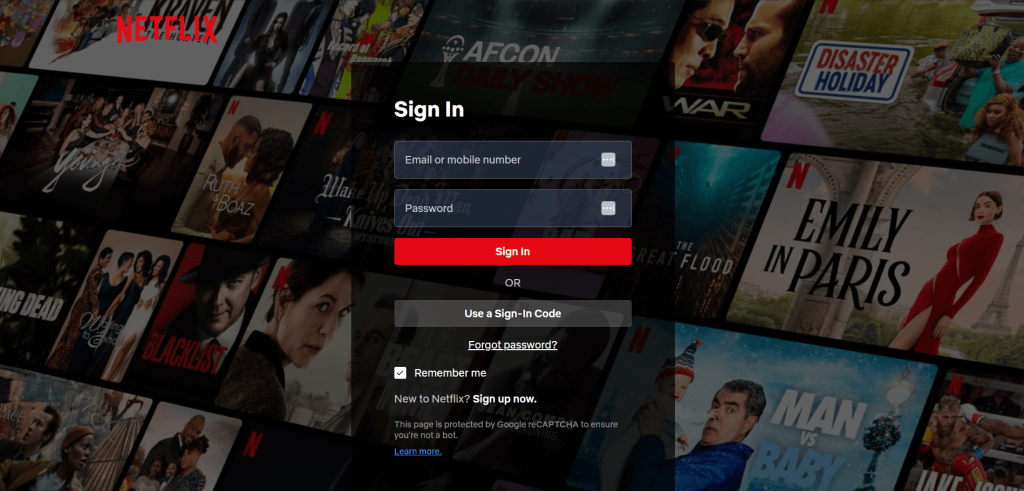
- Log in using the primary account password.
- On the Who’s watching? screen, look below the row of profile icons to find the Manage Profiles button.
- Click Manage Profiles to enter the main management screen.
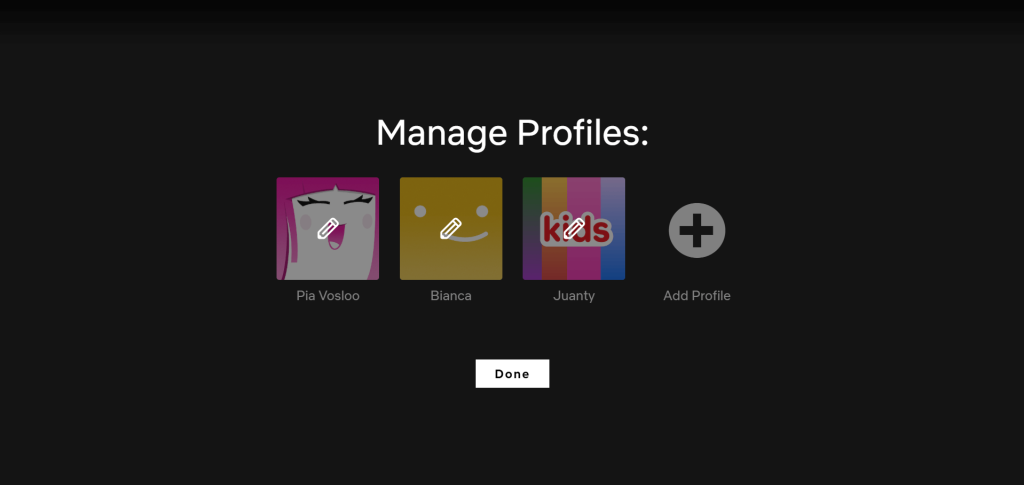
- A small pencil icon will appear overlaid on each profile image.
- Click the pencil icon on the specific profile that requires editing to access the full settings menu.
Create & Edit Kids Profile
If the household does not yet have a dedicated profile for the children, creating one is mandatory. A standard profile has access to the entire Netflix library, whereas a kid’s profile starts with safety rails in place.
- On the main Who’s Watching? screen, locate the Add Profile plus icon next to the existing avatars.
- Click this icon to open the creation menu.
- Enter the name (e.g., “Kids” or the child’s name).
- Check the box labeled Kid? or Kids Experience.
- Click continue or click save.
If a profile already exists, first choose Manage Profiles, then simply select the pencil icon on that profile to enter the specific settings.
Set Maturity Rating
The maturity rating acts as the broad filter. It ensures that a child browsing the library won’t accidentally stumble across horror movie thumbnails or mature drama series.
- While in the Manage Profiles screen, click on the child’s name or profile icon.
- Locate and click on the button labeled Edit or Adjust Parental Controls (depending on the interface version).
- The system will prompt for the account password to verify that an adult is making the changes.
- Once verified, select the maturity rating level for that specific profile (e.g., TV-Y7 or PG).
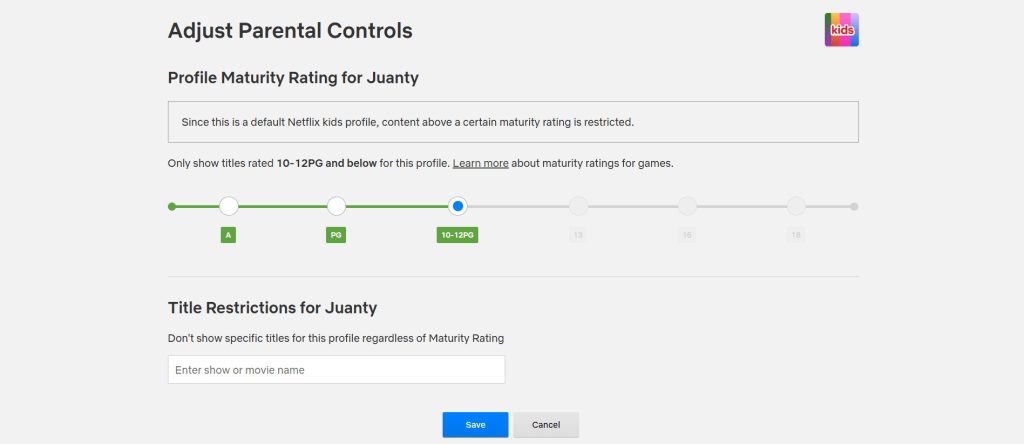
- Click Save to confirm.
Once this is set, the Netflix kids experience will only display TV shows and movies that fit within that specific rating bubble.
Block Specific Titles
Sometimes, a show falls within the correct age rating but simply doesn’t align with family values, or perhaps the child is just terrified of a specific character. The block specific titles feature is perfect for this.
- Return to the Adjust Parental Controls menu.
- Look for the box under Title Restrictions for [Profile Name].
- Type the name of the movies or specific shows to remove.
- Select the title from the list.
- Click Save.
The blocked title will no longer appear in search results or on the home screen for that profile.
Add a Profile Lock PIN
Smart kids often figure out a simple workaround: exit their restricted profile and click on Mom or Dad’s profile instead. The profile lock feature prevents this by securing the adult Netflix account.
- Access the main profile (or any specific profile that requires a lock).
- Navigate to the Account Settings page.
- Locate the Profile Lock option and click on it.
- On the next screen, select Create profile lock.

- Enter the account password to verify ownership.
- Create a four-digit PIN to secure the profile.
Note: It is also advisable to check the option that requires a PIN to add a new profile. This stops children from creating a new, unrestricted user to bypass the rules.
Autoplay Controls
Screen time battles often stem from the “just one more episode” or “just five more minutes” loop. Netflix is designed to keep users watching, but parents can disable this.
- Under the child’s profile settings, find Playback Settings.
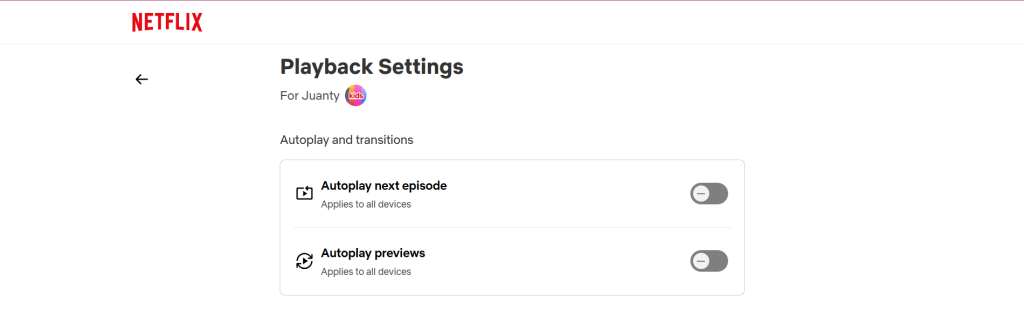
- Uncheck Autoplay next episode in a series on all devices.
- Uncheck Autoplay previews while browsing on all devices.
Disabling previews also prevents the child from seeing jarring clips or loud trailers while they browse for something to watch.
Troubleshooting Common Problems
Technology is rarely perfect. Here are common issues parents face after they set parental controls and how to fix them.
→→→
| PIN isn’t working / kids still accessing adult profiles | If a child bypasses the PIN, they likely know the main account password. Ensure the password is not saved in the browser’s autofill settings and change the main password immediately. |
| Cannot see maturity settings on the mobile app | The Netflix app on phones often limits account management. Always use a web browser to initially set restrictions. |
| Kids still see inappropriate content on a blocked profile | The device might be using cached data. Sign out of the Netflix account on that device, then sign back in to refresh the profile settings. |
| Netflix autoplay sneaks content through previews | Go back to Playback Settings and ensure the Autoplay previews box is unchecked for every profile, including the main shared TV profile. |
Beyond Streaming: Monitoring Safety with Findmykids

Findmykids app
While Netflix parental controls are excellent for curating entertainment, they are limited to the living room. They protect the child only while they are stationary in front of a screen. However, modern parenting requires a broader approach. When the device is put away, and the child leaves the house, whether walking to school or playing in the neighborhood, parents need a way to ensure physical safety through location tracking.
This is where the Findmykids app acts as a complementary tool. It picks up where streaming controls leave off, giving parents peace of mind regarding their child’s physical location and overall digital habits.
- Location Tracking: Findmykids offers real-time GPS tracking. This ensures that when the child is not watching Netflix, parents can rest easily knowing exactly where they are in the real world.
- App Usage Statistics: Findmykids helps parents look at the bigger picture. It shows how much time is spent on games and social media versus streaming, helping to enforce a healthy “digital diet.”
- Sound Surroundings: In situations where a parent is worried about the child’s physical environment, this feature allows them to listen to the audio around the child’s device to ensure they are safe.
Using a tool like Findmykids alongside streaming restrictions creates a complete safety net. It allows the child to explore the world with independence, while the parent stays informed.
Parents can download the Findmykids app today for free to ensure their children remain safe both online and offline.
Creating a Balanced Digital Environment
The goal of these restrictions isn’t to stop children from having fun. It is to ensure that the fun remains age-appropriate and healthy. When parents take the time to manage profiles, block titles, and set strict maturity ratings, they aren’t being controlling; they are being protective.
By combining the Netflix parental controls with broader safety tools like the Findmykids app, families can enjoy the best of modern technology without worry. Whether the child is watching Netflix on a rainy Saturday or heading out to play with friends, the right settings ensure they are always safe.
FAQs
Can you control what kids watch on Netflix?
Yes. Netflix offers detailed controls that allow parents to choose maturity setting levels (like TV-Y or PG), block specific titles, and lock adult profiles to prevent access to mature content.
How to enable kids’ mode on Netflix?
To set up the Netflix kids experience, go to Manage Profiles and select Add Profile. Name the profile and check the Kid? box. This creates a profile with a simplified interface and restricted content.
Can you hide certain programs on Netflix?
Yes. Navigate to the Account page, open the Profile & Parental Controls for the specific user, and select Title Restrictions. Type the name of the show into the search bar and select it to hide it completely.
How to get rid of the kids thing on Netflix?
To remove the restrictions, access Manage Profiles via a web browser, click the pencil icon on the profile, and uncheck the Kid? box. To remove the profile entirely, simply select Delete Profile.
Cover image: patat/Shutterstock
Проверьте электронный ящик