














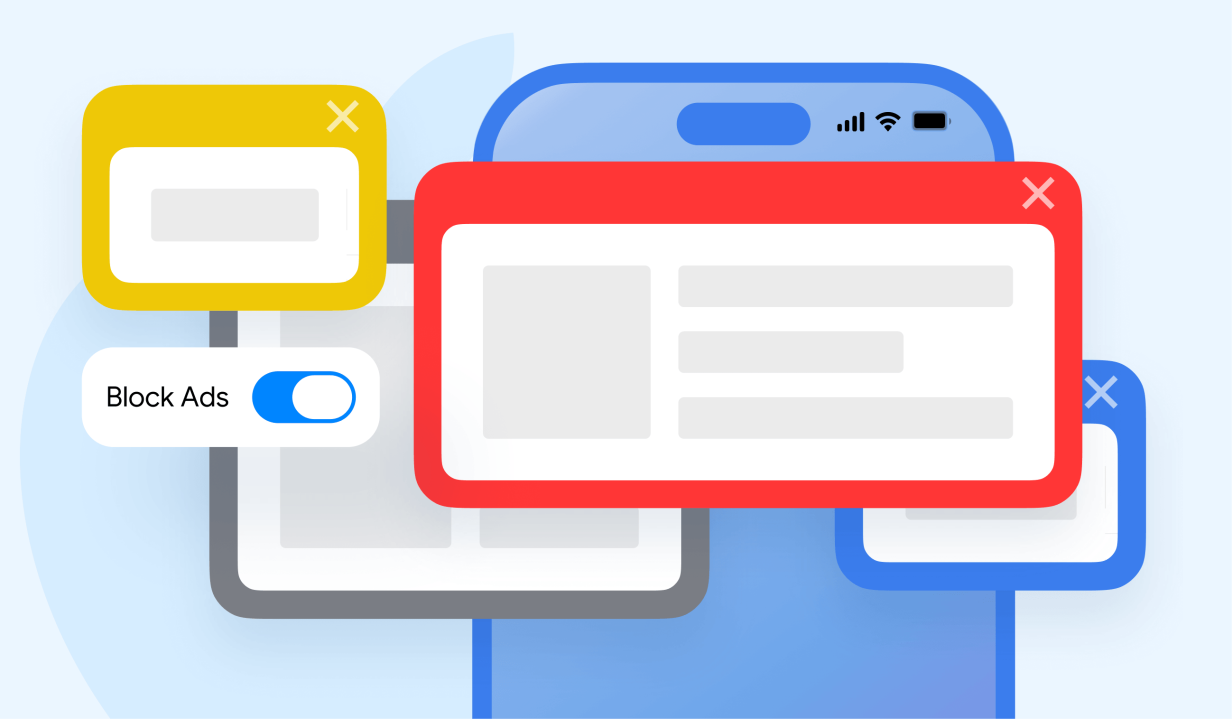
It feels like whenever we open our iPhone, we’re bombarded with advertisements whether we’re using apps, scrolling social media, or simply browsing the internet. And if you’re experiencing a ton of ads when using your iPhone, that means your kids are also likely seeing targeted advertisements on the apps that they use.
In this post, we’re discussing multiple methods to block ads on iPhone so you can scroll freely and not worry about your kids seeing content that could be dangerous or negatively influence them.
Key Takeaways
- You can block many ads on an iPhone, but not all of them. Safari settings and content blockers can reduce pop-ups, website ads, and trackers, while ads inside apps are more difficult to remove.
- Limiting personalized ads can protect your child’s privacy by reducing how much companies use their activity to target them.
- Limited screen time can reduce overall ad exposure due to fewer opportunities to encounter ads.
- Kid-friendly, ad-free apps are worth prioritizing and can help reduce exposure to persuasive advertising.
- The best protection combines multiple tools like privacy settings, ad blockers, app controls, and parental controls like the Findmykids app.
Contents:
Why Parents May Want to Reduce Ads for Children
Aside from ads being annoying, especially pop-up ads, they can have a negative impact on children. Therefore, many parents want to reduce the amount of ads their children are exposed to.
For reference, one study found that the average 14-year-old is exposed to 1,260 ads every day on social media alone. Additionally, researchers found that 95% of the apps designed for preschoolers contained at least one kind of advertising.
But how do these online advertisements actually affect children?
In many cases, children are unable to recognize that a post or video is an advertisement, and that’s normal. But the fact that young children lack the cognitive skills to identify and critically evaluate “blurred” forms of advertising, such as influencer content, can lead to negative impacts.
These negative effects include:
- Children cannot recognize when they’re being advertised to and don’t understand that ads are designed to persuade them.
- Online ads can influence what children want and ask their parents to buy.
- Food advertising can influence children’s eating habits, making them ask for high-calorie, low-nutrient foods and sugary drinks.
- Ads can contribute to unhealthy body-image messages and may be associated with concerns such as lower self-esteem and disordered eating.
- Personalized advertising raises privacy concerns about how companies buy and use children’s data.
- Influencer marketing can make advertising especially difficult to recognize, as children may interpret recommendations as advice rather than advertising.
- Children may be more vulnerable to manipulative advertising techniques such as countdown timers, rewards, or disguised purchase buttons.
Having more control over how many advertisements your child sees while playing games on their iPhone or iPad can give parents some more peace of mind. Additionally, it can decrease the impact of these negative effects.
What Can and Cannot Be Blocked on an iPhone?
There are certain ads and trackers that you can block on an iPhone, while others may require a dedicated ad blocker or a paid, ad-free version of an app or service. Here’s a quick rundown of which ads you can and cannot block on an iPhone:
- Pop-Up Windows in Safari: The good news is that most pop-up windows can be blocked on an iPhone. The Safari browser has built-in protections that stop many of them from appearing, although the occasional pop-up ad may still slip through.
- Regular Ads on Websites: You can block or reduce many of the ads your child sees while browsing websites in Safari. Just keep in mind that no ad blocker catches everything, so some ads may still appear depending on the website.
- Ads Inside Apps and Games: These can be a little trickier. Because the ads are built directly into the app or game, they usually can’t be completely blocked through your iPhone’s regular Safari settings.
- Ads in the YouTube App: Ads that play inside the YouTube app generally can’t be blocked using the same ad-blocking tools you’d use for Safari. YouTube serves those ads directly through the app; they work differently from regular website ads.
- Personalized Ads and Trackers: You can limit how much advertisers track your child’s activity and use that information to personalize ads. This may not reduce the total number of ads they see, but it can make those ads less targeted based on their browsing and app activity.
How to Block Ads on iPhone
There are multiple ways to block and reduce ads on an iPhone. Below are step-by-step ways to limit how many ads your child is exposed to while using their device.
Method 1: Use Safari Content Blockers
Safari supports extensions that can block content on websites, but you’ll still need to install a compatible content-blocking extension first. To do this, follow these steps:
- Open the App Store on your child’s iPhone. Search for a reputable Safari content blocker or ad-blocking extension and install it.
- Open the Settings app.
- Scroll down and tap Apps.
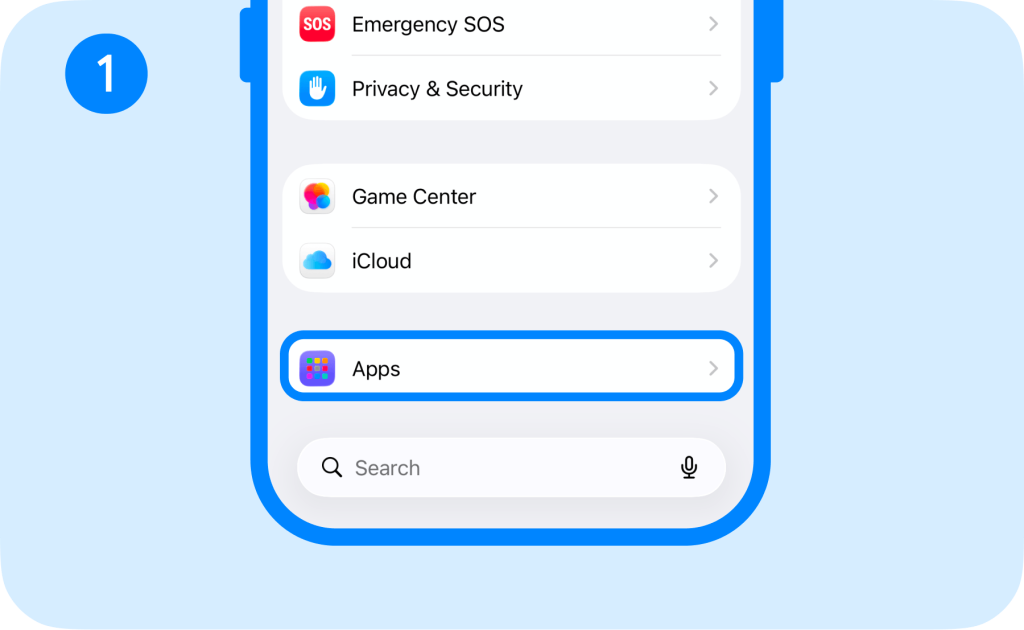
- Then select Safari.
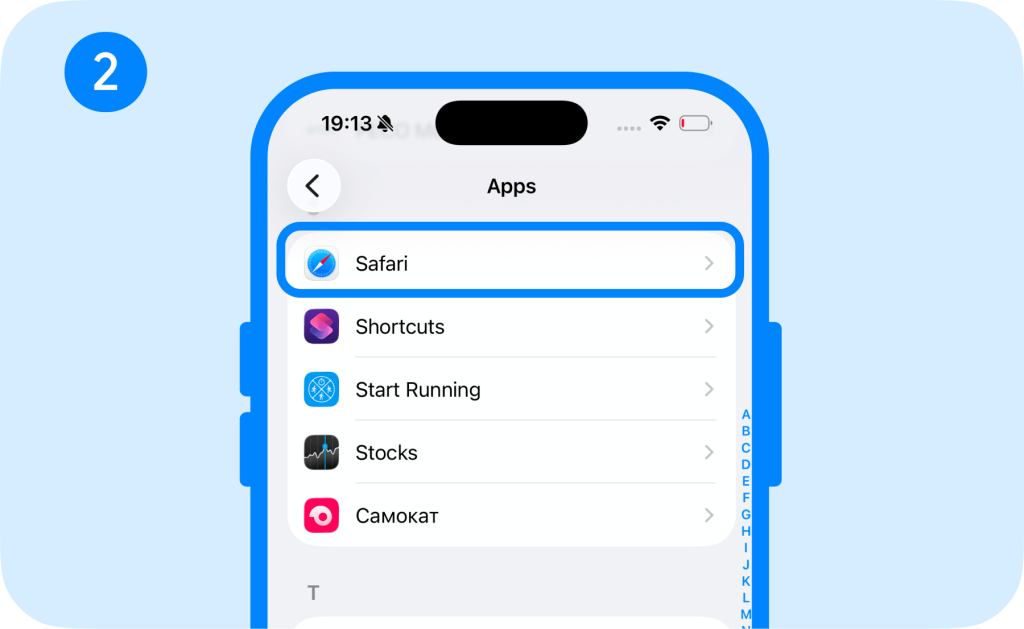
- Tap Extensions and select the content blocker you just installed.
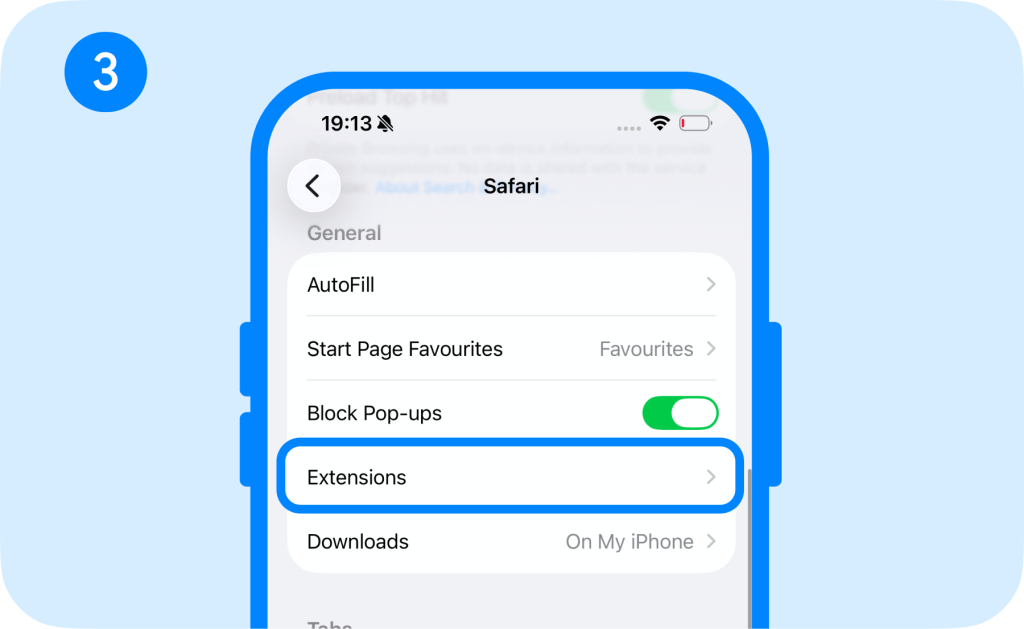
- Select the extension and turn on Allow Extension.
- Open the content blocker’s app if required and continue with selecting settings and filters to block ads, trackers, cookie notices, or other website elements.
- Test it in Safari by visiting a website that normally displays advertisements and check whether the ads have disappeared.
Read also: How to Set Up Safari Parental Сontrols.
Method 2: Turn on Pop-Up Blocking
You can block pop-up ads directly in iPhone settings if your child uses Safari for web browsing. To do this, follow these steps:
- Open Settings.
- Scroll down and tap Apps.
- Tap Safari.
- Find Block Pop-Ups.
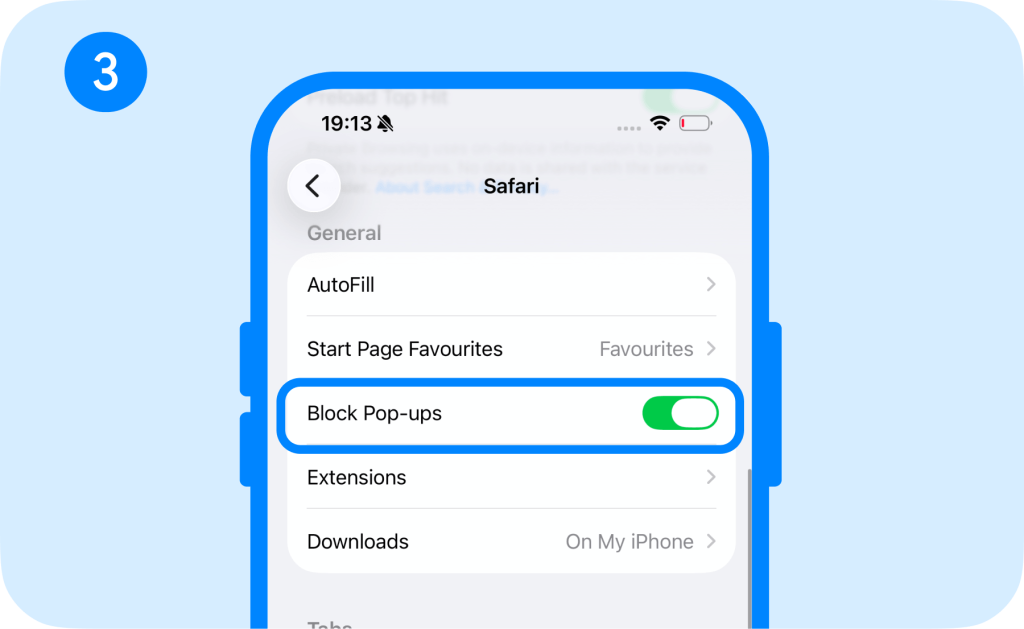
- Toggle it on.
If your child uses Google Chrome for web browsing on their iPhone or iPad, you can block pop-ups on this browser as well. Simply follow these steps:
- Open Chrome on the iPhone.
- Tap the three-dot menu (More).
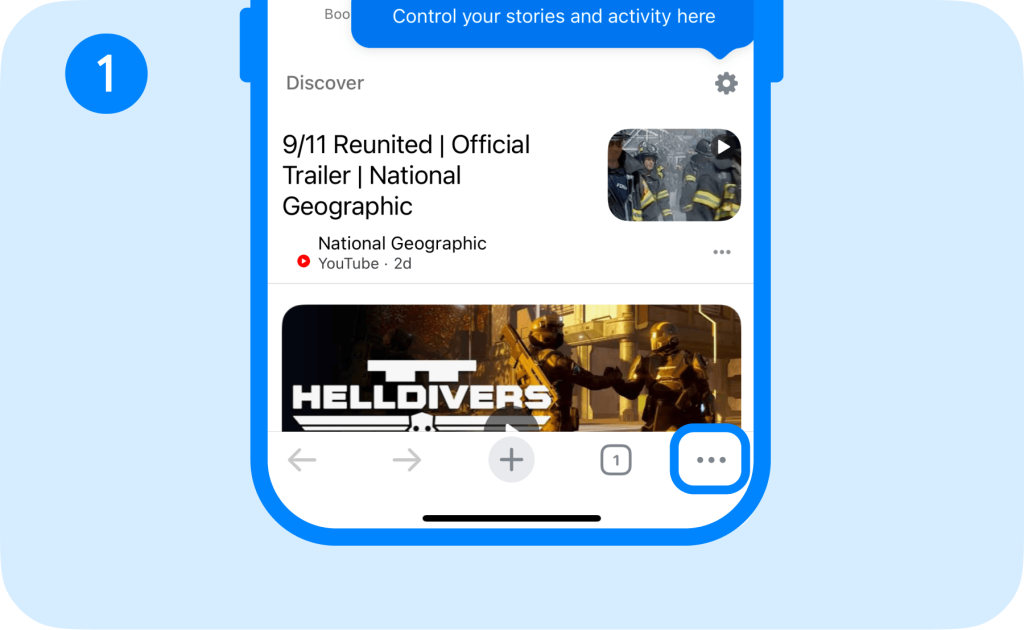
- Tap Settings.
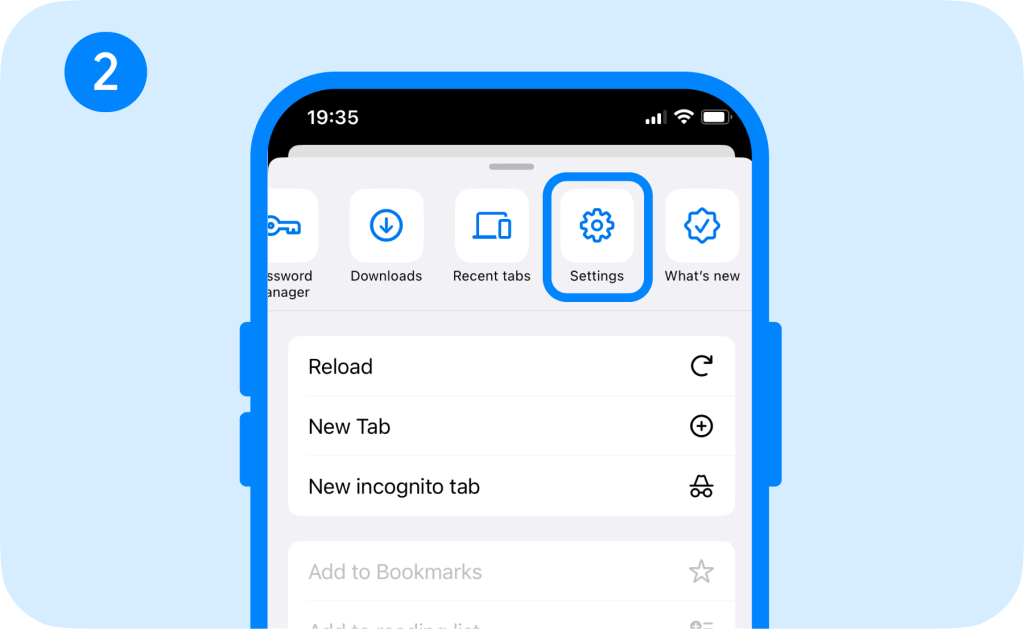
- Select Content Settings.
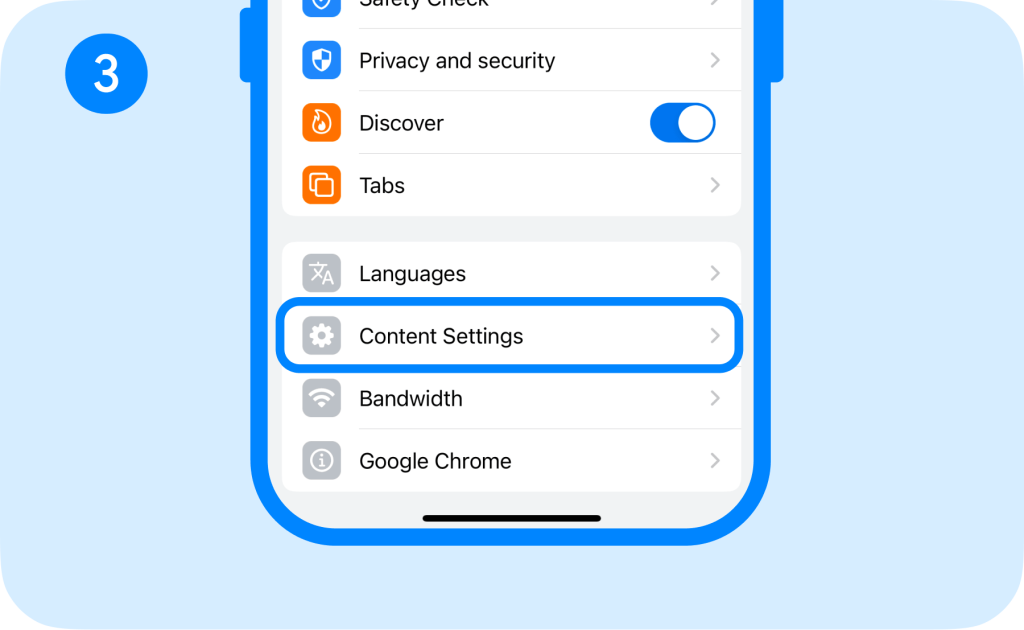
- Tap Block Pop-Ups.
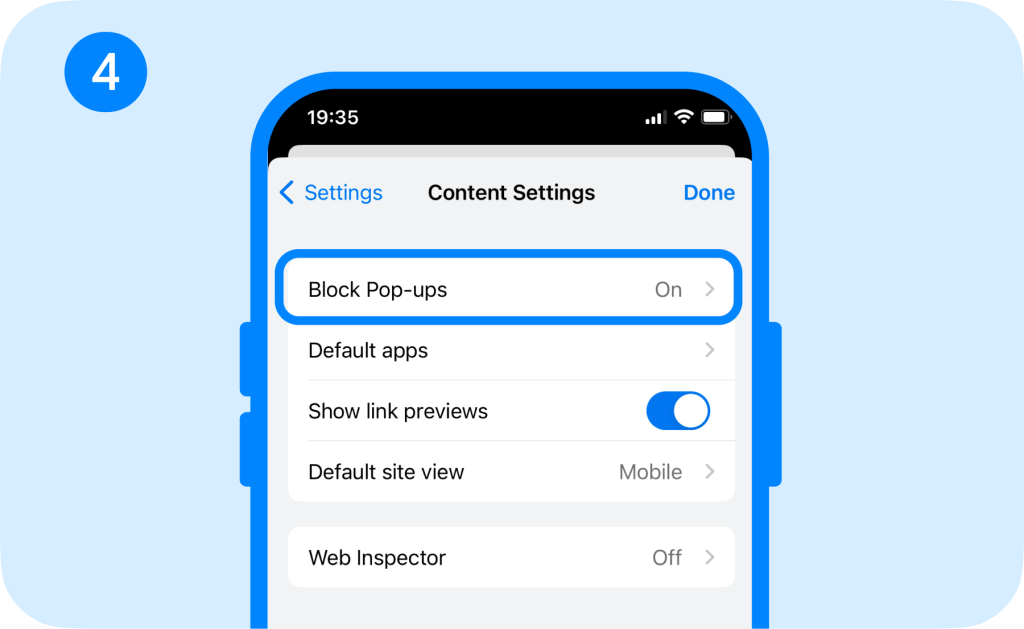
- Make sure Block Pop-Ups is turned on.
When selecting these settings, remember that this only blocks the pop-up ads in these browsers. It does not remove banner ads, video ads, or advertisements built into websites, apps, or games.
Method 3: Limit Personalized Ads
Many websites and apps collect information about users and may use it for advertising or personalization, depending on their privacy practices. That means people see ads that are specific to their interests and habits, and for children, that can be dangerous.
To limit personalized ads, you can configure this in your iPhone’s settings.
- Open Settings.
- Tap Privacy & Security.
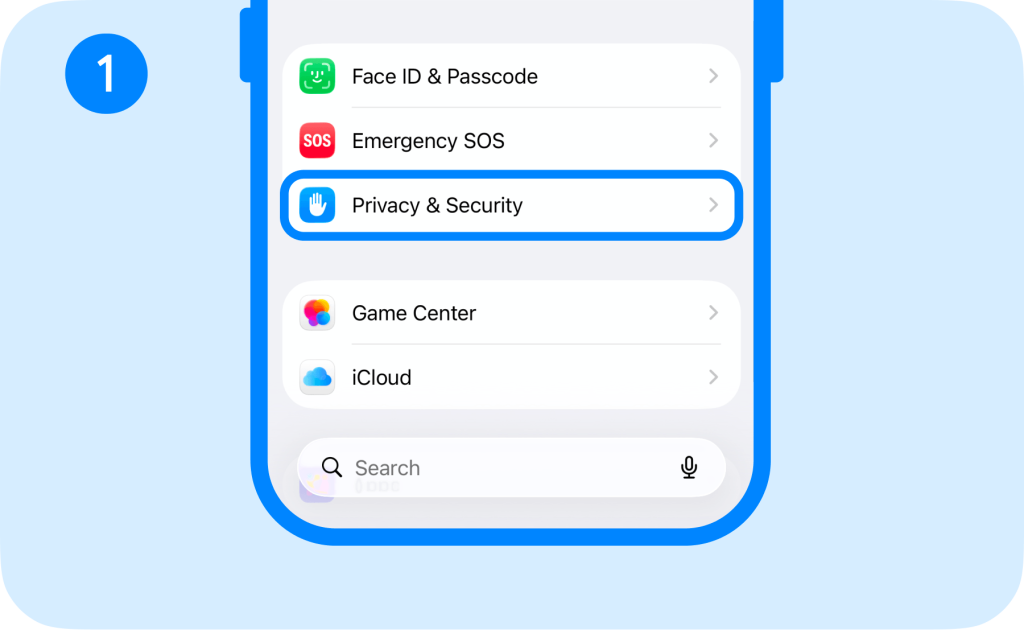
- Scroll down and select Apple Advertising.
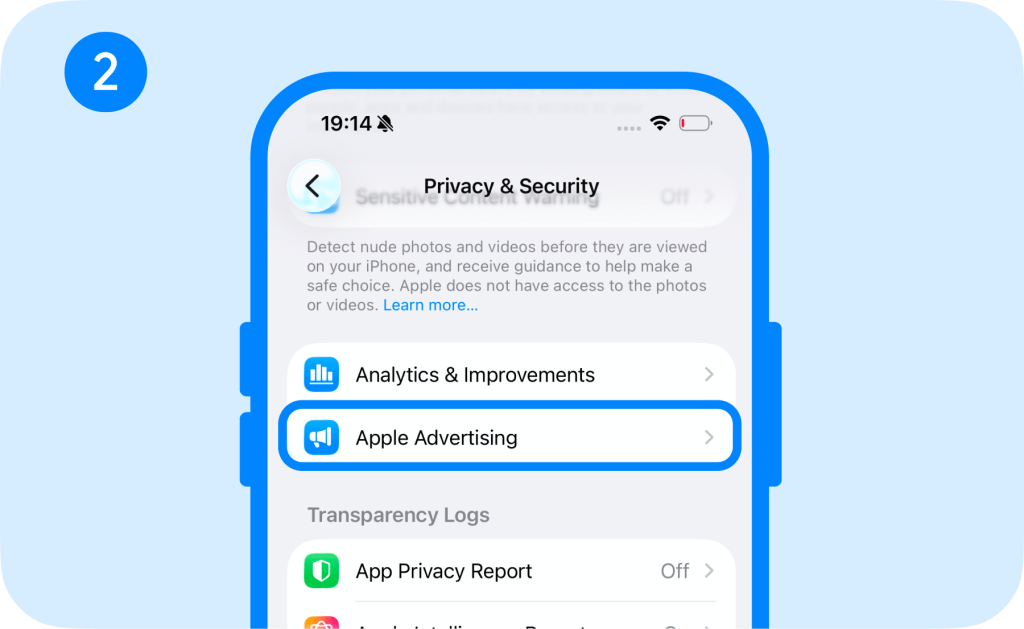
- Turn Personalized Ads off.
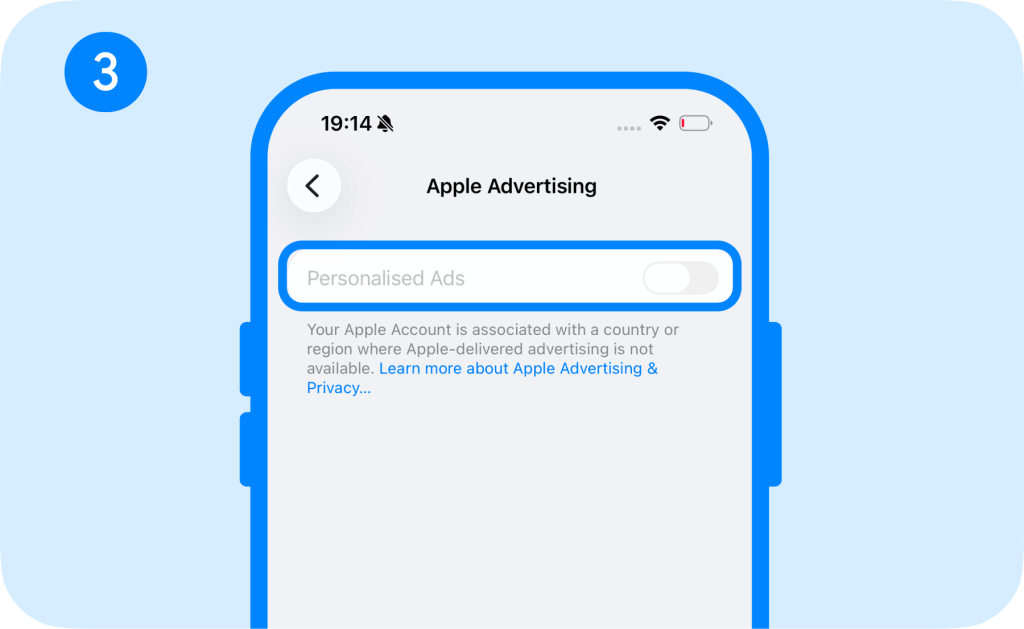
While this doesn’t necessarily reduce the number of ads your child sees, it makes them less personalized.
You can also reduce location-based advertising by following these steps:
- Open Settings.
- Scroll down to Privacy & Security.
- Tap Location Services.
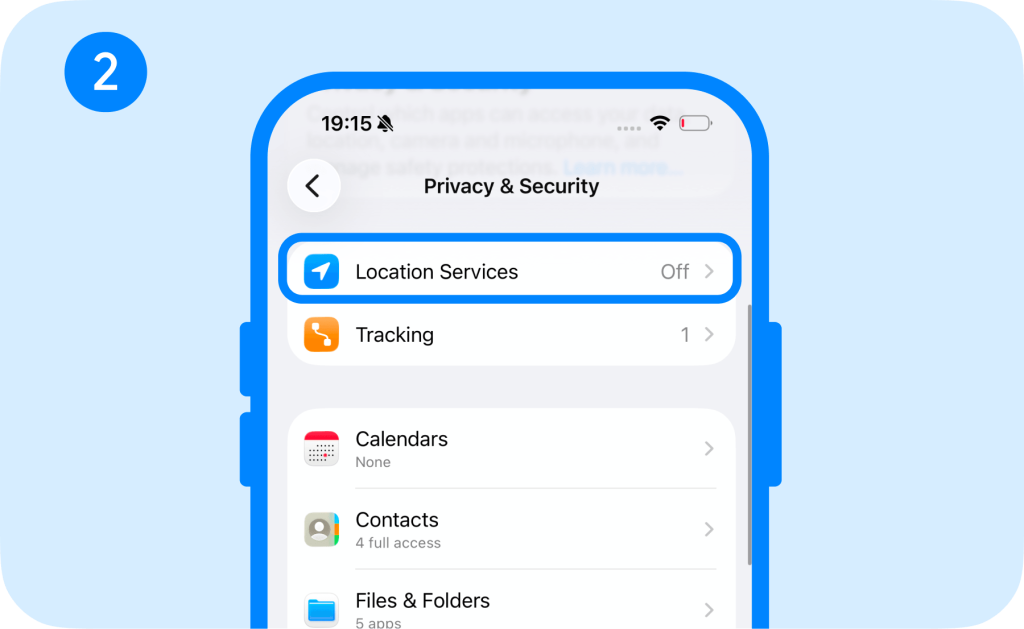
- Limit location access for apps.
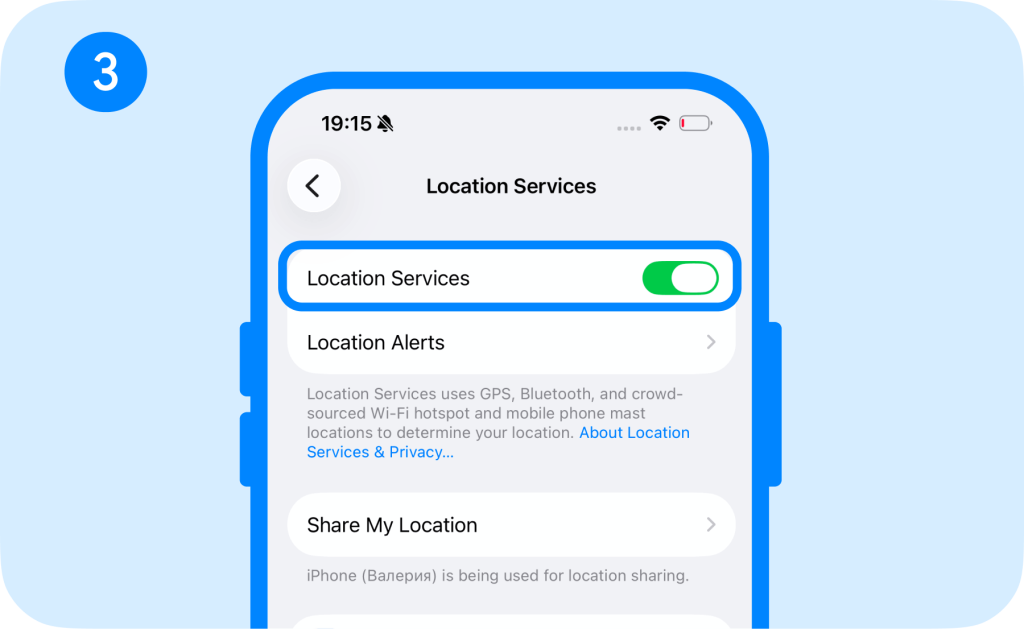
You can also review Location Services for individual apps and turn off location access where it isn’t needed.
The above methods will limit Apple’s personalized ads, not ads that are shown in social media apps. However, when you download a new app, you will receive a pop-up question asking if you will allow the app to track your activity across other apps, which collects data. Simply tap Ask App Not to Track to limit personalized ads in that app.
Method 4: Enable Screen Time Content Restrictions
Restricting how much time your child spends on their iPhone can help reduce their exposure to advertisements on social media, games, apps, and websites.
For example, you can restrict certain websites that you know have a lot of intrusive ads and pop-ups. You can do this on the iPhone by following these steps:
- Go to Settings.
- Scroll down to Screen Time.
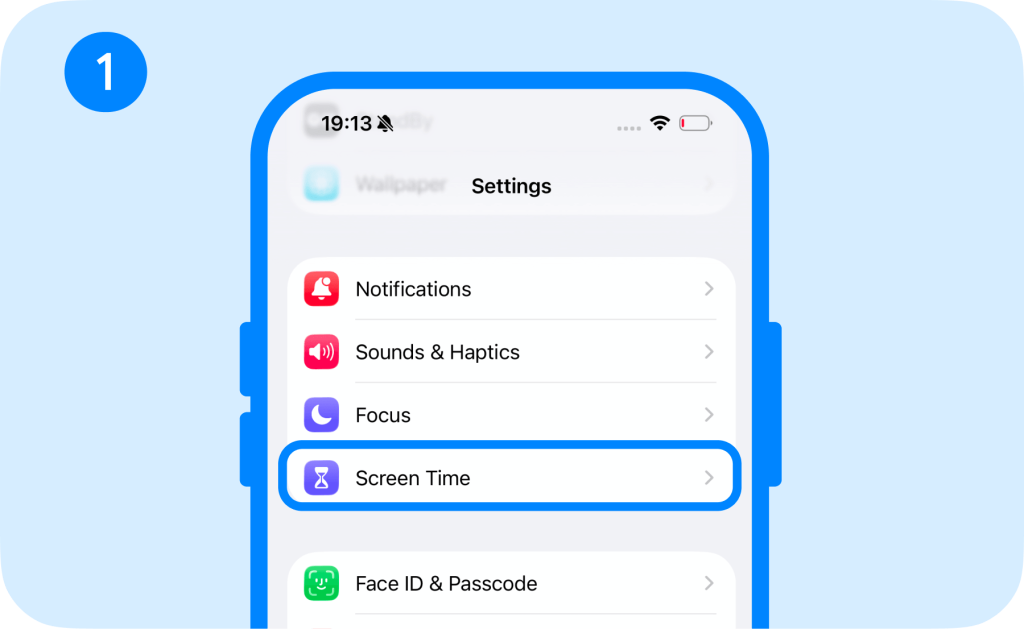
- Tap Content & Privacy Restrictions.
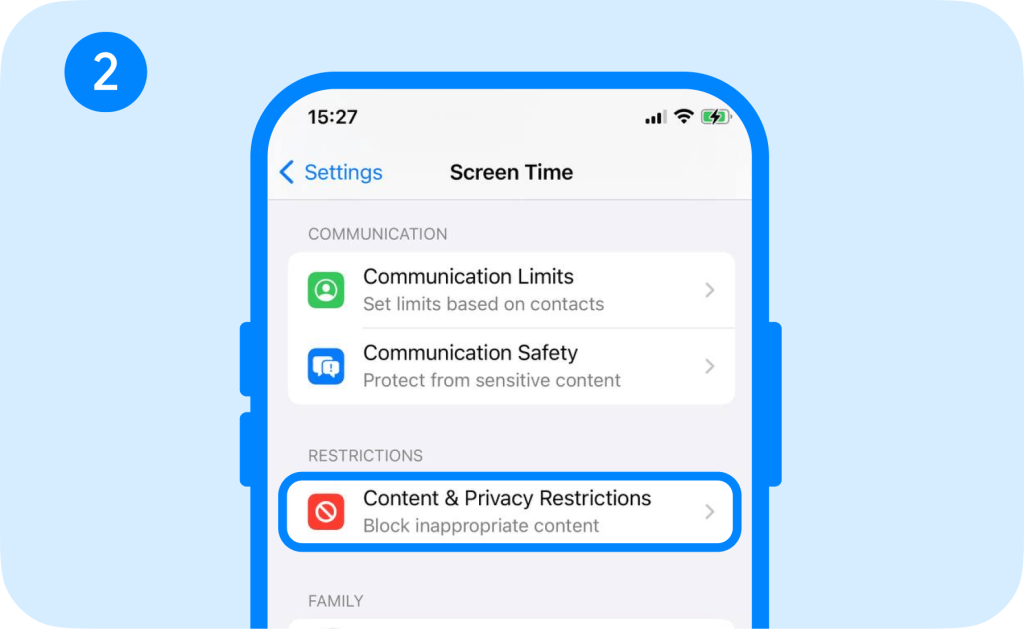
- Select App Store, Media, Web & Games.
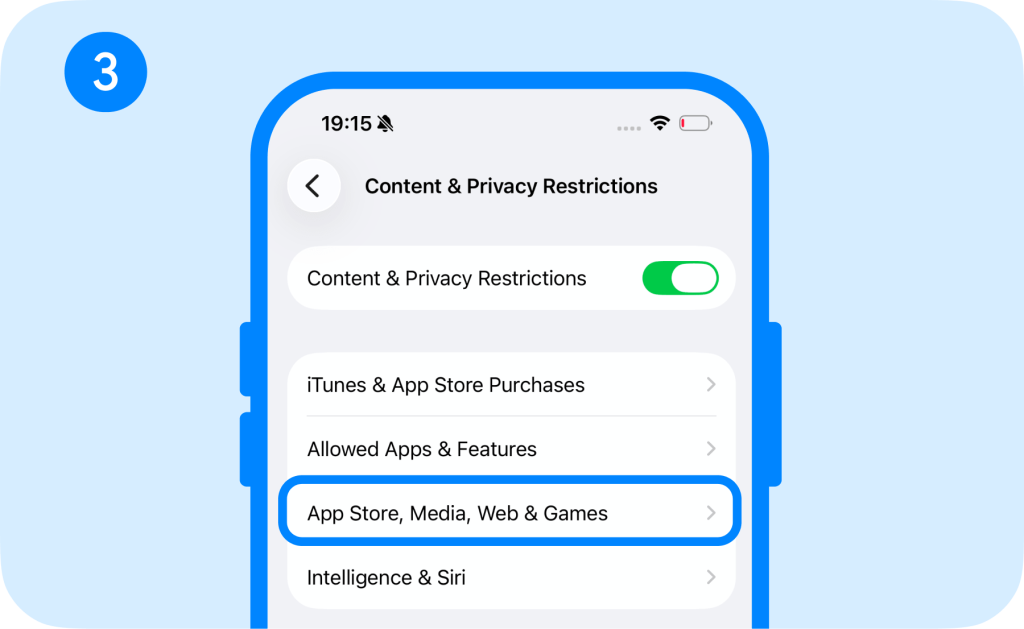
- Tap Web Content.
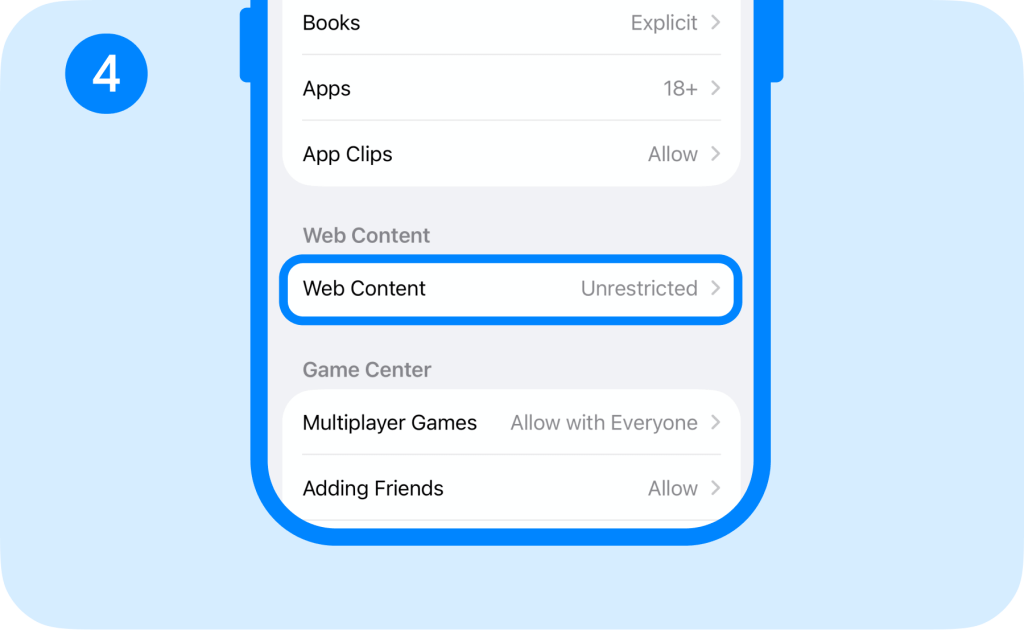
- Block specific URLs or restrict browsing to approved websites only.
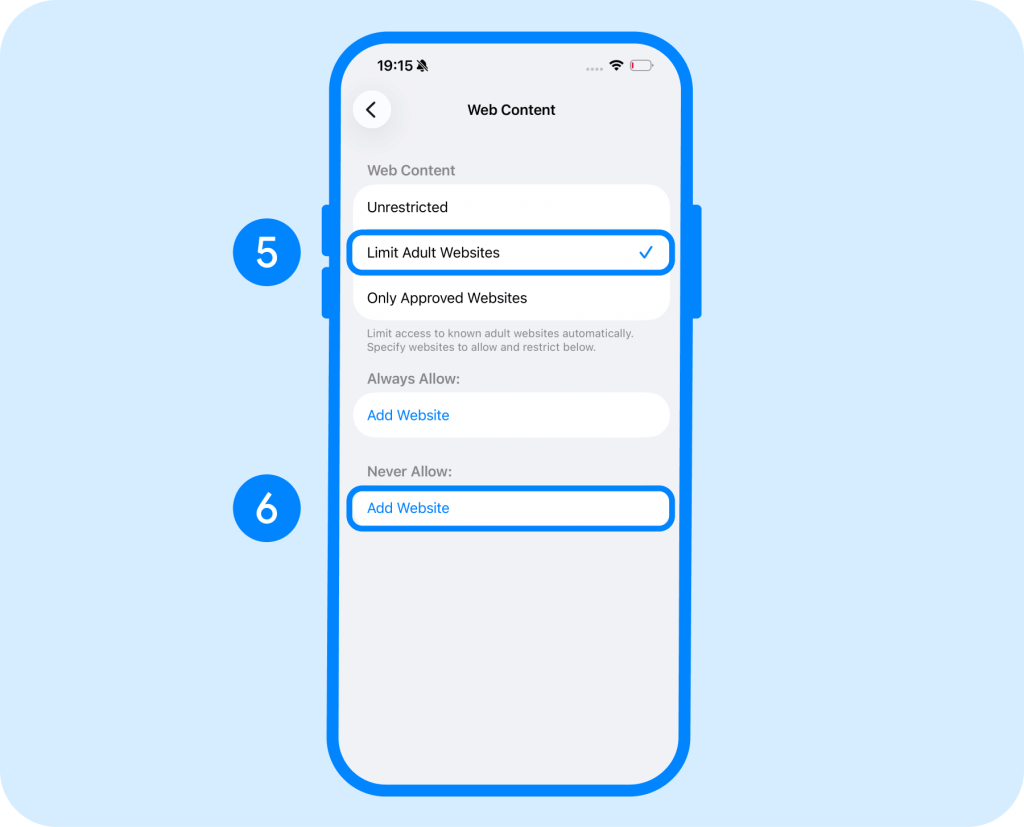
You can also manage these settings from your own iPhone through Family Sharing, without changing them directly on your child’s device. In that case, the path is slightly different: Settings → Family → [your child’s name] → Screen Time → Content & Privacy Restrictions → App Store, Media, Web & Games → Web Content. From there, you can block specific websites or limit browsing to approved websites.
If you haven’t set up Family Sharing yet, see our guide on how to set up Family Sharing.
Additionally, you can use parental control apps like Findmykids to set specific screen time limits on certain apps like Safari, Instagram, Facebook, TikTok, and Roblox. Having your kids spend less time in places where they are exposed to apps helps them step away from targeted ads and from being persuaded into buying something. However, this method is limited compared to other ad-blocking methods like ad blockers because kids can still be exposed.
Method 5: Choose Kid-Friendly Apps
To fully prevent your child from seeing advertisements while playing games, choose kid-friendly apps that promise not to have in-app purchases or ads.
Finding them can be difficult in the App Store.
However, search for apps that have a young age rating and for apps that do not have in-app purchases. You can also review the privacy information and developer description to ensure the app is safe for your child. Remember, just because an app is labeled as “for kids” doesn’t mean it’s completely ad-free.
To help you get started, below are some of the most popular kid-friendly, ad-free apps:
- Khan Academy
- PBS Kids Video
- ScratchJr
- Moose Math
- CyberChase Shape Quest
- Duolingo
- PetBingo
- NASA Visualization Explorer
How to Reduce Ads on Facebook and Other Apps
If you’ve ever been scrolling through Facebook or other social media apps, you’ve probably come across a ton of video and audio ads. Some come up right after the other, feeling endless. Fortunately, these major platforms have teen-specific protections and in-app controls that limit targeted ads or ads with adult content. However, these settings do not remove ads completely.
The best way to reduce ads on Facebook and other apps is to combine age-appropriate accounts, like supervised or teen accounts, and go into the app’s ad preference settings. Though this won’t make the app ad-free, it can reduce behavioral targeting.
To control the ads shown in popular apps, follow these steps:
- Facebook and Instagram: Go to Ad Preferences to hide ads from certain advertisers or adjust some ad topics.
- TikTok: If your child sees an ad that they don’t like, they can tap Not Interested right in the app so it isn’t shown again.
- YouTube: Personalized advertising is restricted for children, but ads will still appear. You can purchase YouTube Premium to get rid of advertisements.
- Snapchat and Other Social Apps: Check the ad preferences, privacy settings, and teen or supervised account options within each app.
Related: Social Media Privacy Settings: What to Change First — and Why It Matters.
Can You Block Ads Inside Every App?
Unfortunately, it is not possible to block ads inside every app your child downloads to their iPhone or iOS device. However, there are many apps that offer premium paid versions that will remove ads, but this requires you to pay for a subscription or a one-time fee for every app your child uses.
That’s why finding kid-friendly, ad-free games and apps is the best way to reduce your child’s exposure to advertisements. While it may limit which apps they use, it can provide parents with peace of mind, knowing their child isn’t being targeted and persuaded.
Whether an app shows advertisements is up to the developer. If they decide to get rid of ads, they can change the app as needed. But this also means that a once ad-free app could potentially show ads if the developer decides to add them. For this reason, it’s always a good idea to periodically check which apps your child is using to ensure the latest version remains safe and ad-free.
How Findmykids Helps Parents Build Healthier Digital Habits
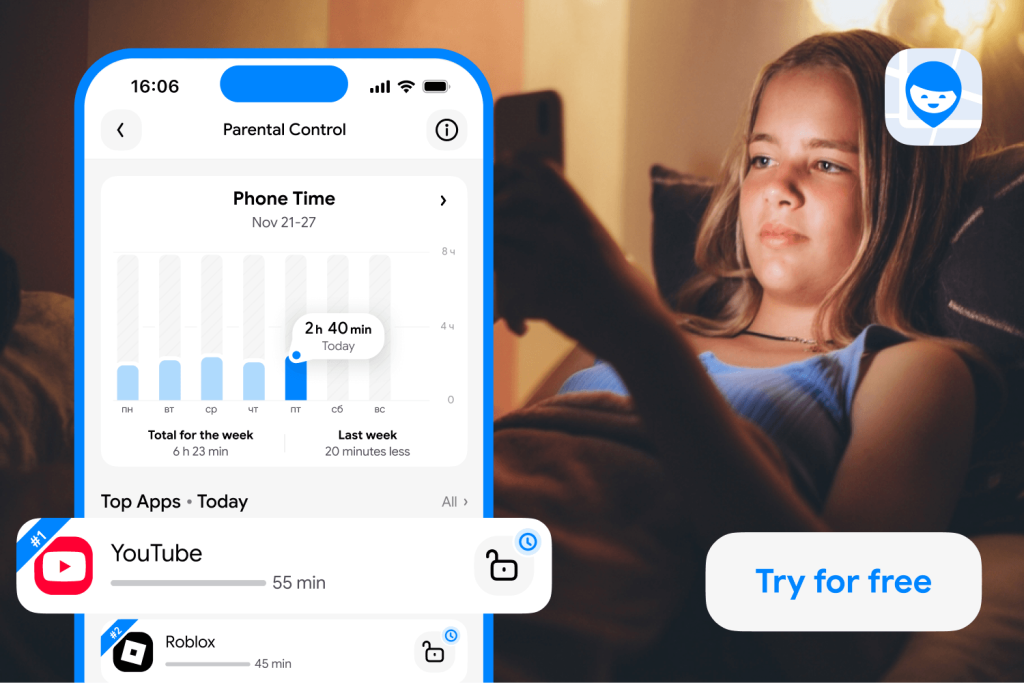
Findmykids app
advertisement exposure is just one part of the problem when it comes to children using devices to browse the web and engage with apps and games. Another major concern is how much time children spend on their devices. According to recent surveys, children between the ages of 8 and 18 spend an average of 7.5 hours in front of a screen every day.
That’s exactly where parental control apps like Findmykids can help parents build healthier digital habits with their kids.
Findmykids allows parents to set scheduled screen time limits on their children’s iOS and Android devices, including smartphones and tablets. This helps reduce device usage while also limiting their daily exposure to ads.
Some of the key features Findmykids offers include:
- Usage Statistics: See how much time your child spends on their device and get a clearer picture of their everyday usage.
- App Usage: View which apps your child uses and understand where their screen time goes.
- App Time Limits: Set daily limits for individual apps so that games, social media, or other distracting apps don’t take up more time than you allow.
- Scheduled Screen Time Limits: Set custom rules like what time of day they can access apps on their phone.
- Remote Device Locking: With a tap of a button on your phone, you can lock down your child’s phone so that they can only access necessary features like calls, texts, maps, and the camera.
- App Blocking: Completely block specific apps that you don’t want your child to access.
- Restrict In-App Purchases: If your child wants to make a purchase within an app, you must approve it first.
- Block 18+ Websites and Apps: With a single button, you can block all web pages and apps that require users to be over the age of 18.
Getting started only takes a few minutes:
- Download Findmykids on the parent’s smartphone, create an account, and then install the app on your child’s device.
- Follow the in-app instructions to connect the two devices and allow the permissions needed for screen time and app management.
- Once connected, open your child’s profile.
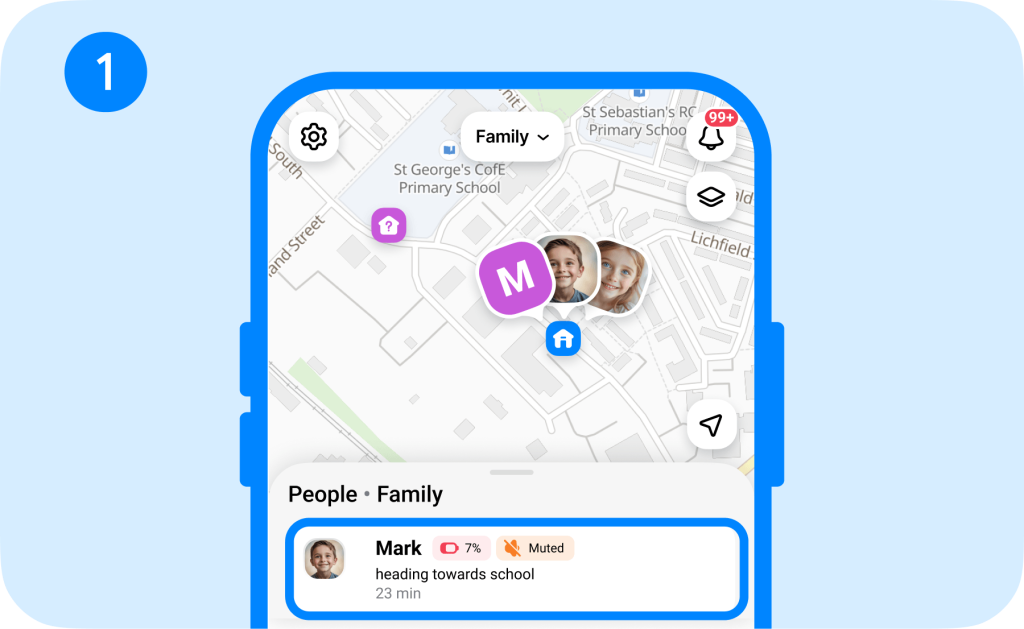
- Go to Parental Controls from the Home screen. From there, you can set limits, create schedules, and manage app access remotely from your own phone.
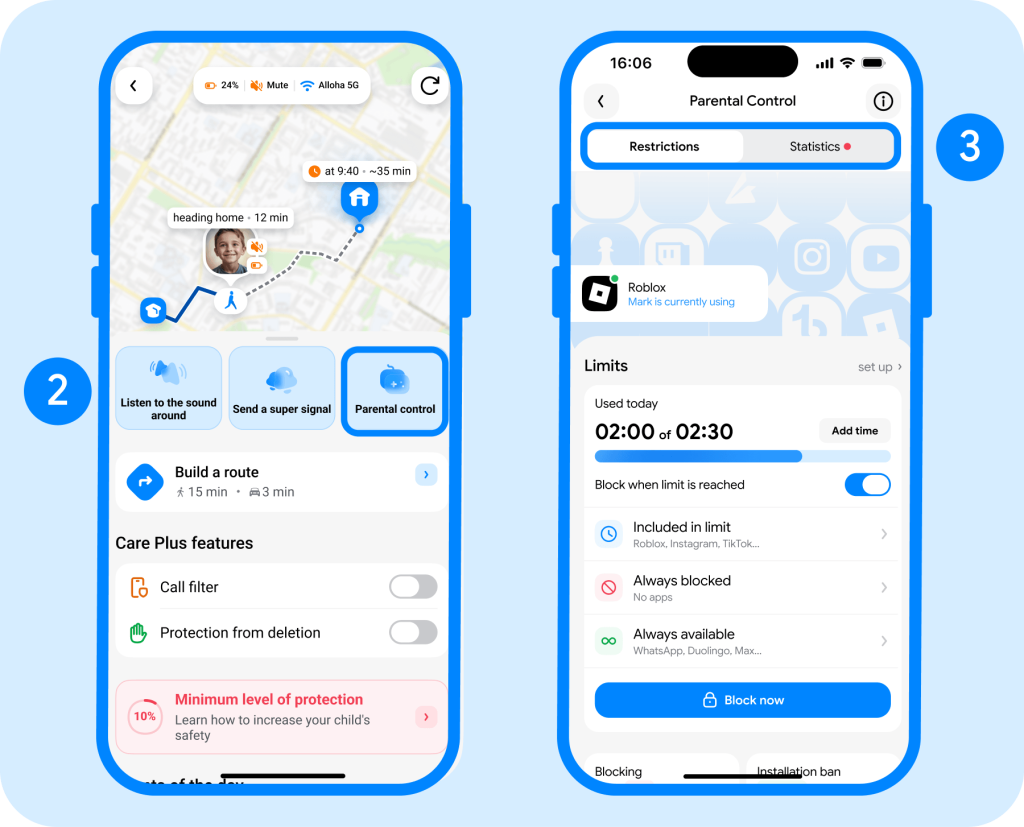
On top of setting digital boundaries and protections, Findmykids also has location-tracking features, so parents know where their child is at all times.
If you want to combine screen time management with everyday family safety, explore Findmykids right now for free and see which tools fit your family’s routine best!
Should Parents Install an Ad Blocker?
Ad blockers can be a useful layer of protection for children who browse the web often. They can reduce distracting banners, pop-up ads, trackers, and some misleading or inappropriate ads on websites.
However, it is not a complete solution. Ad blockers work best in web browsers to block ads in Safari or Google Chrome. They don’t remove ads from apps such as Instagram, Facebook, YouTube, or games.
AdGuard, for example, can block ads on websites, increase page loading speed, set advanced rules, avoid downloading unwanted software, and block trackers and annoyances in browsers and web apps on devices.
Every ad blocker is different, offering various filtering qualities, so it’s always a good idea to check features, reviews, and effectiveness before downloading.
Limit Your Child’s Exposure to Online Advertisements
Navigating how to let your child use their iOS device is an important part of parenting. But it’s more than just how much time they spend on their device; it’s also about what they are exposed to. With online advertising, children see more and more ads every day browsing the web or playing in apps. That’s why understanding how to block ads on iPhone is important knowledge for parents who want to protect their children.
There are many ways to block ads and increase online privacy, but it takes a few different methods working together. You can use internal settings for content filtering capabilities and how apps and websites collect data. Then you can go into the settings of individual apps and set privacy and ad preferences. Lastly, you can use third-party apps like Findmykids to limit screen time and ad blockers like Adguard products for further ad-blocking and new filtering capabilities.
If you found this article helpful and informative, make sure to share it with a friend who is also worried about online advertising and how it affects their children.
FAQs
Does the iPhone have a built-in ad blocker?
No, the iPhone does not have a built-in ad blocker, but you can block pop-up ads in Safari in device Settings. You can also download third-party ad-blocking extensions and apps.
How can I block all ads on my iPhone for free?
It is difficult to block ads across every third-party mobile app on your iPhone for free. Usually, people use paid tools or custom DNS profiles to do this. However, there are reputable extensions like AdBlock Pro or AdGuard that can block ads on Safari.
Can an ad blocker remove ads from the YouTube app?
No, standard ad blockers do not remove ads from the YouTube app. If you want to remove ads, you must use the paid version of YouTube Premium.
Do iPhone ad blockers improve battery life and data usage?
Yes, using ad blockers on your iPhone can improve battery life, device performance, and mobile data usage because it stops your Safari browser from processing and showing heavy ads, auto-playing videos, adding unnecessary web traffic, and running tracking scripts in the background.
Why am I still getting pop-ups after turning on Block Pop-ups?
If you still see pop-ups after blocking them, it may be because you’ve allowed the website to send you notifications. In some cases, it may be due to your device having adware or malware on it, which can bypass your settings.
Sources & References
- Children and Digital Marketing, UNICEF
- Protecting Children in the New World of Online Advertising, Children and Screens, 2023
- The Impact of Food Advertising on Childhood Obesity, American Psychological Association, 2010
- 21 Free Apps for Kids (Without Hidden In-App Purchases!), Care, 2025
- Screen Time and Children, American Academy of Child & Adolescent Psychiatry, 2025
Проверьте электронный ящик