If your child uses social media platforms, you may be worried about exactly how safe they are while online. With news stories proliferating about the dangers these sites pose, it’s vital to be aware of the threats and take steps to mitigate them. The following guidance will run you through the key social media privacy settings and the importance of changing them.
Contents:
What Social Media Privacy Settings Control
Firstly, let’s take a look at what security and privacy settings typically control on major social media platforms.
In most cases, privacy settings allow you to choose who can see a user’s posts (such as anyone, friends, or only me) and who can contact them via direct messages or friend requests. Such security settings can sometimes be customized to control who can find a user (such as via a general search by name or email lookup), the visibility of profile pictures, and, for Facebook users, whether they can be tagged or mentioned in others’ posts.
Social media privacy settings may also be changed, depending on the platform, to enable or disable location sharing, and to set preferences regarding ad personalization and the amount of third-party data used and stored.
Quick Checklist — 16 High-Impact Changes
Findmykids app
Some of the most important changes you can make to the settings of your children’s social media accounts are:
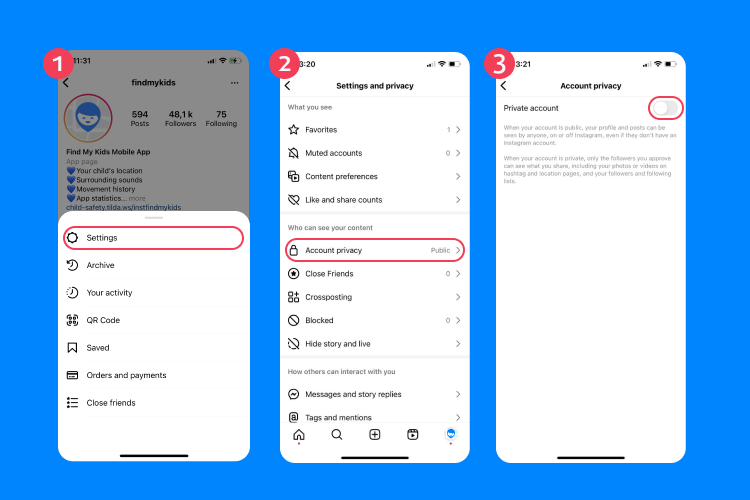
- Where possible, set the account to private and review the default privacy settings. By setting profiles to private, only approved followers can view any content your kid posts. This is a key way to help keep children safe online and protect their sensitive data.
- Turn on two-factor authentication or multifactor authentication to add an extra layer of security to your kid’s social media account. When you enable two-factor authentication, this involves social media companies double-checking to ensure the user really is who they say they are.
- Use a unique, strong password for each social media platform to help protect your child’s account and keep their personal data safe.
- Limit who can send your child message requests, direct messages, or friend requests.
- Customize settings to limit the discoverability of your child’s social media accounts, such as via name or email address lookup.
- Restrict, or remove entirely, the ability of others to tag or mention your child in their post, to further ensure their personal information remains inaccessible.
- Where possible, hide your child’s followers or friends list on the social network sites they use.
- Review the visibility of their past posts and change settings as necessary to ensure they can only be seen by approved followers or friends.
- Reduce oversharing, such as vacation photos or information that reveals personal details, such as your child’s school or home address.
- Learn—and teach your child how to spot—potential phishing attempts, false data, and fake profiles. Make sure they know what to do if, for example, they receive phishing emails.
- Regularly check and log out of unrecognized devices or sessions, especially on mobile devices, to help prevent unauthorized users from gaining access to social media accounts.
- Promptly close any unused accounts and request the deletion of your child’s data from the relevant social media companies as necessary.
- Periodically review third-party apps connected to social media accounts used and revoke permissions.
- Disable personalized ads and prevent search engines from linking to your child’s profile to limit data sharing.
- Regularly audit your child’s connections, such as their Instagram followers or Facebook friends, to maintain privacy and security.
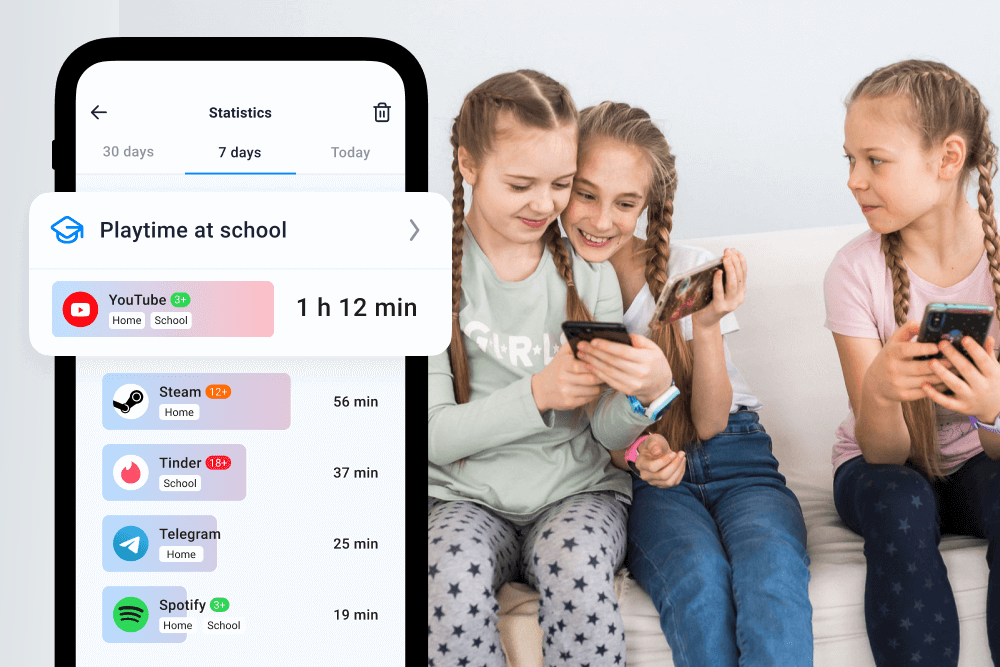
- Download the Findmykids app to help manage your kid’s online activity, including restricting the apps and websites they can access (or even block specific apps entirely), and the amount of time they can spend online. This parental control app is the perfect complement to social media platforms’ privacy settings.
Take control of your child’s digital safety—install Findmykids today!
Key Privacy Settings by Platform
Next, let’s take a look at the key privacy settings of some of the most popular platforms: Instagram, TikTok, Snapchat, and WhatsApp. These platforms are particularly loved by kids and teens. In 2025, Instagram boasted over 180 million active teen users in the US alone, with Snapchat being one of the most popular messaging apps for this age group.
Find out more: Revealing the 5-Hour Screen Time: What Kids are Doing on Their Phones.
Instagram settings
To access and customize privacy settings on Instagram:
- Open the Instagram app and head to your child’s profile.
- Navigate to the menu (via the three horizontal lines in the top right corner).
- Select Settings and Privacy. From here, you can customize settings as required.
Recommended privacy settings for parents to review:
- Private account (switch on) — ensures only approved followers can see posts and stories.
- Limits — restrict interactions from non-followers or recent followers.
- Hidden Words — filter offensive messages and comments.
- Story controls — choose who can view and reply to stories.
- Messaging controls — limit who can send message requests.
- Tag and mention controls — restrict who can tag or mention your child.
- Supervision tools (for teens) — enable parental supervision features where available.
Detailed instructions with screenshots: Guide for Parents of Teens: Can You Put Parental Controls on Instagram?
TikTok
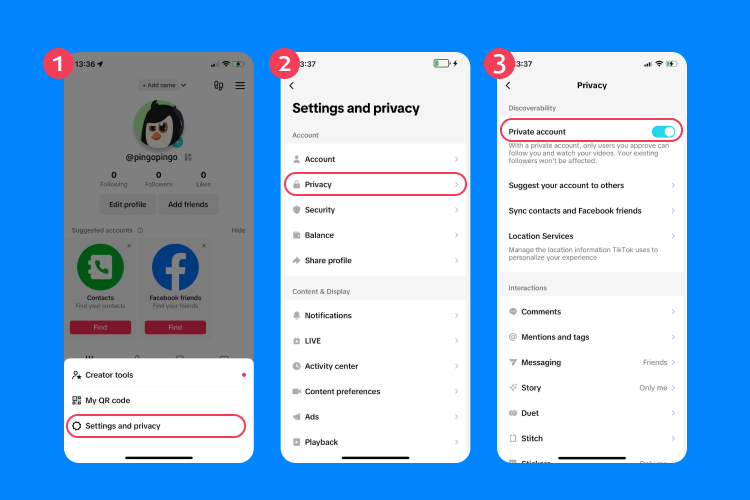
TikTok settings
To access and customize privacy settings on TikTok:
- Open the TikTok app and navigate to your child’s profile.
- Select Menu and choose Settings and Privacy.
- Another menu will appear: choose Settings and privacy. You will now be taken to a section where you can customize the account settings.
Recommended privacy settings to review:
- Private account (switch on).
- Direct messages — limit who can send messages.
- Comments — restrict who can comment on videos.
- Download video setting — disable to prevent others from saving content.
- Duet and Stitch controls — limit who can interact with your child’s videos.
- Story viewer list — control visibility of stories.
- Family Pairing — enable parental control linking for younger teens.
- Screen time management — set daily limits and restricted mode.
Detailed instructions with screenshots: TikTok Parental Controls: What Parents Can (and Should) Do.
Snapchat
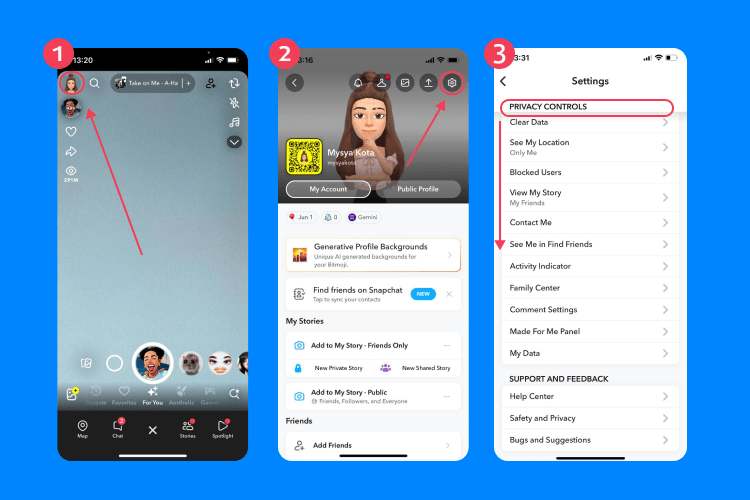
Snapchat settings
To access and customize privacy settings on Snapchat:
- Open the Snapchat app and tap the cog icon in your child’s profile.
- From Settings, select the App & Privacy section, and then Contact Me.
- From here, choose the desired option and tap the back button when done.
You can alter other privacy settings on Snapchat via the My Privacy & Data, My Selfie (found in My App), and Privacy Choices sections.
Recommended privacy settings to review:
- Contact Me — set to “My Friends” only.
- View My Story — limit to friends or custom list.
- See My Location (Snap Map) — enable Ghost Mode or restrict to selected friends.
- Quick Add — disable to prevent random users from finding your child.
- My AI settings — review privacy and data sharing options.
- Memories settings — control backup and sharing preferences.
Detailed instructions with screenshots: Does Snapchat Have Parental Controls? A Guide for Concerned Parents.
To access and customize privacy settings on WhatsApp:
- Open the WhatsApp app and tap the three dots in the top right corner.
- Choose Settings from the dropdown menu and tap on Privacy.
- From this section, you can customize privacy settings, including who can see status updates.
Recommended privacy settings to review:
- Last Seen and Online — limit to “My Contacts” or “Nobody.”
- Profile Photo — restrict visibility.
- About info — limit who can see it.
- Status updates — customize audience.
- Groups — set to “My Contacts” to prevent being added by strangers.
- Read Receipts — consider disabling if needed.
- Two-step verification — enable for additional security.
- Disappearing messages — review default message timer.
Detailed instructions with screenshots: WhatsApp for Kids: Exploring Safety Concerns and Tips for Parents.
It’s important to regularly review these settings and update them as necessary. This helps ensure the settings remain relevant as kids grow and develop, and allows you to tweak permissions as necessary if you have any concerns.
Security and Privacy Settings That Prevent Account Takeovers
By customizing the security and privacy settings on your child’s social media platforms, you can help prevent account takeovers and safeguard personal information. There are other steps you can take to avoid these attacks, too, including:
- Enable two-factor authentication. Where possible, use an authentication app instead of SMS codes, as text messages can sometimes be intercepted. Make sure backup codes are saved securely in case access is lost.
- Set up login alerts and security notifications. Enable notifications for new logins or password changes. This allows you to act quickly if someone attempts to access the account.
- Use strong, unique passwords for each separate account. Strong passwords should be at least 12–14 characters long and include a mix of uppercase and lowercase letters, numbers, and symbols. Avoid names, birthdays, or easily guessable information. A password manager can help generate and securely store complex passwords.
- Avoid public Wi-Fi for logging into accounts. Public networks can expose login credentials if not secured properly. If your child needs to connect, avoid accessing social media accounts or use a secure connection.
- Advise your child to be extremely cautious about accepting friend requests and having interactions with those they don’t know. Fake profiles may pretend to be classmates, influencers, or gaming friends to gain trust. Encourage your child to accept requests only from people they know in real life, ignore duplicate accounts, and never share passwords or verification codes—even with friends. Remind them that legitimate platforms do not ask for passwords via direct messages.
- Carefully monitor activity on your child’s account, looking for access by unauthorized or unrecognized devices or unusual activity. Remove unfamiliar devices immediately and change the password if anything seems suspicious. Watch for warning signs such as unexpected password reset emails, profile changes, messages your child didn’t send, or login alerts from unknown locations.
- Keep apps and devices updated. Ensure your child’s phone, operating system, and social media apps are updated regularly. Security updates patch vulnerabilities that hackers may exploit.
Reduce Digital Footprint Without “Going Dark”

FAMILY STOCK / Shutterstock.com
Your digital footprint is the data trail you leave behind as a result of your online activities and interactions. If you’re keen to ensure your child steps as lightly—digitally—as possible, without “going dark” entirely, there are plenty of things you can do.
The security and privacy settings on social media accounts are powerful tools to reduce a digital footprint—customizing even those relating to who can see your child’s profile will have an impact. It’s also a good idea to delete old accounts that aren’t being used, or temporarily deactivate accounts when taking a social media break.
Regularly audit your child’s old posts, photos, and even comments and likes, and either delete or archive these as necessary. This can be an effective way of reducing your kid’s digital footprint and protecting their personal information.
Read more: Navigate Safely Online: Your Guide to the Digital Footprint Checkers.
Social Media Security and Privacy Settings: An Easy Way to Keep Your Kid Safe Online
Not everyone is aware of the range of security and privacy options you can customize on many popular social media platforms, and the amount may surprise you. Make the most of these to help keep your child safe and protect their identity, through restricting who can contact them, view their profile, and more. Used in conjunction with practices to reduce your child’s digital footprint, and a high-quality parental control app like Findmykids, you can help ensure your kid enjoys a safe—and fun—experience on social media.
FAQs
What are social media privacy settings, and what do they control?
Social media privacy settings vary across different platforms; generally speaking, they allow you to control who can view your posts, send you direct messages or friend requests, and find you. These settings are available on popular online services, including Facebook, Instagram, TikTok, WhatsApp, Snapchat, and X (formerly Twitter).
What are the most important privacy changes to make first?
Some of the most important privacy changes to make first on social media accounts include setting the account to private, reviewing the default privacy settings and privacy policies, enabling two-factor authentication, limiting who can send you direct messages, and restricting discoverability.
How do I make my account private on major platforms?
To make your account private on major social media platforms (whether at sign-up or later), typically open the relevant app and navigate to the Settings section. Next, look for a section called Security and Privacy, Settings and Privacy, or similar. From here, you should be able to customize settings as required.
How do I enable two-factor authentication?
Enabling two-factor authentication on a social media account can usually be done via the Settings menu of the relevant platform. This is an important way to secure your account and protect sensitive data, and as such is definitely worth exercising.
Cover image: rawpixel.com / Freepik.com
Проверьте электронный ящик