In 2026, the average teenager spends over seven hours every single day staring at a screen, and for most, Instagram is the primary reason for that digital obsession.
While it might look like a harmless place for photos, Instagram’s algorithm is built to make walking away almost impossible for a developing mind. If you feel like you are losing your child to mindless scrolling or are worried about the inappropriate content they might stumble upon, or how to block inappropriate content, you are not alone.
Knowing how to block Instagram on iPhone or iPad is no longer just an option for parents: it is a vital step in protecting your child’s mental health and reclaiming their focus for the real world.
If you have decided that it is time to take a step back and block Instagram on iPhone, you are in the right place. Whether you are looking for a temporary digital detox or a permanent restriction, this guide walks you through every method. We will cover everything from native Apple settings to the more powerful, instant controls offered by Findmykids.
Contents:
The Hidden Cost of “Just Five More Minutes”
Before we look at the specific screen time step instructions, it is vital to understand the “why” behind digital boundaries. In 2026, teen users are spending more time than ever in front of their screens. Recent data reveal that the average person worldwide now spends 6 hours and 45 minutes daily on screens. This number rises significantly in certain regions, reaching as high as 9 hours and 24 minutes in some areas.
Generation Z individuals, those aged 13 to 28, are the most affected as they spend an average of over 9 hours per day on devices. A significant chunk of this time is spent purely on social media apps, averaging 2 hours and 21 minutes daily. For many, the Instagram app is a primary culprit. Its design often leads to addiction: roughly 49% of Americans feel addicted to their devices, a number that jumps to 69% for Gen Z.
Excessive screen time is no longer just a buzzword. It is a documented risk factor. Health experts recommend no more than 2 hours of screen time per day, yet the reality is often more than double that. High usage is linked to anxiety, eye strain, neck pain, and sleep disruption. When a child is constantly checking for personalized responses or likes, they are not engaging with the physical world around them.
For many families, statistics like these are not just numbers—they reflect everyday struggles with screen time limits, bedtime scrolling, and constant notifications. The good news is that parents have several effective tools to manage Instagram use on an iPhone.
Method 1: Using Findmykids for Instant, Total Control
While Apple’s built-in Screen Time is a start, many parents find it difficult to navigate, and it is easy for tech-savvy kids to bypass. For instance, blocking without complex Screen Time navigation, Findmykids is the solution many families prefer.
Findmykids allows you to manage digital freedom without the constant effort of checking your child’s phone settings manually, making it a helpful tool for busy parents.
How to Block All Apps Permanently (iPhone)
If you are managing an iPhone, Findmykids provides a straightforward path to shut down all third-party apps in one go. This is a massive help when you realize that the Instagram app or other social platforms are becoming a negative influence on your child’s mental health. Because of how Apple builds its software, the app focuses on blocking everything at once rather than picking individual apps one by one. This is often the only way to give your child a genuine break from the noise of digital distractions.
To set this up, follow these simple steps:
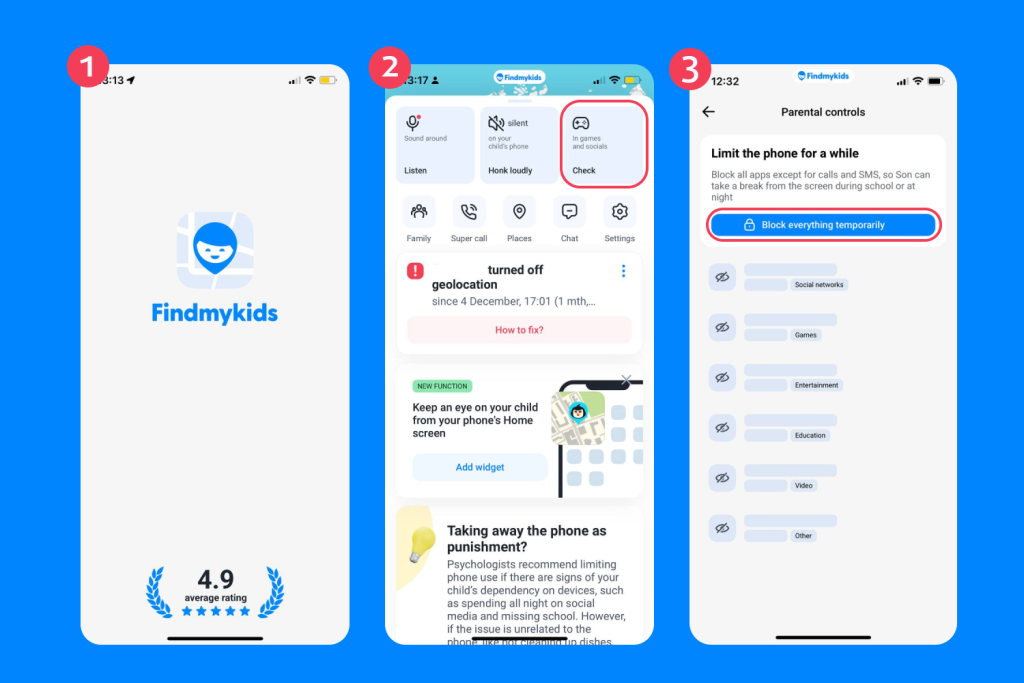
Findmykids app
- Download the app on both your phone and your child’s device.
- Follow the instructions for linking your child’s phone. The process is simple and clear, and it takes no more than five minutes.
- Open the app on your phone.
- In the In games and social section, you can block all apps temporarily or permanently.
Why is total blocking often the best move? For many families, just setting a time limit on an app like Instagram does not actually solve the problem. The way the app works, with its constant feed and mindless scrolling, means a daily limit of thirty minutes usually just leads to daily arguments or kids finding quick ways to bypass the lock.
When you block the Instagram app entirely, you take the temptation off the table. It stops the constant mental tug of war and allows the child to focus on schoolwork or family members.
Another useful safety layer for iPhone users is automatic blocking of 18+ websites. Even if a child tries to open adult content through a browser instead of an app, Findmykids can restrict access to inappropriate websites. This helps prevent exposure to explicit material and adds an additional level of online safety beyond app controls.
Beyond Blocking: The Safety Suite

Findmykids app
The reason Findmykids stands out is that it combines several powerful features for both digital control and real-world safety:
- Accurate real-time child location: Track your child’s live location with precision.
- Location history: Review detailed routes on a map to see where they visited throughout the day.
- Movement notifications: Receive push notifications for movements, such as when your child arrives at or leaves a designated place.
- SOS signal: Your child has access to an SOS signal they can trigger in an emergency.
- Bypass Silent Mode: You can send a loud alert that sounds even if the child’s device is in silent mode.
Try Findmykids today and give your family more peace of mind both online and offline!
Method 2: Block Instagram Using Screen Time App Limits
If you prefer to use the built-in iOS device tool, you can use Screen Time to set a daily time limit.
- Go to Settings and then tap Screen Time on the child’s device.
- Tap App Limits and then select Add Limit.

- Select the Social Networking category and find the Instagram app.

- Set a daily limit. You can set it as low as 1 minute to effectively stop them from using it. Ensure Block at End of Limit is toggled on.
You can also configure these settings remotely from a parent’s iPhone if your child’s device is connected through Family Sharing. In this case, simply open Screen Time on your own device, select your child’s profile, and adjust the same settings.
For a full walkthrough, see our detailed guide to setting up Screen Time with Family Sharing.
Method 3: Use Downtime to Block Instagram During Certain Hours
Enabling Downtime is useful for creating phone-free zones, like during dinner or before bed.
- In Settings, tap Downtime to toggle it on. (Or open Screen Time on the parent’s phone and select your child’s device if you are using Family Sharing).

- Schedule downtime hours (for example, 9:00 PM to 7:00 AM).

- Go to Always Allowed and remove Instagram from the select apps list.

This ensures that during these hours, the Instagram app is completely inaccessible.
Note: If your child uses multiple Apple devices, these limits can apply across their devices when Screen Time is connected through Family Sharing.
Method 4: Prevent Reinstalling Instagram (Store Purchases)
Teens often delete the app when they think you are checking it and reinstall it later. You can block this in the store purchases section of your settings.
- Go to Content & Privacy Restrictions. (Or open Screen Time on the parent’s phone and select your child’s device if you are using Family Sharing).
- Choose Content Restrictions and then tap iTunes & App Store Purchases.
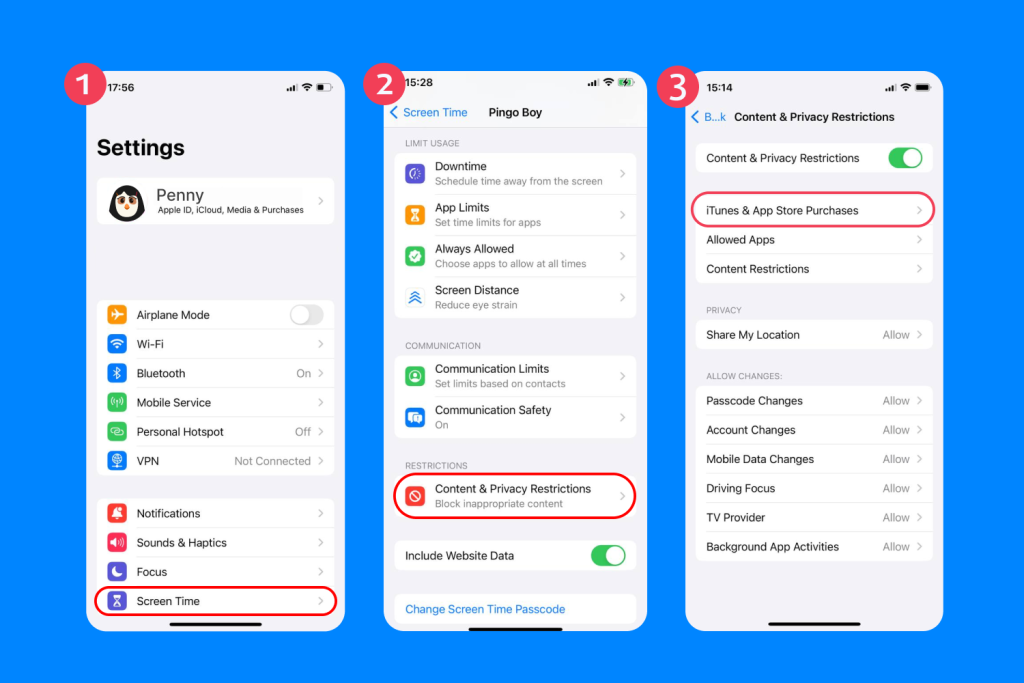
- Set Installing Apps and Deleting Apps to Don’t Allow.
This effectively locks the home screen as it is, preventing any new social networking tools from being added.
Method 5: Block Instagram in the Browser (instagram.com)
Kids often bypass app blocks by using the browser. You must address the website section of your content restrictions.
- Go to Content & Privacy Restrictions and tap ContentRestrictions. (Or open Screen Time on the parent’s phone and manage these settings via Family Sharing).
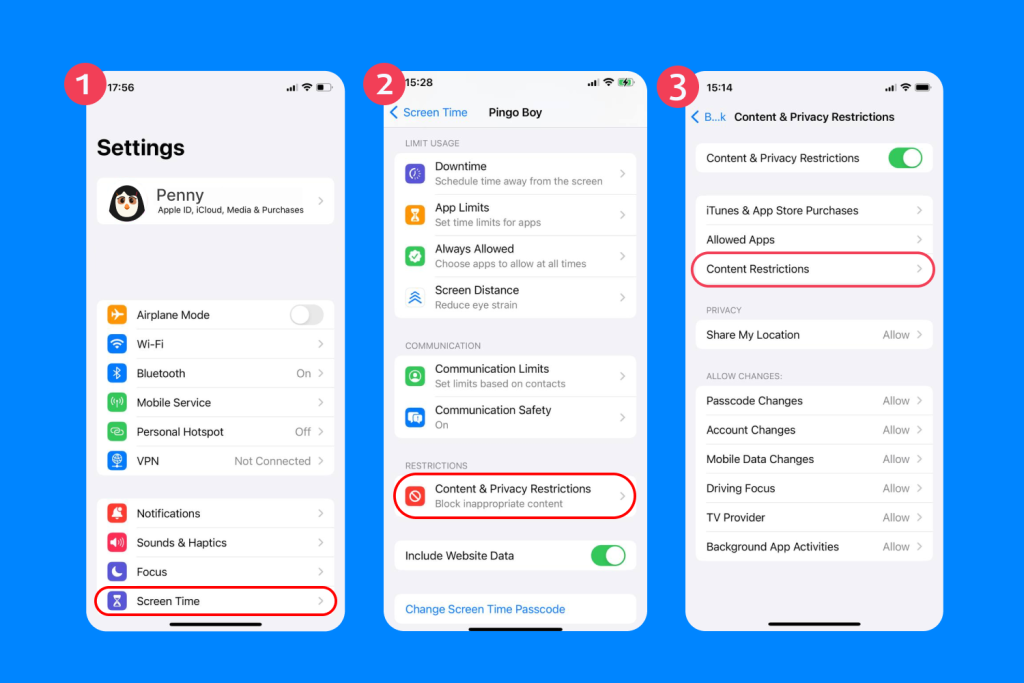
- Go to Web Content.
- Select Limit Adult Websites.
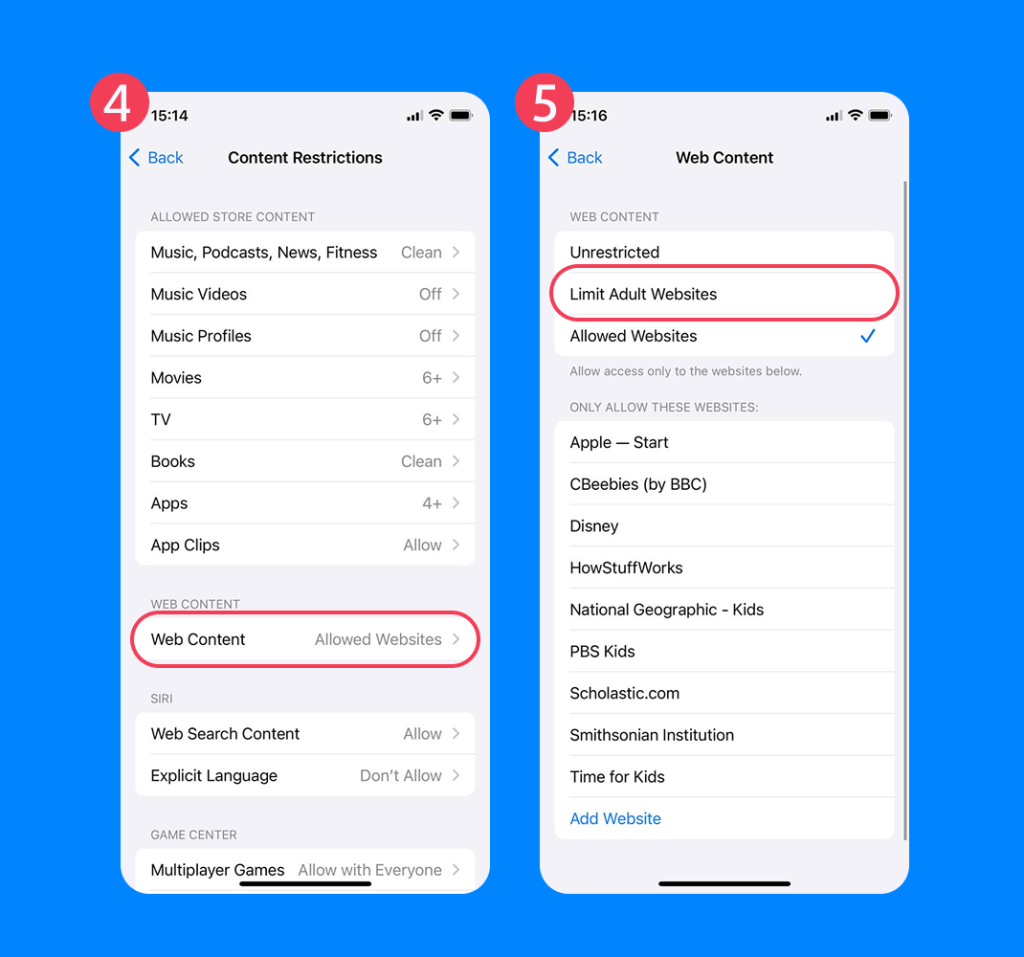
- Under Never Allow, add the Instagram website (www.instagram.com). This stops the child from simply logging in to their Instagram account through Safari or Chrome to continue their mindless scrolling.
Related: The List of 65+ Inappropriate Websites to Block for Kids.
Why Parents are “Pausing” Instagram in 2026
The decision to block an app is not usually about spying: it is about child safety. Experts have highlighted several red flags associated with Instagram’s algorithm:
- Exposure to Mature Topics: Despite age requirements, many younger children encounter sensitive or mature topics through the Reels feed.
- The Comparison Trap: 76% of Gen Z report feeling they spend too much time on their phones. Chasing human-like interactions and “perfect” curated content can negatively impact mental health.
- Physical Health Risks: 60–70% of people have experienced phone-related health issues like eye strain, neck pain, or headaches in the past year due to excessive screen time.
- Strangers and Privacy: The platform makes it easy for adult users to contact minors, which is why parental controls are so critical.
Red Flags: When “Moderation” Is Not Working
If you are not sure if you should block the app permanently, look for these behaviors in your household:
- Sleep Disruption: Your child has trouble going to bed or shows morning drowsiness due to late-night scrolling.
- Emotional Withdrawal: They seem less present in social settings and prefer their device over family members.
- Attention Fragmentation: A constant ping of notifications leads to shallow focus and anxiety symptoms.
- Meltdowns: You notice your child having tantrums if screen time is restricted. This leads some parents to use screens as babysitters to avoid conflict, which can worsen the cycle.
Seeing one of these signs occasionally is normal, but if several appear regularly, it may indicate that your child’s relationship with social media is becoming unhealthy. The good news is that parents already have several effective tools at their disposal, many of which we’ve covered earlier in this guide.
Balancing Freedom and Safety
Knowing how to block Instagram on iPhone is about more than just a settings change: it is about providing the boundaries children need to grow up safely in a digital-first world. While native tools are a start, they often fall short of providing a complete safety concerns solution. By using Findmykids, you are providing a safety net that covers both the digital and physical world.
You can manage their time spent online, protect them from harmful interactions, and, most importantly, keep them physically safe with real-time location tracking.
Ready to help your child build a healthier digital life and reclaim their focus? Download Findmykids today, follow the simple 5-minute setup, and experience the peace of mind that comes with knowing your child is safe, both online and off.
FAQs
How do I block Instagram on iPhone without deleting it?
You can use App Limits in Screen Time settings to set a daily time limit of 1 minute, or use Findmykids to lock all distracting apps instantly.
Can I set a daily time limit for the Instagram app?
Yes. In Settings→Screen Time →App Limits, you can select Instagram and set a specific daily limit.
How do I use Downtime to restrict Instagram at night?
Open Settings → Screen Time → Downtime and schedule the hours when the phone should be restricted (for example, 9 p.m. to 7 a.m.). During Downtime, only apps you allow will remain accessible, so you can remove Instagram from the Always Allowed list to prevent late-night use.
How do I stop my child from reinstalling Instagram from the App Store?
Navigate to iTunes & App Store Purchases within the Content & Privacy Restrictions menu and set Installing Apps to Don’t Allow.
How do I block Instagram in the browser?
Under the websites section of Content Restrictions, select Limit Adult Websites and add the Instagram website (www.instagram.com) to the list of sites that are never allowed.
Cover image: bchtrdesign86 / Freepik.com
Проверьте электронный ящик