Every parent reaches a point where they need to know how to block websites on an iPhone. Whether you’re worried about your little one navigating from a toddler-friendly game to an inappropriate site or you’re concerned about a chronically online teenager, it’s easy to feel helpless when it comes to online safety.
Setting up content restrictions and limiting access to certain websites is much easier than it sounds. In this article, we’ll share how to block specific websites via the iPhone Screen Time function, as well as how to monitor your child’s device for harmful content.
Contents:
Step-by-step: How to Block Websites on iPhone Using Screen Time
There are multiple ways to block websites on your child’s phone, one of which is using the Screen Time function.
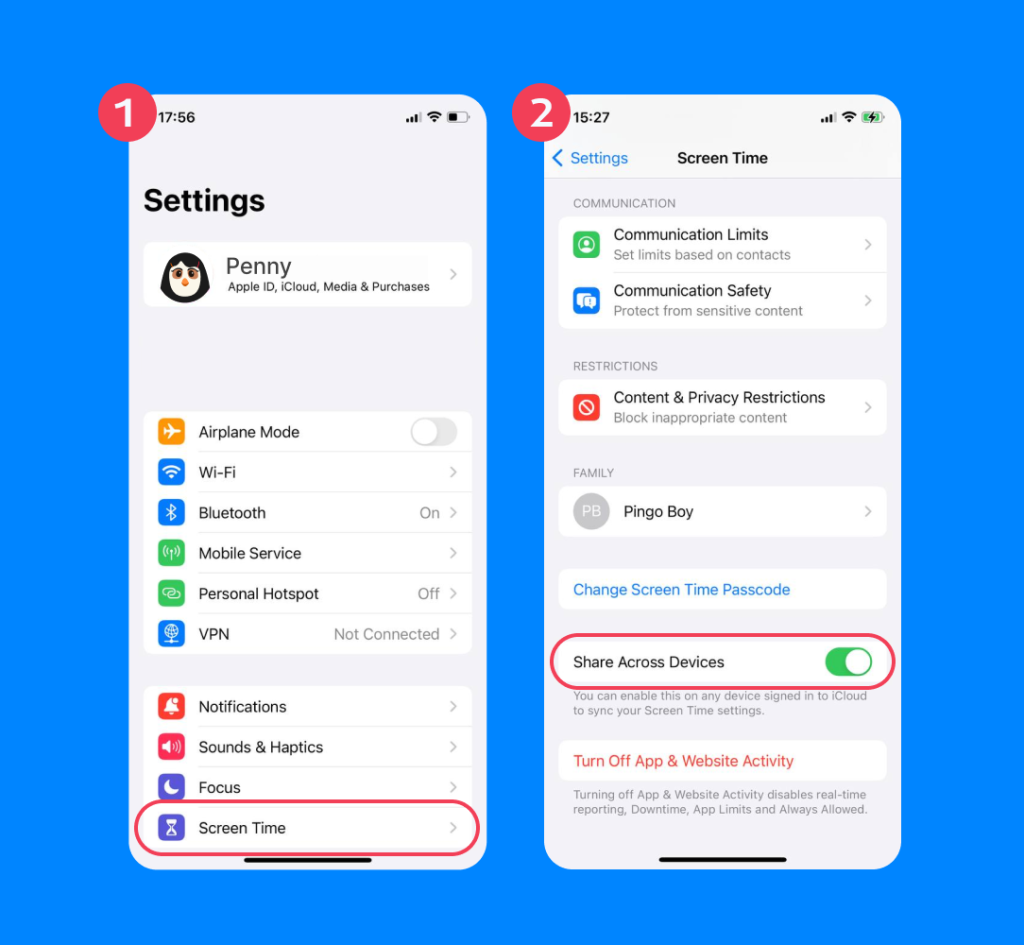
- Open Settings. On the iPhone home screen, navigate to the Settings app, or use the search function to find it.
- Tap Screen Time.
- Turn on Screen Time using the toggle.
- Enter or choose your Screen Time passcode. Your child won’t be able to change their Screen Time settings without entering this passcode.
- Enter your/your child’s Apple ID.
- Tap Content & Privacy Restrictions > Turn this on using the toggle.

- Select App Store, Media, Web & Games (iOS 16 and later)or tap Content Restrictions (iOS 12–15).
- Tap Web Content.
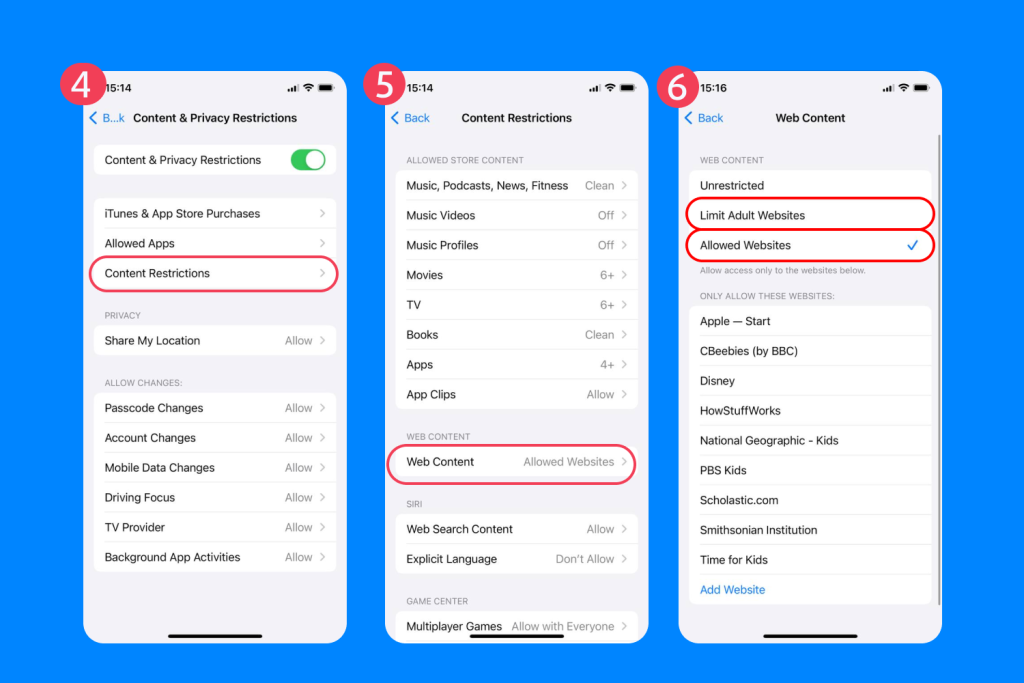
- Choose from the following options:
- Unrestricted
- Limit Adult Websites
- Limits adult websites automatically
- Always Allow—add certain websites your child can always access. To do this, tap Add Website and enter the full URL of the site you want to allow
- Never Allow—add websites to block completely. To do this, tap Add Website and enter the full URL of the site you want to block
- Only Approved Websites
- Your child will only be able to visit the approved websites you’ve selected or added
If you are part of a Family Sharing group, you can manage your child’s Screen Time from your own device. Go to Settings app > [Your Name] > Family Sharing > Screen Time, select your child, and adjust website restrictions, app limits, or screen-time schedules remotely.

Make sure Share Across Devices is enabled in Screen Time settings so that restrictions apply to all iPhones and iPads linked to the same Apple ID.
Keep in mind that some children may try to bypass restrictions using alternative browsers or VPNs. For broader protection, consider using additional parental control tools that complement Screen Time, helping manage both online content and offline safety.
Related: How to Block Websites on Safari and Manage What Kids Can See.
Which Mode Should You Choose When Blocking Adult Websites?
The right mode for blocking inappropriate websites on your child’s iPhone will depend on their age and stage of development, as well as your household rules about technology.
Using the Limit Adult Website filter will probably suffice for most children getting their first iPhone and using it to speak to their friends and family or play games.
However, it’s important to keep checking your child’s online habits and make sure they’re not accessing adult content or sites that have slipped through the filter. It’s not a good idea to rely on the automatic filter alone.
Older children and teenagers may need access to educational resources or information that can sometimes be blocked by overly-sensitive filters. In this case, you may decide to override the Limit Adult Websites filter and manually block certain sites.
Here are some practical tips for each mode.
Limit Adult Websites
Best for: Older kids or teens who need parental guardrails but not heavy restrictions, as well as parents who don’t want to constantly approve/deny every website request.
On iPhones, Apple will automatically filter out known adult websites so your child cannot access them. You’re still able to override these restrictions by manually allowing a site that’s been blocked by mistake. You can also block specific websites, even if they’re not harmful.
Allowed Websites Only/ Only Approved Websites (Whitelist Mode)
Best for: Younger children/devices used mainly for school work and games.
The Allowed Websites Only (or “whitelist”) mode blocks almost all internet browsing by default. This means that, while your child can use apps and games, they cannot browse the web unless they’re accessing specific websites you have approved.
Using this function, you can build a small approval list of trusted websites. Anything not on this list will be blocked—even harmless or educational websites. This means that links inside apps (Google/YouTube/school platforms) will fail unless specifically approved by the parent.
Unrestricted Access (No Blocking)
Unrestricted Access mode means there is no website filtering at all, meaning anyone using the iPhone can access all online content—including adult, explicit, or harmful material.
If this mode is selected, all other website restrictions are off, even if Screen Time mode itself is enabled. It’s important to check that you don’t select this option by mistake, as open settings give your child free rein to access anything online.
Additional Internet Safety Features for Better Control
Installing content restrictions on your child’s iPhone is an important way to keep them safe online. However, it’s not the only way. As well as relying on built-in iPhone settings and filters, you’ll also want to explore other options, such as:
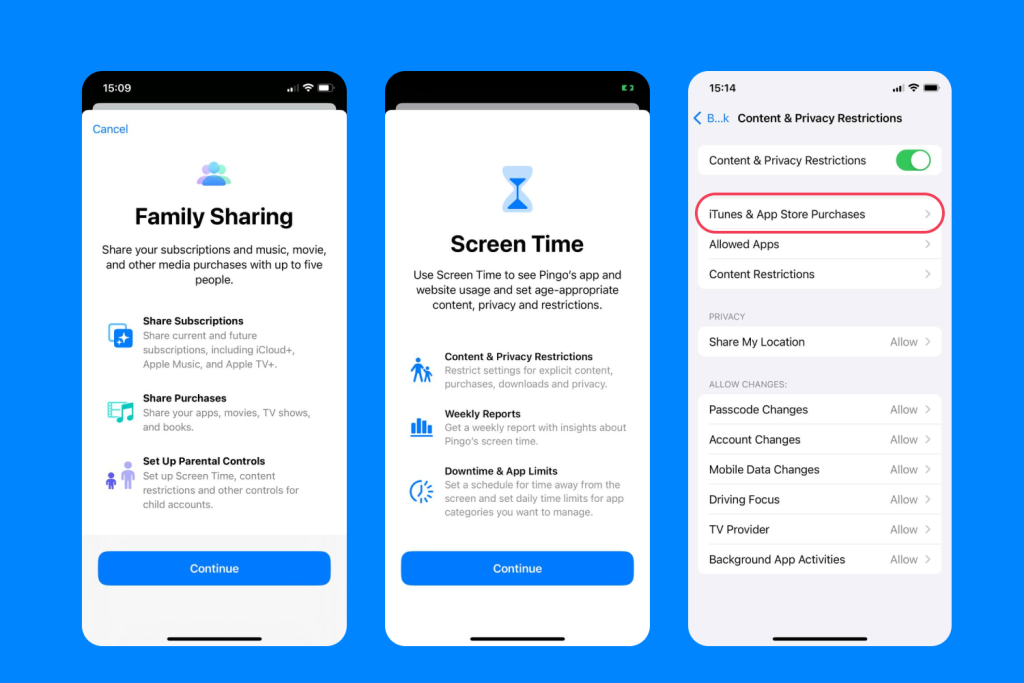
- Family Sharing: Adding your child to your Apple Family so you can manage and monitor their screen time.
- Screen Time menu: There are other settings to navigate in the Screen Time, such as App Limits and blocking particular app mechanisms, Communication Limits for calling and texting, Communication Safety features, Downtime, and Screen Distance.
- App Store Purchases and In-App Purchases: Restrict app installations, deletions, and in-app purchases to prevent unauthorized spending; set this up in Settings > Screen Time > Content & Privacy Restrictions > iTunes & App Store Purchases.
- Internet Parental Controls: You may also have access to parental controls via your internet provider. It’s worth exploring these to add an extra layer of internet safety and security, so that if another child comes to your house with no limits on their phone, they can’t access other sites via your Wi-Fi connection.
- Child Safety Apps: In addition to filtering out unwanted content and blocking unwanted websites, using a tracking and parental control app like Findmykids will give you a greater level of control.
Use the Findmykids App for Better Control: Easily Block Apps and Websites

Findmykids app
Instead of relying solely on built-in apps and system-level filters, Findmykids adds a more practical, everyday layer of protection—designed for how kids actually use their phones.
Findmykids is more than a simple website blocker. It’s a complete child safety app that helps parents restrict access to inappropriate content while also supporting healthy screen-time habits and peace of mind.
Key features parents rely on most include:
- Blocking adult websites (18+): Protects your child from inappropriate content across the web, even when built-in filters fall short.
- App blocking in one tap: Instantly block all apps or selected ones—permanently or temporarily—when screen use becomes a problem or rules are being ignored.
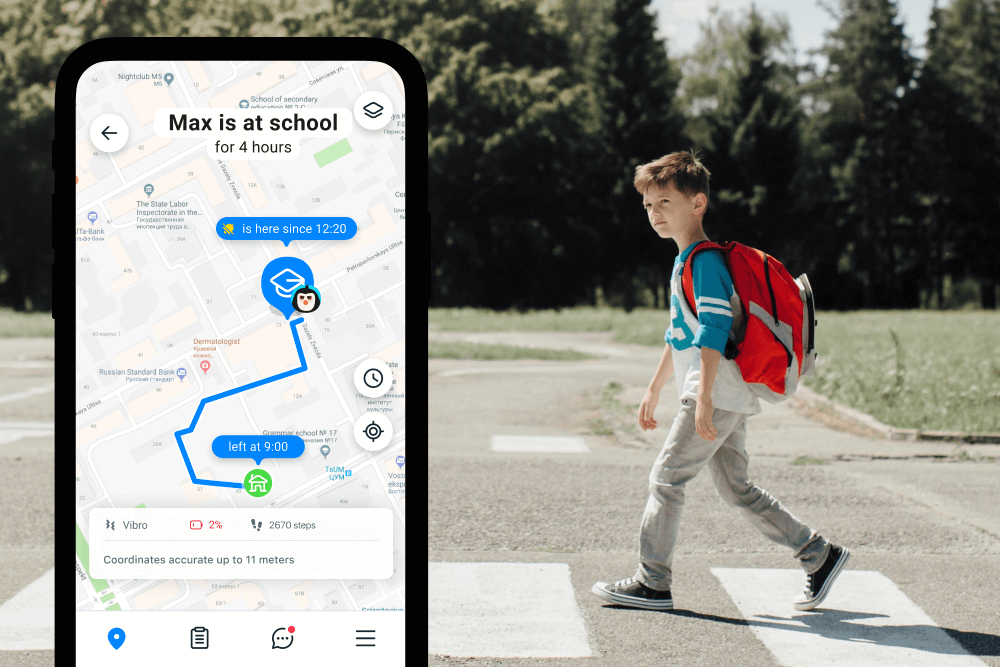
Beyond content control, Findmykids helps parents stay connected with their kids through location awareness, so you know that they’re safe offline. You can track their location in real time, see where they’ve been, get notifications when they arrive at or leave key places, monitor battery levels, and respond quickly in emergencies with SOS alerts or the sound-around feature.
Findmykids app
If you feel that iPhone’s built-in tools don’t give you enough control—or require too much manual setup—Findmykids offers a simpler, more flexible way to protect your child and manage screen time day to day.
Try Findmykids and see how an extra layer of control can make online safety easier!
Blocking Inappropriate Content is Crucial for Helping Your Child Stay Safe Online
Blocking websites on your child’s iPhone isn’t about control; it’s about safety. No matter how young your child is, if they have access to an iPhone, there is every chance they could stumble across something harmful or inappropriate.
However, this is just one piece of a complex puzzle. You cannot rely on one Settings function alone when it comes to your kids’ online safety. The dangers are even more real for older children and teens, many of whom are at risk of cyberbullying, privacy risks, access to violent or explicit content, and phone addiction.
Read also: Forbidden Click: What to Do If Your Child Has Seen Adult Content.
Keeping a close eye on your child’s screen time and website and app activity is an important step in helping them stay safe online. You should explain to your child that this isn’t about trust or control, but helping them stay safe in an online world that carries a lot of opportunity for young minds, but also a lot of risk.
FAQs
How to block websites on iPhone using Screen Time?
To block malicious websites on your or your child’s iPhone, go to Settings > Screen Time > Content & Privacy Restrictions (Toggle on) > App Store, Media, Web & Games > Web Content.
From here, you can block or allow specific websites or turn the Screen Time restrictions on and off.
How do I block specific websites (specific sites) on iPhone?
To block specific websites on an iPhone, go to Settings > Screen Time > Content & Privacy Restrictions (Toggle on)> App Store, Media, Web & Games (or select Content Restrictions) > Web Content and select Limit Adult Websites > Never Allow and add the URL you want to block.
What’s the difference between “Limit Adult Websites” and “Allowed Websites Only”?
On iPhone, the Limit Adult Websites function automatically limits adult content deemed inappropriate for children.
You can also manually block specific websites from here by adding them to the “Never Allow” list, or override the automatic block by adding a website to the “Always Allow” list.
The Allowed Websites Only function will allow your child to visit websites you have explicitly approved. This function is often useful for younger children who will only need access to a handful of websites for homework or entertainment purposes.
How do I allow only approved websites (whitelist mode)?
Go to Settings > Screen Time > Content & Privacy Restrictions (Toggle on)> App Store, Media, Web & Games > Web Content and choose Only Approved Websites.
From here, you can add the URLs your child is allowed access to.
Where is “Web Content” in iPhone settings?
To find the Web Content function on an iPhone, go to Settings > Screen Time. Tap Content & Privacy Restrictions to toggle it on, then select App Store, Media, Web & Games > Web Content.
Do I need a Screen Time passcode to prevent changes on a child’s iPhone?
Yes. To make sure your child cannot change or turn off app and website restrictions and access harmful or explicit content, you’ll need to choose a Screen Time passcode that your child can’t guess.
Each time you want to make changes to your child’s website or app restrictions—for example, to approve a website or add a site to their “blocked list” — you’ll need to enter this passcode.
Cover image: EyeEm / Freepik.com
Проверьте электронный ящик