
If you’ve forgotten those all-important six digits or accidentally revealed them to your child or teen, you’ll need to know how to reset your Screen Time passcode.
In this article, we’ll explain how to do it on your own or your child’s device, both directly and through Family Sharing. We’ll also troubleshoot common issues, including what to do if you’ve forgotten your Apple Account login details.
Quick Answer: How to Reset Screen Time Passcode Fast
To reset a Screen Time passcode, enter your device passcode, open the Settings app, and go to → Screen Time → Change Screen Time Passcode → tap Forgot Passcode.
From here, you can create a new passcode by entering your old one. If you’ve forgotten your old passcode, you’ll need to enter your Apple ID email and password to reset it. You can also turn off Screen Time completely.
Contents:
Before You Reset: What You’ll Need
To change the iPhone Screen Time passcode for you or your child, you’ll either need to remember your old passcode or have your Apple Account login to hand.
If you’re changing the Screen Time password because your child has figured it out and you want the settings on your child’s device to be more secure, you can simply enter the old passcode to create a new one.
For a forgotten Screen Time passcode, you’ll need to tap Forgot Passcode and reset it using your Apple Account details. This is the email address and password associated with your Apple ID (now known as Apple Account).
Related: How to Bypass Screen Time Passcode on iPhone: Step-by-Step Guide.
This needs to be the same Apple login you used when you first created your Screen Time passcode. This might be a different Apple account from the one you’re currently using, for example, if you have multiple accounts or have changed the email address associated with your Apple ID.
How to Reset Screen Time Passcode on Your Own iPhone or iPad
To reset the Screen Time passcode on your own iOS device (iPhone or iPad), open Settings → Screen Time → Change Screen Time Passcode → Change Screen Time Passcode and then enter your old passcode or tap Forgot Passcode.
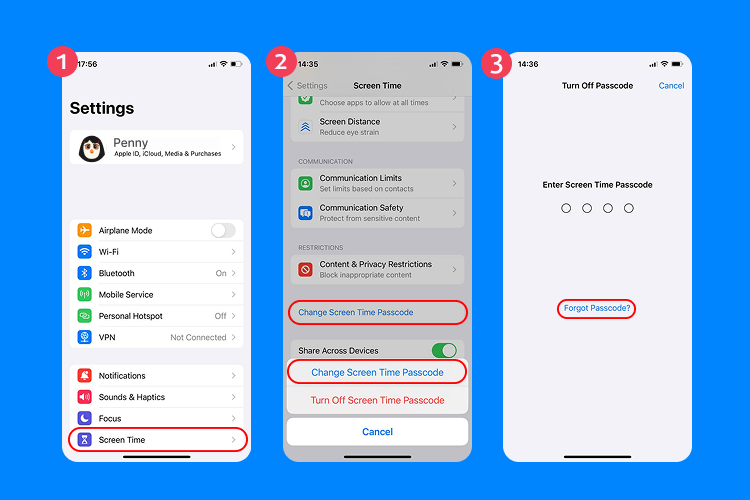
The Forgot Passcode? option appears only if Screen Time was originally set up using an Apple ID.
You’ll then need to confirm your Apple Account details (email address and password). Once this is done, you can create an entirely new Screen Time passcode. This is the easiest way to reset your Screen Time passcode.
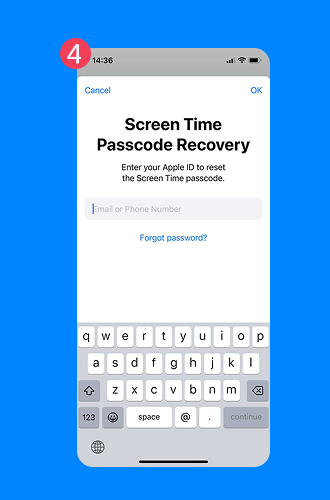
The process is the same on current iOS and iPadOS versions, regardless of device model (including newer iPhone models).
What If “Forgot Passcode” Doesn’t Show Up?
If you get to Change Screen Time Passcode and the Forgot Passcode option doesn’t show up, this usually means your iPhone is being managed by someone else—e.g., a parent or guardian, through Family Sharing.
In this case, the manager of your Family Account will need to change the passcode for you.
What If You’ve Forgotten Your Apple ID?
If the Apple Account credentials don’t work, make sure you’re using the same Apple Account email address and password you used when setting up the Screen Time passcode.
If you’ve forgotten your apple Account password, you can use another trusted device to regain access or reset your password online. Apple has laid out the steps here.
What If You’ve Tried Everything? (Account Recovery)
If you’ve tried everything and still cannot sign in or reset your password to change your Screen Time passcode, you can try the Account Recovery option. This allows you to reset your password and regain access to your account, but it is a last resort.
To start the recovery process on your device, go to Settings and try to sign in. If you don’t know your password, you should get the option to start account recovery. You do not need to manually turn off all devices, but you may be asked to confirm that you don’t have access to any trusted devices.
The Account Recovery process can take several days (or longer, depending on your security setup). You can usually continue using your Apple devices during the waiting period, but certain account-related features may be temporarily restricted.
Once the Account Recovery process has started, you’ll get an email with the confirmation of your request and the date and time when you can expect to regain access. Once this waiting period is over, you’ll get a text or automated phone call with instructions for logging back into your account. Unfortunately, there is nothing you can do to speed up this process.
Can You Reset Screen Time by Erasing Your Device?
A full factory reset (Erase All Content and Settings) may remove the Screen Time passcode—but only in certain situations.
When this might work:
- The device is not managed through Family Sharing.
- The device is not supervised (for example, by a school or organization).
- You know the Apple ID and password connected to the device (otherwise, Activation Lock will prevent setup).
Important to understand:
- After erasing the device, you will still need to sign in with the Apple ID previously used on the device.
- If you don’t know those credentials, the device will be locked by Activation Lock.
- If Screen Time is set up through Family Sharing, the restrictions will return once you sign back into the account.
- Erasing the device will permanently delete all data unless you restore from a backup.
How to erase the device:
Go to: Settings → General → Transfer or Reset iPhone → Erase All Content and Settings.
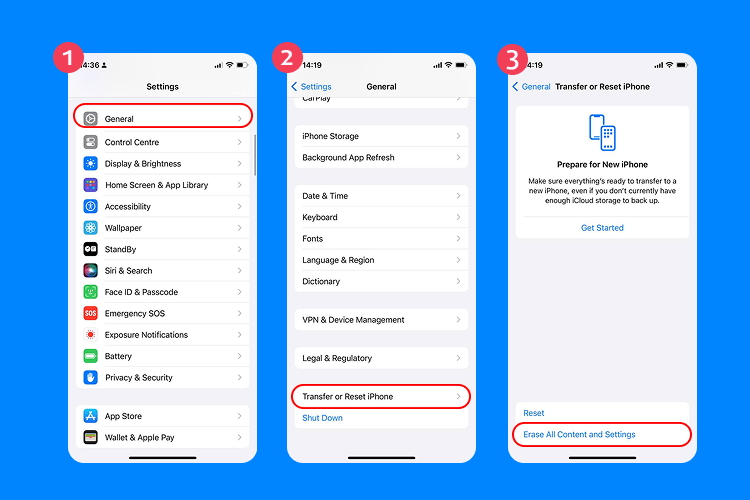
You can also restore the device using a Mac (Finder) or Windows PC (iTunes).
How to Reset Screen Time Passcode for a Child’s Device
To reset a Screen Time passcode for your child’s device via Family Sharing, open Settings → Screen Time → scroll down and select your child’s name from the Family section → scroll down to Screen Time Management → tap Change Screen Time Passcode.
Can a Child Bypass Screen Time?
If your child’s iPhone or device is managed via Family Sharing by you or another adult, they shouldn’t be able to bypass your Screen Time limits or content restrictions without permission.
However, Apple and Reddit forums are full of stories from parents and guardians whose kids have managed to bypass Screen Time limits, either by entering their Screen Time passcodes or Apple ID credentials, exploiting loopholes in older iOS versions, or changing their time zones to extend time limits.
Quick Troubleshooting Tips
Here are some of the most common blockers parents come across when trying to change their/their child’s Screen Time passcode.
Wrong Apple Account
You need to sign in with the Apple Account email address and password you used when you first set up the Screen Time passcode. If you can’t remember this, it’s best to reset your password or contact Apple Support.
Sync Confusion (Share Across Devices)
Changes made to a child’s passcode from a parent’s device do not always update on the child’s device. To avoid this issue, make sure you have Share Across Devices enabled in your/your child’s Screen Time settings and that your devices are running the latest iOS software updates.
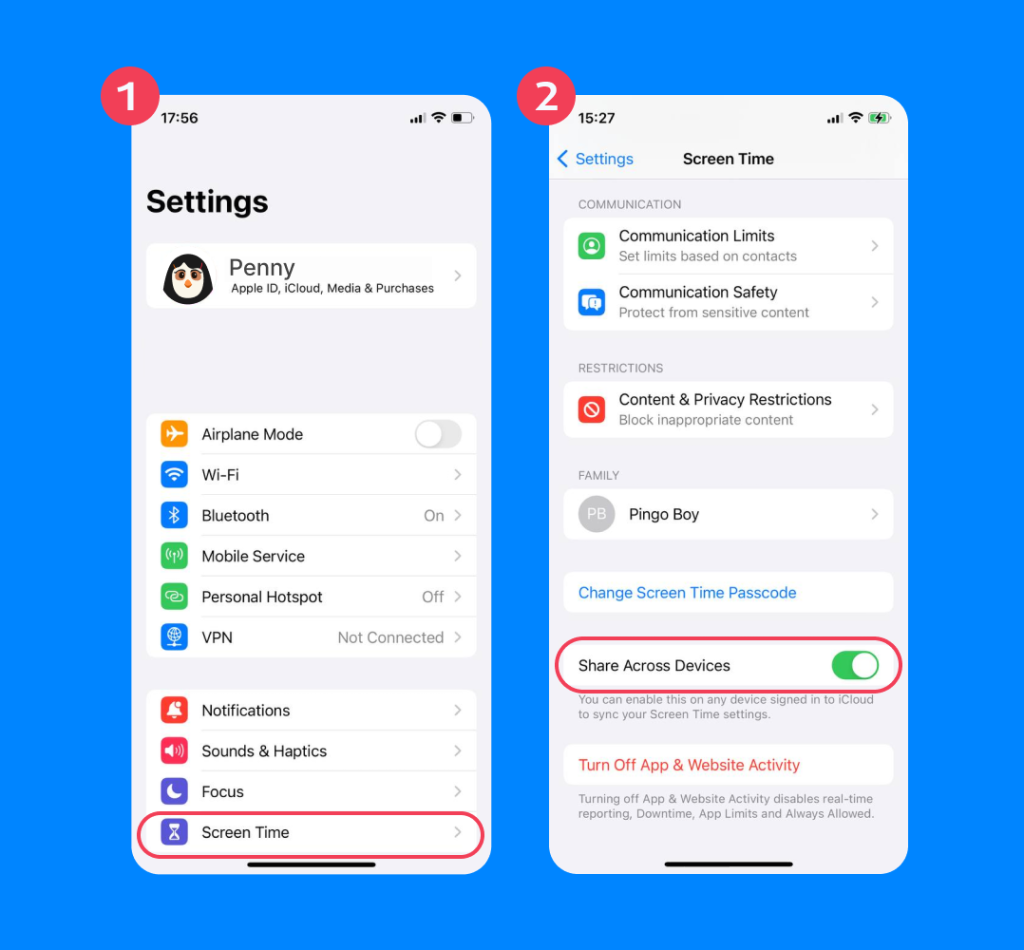
Child Not Showing Under Family
If your child isn’t showing up under Family, try restarting both devices. Make sure your devices are updated to the latest iOS version and connected to the internet. You can also try turning the Screen Time feature on and off.
Locked After Failed Attempts / One Hour Wait
After 8–10 consecutive failed Screen Time passcode attempts, the iPhone locks for one hour. You cannot bypass this timer, and any further attempts will result in longer lockouts.
Why Managing Screen Time is Important
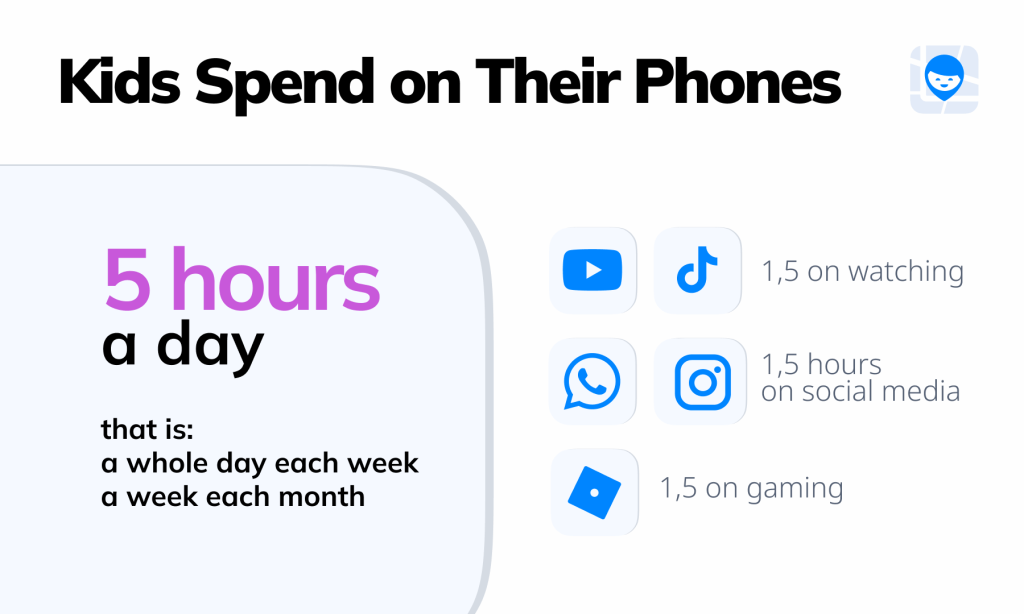
Findmykids Data
Managing Screen Time for kids and teens has never been more important. Recent data shows that most children spend 5 hours a day on their phones, with YouTube and WhatsApp being the most popular apps, closely followed by TikTok. This equates to an entire day every week, or a week every month.
While using screens is not inherently dangerous for kids, excessive time on phones and other devices can negatively affect a child’s health and well-being, affecting their sleep, focus, and behavior.
Read more: Recommended Screen Time for Kids: How Much Is Healthy by Age.
There are also escalating concerns around the world about the kinds of content our kids are watching on their phones, including violent and sexual images and videos.
Apple’s Screen Time feature isn’t just about imposing screen time restrictions. It also has strict content filters and app limits, as well as the ability to manage privacy and location sharing. Overall, it’s a great tool to have in your kit, but it’s not the only one.
Alternative Options for Managing Screen Time
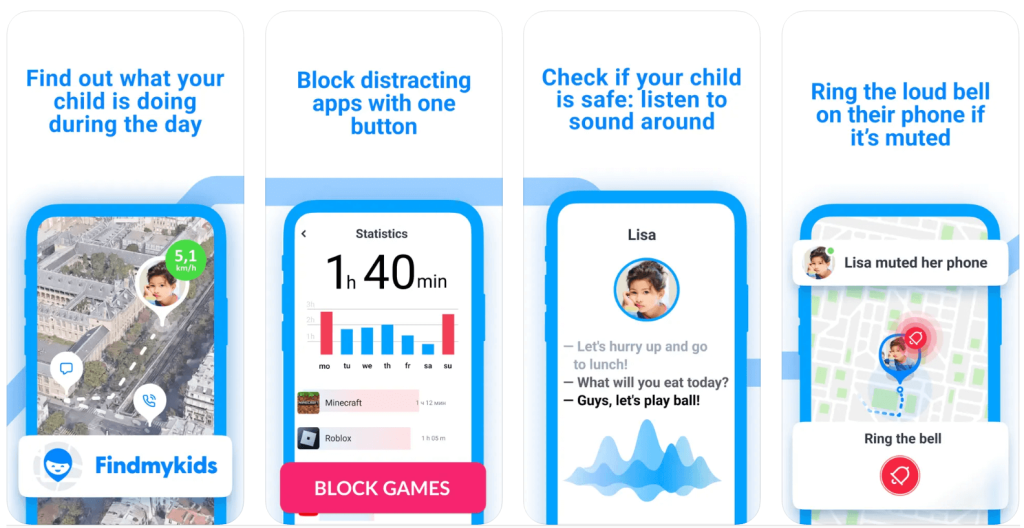
Findmykids app
Although Screen Time is a useful built-in feature, many parents prefer additional tools that provide broader safety support and clearer insights into their child’s daily routine — beyond what a device timer can offer. Third-party apps can complement Screen Time and give parents more confidence without complicated passcode resets.
Findmykids is designed to help parents stay connected with their child in a simple and transparent way. On iOS, parents can:
- Block all apps at once — a fast way to ensure focus during homework, family time, or bedtime.
- Block access to adult websites (18+) to reduce exposure to inappropriate content.
- Track location in real time and receive notifications when a child arrives at or leaves designated places (geofence alerts).
- View detailed routes and location history, helping you understand daily patterns.
- Send a loud alert (Super Signal) even if the device is in Silent or Do Not Disturb mode.
- Receive SOS requests from the child for urgent help.
Unlike Screen Time, which focuses mainly on device use limits, Findmykids combines real-world safety features with simple controls that help parents support their child’s independence while still staying informed and connected.
Download Findmykids today to gain peace of mind, strengthen everyday safety, and support healthy habits both online and offline.
Screen Time is a Vital Tool for Managing Your Child’s Online World — But It’s Not Perfect
Apple’s Screen Time function is great for setting restrictions on your child’s device and monitoring their app usage, but clever kids can still find ways to bypass these limits. It’s also easy to lose access if you forget your passcode or Apple ID.
Findmykids offers a different solution—a parental control app that gives you complete security and peace of mind. You can manage your kids’ screen time, while also receiving notifications when they’re out and about if their battery is running low, or if they need your help.
FAQs
How to reset the Screen Time passcode if I forgot it?
If you’ve forgotten your Screen Time passcode, open Settings → Screen Time → Change Screen Time Passcode → Change Screen Time Passcode and then tap Forgot Passcode?
Where is “Forgot Passcode?” in Screen Time settings?
The Forgot Passcode option will show up when you go to the Settings screen → Screen Time → Change Screen Time Passcode → Change Screen Time Passcode. After tapping Change Screen Time Passcode, the Forgot Passcode? option will appear at the bottom of the screen. From there, you can reset your passcode using your Apple ID credentials.
If the option doesn’t appear, make sure your device is updated to the latest iOS version and that Screen Time was originally set up using an Apple ID.
What Apple ID/Apple Account do I need to reset the Screen Time passcode?
To reset a forgotten Screen Time passcode, you’ll need the Apple ID (now Apple Account) login credentials you used when you first set up the passcode.
Can I reset a Screen Time passcode without the Apple ID password?
If you’ve forgotten your apple ID passcode, you can use another trusted device to regain access to your account. You can also reset your password online with Apple, or try the Account Recovery option as a last resort.
Cover image: Cristian Dina / Shutterstock.com
Проверьте электронный ящик