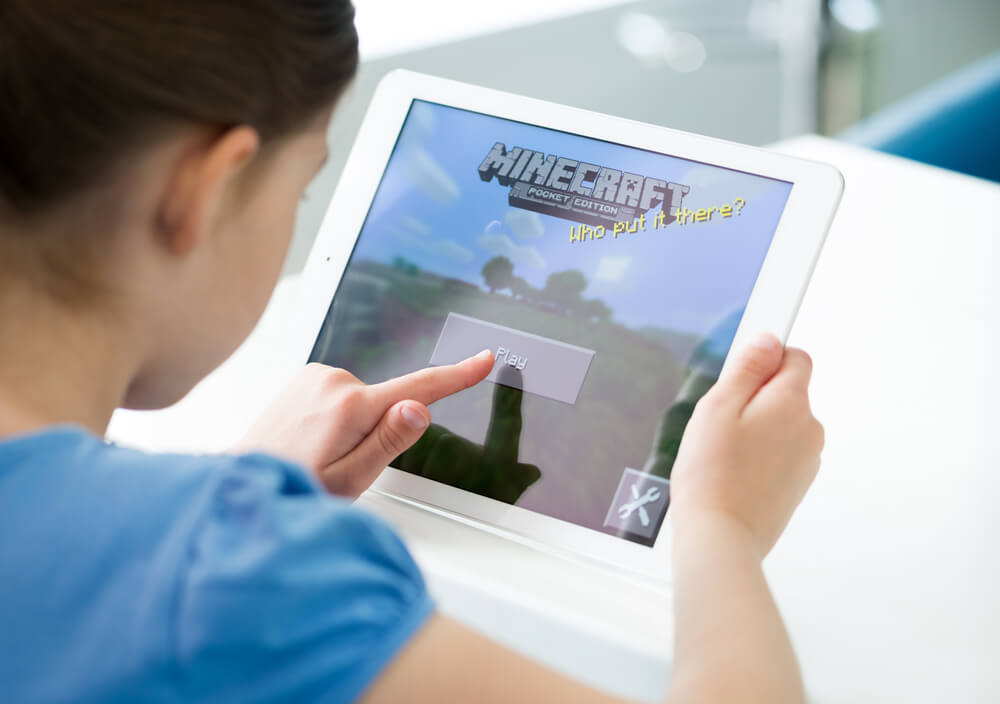
Safe gaming is important for kids of all ages. Still, there might be times when you need to turn off parental controls on Minecraft—either because your child has outgrown them, or so they can temporarily play online with friends. In this article, we’ll show you how to adjust your child’s game settings to allow them to play more freely.
Contents:
- What Minecraft Parental Controls Do
- When and Why Parents Might Disable Controls
- Step-by-Step Guide to Turning Off Parental Controls in Minecraft
- Common Problems & Troubleshooting
- Safety Considerations After Disabling Controls
- FAQs
What Minecraft Parental Controls Do
rafapress/Shutterstock.com
Minecraft is a family-friendly sandbox video game created by Mojang Studios, where players can create, build, explore, and try to survive the night in an open-world landscape.
Minecraft offers many social and educational benefits for kids 7 and up, such as critical thinking and STEM skills. However, it is still an online game, with options for multiplayer servers where users collaborate and compete. It also depicts mild combat and violence.
Understandably, many parents will want to make sure age-appropriate restrictions are set up before they let their kid play.
Like many other games, Minecraft can also be addictive. Parents may want to monitor and limit their child’s gameplay as well as manage their Minecraft account and friends list via parental control settings.
All users under 16 are given a child account by default, which must be associated with an adult’s Microsoft/Xbox account. From here, parents can create chat restrictions, set content filters, and restrict in-game purchases.
Device-specific parental controls can also help you manage screen time, disable chat functions, and ensure your kid can only play games in private servers with known friends.
Read also: Beyond the Pixels: Is Minecraft Safe for Kids?
When and Why Parents Might Disable Controls
There are many reasons why you might decide to disable parental controls for Minecraft.
Your child might be outgrowing them, reaching the age where they want to join Minecraft worlds and realms with friends, or you may want to temporarily adjust controls so older and younger kids can game together.
When it comes to playing online, parental controls must also be disabled for chat during games. There are no voice chat features in Minecraft, but players can use text chat in multiplayer mode.
Luckily, there are specific safety features for communication, such as a profanity filter that’s toggled “on” by default and can only be turned off via an adult Microsoft/Xbox Family account.
Step-by-Step Guide to Turning Off Parental Controls in Minecraft
To play Minecraft (both Bedrock and Java Edition), your child must have an Xbox Live or Microsoft/Xbox account that’s linked to a parent account.
You can also set up a Microsoft Family account for tighter control over your child’s online experience (this isn’t just for Minecraft but for all online activity on popular devices like Windows, iOS, and Xbox).
Through your Microsoft account, you can block access to certain websites. You can also prevent random game invites, flag reported messages, and filter harmful content such as inappropriate or unexpected language.
Minecraft parental controls are managed through your Microsoft (Xbox) Family account, not directly in Minecraft. This applies to both Java Edition and Bedrock Edition.
Option 1: Turn Off Parental Controls via Microsoft Family Safety

Credit: internetmatters.org
This is the main and correct way.
- Sign in to your Microsoft account (the parent account).
- Select your child’s profile from the family list.
- Go to Settings → Xbox and Windows (or Content filters, depending on the menu).
- Adjust or disable the following restrictions as needed:
- Screen time
- App and game limits
- Age-based content restrictions
- Multiplayer and online communication
- Save your changes.
These settings automatically apply to:
- Minecraft Bedrock Edition (console, mobile, Windows)
- Minecraft Java Edition (via the Microsoft account)
Option 2: Allow Minecraft Specifically (Instead of Turning Everything Off)

Credit: makeuseof.com
If you don’t want to disable parental controls entirely:
- In Microsoft Family Safety, open your child’s profile.
- Go to Content filters → Apps and games.
- Add Minecraft to the list of allowed apps or raise the age limit.
- Make sure multiplayer permissions are enabled if needed.
This allows Minecraft while keeping other restrictions active.
Option 3: Check Xbox Privacy Settings (For Online Play Issues)
Credit: codewizardshq.com
If your kid can open Minecraft but can’t:
- Join multiplayer servers
- Use Minecraft Realms
- Chat with other players
Do this:
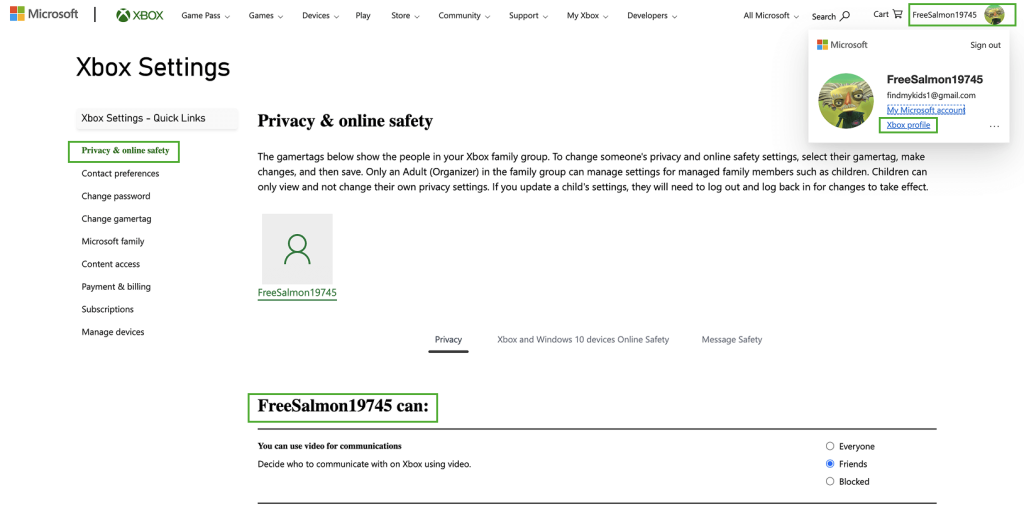
- Open Xbox privacy settings under your child’s account.
- Enable:
- “You can join multiplayer games”
- “You can communicate outside Xbox”
- Save changes.
Important Notes
- You cannot turn off parental controls inside Minecraft itself
- Changes must be made from the parent’s Microsoft account
- Updates may take a few minutes to apply across devices
- Bedrock Edition settings apply across consoles, mobile, and Windows
- Java Edition still relies on Microsoft account restrictions
For specific instructions on how to manage in-game settings for Minecraft Bedrock edition using the Microsoft Family page or Xbox Family settings, see this Minecraft Help Center guide.
Common Problems & Troubleshooting
Pin or Password Issues
If you need to reset your Microsoft/Xbox password to access Minecraft, go to the “Forgot password” page. You will be asked to verify your identity with a security code sent to your email or phone.
If your kid has forgotten their password, you’ll need to go to this same password reset page and verify their account via your parent account.
Multiplayer Access is Still Restricted
If Minecraft’s main menu says multiplayer is restricted, it’s normally because of Microsoft account settings or Xbox privacy controls. You’ll need to log into your Microsoft account, select your child’s account, navigate to Settings, and change “You can join multiplayer games” to “Allow.”
Platform-Specific Differences (PC, PlayStation, Mobile)
There are different versions of Minecraft available for different devices, and cross-play settings can get a bit complicated. This table from Minecraft’s Help Center shows the version compatible with your child’s gaming platform.
If you’re having issues with Minecraft or need Microsoft support, you can access Minecraft’s Help Center and Contact Page.
Safety Considerations After Disabling Controls

Findmykids app
Before you turn off parental controls in Minecraft, it’s important to have a conversation with your child about the importance of balancing freedom and safety.
If they’re joining realms, be sure to make an invite list of friends with whom they’re allowed to play Minecraft and adjust multiplayer settings so that they can’t interact with strangers. They should also be taught to take relevant action when blocking or reporting users.
When you disable parental controls on your child’s devices, they may come across inappropriate content. There is also the risk of unrestricted chat in multiplayer settings and unauthorised in-game purchases.
One way to keep an eye on your child’s digital world after you’ve lifted in-game restrictions is through an app like Findmykids. From here, you can manage and limit your child’s screen time, adjust their device settings, and even block access to specific apps and games.
⠀
You’ll also be able to set time limits (such as no playing before bed or during study hours) and get reports of your kid’s online activity, alerting you to excessive gaming or social media use.
⠀
Beyond digital controls, Findmykids also helps parents stay connected offline through real-time location tracking, extending parental supervision from the screen into the real world!
Parental Controls Bring Peace of Mind, But They Can Also Be Flexible
Although Minecraft is a family-friendly game, players can still be exposed to inappropriate language or content, as well as overuse and excessive screen time.
Minecraft’s parental control settings will help ensure your child enjoys the game safely and shield them from unwanted online experiences.
As your kid grows and seeks out new experiences, you can use your Microsoft account and device management tools like Findmykids to give your kids more autonomy while keeping them safe.
FAQs
How can I deactivate parental controls?
Sign in to your Microsoft account and navigate to Settings. From here, you can select options such as “allow your child to join multiplayer games,” “turn on text chat settings,” or “allow your child to add and remove friends.”
How do I turn off Microsoft Family Safety controls?
Sign in to your Microsoft account or Family Safety app. Find the child’s account you want to adjust, then switch off specific limits such as Screen time or Filter inappropriate websites. To turn off control settings completely, select Remove from family group.
How do I turn off parental controls on Minecraft on PlayStation 4?
Navigate to Settings from the PS4 home screen, then select Parental Controls/Family Management. You’ll then need to select PS4 system restrictions for the appropriate user and enter your parental control password. You can then adjust game settings.
How do I turn off the parental password for Minecraft Switch?
Nintendo Switch has its own parental control features, which you can access via the device directly or through the Nintendo Switch Parental Controls app.
Can I temporarily ban chat features in Minecraft?
Yes. You can temporarily disable chat features in Minecraft through your child’s Microsoft/Xbox account settings. By going to Privacy & Online Safety, you can restrict voice and text communication or limit it to friends only, and then turn it back on whenever you choose. This allows you to control chat access during certain situations—such as late hours or supervised play—without permanently changing your child’s overall game permissions.
Cover image: Antlii/Shutterstock.com
Проверьте электронный ящик