














When your child is out with friends, walking home from school, or heading to practice, you don’t necessarily want to call every 15 minutes just to ask, “Where are you?” Learning how to request their location on an iPhone gives you several easier options, from Apple’s built-in tools to family location apps designed specifically for parents looking to stay safe and manage digital risks.
Key Takeaways
- You can request location directly through Messages on a current iPhone, and the other person can choose whether to share.
- Apple’s Find My app works well when family members or friends want to share their current location or ongoing Live Location.
- Family Sharing can make ongoing location access easier for households already using Apple devices.
- Findmykids gives parents more context than a single location request, including real-time location, route history, saved and frequently visited places, and notifications about important places.
- Location tools should be used openly. Legitimate methods don’t require secretly accessing another person’s iPhone.
Contents:
What Does “Request Location” Mean on iPhone?
Аpple gives users several ways to share location information, and they aren’t all interchangeable.
Location Request
A location request is simply an invitation asking another person to share their location with you. They receive the request and decide whether to accept it.
Current Location
A current location is a one-time snapshot. If your child sends a pin from soccer practice and then leaves, that pin doesn’t follow their device.
Live Location
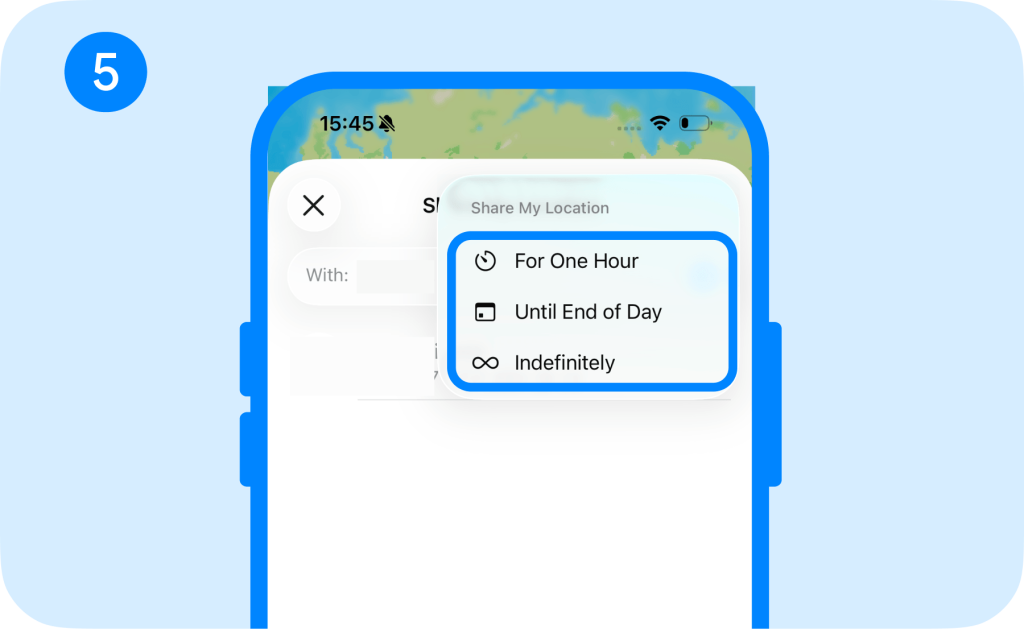
Live Location updates as the user moves. Apple lets users share their ongoing location for an hour, until the end of the day, or indefinitely.
Check In
Check In is an iOS safety feature in Messages. A user can set a destination or timer, and a chosen contact is notified when the Check In is completed. If something goes wrong and the user doesn’t respond, additional information may become available to that contact.
Share ETA
Apple Maps lets you share your location and estimated arrival time while following directions. The ETA automatically updates if there are significant delays.
How to Request Your Child’s or Other Family Member’s Location With Findmykids
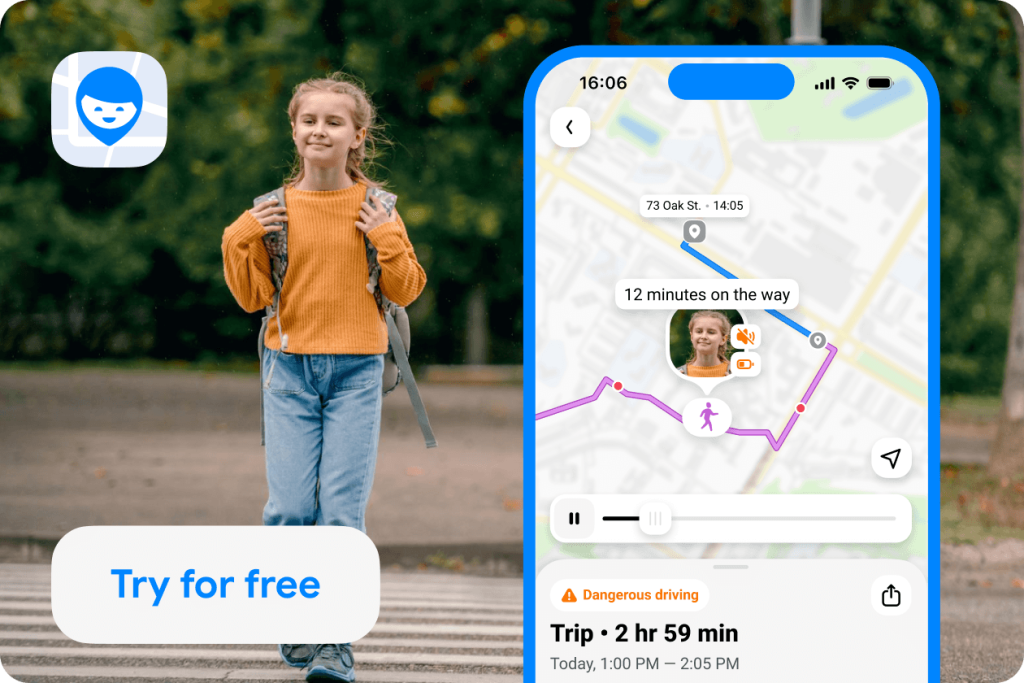
Findmykids app
If you only need someone’s location once, Apple’s tools may be enough. A parent who regularly needs to check where a child is may prefer a dedicated family app.
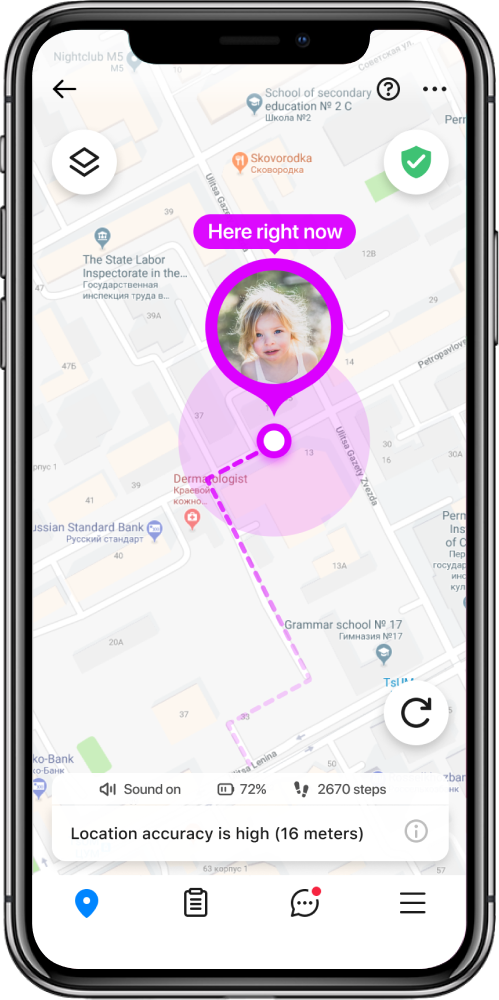
Findmykids is designed for ongoing family location sharing. Once the parent’s and child’s devices are connected and the necessary permissions are enabled, you can open the app at any time to see the child’s location without sending a new request each time.
Getting started only takes a few steps:
- Install Findmykids on the parent’s phone and the companion app on the child’s device.
- Create a family circle in the app and follow the setup instructions.
- Connect the child’s device using the invitation code.
- Allow location access and other permissions required for the features you want to use.
- Once the devices are connected, open the map in Findmykids to see the child’s location.
Now you can use Findmykids in different ways depending on what you need—from checking a child’s current location to keeping track of routes, places, and arrivals.
Family Circles
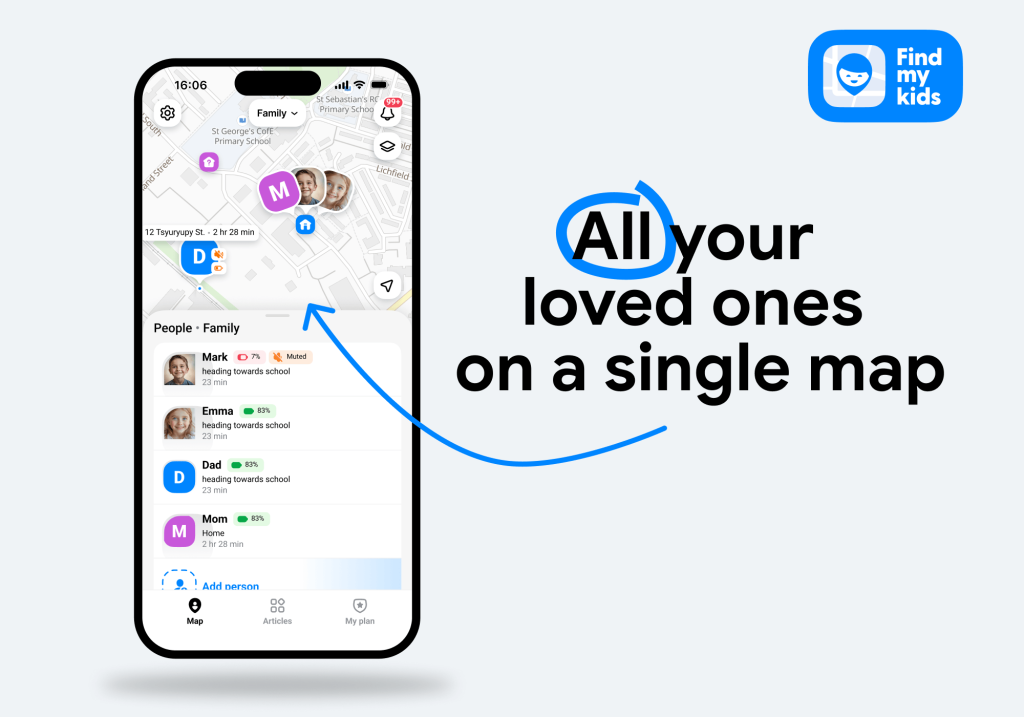
Family Circles lets multiple trusted people stay connected. Depending on how your family is set up, that might include parents, grandparents, older siblings, or other caregivers. Findmykids’ updated Family Circles support mutual location visibility and can even be created temporarily for a trip or event.
Real-Time Location
Instead of asking your child to send their current location, you can open Findmykids and see their location on the map. This is useful when they’re walking home, at a friend’s house, or traveling between activities.
Location History
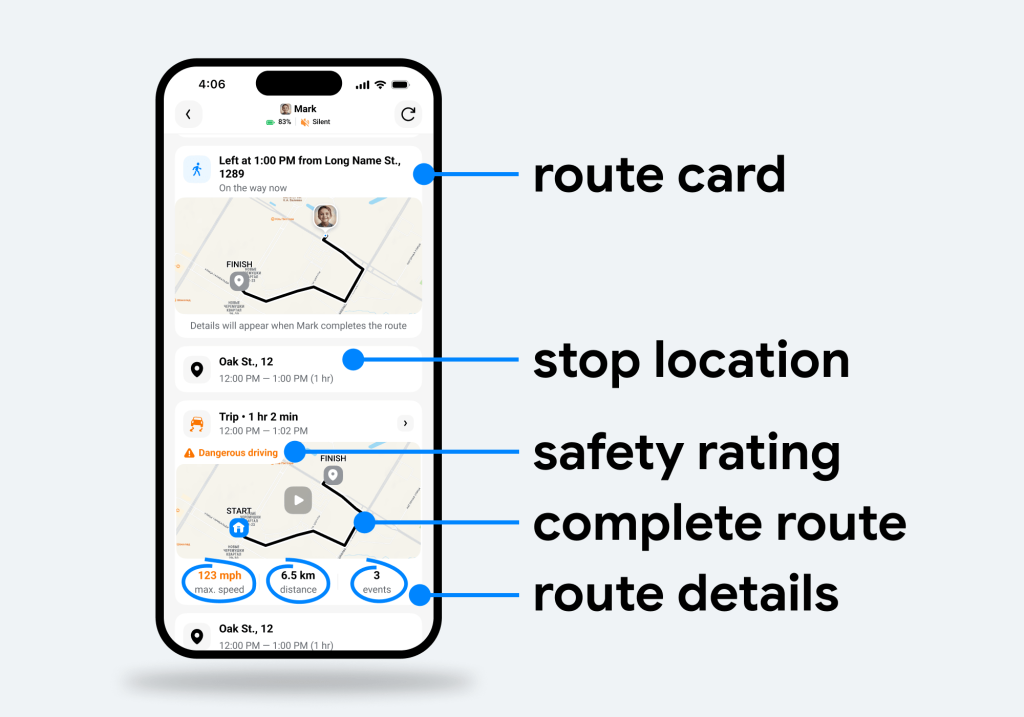
A pin tells you where your child is now. Route history gives you context.
Findmykids lets you view previous routes and locations. Each trip is displayed as a separate route card with key details such as the starting point, destination, distance, and route. Open a card to see the journey in more detail and understand where your child has been.
Frequently Visited and Saved Places
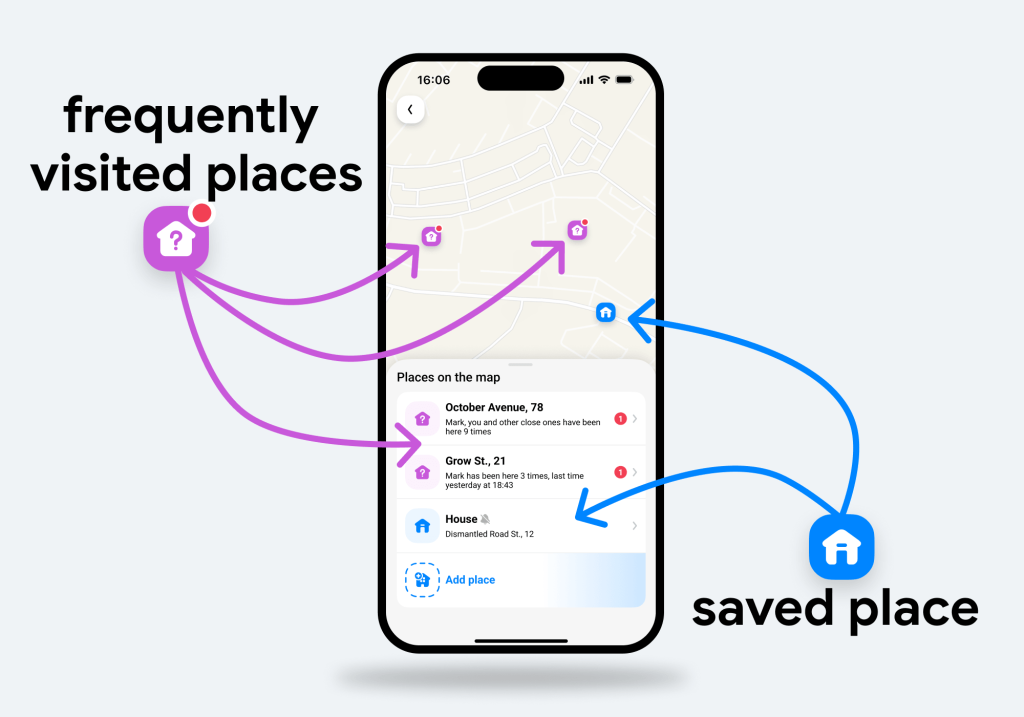
The Places section shows saved locations, such as Home, School, or Activities, along with places that the app identifies as frequently visited. Place Cards can show visit history, time spent there, and other useful context.
Place Notifications
You don’t always need to open the app and check the map. You can set a notification for important places and receive an alert when your child arrives or leaves. This can replace the daily “Text me when you get there” routine.
Loud Signal
If your child isn’t responding because their iPhone is muted or buried in a backpack, Loud Signal can send an audible alert to get their attention.
Findmykids also includes other family safety and parental-control features. Depending on the device and plan, these can include:
- SOS alerts
- Battery notifications
- Screen time controls
- App restrictions
- Sound Around on supported devices
- Multiple caregiver access
If you want more than occasional location requests, Findmykids brings location sharing, movement history, place notifications, and other family safety tools together in one app.
Ready to try it? Download Findmykids for free right now and connect your family to get started!
How to Request Location on iPhone Using Messages
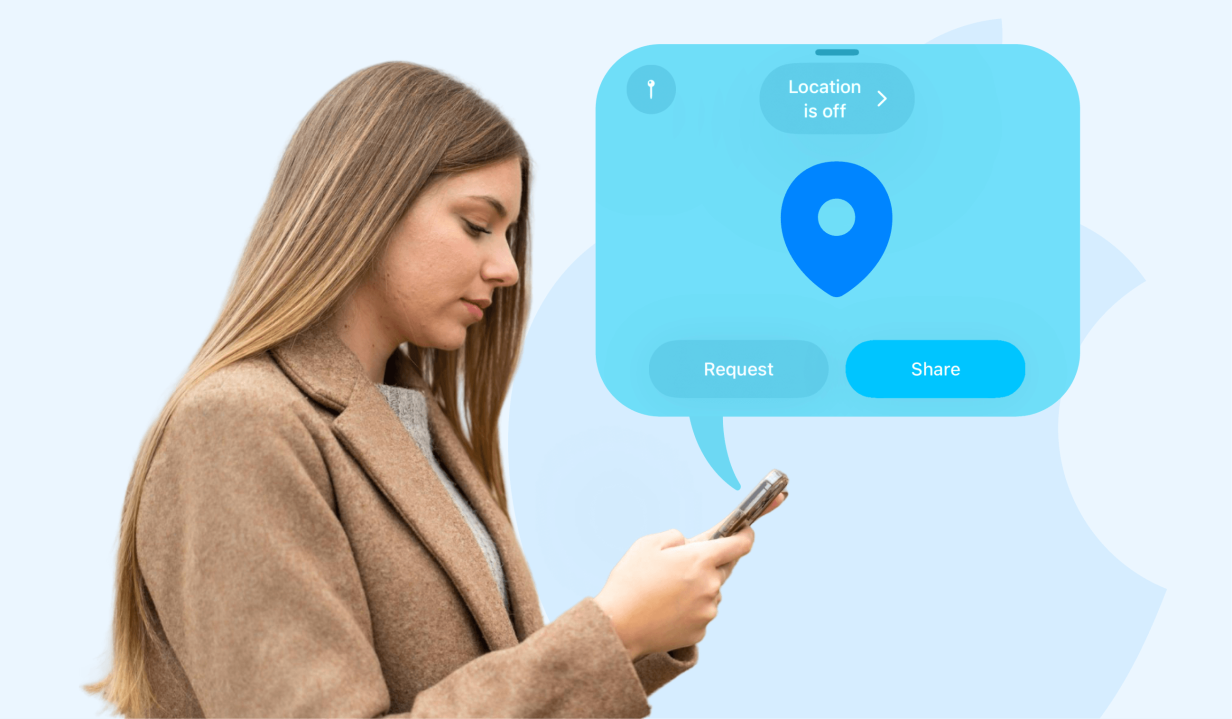
If you only need to request someone’s location occasionally, you can also use the built-in tools on iPhone. Messages lets you send a location request directly in an existing conversation—no additional app is required.
On current versions of iOS:
- Open Messages and choose the conversation with the person.
- Tap the Add (+) button.
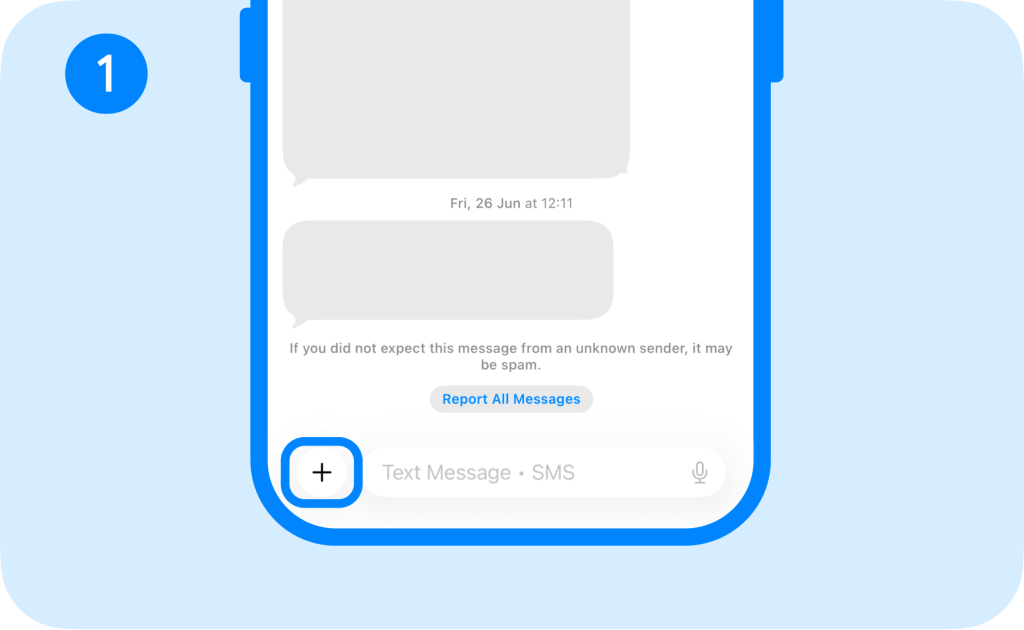
- Tap Location.
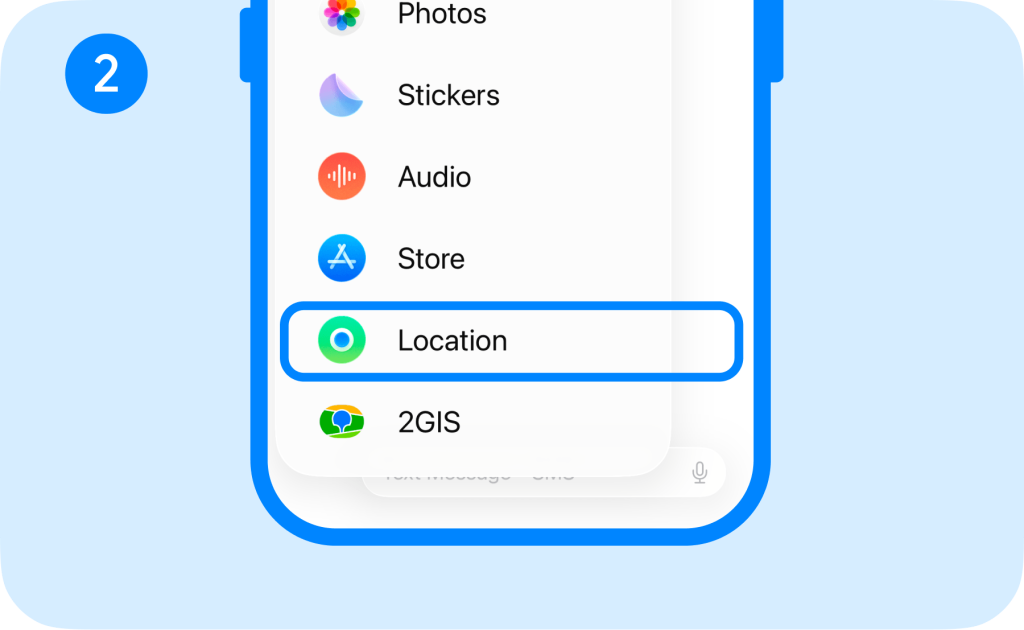
- Tap Request.
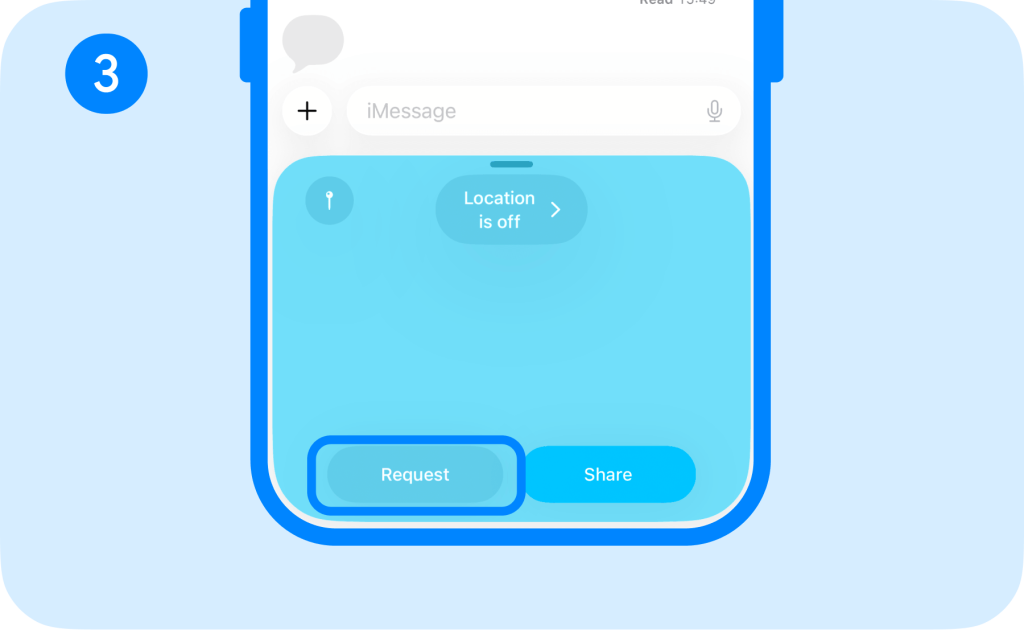
- Tap Send to send the request.
You can also type a message ending with “Where are you?” and, when available, tap Request Location above the keyboard.
The other user receives the request. If they accept and share, their location appears beneath their name in Messages, where you can tap the map for a larger view.
If you don’t see the option, check that the iPhone is updated and that relevant Location Services permissions are enabled.
How to Request Someone’s Location Using Find My
Find My is Apple’s main app for ongoing location sharing among family and friends. To see another person’s location, you first share your location with them and ask them to share it back:
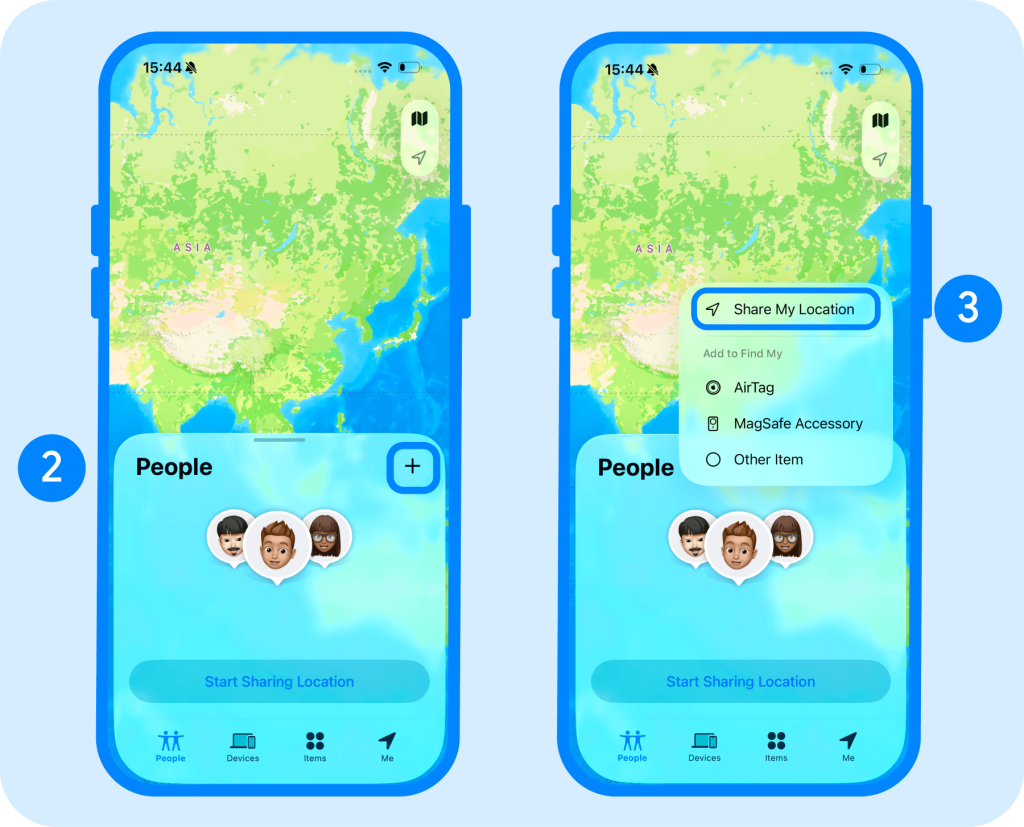
- Open the Find My app and tap People.
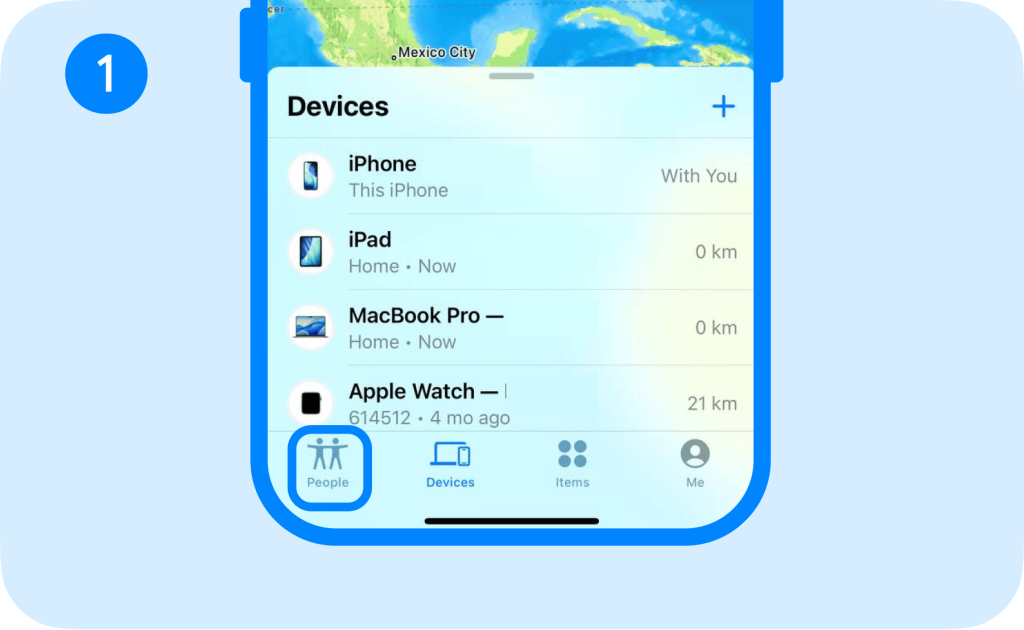
- Tap the Add (+) button, then Share My Location.
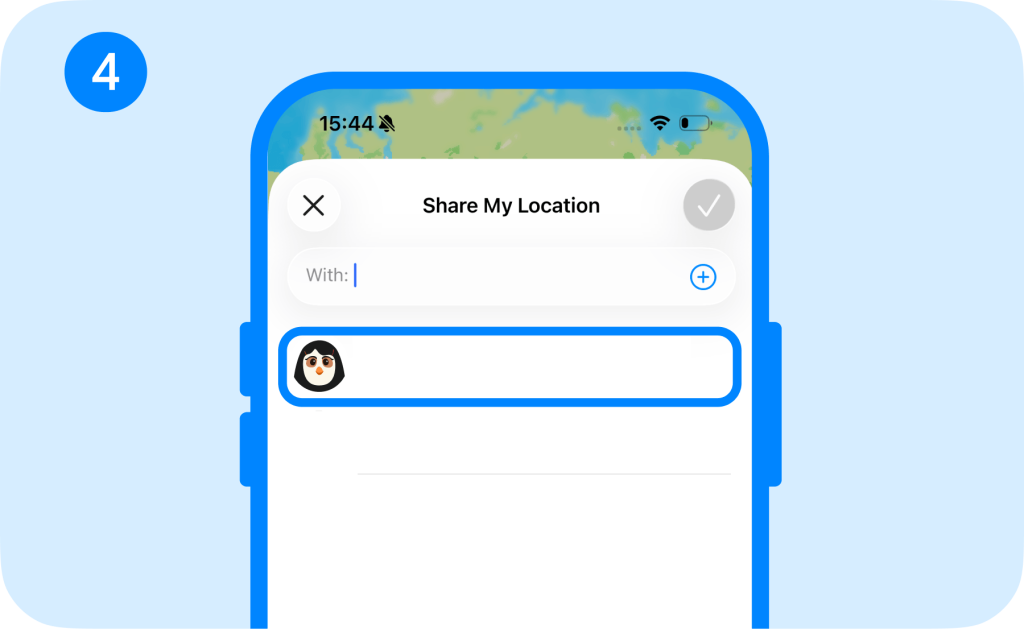
- Choose the person.
- Choose how long to share your location.
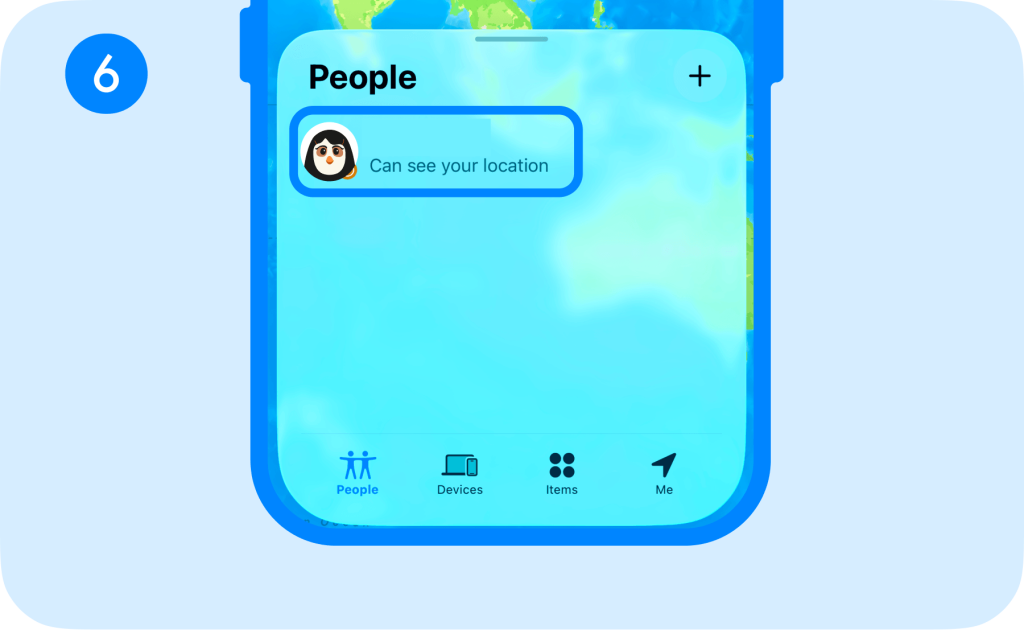
- After sharing, select that person under People.
- And tap Ask to Follow Location (or Request Location).
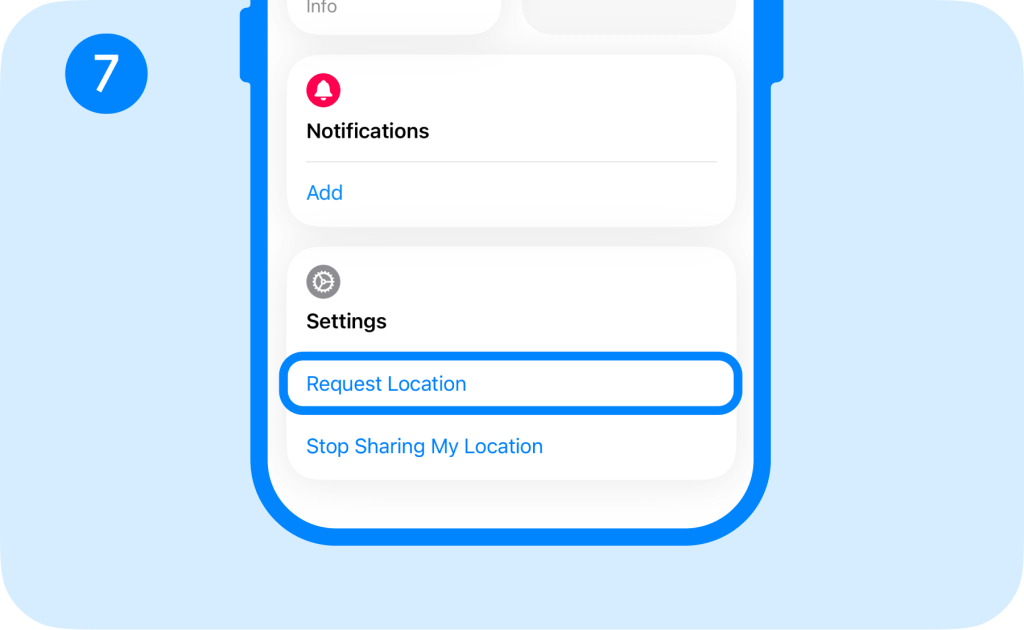
The other person receives your request and can choose whether to share. Once they accept, you can see their current location in the Find My app.
Related: Why is Find My iPhone Not Working? Common Issues & What Parents Should Do.
How to Request Location Through Family Sharing
Apple Family Sharing makes this process more convenient for families using iPhones.
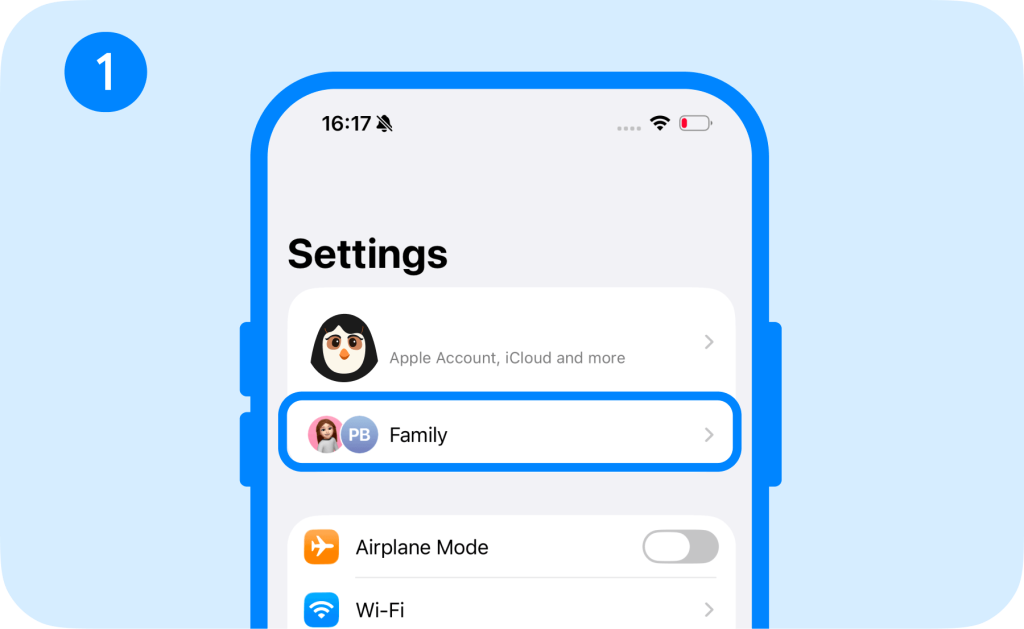
- Go to Settings.
- Tap Family.
- Choose Location Sharing.
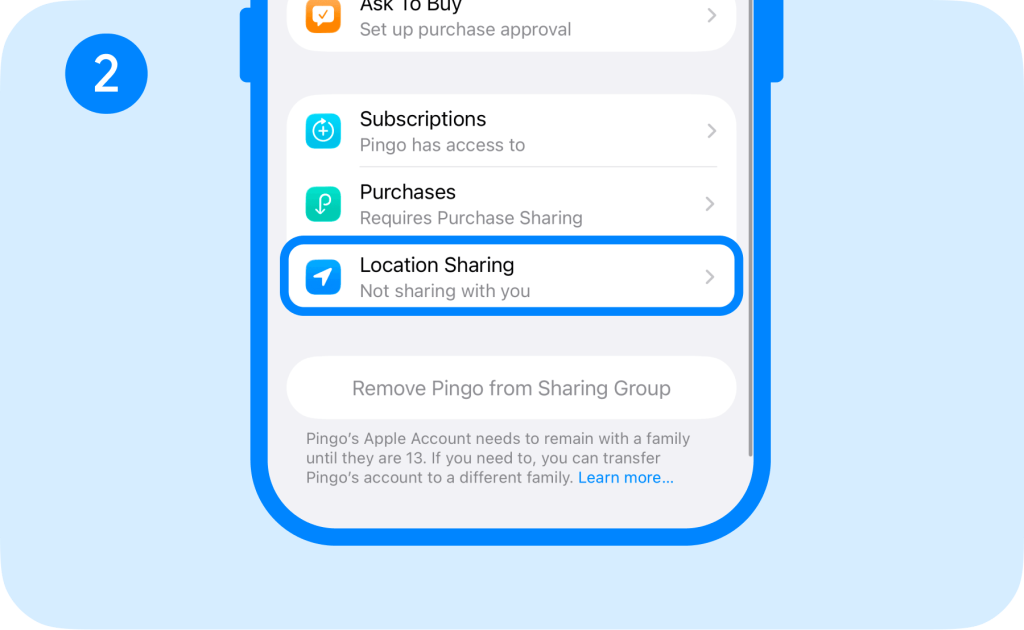
From here, you can choose which family members can see your location. Each person receives a message when location sharing begins and can choose to share back.
Children and teens with Screen Time enabled may have restrictions on changing these settings. Location Services must be turned on for the feature to work.
If you haven’t set up Family Sharing yet and want to learn how to do it, check out our guide.
How to Share Your Location Instead of Requesting Someone Else’s
Sometimes the easiest way to start is to share your location first. With Findmykids Family Circles, family members can see each other on the map once they join the same circle and enable location access.
Here’s how to set it up:
- Install Findmykids on your phone and open the app.
- If you’re creating a new family circle, tap Create an account and follow the setup steps. You’ll be asked to enter your email and some basic information.
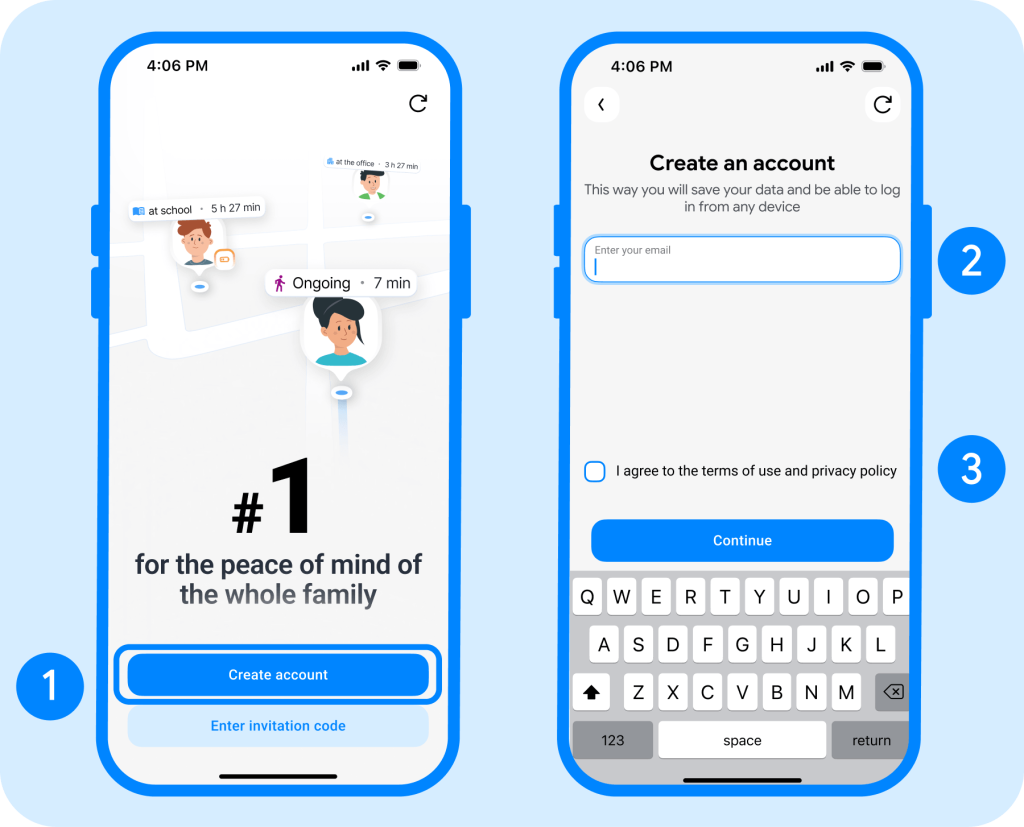
- Once the setup is complete, you’ll see an invitation code for your family circle.
- Share the code with the family members you want to add.
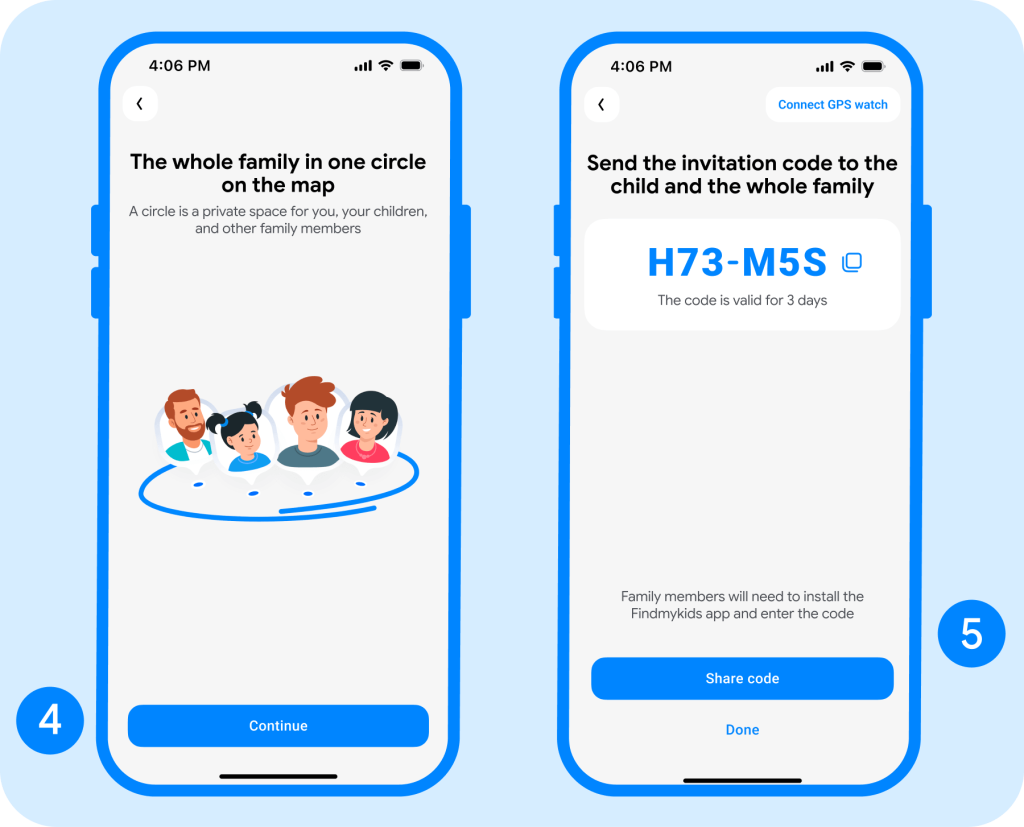
- They should install Findmykids, tap I have an invitation code, and enter the code.
- During setup, they’ll choose their role—Adult or Child—and provide the required information.
- Make sure everyone allows location access when prompted. This is necessary for family members to see each other on the map.
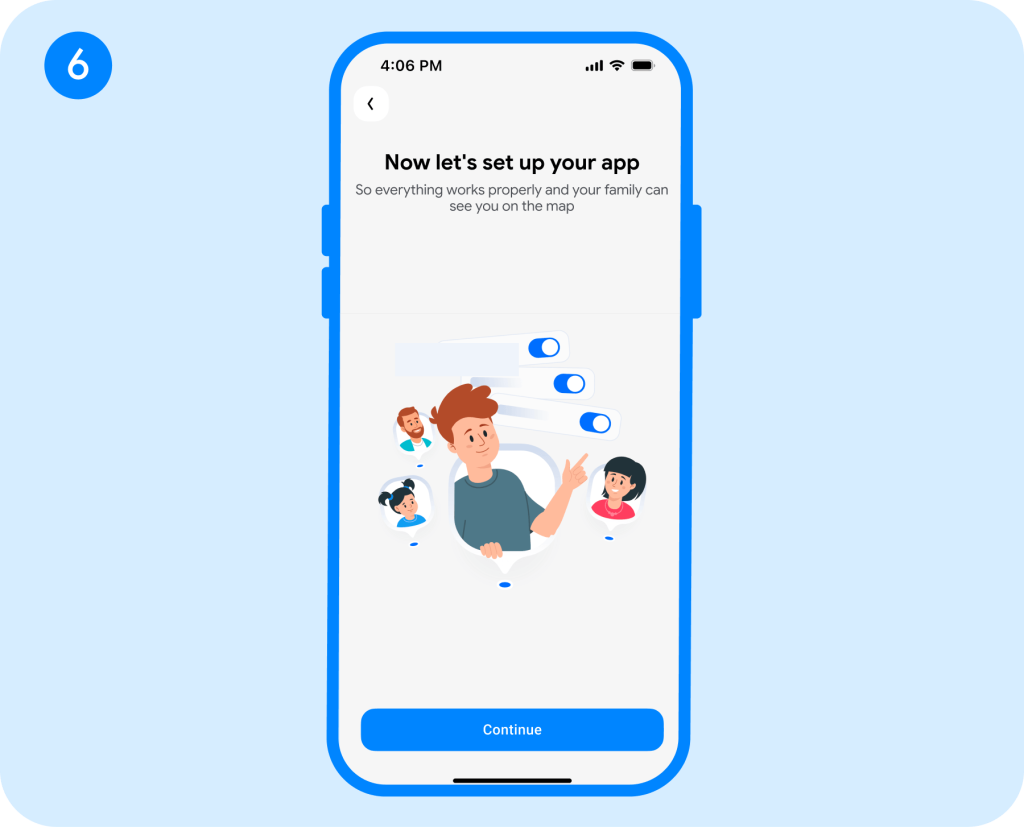
- Once everyone has joined the same circle and enabled location sharing, open the map to see the members of your family circle.
Want to add someone later? Open People on the main screen, tap Add person, and share the invitation code with them.
This makes location sharing more mutual and transparent—especially for older kids who may want to know where their parents are, too.
If you’re looking for Apple’s built-in options, you can also share your location through:
- Messages, either as a one-time pin or Live Location
- the Find My app
- Family Sharing
- Maps using Share ETA
- Check In through Messages
Apple lets you choose how long ongoing sharing lasts, and you can stop sharing when you no longer want someone to have access.
Can You Request Someone’s Location Without Them Knowing?
No. On iPhone, you can’t legitimately request someone’s location without them knowing. Location sharing requires the other person’s permission, and Apple’s built-in tools make location sharing visible to the people involved.
This is especially important when it comes to children. Rather than trying to track their location secretly, it’s better to agree on clear rules for location sharing—including when parents may check it and why. As children grow older, these rules can also change to give them more independence.
Secretly tracking another adult without their consent is different: it can raise serious privacy and safety concerns.
Location Request vs. Ongoing Child Location Sharing
If you only need to know where someone is from time to time, a one-time location request may be enough. But for parents who want to keep track of a child’s location regularly, an ongoing family location app can be much more convenient. Here’s how the two options compare:
| Feature | One-Time Location Request | Ongoing Family Location App (Findmykids) |
| Best for | Occasional check-ins | Regular family safety |
| Child action needed | Usually must respond/share | Setup and permissions are completed in advance |
| Current location | Yes | Yes |
| Real-time movement | Possible with Live Location | Yes |
| Route history | No | Available with Findmykids |
| Saved/frequent places | No | Available with Findmykids |
| Arrival/departure notification | Limited Apple options | Yes |
| Loud alert | No | Available with Findmykids |
| Best example | Meeting friends at a park | Child commuting to and from school |
⠀
Findmykids offers a more complete set of location features. Along with live location, it provides route history, saved places, arrival and departure notifications, and a loud alert. So instead of using location sharing only when you need to find out where your child is, you get a fuller picture of their everyday movements.
Should Parents Request a Location or Use a Family Location App?
For occasional check-ins, Apple’s built-in tools work well. Messages lets you request location, while Find My, Check In, Family Sharing, and Share ETA cover everything from meetups to trips home.
If you want regular updates without sending another “Where are you?” text, Findmykids gives you more context, including where your child is, where they’ve been, and when they reach familiar places.
Whatever you use, set expectations upfront. As your kids grow, you can adjust the rules, stop sharing features you no longer need, and give them more independence.
FAQs
Can I request someone’s location without sharing mine?
It depends on the method. In Messages, you can send a location request without sharing your own location. In Find My, asking someone to share their location requires you to share yours first.
Why don’t I see the Request Location button?
Update your iPhone and check Settings → Privacy & Security → Location Services. In current iOS versions, open Messages and tap Add (+) → Location → Request.
How long does location sharing last on iPhone?
Apple lets users share for one hour, until the end of the day, or indefinitely. A one-time current location doesn’t update as the device moves.
Does someone know when I request or view their location?
They’ll see your request location notification. Apple doesn’t send a new alert each time you view an already-shared location, and the person can stop sharing anytime.
Can I request an Android user’s location from an iPhone?
Apple’s Find My isn’t a universal iPhone-to-Android tracker. Findmykids supports both iOS and Android devices, though available features may differ.
How can I track my child’s location on iPhone?
With Findmykids, you can see your child’s location in real time and keep track of their movements throughout the day. The app also lets you view route history, save important places, and receive notifications when your child arrives at or leaves a location.
Sources & References
- Share your location with iPhone, Apple Support
- Use Check In for Messages on iPhone, Apple Support
- Share your location in Find My on iPhone, Apple Support
- Share your location with your Family Sharing group, Apple Support
Cover image: luis_molinero / magnific.com
Проверьте электронный ящик