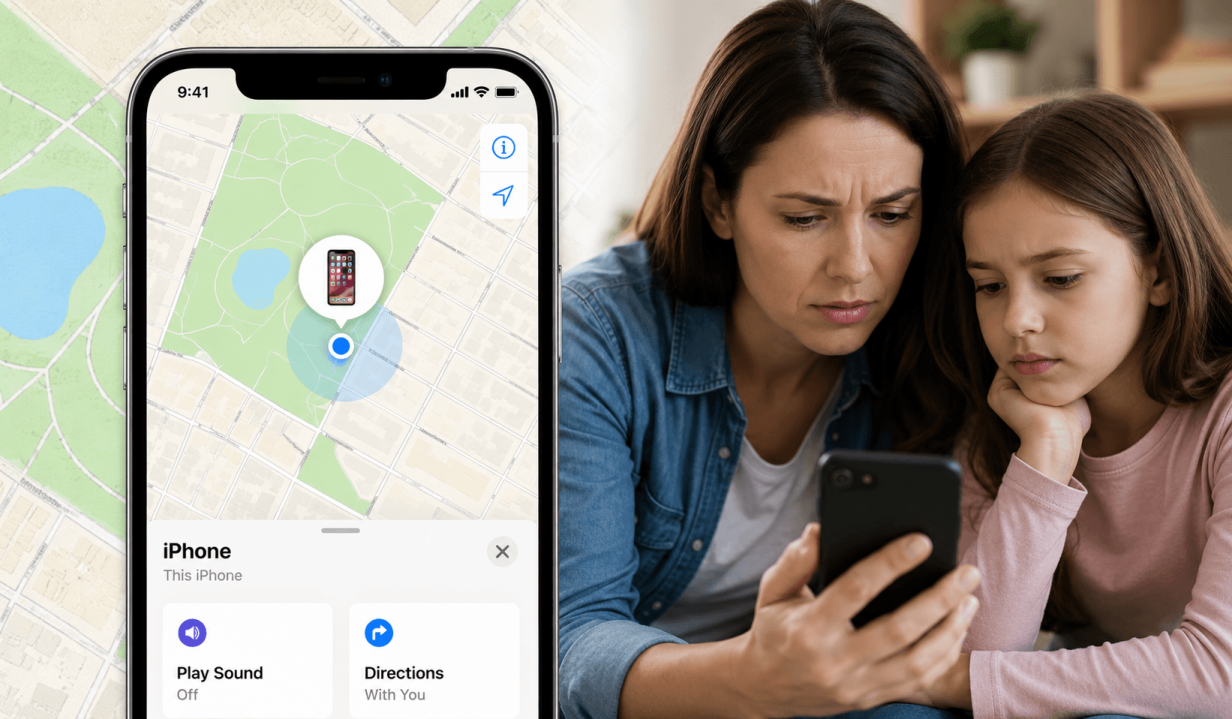
Have you just opened the Find My app…only to discover that your child’s location isn’t updating?
Whether you’re trying to coordinate a pickup, confirm that your child arrived at their sports practice safely, or simply check in on them during the day, a missing location can be just as frustrating as it is stressful.
So, why is Find My iPhone not working? The problem could be anything from disabled settings to connectivity issues. Apple’s location-sharing tools are useful, but they aren’t immune to technical problems.
Fortunately, many Find My problems can be fixed in just a few minutes.
Key Takeaways
- Find My iPhone can stop working due to location settings, connectivity issues, account problems, or a powered-off device.
- Many location-sharing problems can be fixed by checking settings, restoring internet access, or restarting the devices.
- Apple’s Find My feature is designed to locate devices, not provide comprehensive parental monitoring.
- Location updates may stop and not be able to share a location if a device loses service, runs out of battery, or encounters software issues.
- Apps like Findmykids offer additional tools for parents, including real-time location tracking, movement alerts, route history, and family safety features.
Contents:
Why is Find My iPhone Not Working?
If Find My iPhone suddenly stops showing your child’s location, there are usually a few common explanations to consider. Most of the time, the biggest problems involve settings, connectivity, account configuration, or the status of the device itself.
Find My iPhone Is Turned Off
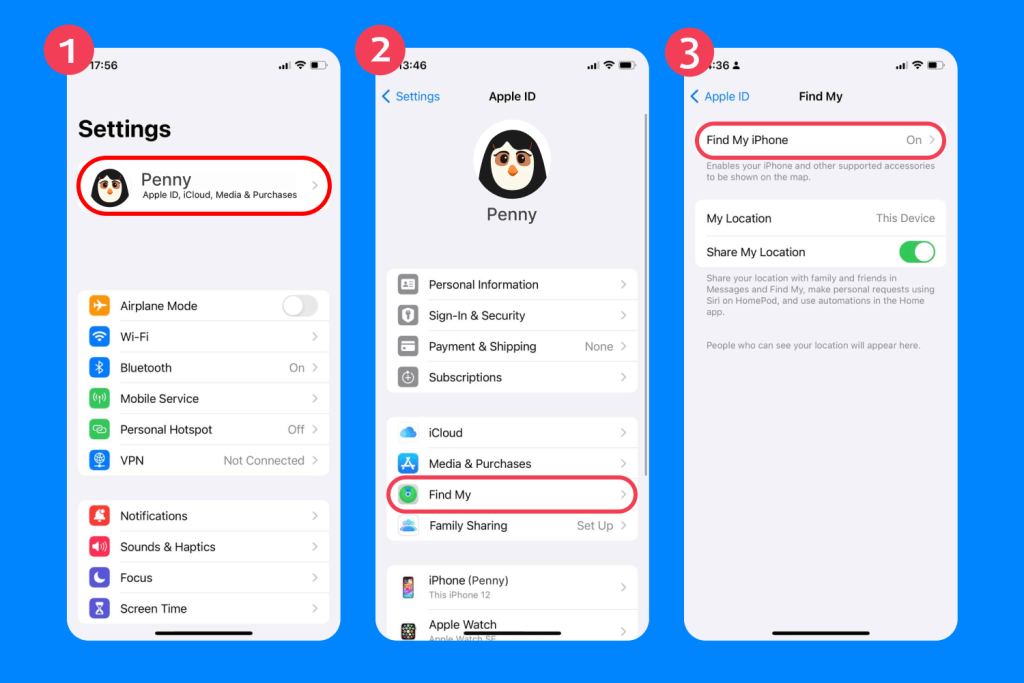
The simplest explanation is often the correct one. If Find My iPhone has been disabled, Apple can’t track or display the device’s location. This can happen accidentally during setup, after a software update, or when someone changes account settings.
To check:
- Open the Settings app.
- Tap your name at the top of the screen.
- Select Find My.
- Tap Find My iPhone.
- Verify that the feature is enabled.
If it isn’t enabled, turn it on immediately. You may also want to enable the options that allow Apple to help locate the device even when the battery is running low.
Location Services Are Disabled
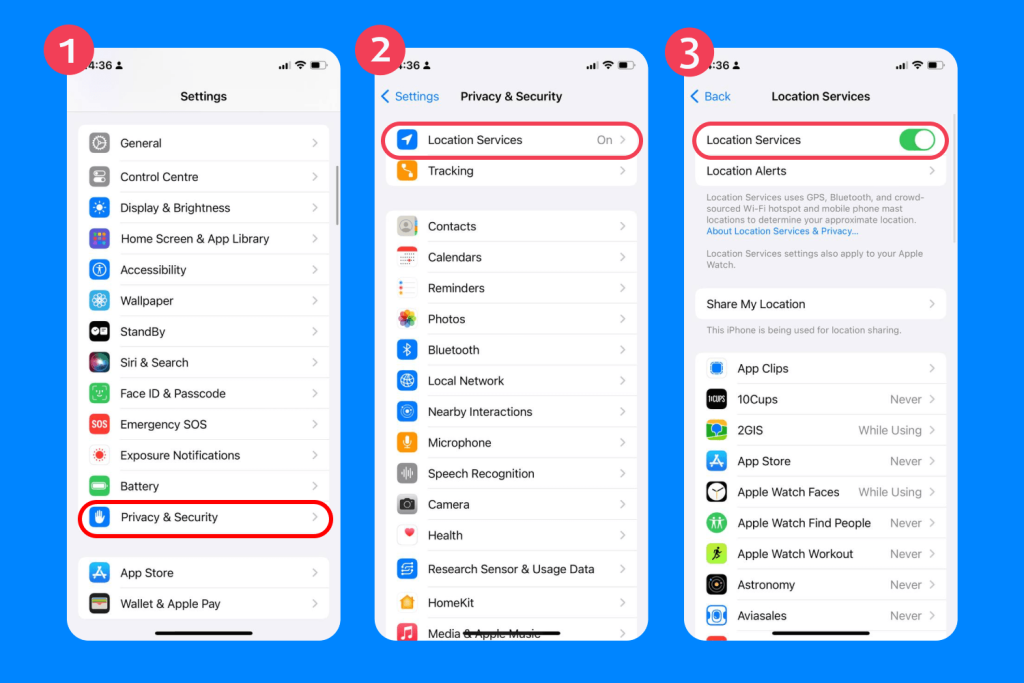
Your iPhone relies on location services to determine where it is. Without location services, the phone can’t provide accurate location information to the Find My app.
To verify that the location services enabled status is active, follow these steps:
- Open the Settings app.
- Tap Privacy & Security.
- Select Location Services.
- Confirm that Location Services are turned on.
While you’re there, make sure the Find My app has permission to access location data. If location services are disabled, the app won’t be able to update your child’s location on the map.
The iPhone Has No Internet Connection
Find My requires an active internet connection. If your child’s phone loses Wi-Fi or cellular service, location updates may stop until connectivity is restored.
The Battery Is Dead, or the Device Is Powered Off
If the phone is powered off or has a dead battery, it can no longer update its location, though you may still see its last known location, which could be several days ago.
In situations like this, it’s especially important for parents to understand whether the device is simply offline or running out of power. Some parental control tools, such as Findmykids, include a battery level indicator for the child’s device, which helps parents see in real time when the phone is reaching a low charge. This can reduce unnecessary worry when location tracking suddenly stops, since a low battery is one of the most common reasons for interrupted updates.
The Wrong Apple Account Is Being Used
If your family uses multiple Apple devices or Apple accounts, your child may be signed into the wrong account. When that happens, Find My may not display the correct location information, making it appear as though the feature isn’t working.
To rule out an account issue, make sure the device is signed into the correct Apple ID, that Family Sharing is configured properly, and that both you and your child are using the intended Apple account. It’s also worth verifying that the correct Apple credentials are being used on each device.
Related: iPhone Location Sharing Not Working? Here’s How to Fix I.
What Does “No Location Found” Mean?
When you see “No Location Found” in the Find My app, it usually means the phone’s current location cannot be accessed.
This message can appear if:
- Location services are disabled
- The phone is offline
- The device is powered off
- The network connection has been interrupted
- There is a temporary issue affecting Apple’s services
Unlike “No Location Found,” which is usually caused by connectivity or settings issues, “Location Not Available” often means the other person has stopped sharing their location or their device is unavailable.
Read more: On the Map, Off the Grid: Troubleshooting the ‘No Location Found’ Error on iPhones.
Quick Fixes for Find My iPhone Not Working
Before you contact Apple support, try these troubleshooting steps.
Check Find My Settings
Many parents discover that a simple settings adjustment can immediately fix Find issues.
To do this, visit your Find My settings:
- Open the Settings app.
- Tap your Apple profile.
- Select Find My.
- Verify that Find My iPhone is enabled.
- Confirm that location sharing settings are active.
Turn On Location Services
If location services aren’t enabled, location sharing can’t function properly, since the location services are what help the phone accurately determine its position.
To check location services, open the Settings app and go to Privacy & Security. Select Location Services, then enable the feature.
Check Wi-Fi and Cellular Data
Many apparent tracking failures are simply connectivity issues, and a missing or unstable network connection is one of the most common causes of Find My problems.
Verify that:
- Wi-Fi is connected
- Cellular data is active
- Internet browsing works
- Apps can connect normally
Turn Off Airplane Mode
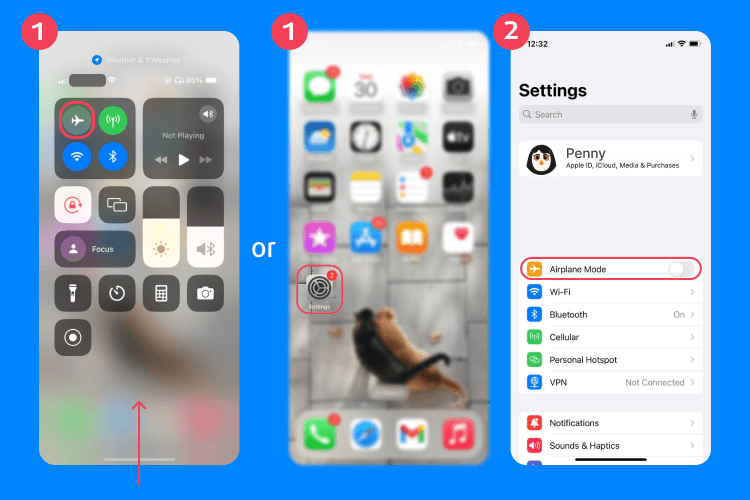
It’s surprisingly common for kids, especially young ones, to activate airplane mode accidentally while they’re adjusting settings or playing with their phone. If airplane mode is enabled, your phone can’t communicate with Wi-Fi or cellular networks.
To check, open the Control Center and look for the airplane icon. Disable airplane mode if it’s active.
Restart the iPhone
Sometimes a temporary glitch is all that’s causing the problem. To restart your device, press and hold the side button and one of the volume buttons. Slide to power off, then wait for about 30 seconds.
Hold the power button or side button until the Apple logo appears. When the Apple logo finishes loading, your phone may reconnect to Apple’s location services and begin updating normally again.
Limitations of Find My iPhone Parents Often Don’t Realize
Even when Find My iPhone is functioning properly, it has limitations that can make it less reliable for everyday parenting needs.
Location Can Stop Updating Without Notice
One limitation many parents don’t realize is that location updates can stop without warning. If your child’s phone loses its internet connection, enters power reserve mode, or experiences a temporary glitch, the Find My app may continue displaying an older location rather than a current one on the map.
As a result, you may believe you’re viewing your child’s real-time location when the information on the map is actually the last location and is several hours old. Unless you notice the timestamp or missing updates, it can be difficult to tell that the location is no longer current.
It Depends on the Device Being Online
The entire system depends on the device maintaining a stable internet connection. If your child’s phone cannot connect to Wi-Fi or nearby cellular networks, the Find My app may not be able to update location information. Even when location services are enabled, a lost network connection can prevent the service from working properly.
No Behavioral Insights, Only Location
The Find My feature focuses almost entirely on location sharing. While that can help you locate an Apple device, it doesn’t provide much context. You can see where the device is, but not how your child is using their phone, whether they’ve arrived at a destination safely, or how long they’ve stayed there.
No App Usage Visibility
Many parents want more than just location data. They want insight into screen habits, gaming activity, and social media usage.
The Find My app doesn’t provide any visibility into how your child uses their device throughout the day. If you’re concerned about digital well-being, you’ll need another solution.
No Proactive Alerts in Many Cases
While Apple offers some notification capabilities, many parents want more proactive alerts. For example, you may want to know when your child leaves school, arrives at practice, or gets home safely.
A More Reliable Way for Parents to Stay Connected: Findmykids
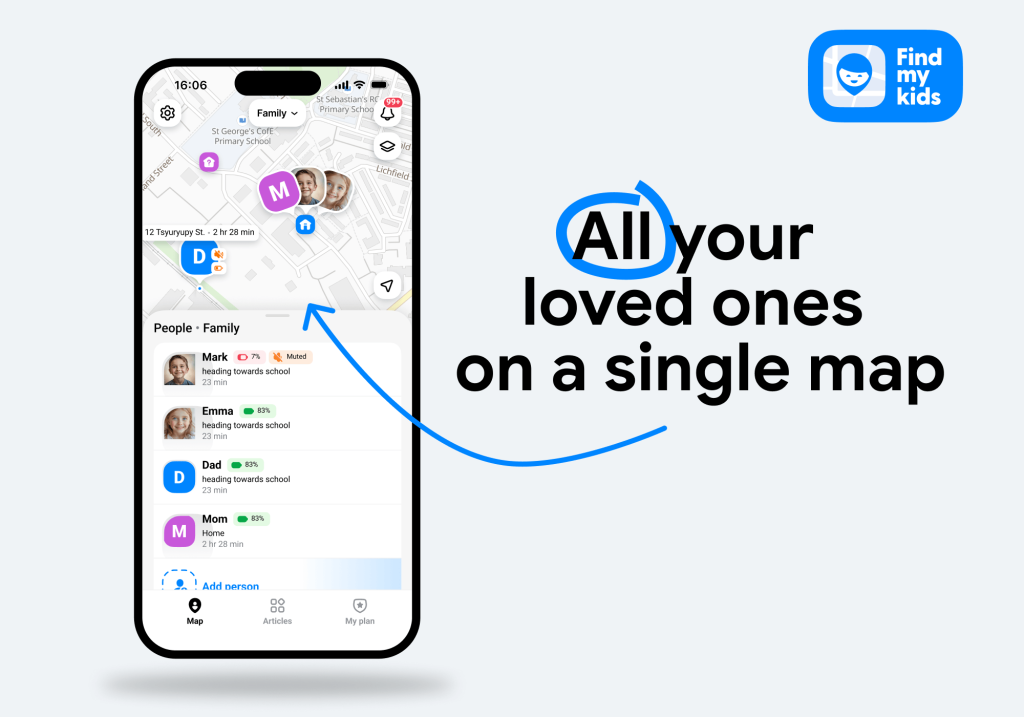
Findmykids app
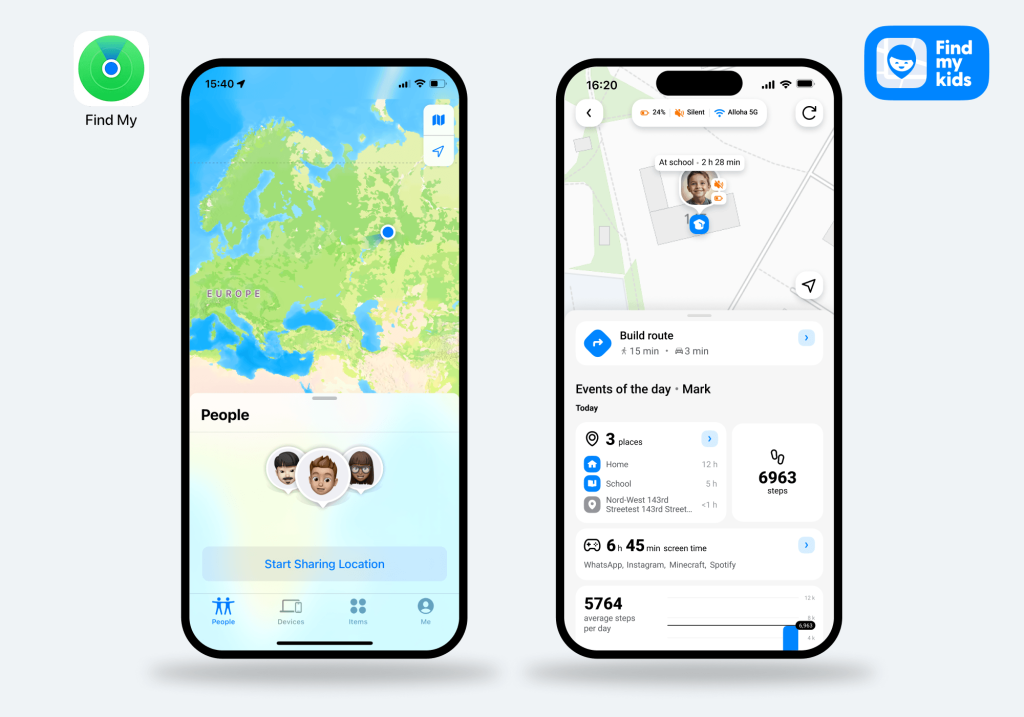
If your goal is simply to locate a missing iPhone, Find My can be helpful. But if your goal is staying connected with your child throughout the day, Findmykids offers features specifically designed for families.
While Find My iPhone was designed primarily to help users locate lost Apple devices, Findmykids was built specifically for families. Instead of focusing only on location sharing, it helps you stay informed about your child’s movements, routines, and safety throughout the day.
With Findmykids, you can view your child’s real-time location, receive movement notifications, access route history, send Loud Signals and receive SOS alerts, and chat directly through the app.
Depending on your plan and device type, additional features may include app usage insights, app blocking, website filtering, protection from unknown callers, bypassing silent mode, and support for multiple adults in the same family.
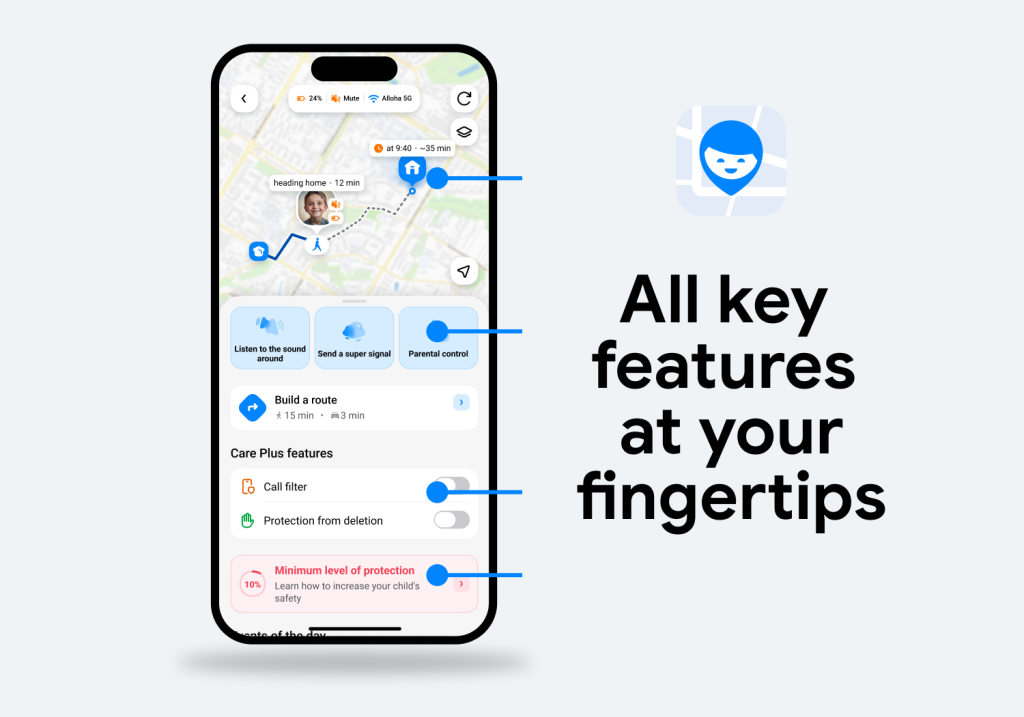
Findmykids app
To better understand the difference in approach between the two tools, it helps to compare them side by side:
| Feature | Find My iPhone (Apple) | Findmykids |
| Real-time location tracking | ✅ Yes, for Apple devices linked to Apple ID / Family Sharing | ✅ Yes, designed specifically for child tracking across supported devices |
| Location history | ⚠️ Limited (recent locations depending on device/settings) | ✅ Yes — detailed route history including start and end points, stops, and full movement paths throughout the day |
| Arrival / departure alerts (geofencing) | ❌ No dedicated child-focused geofencing alerts | ✅ Yes, customizable geofencing and movement notifications |
| SOS / emergency alerts | ❌ No child-specific SOS system | ✅ Yes, SOS button for instant alerts to parents |
| Communication between parent and child | ❌ Not included | ✅ Built-in chat feature |
| Attention / sound signal | ❌ Not available | ✅ Loud Signal feature (device-dependent) |
| Parental control | ❌ Not available — Apple provides separate built-in Screen Time and parental control tools instead | ✅ Included within a unified parental control system (availability depends on device and plan) |
| Driving reports | ❌ Not available | ✅ Yes — driving safety reports showing speed patterns, sudden braking, sharp turns, and type of movement (e.g. walking, driving) |
| Multi-caregiver access | ✅ Limited via Family Sharing | ✅ Supports multiple caregivers |
| Primary purpose | Device recovery and ecosystem security | Ongoing family connection and child safety monitoring |
⠀
If you’re looking for more than a way to locate a phone, Findmykids provides a broader set of tools designed to help parents stay connected, informed, and confident about their child’s safety. Try it right now for free!
Other Find My iPhone Issues
Here are a few more problems you might encounter.
Find My iPhone Not Updating Location
If Find My iPhone isn’t updating your child’s location, the cause is usually one of a few common issues:
- Location Services are disabled
- The device has a dead battery
- The phone has lost its internet connection
- The Apple account is inactive or incorrect
- Poor network coverage or weak connectivity
To fix it, open the Settings app, verify that Location Services and Find My are enabled, make sure Wi-Fi or cellular data is connected, disable Airplane Mode, and restart the device. In many cases, this will restore location updates.
Find My Not Working for a Family Member
If you can’t see a family member’s location, they may have accidentally changed their settings or stopped sharing their location.
Ask them to open the Settings app, tap their Apple account, select Find My, and confirm that location sharing is enabled. You should also verify that both devices are signed into the correct Apple ID and that Family Sharing is set up properly.
How to set up Family Sharing? Read here!
Find My iPhone Not Working After an iOS Update
A software update can occasionally reset permissions or change important settings.
To fix this, review your location settings, confirm that Location Services and Find My remain enabled, and make sure you’re signed into the correct Apple ID. Installing the latest version or any iOS updates may also resolve bugs affecting the service.
Other Common Causes
- Incorrect date and time settings: Go to Settings → General → Date & Time and select Set Automatically.
- Network connectivity issues: Move to an area with a stronger signal and confirm the device can connect to the internet.
- Temporary software bugs: Restart the phone by holding the side button and volume button, powering off the device, then turning it back on.
- Outdated software: Install the latest iOS version through Settings → General → Software Update.
- Apple server outages: If everything appears configured correctly and Find My still isn’t working, check Apple’s System Status page or contact Apple Support.
When Knowing Your Child’s Location Matters
Find My iPhone is a useful tool for locating a lost device or checking a loved one’s location, but it isn’t always reliable for day-to-day family monitoring.
Most issues stem from settings, connectivity, software glitches, or account problems and can often be fixed with a few simple troubleshooting steps.
If keeping up with your child’s whereabouts is a daily priority, a dedicated family safety app like Findmykids may provide more consistent location updates and greater peace of mind.
FAQs
Why is Find My iPhone not working?
Find My iPhone may stop working for several reasons, such as because location services are disabled, the device lacks an internet connection, the wrong Apple account is being used, airplane mode is enabled, or a recent software update changed important settings.
In family situations, parents often switch to tools like Findmykids to avoid these gaps in visibility, since it provides continuous updates and additional alerts when a child’s device goes offline or loses connection.
Why does Find My say No Location Found?
“No Location Found” usually means the Find My App cannot access the device’s current location. This can happen when the phone is offline, powered off, disconnected from the network, or unable to access location services.
How do I fix Find My iPhone not updating location?
Check location services, verify your Apple ID, make sure Find My is enabled, confirm Wi-Fi or cellular data is working, and restart the iPhone. These steps often fix most updating issues.
For parents who need more consistent tracking in daily life, Findmykids offers a more continuous monitoring setup designed specifically for children, reducing the need to repeatedly troubleshoot basic connection issues.
Why can’t I see my family member’s location?
Your family member may have disabled location sharing, signed into a different Apple account, lost internet access, or changed privacy settings. Verify that they still enable location sharing and are using the correct account settings.
In contrast, Findmykids is built around family-focused tracking, where location sharing, movement updates, and safety notifications are centralized in one system, making it easier for parents to stay informed without depending on multiple Apple settings.
Sources & References
- iPhone User Guide – Apple Support, Apple, 2026
- Share your location with your Family Sharing group, Apple Support, 2025
- Turn Location Services and GPS on or off on your iPhone, iPad, or iPod touch, Apple Support, 2026
- Use Airplane Mode on your iPhone, iPad, Apple Watch, and Apple Vision Pro, Apple Support, 2026
Cover image: generated by ChatGPT / OpenAI
Проверьте электронный ящик