Kids are spending more time on their phones than ever before. As a parent, this presents many challenges, but parental controls could be the answer. If you’re looking for a reliable, effective app to control kids’ phones, we’ve got the information you need. Below, we’re going to round up the best options on the market right now, the parental features to look out for, how to get the most out of them, and ways that kids can get around parental controls.
Contents:
- Why Parents Need Phone Control Apps
- What Features to Look for in a Parental Control App
- Findmykids: The Best Parental Control App
- Built-in Features in iOS and Android Phones for Parents
- Other Popular Apps for Parents
- Tips for Using Phone Control Apps Effectively
- Can Kids Override Parental Controls?
- How to Talk to Kids About Staying Safe Online
- FAQs
Why Parents Need Phone Control Apps
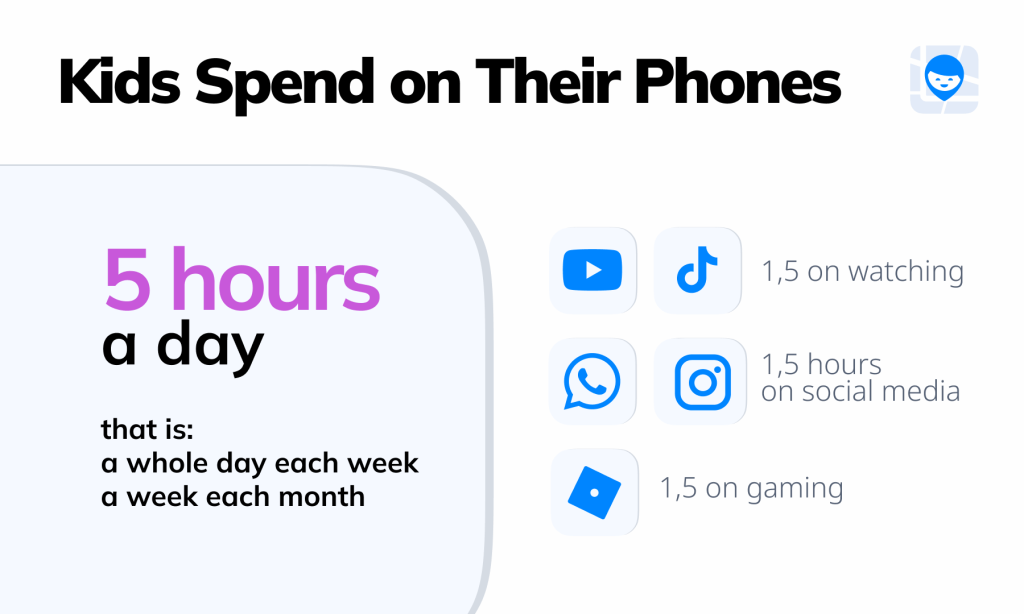
Findmykids research data
There are many reasons to use a parental control app to monitor and manage your child’s device and how they’re using it.
An app to control kids’ phones can mitigate risks around excessive screen time, online predators, and cyberbullying, and offer web filtering and app blocking capabilities. All of this contributes to better online safety and promotes a healthy screen/real-life balance.
Recent research published by the American Psychological Association revealed a strong link between excessive screen time and emotional and behavioral problems in kids. As kids increasingly turn to their screens to cope with stress and anxiety, this can easily become a vicious circle. This makes tackling screen time key when it comes to managing your child’s device and online activity. Too much time spent on the screen often leads to sleep disturbance and an inability to focus or concentrate in class or on homework assignments.
Related: Revealing the 5-Hour Screen Time: What Kids are Doing on Their Phones.
Exposure to inappropriate apps, websites, and other online content is an important reason parents need parental control apps. Kids are naturally curious, which may lead them to seek out adult or explicit content, or they could find themselves accidentally exposed to these things.
Further, cyberbullying is a growing threat, and one that affected around 36% of teenagers in 2025 alone. Cyberbullying can have a devastating impact on confidence and self-esteem, and easily flies under the radar: its online nature means you may not even be aware it’s happening.
As our kids grow and develop, it can feel as if managing your child’s device represents an invasion of their privacy. However, it’s vital to be aware that using parental control software to, for example, set screen time limits, monitor calls, and filter websites and specific apps, is a key way to protect your child from online dangers and keep them safe. Obviously, there is a balance to be struck, and older kids and teens are likely to need fewer controls than younger children, with the best parental control apps striking the right balance between privacy and caring control.
What Features to Look for in a Parental Control App
There are many parental control apps out there, and it’s important to choose the best one for your unique family. Here are the key parental control features and tools an app should incorporate:
Screen Time Management
The best parental control software and apps allow parents to set screen time limits on their child’s device. As well as ensuring your kid’s time on gadgets stays within healthy limits, these features allow you to set screen time schedules so, for example, your child is unable to access their device before a certain time in the morning, or before bed.
App Usage Tracking
The ability to track the types of apps your child is accessing is a key element of all high-quality parental control apps. These tools mean you can keep an eye on your kid’s online activity and better ensure the apps they’re using are age-appropriate. Look for options that allow you to block access to social media apps and other third-party apps, with an easy-to-use app blocker for peace of mind.
Location Tracking and Geofencing
Comprehensive parental control software offers tools to enable location tracking and geofencing. Think about tools that allow you to view your kid’s location history and send you a notification when your child arrives or leaves a designated “safe zone” such as school or a relative’s house.
Alerts for Unusual Activity or Unsafe Content
When choosing the best parental control app for your family’s needs, you may want to consider tools that send alerts to your device if your child accesses (or attempts to access) unsafe content or uses their device in an unusual way. This is an effective way to boost your kid’s online safety, and assures parents that, whether their child tries to download inappropriate mobile apps or view websites for adults, they’ll know about it fast.
Communication: Staying in Touch
Parental control apps and tools aren’t just about setting screen time limits, web content filtering, and app blocking. By facilitating notifications and check-ins, many parental control apps help you better stay in touch with your child. When your kid first starts leaving the house on their own, this is vital and prevents the inevitable parental panic!
Invisible Installation
Some parental control apps are almost completely invisible, meaning your kid won’t know they’re installed on their device. This could be a good option if you’re worried your tech-savvy child may attempt to uninstall the app to view content unfiltered or circumvent digital time schedules.
Findmykids: The Best Parental Control App
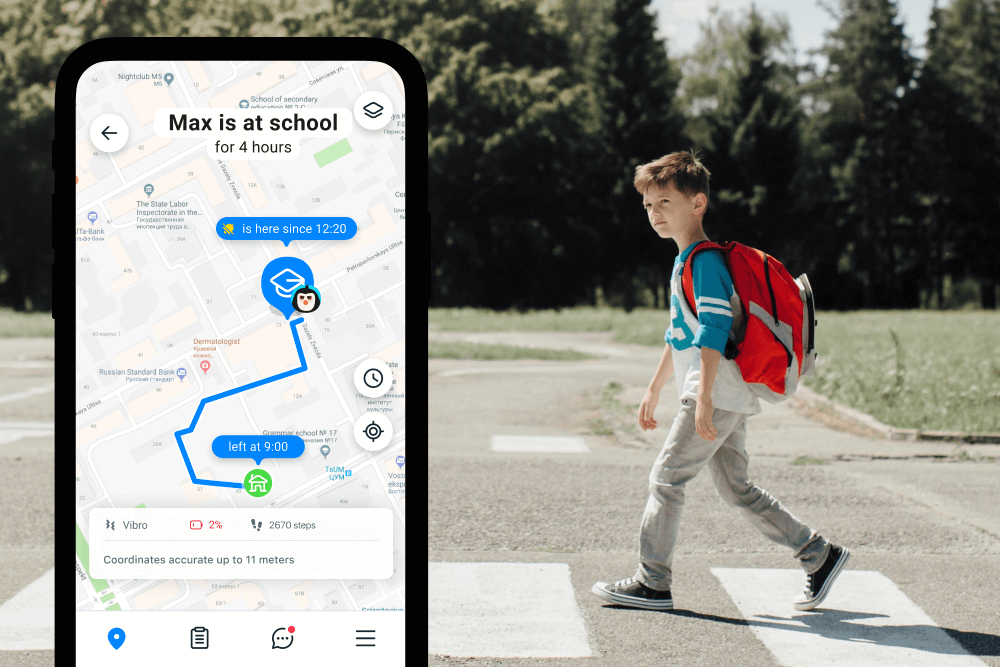
Findmykids app
One of the best and most trusted parental control apps available right now is Findmykids. Every feature in the app is designed to support children’s safety and help parents guide healthy digital habits. Beyond its powerful parental control software, Findmykids offers a suite of tools that go far beyond basic monitoring.
The core strength of Findmykids is its real-time GPS tracking, allowing parents to always see their child’s current location as well as their full location history throughout the day. This makes it easy to understand where a child has been, which routes they take to school, and whether they ever deviate from expected paths. If a child is not picking up their phone, parents can also send a loud signal—a special alert that plays even if the phone is on silent mode.
The app’s advanced app blocking tools give parents flexible ways to manage screen time. With just one tap, parents can block all non-essential apps, leaving only vital ones such as Phone or Maps. The parent chooses which apps stay allowed. This mode can be enabled for a specific time period (via timer)—perfect for homework, mealtime, or bedtime routines.
Parents can also block individual apps selectively (without a timer), for situations where only one distracting app—like a game or social platform—needs to be restricted.
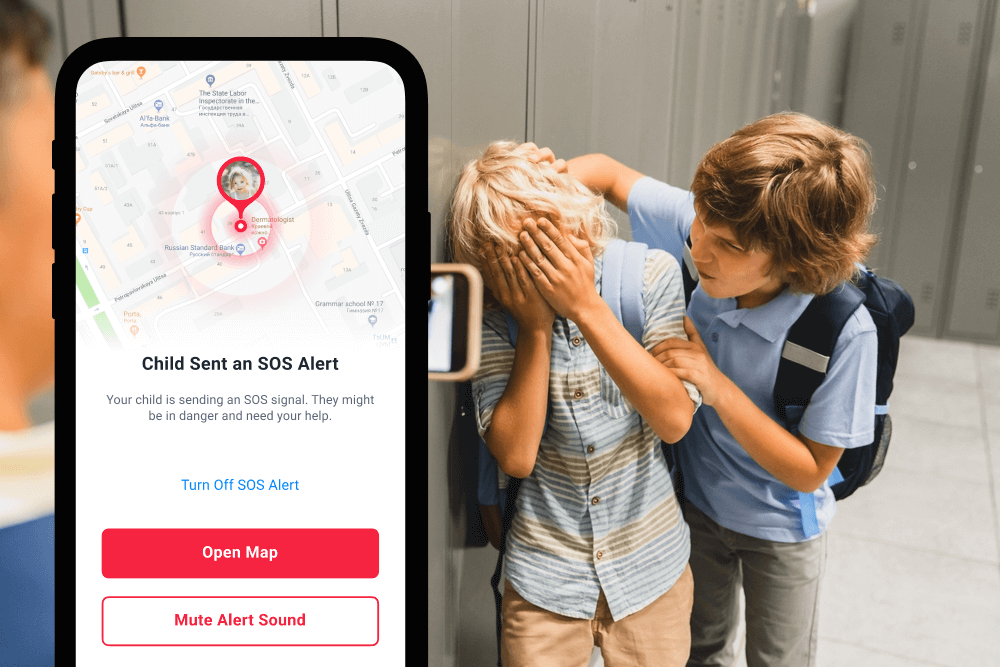
Findmykids app
Around 3.4 million parents use Findmykids monthly, and it’s consistently praised for offering features that other apps often lack. Parents receive instant notifications about their children’s movements, visits to specific locations, and can even listen to the surrounding sounds near the child’s phone—a feature especially useful when a child isn’t responding or may feel unsafe. Call monitoring ensures only trusted contacts can reach the child, giving extra protection against spam, fraud, or unwanted communication.
The built-in SOS button is one of the most important features: with a single tap, a child can send an emergency alert to their parent, instantly sharing their exact location and signaling that they need help immediately.
Keep your child safe—online and offline. Try Findmykids today for free and see why millions of families trust it.
Built-in Features in iOS and Android Phones for Parents
Android phones and iOS devices feature their own built-in parental controls, and parents should familiarize themselves with these. For example, for Android devices, Google Family Link allows you to set on-screen time limits, manage app usage, and apply content filters. Family Link also offers location tracking capabilities, so parents can see exactly where their kids are at any time. The Digital Wellbeing platform gives access to activity reports providing insights into how kids are using their devices and empowers both parents and kids to better manage their screen time.
Meanwhile, there are plenty of built-in parental controls on iOS, allowing parents to block explicit content, set screen time limits, and restrict online purchases and downloads. Apple’s Screen Time—part of the Family Sharing ecosystem—gives parents a clear overview of their child’s daily device usage and allows them to set structured time limits across all the features of the device. Simply set up Family Sharing to access these tools.
Google Family Link
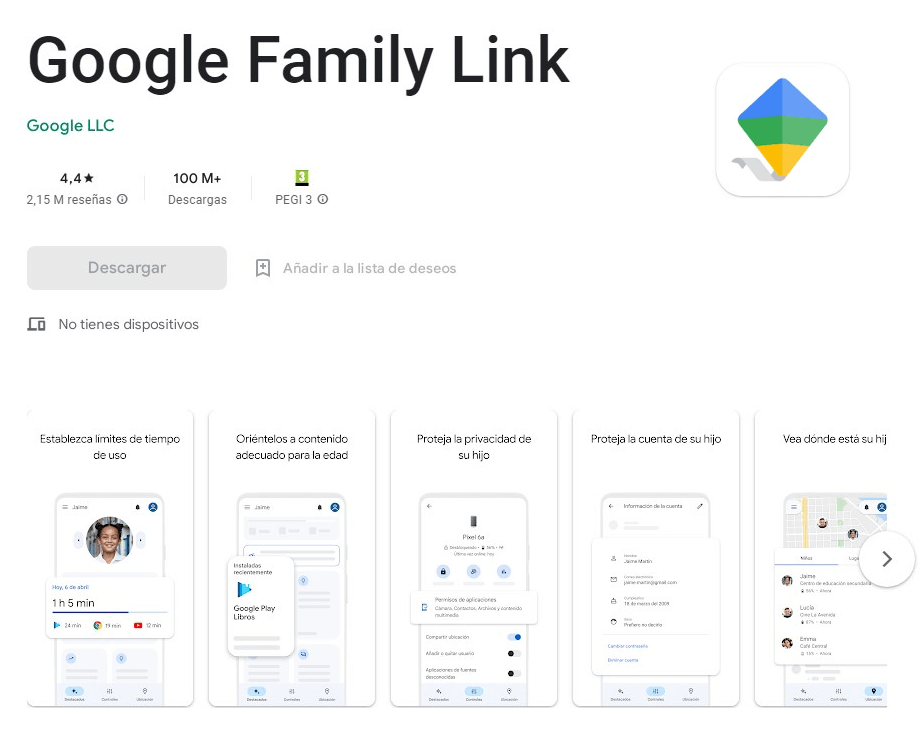
Credit: Google Play
Start by downloading the Family Link app from the Google Play Store. It’s important to remember that iPads, iPhones, and computers other than Chromebooks cannot be supervised via Family Link.
Once downloaded, open the Family Link app. From this app, you’ll be able to manage your child’s screen time and apps on supervised devices, restrict mature content on Google Play, and check the location of your child’s Android device (or compatible Fitbit device).
Google Digital Wellbeing
Here’s how to access Google’s Digital Wellbeing settings on an Android device:
- Open the Settings tab.
- Click on Digital Wellbeing and parental controls.
- Under App activity (on the Parental Controls screen), choose Go to Digital Wellbeing.
From here, your child can turn Focus mode on or off, set a Heads Up, Mindful Nudge, and more
Family Sharing
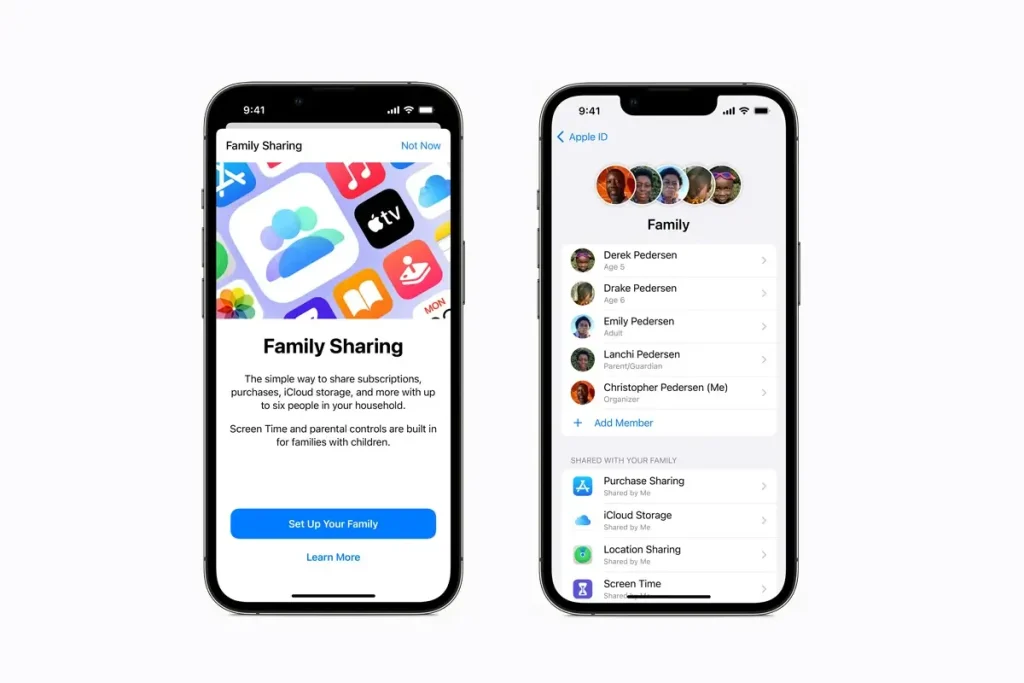
To set up a Family Sharing group on your iOS device:
- Open the Settings app and tap on your name.
- Tap Family, and then Continue.
- Follow the onscreen instructions and invite your family members.
To connect a child’s device to your Family group:
- Open the Settings app and click Connect to Family.
- Follow the instructions onscreen to connect your child’s device.
- You’ll need to create an Apple account for your child as part of this process.
Read more: How to Put Parental Controls on iPhone: The Complete Family Safety Guide.
Once connected, parents get access to Apple’s Screen Time dashboard across all the features the child uses—apps, calls, messages, content restrictions, and usage summaries—making it much easier to manage healthy digital habits.
Be aware that if you set up a new iPhone or iPad and choose a teen or child age range, you can connect this device to a Family Sharing group later if you wish. Age-appropriate settings will be applied by default to the device. If you want modified parental controls, or for your child to be able to, for example, download apps or use shared iCloud storage, their device will need to be connected to your Family Sharing group.
Other Popular Apps for Parents
As well as the built-in parental controls for iOS and Android devices, there are several other great parental control apps on the market, offering web filtering, app blocking, and screen time limiting tools. While Findmykids is, in our opinion, the best parental control app out there right now, below you’ll find our pick of the rest!
1. Kids360
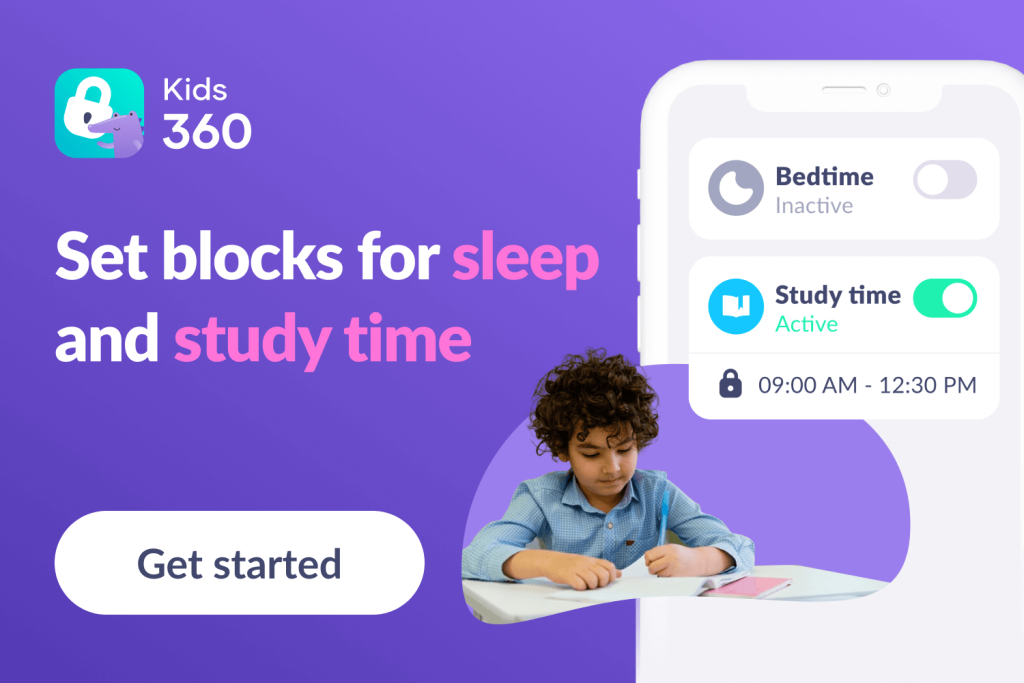
The Kids360 app
Kids360 is a simple, focused parental control app designed primarily to help parents manage device usage and set healthy screen time limits for their children. Unlike broader parental control software, Kids360 specializes in monitoring how much time a child spends on their smartphone and which other apps they use most frequently. Its clear dashboard lets parents review daily and weekly activity patterns, making it easy to spot excessive use or nighttime scrolling.
Parents can set schedules (such as homework or bedtime), block apps for specific periods, and create custom rules that fit their child’s routine. Kids360 works on both Android and iOS devices—including your child’s iPhone—which makes it a practical pick for many families.
One of its standout features is the Task & Reward system, which encourages children to complete offline tasks—like chores, reading, or homework—in exchange for extra screen time. This creates a more positive, cooperative approach to digital boundaries instead of constant arguments.
Pros
- Clean, intuitive interface that’s easy for parents to navigate
- Strong tools for managing screen time, schedules, and app blocking
- Helpful insights into device usage
- Works on both iOS and Android devices
Cons
- As with most parental control apps, Kids360 cannot fully block apps or monitor everything on an iPhone due to Apple restrictions
- Does not track phone calls, text messages, or contact lists
- Does not scan social media or detect risky behavior
2. Qustodio
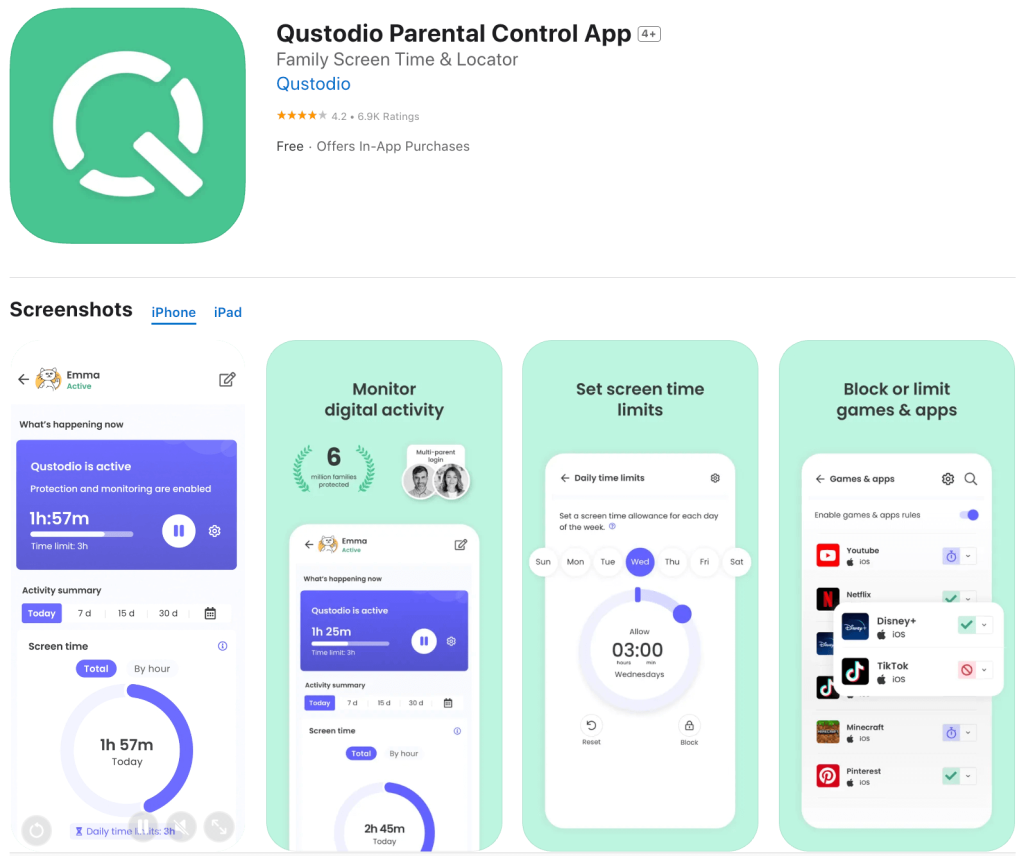
Credit: App Store
This powerful parental control app offers a range of tools for real-time and social media monitoring, screen time management, and location tracking. Its web filtering abilities help ensure a safe online environment, while Qustodio’s online dashboard offers insights into how kids are using their devices, helping parents spot worrying trends fast. Further, parents can set customized profiles for each of their children, based on maturity and individual need, enabling tailored restrictions.
Pros
- Effective features to manage kids’ screen time and device usage
- Highly user-friendly interface and dashboard
- Compatible across a variety of platforms
Cons
- Some users have reported that web filtering can be inconsistent
- Side loading is required for Android devices to fully monitor text messages and calls
3. Net Nanny
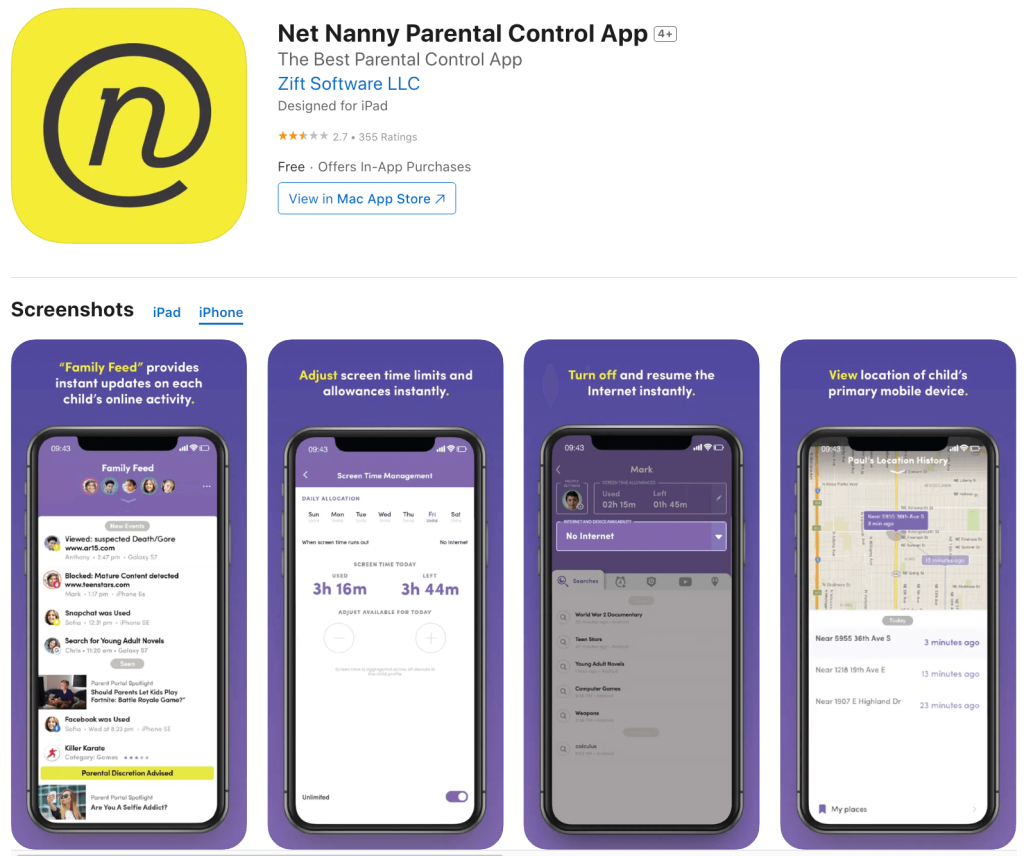
Credit: App Store
When it comes to parental control apps, Net Nanny is a sound option. Offering advanced web filtering tools, Net Nanny’s app blocker allows parents to block more than 100 apps and is supported on multiple devices.
The activity logs offer helpful insights for parents into what their kids are doing online, with Net Nanny designed to be highly user-friendly and accessible. As well as screen time controls and web filtering, this option offers location tracking for ultimate peace of mind. However, parents should be aware that, unlike Findmykids, Net Nanny does not have an SOS signal or listen-in features.
Three subscription tiers are available, with the Family Protection Pass available for either up to five devices or up to twenty devices.
Pros
- Advanced web filtering and app blocking capabilities
- Offers real-time location tracking
- Provides detailed activity reports to help parents manage screen time and device usage
Cons
- Net Nanny is not designed for Android users
- Some users report that the custom web filtering tools don’t work as well as they could
4. Bark
Credit: App Store
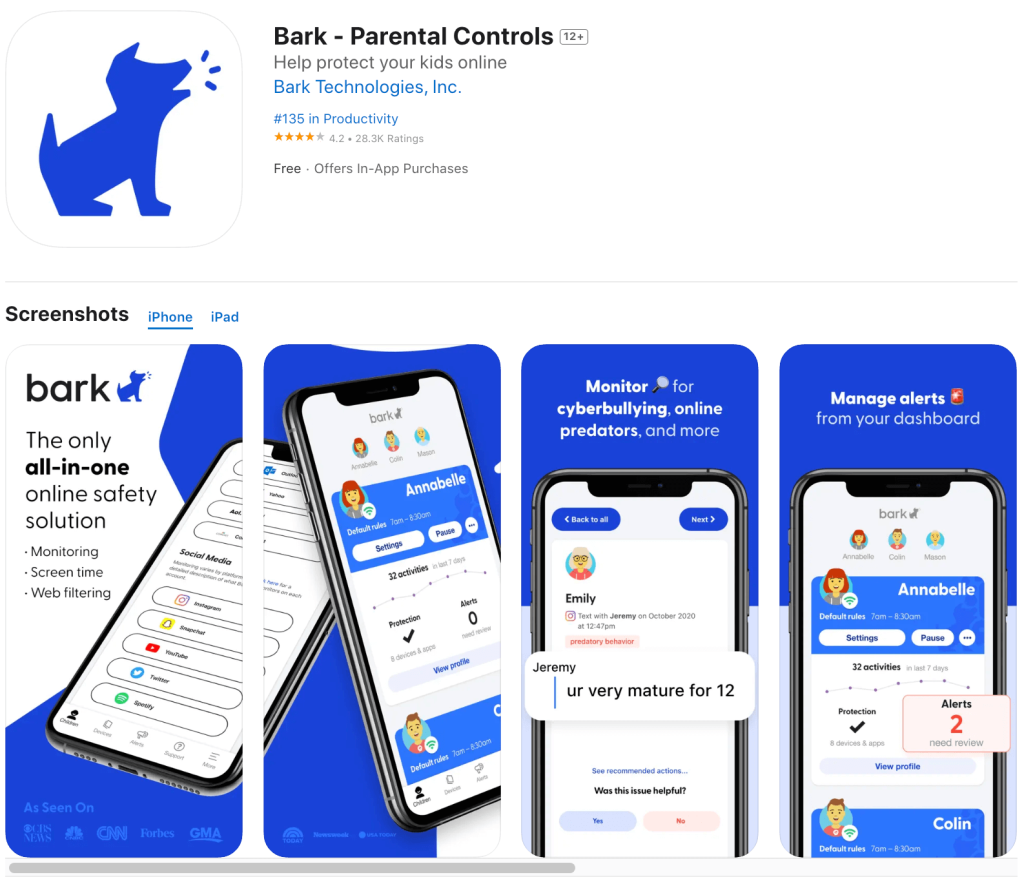
Bark is widely regarded as one of the best parental control apps available, offering a suite of tools for app and web filtering and for setting screen time limits. Supported on a range of platforms, take advantage of the seven-day free trial to check if it’s the best option for your family’s needs.
The Bark app sends parents notifications to flag potential issues, such as around possible online predators, cyberbullies, and depression. The platform monitors social media platforms, including Snapchat, TikTok, and Instagram, to provide insights, and can be set up on unlimited devices. Further, Bark boasts location tracking features so parents can see, in real-time, their child’s location, while geo-fencing means you’ll get a notification when your child arrives at or leaves home or school.
The Bark phone is available, which has text and social media monitoring built in.
Pros
- Offers robust social media monitoring and real-time alerts
- Highly user-friendly interface
- Free trial period available
Cons
- Doesn’t offer a full web history
- Limited iOS operating system capabilities
5. Norton Family
Credit: App Store
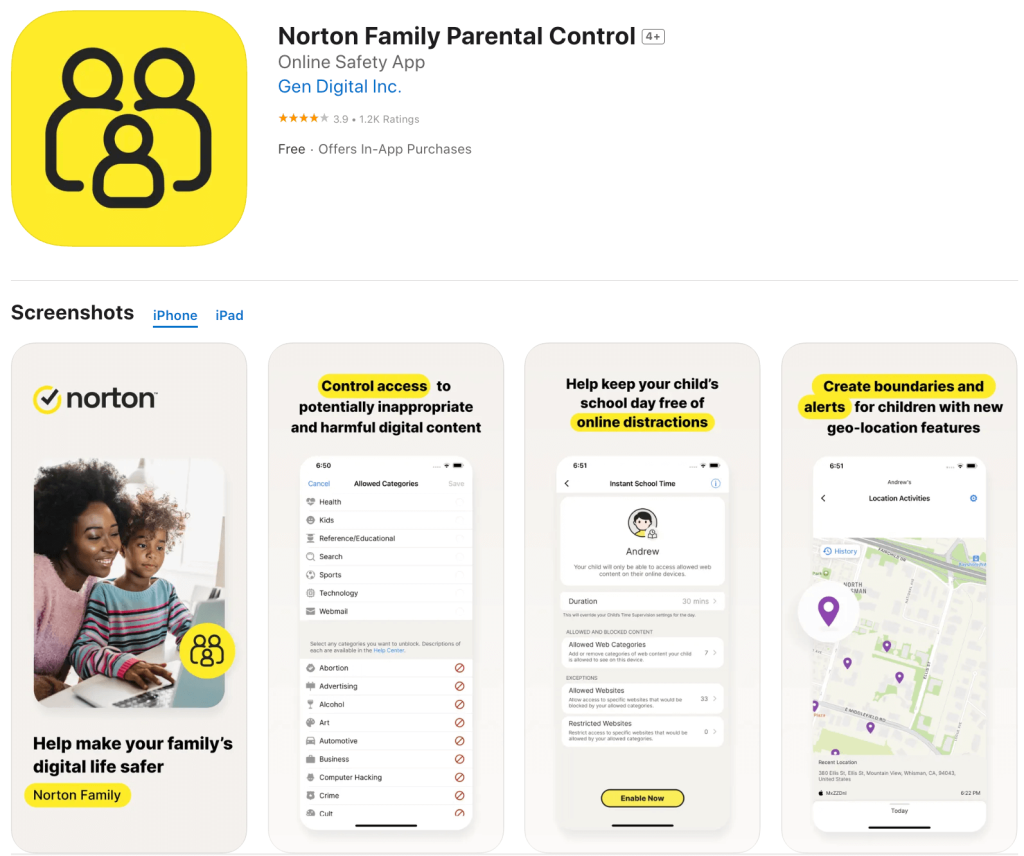
With comprehensive parental control features, such as web filtering and location tracking, Norton Family also allows parents to view their kids’ YouTube history, including the videos they have watched. This option also allows parents to block apps on their child’s device—but it’s important to be aware that you can’t block access by app category or limit the use of specific apps.
Parents also can’t restrict Android apps from being downloaded from the Google Play Store. The only way to do this is to block the Google Play Store completely.
Norton Family’s School Time feature is popular with users. This allows parents to restrict web access on their child’s device to educational sites only for a specified time, to prevent distraction when they’re doing homework, for example.
Pros
- Can be installed on an unlimited number of devices
- Reliable location tracking
- The School Time feature means kids can only access educational content, rather than other apps that could be distracting
Cons
- Specific apps can be blocked, but apps can’t be blocked by category
- Not all features are fully available for iOS devices
6. Aura
Credit: App Store
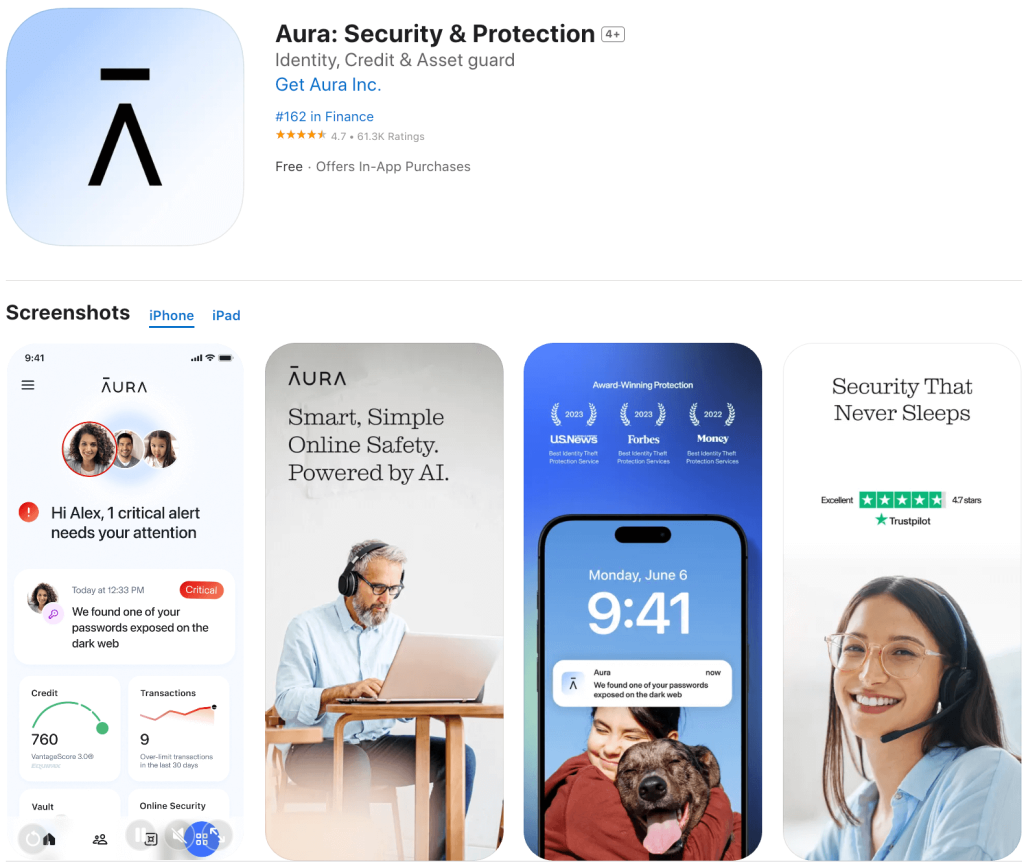
Aura’s parental controls give parents the ability to monitor their kids’ screen time, set time limits, and block apps, websites, and games. Timers can also be set on content, so children can only access it for a limited amount of time, while cyberbullying alerts warn parents if abusive voice chats or text messages from online PC games are identified.
As well as parental controls, Aura provides a powerful anti-virus, password manager, VPN, and identity theft protection suite, and so offers comprehensive digital protection for your family.
Pros
- Offers an all-in-one online protection and parental control solution
- Robust tools to set content and screen time limits
- User-friendly interface and responsive customer service
Cons
- Not necessarily the best option for those simply seeking a parental control app
- No tiered plans available
Related: Aura vs Bark: The Ultimate Guide for Concerned Parents.
7. Kaspersky Safe Kids

Credit: Google Play
Those looking for budget-friendly parental control apps that offer key features such as content filtering, location tracking, and tools to manage a child’s screen time should consider Kaspersky Safe Kids. This app also allows parents to monitor their child’s text messages and calls, and has a safe search tool and customizable privacy controls. As well as blocking harmful content, this option sends parents notifications if it identifies worrying behavior, and aims to encourage positive digital habits and promote a healthy offline-online balance. Regarding the latter, this includes the ability to set daily time limits for specific apps and device scheduling.
Pros
- Parents can limit or block app usage and manage their kids’ screen time
- Robust content filtering
- Promotes healthy online habits
Cons
- Social media monitoring functionality may be limited
- Some users report issues with geofencing tools
Tips for Using Phone Control Apps Effectively
The best parental control apps allow you to monitor your child’s screen time, block adult websites and other inappropriate content, and offer message monitoring and location tracking across multiple devices. To get the most out of the parental control app or tool you use, try these tips:
- Take some time to fully explore the app to ensure you’re aware of and understand all its tools and features.
- Talk with your child openly (and in an age-appropriate manner) about why you need to use a parental control app. Explain its importance in keeping your kid safe online.
- As well as making the most of any in-built parental controls on your kid’s phone (or other device), think about deploying a third-party parental control app, such as Findmykids, or Kids360. Some apps are designed for Android phones, while others are geared to iOS mobile devices, so check compatibility before signing up. Also consider the extent to which these can work in conjunction with any built-in parental control settings you wish to deploy.
- Many parental control apps offer detailed activity reports that let you see what your child is up to online, such as app usage and the sites they visit. Regularly check these and adjust the parental controls as necessary.
- Set strong passwords that kids can’t guess—the last thing you want is your child simply disabling the settings you’ve specified.
- Make the most of the ability to set screen time schedules, if this is available on your parental control app. These tools are a great way to manage screen time and keep your kids off their devices at bedtime, for example, or when they should be doing homework.
- As your child gets older, getting the balance right between respecting their privacy and protecting them from online dangers may become more challenging. Be ready to change your approach as your kid grows.
Can Kids Override Parental Controls?

Shakirov Albert / Shutterstock.com
When it comes to tech, kids are likely to be savvier than you think, and there’s always a risk that children manage to override any parental controls you apply to their devices. Even a quick online search brings up a slew of ways to disable parental controls or workarounds. For example, kids could use a VPN to effectively mask their device’s IP address to bypass parental controls, with many VPNs available free of charge and easy to download and deploy.
Some kids may use a proxy or unblocking site to override parental controls. Proxy sites work by diverting online traffic to another server, masking a device’s IP address. Websites visited via a proxy won’t be visible on parental controls. Parents should be aware that kids may also be able to work around parental controls by applying a factory reset to their device, creating fake accounts, or exploiting different time zone settings to get access to their device when it should be locked.
It’s vital to understand how children can override your parental control settings to prevent them from doing so. Setting strong passwords that kids can’t easily guess is also important, as is having an open dialogue about why the controls are in place. It may also be worth explaining to your child that, should they attempt to disable or override the parental control settings, you’ll have no option but to confiscate their device for a set time period.
How to Talk to Kids About Staying Safe Online
No matter what steps we take to protect our kids online, threats can slip through the net. As we touched on above, it’s vital to talk to your children about how to stay safe online and why this matters. Create an atmosphere of open communication at home, and ensure your child knows that, whatever they’re worried about or whatever has happened, they can come to you.
If you’re struggling to get started or to find your way into a conversation about online safety that’s age-appropriate, try these pointers.
Begin with the Positives
There’s no doubt that the online world can be a scary one. But it’s full of potential and opportunity, too, so it’s a good idea to begin with the positives when discussing how to stay safe. Recognising the benefits of the internet is important— and will help prevent your child from simply switching off from the conversation.
Choose the Right Time and Place
You might be keen to get the conversation underway, but be sure to pick the time and place carefully if you want the message to get through. During a disagreement, when your child is tired, or when emotions are running high isn’t likely to be the ideal moment. Pick a calm time, perhaps on a walk or during a car journey.
Talk About Their Experiences
To avoid the conversation turning into a lecture, ask your child about their own online experiences and their thoughts on safety rules. Good questions to kick things off include “How do you feel when you use certain games or apps?” “Have you seen or read anything online that’s made you feel uncomfortable?” and “Do you know the people you chat with online in the real world?”
Use Child-Friendly Resources
Age-appropriate guides, videos, and other tools can be used to support the discussion. As well as helping kids (especially younger children) understand the key message you’re trying to get across, they should make the conversation more engaging.
Don’t Make it a One-Off
It may be tempting to think that, once the discussion about online safety is done, the box is ticked. However, it’s really important to make having conversations about online safety and digital experiences part of daily life.
Care and Protect: Choosing a Great Parental Control App

It’s normal for kids to want free rein when it comes to using their phones or other mobile devices, and using a parental control app may feel like a breach of their privacy. However, the online world poses many dangers, from predators and cyberbullying to screen time addiction and anxiety. The best parental control apps strike the perfect balance between care and control, allowing you to keep your eye on what your kid is doing online and adjust settings as they grow and develop. Use our guide above to understand exactly what to look for in a parental control app, and choose the very best fit for your family’s needs.
FAQs
What is the best app to supervise a child’s phone?
There are several high-quality iOS or Android apps designed to allow parents to supervise their child’s phone, and the best will depend on the needs of your unique family and situation. Some popular parental control apps include Kids360, Findmykids, and Qustodio, which can all be found on the Google Play Store and App Store.
How can I control my child’s phone from my phone?
There are several potential ways to control your kid’s phone from your own device. Some devices have built-in parental controls that offer tools such as content filters and screen time management features. You could also consider using a third-party parental control app—some allow you to, for example, block individual apps (or apps by category), monitor web searches, and set screen time schedules, as well as offering message monitoring tools across unlimited devices.
How can I see everything on my child’s phone?
Depending on the device, parents may use mirroring tools or parental control apps to view activity on their child’s phone. These tools can provide access to things like child’s messages, call logs, app activity, and browsing history. Some apps also offer social media monitoring, giving insights into potentially risky interactions.
Can I shut off my child’s phone remotely?
Yes—many parental control tools allow parents to remotely lock or pause their child’s device. With Findmykids, you can go further: the app lets you block all apps on your child’s phone at once (except essential ones like calling or maps) for a set period. This is ideal for homework time, bedtime, or when you simply need your child to put their phone down. You can activate this with one tap, even if your child has their own smartphone.
Can I track my child’s location in real time?
Yes. Many parental control apps—such as Findmykids—allow you to see your child’s location in real time and review their movement history. This feature is especially useful for parents of younger children who travel to school or activities independently.
Can parental control apps block certain YouTube videos or limit screen time on the YouTube app?
Some parental control apps offer tools to restrict access to YouTube videos, set screen time limits, or block the YouTube app completely. Others allow you to manage app permissions on both Android and iOS to help prevent excessive screen time.
Cover image: Edge Creative / Shutterstock.com
Проверьте электронный ящик