More kids than ever before regularly use tablets, and keeping them safe while they do so is vital. Keep reading for everything you need to know about how to put parental controls on a tablet, for ultimate peace of mind.
Contents:
- Why Tablet Safety Matters
- How to Set Up Parental Controls on Your Child’s Tablet
- Troubleshooting and Tips That Work
- Extra Layer of Safety With Findmykids
- Age-Based Recommendations for Parental Controls
- FAQs
Why Tablet Safety Matters
Even kid-friendly tablets pose risks. Your child could be exposed to inappropriate or adult content (including games and movies), come into contact with online predators, or make accidental (or purposeful!) in-app purchases. As well as this, screen addiction is a very real threat. Kids can easily get lost in the digital world and spend hours on their Android tablet to the detriment of their well-being and development.
Parental controls can mitigate these risks, allowing you to manage your kid’s screen time, block access to some types of web content and certain apps, and set purchasing and privacy restrictions. It’s important to set passcodes, too, to prevent young users from simply overriding the limits you’ve set.
How do you put parental controls on a tablet? Well, the process can be different depending on your child’s device. Whether they use an iPad, Android tablet, or Amazon Fire tablet, follow our guide below to set parental controls and manage your child’s screen time to ensure their digital well-being.
How to Set Up Parental Controls on Your Child’s Tablet
Before setting up parental controls, it helps to understand what each platform can (and cannot) do. Here’s a simple breakdown to help you choose the right tablet for your family:
→→→
| Feature | iPad (iOS) | Android Tablets | Amazon Fire |
| Child account setup | Family Sharing + Screen Time | Google Family Link | Amazon Kids profile |
| App blocking | Yes | Yes | Yes |
| Web filters | Strong (built-in) | Good (via Family Link) | Limited (browser-dependent) |
| Purchase restrictions | Yes | Yes | Yes |
| Content ratings | Yes | Yes | Yes |
| Screen time limits | Yes | Yes | Yes |
| Location tracking | Limited (Find My) | Yes (via Family Link) | No |
| Best for | Ages 6–17 | Ages 6–17 | Ages 3–12 |
⠀
This table helps parents verify that the device they have matches their expectations—especially if they want features like stricter web filtering or built-in location services.
iPad / iOS Tablets
For parental controls settings to properly sync across all devices in your Family Sharing group, ensure all devices have the latest software downloaded.
To turn on content and privacy restrictions on your child’s device:
- Open the Settings app, scroll down, and tap Screen Time.
- Tap your child’s name under the Family heading.
- Now tap Content and Privacy Restrictions.
- Enter your Screen Time passcode if prompted to do so. Now turn on Content and Privacy Restrictions.

If you’re not familiar with the Family Sharing feature on iPhone or iPad, or you’re unsure how to set up a group and add your child to it, you can read more about it here.
To allow or restrict access to built-in features and apps:
- Open the Settings app, scroll down, and tap Screen Time.
- Tap your child’s name under the Family heading.
- Now tap Content and Privacy Restrictions.
- Enter your Screen Time passcode if prompted to do so.
- Tap Allowed Apps and Features.

- Select the apps you are happy for your child to access.
To prevent your child from making App Store purchases (or from installing and deleting apps):
- Open the Settings app, scroll down, and tap Screen Time.
- Tap your child’s name under the Family heading.
- Now tap Content and Privacy Restrictions.
- Enter your Screen Time passcode if prompted to do so. Tap iTunes and App Store Purchases.
- Choose your preferred setting and set it to Don’t Allow.

For older kids, you may want to enable the Ask to Buy feature on their tablet or iPhone. To do this:
- Open the Settings app and tap your Apple ID.
- Select Family Sharing, scroll down to More to Share, and tap Ask to Buy.
- Turn on Require Purchase Approval for your child’s account.
Ask to Buy path is slightly different on iOS 17–18: Settings → Apple ID → Family → [child’s name] → Ask to Buy.
To block adult and explicit content and manage content ratings on your child’s account:
- Open the Settings app, scroll down, then tap Screen Time.
- Tap your child’s name under the Family heading.
- Tap Content and Privacy Restrictions. If asked, enter your Screen Time passcode.
- Tap Content Restrictions.
- Under Allowed Store Content & Ratings, select the type of content (Apps, Movies, TV Shows, Books, Music, Podcasts, or News) and choose the appropriate rating or restriction for each.

To prevent your child from accessing inappropriate web content:
- Open the Settings app, scroll down, then tap Screen Time.
- Tap your child’s name under the Family heading.
- Tap Content and Privacy Restrictions. If asked, enter your Screen Time passcode.
- Tap Content Restrictions → Web Content.
- Choose Unrestricted, Limit Adult Websites, or Only Approved Websites.

Android Tablets
You can use the Family Link app to create your child’s Google account (for kids under 13) or add supervision and manage your kid’s online activity relating to an existing account.
To set screen limits on your child’s account:
- Open the Family Link app and select your child’s name from the top-left menu.
- Now tap Screen time, and then Time limits.
- Turn on the Daily limit and tap the Weekly schedule. Now tap Edit each day.
- Select a day and enter the time you wish the device to be limited to.
- Tap Apply to all days of the week if this is your preference.
To block or allow apps on your child’s Google account:
- Open the Family Link app and select your child’s name.
- Now tap Screen time, and then Time limits, and then App limits.
- To block an app, select it and tap on the Allowed toggle to change the app’s status to Blocked. Tap Done.
- To allow an app, select it and tap on the Blocked toggle to change the app’s status to Allowed. Tap Done.
To turn on location sharing:
- Open the Family Link app and tap Location.
- Tap Set up location and select the children you want to enable location sharing for.
- Tap Turn on.
To turn on SafeSearch on Android devices:
- Open the Google app, and tap on your child’s account.
- Choose Settings from the dropdown menu and tap SafeSearch.
- Choose your preferred setting: Blur, Filter, or Off.
You can also set up parental controls on your child’s Android devices via the Google Play. These parental controls allow you to manage the type of content your son or daughter can view, set screen time limits, and more.
To set parental controls in this way:
- Open the Google Play Store, tap the relevant account profile, and select Settings.
- Expand the Family section and tap Parental Controls. Now set a PIN to prevent your child from changing the parental control settings, to, for example, give themselves more screen time.
- Now you can select the type of content to be filtered, such as apps, games, music, and movies, based on the age ratings. Don’t forget to hit Save when you’re done.
Android devices can also access the Digital Wellbeing feature to help users manage their screen time and limit how long they spend browsing or gaming on their Android phone or tablet.
It’s important for parents to note, however, that supervised accounts can only use this feature if they have Android version 15 and above. Kids can set and change bedtime features and app limits, which is available via Parental Controls only. Notifications appear when they tap App limits or Bedtime mode. These notifications state that options are unavailable for supervised accounts but can be accessed through Parental Controls.
To get started with Digital Wellbeing:
- Open the Settings app on the relevant Android device.
- Tap Digital Wellbeing and Parental controls.
- Under App activity, choose Go to Digital Wellbeing.
Via this feature, kids can turn Focus mode on or off to help them disconnect and reduce device interruptions.
If your child has a Samsung device, read our full guide to Samsung tablet parental controls.
Amazon Fire Tablets
You can also set up parental controls and manage your child’s screen time on their Amazon Fire Tablet. To get started:
- Swipe down from the top of the screen and tap Settings.
- Next, tap Parental Controls, then tap the switch next to Parental Controls.
- Choose a password, enter this, and confirm it.
- Tap Finish. Once parental controls are activated, a lock icon appears at the top of the screen.
Via the Parental Controls menu, you can manage your child’s communication and browsing settings, the type of content they can access, prevent them from making purchases from the Amazon store, and more.
To prevent your child from using their device during certain times (during the evening, for example) and promote digital wellbeing, parents can:
- Head to the Parental Controls menu and tap the switch next to Set a Curfew.
- Tap Curfew Schedule and choose the days and times you’d like your child to be unable to use their device.
- During curfew times, there will be a lock on your child’s device. To unlock it, simply enter your parental controls password.
You may wish to create a child’s profile on Amazon Kids, which allows you to add age-appropriate material to your child’s device. You can manage up to four kid profiles in your account’s family group. Here’s how to do it:
- Open the Settings menu.
- Choose Profiles & Family Library.
- Select Add a child profile.
- Next, enter your child’s information. Choose between a FreeTime or Teen profile and click Add profile.
Troubleshooting and Tips That Work
No matter our best efforts with parental controls, no system is foolproof, and things can go wrong. Follow these tips to help ensure that the parental controls you install work as well as possible:
- When it comes to managing your child’s screen time, make sure you set a password that they can’t easily guess, and don’t leave it somewhere they may find it.
- Whatever device your kid uses, take time to explore the parental controls and built-in safety features it incorporates. You may be surprised at just how many tools are on offer, such as Family Link from Google. While some settings may be present by default on kids’ accounts, this isn’t always the case.
- When setting age-appropriate content restrictions regarding the content your child can access, don’t forget to take games and app downloads into account.
- Think about how tech savvy your kid is—are they likely able to simply disable or change any safety settings you apply? Some tools send parents notifications, should controls be changed, or the app be disabled, which is something you may wish to check out.
- Be patient, consistent, and communicate clearly to your child why you have deployed parental controls and the dangers the online world can present—in an age-appropriate way, of course. Modeling healthy screen habits yourself can have a big impact, too.
Extra Layer of Safety With Findmykids
The Findmykids app
Even with all the parental controls and content filters activated on your kid’s tablet, things can slip through the net. For ultimate peace of mind, it’s a good idea to use a great third-party parental control app in conjunction with the tools available on your kid’s device.
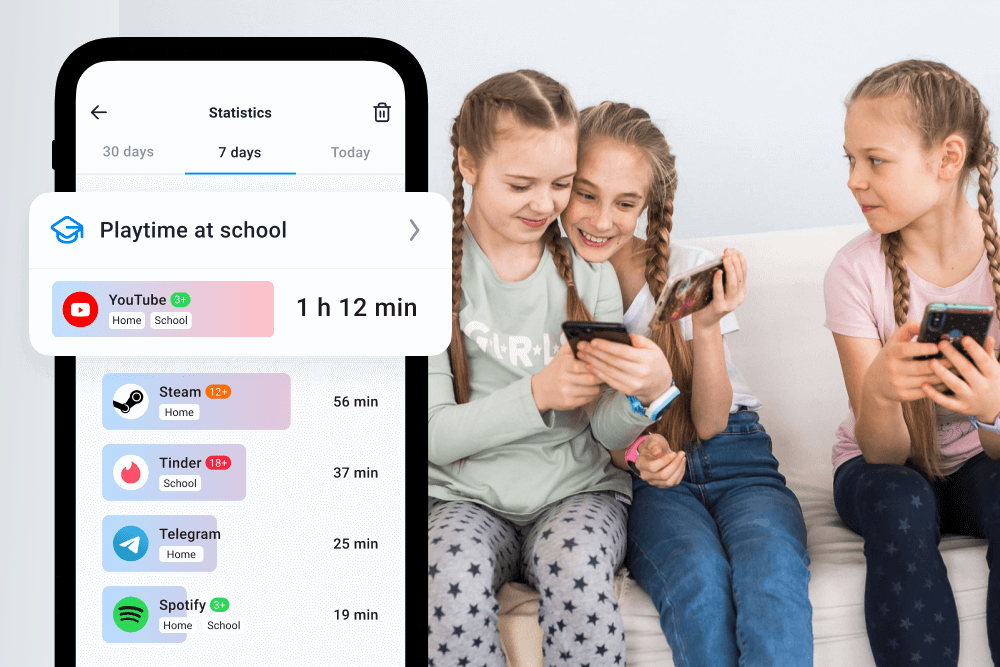
Findmykids is a high-quality, reliable option that allows parents to manage what their kids can access online, the apps they can use, and set screen limits. You can assign tasks that encourage your child’s personal development, monitor app-usage and screen-time reports to understand how they use their device, and receive location and activity alerts (such as safe-zone, SOS, and battery notifications) that help you notice unusual changes in routine or device use. The app gives you clear information—so you can step in when something doesn’t seem right.
Take the next step toward a safer digital experience. Download Findmykids today and give your child the protection they deserve!
Age-Based Recommendations for Parental Controls
Not all controls are equally useful at every age. Below is a simple guide to help parents adjust restrictions based on your child’s maturity, digital skills, and the way they play games or download apps.
Ages 3–6: “Beginner Users”
Best on: Amazon Fire Kids, iPad with strict restrictions
Great for: simple educational apps, cartoons, audiobooks
- Allow only pre-installed or parent-approved apps
- Block web browsing entirely
- Hide the App Store so kids can’t download apps on their own
- Keep daily screen time short (30–60 minutes)
- Use kid-specific apps with no ads
- Review the log of apps in use, if available on the platform
Ages 7–11: “Explorers”
Best on: iPad or Android tablets
Great for: early research, supervised gaming, basic communication
- Allow educational apps + a safe browser
- Turn on Limit Adult Websites (iPad) or filtering via Family Link (Android)
- Keep tight control over app-installed permissions
- Allow only age-appropriate games and media
- Use strong in-app purchase blocks
- Introduce basic rules about online behavior
Ages 12–15: “Independence With Boundaries”
Best on: iPad or a child’s Android device with Family Link
Great for: schoolwork, social apps (with oversight), creative tools
- Gradually loosen app restrictions while monitoring new installs
- Keep explicit content filters on
- Turn on Ask to Buy (iOS) or approval for downloads (Android)
- Encourage kids to help manage their own screen limits
- Review app activity logs weekly
Use Parental Controls to Ensure Your Child Stays Safe on Their Tablet

fizkes/Shutterstock
The digital world poses a plethora of dangers to kids, and making the most of the parental controls on offer is a vital way of mitigating these. Set up parental controls to get peace of mind that the games and other content your child accesses are age-appropriate. For ultimate peace of mind, use these tools hand-in-hand with a third-party parental control app to help ensure your child enjoys the best and safest online experience possible.
FAQs
Do tablets have parental controls or kid-friendly modes?
Most tablets have some form of parental controls or kid-friendly mode, but these differ depending on the device. Take some time to explore the tools on offer to ensure you get the most from them.
How do I turn on parental controls on a tablet?
Turning on parental controls on a tablet depends on the specific device your child uses. However, in most cases, the parental control features can be found in the device’s Settings menu.
How to childproof a tablet?
To help make a tablet as child-friendly as possible, it’s important to use the parental control settings to, for example, set communication restrictions (to stop your kid from adding friends without your approval, or ensure that only known contacts can message your son or daughter), apply content filters, and set time limits and screen curfews.
Can you put parental controls on a Samsung tablet?
You can put parental controls on a Samsung tablet either via the device’s built-in parental control features, creating a child account and setting up a family group, or enabling parental controls via Samsung Kids.
How to activate parental control?
The exact means of activating parental controls will vary depending on the specific device being used. In most cases, the parental controls tools can be found in the Settings menu and allow parents to set screen limits, filter content to be age-appropriate, restrict communication, and set limits on online purchases.
Cover image: New Africa/Shutterstock
Проверьте электронный ящик