
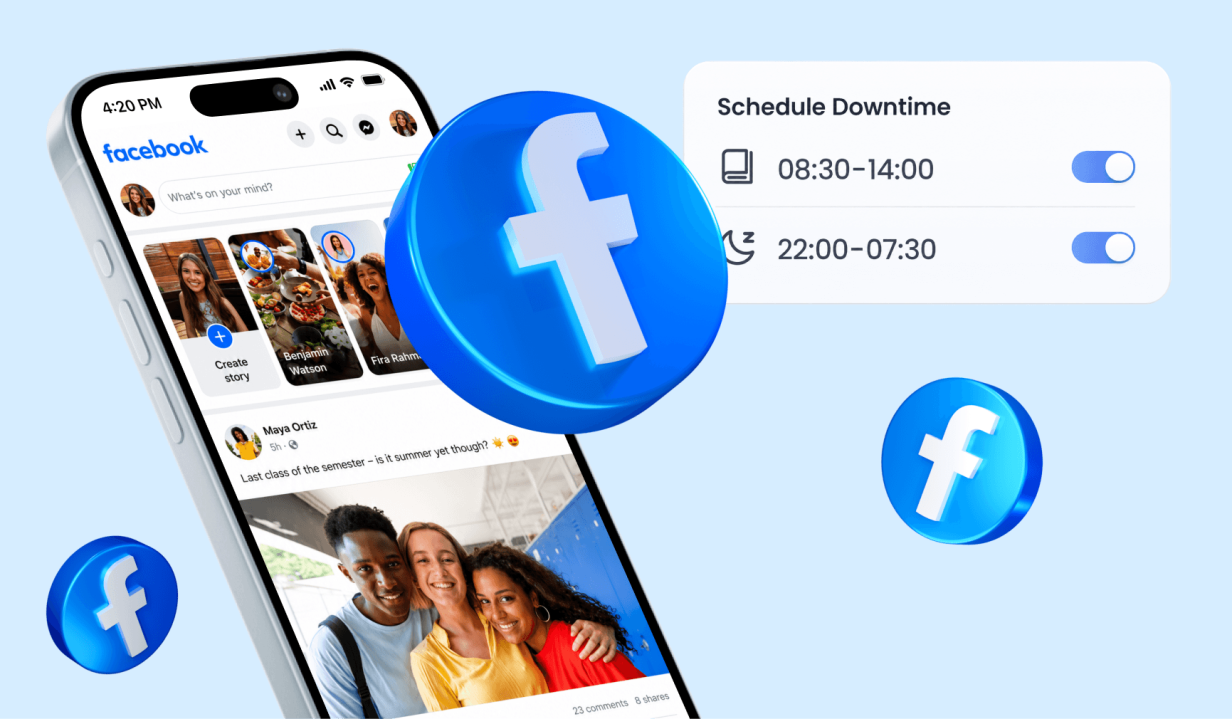
Facebook was one of the first social media websites to become popular amongst children, teens, and even adults. With more than three billion active users on Facebook, including many users across the world, parents have concerns about allowing their children to use the platform to connect with strangers online.
To ease your mind while allowing your child to use Facebook, we’re explaining how to put parental controls on Facebook so you can keep your child safe as they use the social media network and create a safer experience while staying connected.
Contents:
- What Facebook Offers for Parents Today
- Setting Up Facebook Family Center (Meta’s Supervision Tool)
- Privacy & Safety Settings Every Parent Should Enable
- How to Limit Facebook Usage on Phones and Tablets
- Managing Facebook Through the Browser
- FAQs
What Facebook Offers for Parents Today

Prostock-studio/Shutterstock.com
Facebook offers internal parental controls that allow parents to set restrictions and limitations for their children. This gives parents better access to tools and resources designed for safety.
With Meta’s Family Center, parents can access and review activity insights, set screen time limits, view blocked accounts, and set privacy controls from one central page. This helps parents support teens while allowing them to explore the community responsibly.
Additionally, all users under the age of 18 are assigned a Teen Account, which acts differently from a normal Facebook account. This type of account puts limits on who can contact teens by restricting messages and friend requests from strangers. It also offers content filters to reduce exposure to sensitive or adult content, helping provide a safer experience for the person using the account.
While there are quite a handful of Facebook parental control features available through Facebook’s Family Center, there are some things parents are not able to do. Parents cannot:
- Read private messages or chats
- See your child’s full activity, such as posts, likes, and comments
- Approve or deny friends or followers
- Block people on the child’s behalf
- Set hard screen-time limits
- Control or approve what content appears in the feed
It’s also important to note that children under the age of 13 years old are not allowed to create a Facebook account. If they wish to stay connected with friends, they can use Messenger Kids. This app is designed specifically for education, quality interactions, and age-appropriate access.
While Facebook offers parental control features, it typically has fewer than other popular social media apps, such as TikTok and Instagram, which may offer additional tools, tips, and built-in privacy checkup options.
Setting Up Facebook Family Center (Meta’s Supervision Tool)
Below, we will review how parents can use Facebook Family Center and provide a step-by-step guide on how to connect your teen’s account, including how parents can manage multiple accounts under one dashboard.
What Parents Can Do With the Family Center
The Family Center makes it easy to set restrictions and controls for a Teen Account on Facebook, all in one place. This centralized platform allows parents to set the following parental controls:
- View contact settings and who can send messages or friend requests
- Set time limits on the Facebook app
- See who your teen is talking to on Messenger
- View the groups your child joins in the Facebook community
- Manage privacy settings related to profile page visibility
- Limit what content your child is exposed to, including posts and videos
- View who your child has blocked on Facebook
These features allow parents to review data, manage notifications, and support healthy online habits as part of a broader teen management approach.
How to Connect Your Teen’s Account
Before you can connect your teen’s account to the Family Center, both you and your child must have a Facebook account. It’s also important that your teen has a dedicated Teen Account (automatically set for users between the ages of 13 and 17 years old).
To connect your teen’s account, follow the instructions below:
- Open the Facebook mobile app or the desktop version.
- Go to the Menu or your profile photo.

- Open Settings & Privacy.

- Tap Family Center.

- Choose Supervision / Support Your Teen with Supervision.

- Tap Create Invite.

- Send the invite link to your child.
- Your teen must accept the invitation by tapping Accept.
- You may now see your child’s profile in the Family Center on your account.
- To manage settings and controls, click on Teen Account Safety Settings.
If the invite expires or the notifications are missed, you may need to cancel and resend it.
Privacy & Safety Settings Every Parent Should Enable
Once you have added your Teen’s Account to the Family Center, there are multiple restrictions, controls, and limitations that you can set.
Restrict Who Can See Your Child’s Posts
Unfortunately, the Family Center doesn’t allow parents to set privacy restrictions for posts. Instead, you must go into your child’s Facebook profile and change these settings.
You can do this by following the steps below:
- Log in to your child’s Facebook account.
- Select your child’s profile.
- Select Settings & Privacy.
- Under Audience and Visibility, select Posts.

- Make sure that the section “Who can see your future posts?” is set to Friends.


- You can also change who can see previous posts under the “Limit who can see past posts” section.
- Go back to the Audience and Visibility menu and select Stories.

- Under “Who can see your stories?” make sure it’s set to Friends.
These settings ensure that only people who are friends with your child on Facebook will see what they post.
Limit Who Can Contact Your Teen
It’s also possible to limit who can send your teen friend requests and talk to them through Messenger.
You can do this in their profile settings by completing the following steps:
- Go to Settings.
- Under Audience and Visibility, tap on How People Find and Contact You.

- Under the option “Who can send you friend requests?” change from Everyone to Friends of Friends instead.

This will limit who can send your child friend requests. Those who can send requests must already share a mutual friend
Control Discoverability
Facebook often recommends other Facebook accounts of people that you may know. This means your teen’s account could pop up on the homepage as a suggested friend for strangers.
To prevent your teen’s account from showing up in search or the home feed, follow the steps below:
- In the How People Find and Contact You section.
- Scroll down to the second menu, “Who can Facebook suggest your profile to based on your phone number or email address?”
- Change the settings for People with your email address to No one.
- Change the settings for People with your phone number to No one.

Turn on Profile Lock
Locking a Facebook profile means that the content your teen posts is only available to Facebook friends. This includes their profile information, Stories, photos, and posts.
To turn the Profile Lock on, follow the steps below:
- Open Settings.
- Select Privacy Settings.
- Tap on Profile Details.
- Change the settings for who can see information regarding your child’s location, school, date of birth, and contact information to Only Me or Friends.

Even if your child’s profile is Private, this personal info may still be displayed to the public if you do not turn these settings on.
Please note: Profile Lock is only available on the mobile app.
Enable Two-Factor Authentication
It’s helpful for parents to add additional protection for their teen’s accounts. This offers better security and prevents strangers from entering the account.
You can enable two-factor authentication in Settings → Accounts Center → Password and security.

Blocking Inappropriate Content
To protect your child from inappropriate or adult content, you can set content restrictions by following the steps below within the Facebook app:
- Go to Settings & Privacy.
- Select Settings.

- Tap Content Preferences and select Feed.
- Select Sensitive Content.

- Set to Show less.
While Facebook’s algorithm will not show certain types of content to Teen Accounts, sometimes posts or advertisements may slip through.
If this happens, you can report inappropriate posts to Facebook. To report a post, follow the steps below:
- Select the three dots (…) next to the post.
- Tap Report Post.
- Choose a reason for reporting the post from the menu display.

If the post does not match one of the reasons listed, then you can select Not interested or I don’t want to see this. This lets Facebook know not to show this type of content on the home feed.
Reporting inappropriate content also helps Facebook develop better moderation systems for the entire community and platform.
How to Limit Facebook Usage on Phones and Tablets
Along with privacy settings for teens on Facebook, parents are also concerned about how much time their teens spend using the app. Below are some ways to set screen time limits for Facebook.
iPhone and iPad
If your child uses an iOS device such as an iPhone or iPad, you can set a daily time limit for Facebook using the Family Sharing center:
- Go to Settings and select Screen Time.
- Tap Turn on Screen Time.
- Select your child’s device.
- Tap App Limits, then go to Add Limit.
- Tap on the Social category.
- Select Facebook.
- Tap Next and set how much time your child can spend on Facebook each day.
- Tap Customize Days to shorten or lengthen this time depending on the day.
Read more: How to Put Parental Controls on iPhone: The Complete Family Safety Guide.
Android
It’s also possible to set screen time limits on Android devices in the Digital Wellbeing and parental controls section:
- Open Settings.
- Tap Digital Wellbeing & parental controls.
- Tap Dashboard or App timers.
- Scroll down and tap Facebook.
- Select Set Timer.
- Choose your daily limit.
- Tap OK to lock it in.
Third-Party Apps

Findmykids app
For the most secure parental controls and privacy settings, third-party apps are a great option.
One of the most trusted options is the Findmykids app. It helps parents manage their child’s screen time more intentionally by setting clear limits, tracking app usage, and understanding how much time is actually spent on social media. With Findmykids, you can set time limits for multiple apps at once—including Facebook, Instagram, TikTok, YouTube, and games—or block access when it’s time to rest, study, or disconnect.
Beyond screen time, Findmykids also supports offline safety. The app provides real-time location tracking, location history, and instant notifications when your child arrives at or leaves certain places. If your child doesn’t respond to calls or messages, parents can even use built-in safety tools—Loud Signal and Sound Around—to make sure everything is okay.
Together, these features give parents a more complete picture of their child’s digital and real-world activity—helping you protect your child on social media without constant supervision or conflict.
Try Findmykids now for free to set healthy digital boundaries, stay connected, and give your child more freedom—safely.
Managing Facebook Through the Browser
Setting parental controls to further enhance security on Facebook through the internet browser your child uses on a computer is possible—and can be effective when combined with the right tools.
Use SafeSearch Filters
If your child uses Google Search, start by turning on Google SafeSearch. This helps filter out explicit results, images, and videos that may appear when links are shared or searched through Facebook.
How to enable it:
- Go to Google Search settings.
- Turn SafeSearch on.
- Scroll down and lock SafeSearch by signing into your Google account. This prevents your child from turning it off without permission.
Block or Limit Facebook With Browser Extensions
Most modern browsers allow parents to block or limit access to specific websites—including Facebook—using extensions. These tools can be especially helpful if you want to restrict access during study hours or late at night.
Some commonly used options include:
- BlockSite (available for Chrome, Edge, and Firefox): lets you block Facebook entirely or set schedules for when it’s accessible.
- StayFocusd (Chrome): limits how much time your child can spend on Facebook each day.
- LeechBlock (Firefox, Chrome): allows detailed rules for blocking or restricting Facebook and other social media sites.
After installing an extension, parents can usually protect the settings with a password so children can’t remove or disable the restrictions.
Lock Browser Settings to Prevent Changes
To make these controls effective, it’s important to lock down the browser itself:
- Create a separate user profile on the computer for your child.
- Set a parent password for installing or removing extensions.
- Disable access to browser settings where possible (this can be done through system-level parental controls on both Windows and macOS).
This ensures your child can’t simply uninstall extensions or change restrictions on their own.
Reduce Ads and Inappropriate Content
Installing an ad blocker (such as uBlock Origin or AdBlock Plus) can further reduce exposure to ads, clickbait, and potentially inappropriate promoted content while scrolling through Facebook.
Set Time Limits for Facebook Access
Some browsers, including Google Chrome and Safari, support screen time limits for specific websites, either through extensions or built-in system settings. This allows parents to limit how long Facebook can be used each day without blocking it entirely.
Used together, these browser-level tools give parents more control over how, when, and whether Facebook is accessed—especially on shared or family computers.
Feel Confident About Your Child’s Safety on Facebook with Parental Controls
With so many of your teens’ friends using Facebook, it almost feels like an obligation to allow them to use it too. Luckily, there are built-in parental controls and privacy settings, so you can keep your child’s account private and safe.
For extra protection, the Findmykids app offers more thorough and enhanced parental controls for devices and social media apps.
If you found this blog post helpful, make sure to share it with a friend who is curious about the parental controls on Facebook.
FAQs
Can you put parental controls on Facebook?
Yes, it is possible to set parental controls on Facebook through the Family Center and directly in your child’s Facebook profile settings.
How do I block inappropriate content on Facebook?
In the Settings & Privacy, select Settings and go to Content Preferences, and select Feed. Select Reduce and choose Sensitive Content. To see less graphic or sexual content, tap Reduce more.
Can you put restrictions on Facebook?
Yes, it is possible to put restrictions on who can see your profile information and posts, and even limit friend requests or messages on Facebook. You can do this in the Settings.
How to monitor a child’s Facebook account?
You can monitor your child’s Facebook usage through the Meta Family Center, directly on your child’s device, or through third-party apps like Findmykids.
Cover image: AlesiaKan/Shutterstock.com
Проверьте электронный ящик