78% of kids watch YouTube, but not all the content is made for young viewers. That’s why it’s so important for parents to know how to put parental controls on YouTube and stay in control of what their child is exposed to.
Contents:
- Why Parental Controls on YouTube Matter
- Using YouTube Kids for Younger Children
- Setting Up Restrictions on Regular YouTube
- Customizing Content Settings
- Using Third-Party Tools to Support Parental Controls
- Tips for Ongoing Monitoring and Discussion
- FAQs
Why Parental Controls on YouTube Matter
The YouTube app is one of the most loved platforms among children, and rightfully so (there is everything they could dream of with a touch of a finger). But did you know that without parental controls, they are frequently exposed to inappropriate videos such as violence, sexual activity, or misleading content due to the algorithm? The system tends to push trending or high-retention content, and these aren’t always suitable for children.
And that’s just the tip of the iceberg… Children can unintentionally share their private information when they comment publicly or upload videos themselves. This can lead to spam, scams, and even sexual grooming.
Using YouTube Kids for Younger Children
YouTube Kids is one of the safest options for protecting your little ones. It has stronger built-in content, age-based content categories, and many more parental controls!
Let’s walk through how to set up and use it.
How to Download and Set Up YouTube Kids
- Go to Google Play / App Store and search “YouTube Kids” (YouTube Kids App is available on IOS, Android, smart TVs, and tablets).
- Once you have found it, click install and wait for the download to finish.
- Select “open,” then, once the app opens, select “get started” in the YouTube app.
Profile Creation and Age Settings
- You’ll see a page explaining how parental controls work, along with an option to watch a short video. You can watch it if you’d like more detail, or simply tap the small arrow in the corner to continue to the sign-in page.
- Choose the account you’d like to use, or alternatively, create a new account.
- Press the “sign in” button.
- Read through the parental consent, and click “done”.
- Enter your password.
- Now set up your child’s profile by filling out their name, age, and birth month (optional).
Content Filtering and Approval Features
- The app will ask you to select between “Approve content yourself”, “Preschool”, “Younger”, or “Older”. But they do recommend the best option based on your child’s age. If you are unsure, click each and read its explanation. When you have decided which category suits your child best, press “select”.
That’s it! Your YouTube Kids profile is all set up. Once you click the arrow at the bottom right of the screen, you’ll be given a parent feature tour.
To start, click on the profile you have created to select a video for them to watch on YouTube. You won’t have to choose every single video your child watches unless you turn on “Approved Content Only.” With the regular age settings (Preschool, Younger, or Older), YouTube Kids automatically filters videos and lets your child browse safely.
Tips for Reviewing Watch History
In the YouTube Kids app, you are able to see each and every video your child has watched, and you are able to flag any content you feel is unusual, inappropriate, or out of place.
To see what your child has watched, do the following:
- Open the YouTube Kids app.
- Make sure you’re on the right profile (only applicable if you have more than one account set up on your Google account).
- Then tap “Your Stuff” at the bottom of the screen. This opens the “Watch it again” section, which shows all the videos your child has recently watched, listed in order.
Setting Up Restrictions on Regular YouTube
YouTube Kids does not include certain educational or hobby content, which is why some parents prefer to use the regular version. But you can still protect your children.
You’ll set up restrictions using your own Google account, whether through the website or app.
Turn on Restricted Mode on Desktop Browsers
- Open the YouTube website.
- Then, proceed to click on your profile icon. It will be in the top right corner.
- Find “Restricted Mode” and toggle it on.
Step-by-Step Instructions for iPhone, iPad, and Android
- Open your YouTube app.
- Tap on your profile icon in the bottom right corner.
- Select settings and general.
- Toggle “Restricted Mode” on.
What Restricted Mode Does and Doesn’t Block
Restricted Mode can help make regular YouTube safer by hiding most mature content, limiting adult-themed recommendations, and reducing exposure to inappropriate videos.
This is a breakdown of what this feature blocks vs what it doesn’t.
| What Restricted Mode Blocks | What Restricted Mode Doesn’t Block |
| When a video is marked as mature content (which YouTube does automatically), your children won’t be able to view it. | Videos that are very fast-paced or overly stimulating. |
| YouTube videos that are labeled as 18 and over will not show up at all. | Influencer content, unless it has been flagged. |
| Videos with sexual content, partial nudity, or adult humor will be filtered out. | Even if they can’t watch videos, they can sometimes see the thumbnail. |
| Videos that have harsh language or repeated swearing do not usually show up in search results. It also does not get recommended. | Ads are not blocked unless you are subscribed to YouTube Premium, which can contain mature imagery. |
| If a video promotes drugs, vaping, dangerous stunts, or anything related, it will be restricted. | Pranks, challenges, and gaming videos that don’t contain any violence, nudity, or explicit language. |
| Comments are hidden to protect kids from bullying, adult conversations, and strangers. | |
| Some political topics may also be filtered depending on how YouTube flags them. |
*Please note that enabling Restricted Mode on one device does not automatically apply to all devices. Each device has to be done manually!
Customizing Content Settings
Here are some quick, practical tips for managing YouTube content settings—including what each setting does, how to adjust it, how ads work, and how to choose the safest options for your child.
Age-Appropriate Content: What Videos Are Allowed and How to Adjust Filters
The content your child sees on the YouTube Kids app is based on the group (Preschool, Younger, or Older) you select when you set up their profile.
Preschool
- Simple educational videos (letters, numbers, shapes, colors)
- Nursery rhymes, lullabies, soft music
- Gentle cartoons with slow pacing
- Basic learning shows (animals, nature, beginner concepts)
- Very simple arts-and-crafts or story-time videos
Younger Kids (5–7)
- Slightly more advanced educational videos
- Beginner science, crafts, experiments
- Age-safe cartoons with mild humor
- Gaming family-friendly content (Minecraft, Roblox basics, etc.)
- Drawing tutorials, DIY kids’ projects
- Kids’ music videos
Older Kids (8–12)
- More independence in topics
- Science explainers, how-to videos, DIY projects
- Educational channels (space, animals, history basics)
- Safe gaming channels (non-violent, moderated tone)
- Beginner coding or tech videos
- Music videos (age-appropriate only)
- Simple challenge or trend videos (clean versions)
The age group/category can be changed at any time. This is how:
- Open the app.
- Tap on settings in the top right corner. You’ll be asked to answer a math equation or set your own password.
- Under “My kids”, select the appropriate profile and enter your Google password. Then click next.
- Then tap “Edit Settings” and choose the age group you want, and press “select”.
This will change the types of videos that appear in recommendations and are shown to your child. And if you want to take it a step further, you can turn off search, block specific videos or channels, and even enable “Approve Content Only”.
Managing Ad Exposure for Safer Viewing
Both regular YouTube (personalized and aimed at older audiences) and YouTube Kids (limited and no personalization) show ads to your children, but you can manage exposure to protect them.
This is how you can manage their ad exposure:
- Switch to YouTube Kids if you have younger children. This limits ad types.
- Turn off autoplay to decrease the chances of an ad.
- Review what your child watches, as many creators use sponsored content in their videos.
- Try YouTube Premium to completely avoid ads (including paid ads)
Tips for Choosing Content Based on Your Child’s Age and Interests
When it comes to choosing videos, age really does make a difference.
- Younger children usually cope better with calm and simple content, things like gentle stories, basic learning videos, or anything slow enough for them to follow.
- Kids in the early school years can enjoy a bit more variety, like crafts, easy education clips, or gaming videos that aren’t loud or chaotic.
- Older kids might be ready for DIY projects, age-appropriate creators, and channels that match their growing interests, as long as the tone stays respectful and not too mature.
If they’re drawn to animals, try nature channels. If they love building or drawing, explore creative or DIY content. Matching videos to their interests helps keep their feed predictable and reduces random recommendations that might not be suitable for them.
It’s also helpful to take a quick look at/search a new channel before giving it the green light. You’ll get a sense of the pacing, the creator’s tone, and how often they promote products.
Using Third-Party Tools to Support Parental Controls
Findmykids and the Family Link app make it easy to keep your little ones safe.
Findmykids
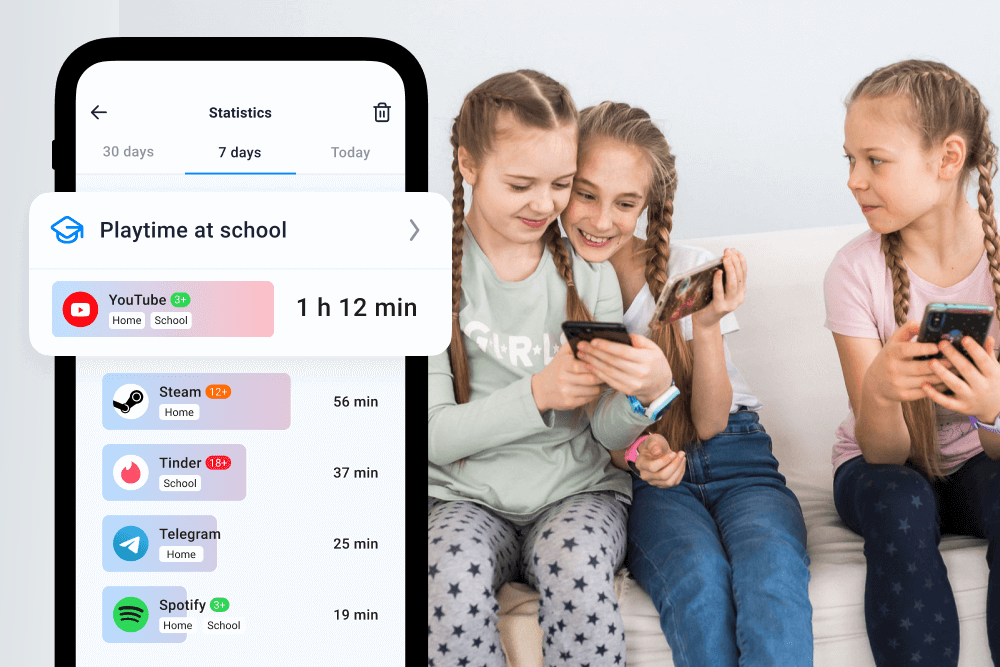
Findmykids app
This tool is not a YouTube-specific tool, but it helps parents monitor general phone use. For example, show which apps your child opens and for how long, send alerts when they have been on their device too long, and set app usage limits. And for overall safety, it also has location tracking.
Over 7 million parents use this tool in their homes and couldn’t imagine what they would do without it. You can spot patterns like late-night watching, long sessions, and more.
If you want a simple way to understand your child’s screen habits far beyond YouTube—and support healthier digital routines—try Findmykids. It takes just a few minutes to set up!
Google Family Link
You can manage your child’s Google account with one app, including the YouTube app (regular + kids version).
Here is a list of the features:
- Approve/block apps
- Limit screen time
- Control YouTube access
- See how much time kids spend watching
- Lock your child’s devices
- Adjust filters
- Manage permissions
Family Link is especially powerful when combined with YouTube’s own parental settings.
Tips for Ongoing Monitoring and Discussion
If you’re only now discovering the dark side of YouTube and what it can do to your child, this is how you can promote openness, trust, and a safe place on the internet for them.
Check YouTube watch history regularly
Not every parent will agree with this one… But it’s very important to regularly review your child’s watch history. There may be content that pops up that is overstimulating or even too mature for them.
While YouTube does its best to filter, some videos can still make their way to their device, which can have severe consequences.
Related: The Simplest Guide to Accessing and Deleting YouTube Search and Watch History.
Encourage open conversation with children about online safety
Kids often make safer choices when they feel heard and not judged.
So, talk to them about the topics they watch the same way you’d talk to them about school or hobbies. This not only builds trust but also makes your child more likely to tell you if something feels wrong.
Combine technical controls with guidance and education
Filters and controls can help keep your child safe, but they cannot replace a parent’s guidance. You should combine YouTube Kids or Restricted Mode with time limits, blocked channels, and device controls like the Findmykids app while discussing ads, sponsored content, and clicking random links.
Don’t Sacrifice Your Child’s Safety
FAMILY STOCK / Shutterstock.com
Millions of kids use YouTube every day in today’s digital world, and even with built-in protections, they still come across harmful content, targeted ads, and online strangers. Parental controls help reduce these risks and give you control over what reaches your child’s screen (as it should be).
And if you’re looking for an alternative, there are several options worth a look. Learn more here!
FAQs
How can I restrict what my child watches on YouTube?
There are a few easy ways to restrict and stay in control of what your child watches:
- Enable Restricted Mode.
- Switch to YouTube Kids.
- Create a supervised account with age-appropriate filtering.
- Block specific channels.
- Turn off search.
- Review their search history and remove what you disapprove of.
How do I add parental control to YouTube?
YouTube parental controls can be added by doing the following:
- Turning on Restricted Mode in settings.
- Setting up a supervised Google account to manage the type of content they watch.
- Using the YouTube Kids app with age filters and “Approved Content Only.”
- Managing their screen time and app access through the Family Link app.
How do I restrict inappropriate content on YouTube?
Using Restricted Mode or YouTube Kids, blocking channels you don’t want them to access, and disabling autoplay.
How to put age restrictions on YouTube?
The easiest way to do this is to create a supervised account for your kid through Family Link. YouTube automatically filters the content based on the age you set.
Cover image: Lesya8022 / Shutterstock.com
Проверьте электронный ящик