















Qustodio offers a broad mix of parental control features, from screen time limits and web filtering to location tracking and social media monitoring. But not every family needs the same tools, and the best Qustodio alternatives depend largely on what you actually want a parental control app to do.
Some parents want tighter control over screen time. Others are primarily concerned with social media or inappropriate content. And for families with children beginning to walk to school, visit friends, or spend more time away from home independently, knowing where their child is may matter more than seeing every web search.
In this guide, we compare Qustodio alternatives and look at what each one does best, from location tracking and everyday safety to screen time management, app blocking, web filtering, and online activity monitoring.
Key Takeaways
- Findmykids is our top Qustodio alternative and one of the best parental control options, with location-focused family safety that combines real-time location tracking, location alerts, SOS tools, app usage insights, and expanded parental controls.
- Kids360 is particularly useful for managing screen time, with app limits, schedules, content controls, and the ability for children to earn extra screen time by completing tasks.
- Google Family Link is a strong free option for Android families, especially for basic app controls, screen time limits, location, and Google Play restrictions.
- Apple Find My works well for basic family location sharing, but it isn’t a standalone parental control app.
- Bark is suited to families prioritizing social media monitoring and potentially concerning online activity, while Norton Family offers broad web and device supervision.
Contents:
Best Qustodio Alternatives at a Glance
Many parental control apps offer similar basics, but their strengths vary. The right choice depends on which key features matter most to your family.
| App | Best For | Location Tracking | Screen Time & App Controls | Content/Social Monitoring | Main Advantage |
| Findmykids | Location awareness and everyday child safety | Extensive | Extensive | Some safety/content controls | Combines location-focused safety with expanding parental controls |
| Kids360 | Screen time management | Yes | Extensive | Web and YouTube safety tools | Children can earn extra screen time through tasks |
| Google Family Link | Free Android parental controls | Yes, on supported Android devices | Yes | Google/Chrome/Play controls | Free and integrated with Google’s ecosystem |
| Apple Find My | Basic Apple family location sharing | Yes | No | No | Built into Apple’s ecosystem |
| Bark | Social media and communication monitoring | Yes | Yes | Extensive | Monitors texts, email and numerous apps/platforms for potential concerns |
| Norton Family | Web supervision and general digital habits | Yes | Yes | Web/search/video supervision | Broad parental control software from an established security provider |
⠀
There isn’t a universal winner among the best parental control apps because these products solve different problems.
Findmykids stands out for location tracking, while Kids360 and Google Family Link focus more on screen time. Bark goes deeper into online activity, and Norton Family offers broader web supervision.
Apple Find My is the outlier: it’s useful for family location sharing, but you’ll need Apple’s Screen Time or a third-party parental control app if you also want to manage device usage.
Findmykids — Best Qustodio Alternative for Parents Focused on Everyday Safety
Parental control isn’t always about monitoring everything a child does on their phone. Often, parents just want answers to everyday questions: Did they make it to school? Are they still at a friend’s house? How long have they been on that game?
Findmykids combines location tracking and safety tools with parental controls for managing screen time and app usage, helping parents stay connected as kids become more independent.
What Makes Findmykids Different From Qustodio?
Qustodio focuses broadly on children’s digital activity, while Findmykids puts more emphasis on location and everyday safety.
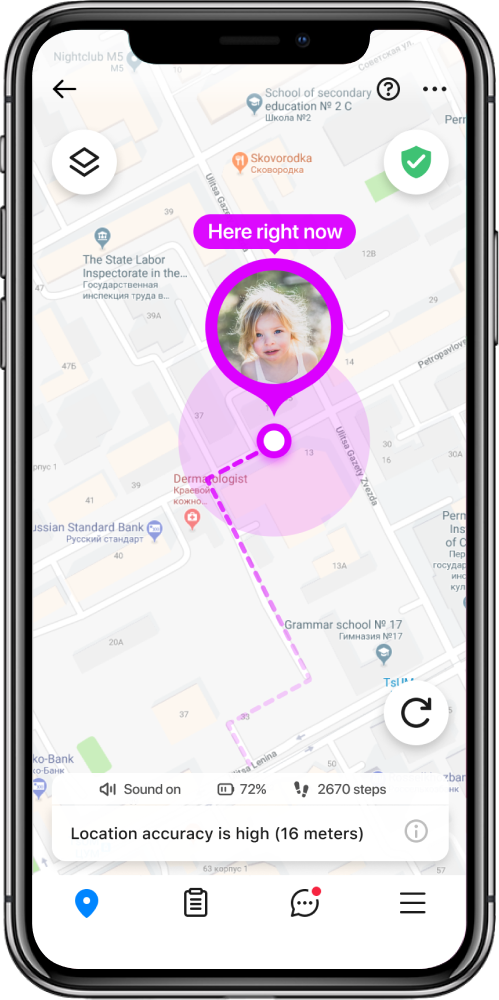
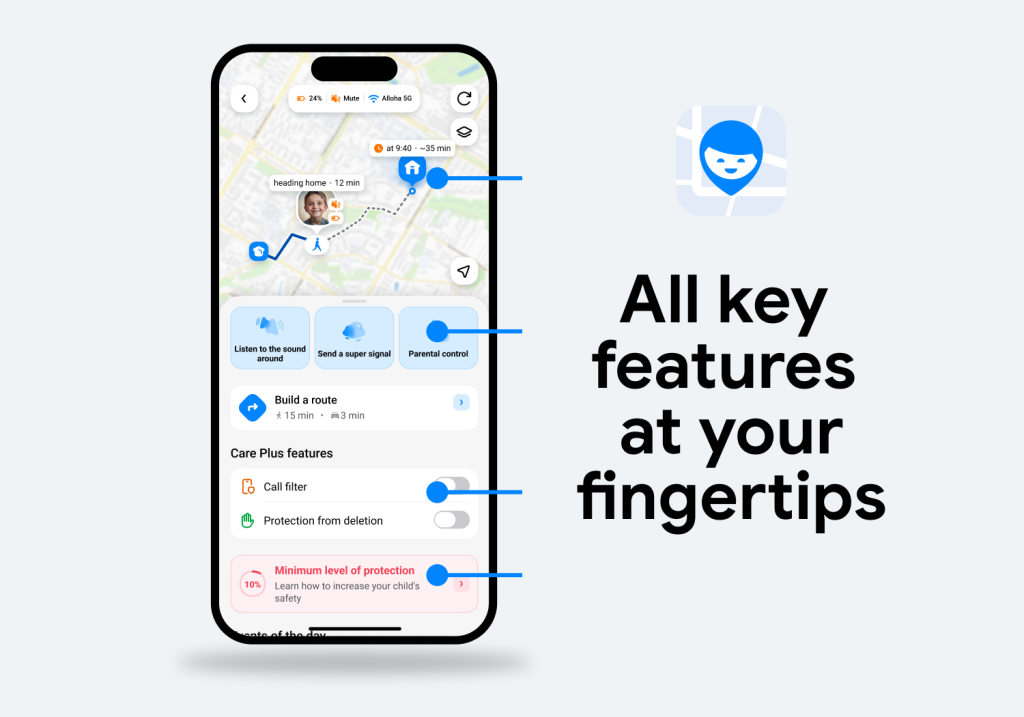
Parents can see where their child is, review routes and their child’s activity, get location alerts, send a loud signal, and receive SOS notifications or real-time alerts about important updates. These key features are available through the parental app, giving parents one place to check location and manage supported controls. Sound Around provides a way to hear what is happening around the child’s device on supported devices, while GPS watch compatibility gives younger kids an option before they’re ready for a phone.
And Findmykids goes beyond location. Its newer parental controls also help parents manage screen time, app usage, and access as children become more independent.
Findmykids Location and Safety Features
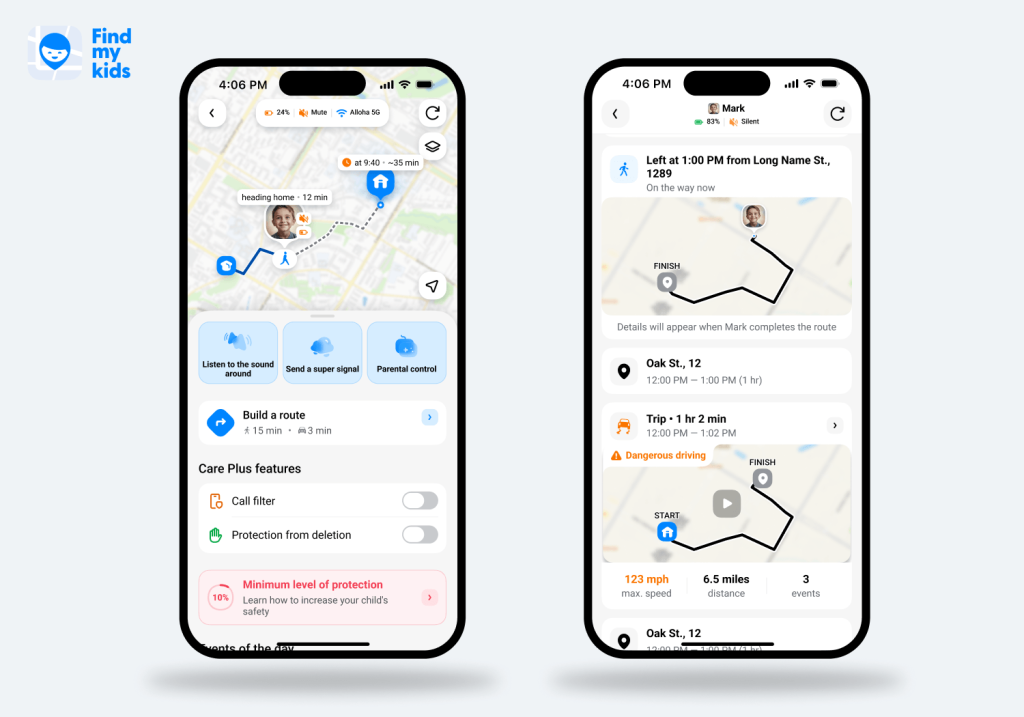
Location tracking is one of Findmykids’ biggest strengths. Parents can use Findmykids for:
- Real-time location tracking: See the child’s location on a map and follow movements throughout the day.
- Location history: Review where a child has been and the routes they traveled.
- Route details: Open an individual route to review its start and end points, duration, distance, transport method, and stops along the way.
- Driving Reports: Review driving-related information such as maximum speed, distance traveled, and potentially unsafe events. This can be particularly useful for parents of teenagers who are beginning to drive.
- Safe zones (Places): Set specific areas, such as home, school, or activities, and receive alerts when the child enters or leaves them.
- Place notifications: Receive instant alerts associated with locations so you know when your child arrives at or leaves important places.
- Frequently visited places: See which places a child visits regularly, how often they visit them, and how much time they spend there.
- Place Cards: Open a saved or frequently visited place to see visit history, how often the child was there, and how much time they spent at that location. Place Cards can also show how much time the child spent on their phone while there.
- Loud Signal: Send a loud notification to the child’s phone when you need to get their attention, including when the phone is on silent.
- SOS alerts: Children can quickly signal a parent when they need help.
- Battery monitoring: See the child’s phone battery level so a dead device doesn’t unexpectedly eliminate your connection.
- Sound Around: On supported devices, parents can listen to sounds around the child’s device when necessary.
Findmykids App Usage and Screen Time Controls
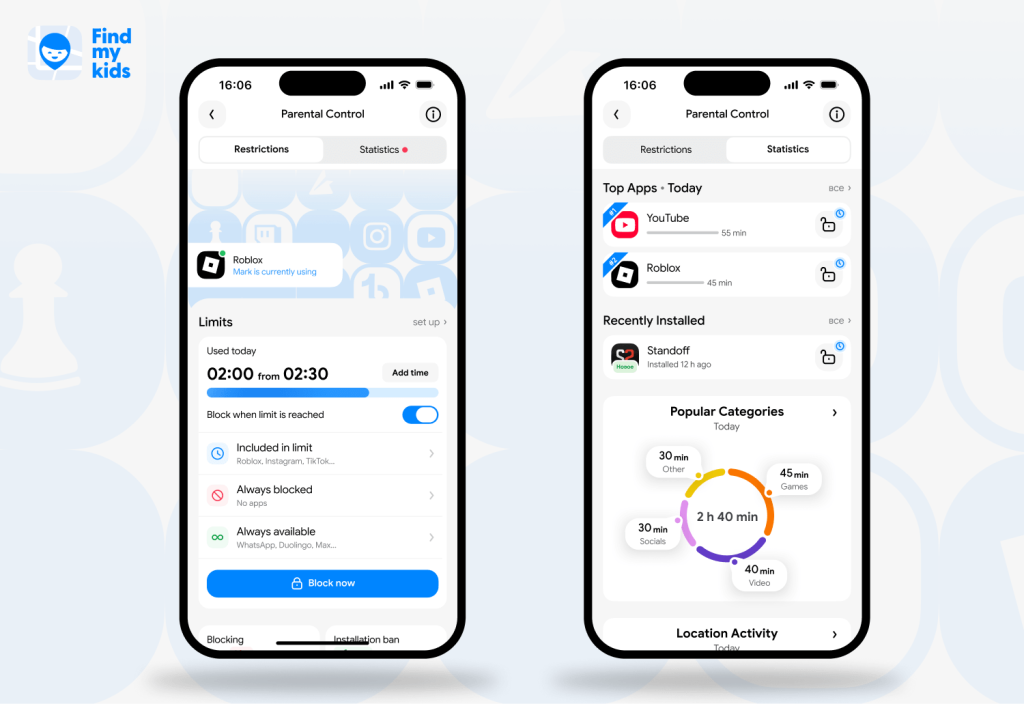
Findmykids also gives parents more control over screen time and app usage. App usage statistics show how much time a child spends in different apps, including daily and weekly screen time, top apps, and activity by location. Parents can also see top app categories the child is using, new installations, nighttime use, and current activity. That provides more context than a single screen time total; you can see where those hours are actually going.
Parents can set daily time limits, automatically block apps when time runs out, or add extra time when needed. Block Now instantly restricts apps, while scheduled blocking can keep specific apps unavailable during school, homework, or bedtime.
You can also permanently block certain apps while marking others Always Available, so essential apps remain accessible even when other restrictions kick in.
Findmykids Content, Download, and Device Protections
Findmykids’ newer parental control features also address what children can access and change on the device. Available controls include:
- 18+ app blocking, which restricts access to apps with an 18+ age rating.
- 18+ website blocking, which can block adult websites on supported iOS setups.
- Blocking new app installations, preventing children from simply downloading another app after restrictions are put in place.
- Blocking in-app purchases on supported iOS devices.
- Uninstall protection, designed to prevent the child app and parental control settings from simply being removed or disabled.
- Protection from unknown callers on Android devices.
- Eye-rest reminders, which encourage children to take breaks during longer periods of screen use.
Not every feature is available on every operating system, so parents should check compatibility for the child’s device before choosing any parental control software. Still, the expanded controls make Findmykids considerably more useful for parents who want both physical-world safety tools and practical screen time management in one parental app.
Findmykids vs. Qustodio
To make the differences easier to see, here’s a side-by-side comparison of the two apps:
| Feature | Findmykids | Qustodio |
| Real-time location tracking | ✅ Yes | ✅ Yes |
| Location history | ✅ Yes | ✅ Yes |
| Place/arrival alerts | ✅ Yes | ✅ Yes |
| SOS functionality | ✅ Yes | ⚠️ Available on supported devices |
| Frequently visited places | ✅ Yes | ⚠️ Limited |
| Place Cards | ✅ Yes | ❌ No |
| Route details | ✅ Yes — routes, distance, stops, transport method, and more | ⚠️ Limited |
| Route playback | ✅ Yes | ❌ No |
| Driving Reports | ✅ Yes — route details, maximum speed, distance, and driving events | ❌ No |
| Sound Around | ✅ Yes | ❌ No |
| Loud signal | ✅ Yes | ❌ No |
| GPS watch support | ✅ Yes | ❌ No |
| App usage statistics | ✅ Yes | ✅ Yes |
| Daily screen time limits | ✅ Yes | ✅ Yes |
| Block specific apps | ✅ Yes | ✅ Yes |
| Scheduled app blocking | ✅ Yes | ✅ Yes/custom routines |
| Always-available apps | ✅ Yes | ⚠️ Rules vary by platform |
| Adult website controls | ✅ Yes | ✅ Yes |
| Social media monitoring | ⚠️ Limited compared with dedicated monitoring services | ✅ Yes, supported services/features |
| Calls/messages monitoring | ⚠️ Safety/call controls vary by device | ✅ Available on supported devices |
| YouTube monitoring | ❌ Not a primary feature | ✅ Yes |
| Web filtering | ✅ Yes | ✅ Yes |
| Child location focus | Extensive | Part of broader parental control suite |
⠀
Qustodio may be a better fit for families focused on web filtering, YouTube, and online communication.
Findmykids makes more sense when location awareness and everyday safety are the starting point, but parents still want app blocking, screen time limits, and other parental control features.
Who Should Choose Findmykids?
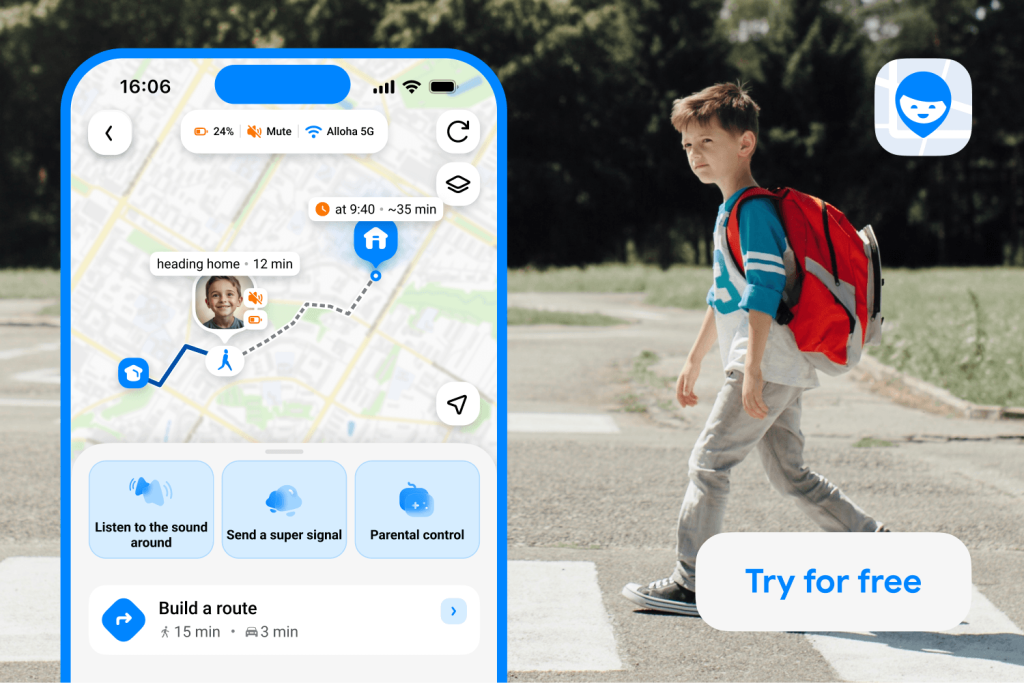
Findmykids is a strong fit for families whose children are becoming more independent—whether they’re walking to school, visiting friends, or getting their first phone. It helps parents stay connected to their children and feel more confident about their safety both online and in the real world. Parents can check their child’s location without constant calls or messages, while screen time limits and app controls help them build healthy digital habits.
Findmykids works across iOS and Android, so it is easy to stay connected even when family members use different types of devices. Family Circles make it possible to keep everyone who cares for the child connected, so parents and other trusted family members can stay informed and share responsibility for their child’s safety. For younger children who aren’t ready for a smartphone, Findmykids also works with GPS watches.
Getting started is quick and straightforward, and 24/7 support is available whenever parents need help. If you want one simple way to stay connected with your child, keep an eye on their location, and support their safety as they become more independent, Findmykids is a practical choice.
Ready to feel more confident about your child’s safety? Try Findmykids right now for free and stay connected wherever their day takes them!
Other Qustodio Alternatives to Consider
Depending on the problem you’re trying to solve, one of these other parental control apps may be a better match.
Kids360 — Best for Building Better Screen Time Habits
App Store
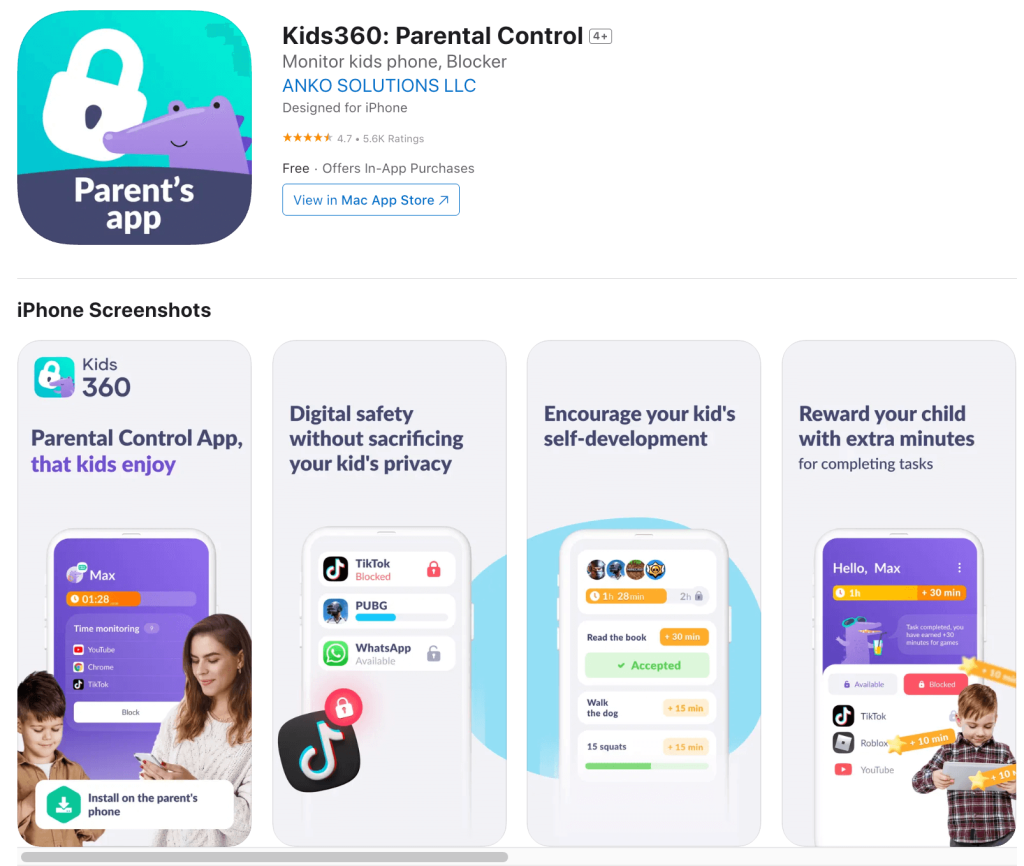
Kids360 focuses on helping families manage screen time. Parents can set app limits, block apps, create study or bedtime schedules, track usage, and use location and internet safety tools.
One standout feature lets children earn extra screen time by completing chores, educational activities, or physical tasks. It gives kids a way to earn those extra 20 minutes instead of turning every request into a negotiation.
- Best for: Families primarily concerned with managing screen time and building healthier device habits.
- Key strengths: App limits, schedules, app blocking, location tracking, web safety features, usage statistics, and task-based screen time rewards.
- Potential limitations: Families looking for extensive monitoring of a child’s text messages or social media platforms may need a different solution.
- Best suited to: Parents who want screen time management to involve the child rather than simply shutting off the child’s device.
Google Family Link — Best Free Parental Control App for Android Families
App Store
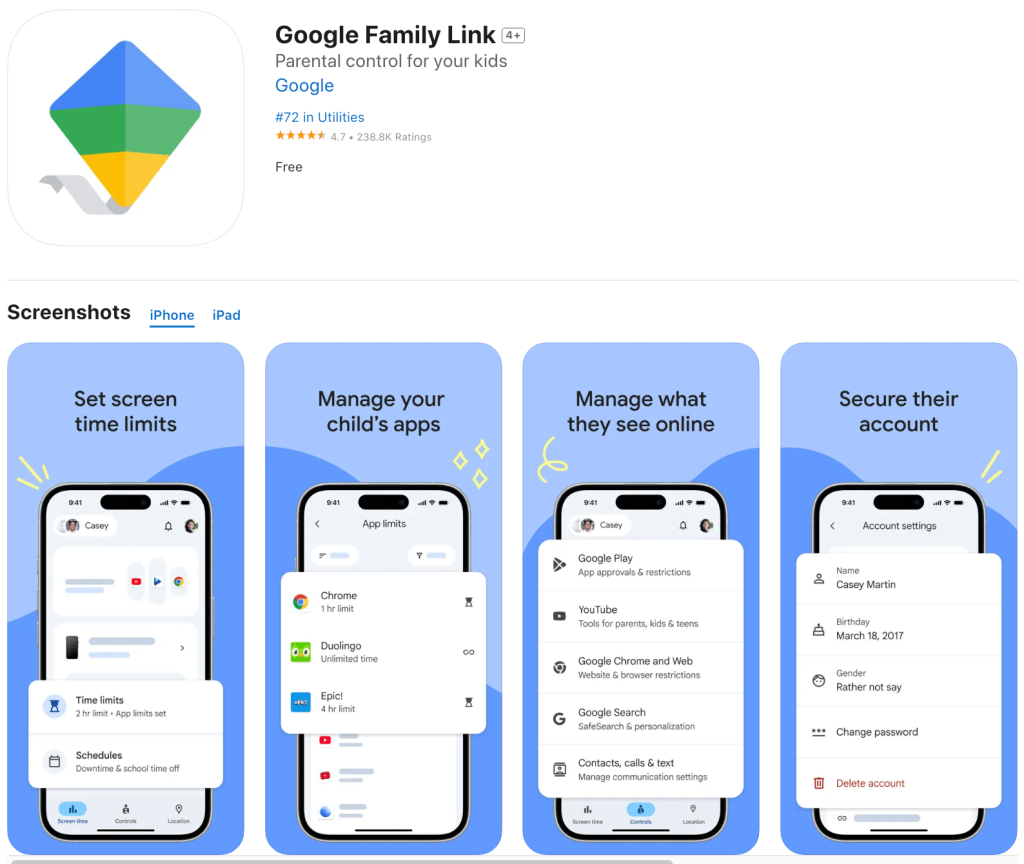
Google Family Link is a strong free option for families using Android devices. Parents can set screen time and app limits, manage Android apps, approve app downloads through Google Play, create schedules, track location, and remotely lock supported devices.
It’s more limited on iPhones and iPads, where features like location tracking, screen time limits, and app blocking don’t work the same way. Family Link also isn’t designed to monitor text messages, emails, or complete browsing history.
- Best for: Basic parental controls in Google-centric households.
- Key strengths: Free, strong Android integration, Google Play controls, app limits, schedules, location, and content settings across Google services.
- Potential limitations: Much less useful for supervising an iPhone, and it doesn’t provide the deeper social media monitoring available from some paid parental control apps.
- Best suited to: Parents whose children primarily use Android phones and Chromebooks and who don’t need advanced monitoring.
Apple Find My — Best for Simple Location Sharing in Apple Families

App Store
If everyone in the family already uses Apple devices and your only real question is “Where are they?”, you may not need dedicated parental control software at all.
For Apple families who mainly want to know where their kids are, Apple Find My may be enough. It provides location sharing, arrival and departure notifications, and help finding missing devices.
It doesn’t offer screen time, app blocking, or content filtering. For those controls, parents can pair it with Apple’s Screen Time.
- Best for: Basic location sharing between Apple devices.
- Key strengths: Built into Apple’s ecosystem, straightforward family location sharing, arrival/departure notifications, and device finding.
- Potential limitations: No standalone screen time management, content filtering, app blocking, or social media monitoring.
- Best suited to: Apple families who mainly want location sharing and are comfortable using Apple’s Screen Time separately for parental controls.
Bark — Best for Social Media and Communication Monitoring
App Store
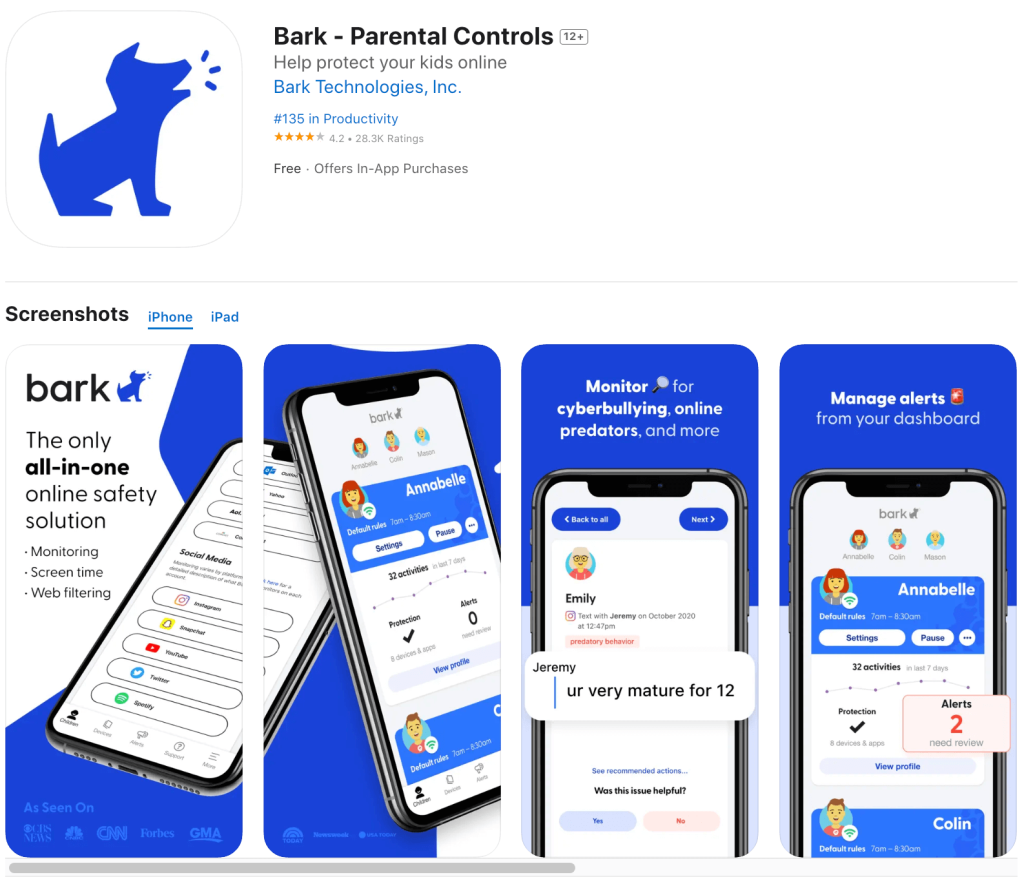
Bark is a more specialized monitoring app focused on detecting potential problems in a child’s online activity. It monitors supported texts, email, web activity, and social media for concerns such as cyberbullying, sexual content, drugs, and online predators, then alerts parents when something may need attention.
Bark Premium also includes location tracking, screen time schedules, and app and website blocking across unlimited devices. Monitoring varies by operating system, particularly on iOS.
It’s a strong choice for families concerned about online communication, but may offer more monitoring than parents who simply want location and screen time controls need.
- Best for: Monitoring potentially concerning digital communication and social media activity.
- Key strengths: Social media monitoring, text and email monitoring, alerts for potential safety concerns, content filtering, location tracking, screen time schedules, and unlimited devices.
- Potential limitations: Higher cost than basic options, and feature availability varies across operating systems, particularly on iOS.
- Best suited to: Families with older children and teens who use multiple social media platforms and communicate extensively online.
Related: Bark Alternatives: Best Parental Control Apps.
Norton Family — Best for Web Supervision and Digital Habits
App Store
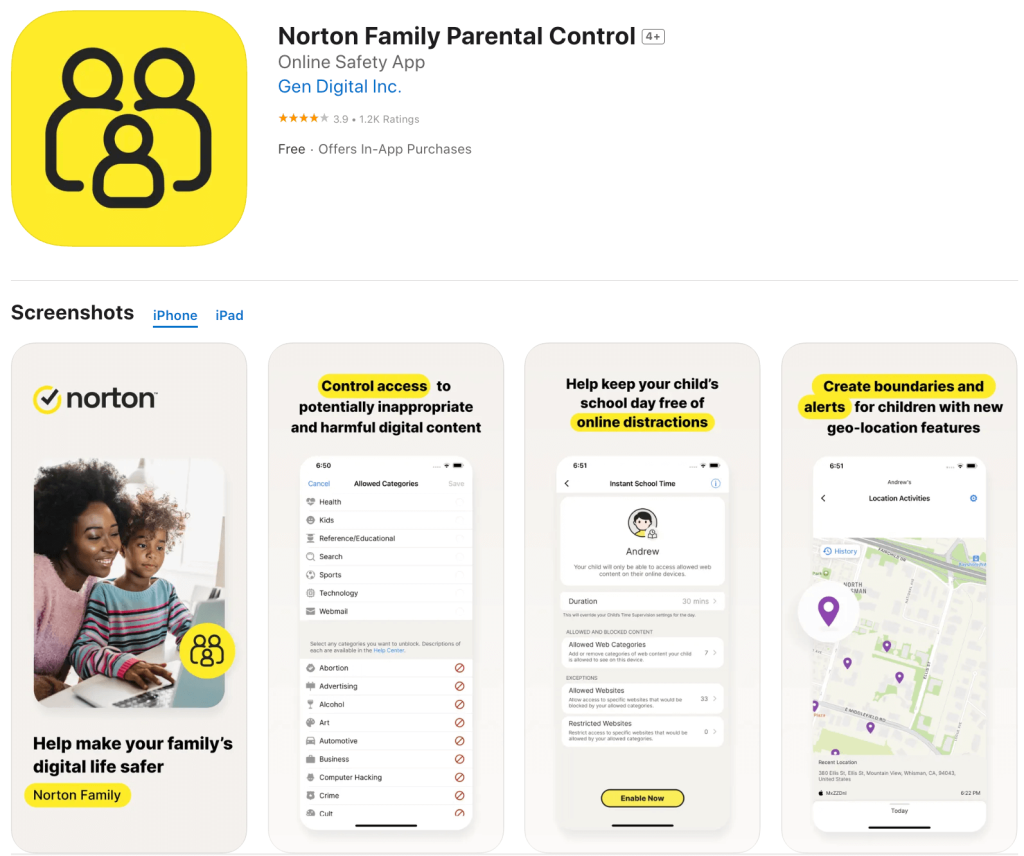
Norton Family focuses on helping parents understand and manage what kids do online. It includes web, search, and video supervision, screen time controls, Instant Lock, School Time, and location tracking.
Parents can review web searches and viewed videos, receive alerts about blocked sites, and set rules for internet access and device use. Location tools also provide history and alerts for selected places.
The main limitation is compatibility: Norton Family doesn’t support Mac as a child device, and available features vary across Windows, Android, and iOS.
- Best for: Families that want conventional web supervision and screen time management.
- Key strengths: Web, search, and video supervision; location features; Instant Lock; School Time; and screen time controls.
- Potential limitations: Platform differences can be significant, particularly for families using Macs.
- Best suited to: Families that want a broad parental control package and already use or are considering other Norton security products.
Which Qustodio Alternative Fits Your Family?
Choosing parental control software becomes much easier when you stop asking, “Which app has the most features?” and start asking, “What problem am I actually trying to solve?”
| If Your Main Concern Is… | Start With… | Why |
| Knowing where your child is | Findmykids | Location tracking, routes, place alerts, SOS and everyday safety tools are central features |
| Helping a child use their phone less | Kids360 | Strong screen time controls plus task-based rewards |
| Getting basic controls without paying | Google Family Link | Free Android screen time, app and Google ecosystem controls |
| Basic family location sharing on iPhone | Apple Find My | Built-in location sharing without another dedicated app |
| Monitoring social media, texts and potential online risks | Bark | Strong social media monitoring and risk alerts |
| Monitoring web searches and browsing habits | Norton Family | Strong web, search, video and device supervision |
| Combining location with growing screen time controls | Findmykids | Balances physical-world safety with app usage and blocking tools |
⠀
Most parental control apps offer some combination of screen time limits, location tracking, and app blocking. What really sets them apart is where they put the emphasis.
An eight-year-old walking to school alone has very different safety needs than a 15-year-old active on multiple social media platforms. The best app is the one built around the problems your family actually needs to solve.
How to Choose the Right Parental Control App for Your Family
Before downloading several parental control apps and turning your child’s phone into a small software experiment, narrow the decision down with a few questions.
1. Start With the Problem
Do you want to know where your child is, what they’re doing online, or how much time they’re spending on their phone? Findmykids is strongest for location, while Kids360 focuses more on online activity, and several apps offer screen time management.
2. Check Device Compatibility
Features can vary considerably between Android and iOS. Before paying, check exactly what the app can do on your child’s device.
3. Consider Your Child’s Age
A younger child may need location tracking and simple app limits, while a teenager may need a different balance of independence, privacy, and online safety. More monitoring isn’t always better.
4. Look Beyond Total Screen Time
Not all screen time is equal. Look for controls that can restrict games or social media while keeping maps, messaging, and school apps available.
5. Choose the Right Level of Monitoring
Web content filtering can block adult websites, while social media monitoring can flag potentially concerning activity. Choose the level that matches your concerns rather than monitoring everything simply because you can.
6. Talk to Your Child
Explain what you’re monitoring and why. Parental controls should help kids gain independence safely, not become a surveillance system they’re determined to outsmart.
Read also How to Negotiate With Your Child About Tracking Their Location?
The Best Parental Control App Is the One That Matches the Problem
The best parental control app isn’t necessarily the one with the longest feature list. It’s the one that addresses what your family actually worries about.
For families focused on everyday safety, Findmykids combines location tracking with practical parental controls. Parents can see where their child is, receive location and SOS alerts, review routes, manage app usage, set time limits, and block apps when needed.
That makes it easier to give kids more independence without losing the connection parents still want.
Ready to give your child more independence while staying connected? Try Findmykids and explore its location and parental control features.
FAQs
What is the best alternative to Qustodio?
Findmykids is a strong alternative to Qustodio for parents who want to combine location tracking, everyday safety, and parental controls in one app. It lets parents see their child’s real-time location, review location history, set safe and dangerous zones, receive arrival and departure alerts, and use features such as Loud Signal and SOS alerts. Findmykids also includes screen time limits and app controls, helping parents manage both their child’s safety in the real world and their digital habits.
Is Findmykids a good alternative to Qustodio?
Yes. Findmykids combines real-time location tracking, place and SOS alerts, app usage statistics, screen time limits, and app blocking. Qustodio may be a better fit for families that prioritize broader web, YouTube, and communication monitoring.
Is Findmykids better than Qustodio for location tracking?
Findmykids puts location and everyday child safety at the center of the experience, with real-time tracking, location history, place alerts, SOS tools, and battery information. Qustodio also offers location features, but Findmykids may be the better fit for families primarily interested in staying connected as kids become more independent.
Sources & References
- Qustodio Parental Control, Qustodio
- Parental Control App That Kids Enjoy, Kids360
- Set App Time Limits on Your Child’s Device, Google for Families Help
- Bark Parental Control App, Bark
- Norton Family, Norton
Проверьте электронный ящик